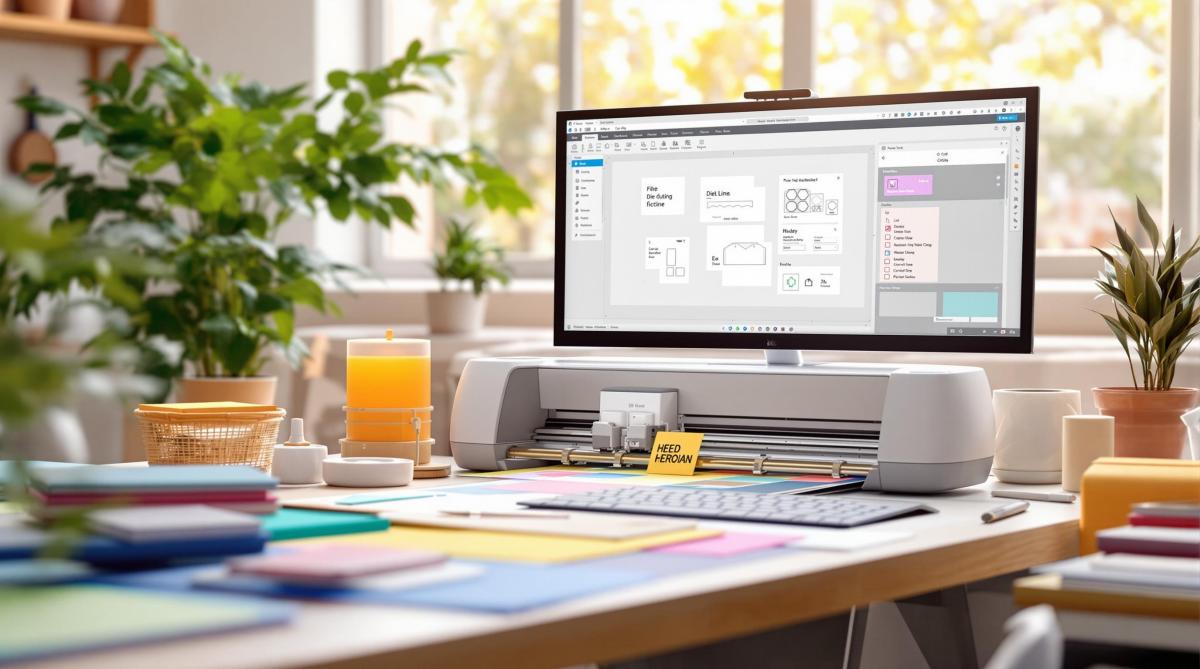
Die-cutting is a process that uses metal dies to cut materials like paper and vinyl into custom shapes. To ensure successful results, your design files must follow specific guidelines. Here’s a quick summary:
- File Format: Use vector-based formats like AI, EPS, or PDF.
- Bleed Area: Add at least 1/8 inch (3mm) beyond the cutline.
- Safety Margins: Keep important elements 5mm inside the cutline.
- Dieline Setup: Use a magenta spot color with a 0.25pt stroke on a separate layer.
- Resolution: Ensure images are at least 300 DPI.
- Color Mode: Use CMYK for printing, with all fonts converted to outlines.
How to Create Die-Cut Files Using Adobe Illustrator
Step 1: Select the Right File Format
Picking the correct file format is key for achieving precise results in die-cutting projects. Vector-based formats are a must because they keep lines sharp, allow scaling without losing quality, and ensure clean cuts in the final product.
Best File Formats for Die-Cutting
Here are the top file formats to consider for die-cutting:
| Format | Primary Use | Key Benefits |
|---|---|---|
| AI (Adobe Illustrator) | Industry standard | Supports layers, easy editing, native vector format |
| PDF (Portable Document Format) | Universal compatibility | Preserves design details, compact file size |
| EPS (Encapsulated PostScript) | Legacy support | Compatible with complex graphics across platforms |
Adobe Illustrator (AI) files are especially useful. They allow you to separate artwork and cut lines into layers, make quick edits, and create die-cut templates with ease[5].
File Format Errors to Avoid
Mistakes with file formats can disrupt your project. Be aware of these common issues:
- Using Raster Formats: Avoid JPEG, PNG, or GIF – they don’t offer the scalability needed for die-cutting[2][6].
- Font Issues: Always convert text to outlines to avoid missing or altered fonts[1].
- Color Mode Problems: Stick to CMYK for accurate colors; RGB can cause mismatches[2].
- Linked Images: Embed all assets to avoid missing files during production[1].
Once you’ve chosen the right file format, the next step is to design a precise dieline, which serves as the cutting guide.
Step 2: Make Your Dieline
A dieline is the cutting guide for your design. You can create it in Adobe Illustrator using the specifications outlined below:
| Element | Specs | Purpose |
|---|---|---|
| Stroke Weight | 0.25pt | Ensures clear visibility without interfering with cutting |
| Cut Lines | Solid lines | Marks where the material will be cut |
| Fold Lines | Dashed lines | Indicates where folds will occur |
| Layer Name | "Dieline" or "CutContour" | Makes it easy to identify during production |
| Color | Magenta spot color | Standard for die-cutting in the industry |
Use the Pen or Shape tools to draw your dieline. For intricate shapes, the Pathfinder tool will help you achieve precise cuts.
Dieline Design Rules
Stick to these rules to avoid common production problems:
- Path Requirements: All paths should be seamless – no gaps or overlaps [2][5][6].
- Layer Organization: Keep your elements well-organized to streamline the production process.
- Special Features: If your project includes additional elements like embossing or windows (as mentioned in Step 1), follow these steps:
- Assign separate layers for each feature.
- Use distinct spot colors (e.g., blue for windows, green for embossing).
- Add clear annotations to explain each element.
Creating a physical mockup can also help you catch structural issues before production.
Once your dieline is ready, the next step is setting up bleed and safety margins to ensure your design stays intact during cutting.
sbb-itb-ce53437
Step 3: Add Bleed and Safety Margins
Adding bleed and safety margins is key to achieving clean and professional die-cut results. These margins account for the ±0.1mm tolerance mentioned earlier, reducing the risk of cutting errors.
Standard Bleed Measurements
Extend background elements 3mm beyond the cutlines for a standard bleed. If you’re working with materials over 300gsm, increase the bleed to 5mm to account for texture variations.
Setting Up the Safety Zone
Using your dieline as a guide, create a "Safety Zone" layer with a 5mm inner boundary. Place all critical elements at least 5mm inside the cutlines to keep them safe during production.
Once you’ve added the bleed and safety margins, you’re ready to prepare your files for production.
Step 4: Submit Your File
Double-check your files carefully before submitting to avoid any production hiccups.
Pre-Submission Checklist
Make sure the dieline is on its own layer, labeled "CutContour"[2], and uses a 100% magenta spot color for easy identification during production.
Here’s a quick checklist to review:
| Element | What to Check |
|---|---|
| Images | Resolution of 300 DPI or higher, embedded only |
| Dieline | Ensure it’s a vector path with no breaks or overlaps |
| File Format | Save as PDF/X-4:2010 standard |
File Export Steps
Follow these PDF export settings:
- Use the PDF/X-4:2010 standard.
- Enable the option for Preserve Illustrator Editing Capabilities.
- Set image compression to Do Not Downsample.
- Choose Press Quality for the overall output.
- Apply the bleed settings you’ve already set up.
- Include trim and registration marks.
For intricate die-cutting projects, especially those with multiple panels or 3D elements, include a low-resolution JPG mockup. This extra step helps the production team confirm complex designs before printing.
If you’re working with shops like Miro Printing & Graphics Inc., using these settings ensures your design is executed exactly as planned.
Optional: Miro Printing & Graphics Inc. Services
If you’re submitting designs to Miro Printing & Graphics Inc., make sure to follow these additional guidelines while keeping all previous setup requirements intact:
| Element | Requirement | Details |
|---|---|---|
| Safety Margin | 0.25 inches (6mm) | Measured from the cut line (1mm larger than standard). |
Miro Printing’s Die-Cutting Services
With over 30 years of expertise in die-cutting [7], Miro Printing provides tailored solutions that align with the file preparation steps mentioned earlier:
| Service | Key Specifications |
|---|---|
| Kiss-cutting | Precision control for top-layer cuts. |
| Perforating | Customizable tear-point spacing. |
| Multi-level Effects | Requires layer-separated design files. |
Their services include:
- Pre-flight checks to ensure your files are ready for production.
- Digital proofs for reviewing your design before printing.
- Production inspections to maintain quality throughout the process.
If you’re working with specialty materials like synthetics, metallics, or recycled stocks, note that safety margins may need adjustments. It’s a good idea to consult with their team during submission to ensure everything aligns perfectly.
Conclusion: Die-Cutting File Setup Checklist
Here’s a handy checklist to make sure your die-cutting files are ready for production:
| Setup Element | Requirement | Common Errors to Check |
|---|---|---|
| File Format | Use vector-based formats like AI, EPS, or PDF [1][2] | Avoid raster formats for dielines |
| Dieline Layer | Place dielines on a separate layer with 0.25 pt thickness [6][7] | Missing layer labels or incorrect line weight |
| Bleed Area | Maintain a minimum of 1/8 inch (3mm) [3][9] | Missing or inconsistent bleed areas |
| Safety Margin | Keep elements 0.25 inches away from the cut line [3] | Designs placed too close to the dieline |
| Color Settings | Use CMYK for artwork and spot color for dielines [4][7] | RGB mode or missing spot colors |
| Typography | Convert all fonts to outlines [8] | Live text or missing font files |
| Resolution | Ensure raster elements are at least 300 DPI [6] | Low-resolution images included |
For more intricate projects that involve Miro Printing & Graphics Inc., keep these additional tips in mind:
- Remove any hidden layers or objects [6].
- Clearly mark the gripper edge for precise alignment [6].
- Package all linked files along with finishing specifications.
While this checklist covers the basics, Miro Printing’s prepress team is available to help with any specialized needs for your project.
Related Blog Posts
- 5 Tips for Perfect Kerning in Print Design
- Ultimate Guide to Personalized Print Design
- How Foil Stamping Works: Step-by-Step Guide
- How Die-Cutting Impacts Waste Reduction
https://app.seobotai.com/banner/banner.js?id=67afdd213823fbac65afd7b6
 BergenCountyPrintersBlogs