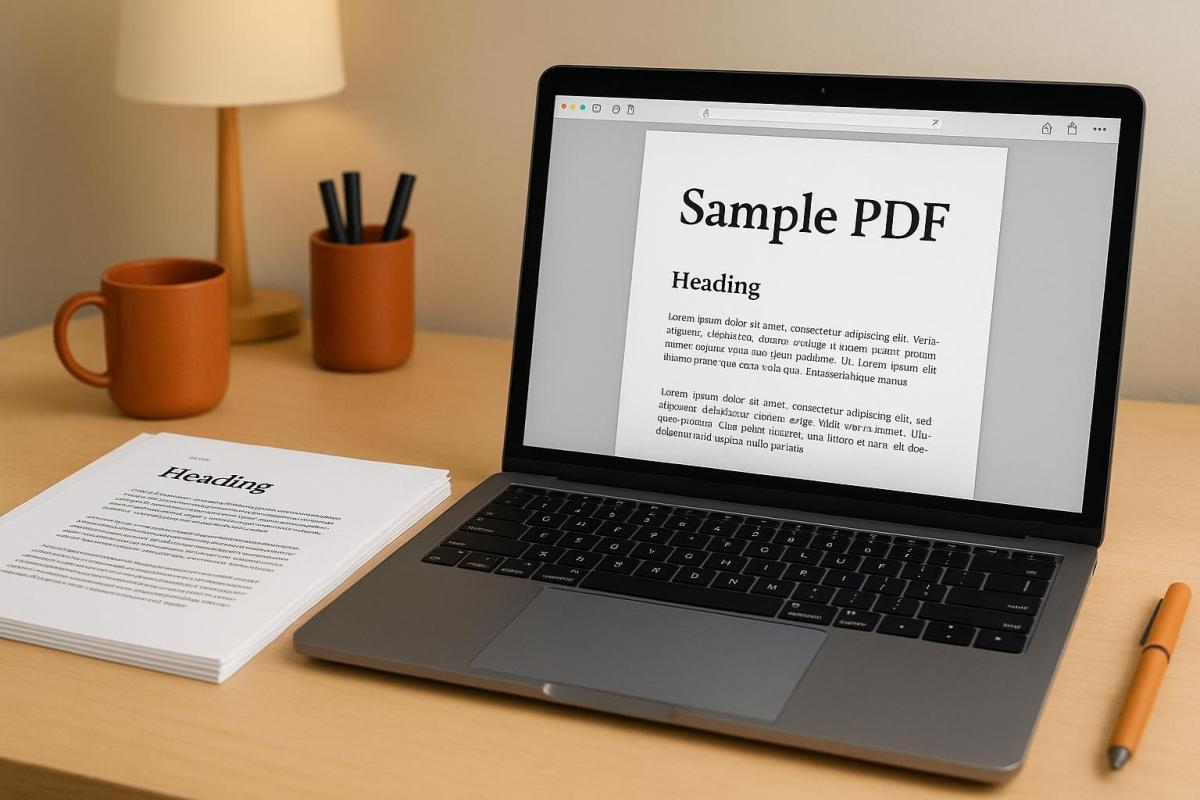
Font embedding ensures your PDF looks exactly as designed, regardless of the device or printer used. Without embedding, fonts may be substituted, causing layout shifts, distorted text, or missing characters. Here’s what you need to know:
-
Why Embed Fonts?
Embedding prevents font substitution, preserves special characters, and ensures consistent design. It’s required for professional printing standards like PDF/X-1a and PDF/X-4. -
Licensing Matters:
Not all fonts can be embedded due to licensing restrictions. If embedding isn’t allowed, convert text to outlines or use alternative fonts. -
How to Embed Fonts:
Tools like Adobe InDesign and Illustrator automatically embed fonts during PDF export. Adjust settings to include all characters by setting the subset threshold to 0%. -
Check Embedded Fonts:
Use Adobe Acrobat Pro to verify fonts are embedded. Look for "(Embedded)" or "(Embedded Subset)" in the document properties. -
Prepare for Printing:
Convert colors to CMYK, add bleed and trim marks, and use high-resolution images (300 PPI) for the best print quality.
Embedding fonts is crucial for professional results and avoids costly printing errors. Follow these steps to ensure your PDFs are print-ready.
How to Embed Fonts in a PDF
Font Embedding Requirements
Creating print-ready PDFs that meet professional standards involves adhering to specific technical and legal guidelines. These requirements ensure U.S. print shops can produce consistent, high-quality results.
Font Licensing and Permissions
Font licensing dictates whether you can legally embed fonts in your PDF files. Not all fonts allow embedding, and ignoring these restrictions can lead to legal issues or production delays.
Most commercial fonts outline their embedding permissions, which are typically classified as "preview and print", "editable", or "installable." For print production, you need at least "preview and print" permissions to embed fonts properly. Without these permissions, software like Adobe InDesign and Illustrator will skip embedding restricted fonts.
Common system fonts and widely used typefaces, such as Helvetica, Times, and Courier, generally allow embedding for print purposes. However, custom or proprietary fonts might have stricter rules. Always confirm that the fonts in your project are licensed for embedding before finalizing your design.
If a font doesn’t permit embedding, you have two options: convert text to outlines or replace it with a font that allows embedding. Converting text to outlines turns the text into vector shapes, removing font dependency but making the text uneditable.
Both legal compliance and adherence to PDF standards are crucial for seamless, professional printing.
File Formats and Prepress Standards
Once you’ve confirmed font licensing, it’s time to follow the technical standards required for commercial printing. PDF/X standards are the industry benchmarks for professional printing, and they include strict font embedding rules. The two most common formats, PDF/X-1a and PDF/X-4, both require proper font embedding to ensure consistent results.
- PDF/X-1a: Demands that all fonts be either embedded or outlined. This makes it a reliable choice for commercial printing since it eliminates the risk of missing fonts.
- PDF/X-4: Provides more flexibility with transparency and color management but still enforces strict font embedding for any text elements.
When exporting PDFs from tools like Adobe InDesign or Illustrator, the software will automatically attempt to embed all referenced fonts. However, ensuring you’ve secured the proper licensing beforehand is your responsibility – don’t rely on the software to catch licensing issues.
Even the base 14 fonts – such as Helvetica, Times, Courier, Symbol, and ITC Zapf Dingbats – are embedded during export from InDesign or Illustrator. This eliminates potential substitution problems on different systems or printers.
Whenever possible, provide print-ready PDFs to the print shop. If native files (like InDesign or Illustrator documents) are required, include all fonts in a compressed folder along with the document files. This ensures the print shop has everything needed for proper font embedding during their prepress workflow.
For critical print projects, set the subset threshold to zero when embedding fonts. This ensures every glyph is included, slightly increasing file size but guaranteeing no characters are left out during production. This approach maximizes compatibility and minimizes issues during printing.
How to Embed Fonts in Adobe InDesign and Illustrator
When using Adobe InDesign or Illustrator, both applications can automatically handle font embedding during PDF export. However, the steps and options differ slightly between the two tools. Here’s a guide to help you navigate the process and ensure your files meet professional print standards.
Embedding Fonts in Adobe InDesign
InDesign provides robust font embedding controls, making it ideal for print production. Here’s how to embed fonts in your PDF:
- Go to File > Export and choose Adobe PDF (Print) as the format.
- In the Export Adobe PDF dialog box, select PDF/X-1a:2001 or PDF/X-4:2010 from the Adobe PDF Preset dropdown menu.
- Navigate to the Advanced panel on the left. Under the Fonts section, you’ll see the option to adjust font embedding settings. To ensure all characters are included, set the Subset fonts when percent of characters used is less than field to 0%. This embeds the full font but may increase file size.
- Review the Fonts panel, which lists all fonts used in your document. Watch for warning icons next to fonts, as these indicate licensing restrictions that prevent embedding. If a font cannot be embedded, you can either replace it with an embeddable font or convert the text to outlines by selecting Type > Create Outlines.
Before finalizing your PDF, check the export summary for any font embedding warnings to ensure everything is properly set up.
Embedding Fonts in Adobe Illustrator
Illustrator simplifies the font embedding process but offers fewer customization options compared to InDesign. Follow these steps:
- Select File > Save As and choose Adobe PDF as the format.
- In the Save Adobe PDF dialog box, pick a PDF/X preset from the Adobe PDF Preset dropdown menu.
- Click on the Fonts panel on the left. Illustrator automatically embeds fonts when using a PDF/X preset, which is optimized for print production.
During export, Illustrator displays the embedding status of your fonts in the Fonts panel. If a font cannot be embedded due to licensing restrictions, you can convert the text to outlines by selecting Type > Create Outlines.
U.S. Settings for Font Embedding
When preparing files for U.S. print standards, it’s important to use the correct measurement units and formatting. Adobe InDesign defaults to measuring type size in points, where one point equals 1/72 of an inch. This aligns with traditional U.S. printing practices.
To ensure your documents meet U.S. specifications, set InDesign’s measurement units to inches. On a Mac, go to InDesign > Preferences > Units & Increments, or on Windows, navigate to Edit > Preferences > Units & Increments. Use standard dimensions like 8.5" × 11" for letter size or 11" × 17" for tabloid size.
While both InDesign and Illustrator embed fonts regardless of regional settings, maintaining consistent U.S. formatting throughout your workflow can help avoid miscommunication with print vendors.
sbb-itb-ce53437
Checking Embedded Fonts in PDFs
Once you’ve exported your PDF, the next step is to confirm that all font data is intact. Verifying that fonts are properly embedded ensures your design stays consistent, especially when it’s time to print.
How to Check Font Embedding Using Adobe Acrobat Pro
Adobe Acrobat Pro provides two simple ways to check if your fonts are embedded:
Using Document Properties
Open your PDF in Adobe Acrobat Pro and go to File > Document Properties (on macOS) or Menu > Document Properties (on Windows). In the Document Properties window, select the Fonts tab. Here, you’ll see a list of all the fonts used in your document. Fonts that are embedded will have (Embedded Subset) or (Embedded) displayed next to their names.
Using Edit PDF Mode
Switch to the Edit PDF mode and click on any text element. Right-click, choose Properties, and check the Font section. This will indicate whether the font is "Embedded" or "Not Embedded".
Commercial Print Project Guidelines
When you’re preparing files for commercial printing, embedding fonts is a crucial step. It ensures your design looks exactly as intended, avoiding delays or expensive reprints.
Why Font Embedding Matters
Embedding fonts keeps your design consistent and true to your original vision, whether you’re printing a small batch of business cards or thousands of brochures. By embedding fonts, all necessary design elements are included in a single file, making it easier for print providers to maintain accuracy. This process not only preserves your brand’s look but also simplifies the printing workflow, reducing the chances of errors. To ensure the best results, combine font embedding with proper print-ready settings.
Tips for Preparing Print-Ready Files
Once you’ve embedded your fonts, finalize your files by following these essential guidelines:
- Add Bleed and Trim Marks: Include a 1/8" bleed and trim marks that align with the final dimensions to avoid unwanted white edges.
- Color Conversion: Convert colors from RGB to CMYK for accurate color reproduction.
- Black Text Settings: Set black text to 100% black for the sharpest results.
- High-Quality Images: Use images with at least 150 PPI; for the best clarity, aim for 300 PPI. Low-resolution images can appear pixelated or blurry in print.
If your printer requires editable files, use the File > Package feature. This will collect all linked assets and fonts, ensuring nothing gets left behind during file transfer.
Collaborating with Full-Service Print Shops
After preparing your file, it’s time to work with a professional print shop. Companies like Miro Printing & Graphics Inc. in Hackensack, NJ, offer prepress services that carefully examine your files for issues like font embedding, color settings, resolution, and bleed requirements. Their expertise helps catch potential problems before printing begins, saving you time and money while delivering high-quality results.
Many full-service print shops also provide in-house design support. This can be invaluable for resolving font embedding challenges or optimizing files for their equipment, especially for complex projects with multiple fonts or intricate designs.
By partnering with an experienced print shop, you gain more than just printing services. These professionals understand U.S. printing standards and can guide you through the file preparation process from start to finish. With capabilities in digital, offset, and large-format printing, they can handle projects of any size while ensuring fonts and other design elements are rendered consistently.
Additionally, full-service providers offer post-press expertise, including binding, cutting, and finishing. Proper font embedding ensures your text remains sharp and clear throughout every stage of production.
Conclusion
Embedding fonts in print PDFs is key to maintaining your design’s look and avoiding costly mistakes caused by font substitution.
Programs like Adobe InDesign and Illustrator simplify this process by embedding fonts automatically during PDF export. To ensure every character is included, adjust the subset threshold to 0% in the Advanced settings. However, always check font licensing. If embedding isn’t allowed, converting text to outlines is an option, but keep in mind this makes the text uneditable and can affect clarity, especially at smaller sizes.
For a polished print result, don’t forget to convert colors from RGB to CMYK, add 1/8" bleed margins, and use high-resolution images at 300 PPI. These steps help ensure your printed piece looks as good as it does on screen.
Partnering with a professional print provider, like Miro Printing & Graphics Inc. in Hackensack, NJ, can make a big difference. Their prepress reviews catch potential issues with fonts, colors, or resolution early, saving you both time and money.
FAQs
What should I know about font licensing when embedding fonts in a PDF, and how can I stay compliant?
When you’re embedding fonts in a PDF, it’s crucial to check the font’s licensing terms. Many fonts come with specific rules about whether you can embed them and any conditions for doing so. Overlooking these terms can lead to serious legal trouble, like copyright violations or even financial penalties.
To avoid these issues, take the time to review the licensing agreement for each font you plan to use. If the license restricts embedding, you’ll need to either get explicit permission or purchase the proper license. Following these guidelines not only keeps you on the right side of the law but also ensures your PDFs maintain a professional quality.
What happens when I convert text to outlines in a PDF, and when should I use this option?
Converting text to outlines in a PDF transforms the text into vector shapes, which makes it both uneditable and unsearchable. This change can also impact text clarity, particularly at smaller sizes or lower resolutions, as it removes font hinting – a feature that ensures sharper, more legible text.
This method should only be used when preserving the exact appearance of the text is absolutely necessary. For instance, it can be helpful in printing scenarios where font compatibility or embedding issues might occur. However, it’s best to avoid this approach for documents that may need to be edited or updated in the future.
What steps should I follow to make my PDF print-ready, including font embedding, color settings, and image quality?
To prepare your PDF for printing like a pro, start by embedding all fonts to prevent any unexpected substitutions during the printing process. Next, switch your color mode to CMYK, which is the go-to standard for professional printing, ensuring your colors appear just as intended. For crisp, clear visuals, make sure all images have a resolution of 300 dpi or higher.
It’s also important to size your images correctly to avoid excessive scaling that could compromise quality. Don’t forget to add a bleed margin of at least 0.125 inches around the edges. This step ensures there are no unwanted white borders after trimming. By following these tips, you’ll set yourself up for a polished and print-ready PDF.
Related posts
- How Typography Impacts Print Design Success
- How Fonts Impact Brand Identity
- How to Choose Fonts for Commercial Printing
- How to Pair Fonts for Professional Printing
https://app.seobotai.com/banner/banner.js?id=68a7b3ace3a7915ec3550aa6
 BergenCountyPrintersBlogs