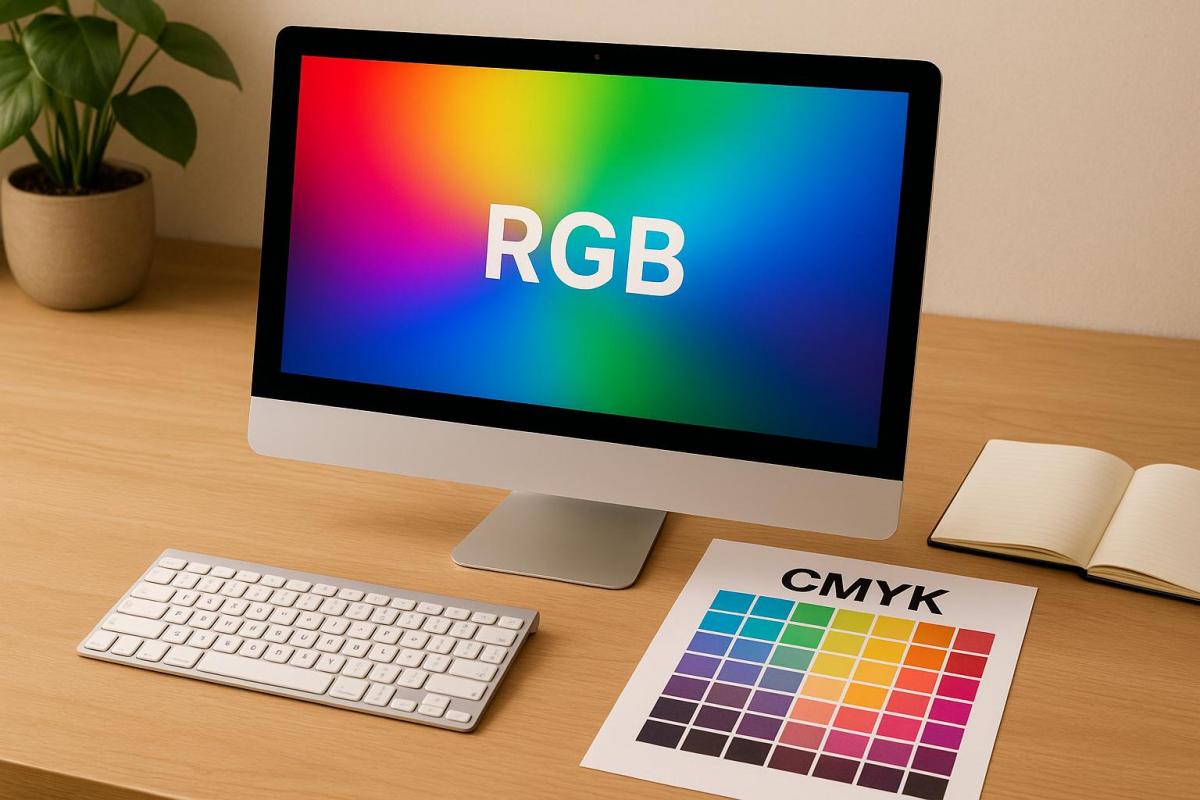
RGB and CMYK are two color models used for different purposes – RGB for digital screens and CMYK for printing. Converting between them is necessary when transitioning designs from digital to print, but it can lead to color shifts and dull tones if not done properly. Here’s what you need to know:
- RGB: Uses red, green, and blue light to create colors. It’s ideal for screens and offers a broader color range (16.7 million colors).
- CMYK: Uses cyan, magenta, yellow, and black inks for printing. It reflects how colors appear on paper and has a smaller color range.
- Key Differences: RGB is brighter and more vibrant, while CMYK is softer and better suited for print consistency.
To avoid issues like muted colors or mismatched tones during conversion:
- Use professional tools like Adobe Photoshop, Illustrator, or InDesign.
- Adjust saturation and brightness before converting.
- Soft proof your designs to preview printed colors.
- Work with professional print services for precise results.
Quick Tip: Start your design in CMYK if it’s intended for print to minimize surprises later. Proper conversion ensures your designs look great on both screens and paper.
How to Convert RGB to CMYK in Photoshop WITHOUT Changing Colors (EASY!)
Why Accurate RGB to CMYK Conversion Matters
Getting the RGB to CMYK conversion right can be the difference between a polished print project and a disappointing mismatch. Errors in this process can derail the quality of your work entirely. Let’s dive into how improper conversions can affect print quality and why CMYK files are a must-have for professional printing.
How Poor Conversion Affects Print Quality
When RGB to CMYK conversion is handled poorly, the results are often glaring. The most common culprits? Color shifts and inconsistencies. For example, that vibrant electric blue in your logo might print as purple, or a bold red could turn into a dull maroon. These shifts can leave your design looking fragmented and unprofessional.
Another issue is muted tones. RGB’s color gamut is broader than CMYK’s, meaning some colors in the RGB spectrum simply can’t be replicated in print. Without careful conversion, these out-of-gamut colors are automatically mapped to the nearest CMYK equivalent, often dulling the vibrancy of your design. The result? A flat, lifeless look that fails to capture attention.
And let’s not forget the potential costs. Imagine printing 5,000 business cards only to find your brand colors are completely off. The entire batch becomes unusable, wasting both time and money.
Why Professional Printing Requires CMYK
To avoid these pitfalls, professional printers rely on CMYK for consistent and predictable results. Unlike RGB, which is optimized for digital screens, CMYK mirrors the physical behavior of ink on paper. Printing presses are specifically designed to use cyan, magenta, yellow, and black inks, making CMYK the natural choice for accurate color reproduction.
Consistency in print is one major advantage of CMYK. Every CMYK value directly corresponds to the exact amount of each ink applied, giving printers precise control over the final output. This level of accuracy ensures your materials look exactly as intended.
Predictable colors are another critical benefit. By working in CMYK from the start, you get a better sense of how your colors will look in print, helping you avoid surprises when the finished product arrives. This foresight allows for smarter design decisions early on, saving you headaches later.
Miro Printing & Graphics Inc. emphasizes the importance of using CMYK files to maintain quality and branding consistency. Whether it’s business cards, brochures, or marketing materials, properly converted files ensure your designs look cohesive and professional.
Another bonus? Streamlined workflows. When you provide files in CMYK, printers can process jobs faster and with fewer adjustments. This means quicker turnarounds and lower costs, helping keep your projects on schedule and within budget.
How to Convert RGB to CMYK
To convert RGB files to CMYK effectively, it’s best to use professional design software. These tools provide the precision and control needed to ensure accurate color reproduction for print.
Converting with Professional Software
Adobe Photoshop: Start by opening your RGB image in Photoshop. Check the color mode under Image > Mode and confirm it’s set to RGB. To convert, go to Edit > Convert to Profile. This method allows you to select a target CMYK profile and rendering intent. For vibrant photos, choose Perceptual. For graphics with specific brand colors, opt for Relative Colorimetric and enable Use Black Point Compensation. Avoid using Image > Mode > CMYK for conversion, as it lacks the customization offered by Convert to Profile. Once converted, save your file as a PSD, TIFF, or PDF with the profile embedded.
"Do NOT use the Image > Mode > CMYK command to convert your image, because that does not offer the degree of control that you have with Convert to Profile, and limits you instead to the target space and conversion controls set in the application’s Color Settings, which may not be appropriate for your purposes."
Adobe Illustrator: Open your document and select File > Document Color Mode to switch from RGB to CMYK for the entire file. Use View > Overprint Preview to check how colors will appear when printed. This step is particularly useful for identifying and adjusting any color shifts in your artwork.
Adobe InDesign: Navigate to Edit > Convert to Profile to change the document’s color space. For linked RGB images, use the Links panel to open and edit them in Photoshop for conversion. According to design expert Lukas Engqvist, InDesign’s conversion process provides consistent results and allows for last-minute adjustments to the CMYK profile.
Each tool has its strengths, and the table below highlights how they differ:
Conversion Methods Comparison Table
| Method | Color Accuracy | Control Level | File Quality | Ideal Uses |
|---|---|---|---|---|
| Adobe Photoshop | Excellent | High | Maintains original quality | Photos and detailed images |
| Adobe Illustrator | Excellent | High | Preserves vector precision | Logos, graphics, and illustrations |
| Adobe InDesign | Excellent | Highest | Consistent multi-element quality | Brochures, magazines, and complex layouts |
Using professional software ensures precise color conversion and optimal print results. For example, when working with Miro Printing & Graphics Inc., submitting files converted through these tools speeds up processing, reduces revisions, and ensures a smoother workflow.
To avoid costly reprints, soft proofing is essential. In Adobe applications, use View > Proof Colors to preview how your design will look in print. This step helps catch potential issues early, saving time and money.
sbb-itb-ce53437
Best Practices for Color Conversion
To maintain consistency when converting RGB to CMYK, it’s important to follow a reliable workflow. This involves using key color management tools like ICC color profiles and soft proofing. Here’s how these methods work together to help maintain color accuracy in your prints.
Soft Proofing and Color Profiles
ICC color profiles are essential for standardizing a device’s color range and temperature. Think of them as a guide that helps your color management system translate RGB to CMYK in a way that stays true to the original colors. These profiles ensure that RGB colors are mapped to CMYK as accurately as possible.
Soft proofing, on the other hand, is like a sneak peek at your printed output. It gives you the chance to spot any color discrepancies before committing to the final print.
Fixing Common RGB to CMYK Problems
When converting from RGB to CMYK, color issues can creep in, but there are ways to address them effectively. Let’s look at some common problems and how to fix them.
Fixing Color Shifts and Dull Colors
One of the biggest challenges is how vibrant colors can lose their punch during conversion. This happens because CMYK simply can’t replicate the bright blues, greens, and reds that shine on RGB screens. To tackle this, adjust saturation and brightness in your design software before converting.
Here’s a quick tip: bump up saturation by 10-15% for colors prone to dulling. This gives you a bit of a cushion to counteract the loss of vibrancy.
For specific colors, try these tweaks:
- Bright blues: Add more cyan and reduce black.
- Vivid greens: Increase yellow while keeping cyan high.
- Rich reds: Boost magenta, add yellow, and lower black.
When it comes to skin tones, subtlety is key. If faces come out looking too pink or yellow, dial back the magenta slightly and fine-tune the yellow. Keep cyan levels low to maintain a natural look.
Grays can also be tricky. They often end up with unwanted color casts after conversion. To fix this, rely mostly on black ink with just a touch of cyan. Avoid using equal amounts of cyan, magenta, and yellow, which can muddy the results.
If these manual adjustments don’t quite get you there, it might be time to call in the experts.
Working with Professional Print Services
Sometimes, no matter how much tweaking you do, the colors just won’t cooperate. For high-stakes projects – like marketing materials or product packaging – professional print services can make all the difference.
Take Miro Printing & Graphics Inc., for example. They specialize in digital printing, offset printing, and large format printing, ensuring consistent colors across various methods. Their calibrated equipment and industry-standard color profiles can handle even the toughest conversions.
Here’s when you should consider professional help:
- When exact color matching is critical (think brand colors).
- For large print runs where consistency matters.
- If you’re using specialty papers or finishes that affect color.
- When gradients or complex blends shift unpredictably.
Another benefit? Professional print shops can provide proof prints before going into full production. These proofs let you see exactly how your colors will look on the final paper stock, under real-world conditions. If something’s off, you can request adjustments before committing to the entire run.
Clear communication is essential when working with print professionals. Share your original RGB files and highlight which colors are most important to preserve. Be specific about your expectations, and ask for samples of similar projects they’ve done to ensure you’re on the same page.
RGB to CMYK Conversion Summary
As we’ve covered earlier, knowing the differences between RGB and CMYK is essential for managing color shifts effectively. Converting from RGB to CMYK can be simple if you take the right steps.
Color shifts are unavoidable – those vibrant colors you see on a screen can’t always be perfectly matched with printing inks. Anticipating this early on can save you a lot of headaches later. The key lies in using precise conversion techniques.
Professional design software like Adobe Photoshop or Illustrator is your best bet for accurate results. Unlike free online tools, these programs give you control over color profiles and allow for manual tweaks when automatic conversions don’t quite hit the mark.
Soft proofing is another valuable tool. It lets you preview how your RGB colors will appear in CMYK while you’re still working, so you can make adjustments before finalizing your design.
Final Tips for Better Color Conversion
- Start your projects in CMYK if you know they’ll be printed. This approach eliminates surprises and ensures your colors align with the final output.
- Calibrate your monitor regularly – ideally once a month – to maintain accurate color representation.
- For complex projects, consider using professional print services like Miro Printing & Graphics Inc.. They specialize in digital printing, offset printing, and large format printing, using calibrated equipment to handle tricky color conversions with precision.
- Always keep your original RGB files. This ensures you have the flexibility to make adjustments or repurpose your design for digital use later.
- Communicate openly with your print provider. Discuss specific color concerns, provide reference materials, and request proofs before committing to large print runs. Clear communication upfront can save you from costly mistakes down the line.
FAQs
What challenges can arise when converting RGB designs to CMYK for printing, and how can they be resolved?
When preparing RGB designs for printing, one of the biggest hurdles is color shifting. This happens because the vibrant hues of RGB often lose their intensity or look different when converted to CMYK, which has a more limited color range. The result? Your design might not look the way you expected once it’s printed.
To minimize this issue, start by working with a calibrated color profile tailored to the specific printing process you’ll be using. When it’s time to convert, rely on professional design software with tools like ‘Convert to Profile’ to maintain as much accuracy as possible. Better yet, consider designing directly in CMYK mode from the outset to avoid any surprises later. Keep in mind, though, that some RGB colors simply can’t be replicated in CMYK. The best approach is to adjust your color palette early and stick to shades that fall within the CMYK gamut for a smoother transition.
Why should I design in CMYK if my project will be printed, and what are the advantages?
When creating designs for print, starting in CMYK is essential to ensure accurate and consistent color reproduction. Unlike RGB, which is optimized for digital screens, CMYK is specifically designed for printing. It uses four ink colors – cyan, magenta, yellow, and black – to produce the final output. By designing directly in CMYK, you minimize the risk of unexpected color changes that often occur when converting from RGB.
This approach not only guarantees better color accuracy but also ensures your printed materials appear vibrant and polished. Plus, it helps maintain brand consistency and reduces the need for time-consuming adjustments later in the process. The result? A smoother workflow and professional-quality prints.
Why is professional design software like Adobe Photoshop or Illustrator better for converting RGB to CMYK than free online tools?
Professional design tools like Adobe Photoshop or Illustrator excel in handling RGB to CMYK conversions because they come equipped with advanced color management systems and customizable color profiles. These features let you adjust colors precisely to match specific printer settings, ensuring your printed materials closely resemble your digital designs.
On the other hand, free online converters often use generic color conversion methods. They don’t consider printer-specific profiles or the full color range (gamut) used in professional printing. This can lead to inconsistent or unexpected results in your final prints. For the most accurate color reproduction, rely on professional software and collaborate with a trusted print shop, such as Miro Printing & Graphics Inc..
Related Blog Posts
- How to Adjust Colors for Offset Printing
- CMYK vs RGB: Printing Color Models
- Prepress Checklist for Print-Ready Files
- Common CMYK Color Issues in Printing
https://app.seobotai.com/banner/banner.js?id=68ed7ee8d96b3d41f69dcb57
 BergenCountyPrintersBlogs