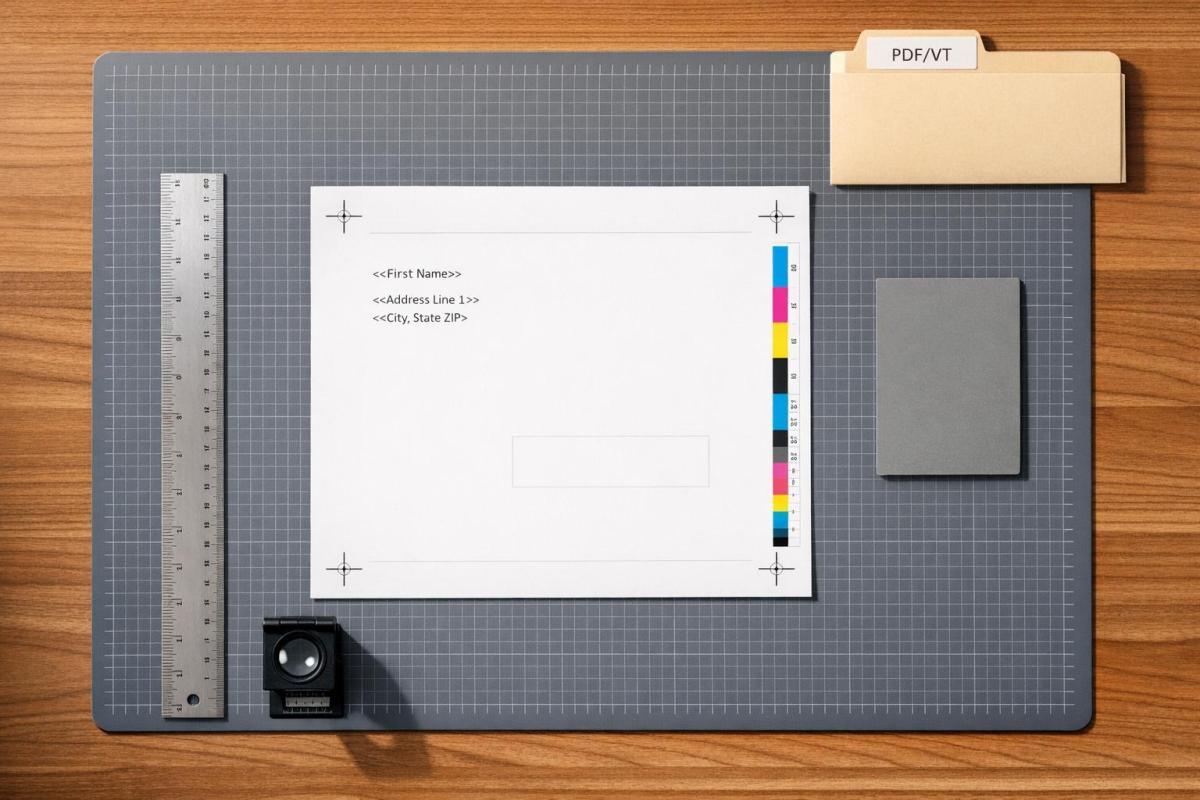
Variable Data Printing (VDP) allows businesses to create personalized printed materials at scale, like customized mailers or invoices. But preparing files for VDP is critical – poor preparation can slow down production and increase costs. Here’s what you need to know:
- VDP Basics: Combines static elements (logos, backgrounds) with variable data (names, offers) for tailored prints.
- File Formats: PDF/VT is the preferred format for its efficiency and ability to cache static data.
- Key Practices:
- Embed fonts once to avoid redundancy.
- Optimize images (150–200 dpi) and avoid transparency issues.
- Use ICC profiles for consistent color management.
- Data Prep: Clean and organize data, match headers to placeholders, and test for text overflow.
- Prepress Checks: Ensure proper file structure, metadata, and proofing to catch errors early.
Proper file prep ensures efficient production, high-quality output, and reduced delays. The right approach can make all the difference in a seamless VDP workflow.
How to use CorelDRAW’s Variable Data Printing (VDP) | Step-by-step tutorial

sbb-itb-ce53437
Variable Data Printing and File Prep Basics
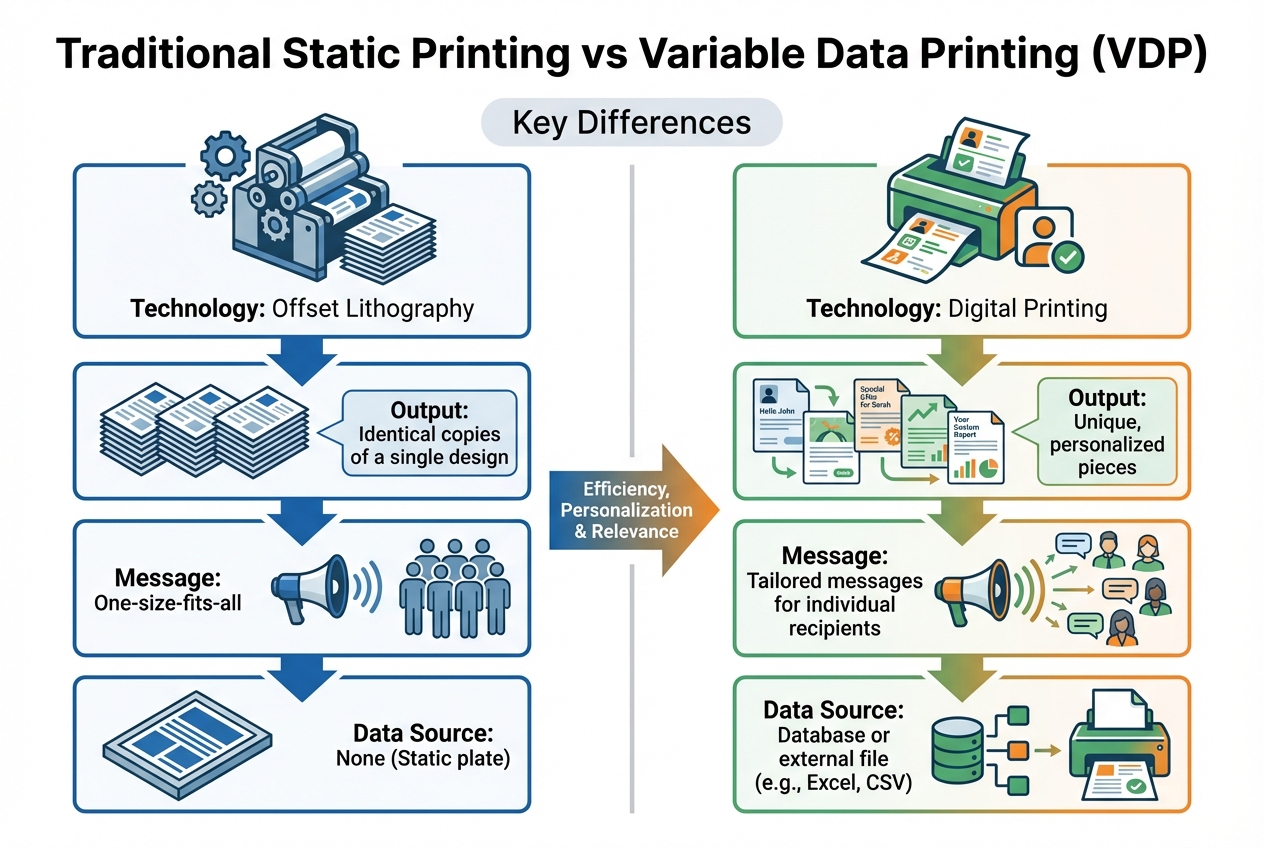
Traditional Static Printing vs Variable Data Printing Comparison
This section dives deeper into the essentials of Variable Data Printing (VDP) and highlights why proper file preparation is critical for success.
What is Variable Data Printing?
Variable Data Printing (VDP) is a digital printing technique that allows elements like text, images, and graphics to change from one printed piece to the next without slowing down production. Unlike traditional offset printing – which creates identical copies using a single plate – VDP enables mass customization, producing unique pieces at scale.
VDP combines static content, like logos or backgrounds, with variable fields pulled from a database. This makes it possible to personalize each printed piece with unique messages. The term "Variable Data Printing" was first introduced by Frank Romano at the Rochester Institute of Technology. VDP operates on three levels:
- Basic VDP: Simple changes, such as personalizing names or salutations.
- Versioning: Tailored content for specific market segments.
- Full Variability: Completely unique content for every recipient.
To better understand the distinction between traditional static printing and VDP, here’s a quick comparison:
| Feature | Traditional Static Printing | Variable Data Printing (VDP) |
|---|---|---|
| Technology | Offset Lithography | Digital Printing |
| Output | Identical copies of a single design | Unique, personalized pieces |
| Message | One-size-fits-all | Tailored messages for individual recipients |
| Data Source | None (Static plate) | Database or external file (e.g., Excel, CSV) |
Grasping these fundamentals is key to understanding the role of file preparation in ensuring efficient VDP workflows.
Why File Preparation Standards Matter
The success of VDP hinges on precise file preparation, which directly affects production speed, costs, and print quality. For example, a digital press printing at 180 pages per minute gives the RIP (Raster Image Processor) only 0.33 seconds to process each page. If files are not optimized, the RIP slows down, causing idle machine time. On a 10,000-page job, even a 0.5-second delay per page can result in an additional 90 minutes of production time.
Optimized files enable the RIP to process static elements once and reuse them, a technique known as caching. This reduces the workload and ensures smooth production. However, poorly prepared files can disrupt caching, leading to inefficiencies. Dietrich von Seggern from callas software GmbH underscores the importance of proper file prep:
"If the press has to wait for the data to be prepared, the job will naturally take longer… the agreed price for the job may no longer be economical".
The takeaway? Designers and developers can significantly influence RIP performance – even without altering the final printed result. Proper file preparation isn’t just a technical step; it’s the backbone of a successful VDP project.
File Formats and Standards for Variable Data Printing
When it comes to variable data printing (VDP), choosing the right file format is just as important as preparing your files correctly. The format you select can significantly impact the efficiency of your workflow. It determines whether the Digital Front End (DFE) can cache static elements or if it has to reprocess every page individually. The right choice ensures smoother workflows and minimizes delays in prepress.
PDF/VT: The Go-To Standard
PDF/VT (ISO 16612) has been the cornerstone of VDP since its introduction in 2010. It builds on the reliability of PDF/X workflows, tailoring them for variable and transactional printing. What sets PDF/VT apart is its use of "DPart" metadata, which helps the DFE distinguish between static and variable elements. This distinction allows for more efficient processing by caching reusable content. As Dietrich von Seggern from callas software GmbH puts it:
"If the DFE is able to distinguish between this variable and static data, it can cache all the static ones and thus store them temporarily for the next page. The DFE then only has to calculate the variable data for each page, which is much faster".
PDF/VT comes in several versions to suit different needs:
- PDF/VT-1: A self-contained file that embeds all layout and variable data.
- PDF/VT-2: Allows the main file to reference external PDF objects, ideal for managing large datasets.
- PDF/VT-3: Introduced in November 2020 (ISO 16612-3:2020), this version is based on PDF 2.0 and PDF/X-6. It supports advanced features like improved transparency handling and device-independent color management.
The standard also ensures consistency by requiring all fonts to be embedded. It supports modern graphics capabilities, including transparency, layers, and ICC profile-based color management, making it a robust option for today’s workflows.
Although PDF/VT dominates modern VDP, some older formats still linger in specific applications.
Other File Formats
While PDF/VT is the preferred choice, legacy formats like PPML and AFP/IPDS still serve niche purposes.
- PPML (Personalized Print Markup Language): Once popular, this XML-based language is now mostly considered outdated and often tied to specific vendors.
- AFP/IPDS (Advanced Function Presentation): Still a standard in high-volume transactional printing, but its limitations make it less suitable for complex designs.
On the other hand, standard PDF and PostScript, while widely used, lack the metadata needed for efficient VDP workflows. Without this, the DFE has to process more data for each page, slowing down production. PostScript, in particular, struggles with modern requirements like transparency, making it less practical for today’s needs. As Martin Bailey, Former Distinguished Technologist at Global Graphics Software, aptly notes:
"The only thing more important than speed is quality; the only thing more important than quality is cost; and the only thing more important than cost is speed".
For most commercial VDP projects, PDF/VT strikes the ideal balance between speed, quality, and compatibility, making it the preferred format for modern printing systems.
Managing Fonts, Images, and Color Settings
When it comes to ensuring smooth and efficient Variable Data Printing (VDP), managing fonts, images, and colors is just as important as choosing the right file format and preparing your data. These elements directly influence processing speed and print quality. A well-prepared file allows the Digital Front End (DFE) to handle these components seamlessly, boosting overall performance. Below are some key practices to help you optimize fonts, images, and colors in your VDP files.
Font Management Best Practices
One of the most effective ways to streamline font handling is to embed all fonts and limit each font to a single subset for the entire PDF file. Many designers unknowingly create separate subsets for each page, forcing the DFE to process the same font repeatedly. This redundancy slows down production. By using one subset per font, the DFE can cache and reuse fonts across multiple pages. Dietrich von Seggern from callas software GmbH emphasizes this point:
"It is therefore recommended to use only one subset per font for the entire PDF file".
Image Handling and Optimization
Images are a cornerstone of VDP workflows, and how they’re managed can make or break your file’s performance. Here’s how to handle images efficiently:
- Embed repeating images like logos or backgrounds only once using XObjects. This allows the DFE to cache these elements rather than recalculating them for every page.
- Stick to a resolution of 150–200 dpi. Higher resolutions unnecessarily inflate file sizes without improving print quality.
- Crop and scale images to their final size in an image editing program before placing them in your layout. Cropping within software like InDesign can leave hidden pixels in the output file, increasing file size.
- For personalized images, break them into a static background and a smaller variable overlay. This reduces the data processed for each record.
- Avoid transparency overlays between static and variable elements. For example, if a variable text box with a drop shadow is placed over a static image, the DFE may need to flatten the combination for every unique record, creating large bitmap files. Instead, use clipping paths with formats like EPS or JPG rather than relying on PNGs with alpha transparency.
Color Settings for Consistency
Consistent color management starts with the right ICC profiles and output intents. ICC v4 profiles or later, compliant with ISO 15076-1, are recommended for accurate color reproduction.
Each PDF/VT file must include an output intent, which defines the intended printing conditions. This can be achieved through an embedded or referenced ICC color profile or an output condition identifier like FOGRA27.
- Use 8-bit images for better compatibility. While 16-bit images are supported in PDF/VT, they can cause issues with some RIPs and are rarely necessary.
- Select the appropriate transparency blending color space to avoid unexpected color shifts. This is especially important in digital print environments, where overprint rules may differ.
Quick Reference Table
| Element | Best Practice | Performance Impact |
|---|---|---|
| Font Subsetting | Use one subset for the entire file | Enables DFE caching |
| Image Embedding | Embed repeating images once as XObjects | Reduces file size and RIP time |
| Image Resolution | 150–200 dpi for digital/VDP | Optimizes processing speed |
| Transparency | Avoid overlays between static and variable data | Prevents caching issues |
| Color Profiles | Use ICC v4 or later | Ensures color consistency |
Data Preparation and Organization
Getting your data ready for Variable Data Printing (VDP) means organizing it in a way that ensures smooth, error-free processing by both design software and printing equipment. A well-structured dataset not only helps avoid delays but also improves the quality of the final print.
Data Cleansing and Formatting
Start by making sure your data headers match the placeholders in your design template exactly. For instance, if your template uses a field called "first_name", your spreadsheet column must also be named "first_name" – not "First Name" or "firstname."
Stick to simple naming conventions. Use only letters, numbers, and underscores, and keep header names to 13 characters or fewer. Avoid special characters like equals signs, plus symbols, or periods, as these can lead to import errors. For example, instead of "Customer.Address", write "customer_address."
Pay attention to case formatting. For envelope windows, use ALL CAPS to meet postal standards. For letter salutations, use mixed case to maintain a more personal tone. You may need to create separate columns, such as one for "ADDRESS_LINE1" (all caps) and another for "Greeting_Name" (mixed case).
When working with variable images, ensure your data field contains the exact file name for each image. Store all images in a single folder without subfolders. To avoid scaling issues, make sure all images for the same position have identical dimensions. Additionally, test the longest text strings in your dataset to prevent overflow issues during printing.
Finally, save your cleaned database as either a CSV (Comma Separated Values) or TSV (Tab Delimited) file. These formats are widely compatible with VDP software and help prevent production hiccups.
Once your data is prepared, the next step is to structure your PDF/VT file correctly for efficient printing.
File Organization and Metadata
After cleaning your data, organizing your files effectively is key to speeding up processing. Keep static and variable content separate in your file structure. Place static elements before variable ones to enable the Digital Front End (DFE) to cache static content for reuse across pages. As Dietrich von Seggern of callas software GmbH explains:
"If the DFE is able to distinguish between this variable and static data, it can cache all the static ones and thus store them temporarily for the next page. The DFE then only has to calculate the variable data for each page, which is much faster".
Using DPart (Document Part) metadata is another important step. This metadata defines record boundaries, allowing the DFE to cache static content and process variable elements more quickly. For example, if you’re printing 4-page brochures personalized for different recipients, DPart metadata ensures that pages 1-4 are linked to recipient A, pages 5-8 to recipient B, and so on. This organization is critical for maintaining production speeds, especially when printing systems process up to 180 pages per minute – leaving just a fraction of a second to handle each unique page.
To make things easier for your printing team, place each dynamic element on its own clearly labeled layer in your design template. For instance, name a layer "Variable Data – Promo Code" so it’s easy to identify during preflight checks and troubleshooting.
| Data Preparation Step | Action Required | Why It Matters |
|---|---|---|
| Header Naming | Use letters, numbers, underscores; keep under 13 characters | Avoids import errors in prepress software |
| Case Formatting | ALL CAPS for envelopes; mixed case for letters | Ensures postal compliance and polished presentation |
| Image Referencing | Use exact file names; store all images in one folder | Ensures the RIP can correctly locate and place images |
| File Export | Save as CSV or TSV | Ensures compatibility with VDP software |
| Layout Testing | Test longest text strings | Prevents text overflow and formatting problems |
Prepress Workflow and Quality Control
Once your data is prepared, the prepress workflow ensures your VDP (Variable Data Printing) file aligns with industry standards. This step is all about catching potential issues that could disrupt your print run or impact quality. As Martin Bailey, Distinguished Technologist at Global Graphics Software, explains:
"The main aim… is to provide practical recommendations that help ensure that VDP jobs don’t slow down the print production workflow, without affecting the visual appearance."
Preflight Checklist for VDP Files
Start by embedding all fonts as a single subset. Double-check that your file includes correct box definitions – MediaBox, TrimBox, and BleedBox settings need to be properly configured.
Ensure your file has an output intent, either through an embedded ICC color profile or a text-based identifier like FOGRA27. Remove hidden objects to eliminate unnecessary processing.
Pay close attention to transparency. Overlapping static and variable data can force individual page flattening, which slows processing times. Dietrich von Seggern of callas software GmbH highlights this issue:
"When a static XObject interacts with variable content on the same page through transparency and overprinting, it can no longer be cached in a meaningful way because it does not always look the same."
Organize your file so static content appears before variable content, and avoid overlapping these elements. For repeated images, embed them only once and remove any masked pixels to reduce processing demands.
Proofing and Error Detection
This phase ensures your file is fully optimized for printing. After completing preflight checks, proof each record to catch any lingering issues. Use your design software’s preview function to review multiple records, focusing on potential problems like text overflow or rewrap issues caused by longer variable strings. Testing the longest entries in your dataset can help you identify and fix these problems before production begins.
The stakes are high when it comes to VDP jobs. For example, when a press is producing three pages per second, the DFE (Digital Front End) has only one-third of a second to prepare each unique page. Even a 0.1-second delay per page on a one-million-page job can add 24 hours to the processing time. Similarly, a 0.5-second delay per page on a 10,000-page job adds 90 minutes to the schedule.
For larger jobs, splitting them into batches can save time. This approach allows printing to begin on the first batch while subsequent records are still being processed. Additionally, set image resolution to the minimum required for quality – typically 150–200 dpi for digital printing. Higher resolutions rarely improve visible quality but can significantly increase file size and slow down RIP (Raster Image Processor) performance.
Conclusion
Precise file preparation is the cornerstone of successful variable data printing. When files are well-prepared, the Digital Front End can maximize efficiency by caching static elements and focusing only on the variable data for each page. On the other hand, poorly optimized PDFs can slow down the RIP process, even if the printed output remains unaffected.
Dietrich von Seggern from callas software GmbH highlights this challenge:
"If the press has to wait for the data to be prepared, the job will naturally take longer… the agreed price for the job may no longer be economical".
To avoid these pitfalls, there are a few critical practices to follow: use PDF/VT for better caching, separate static and variable content, embed fonts and images only once, and handle transparency carefully to maintain performance. These principles underscore the importance of structuring files correctly, as outlined earlier.
Martin Bailey, Former Distinguished Technologist at Global Graphics Software, perfectly captures the balance required in variable data printing:
"The only thing more important than speed is quality; the only thing more important than quality is cost; and the only thing more important than cost is speed".
FAQs
When should I use PDF/VT-1 vs PDF/VT-2 vs PDF/VT-3?
For dependable variable data document exchange, PDF/VT-1 is a solid choice. It ensures transparency and supports ICC profiles, making it perfect for workflows involving desktop systems and digital presses. If you’re looking for enhanced options tailored to transactional printing, PDF/VT-2 is the way to go. Meanwhile, PDF/VT-3, built on the PDF 2.0 standard, introduces advanced features like document structure and metadata, making it a great fit for handling high-volume transactional outputs.
How do I keep transparency from slowing down a VDP print job?
To keep a variable data printing (VDP) job running smoothly without delays caused by transparency, it’s a good idea to flatten transparent objects or minimize the use of transparency effects during file setup. Opt for output formats like PDF/X-4 or PDF/VT. These formats are specifically designed for high-speed printing workflows and handle transparency more effectively.
What’s the safest way to link variable images from a CSV or TSV?
To link variable images from a CSV or TSV file without issues, include only the precise file names in your data fields. Make sure all image files are stored in a single folder – don’t use subfolders. This approach helps minimize errors and ensures the images link correctly during variable data printing.
Related Blog Posts
- Image Resolution Standards for Offset Printing
- How to Prepare Vector Files for Print
- Checklist: Preparing Raster and Vector Files for Prepress
- How to Embed Fonts in Print PDFs
https://app.seobotai.com/banner/banner.js?id=6996558defc60cc2af0824f3
 BergenCountyPrintersBlogs