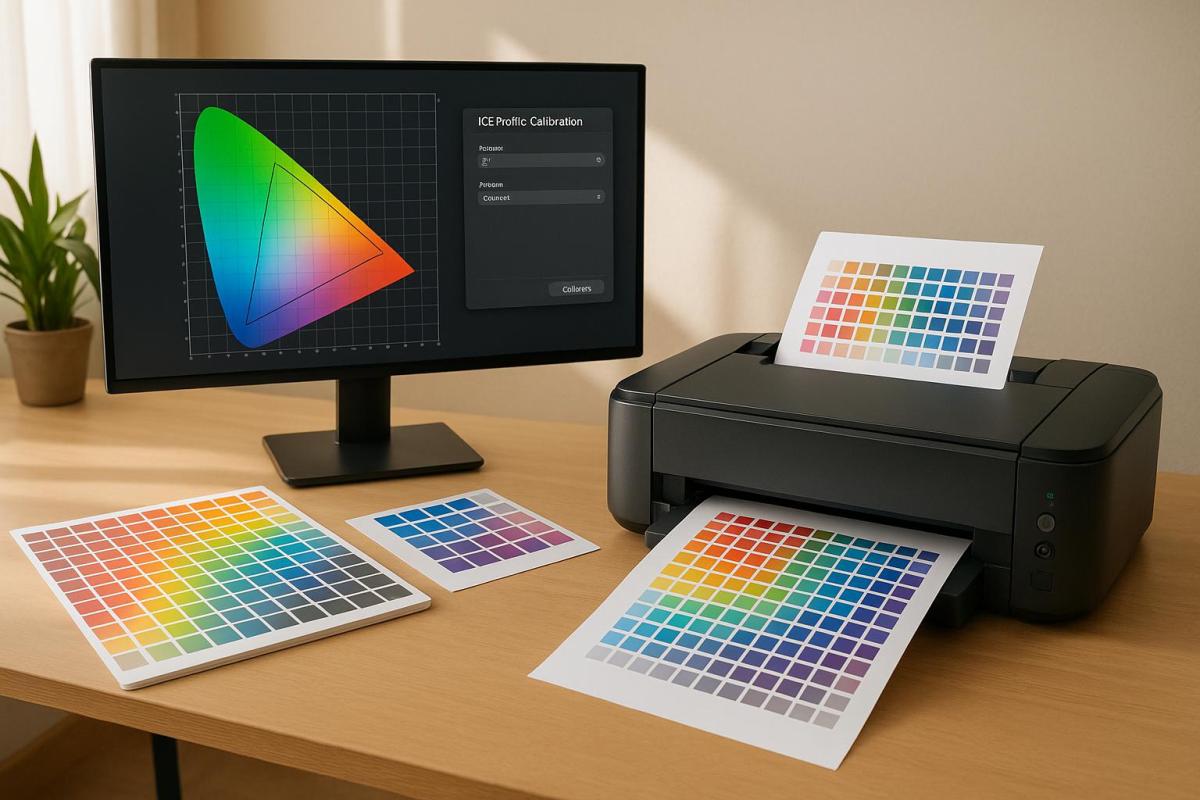
Want your printed colors to match what you see on screen? ICC profiles are the key. These files ensure color consistency across devices like monitors, printers, and scanners. Without them, your prints may look drastically different from your digital designs.
Here’s a quick breakdown of how to use ICC profiles for precise color management:
- Set Up Your Workflow: Organize your workspace, turn off automatic color management, and ensure consistent lighting.
- Calibrate Your Monitor: Use tools like X-Rite i1Display Pro to match your screen’s colors to real-world standards.
- Print and Measure Charts: Print color targets, let them dry, and measure with a spectrophotometer.
- Install and Apply Profiles: Save and apply custom ICC profiles for your specific printer, ink, and paper setup.
- Soft Proof and Adjust: Preview prints on your screen, make adjustments, and test final prints under proper lighting.
How to DIY ICC Printer Profile Making – Uncover the Secrets with X-Rite i1 Profiler
What You Need Before Starting
Getting accurate colors with ICC profiles starts with the right tools and a properly calibrated setup. Here’s what you’ll need to ensure precise color management.
Required Equipment and Software
First, make sure you’re using a calibrated monitor. If your display isn’t showing colors correctly, any adjustments you make will be based on flawed data. Look for monitors that cover at least 99% of the sRGB color space; for professional work, monitors with Adobe RGB coverage are even better.
You’ll also need a spectrophotometer or a colorimeter to measure colors accurately. These devices are essential for creating ICC profiles. Popular tools include the X-Rite i1Display Pro for monitor calibration and the i1Pro series for printer profiling.
For software, Adobe Photoshop and Illustrator come with built-in color management tools. However, specialized programs like X-Rite i1Profiler or ColorMunki Photo are ideal for creating custom ICC profiles tailored to your specific equipment and materials.
Keep in mind that each printer and paper combination requires its own ICC profile. For example, a profile designed for glossy photo paper won’t work correctly on matte cardstock or canvas.
Monitor Calibration Requirements
Calibrating your monitor regularly is crucial. Over time, monitors "drift" as backlights age and components wear down, so aim to recalibrate every 2–4 weeks. Even brand-new monitors can be far from accurate straight out of the box.
Ambient lighting in your workspace plays a big role in color perception. Set up consistent, neutral lighting with a color temperature of 5000K to 6500K. Avoid working near windows where daylight changes or under fluorescent lights, as these can throw off your color judgment.
For print work, set your monitor’s white point brightness to 120 cd/m². This level closely matches typical print viewing conditions. While higher brightness settings might look good on-screen, they can result in prints that appear darker than expected.
Use a gamma setting of 2.2, which is the standard for most printing workflows. This ensures your screen preview aligns with how the final prints will look. Following these calibration steps will help your display show true colors, ready for profile creation.
Selecting the Right ICC Profile
Each printer, ink, and paper combination needs its own ICC profile. For example, a profile made for an Epson printer with Canon photo paper won’t work properly with HP paper, even on the same printer. Ink absorption, surface texture, and coatings all impact how colors appear.
The generic profiles that come with printers are only a starting point. These profiles are created under controlled lab conditions, which rarely match your real-world setup. Custom profiles, on the other hand, take your specific environment into account – factors like humidity, temperature, and even the age of your ink cartridges. Using custom profiles ensures that what you see on your screen matches the final printed output.
If you’re working with a professional print shop, ask about their ICC profile library. Many established shops maintain profiles for a wide range of paper and ink combinations. For instance, at Miro Printing & Graphics Inc., clients are provided with the exact ICC profiles used for their projects, ensuring consistency between screen and print.
Make it a habit to update your ICC profiles every 3–6 months or whenever you change ink suppliers, switch paper batches, or notice color shifts in your prints. Even environmental changes, like fluctuations in humidity, can affect your printer’s behavior enough to require new profiles.
Finally, consider the viewing conditions for your prints. A profile optimized for indoor office lighting will produce different results than one designed for outdoor signage. Always match your ICC profile to the environment where your prints will be displayed.
With your tools ready and profiles selected, you’re now prepared to move on to setting up your workflow.
5 Steps to Use ICC Profiles for Accurate Colors
Once you’ve got your equipment ready, it’s time to incorporate ICC profiles into your workflow. Follow these five steps to move seamlessly from setup to final color checks.
Step 1: Set Up Your Workflow
Begin by ensuring your workspace and equipment are properly organized. Connect your printer via USB to minimize any communication delays. Let your printer warm up for at least 30 minutes before starting – this helps maintain steady ink flow and temperature.
In your printer settings, turn off automatic color management. Automatic adjustments can conflict with your custom ICC profiles, so set the printer driver to "No Color Management" or "Application Managed Colors."
Keep your ICC profiles organized in folders based on printer model, paper type, and date. For example: "Epson_SureColor_P800/Canvas_Matte/Profile_Aug2025." This system is especially helpful when handling multiple profiles for various projects.
Lastly, make sure your workspace has consistent ambient lighting conditions for accurate color assessment.
Step 2: Calibrate Your Monitor
Use your monitor calibration software to achieve accurate color display. Tools like the X-Rite i1Display Pro will guide you through the process. Set your white point to D65 (6500K), gamma to 2.2, and luminance to 120 cd/m² – these are standard settings for print work.
During calibration, the software will display color patches on your screen while a colorimeter measures the output. This process takes about 15-20 minutes and creates a profile tailored to your monitor’s specific characteristics. A properly calibrated monitor ensures your ICC profiles work as intended.
Save the monitor profile with a descriptive name, such as "Dell_U2718Q_Aug26_2025." Most calibration tools will set this as your system default, but double-check in your operating system’s display settings.
To test your calibration, open an image with known color values. Many professionals use the Datacolor SpyderCHECKR target image, which includes precise color squares you can compare against a physical reference card.
Step 3: Print and Measure Color Charts
Download or create a color target chart suitable for your profiling software. The IT8.7/4 target, with its 288 color patches, is a popular choice for covering the full spectrum of printable colors. If you’re using X-Rite i1Profiler, select the "Large Gamut" target for comprehensive profiling.
Print the chart using the exact paper and ink combination you’ll use for your final prints. Choose the highest quality print settings, such as "Photo" or "Fine Art" mode, and ensure no color management is applied – your printer should still be set to "No Color Management" from Step 1.
Let the print dry completely before measuring. Glossy paper typically needs 30 minutes, while canvas may require up to 2 hours. Wet ink can lead to inaccurate color readings.
Using a spectrophotometer, measure each color patch carefully. Align the device precisely over each square to avoid overlapping onto adjacent patches. With tools like the X-Rite i1Pro 3 and an automated scanning ruler, you can measure an entire IT8 chart in about 8-10 minutes.
Step 4: Install and Apply ICC Profiles
After completing the measurements, your profiling software will generate a custom ICC profile. Save it with a clear, detailed name that includes the printer model, paper type, ink set, and creation date. For example: "Canon_PRO1000_Hahnemuhle_PhotoRag_CanonInk_Aug2025.icc."
Install the profile in your operating system’s color profile directory. On Windows, copy the .icc file to "C:\Windows\System32\spool\drivers\color". On Mac, place it in "/Library/ColorSync/Profiles/" for system-wide use or "~/Library/ColorSync/Profiles/" for user-specific access.
In Adobe Photoshop, set your working space (e.g., "North America General Purpose 2") and select your custom ICC profile when printing.
Test your profile by printing a small section of your color chart again. Compare this print to the original measured chart – the colors should align much more closely after applying your custom profile.
Step 5: Soft Proofing and Final Adjustments
Activate soft proofing in your image editing software to preview how your prints will look. In Photoshop, go to View > Proof Setup > Custom, select your printer profile, and choose "Relative Colorimetric" as the rendering intent – this is ideal for photographic work. Soft proofing helps confirm that your ICC profile is working as expected.
Check for out-of-gamut colors that your printer can’t reproduce. Photoshop can highlight these areas, allowing you to make selective adjustments to bring colors into the printer’s range.
Print a test image that includes a variety of colors, skin tones, and neutrals. Print it at the actual size you plan to use for your final output, as color perception can shift with different dimensions.
Evaluate the test print under the same lighting conditions where the final prints will be displayed. Compare it to the soft-proofed preview on your monitor. You may need to tweak your image files slightly, especially for tricky colors like deep blues or bright reds. Keep a record of these adjustments for future reference.
sbb-itb-ce53437
Common Problems and Solutions
Even with a well-calibrated workflow, challenges can still pop up. Knowing how to identify and address these common issues will help you maintain consistent and accurate colors throughout your printing process.
Fixing Common Issues
One frequent problem is double color management. This happens when both your printer driver and your image editing software try to apply color corrections at the same time. The result? Prints that look muddy, overly saturated, or have strange color casts.
To fix this, check your settings in both your editing software and printer driver. For example, in Adobe Photoshop, make sure you’re selecting your custom ICC profile in the print dialog under "Color Management." Letting the printer handle colors automatically can lead to these unwanted results, so ensure only one system is managing color corrections.
Aging equipment is another challenge. Over time, your monitor’s color accuracy can shift due to backlight aging or component wear. Similarly, printers may start producing inconsistent colors as printheads age or ink formulations vary between batches. You might notice subtle but noticeable differences in prints made with the same ICC profile just a few months apart.
Environmental factors like temperature and humidity also play a big role. A temperature shift of just 10°F or a humidity change of more than 20% can affect ink flow, drying times, and how paper behaves. To avoid these issues, keep your workspace within 68-72°F and maintain 45-55% relative humidity.
Another issue to watch for is profile corruption, which can occur during file transfers or updates. Corrupted profiles may cause extreme color shifts or banding in your prints. Likewise, mismatched inks or paper types can lead to unreliable results. To avoid this, maintain dedicated profiles for each specific printer, ink, and paper combination. Always keep backup copies of your profiles and test them periodically by printing small color patches to ensure they’re functioning correctly.
By addressing these problems promptly and taking preventive steps, you can maintain consistent color accuracy over time.
Maintaining Color Consistency
Once immediate issues are resolved, focus on proactive measures to keep your workflow steady.
Regular calibration is key. Monitors, even high-quality LED models, gradually shift over time. Stick to a consistent calibration schedule based on your monitor type and usage.
Update your printer profiles whenever you switch paper brands, receive a new ink batch, or notice a change in lighting conditions. Professional print shops often create new profiles every quarter or whenever they get a new shipment of paper.
Environmental stability is also crucial. Use a digital hygrometer to monitor temperature and humidity in your workspace. Sudden environmental changes can lead to color shifts in both your monitor display and print output. Document these conditions in your profile names to make troubleshooting easier in the future.
Make profile validation a habit. Print the same reference image every month using your existing profiles and compare it to previous prints. Store these test prints in a dark, dry place to prevent fading. If you notice any shifts, it’s a sign to recalibrate your equipment or create new profiles.
Proper paper storage can also make a difference. Keep paper in its original packaging, sealed with plastic bags and silica gel if humidity levels are high. Paper that absorbs moisture from the air won’t interact with ink the same way, throwing off the accuracy of your ICC profiles.
Finally, keep detailed records of your workflow. Track calibration dates, profile creation dates, environmental conditions, and any issues you encounter. This documentation will help you spot patterns and avoid repeating mistakes. Make notes about which paper batches work best with certain profiles and how long those profiles remain accurate under specific conditions.
Be mindful of software updates as well. Updates to your operating system, printer drivers, or editing software can sometimes reset your color management settings or alter how profiles are applied. After any update, double-check your settings and test-print a reference image to ensure everything is still working as it should.
Key Takeaways
Here’s a quick recap of the essential steps for achieving precise and predictable color management in your printing workflow. By properly using ICC profiles, you can shift from guesswork to consistent results. The five-step process – setting up your workflow, calibrating your monitor, printing and measuring color charts, installing profiles, and soft proofing – forms the foundation for maintaining color accuracy across all your projects.
One crucial point to keep in mind: ICC profiles aren’t a “set it and forget it” solution. Over time, equipment like monitors and printers naturally change. This means profiles need periodic updates to account for factors like monitor drift or printer wear. Regular updates ensure your colors stay true to your expectations.
Creating a stable workspace is also vital. Environmental factors, like lighting, can influence the performance of your calibrated system. Using proper calibration tools not only reduces waste but also boosts client satisfaction. Professional print shops, for instance, often update profiles whenever consumables change or equipment conditions shift. This proactive approach prevents costly reprints and ensures consistent quality.
Additionally, system updates can sometimes overwrite monitor profiles without warning.
As Berntsen, a Community Expert, advises, "Calibrate and maintain devices regularly to ensure optimal performance."
To avoid setbacks, always check your profiles after software updates and keep backup copies of your working profiles.
It’s also worth noting that each printer and paper combination needs its own dedicated profile. A profile that works perfectly for one setup won’t necessarily deliver the same results with another, as manufacturing differences between devices can impact color reproduction.
These takeaways summarize the best practices covered in this guide. The key to long-term success in color management lies in viewing it as an ongoing process. Regular calibration, monitoring your environment, and keeping detailed records will ensure your workflow stays smooth and your colors remain accurate. At Miro Printing & Graphics Inc., these methods are part of our promise to deliver exceptional print quality every time.
FAQs
How do ICC profiles help maintain consistent colors between monitors and printers?
ICC profiles serve as color interpretation guides, ensuring colors remain consistent and accurate across various devices like monitors and printers. Every device has its own unique color range, known as a gamut, and ICC profiles describe these characteristics to make sure colors are rendered properly.
With ICC profiles, colors are fine-tuned to match the specific capabilities of each device. This means the final output – whether displayed on a screen or printed – closely aligns with the original design. In short, they help ensure that the colors you see on your monitor are a reliable preview of the printed result, maintaining dependable color accuracy.
Why don’t my prints match the colors on my screen, even after following all the steps?
If your prints still don’t match the colors on your screen, the issue might lie in calibration or how ICC profiles are being used. Start by confirming that the ICC profile for your specific printer and paper type is installed correctly and assigned within your color management settings.
Also, make sure your monitor is properly calibrated to display colors as intended. Use the appropriate ICC profiles in your design software for both soft proofing and printing. If the mismatch continues, try recalibrating your monitor and updating your ICC profiles. Even small tweaks in your workflow can greatly improve color accuracy.
How often should I recalibrate my ICC profiles and equipment to ensure accurate color management?
To keep color management consistent and accurate, it’s a good idea to recalibrate your ICC profiles and equipment every 1 to 3 months. In settings where precise color accuracy is essential – like professional printing or design – more frequent recalibration, such as weekly adjustments, might be necessary. This is especially true if factors like temperature, humidity, or lighting conditions fluctuate.
By recalibrating regularly, you can ensure your prints turn out exactly as intended, minimizing inconsistencies and maintaining high-quality results. For any project that relies on precise color reproduction, this step is crucial.
Related posts
- Soft Proofing Techniques for Accurate Colors
- How to Ensure Color Accuracy in Proofing
- 5 Common ICC Profile Issues and Fixes
- Steps to Create Custom ICC Profiles for Printing
https://app.seobotai.com/banner/banner.js?id=68acfd105d4c81d674964d43
 BergenCountyPrintersBlogs