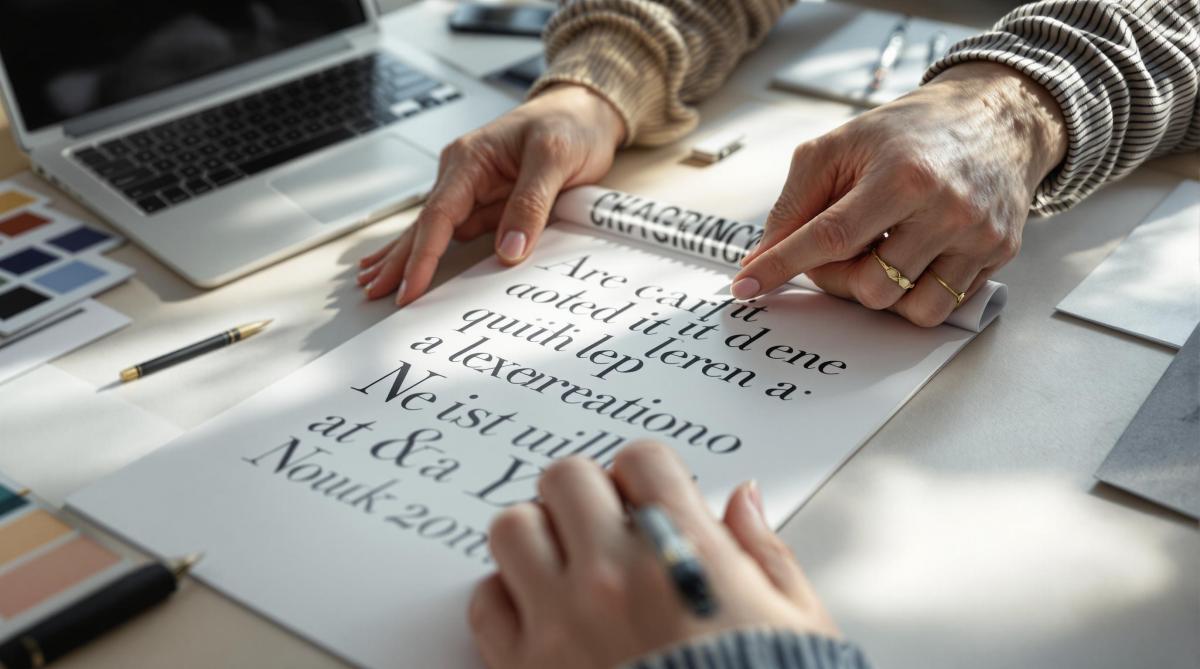
- Choose the Right Font: Different fonts have unique spacing needs. Start with a font that fits your project and test tricky letter pairs early on.
- Flip Text Upside Down: This helps you focus on spacing as shapes rather than words, making uneven gaps easier to spot.
- Kern in Groups of Three: Adjust three letters at a time to ensure consistent spacing across your text.
- Handle Special Cases: Pay extra attention to diagonal letters (like A, V, Y) and all-caps text, which often need manual tweaks.
- Kern at the End: Finalize tracking and leading first, then make subtle kerning adjustments for balance and readability.
Quick Overview of Kerning Methods
| Method | Best For | Tools to Use |
|---|---|---|
| Upside-Down Kerning | Spotting uneven gaps | Adobe Illustrator, InDesign |
| Grouping Letters (3s) | Consistent spacing | Adobe Illustrator, InDesign |
| Optical vs. Metric Kerning | Display vs. body text | Design software settings |
Kerning is all about visual balance. Start with these tips, trust your eyes, and refine your skills with practice. For flawless results in print, consider consulting print professionals who can help fine-tune your designs.
How To Kern Professionally
Tip 1: Select the Right Font First
The font you choose plays a big role in how kerning works, as each typeface has its own spacing quirks. Picking the right one upfront saves you time and effort later.
How Fonts Influence Kerning
Different fonts have different kerning needs. For example, fonts like Arial and Helvetica often come with reliable built-in spacing, while decorative or custom fonts may require you to tweak things manually. Font size also matters – larger text usually needs tighter spacing, while smaller text benefits from slightly looser kerning for better readability.
Avoiding Redundant Adjustments
Switching fonts mid-project can be a headache because each typeface demands its own kerning adjustments.
"Each typeface requires its own kerning, adjustments and attention to detail. So it’s important that you make a decisive decision on the typeface you’re going to be working with early on within the design process." [5]
When picking a font, think about:
- How well it handles kerning automatically
- Whether it fits your project (headlines vs. body text)
- How it deals with tricky letter pairs
- Its appearance across different sizes
Pro tip: Test your font with challenging letter combinations early on to avoid surprises.
Once you’ve settled on the font, you can start fine-tuning your kerning with techniques like upside-down kerning.
Tip 2: Kern Text Upside Down
Flipping text upside down helps you focus on the spaces between letters instead of the words themselves. By viewing letters as shapes, it’s easier to spot uneven spacing and make adjustments.
Why Flip Text?
This approach makes it easier to notice uneven gaps and allows you to make more objective decisions about spacing. It’s especially useful for:
- Logos
- Headlines
- Large display text
- Brand names
Tools That Can Help
Programs like Adobe Illustrator and InDesign have features that let you rotate text upside down without interrupting your workflow [2].
Things to Keep in Mind
- Check the kerning at different sizes, and occasionally flip the text back to its normal orientation to ensure it looks good and remains readable.
- Pay extra attention to tricky letter pairings.
- Use your eye to make adjustments rather than relying entirely on automatic kerning tools.
Once you’ve adjusted individual pairs, grouping letters can make the process smoother. We’ll dive into this in the next tip.
Tip 3: Kern in Sets of Three
Kerning letters in pairs can sometimes result in uneven spacing. Instead, work with three letters at a time to create consistent spacing and catch any issues that might be overlooked when focusing on pairs.
How to Kern in Groups of Three
To use this approach, adjust the spacing for three letters as a group. Start with the first three letters, balance their spacing, and then shift one position to the right (e.g., from "Typ" to "ypo"). Repeat this process throughout the text to ensure uniform spacing [1].
Here are a few key points for effective group kerning:
- Focus on how the three letters interact as a whole.
- Make small, precise adjustments to fine-tune the spacing.
This method is especially important for larger text, such as headlines or logos, where spacing inconsistencies are much more noticeable [1].
Pay special attention to tricky combinations like diagonal-sided letters (e.g., A, V, W, Y) and sequences of capital letters. These often require extra care to maintain even spacing across the group.
Tools and Benefits
Software like Adobe Illustrator and InDesign provides advanced controls for group kerning, making it easier to achieve a polished look [2]. Working with three-letter groups helps avoid common issues like:
- Uneven letter spacing
- Awkward gaps between characters
- Overcrowded letters
- Disrupted text flow
"Group kerning plays a critical role in ensuring that text is both visually appealing and easy to read. By maintaining consistent spacing throughout the text, group kerning helps to create a polished and professional finish that enhances the overall quality of the print design" [7][2].
Once you’ve mastered this technique, you’ll be better equipped to handle special cases like diagonal-sided letters and all-caps text, ensuring a clean and professional design.
sbb-itb-ce53437
Tip 4: Address Special Cases
Some letter combinations require extra care to ensure your text looks polished. Two common challenges are diagonal-sided letters and all-caps text, each needing specific kerning tweaks.
Kerning Diagonal-Sided Letters
Diagonal-sided letters like A, V, and Y often create awkward gaps that can disrupt the flow of your text. To fix this, focus on adjusting the space between these characters:
- For pairs like "AV" or "VA", reduce the spacing to close the natural gaps caused by their diagonal shapes.
- Pay close attention to sequences like "WAY" or "AWAY," where multiple diagonal letters appear together.
- Test your adjustments at different sizes – spacing issues tend to stand out more in larger text.
While optical kerning tools can provide a good starting point, manual tweaks are usually needed for the best results [4][6].
Kerning All Caps Text
All-caps text often looks rigid, so tighter spacing is key to improving its appearance and readability. Start by increasing tracking to set a baseline, then fine-tune the kerning for specific letter pairs [4].
| Letter Combination Type | Suggested Adjustment |
|---|---|
| Straight-sided pairs (e.g., H-I, I-H) | Maintain consistent spacing |
| Round-sided pairs (e.g., O-C, C-O) | Slightly reduce spacing |
| Mixed pairs (e.g., H-O, O-H) | Adjust visually for balance |
Designers often test all-caps designs at multiple sizes to catch and fix any spacing issues [6][4].
Ultimately, what looks visually balanced matters more than achieving mathematically equal spacing [6][4]. Once you’ve addressed these tricky cases, your kerning will look clean and professional.
Tip 5: Kern at the End
Kerning should always be the last step in your typography process. Make sure to finish adjusting tracking and leading first. This approach avoids unnecessary rework and guarantees accurate results [1][3].
Trust Your Eyes
When it comes to final kerning adjustments, your eyes are your best tool. Focus on achieving a visually pleasing balance rather than relying on strict measurements [1][2].
Here’s how to refine your visual judgment:
- View at actual size: Always check kerning at the size it will appear when printed or displayed.
- Step back: Look at your work from a typical reading distance to get a better sense of overall balance.
- Test on different screens: Make sure the kerning looks consistent across various devices and displays.
Don’t Overdo It
Going too far with kerning adjustments can hurt readability and disrupt the natural flow [1][3]. Keep these points in mind during the final tweaks:
| Aspect | Tips for Adjustment |
|---|---|
| Letter Spacing | Keep changes subtle; avoid letters touching or being too far apart. |
| Visual Flow | Maintain a smooth rhythm; eliminate any awkward gaps. |
| Readability | Ensure text remains clear at all sizes and doesn’t become hard to read. |
Small, thoughtful adjustments are the key to creating balanced and readable typography [1][3].
Additional Tips
Mastering manual kerning is important, but modern tools and expert advice can take your typography to the next level.
Optical vs. Metric Kerning
Most design software provides two kerning options: optical and metric.
- Optical kerning adjusts spacing based on the shapes of the letters. It works well for display text like headlines or logos but may not always handle all fonts or sizes perfectly.
- Metric kerning uses the font’s built-in spacing values, making it a better choice for body text and longer content. However, it depends heavily on the quality of the font’s design.
Both methods can benefit from manual adjustments to achieve the best results [7][2].
| Kerning Type | Ideal For | Challenges |
|---|---|---|
| Optical | Display text, headlines, logos | Can be inconsistent with certain fonts or sizes |
| Metric | Body text, long-form content | Limited by the font’s built-in spacing values |
Working with Experts
For print projects, consulting professionals can make a big difference. For instance, Miro Printing & Graphics Inc. in Hackensack, NJ, specializes in ensuring your kerning choices look flawless in print.
They can test kerning at actual print sizes, review proofs, and adjust for specific paper stocks or printing methods. This attention to detail can help you avoid costly errors and deliver polished results [8].
Conclusion: Achieving Perfect Kerning
Getting kerning just right takes a mix of technical skill and a sharp eye for design. It’s about blending the right font choice, precise kerning techniques, and special attention to tricky cases to create polished, professional results.
Relying on visual judgment is key, but pairing it with systematic methods makes a big difference. For example, optical kerning is often better for display text, while metric kerning suits body copy. Understanding when to use each approach helps create typography that’s both attractive and functional [1][2].
If you want flawless kerning in your print designs, consider working with professional print shops like Miro Printing & Graphics Inc. Their expertise ensures your designs look just as good in print as they do on screen [7][8]. Experienced print professionals can add that final touch of precision to your typography.
Perfect kerning isn’t something you achieve overnight – it’s a skill that grows with practice and attention to detail. Whether you’re designing a logo or a full print campaign, focusing on careful font selection, precise kerning, and professional input will help you create print materials that not only look great but also deliver your message effectively [1][3].
FAQs
How do you make a good kerning?
Kerning is an essential skill for print designers, focusing on adjusting the spacing between individual letters to create visually balanced text. Here’s how to refine your kerning:
Start by working on leading and tracking to establish the overall spacing. Then, fine-tune the kerning based on the text size. For large text, use tighter spacing; for smaller text, slightly loosen the spacing to maintain readability [1].
Certain letter pairs, like ‘V’ and ‘A’, often require manual adjustments due to their diagonal shapes. Each pair is unique, so it’s important to evaluate them individually [1][3].
Here are some tips to make the process easier:
- Try upside-down kerning: This technique helps you focus on spacing without being distracted by the text’s meaning [1].
- Work in groups of three letters: Adjusting three letters at a time ensures consistent spacing throughout your design [1].
Text size plays a big role in kerning. Larger text benefits from tighter spacing, while smaller text should have more space to improve readability [1]. Tools like Adobe InDesign and Illustrator offer advanced features to help you achieve precise results [2][3].
Related Blog Posts
- Ultimate Guide to Paper Types for Business Printing
- How to Adjust Colors for Offset Printing
- Proofing Process: From Screen to Print
- Kerning, Tracking, Leading: Key Differences
https://app.seobotai.com/banner/banner.js?id=6789632e80cdd94998fb1914
 BergenCountyPrintersBlogs