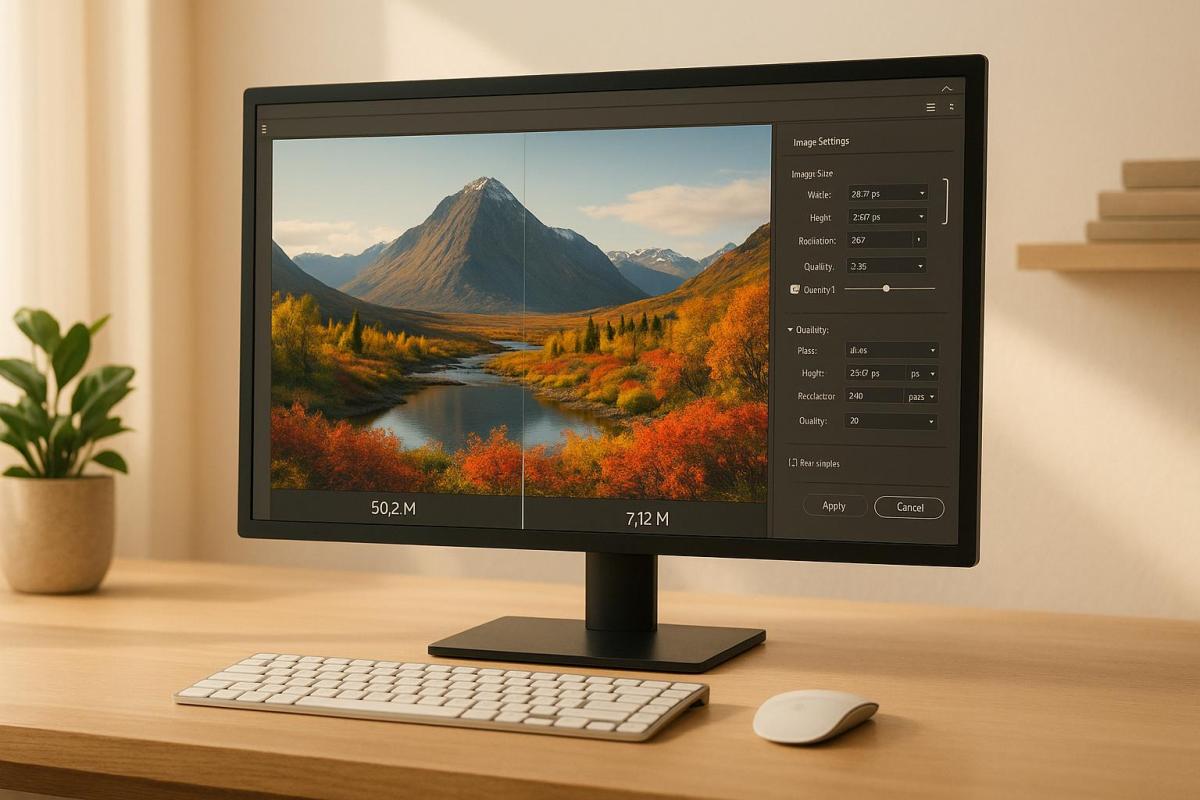
Want sharp, professional large-format prints without bloated file sizes? Here’s how to compress images effectively while maintaining quality:
- Choose the Right Compression Type: Use lossless formats (e.g., TIFF, PNG) for high-quality prints. Avoid lossy formats like JPEG, which can cause blurry details and artifacts.
- Optimize Resolution: Match resolution to viewing distance:
- Close-up prints: 300 DPI
- Mid-range (banners): 100–150 DPI
- Billboards: 20 DPI or higher
- Switch to CMYK: Convert images from RGB to CMYK for accurate color reproduction.
- Use Proper File Formats: TIFF for photos, EPS/SVG for scalable graphics, and PDF for print-ready projects.
- Prepare Files Correctly: Add bleeds, manage layers, and clean up unused elements to reduce file size.
Quick Comparison
| Aspect | Best Practice |
|---|---|
| Compression Type | Lossless (TIFF/PNG) |
| Resolution | 300 DPI (close-up); 100 DPI (banners); 20 DPI (billboards) |
| Color Mode | CMYK |
| File Formats | TIFF, PDF, EPS, SVG |
| File Preparation | Add bleeds, clean layers, manage resolution |
Start with these basics to ensure stunning results for banners, posters, or trade show displays. Let’s dive deeper into the process!
How to Compress Large Size TIFF Files in Adobe Photoshop Without Losing Quality
Image Compression Basics
Grasping the essentials of image compression is key to getting the best results in large format printing. Below, we’ll break down the core concepts that influence both print quality and file management.
Lossy and Lossless Compression Methods
When it comes to compression, you have two main options: lossy and lossless. Each serves a different purpose, so choosing wisely can make a big difference in your project.
Lossless compression keeps all the original data intact, making it perfect for professional printing where every detail counts. Though the files are larger, this method ensures no quality is lost – an essential feature for large format prints.
On the other hand, lossy compression reduces file size by removing some image data. While this works fine for web images, it can cause noticeable problems in large format printing, such as:
- Blurry or pixelated details
- Colors that look distorted or washed out
- Visible compression artifacts
Here’s a quick comparison to help you decide:
| Compression Type | Best For | File Size Impact | Quality Impact |
|---|---|---|---|
| Lossless (TIFF, PNG) | High-quality prints, retail signage | Larger files | No quality loss |
| Lossy (JPEG) | Web previews, quick digital proofs | Smaller files | Quality declines with compression |
Now that we’ve covered compression, let’s dive into how resolution and DPI affect print quality.
Print Resolution and DPI Requirements
The right resolution largely depends on how far away the print will be viewed and its size. Unlike the standard 300 DPI often used in commercial printing, large format projects can vary. Here’s a practical guide:
- Vinyl and fabric banners: 100–150 DPI works well for mid-range viewing distances.
- Trade show displays: Use 300 DPI for close-up viewing.
- Outdoor banners: As low as 20 DPI is acceptable when viewed from 50 feet or more.
Matching the resolution to the viewing distance ensures you’re not overloading your file with unnecessary detail while still delivering crisp results.
Color Space Selection for Print
Color space plays a huge role in achieving accurate and vibrant prints. In the rapidly growing large format printing industry – expected to hit $12.70 billion by 2030 – precise color reproduction is critical for maintaining brand integrity and professional quality.
Switching from RGB to CMYK is a must for printing. However, it’s worth noting that 1,114 Pantone colors can’t be perfectly replicated in CMYK.
To get the best results:
- Start with high-quality images in the correct color space.
- Use color management tools to handle conversions accurately.
- Run test prints to check color accuracy before full production.
- Factor in the substrate – coated papers produce brighter colors, while uncoated ones tend to look duller.
"The CMYK printing process will never accurately print the entire RGB color space. This can create a big difference between what we see on the monitor, your desktop proofer, and the actual printed piece produced from any of the current CMYK printing processes we use today." – Elizabeth Gooding and Mary Schilling
With these basics in mind, you’re ready to move on to the critical steps of preparing your files for print.
Image Preparation Steps
Building on the basics of compression and resolution, these steps will help you prepare your files for top-notch print quality.
Software and File Format Selection
Selecting the right software and file format is crucial for maintaining image quality and achieving efficient compression. Adobe Photoshop is widely regarded as the go-to tool, but alternatives like GIMP also handle large-format printing effectively.
Here’s a quick guide to choosing the best file format for your project:
| Format Type | Best For | Advantages | File Size |
|---|---|---|---|
| Vector (EPS/SVG) | Logos, graphics | Infinite scaling, sharp edges | Small to medium |
| TIFF | Photos, detailed images | Lossless quality, CMYK support | Large |
| RAW | Professional photography | Maximum editing flexibility | Very large |
Pro tip: Always remember to convert RGB images to CMYK, as discussed earlier. This ensures your colors print accurately and sets the foundation for precise sizing and efficient layer management.
Image Sizing and Cropping
Getting the size and crop right is essential for sharp, high-quality prints. Start with the highest resolution version of your image and adjust it to match your desired print dimensions, keeping the aspect ratio intact.
If you’re using Photoshop to resize:
- Keep the original aspect ratio locked to avoid distortion.
- Follow the "200% rule" – never enlarge an image more than twice its original size at full quality.
- Use the "resample" option and select "Preserve Details" for better scaling results.
Once your images are sized correctly, cleaning up files ensures they’re optimized for compression and ready for printing.
File Cleanup and Layer Management
Organizing and cleaning up your files not only reduces file size but also helps maintain compression quality. Here’s how to streamline your workflow:
- Delete unused swatches, paths, and empty layers.
- Remove hidden objects that won’t appear in the final design.
- Convert smart objects to raster layers once edits are finalized.
- Flatten visible layers, but always keep an editable backup.
- Simplify vector artwork by cutting down on unnecessary anchor points.
For instance, in Adobe InDesign, if a full-page image is only partially visible in a small thumbnail frame, the hidden portions still inflate the file size. Using tools like "Crop" or "Fit Content to Frame" eliminates these hidden areas, significantly reducing the file size.
sbb-itb-ce53437
Advanced Compression Methods
Once you’ve mastered the basics of file preparation, advanced compression techniques can take your image optimization for large format printing to the next level.
Vector Graphics Benefits
Vector graphics come with a range of perks that make them ideal for large-scale printing. Unlike raster images, which are made up of pixels, vectors use mathematical formulas to define shapes. This means they can be scaled infinitely without losing quality.
| Feature | Vector Benefit | Impact on Print Quality |
|---|---|---|
| File Size | Smaller than raster files | Faster processing and easier handling |
| Scalability | Infinite scaling without quality loss | Sharp output at any size |
| Color Consistency | Mathematical color definitions | Precise and consistent color reproduction |
| Editability | Easy shape modifications | Quick and seamless design adjustments |
"Vector graphics are your best bet for large format printing. They offer flexibility, quality, and efficiency, ensuring your designs look stunning whether they’re on a massive billboard or a trade show banner." – Racecals.com
For text elements, it’s crucial to convert fonts to outlines. Tools like Adobe Illustrator’s "Create Outlines" feature ensure that text prints perfectly, even if the font isn’t available on the printer’s system. Once your vector files are prepared, validate your settings by running print sample tests.
Print Sample Testing
Before committing to a full-scale print, it’s essential to test your settings. Start by calibrating your monitor with a hardware calibration tool to ensure the colors you see on screen match the printed output.
Here’s what to focus on during testing:
- Resolution Check: Print small test patches at resolutions between 150–300 PPI to find the sweet spot for clarity and file size.
- Color Profile Verification: Embed the proper color profiles to maintain consistency between screen and print.
- Format Comparison: Test file formats, such as TIFF and PDF, to determine the best balance between quality and file size.
Once your test prints meet your expectations, you can move on to fine-tuning your files to prevent unwanted artifacts.
Preventing Image Artifacts
Artifacts can ruin the quality of large format prints, so taking steps to avoid them is crucial. Here’s how to keep your images clean and sharp:
-
Use Lossless Formats
Save critical image sections in formats like TIFF or PNG to completely avoid compression-related artifacts. -
Optimize JPEG Usage
When using JPEGs, set the quality to the highest level and avoid saving the file repeatedly, as this can degrade image quality over time. -
Manage Resolution Carefully
When resizing images, maintain the resolution to prevent pixelation or blurring.
It’s also a good idea to keep a master file in a lossless format. This way, you’ll always have a high-quality version to fall back on while creating optimized files tailored to specific printing needs. By doing so, you’ll strike the perfect balance between quality and file size, ensuring stunning print results every time.
Working with Print Shops
File Preparation and Delivery
When preparing files for large format printing, it’s essential to get the details right. Here’s what you need to focus on:
- Add a 0.125-inch bleed on all sides of your design.
- Use a resolution of 300 DPI or higher.
- Ensure the color mode is set to CMYK.
- Save your files in print-ready formats like PDF, TIFF, or EPS.
To better understand these specifications, here’s a quick breakdown:
| File Component | Specification | Purpose |
|---|---|---|
| Bleed Area | 0.125" on all sides | Prevents unexpected white edges after trimming. |
| Safety Zone | 0.125" from trim edge | Protects important design elements from being cut off. |
| Resolution | 300 DPI minimum | Ensures images and text appear sharp and professional. |
| Color Mode | CMYK or Pantone | Delivers accurate color reproduction during printing. |
Adhering to these standards ensures your files are ready for seamless processing.
Print Shop Consultation
At Miro Printing & Graphics Inc., their team of experts is ready to help you meet these technical requirements. They’ll assist with:
- Choosing the correct file format for your project.
- Verifying color profiles and image resolution.
- Avoiding issues like compression artifacts.
- Adjusting sizing to fit your project’s specific needs.
"A print-ready file means exactly what the name suggests: a file that is ready for printing. This is a digital file that needs no alterations for your printer to get started with your project." – PrintingCenterUSA
Proof Review Process
Once your files are prepared and reviewed with the print shop, the next step is to carefully examine proofs. This step is crucial for catching any last-minute errors:
- Digital proofs: Check for color accuracy, resolution, and proper text placement.
- Physical proofs: Inspect colors, sharpness, and scaling to ensure everything aligns with your expectations.
Final Approval Process: Make note of any adjustments needed and communicate them clearly to your print provider. Keep a record of all proof versions and approved changes to avoid confusion and ensure the final product matches your specifications.
For the best color accuracy, download and apply the printer’s ICC color profiles. This step helps bridge the gap between what you see on your screen and the final printed colors. Also, save an uncompressed master copy of your file for any future edits or reprints.
Conclusion: Image Compression Guidelines Summary
When it comes to large format printing, getting image compression right is all about aligning resolution with viewing distance. The goal is to strike a balance between file size and quality, ensuring the final print looks sharp without unnecessary file bloat.
| Viewing Distance | Recommended DPI | File Format | Color Mode |
|---|---|---|---|
| Close-up (e.g., < 3 ft) | 300 DPI | TIFF/PDF | CMYK |
| Moderate distance (e.g., ≥ 3 ft) | 100 DPI | TIFF/PDF | CMYK |
| Billboards (e.g., viewed from 50 ft) | 20 DPI | TIFF/PDF | CMYK |
The table above provides a quick reference for the ideal settings based on how far viewers will stand. Using effective lossy compression methods, you can reduce file sizes by up to 80% while maintaining visual quality. As Jerome Seidita points out, it’s crucial to choose lossy compression tools that allow you to revert to the original file. This way, you avoid permanent quality loss.
If you’re looking to ensure your files are print-ready, working with professionals like Miro Printing & Graphics Inc. can make all the difference. Their team ensures your files meet industry standards, handling technical details like bleed settings (e.g., a 1/4″ bleed for files under 48″ and 2″ for murals), safe margins, and precise color settings like rich black (C‑50, M‑40, Y‑30, K‑100).
FAQs
Why do I need to convert images from RGB to CMYK for large format printing, and how does it impact color accuracy?
Converting images from RGB (Red, Green, Blue) to CMYK (Cyan, Magenta, Yellow, Black) is a crucial step when preparing designs for large format printing. These two color models serve different functions: RGB is optimized for digital screens, offering a broader range of bright and vivid colors, while CMYK is tailored specifically for printing. Since printers cannot reproduce all RGB colors, skipping this conversion can lead to unexpected results, like colors looking less vibrant or noticeably different in print.
Making the switch to CMYK before printing helps ensure your colors are as precise and consistent as possible. This is especially critical for maintaining brand consistency and achieving the desired outcome in your printed materials. By preparing your files in CMYK, you can bridge the gap between your digital design and the final printed product, ensuring the results align with your expectations.
What’s the difference between lossy and lossless compression, and why is lossless better for large format printing?
Lossy and lossless compression are two approaches to shrinking file sizes, but they operate in very different ways. Lossy compression works by permanently discarding some data to create smaller files. While this can lead to a noticeable drop in quality, it’s perfectly fine for situations like web images, where flawless quality isn’t essential. Lossless compression, however, retains all the original data, allowing the file to be restored to its full quality without any degradation.
When it comes to large format printing, lossless compression is the way to go. It preserves every detail and subtlety of an image, which is crucial for producing sharp, high-quality prints that hold up even under close inspection. File formats like TIFF are commonly chosen for this purpose because they support lossless compression, ensuring the final print is vibrant, detailed, and professional in appearance.
What is the best DPI for large format printing based on how far away it will be viewed?
When it comes to large format printing, the ideal DPI (dots per inch) largely depends on how close the viewer will be to the print. Here’s a quick breakdown:
- 300 DPI: Best for prints viewed up close (around 2 feet).
- 180 DPI: Suitable for medium distances (about 3 feet).
- 120 DPI: Works well for viewing from 5 feet away.
- 90 DPI: Ideal for a distance of 6.5 feet.
- 60 DPI: Good for prints viewed from 10 feet.
- 35 DPI: For prints viewed from 16 feet or more.
To fine-tune your DPI, you can estimate the viewing distance by calculating the diagonal size of your print. Multiply the diagonal by 1.5 to find the minimum viewing distance or by 2 for the maximum distance. This simple calculation can help you make sure your prints look just right for their intended purpose.
If you’re feeling uncertain about the process, reaching out to a professional printing service like Miro Printing & Graphics Inc. can make all the difference. They can provide expert advice to ensure your large format prints are sharp and visually appealing.
Related posts
- Large Format Printing: DPI vs. PPI Explained
- Image Resolution Standards for Offset Printing
- How to Prepare Vector Files for Print
- Best DPI Settings for Photo Printing
https://app.seobotai.com/banner/banner.js?id=6825346b0209458b3ff336ad
 BergenCountyPrintersBlogs