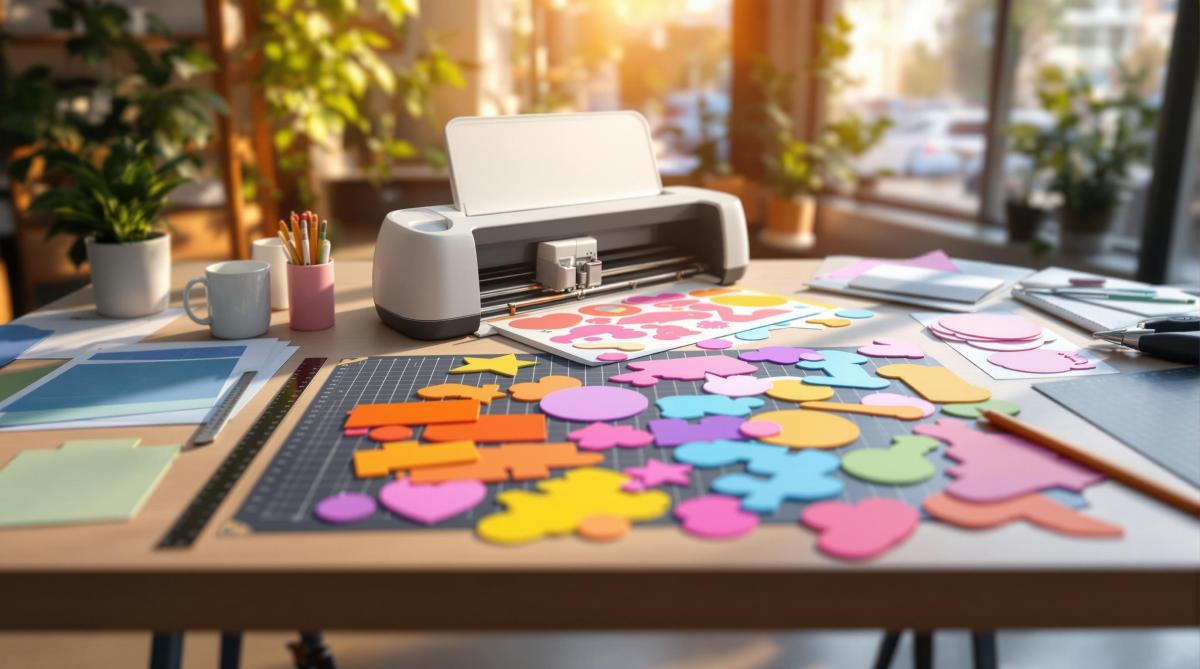
Die-cut templates are essential for creating custom shapes in printed products like business cards, packaging, and promotional materials. Here’s how to create them effectively:
- Use the Right Software: Adobe Illustrator for precision, InDesign for text-heavy designs, or Silhouette Studio for simpler projects.
- Set Up Your Document: Use CMYK color mode, 300 DPI resolution, and include a 0.125-inch bleed area.
- Organize Layers: Separate artwork, cut lines, fold lines, and guidelines with clear names and color codes (e.g., magenta for cut lines, cyan for folds).
- Add Key Details: Include registration marks, safe zones, and perforation lines for accuracy.
- Final Checklist: Ensure 300 DPI resolution, CMYK color mode, outlined fonts, proper bleed, and overprint settings before exporting as PDF/X-4.
Quick Tip: Mistakes like incorrect spot colors, missing bleed, or complex cutting patterns can lead to costly errors. Test your design with a physical prototype and consult a print shop for professional guidance.
Want precise results? Follow these steps and communicate early with your print provider to ensure your design meets production standards.
How to Create Die-Cut Files Using Adobe Illustrator
Step 1: Choose Template Design Software
Pick software that aligns with your project’s complexity and technical requirements.
Popular Software and Their Features
Adobe Illustrator is a go-to for intricate commercial die-cut templates. Its vector-based tools allow for precise control over shapes and paths, which is critical for accurate die lines. Adobe InDesign is ideal for multi-page layouts or text-heavy designs, while Silhouette Studio is a user-friendly option for simpler, smaller-scale projects.
| Software | Best For | Key Features | Learning Curve |
|---|---|---|---|
| Adobe Illustrator | Complex commercial designs | Precise vector tools and advanced path control | High |
| Adobe InDesign | Multi-page layouts | Excellent text handling and master pages | Medium |
| Silhouette Studio | Craft and small projects | Pre-set cutting tools and simple interface | Low |
Adobe Creative Cloud tools like Illustrator and InDesign dominate the market, used by 90% of creative professionals[4]. Once you’ve selected your software, the next step is preparing your document for print.
Setting Up Your Document
Start a new document with these key settings:
- Color Mode: CMYK
- Resolution: Minimum 300 DPI
- Bleed: Add 0.125 inches (3mm) beyond cut lines
- Document Size: Include the bleed area in your dimensions
To keep your project organized and professional, use a clear layer system:
| Layer Type | Purpose | Color Coding |
|---|---|---|
| Artwork | Main design elements | CMYK values |
| Cut Lines | Paths for die-cutting | 100% magenta |
| Fold Lines | Crease locations | 100% cyan |
| Guidelines | Safe zones and measurements | Non-printing |
Miro Printing & Graphics Inc. advises saving your templates as AI, EPS, or PDF files with all layers intact. This ensures compatibility with die-cutting equipment and allows for easy adjustments if needed.
Step 2: Build Your Template
Set Up Design Layers
Start by organizing your template with a clear layer hierarchy. A well-structured system makes your design process smoother and helps avoid mistakes during revisions.
| Layer Name | Purpose | Color Coding | Line Style |
|---|---|---|---|
| Artwork | Design elements and graphics | CMYK values | N/A |
| Cut Lines | Material cutting paths | 100% magenta | Solid, 0.25pt |
| Fold Lines | Crease and fold locations | 100% cyan | Dashed, 0.25pt |
| Glue Tabs | Adhesive areas | 20% black | Dotted, 0.25pt |
| Perforations | Tear lines | 100% yellow | Long-short dash |
Lock layers you’re not actively working on and use clear, descriptive names for each. For glue tabs, aim for a width of 0.5–1 inch and consider slightly rounded corners for better usability. If your design involves intricate folds, adjust the panel widths to account for the material’s thickness where folds occur.
Add Print Marks and Bleed
Once your layers are set up, focus on adding print marks and bleed areas. These details are essential for precision. Extend background elements 0.125 inches (3 mm) beyond the cut line, or up to 0.25 inches (6 mm) for more intricate shapes.
Create a "safe zone" by keeping key design elements at least 0.125 inches (3 mm) inside the cut lines. This ensures that important details, like text, remain intact and legible after folding and assembly.
In January 2022, BoxMaker, a packaging design firm, streamlined their process by introducing standardized layer structures for die-cut designs. Led by Senior Designer Mark Johnson, the team created templates with pre-defined layers for cut lines, artwork, and bleed areas. This approach cut their template creation time by 40%, reduced pre-press errors by 25%, and sped up client approvals. (Source: PackagingWorld.com, 2022 Case Studies)
For registration marks:
- Place at least three marks near the corners of your artwork.
- Use 100% black for maximum visibility.
- Position marks 0.25 inches (6 mm) from the trim lines.
- Keep placement consistent across all layers.
When working with perforations, align them with the paper grain for smoother tears. End perforation lines just before the edges to maintain the structure of your design. Test the perforation patterns to ensure they balance ease of tearing with durability.
sbb-itb-ce53437
Step 3: Print Preparation
Now that your design is structured, it’s time to focus on the final steps to ensure your file is ready for production.
Final Template Checklist
Before submitting your die-cut template, double-check these key elements:
| Element | Requirement | Common Issues |
|---|---|---|
| Resolution | 300 DPI minimum | Pixelation in the final print |
| Die Lines | Spot color, overprint enabled | Knockout issues, misalignment |
| Fonts | Outlined or embedded | Missing characters, substitution |
| Bleed Area | 1/8 inch (3mm) extension | White edges after cutting |
| Color Mode | CMYK for artwork | Incorrect color reproduction |
Make sure all raster images have a resolution of 300 DPI to avoid blurry prints [1]. Convert your file’s color mode to CMYK, and define spot colors – especially for die lines – as 100% magenta or the specific PMS color required by your print shop [2]. Double-check your overprint settings for die lines to prevent unwanted knockouts in the final print [5].
File Export Guidelines
Once your template passes the checklist, export it properly to maintain quality and accuracy.
Export your file as PDF/X-4, which preserves transparency, layer details, and color consistency [1]. Use these settings for the best results:
- PDF compatibility: Acrobat 7 (PDF 1.6) or higher
- Image compression: 300 ppi for color and grayscale, 1200 ppi for monochrome [1]
- Overprint settings: Enable overprint and Illustrator editing capabilities [5]
- Fonts: Embed fonts or convert text to outlines [1]
- Marks and bleed: Include trim marks and document bleed settings
- Color conversion: Select "No Color Conversion"
- Transparency: Use the "High Resolution" transparency flattener preset
- Layers: Preserve layers if your printer requires them
For intricate projects that involve special finishes, consider consulting a professional print shop like Miro Printing & Graphics Inc.. They can provide customized templates and ensure your die-cut design meets production standards.
Prevent Template Errors
Before finalizing your project, double-check both the design details and material choices to avoid costly production mistakes.
Design Problems to Check
Mistakes in die-cut templates can lead to expensive errors. Here’s a quick guide to common issues and how to address them:
| Design Element | Common Error | Prevention Method |
|---|---|---|
| Dielines | Incorrect spot colors or weights | Use standard magenta for cut lines and cyan for folds [2] |
| Safe Zone | Text placed too close to edges | Keep a 0.25-inch gap from the trim [1] |
| Structural Integrity | Overly complex cutting patterns | Simplify cuts to maintain material strength [3] |
| Color Settings | Using RGB instead of CMYK | Convert all artwork to CMYK before exporting [3] |
For example, in June 2022, a beverage company had to discard 50,000 misaligned boxes, resulting in a $75,000 loss (PrintWeek Magazine, August 2022).
To avoid similar issues, use your design software’s outline view to spot hidden elements [1]. For intricate designs, request a physical prototype to ensure everything aligns properly [3].
Once you’ve addressed design concerns, turn your attention to the materials you plan to use.
Material Selection Issues
When selecting materials, keep these key factors in mind:
- Paper Stock
- Testing
Working with a professional print provider, like Miro Printing & Graphics Inc., can help you navigate these challenges. Their expertise is especially useful when dealing with specialty materials that need specific die types or cutting pressures.
Clear communication with your print shop about material specs and finishing requirements is crucial. This ensures your design aligns with the material’s limitations and the production process.
Print Shop Services
Professional print services play a crucial role in managing complex die-cut projects, helping you avoid common production challenges.
Miro Printing & Graphics Inc.
When it comes to working with die-cut templates, professional print shops offer several key advantages:
| Service Aspect | Benefit | Technical Consideration |
|---|---|---|
| Design Review | Expert assessment of template feasibility | Ensures compatibility with die-cutting equipment |
| Material Consultation | Advice on the best substrate to use | Matches paper type to cutting needs |
| Quality Control | Careful proofing | Reduces risk of production errors |
| Production Efficiency | Use of industrial-grade equipment | Delivers precise, consistent results for large runs |
Miro Printing & Graphics Inc. stands out by integrating specialized die-cutting into its in-house bindery, ensuring smooth quality control from the design phase to the final cut.
To make the most of professional print services, you should:
- Provide print-ready files that meet the shop’s specifications.
- Confirm the best paper stock and finishing options for your project.
- Allow enough time for proofing and production to ensure a flawless outcome.
For more intricate projects, involving a print service early in the design process can save both time and money. Their expertise in materials and cutting techniques helps refine your template design, avoiding potential production hiccups.
Conclusion: Die-Cut Template Success Tips
Creating successful die-cut templates requires careful design and precise execution. Using professional design software helps ensure accurate template preparation.
Keep all die lines on a separate layer and set the transparency to "Multiply." This avoids white lines interfering with the final print. Use solid lines for cutting paths and dotted lines for folds, making sure every element is functional and clear [1]. Here’s a quick checklist to guide you through the process:
| Phase | Key Action | Important Consideration |
|---|---|---|
| Setup | Match print specs | Align with exact project dimensions |
| Design | Separate artwork layers | Keep die-cut lines distinct from other design elements |
| Proofing | Create full-scale mock-up | Test the design’s practicality before production |
| Materials | Choose proper stock | Ensure the substrate works well with cutting requirements |
To achieve sharp and accurate results, use brass or copper dies combined with appropriate paper stocks [1]. For intricate designs, it’s a smart move to involve print experts early on to confirm feasibility and avoid production issues.
Related Blog Posts
- Ultimate Guide to Personalized Print Design
- How Foil Stamping Works: Step-by-Step Guide
- How Die-Cutting Impacts Waste Reduction
- How to Set Up Files for Die-Cutting
https://app.seobotai.com/banner/banner.js?id=67b54880eac600a2c6716acd
 BergenCountyPrintersBlogs