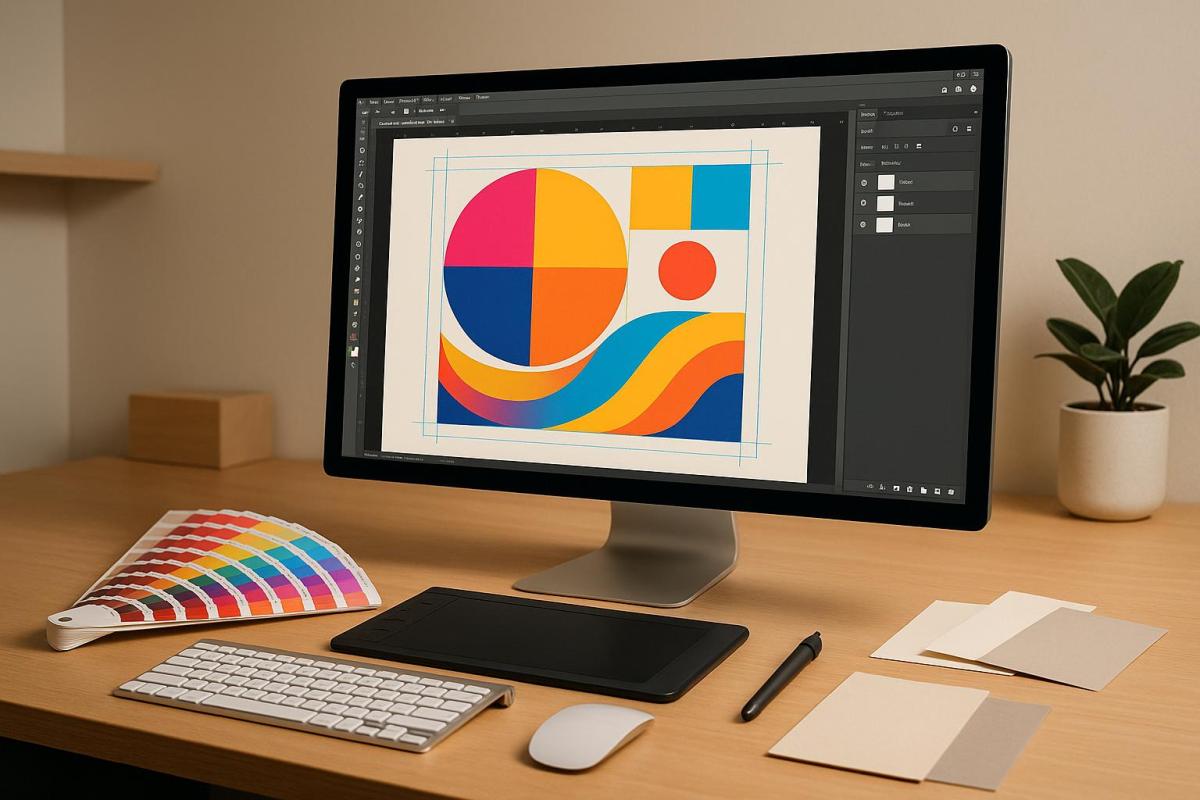
Creating print-ready artwork ensures your designs meet professional printing standards, avoiding costly errors and delays. Here’s what you need to know:
- File Setup: Use high-resolution images (300 DPI), CMYK color mode, and include a 0.125" bleed area.
- Safe Zone: Keep critical elements 0.25" inside the trim line to avoid accidental cropping.
- Accepted Formats: PDF/X-4, AI, EPS, TIFF, or high-quality JPG.
- Resolution: Maintain 300 DPI for sharp, professional results.
- Color: Convert RGB to CMYK and use Pantone colors for exact matches.
- Font Preparation: Outline or embed fonts to prevent printing issues.
- Proofing: Always check digital or physical proofs before final printing.
Quick Tip: Double-check bleed, resolution, and color settings before submission to avoid issues. For detailed guidance, refer to the full article.
Artwork Guidelines for Perfect Prints | File Setup & Printing Tips
Print-Ready File Requirements
Preparing files for printing involves meeting precise technical standards to ensure your designs come out looking their best.
Bleed, Trim, and Safe Areas
To avoid printing mishaps, it’s crucial to set up bleeds, trim marks, and safe areas properly. Here’s what you need to know:
- Bleeds: Extend your design 0.125 inches beyond the trim line on all sides to prevent white edges.
- Trim Marks: Clearly indicate where the paper should be cut.
- Safe Areas: Keep important design elements at least 0.25 inches inside the trim line to avoid accidental cropping.
- Embedded Fonts: Convert or embed all fonts to ensure they print correctly.
- Images: Use images with a resolution of 300 DPI for sharp results.
Here’s a quick reference for common document sizes:
| Document Type | Final Size | Size with Bleed |
|---|---|---|
| Business Card | 2.3″ × 2″ | 2.425″ × 2.125″ |
| Standard Letter | 8.5″ × 11″ | 8.625″ × 11.125″ |
| Postcard | 4″ × 6″ | 4.125″ × 6.125″ |
Once your layout is set, the next step is ensuring your file format is compatible with printing standards.
Accepted File Types
The file format you choose can make or break the quality of your final print. Stick to these formats:
- PDF/X-4: The go-to industry standard for print-ready files.
- AI (Adobe Illustrator): Ideal for vector graphics and scalable designs.
- EPS: Excellent for artwork that needs to retain scalability.
- TIFF: Best for high-resolution photographs.
- JPG: Acceptable, but only if saved at 100% quality.
Vector files work best for logos and designs that need to scale without losing clarity, while raster formats like TIFF and JPG are better suited for photographic images. Once your format is set, focus on resolution.
Image Resolution Standards
Resolution plays a key role in print quality. Use these guidelines for crisp, professional prints:
- Standard photos and graphics: 300 DPI
- Images with text: 400 DPI for added clarity
- Large format prints: 300 DPI at the final printed size
For standard print sizes at 300 DPI, make sure your images meet these pixel dimensions:
- 5″ × 7″: 1500 × 2100 pixels
- 8″ × 10″: 2400 × 3000 pixels
"300 DPI is considered the standard for high-quality printing because it is a resolution that produces sharp, crisp, and detailed images that appear smooth to the naked eye."
– Real Thread
Keep in mind that enlarging images beyond their original size will lower their effective resolution, which can result in blurry prints. Always start with high-quality, appropriately sized images for the best results.
Color and Design Setup
Getting the color and design setup right is crucial for creating print-ready artwork that looks exactly as intended.
Converting RGB to CMYK
To ensure your colors translate correctly from screen to print, you’ll need to convert your files from RGB to CMYK. Here’s how to do it in Adobe Creative Suite:
- InDesign: Choose the Print intent and use the Convert to Profile option for accurate color conversion.
- Photoshop: Go to Image > Mode > CMYK Color, and use Proof Setup to preview how your colors will appear in print.
- Illustrator: Navigate to File > Document Color Mode > CMYK Color to switch your document’s color mode.
For precise color consistency, especially for branding, incorporating Pantone colors is a smart move.
Using Pantone Colors

Pantone colors ensure your brand colors and specialty prints stay consistent across different materials. Here’s a quick breakdown:
| Color Type | Use Case | Benefits |
|---|---|---|
| CMYK Process | Standard printing | Budget-friendly and works well for most jobs. |
| Pantone Spot | Branding and specialty prints | Guarantees exact color matching with vibrant results. |
| Coated (PMS C) | Glossy materials | Produces a more striking, polished finish. |
| Uncoated (PMS U) | Matte materials | Maintains consistency on absorbent papers. |
Tips for using Pantone colors:
- Update your Pantone guides yearly to stay aligned with current standards.
- Always reference PMS numbers for accurate color matching.
- If Pantone inks aren’t available, convert spot colors to CMYK while keeping an eye on color fidelity.
- Compare coated and uncoated swatches to ensure your chosen color looks right on the final material.
Once your colors are set, don’t forget to pay attention to how black is used in your design.
Black Color Settings
Black might seem straightforward, but there’s more to it than meets the eye. Here’s a guide to using the right type of black for the right purpose:
| Black Type | Color Values | Best Used For |
|---|---|---|
| Standard Black | C:0 M:0 Y:0 K:100 | Ideal for text, line art, and small details. |
| Rich Black | C:40 M:30 Y:30 K:100 | Perfect for large areas and bold headlines. |
Key adjustments for black:
- Keep total ink coverage under 240% to avoid oversaturation, which can lead to printing issues.
- Avoid using rich black for fine lines – this can cause ghosting or blurry details.
Final Checks Before Printing
Double-check every detail before printing to avoid costly mistakes or errors.
Font Preparation
Ensuring text elements are ready is a key step. Use these methods to maintain consistency across your project:
| Font Action | Method | Best For |
|---|---|---|
| Outlining Text | Use Type > Create Outlines in Adobe software | Most print projects |
| Font Embedding | Save as a PDF with fonts included | Digital distribution |
| Font Files | Include all font files with your artwork | Complex projects |
If you outline your fonts, always keep an editable backup. Converting text to vector shapes ensures it reproduces consistently across different printing systems, but remember – once outlined, the text is no longer editable.
Digital vs. Physical Proofs
Proofing is essential to catch errors before production begins. Here’s a breakdown of the different proof types and their uses:
| Proof Type | Best For | Notes |
|---|---|---|
| Digital (Soft) Proof | Layout and content checks | Quick and cost-effective |
| Physical (Hard) Proof | Color and material assessment | Provides a realistic preview of output |
| Wet Proof | Exact production match | Uses actual materials and production methods |
For projects where color and material accuracy are critical, request a physical proof. While digital proofs are great for checking layouts and content quickly, they can’t fully replicate the final printed product.
Pre-Print Verification
Before sending your file to print, complete these essential technical checks to ensure it’s truly print-ready:
-
Resolution Check
Make sure all images are at least 300 DPI to avoid pixelation in the final print. -
Bleed Verification
Confirm that the bleed margins are correctly set and remain intact. -
Technical Elements
- Verify that all technical settings – such as CMYK color mode, ink configurations, safety margins, and trim marks – are properly applied in your print-ready PDF.
- Double-check overprint settings, especially for white text.
- Ensure black text is set to 100% K for sharp output.
Finally, ask someone who hasn’t been involved in the design process to proofread the artwork. A fresh pair of eyes can spot issues you might have missed.
sbb-itb-ce53437
Miro Printing & Graphics Inc. Guidelines
Miro Printing & Graphics Inc. sets its own precise standards to ensure flawless print production, building on established industry practices. While earlier sections discuss general print requirements, this section highlights their specific, tailored guidelines.
File Setup Standards
Here’s what you need to know when preparing files for Miro Printing & Graphics Inc.:
| Element | Requirement | Details |
|---|---|---|
| Bleed Area | 0.125" (1/8") | Extend backgrounds 0.125" beyond the trim line. |
| Safe Zone | 0.1875" (3/16") | Keep crucial content 0.1875" inside the trim. |
| Resolution | 300 DPI | Standard for print (150 DPI for wide formats over 6 ft). |
| Line Art | 1200 DPI | Ensures sharp vector graphics and text clarity. |
| Color Mode | CMYK | Use rich black: 100% K, 50% C, 50% M. |
| Max Color Saturation | 240% | Total ink coverage for all color channels. |
For files under 10 MB, email submission is fine. For larger files, use a secure file transfer service. Always include PDF mock-ups for projects with multiple files to ensure accuracy.
Available Design Services
Miro Printing & Graphics Inc. offers in-house design support for clients who need assistance preparing their files. Their team can:
- Convert RGB files to CMYK for proper color reproduction.
- Ensure bleed and trim are correctly applied.
- Optimize resolution and layout for professional results.
- Create print-ready PDFs.
- Handle font and vector management.
Designers work closely with clients to ensure all technical requirements are met before production begins.
Shipping and Distribution
Miro Printing & Graphics Inc. doesn’t just handle printing; they also make sure your materials reach their destination efficiently, all from their Hackensack, NJ facility:
| Service Type | Features | Requirements |
|---|---|---|
| File Submission | Accepts multiple formats | PDF, EPS, JPG, TIFF, PSD, AI. |
| Quality Control | Pre-press verification | Include mock-ups for multi-page projects. |
| Project Delivery | Local and nationwide shipping | Provide delivery details upfront. |
| Direct Mail | EDDM services available | Contact their mailing department for specifics. |
With these services, Miro Printing & Graphics Inc. ensures every project is handled with precision from file preparation to final delivery.
Conclusion: Print-Ready File Checklist
Preparing artwork for professional printing demands precision and careful review. Here’s a handy checklist to ensure your files align with industry standards and the requirements of Miro Printing & Graphics Inc.:
| Category | Essential Checks | Requirements |
|---|---|---|
| Color Settings | CMYK Profile | Convert all RGB files to CMYK; use rich black (100% K) when needed |
| Resolution | Image Quality | Maintain a standard resolution of 300 DPI |
| Document Setup | Bleed & Safe Zone | Include a 0.125″ bleed; keep critical elements 0.1875″ from the trim |
| Typography | Font Management | Convert all text to outlines or embed the fonts |
| File Preparation | Final Checks | Package all linked files for submission |
Before finalizing your file, double-check the following:
- Ensure line thickness is no less than 0.25 points (around 0.003 inches).
- Compress your files for easier upload and sharing.
- Include crop marks to guide trimming.
- For direct mail projects, leave a clear area of 3.75 inches by 2.875 inches for mailing details.
- Use preflight tools to confirm fonts, image resolution, and other technical elements meet the required standards.
FAQs
What mistakes should I avoid when creating artwork for printing?
How to Ensure Your Artwork Is Print-Ready
When preparing your artwork for printing, sidestepping a few common missteps can save you a lot of headaches. Here’s what to watch out for:
- Using RGB Instead of CMYK: RGB works fine for digital screens, but it doesn’t translate well to print. For accurate colors, always convert your files to CMYK before sending them off to the printer.
- Skipping Bleed and Crop Marks: To make sure your design goes all the way to the edge of the page, include a bleed of at least 1/8 inch. Don’t forget crop marks – they guide the trimming process and ensure precision.
- Not Outlining Fonts or Embedding Images: If your fonts aren’t outlined or your images aren’t embedded, you risk missing elements or running into formatting problems. Take the time to outline all text and embed linked images to avoid surprises.
Paying attention to these details will help you create polished, print-ready designs while avoiding unnecessary delays.
How can I make sure my printed colors match what I see on my screen?
To get your printed colors as close as possible to what you see on your screen, it’s essential to understand the difference between RGB and CMYK color models. Screens rely on RGB (Red, Green, Blue) to create bright, light-based colors, while printers use CMYK (Cyan, Magenta, Yellow, Black), which blends inks and has a narrower color range. Because of this, printed colors often look less vibrant than what you see on your monitor.
To improve accuracy, always set your design software to CMYK mode when preparing files for print. Using a calibrated monitor can also give you a more realistic preview of your colors. For projects where precise color matching is essential, consider working with Pantone colors, which are pre-mixed inks designed to deliver consistent results in print. These practices will help ensure your printed materials turn out just the way you envisioned.
What should I do if my print-ready file is rejected by the printer?
If your print-ready file gets rejected, the first step is to contact the printing service to pinpoint the exact issue. Some of the most common reasons for rejection include:
- Low-resolution images: Make sure all images are at least 300 DPI to ensure they print clearly and sharply.
- Wrong color mode: Files should be in CMYK, not RGB, since CMYK is the standard for printing.
- Missing bleeds: Add a bleed area – usually 0.125 inches – to prevent unwanted white edges after trimming.
Double-check that you’ve correctly used the printer’s templates, as formatting errors are another frequent cause of problems. After addressing the issues, you can resubmit your file. If the technical aspects feel overwhelming, you might want to reach out to a professional print service like Miro Printing & Graphics Inc. for expert advice and assistance.
Related posts
- How to Set Up Files for Die-Cutting
- How to Prepare Vector Files for Print
- Checklist for Print-Ready Files: Bleed, Trim, Safe Zone
- How to Set Up Artboards for Printing
https://app.seobotai.com/banner/banner.js?id=682dea814fa53d42207f2b55
 BergenCountyPrintersBlogs