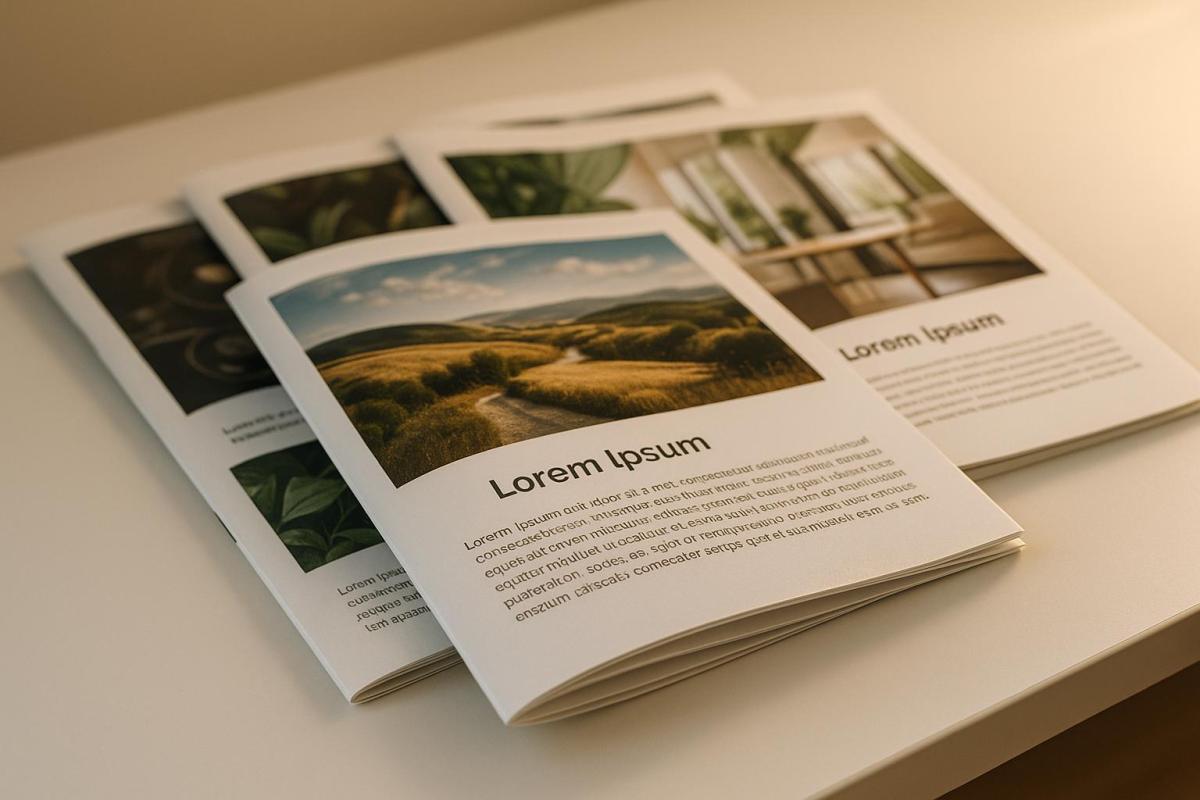
When printing professionally, DPI (Dots Per Inch) determines the sharpness and detail of your materials. Here’s what you need to know:
- 300 DPI is the standard for most print jobs like business cards, brochures, and magazines. It ensures sharp, detailed results for items viewed up close.
- For larger prints like banners or posters, 150 DPI or even 100 DPI works well due to longer viewing distances.
- High-resolution images are critical. Low-res files (e.g., 72 DPI) can result in blurry, pixelated prints.
- Material type and viewing distance influence the ideal DPI. Glossy papers handle higher DPI, while textured surfaces can work with lower resolutions.
- Balancing quality with file size is key. Higher DPI creates larger files, which may slow production without noticeable quality improvements for distant viewing.
Proper DPI selection ensures clear, professional prints while optimizing time and costs.
Image resolution for printing: our guide
Standard DPI Requirements for Commercial Printing
Selecting the right DPI is crucial for saving time, reducing costs, and ensuring your printed materials look professional across various formats.
300 DPI: The Go-To Resolution for Most Print Jobs
For most commercial printing projects, 300 DPI is the gold standard. This resolution is ideal for items people hold and view up close, like business cards, brochures, flyers, booklets, magazines, and postcards.
At 300 DPI, individual dots are indistinguishable to the human eye at typical reading distances (12–18 inches). This ensures that text remains sharp and images appear smooth and detailed. For instance, a business card printed at a lower resolution might look pixelated, giving off an unpolished vibe, while one printed at 300 DPI conveys professionalism and attention to detail.
Marketing materials like brochures and catalogs also benefit greatly from 300 DPI. High-resolution product images appear vibrant and detailed, leaving a strong impression on potential customers. Investing in this resolution enhances the overall quality and impact of your printed materials.
However, for prints viewed from a distance, the DPI standards are adjusted to suit the viewing conditions.
DPI for Large Format Printing
For larger prints, lower resolutions are often more practical due to the increased viewing distance. When you’re dealing with banners, posters, trade show displays, or outdoor signage, viewing distance becomes a key factor in determining the required DPI.
- 150 DPI: Ideal for most large-format indoor prints like banners, trade show graphics, and wall displays. At viewing distances of 3–6 feet, this resolution provides clear images and manageable file sizes.
- 100 DPI: Works well for very large outdoor signage, such as billboards and vehicle wraps, which are typically viewed from much farther away (10 feet or more). For example, a billboard seen from 50 feet doesn’t need the same level of detail as a brochure held in your hand.
Using a lower DPI for large-format printing offers several advantages: faster file processing, reduced printing time, and lower costs. It also prevents the creation of unnecessarily large files that printers and viewers won’t benefit from.
DPI Requirements Table for Common Print Products
| Print Product | Recommended DPI | Typical Viewing Distance | Notes |
|---|---|---|---|
| Business Cards | 300 DPI | 12–18 inches | Close-up items require the sharpest details. |
| Brochures & Flyers | 300 DPI | 12–24 inches | Standard for marketing materials. |
| Magazines & Catalogs | 300 DPI | 12–18 inches | Ensures crisp text and detailed images. |
| Posters (small) | 300 DPI | 2–4 feet | Suitable for sizes up to 18" x 24". |
| Banners & Displays | 150 DPI | 3–6 feet | Ideal for indoor events and trade shows. |
| Large Posters | 100–150 DPI | 4–8 feet | Best for sizes 24" x 36" and larger. |
| Outdoor Signage | 100 DPI | 10+ feet | Perfect for billboards and building signs. |
| Vehicle Graphics | 100–150 DPI | 6–20 feet | Used for wraps and decals. |
For example, a 24" x 36" poster printed at 300 DPI creates a very large file, which may be unnecessary. Printing it at 150 DPI still delivers excellent quality while keeping file sizes more practical.
These recommendations are general guidelines, not hard-and-fast rules. Factors like paper type, ink quality, and specific viewing conditions can all influence the ideal DPI for your project. When in doubt, it’s better to start with a slightly higher resolution and scale down if needed, as increasing resolution later can compromise quality.
Factors That Affect DPI Selection
When preparing files for printing, there’s more to consider than just standard DPI guidelines. Factors like viewing distance, material type, and production needs all play a role in determining the best DPI settings for your project.
How Viewing Distance Affects DPI
Viewing distance is a key factor in determining the required DPI. The farther away someone views an item, the less detail the human eye can detect, meaning ultra-high resolutions aren’t necessary for distant displays.
For items viewed up close, such as business cards or brochures, 300 DPI is essential. At this range, any pixelation or blurriness becomes obvious, making a high resolution critical for sharp, professional results.
On the other hand, for items viewed from a moderate distance – like posters on a wall 4–6 feet away – 150 DPI is generally sufficient. At this range, the eye naturally blends details, allowing for a lower resolution without compromising visual quality.
For large outdoor signage, such as billboards seen from 20–50 feet away, even 100 DPI can look great. Printing these at 300 DPI would create unnecessarily large files without offering any noticeable improvement to viewers at such distances.
Next, let’s look at how the material you print on affects the final resolution.
How Material Choice Affects DPI
The type of material you print on directly influences how much detail the final product can display. Different surfaces interact with ink or toner in unique ways, affecting sharpness and clarity.
- Glossy papers handle the highest DPI settings. Their smooth surfaces allow ink to sit precisely where it’s placed, making them ideal for fine details and sharp text. These materials are well-suited for the full 300 DPI standard.
- Coated papers also align with the 300 DPI recommendation. The coating prevents ink from spreading, ensuring crisp edges and clear images.
-
Uncoated papers often don’t need the full 300 DPI resolution. As printing expert Rafael Otake explains:
On coated paper, a standard lineature is 150 lpi, so the pixel resolution or ppi is recommended to be 300ppi. This is where this "standard" comes from. But it is not the only case. On uncoated paper, the lineature could be lower, like 133 lpi, so the pixel resolution could be 266 ppi.
- Textured and canvas materials naturally mask small imperfections due to their rough surfaces. These materials typically perform well at 200 DPI, with some coarser options working effectively at 150 DPI.
Additionally, the printing method matters. Inkjet printers may experience some ink seepage into paper fibers, which can slightly reduce sharpness. In contrast, laser printers use toner that sits on the surface of the paper, often producing sharper results at the same DPI.
Finally, let’s consider how file size impacts production.
File Size and Production Speed
Higher DPI settings don’t just affect print quality – they also impact file size and production speed. A 300 DPI file contains four times more data than a 150 DPI file, which can significantly slow down production.
Large files can bog down design software, delay file transfers, and strain print servers, all of which add time to the production process. For example, a banner rendered at 300 DPI might take 30–45 minutes to process and print, while the same banner at 150 DPI could finish in just 10–15 minutes with comparable visual results.
Storage costs are another consideration. Oversized files consume valuable server space, which can impact resource allocation for other projects. Balancing resolution with file size is critical to maintaining efficiency without sacrificing quality.
Most commercial printers are optimized for standard DPI settings, ensuring smooth workflows. Sticking to these recommendations helps you avoid unnecessary delays and costs while delivering high-quality results.
sbb-itb-ce53437
How to Prepare Print-Ready Files with Correct DPI
Getting your files ready for printing with the correct DPI is key to ensuring high-quality results. Starting with the right resolution settings for your images and graphics saves time and prevents quality issues. A well-prepared file ensures that your final prints showcase the detail and clarity you intended, aligning perfectly with the DPI standards discussed earlier.
Setting DPI in Design Software
Professional design tools make it easy to set and adjust DPI. For example, in Adobe Photoshop, you can tweak both pixel dimensions and resolution in the "Image Size" dialog box. For most print projects, set the resolution to 300 DPI.
In Adobe Illustrator and InDesign, you can check and manage image resolution through the "Document Raster Effects Settings" or the "Links" panel. InDesign even flags images that fall below the 300 DPI threshold with warning icons, helping you catch potential issues early.
Other design programs often come with pre-made print templates that already include the correct DPI settings, making the setup process even simpler.
Common File Preparation Mistakes to Avoid
Even after setting the right DPI, some common errors can still compromise your print quality. One major mistake is altering the DPI metadata without actually improving the image resolution. Simply changing the DPI number in your software’s settings doesn’t add detail – it only tells the printer how to interpret the existing pixels.
How to Adjust Image Resolution
If you need to adjust an image’s resolution, it’s important to understand the difference between resampling and just changing DPI metadata. Resampling alters the actual amount of image data: downsampling reduces pixels, while upsampling adds new ones.
Upsampling, or increasing resolution, must be done carefully since the software has to "guess" where to add new pixels. This process can sometimes lead to a loss of sharpness. For the best results, use options like "Bicubic Smoother" in Adobe Photoshop or "Lanczos" in GIMP.
For even better results, consider AI-powered upscaling tools like Topaz Labs‘ Gigapixel AI or LetsEnhance. These tools use artificial intelligence to add pixels more intelligently, preserving more detail and sharpness compared to traditional upsampling methods.
On the other hand, downsampling usually provides better results because it works with existing image detail rather than creating new pixels. Starting with high-quality originals is always your best bet for achieving optimal print results. A sharp, high-resolution image will always outperform an upsampled low-resolution one, regardless of the software used.
After resampling, applying an Unsharp Mask filter can help restore focus and detail to your adjusted images, ensuring they’re print-ready.
How Miro Printing & Graphics Inc. Supports Optimal DPI Standards
When it comes to achieving top-notch print quality, selecting the right print partner is just as important as understanding DPI standards. Miro Printing & Graphics Inc., based in Hackensack, NJ, ensures that your files meet industry DPI benchmarks, delivering professional-grade clarity and sharpness in every project.
Comprehensive Printing Services
Miro Printing & Graphics Inc. provides a wide array of printing solutions, tailored to meet the DPI requirements of each project type. Their digital printing services produce crisp 300 DPI outputs, perfect for brochures, business cards, and flyers. For larger-scale jobs, their offset printing ensures exceptional detail and consistency across high-volume runs. When it comes to large-format printing, their team carefully adjusts methods based on the viewing distance, ensuring the best visual impact. Additionally, their bindery services – such as booklet making, perfect binding, and comb binding – maintain image quality throughout the finishing process.
Personalized Project Support
One of the standout features of Miro Printing & Graphics Inc. is their hands-on approach to each project. They meticulously review every file to catch resolution issues early, ensuring proper DPI and preventing costly reprints. This proactive attention to detail minimizes errors and maximizes efficiency.
"Let us know what type of project you are working on, and allow us to offer our expertise. During the process, Miro Printing & Graphics Inc. will work with a professional, personal approach to better understand your company’s needs. The end result is a finished piece that exceeds your highest expectations but never your budget!"
In-House Design and File Optimization
To make the entire process seamless, Miro Printing & Graphics Inc. offers in-house design services. Their skilled design team collaborates directly with your source materials, enhancing low-resolution images, ensuring proper rasterization of vector files, and refining intricate layouts. This ensures that your files are optimized for printing from start to finish.
Conclusion
Choosing the right DPI is key to achieving sharp, professional-quality prints. It plays a major role in ensuring your materials look polished and visually appealing.
For most marketing materials, 300 DPI is the go-to standard for crisp, detailed results. However, larger projects like banners or posters can often work well with a resolution of 100–150 DPI, since viewers typically see them from a distance, where ultra-high resolution isn’t as critical. As a rule of thumb, higher DPI produces sharper prints, while lower resolutions can lead to pixelation and blurry images.
Several factors influence the ideal DPI, including viewing distance, the type of material being printed on, and file size. For example, a billboard viewed from far away doesn’t require the same level of detail as a business card that’s examined up close. Beyond resolution, ensuring your files are properly optimized is just as important to translate these settings into flawless prints.
Steps like converting colors from RGB to CMYK, using lossless file formats, and setting appropriate bleed zones are essential for quality results. Even with the perfect DPI, neglecting these preparation steps can compromise the final outcome.
FAQs
Why is 300 DPI the standard resolution for commercial printing?
When it comes to commercial printing, 300 DPI (dots per inch) is the go-to resolution. Why? It delivers sharp, clear images and text that look polished and professional. At this level of detail, everything remains crisp, even when viewed up close, with little to no pixelation or blurriness.
This resolution is ideal for materials like brochures, banners, and booklets, ensuring they leave a strong visual impression. Using a lower resolution risks muddying the details, which can detract from the quality of the final product. Sticking to 300 DPI helps maintain the standard of excellence expected in print.
How does the viewing distance impact the recommended DPI for large format printing?
When it comes to large format printing, the viewing distance is crucial in deciding the ideal DPI. For prints that will be seen up close (within 6 feet), a higher DPI – 200 to 300 – is necessary to achieve crisp, detailed visuals. If the prints will be viewed from a medium range (6 to 12 feet), a DPI of 100 to 150 typically does the job. For anything viewed from over 12 feet away, a DPI of 100 or lower is sufficient, as the human eye naturally picks up less detail at greater distances.
Matching the DPI to the viewing distance strikes the right balance between image quality and printing efficiency. This ensures your large format prints look impressive while avoiding unnecessary use of resources.
What are the downsides of using a higher DPI than needed for large prints?
When working with large prints, using a higher DPI than needed can lead to unnecessarily large file sizes. This not only slows down processing and printing but also demands more storage space – without any visible improvement in print quality. This is especially true for items like banners or posters, which are usually viewed from a distance.
For most large-format prints, a DPI between 150 and 300 delivers great results. Going beyond this range often wastes resources without adding any real benefit to the final product.
Related Blog Posts
- Large Format Printing: DPI vs. PPI Explained
- Image Resolution Standards for Offset Printing
- Best DPI Settings for Photo Printing
- How to Adjust DPI for Large Format Prints
https://app.seobotai.com/banner/banner.js?id=68d1e6847b5c01ae369367c6
 BergenCountyPrintersBlogs