Lightfastness Testing for CMYK Prints

Learn how lightfastness testing ensures your CMYK prints resist fading, maintain vibrancy, and prolong their lifespan through informed material choices.

Lightfastness testing helps ensure your CMYK prints stay vibrant and durable over time. It measures how well prints resist fading when exposed to light, which is crucial for maintaining quality in marketing materials, signage, and fine art prints. Here’s what you need to know:

  • Why It Matters: Fading can distort colors (magenta fades fastest) and harm brand consistency, increasing reprinting costs.
  • Key Factors: Ink type (pigment-based lasts longer than dye-based), substrate choice (coated papers and vinyl perform better), and exposure conditions (UV light, temperature, humidity).
  • Testing Methods: Accelerated aging tests simulate years of light exposure in hours, using tools like spectrophotometers to measure fading.
  • Improving Durability: Use pigment-based inks, UV-resistant substrates, and protective coatings to extend print life.

Understanding these principles ensures your prints maintain their appearance and value, whether displayed indoors or outdoors.

Lightfastness, How It’s Tested And What It Means For You | Acrylic Painting Liquitex

Liquitex

Standard Lightfastness Testing Methods

Testing lightfastness involves specialized methods that replicate prolonged light exposure in controlled lab settings. These standardized procedures help printing professionals predict how various ink and substrate combinations will hold up over time, ensuring informed decisions before large-scale production begins.

Accelerated Aging Tests

Accelerated aging tests subject print samples to intense artificial light that mimics the UV and visible light spectra of natural sunlight. Xenon arc lamps are a popular choice for these tests because they closely simulate sunlight. The samples are placed in controlled environmental chambers that replicate indoor display conditions. Testing durations are carefully calibrated to represent years of exposure in just a few hours. Throughout the process, color measurements are taken at regular intervals to identify which colors begin to fade first. These tests provide a solid foundation for standardized comparisons, as outlined in the next section.

Key Standards for Lightfastness Testing

International standards play a critical role in guiding lightfastness testing for the graphic arts industry. For instance, ISO 2835 specifies parameters like light intensity, temperature, humidity, and measurement intervals, ensuring consistent and comparable results across different labs. Another widely used benchmark is the Blue Wool scale, originally developed for textiles but now adapted for print testing. This scale uses reference standards, with higher ratings indicating greater resistance to fading. In North America, additional testing protocols have been developed to address the unique challenges of digital printing, such as variations in substrates and ink application methods. Accurate color tracking, which is explored in the following section, is an essential part of these procedures.

Using Spectrophotometers for Color Measurement

Spectrophotometers are essential tools for detecting subtle color changes that might not be noticeable to the human eye. These devices use the Delta E (∆E) system to quantify color differences, providing a clear indication of when fading becomes apparent. By comparing baseline and post-exposure measurements, professionals can precisely track color shifts. For example, data often reveals that magenta tends to degrade more quickly, while other colors remain relatively stable. This level of detail allows printing experts to refine color profiles and choose ink formulations that improve the durability of CMYK prints.

Factors That Affect Lightfastness in CMYK Prints

Understanding the elements that influence lightfastness is essential for printing professionals aiming to produce long-lasting prints. From the chemical composition of inks to the conditions where prints are displayed, several factors play a role in determining how well CMYK prints resist fading over time.

Ink Formulation and Type

The durability of CMYK prints starts with the ink itself. One of the biggest differences comes down to the choice between pigment-based and dye-based inks. Pigment-based inks contain tiny particles that rest on the surface of the substrate, forming a physical layer that helps block UV rays and resist fading. When properly formulated, these inks can preserve their color for decades.

Dye-based inks, on the other hand, work by dissolving into the substrate fibers. While they produce vibrant and vivid colors, they’re more prone to fading since the dye molecules are more exposed to light and environmental factors.

Modern ink formulations often include UV inhibitors and antioxidants to combat fading. These additives slow the photochemical reactions that break down color. Even the particle size in pigment-based inks matters – smaller particles can enhance color saturation but may be slightly more vulnerable to fading than larger ones.

Color longevity also varies within the CMYK spectrum. Cyan tends to hold up the best, while magenta fades the quickest, with yellow falling somewhere in between. Black inks, especially those made with carbon-based pigments, generally offer excellent resistance to fading.

Substrate Selection

The type of substrate used can significantly impact how well inks resist fading. Coated papers provide a sealed surface that enhances lightfastness by preventing ink absorption, while uncoated papers absorb more ink, offering some protection but also increasing the risk of chemical degradation, especially if the paper is acidic.

Specialty substrates bring additional benefits. Synthetic materials like polyester films are chemically stable and don’t interact with ink components, making them highly resistant to fading. Textured art papers and canvas can also offer some protection by creating tiny shadows that reduce direct light exposure to the ink.

However, substrates with optical brightening agents (OBAs) present challenges. These agents make prints appear brighter initially, but they degrade faster than the ink, leading to noticeable shifts in the print’s overall appearance over time.

Ultimately, the combination of ink chemistry and substrate properties is crucial in achieving long-lasting CMYK prints.

Environmental Conditions

Environmental factors, especially light exposure, play a major role in determining the lifespan of CMYK prints. Direct sunlight, which contains high levels of UV radiation, causes the fastest fading. A print exposed to sunlight through a window can start showing signs of fading within weeks.

Indoor lighting, such as LEDs, emits less UV radiation but still contributes to gradual fading over time. Regional climate differences across the U.S. also matter – prints in Arizona’s dry heat face different challenges than those in Florida’s humid and damp conditions.

Temperature and humidity further accelerate fading. High temperatures speed up chemical reactions, while excessive humidity makes inks more reactive. Even air quality can influence lightfastness. Pollutants like ozone and nitrogen oxides, common in urban or industrial areas, can interact with ink components and cause fading, even in low-light environments.

Mounting and framing choices also affect print longevity. UV-filtering glass or acrylic can significantly extend the life of a print by blocking harmful rays. However, poor ventilation behind frames can trap moisture and pollutants, creating conditions that speed up degradation.

sbb-itb-ce53437

How to Read Lightfastness Test Results

Lightfastness test results help predict how prints will hold up over time, offering clear benchmarks for choosing materials and managing expectations about fading. Building on earlier discussions about ink types and substrates, this section will guide you through understanding lightfastness data to achieve the best CMYK print results. We’ll explore key metrics, practical fading thresholds, and comparative performance to simplify material selection.

Key Metrics for Measuring Lightfastness

Delta E (∆E) quantifies color changes between fresh and faded prints. The scale runs from 0 (no change) to values above 6 (severe fading), aligned with human visual perception. Here’s how the scale breaks down:

  • 0-1: Changes are nearly invisible.
  • 1-3: Noticeable to trained observers.
  • 3-6: Clearly visible to most people.
  • Above 6: Fading is immediately obvious.

Gamut volume change measures shifts in the overall color range during fading. While ∆E focuses on individual colors, this metric evaluates whether the entire spectrum of reproducible colors shrinks or shifts, revealing how well the print retains its visual impact over time.

The Blue Wool scale, originally developed for textiles, rates lightfastness from 1 to 8 using blue wool reference samples. Here’s a quick breakdown:

  • 1-2: Poor lightfastness – suitable only for short-term indoor use.
  • 3-4: Works for general indoor applications.
  • 5-6: Handles moderate outdoor exposure.
  • 7-8: Excellent for demanding outdoor conditions.

Setting Practical Thresholds for Fading

Once you understand the metrics, it’s important to set realistic fading thresholds based on your project’s needs and budget. Different applications require varying levels of color stability:

  • Marketing materials: ∆E of 5-6 is acceptable.
  • Business signage: A stricter ∆E of 2-3 is recommended.
  • Fine art prints: Require a ∆E of 1.5 or below for optimal preservation.
  • Outdoor applications: May tolerate a ∆E of 3-4 due to harsher exposure conditions.

The environment where prints will be displayed also matters. Bright retail lighting or locations near windows demand tighter ∆E thresholds, while dimly lit offices or storage areas can allow for more leniency. Always consider the lighting intensity and type when determining acceptable fading limits.

Comparing Ink and Substrate Performance

The table below compares how different ink and substrate combinations perform under standardized tests, simulating 150 hours of xenon arc exposure – equivalent to about two years of typical indoor display conditions.

Ink Type Substrate ∆E After Testing Blue Wool Rating Best Applications
Pigment-based UV Vinyl 1.2 7-8 Outdoor signage, vehicle graphics
Pigment-based Solvent Canvas 1.8 6-7 Fine art, gallery prints
Pigment-based Aqueous Coated Paper 2.3 5-6 Indoor posters, presentations
Dye-based Aqueous Photo Paper 3.1 4-5 Short-term displays, proofs
Standard CMYK Offset Uncoated Paper 4.2 3-4 Brochures, newsletters
  • Pigment-based UV inks on vinyl stand out for their exceptional lightfastness, making them ideal for outdoor use, even though they come at a higher cost.
  • Solvent-based pigment inks on canvas offer a great balance of lightfastness and aesthetic appeal, perfect for fine art prints.
  • Aqueous pigment inks on coated paper provide solid performance for indoor applications at a moderate price.

On the other hand, dye-based inks, while delivering vibrant colors initially, fade more noticeably across all substrates. They are best suited for short-term projects where immediate visual impact is more important than longevity.

Keep in mind that these results are based on standardized conditions. Real-world performance can vary depending on factors like environmental conditions, display methods, and quality expectations. Use this data as a starting point, and whenever possible, test samples under the actual conditions your prints will face.

How to Improve Lightfastness in CMYK Prints

Now that you know how to interpret lightfastness test results, let’s dive into practical steps to make your CMYK prints more durable. By focusing on both the ink and the substrate, you can significantly extend the lifespan of your prints.

Best Practices for Better Lightfastness

To reduce fading, start by selecting the right substrate. Both the ink and the material you print on play a major role in how well your prints resist fading over time. Look for substrates that are resistant to degradation and have a neutral pH. Materials with low reflectivity can also help minimize wear and tear, further extending the life of your prints.

New Developments in Ink Technology

Advances in ink technology are making it easier to achieve longer-lasting prints. Modern inks now include UV-blocking additives and improved pigment encapsulation techniques, which shield color molecules from breaking down under light exposure. Nano-pigment technology has also been developed, offering better pigment dispersion and increased surface area. This not only improves lightfastness but also maintains vibrant, high-quality colors.

Another exciting innovation is hybrid ink systems. These combine the vividness of dye-based inks with the durability of pigment-based inks, giving you the best of both worlds. This makes them a great choice for applications where both color intensity and longevity are crucial.

How Miro Printing & Graphics Inc. Can Help

At Miro Printing & Graphics Inc., we specialize in helping you achieve prints that last. Whether you’re creating outdoor signage, indoor displays, or archival documents, we’ll guide you in choosing the best combination of inks and substrates for your specific needs. The right materials can mean the difference between prints that fade in a few months and those that stay vibrant for years.

Our expertise spans digital printing, offset printing, and large-format printing, allowing us to tailor our approach to your project. For outdoor applications requiring maximum durability, we use pigment-based UV inks on premium vinyl substrates. For indoor prints, we focus on balancing cost and longevity with aqueous pigment systems on carefully chosen coated papers.

In addition to printing, we offer a variety of protective finishing services. Our in-house bindery and finishing team ensures that protective coatings are applied flawlessly, enhancing both the durability and appearance of your prints.

Based in Hackensack, NJ, Miro Printing & Graphics Inc. proudly serves businesses across the region, delivering high-quality, long-lasting print solutions tailored to your needs. Let us help you create prints that stand the test of time.

Conclusion

Lightfastness testing plays a crucial role in ensuring that CMYK prints maintain their quality over time. This process involves the right combination of testing methods, material choices, and advanced printing techniques.

Key Takeaways

Accelerated aging tests and standardized methods help predict how prints will perform under various conditions, whether displayed indoors or exposed to outdoor elements for extended periods.

Print longevity is influenced by several interconnected factors. Ink formulation is a major component – pigment-based inks typically hold up better in lightfastness tests compared to dye-based options. Substrate selection also matters, with coated papers and specialized vinyl materials providing greater resistance to UV damage. Additionally, environmental conditions play a significant role in determining fade rates.

When analyzing test results, pay attention to Delta E values, which measure color change. Keep in mind that different applications require varying durability standards. For instance, indoor displays may allow for more noticeable color shifts than outdoor signage or archival materials.

These considerations form the foundation for creating long-lasting print solutions that meet diverse needs.

Miro Printing & Graphics Inc.: Your Trusted Printing Partner

Miro Printing & Graphics Inc.

Armed with these insights, Miro Printing & Graphics Inc. is here to help you achieve exceptional print longevity. With over 30 years of experience, we specialize in producing durable CMYK prints by understanding the intricate relationship between inks, substrates, and environmental factors.

"Let us know what type of project you are working on, and allow us to offer our expertise. During the process, Miro Printing & Graphics Inc. will work with a professional, personal approach to better understand your company’s needs. The end result is a finished piece that exceeds your highest expectations but never your budget!"

Our range of services – spanning digital, offset, and large-format printing – ensures that your prints not only look great but also stand the test of time. Whether you need outdoor banners designed to resist fading for years or indoor materials with consistent, vibrant colors, we guide you in selecting the ideal combination of inks and substrates for your project.

Located in Hackensack, NJ, we proudly serve businesses across the region, delivering prints with enduring quality. Our in-house bindery and finishing services add an extra layer of precision, applying protective coatings and treatments to ensure your materials are both visually stunning and long-lasting.

FAQs

How do pigment-based inks compare to dye-based inks in terms of lightfastness?

Pigment-based inks stand out for their resistance to fading when exposed to light. This quality makes them a go-to option for prints that need to retain their color and sharpness over time, such as archival materials or long-lasting CMYK prints.

In contrast, dye-based inks are made from soluble dyes, which are more vulnerable to UV light and other environmental factors. While they can deliver vivid, eye-catching colors initially, they tend to fade faster, especially in brightly lit or outdoor settings. If maintaining color over time is a top priority, pigment-based inks are the smarter choice.

How do humidity and temperature affect the longevity of CMYK prints?

Environmental factors like humidity and temperature have a big impact on how long CMYK prints last. If the humidity is too high, the paper can soak up moisture, which might cause it to warp, smudge, or fade faster. On the flip side, low humidity can lead to static buildup, which can cause problems like sheet misfeeds that hurt print quality.

Temperature swings can be just as tricky. When materials expand or contract due to temperature changes, it can throw off color alignment or distort the design, ultimately shortening the print’s lifespan. To keep your prints in great shape, aim for a stable environment – 45-55% relative humidity and steady temperatures are ideal. Storing prints properly in controlled conditions can make a noticeable difference in how long they last.

How can I make my CMYK prints more resistant to fading when used outdoors?

To keep your CMYK prints looking sharp and vibrant outdoors, think about adding UV-protective coatings like varnishes or laminates with UV inhibitors. These coatings act as a barrier against sunlight, helping to reduce fading and giving your prints a longer lifespan.

Another way to boost durability is by using UV-resistant inks or adding UV absorbers during the printing process. If you’re serious about maintaining print quality over time, performing lightfastness tests – like using a Xenon Arc fadeometer – can give you valuable insights into how your prints will hold up in outdoor conditions.

If you need professional help, Miro Printing & Graphics Inc. in Hackensack, NJ, provides top-notch printing services and post-press solutions to ensure your prints are both high-quality and built to last.

Related Blog Posts

https://app.seobotai.com/banner/banner.js?id=68d487bae3dd4bddfa4c15af

Checklist for Designing Die-Cut Cards

Learn how to design die-cut business cards that make a lasting impression with essential tips on dimensions, materials, finishes, and layout.

Die-cut business cards are a powerful way to make a lasting impression. By using custom shapes, materials, and finishes, they can visually and tactilely represent your brand. Here’s what you need to know:

  • Dimensions & Shapes: Start with a standard size (3.5" x 2") and extend your design by 0.125 inches for bleed. Custom shapes like rounded corners or unique cut-outs can add appeal but must balance creativity with usability.
  • Materials: Choose sturdy cardstock (14pt–16pt) or explore textured, coated, or plastic options for durability and aesthetic impact.
  • Finishes: Add spot UV, foil stamping, embossing, or edge painting for extra flair. These details enhance the design while maintaining functionality.
  • Layout & Readability: Ensure text and graphics are clear, with a safe margin of 1/8 inch from edges. Use high-contrast colors and legible fonts.
  • File Preparation: Submit print-ready files in PDF format with 300 DPI resolution, CMYK colors, and separate die-cut layers.

Die-cut cards demand precision in design and production. Miro Printing & Graphics Inc. offers expert support, from design troubleshooting to proofing, ensuring your cards stand out and meet technical standards.

Dimensions and Shapes

Standard Dimensions and Guidelines

When designing a die-cut business card, the starting point is the standard U.S. dimensions: 3.5" × 2". To ensure a polished final product, extend your design by 0.125 inches beyond the cut line for bleed and keep all critical elements at least 0.125 inches inside the trim. This prevents key details from being accidentally trimmed. If you’re venturing into custom die-cut shapes – like a card shaped as a house – these technical guidelines become even more important. The more intricate the shape, the more precise you need to be with bleed and spacing to achieve a flawless result.

How Custom Shapes Affect Usability

Once the dimensions and layout are set, the card’s shape takes center stage in determining how recipients will interact with it. Custom shapes add a tactile and visual appeal, making the card more engaging and memorable for those who receive it. However, they come with practical considerations that standard rectangular cards don’t encounter.

For example, rounded corners and smooth curves not only enhance usability but also reduce the risk of tearing, which can happen with sharp or acute angles during handling or production. These small design tweaks can make a big difference in durability.

The shape of the card can also leave a lasting impression. A unique design increases the chances of the card being kept and even sparking conversations. For instance, a card with an interactive die-cut feature – like a small window revealing hidden details or a tab that doubles as a bookmark – can encourage recipients to engage with it beyond a simple glance.

That said, readability should always remain a top priority. While creative shapes can align beautifully with your brand identity, it’s crucial to ensure that your card is practical and easy to read. Opt for clear, legible fonts and avoid overly intricate typefaces, as complex shapes can sometimes make text harder to decipher.

Custom shapes also allow your cards to serve purposes beyond traditional networking. A fitness trainer might design dumbbell-shaped cards that double as appointment reminders, while a bakery could create cupcake-shaped loyalty cards with punch-out sections to track purchases. These multifunctional designs not only reinforce brand identity but also add value for the recipient.

Ultimately, the goal is to strike the right balance between creativity and functionality. Consider how easy it is to handle your chosen shape. Your card should stand out as a unique representation of your brand while remaining practical for everyday use as a networking tool.

Materials and Finishes

Paper Stock Options

Choosing the right paper stock is your starting point. The thickness of cardstock, measured in points (pt) or pounds (lb), plays a huge role in the durability and overall feel of your card. Heavier weights offer a sturdier, more premium touch.

For die-cut business cards, 14pt to 16pt cardstock strikes a great balance between sturdiness and flexibility. This weight is ideal for clean, precise cuts while being rigid enough to hold intricate shapes without bending or tearing. If your design includes very detailed die-cut patterns, 18pt cardstock provides added stability, though it can be trickier to cut through complex designs.

Uncoated cardstock gives a natural, tactile feel and is perfect for techniques like embossing or letterpress. Its rough texture adds an earthy, handcrafted vibe to your card.

Coated cardstock, on the other hand, comes in two popular finishes: matte and gloss. Matte-coated stock delivers vibrant colors without the glare, and it’s easy to write on. Gloss-coated stock, however, offers vivid colors and sharp image quality, making it a great choice for designs featuring bold graphics or photography.

If durability is a priority, plastic substrates like 20mil PVC are an excellent option. These are waterproof and long-lasting, making them ideal for membership or loyalty cards that see frequent handling.

For a unique touch, consider textured papers. A linen finish offers a polished, classic look, while a felt finish provides a softer, approachable texture. These specialty papers can elevate your die-cut design by adding a tactile element that makes your card unforgettable.

Once you’ve settled on the paper stock, you can explore specialized finishes to make your design even more striking.

Special Finishes and Add-Ons

Spot UV coating is a fantastic way to draw attention to specific elements of your design. By applying a glossy finish to select areas while keeping the rest matte, you can emphasize the unique contours of your die-cut shape or highlight key details.

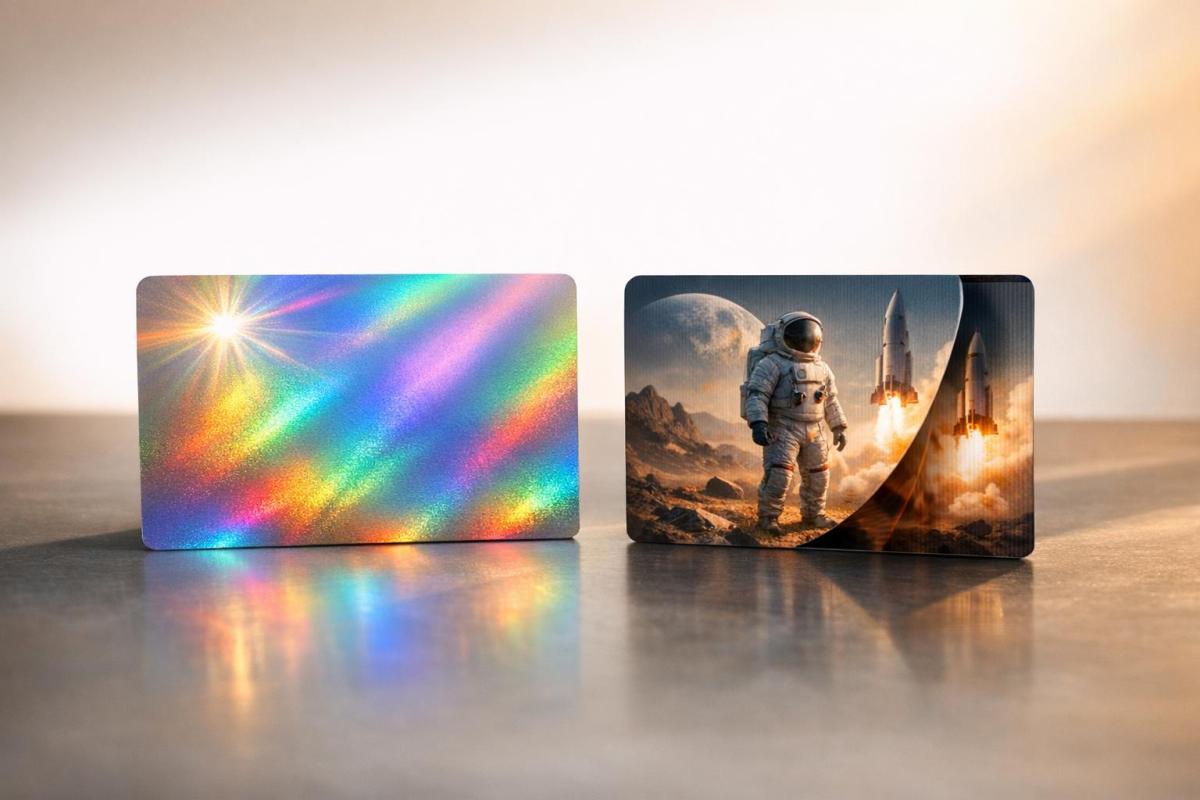
For a touch of luxury, foil stamping adds metallic accents that catch the light. Classic options like gold, silver, and copper are timeless, while rose gold or holographic foils offer a modern twist. Beyond the visual appeal, foil stamping adds a tactile dimension that pairs beautifully with the depth of die-cut designs.

Embossing and debossing create raised or recessed details that add texture to your card. These techniques work particularly well along the edges of die-cut shapes, creating borders that accentuate the custom outline. Blind embossing (without ink) delivers a subtle, elegant look, while registered embossing combines texture with printed elements for added impact.

For a soft, luxurious feel, soft-touch coating is a standout choice. It adds a velvety texture that enhances the tactile experience of your card’s unique shape while also resisting fingerprints and wear.

If your cards need extra protection, aqueous coating is a practical option. This water-based finish guards against moisture and wear while maintaining excellent print quality. It’s a cost-effective alternative to UV coating and dries quickly for a professional look.

Edge painting is another way to make your card pop. By adding color to the edges, you can highlight the custom shape and give your card a polished, finished appearance. Metallics like gold and silver are popular choices, but bold colors that match your branding can be equally striking.

When combining multiple finishes, think about how they’ll work together with your die-cut shape. For example, rounded corners pair beautifully with edge painting to emphasize smooth curves, while sharp angles might benefit from spot UV to showcase precision. These thoughtful combinations can take your custom design to the next level, ensuring your card leaves a lasting impression.

How To Set Up A Die Cut Business Card or Sticker in Adobe Illustrator | Clubcard TV

Adobe Illustrator

Design Layout Setup

Once you’ve nailed down your design’s dimensions and materials, it’s time to focus on the layout and where to place your content.

Required Information to Include

Make sure your card includes the essentials: your company name, logo, and primary contact details. Stick to one or two key contact methods like a phone number, email, or website, along with one or two active social media handles.

Adding a short job title or tagline can quickly communicate what you do. Phrases like "Creative Director" or "Your Marketing Partner" are concise and effective, especially if your business name doesn’t clearly explain your industry.

If space is tight – like on die-cut cards – consider adding a QR code. This can link directly to your digital business card, portfolio, or contact details. Just be sure to place it where it won’t interfere with the card’s unique shape but remains easy to scan.

Don’t forget a clear call-to-action. Phrases like "Schedule Your Free Consultation" or "View Our Latest Projects Online" can guide recipients toward their next step and make your card more engaging.

Once you’ve locked in the content, focus on refining your design for readability and visual appeal.

Design Best Practices

  • Font size matters: Use fonts that are easy to read, with a minimum size of 8pt – though 10pt or larger is ideal.
  • Lines and borders: Keep decorative lines or borders at least 0.5pt thick to ensure they print cleanly.
  • Graphics and images: Use vector graphics for logos and icons to maintain sharp edges, and ensure photos or illustrations are at 300 DPI at their actual size to avoid pixelation.
  • Color contrast: Ensure strong contrast between text and background, especially near the die-cut edges. For example, light text on a dark background (or vice versa) stands out better. Avoid placing critical text over busy patterns or images.
  • Visual hierarchy: Guide the reader’s eye by prioritizing elements. Start with your company name as the most prominent, followed by your name and title, and then your contact details in descending order of importance.
  • Die-cut considerations: Be mindful of how the card’s shape affects readability. Curved text can work well for short phrases like taglines, but keep contact details in straightforward horizontal or vertical arrangements for clarity.

Lastly, ensure your design elements are securely placed to avoid issues during trimming.

Safe Layout Guidelines

To avoid trimming mishaps, keep all critical elements at least 1/8 inch away from the die-cut edge.

Die-cut designs require a slightly different approach to bleed. While standard cards need a 1/8-inch bleed on all sides, die-cut cards require the bleed to follow the custom shape. Extend any background colors, patterns, or images beyond the cut line by at least 1/8 inch.

Pay extra attention to text placement near curved or angled edges. Horizontal text should maintain a safe distance from non-horizontal cut lines. If your design includes sharp angles or intricate details, avoid placing text in those areas altogether.

For logos, stick to stable, flat areas – usually the center or the largest unobstructed section. Avoid placing logos near complex cut patterns or narrow sections where distortion could occur.

If your die-cut shape includes functional elements like tabs or notches, keep these areas free of important details. These sections are more prone to wear and tear, so place critical information like phone numbers or email addresses in safer, more stable parts of the layout.

When working with Miro Printing & Graphics Inc., their design team can provide tailored safe area guidelines for your specific die-cut shape. This ensures your layout not only meets technical requirements but also makes a strong visual impact.

sbb-itb-ce53437

Getting your print files right is essential to avoid delays and costly reprints. A little extra attention upfront can save you a lot of headaches later.

File Format and Specifications

Always use PDF as your file format – it’s the industry standard for preserving designs across different software. When exporting, choose the "Press Quality" preset to ensure top-notch resolution and accurate colors.

Make sure to embed your fonts to prevent any unexpected text shifts during printing. Most design programs let you do this when exporting; just look for an option like "embed fonts" or "outline fonts" and check the box.

Convert your colors to CMYK before submitting your file. Remember, what you see on your screen (RGB) may not match the printed result, as print colors use CMYK inks. That vibrant blue on your monitor? It might print closer to purple if left unconverted.

For photos and raster images, set the resolution to 300 DPI. This ensures crisp, professional-quality prints without any pixelation. Vector elements, like logos and text, don’t require a DPI setting since they scale perfectly at any size.

If your design is vector-based, Adobe Illustrator (.AI) and Encapsulated PostScript (.EPS) files are excellent options. These formats are particularly effective for handling custom shapes and die-cut lines, as they maintain sharp edges no matter the size.

File Setup Tips

  • Disable facing pages – die-cut cards are single-sided, so this setting isn’t needed.
  • Add crop marks and bleed: Extend your background by 1/8 inch beyond the trim edge. Crop marks guide the printer on where to cut, while the bleed ensures no awkward white edges if the cut is slightly off.
  • Use a separate layer for die-cut lines: Assign a unique, bright color (like magenta) with a 0.25pt stroke to make the cutting path easy to identify for the production team.
  • Double-check your file at 100% zoom: Look for stray pixels, overlapping elements, or text placed too close to the cut line. A quick review can save you days of revisions.
  • Name your file clearly: For example, "CompanyName_DieCut_BusinessCard_CMYK_300DPI.pdf" makes it easy for the production team to know exactly what they’re handling.

If this process feels overwhelming, don’t worry – there’s help available.

In-House Design Support

Feeling stuck? Miro Printing & Graphics Inc. offers expert design services to take the guesswork out of file preparation. Their team can handle every step, from concept creation to print-ready files, ensuring your die-cut cards look amazing and meet all technical requirements.

Here’s how they can help:

  • Die-cutting expertise: Their team can spot and fix potential production issues before they become problems. They’ll adjust your design to ensure it works seamlessly with their cutting equipment, which can save you money on setup costs and reduce material waste.
  • File troubleshooting: Got a file with minor issues, like incorrect color profiles or low resolution? They can often fix these problems in-house without sending it back to you for revisions.
  • Proofing support: See exactly how your card will look before production starts. They can provide digital proofs for accurate colors and proportions or even physical samples if you want to feel the material and test the die-cut shape.

Pre-Press Review and Proofing

Once your file preparation is complete, it’s time for a final pre-press review. This step ensures your design is ready for production, helping you avoid costly reprints or delays.

Pre-Submission Checklist

Start by checking the legibility of your text. Print your design at actual size to make sure everything is readable, especially if you’re using a minimum text size of 8pt – this is particularly important for textured paper stocks. Double-check that all crucial details, like your contact information and company name, are clear and easy to find.

Pay close attention to color accuracy, especially for die-cut cards. Open your file in different software to catch any color shifts, and, if possible, view it on multiple devices. Be cautious with dark colors near die-cut edges; if your bleed isn’t set up correctly, white paper might peek through at the edges.

Keep all critical design elements – logos, text, and graphics – at least 1/8 inch away from the die-cut edge. Die-cutting equipment can slightly vary, and you don’t want important details, like your phone number, accidentally trimmed off.

Evaluate the die-cut shape to ensure it’s sturdy enough for production. Corners with angles sharper than 90 degrees are prone to tearing or bending. Thin or delicate sections should be at least 1/4 inch wide to maintain stability and durability.

Finally, confirm all file specifications are correct. Your resolution should be set at 300 DPI, colors in CMYK format, and fonts either embedded or outlined. Ensure the die-cut line is on a separate layer, marked with a distinct color that won’t interfere with your design.

Once you’ve verified these details, move on to proof review to ensure everything is production-ready.

Requesting Proofs

After ensuring your design meets technical standards, request proofs to finalize production quality. Digital proofs are a great way to check color accuracy, layout, and die-cut alignment. These proofs provide a clear view of how your design will look, including where the die-cut edges will fall.

For die-cut cards, physical proofs are especially helpful. They allow you to test the paper weight, assess durability, and confirm the practicality of the die-cut shape. While an intricate cut-out might look amazing, it could prove too fragile for everyday use in wallets or cardholders.

When reviewing proofs, compare the colors to your original design. Keep in mind that printed colors often differ from what you see on screen, particularly when specialty finishes or textured papers are involved. If your brand colors are essential to your identity, request a color-matched proof to ensure they’re accurate.

Proofs typically take 1-3 business days to prepare, depending on your design’s complexity and the production schedule. Be sure to account for this time in your project timeline, especially if you’re working toward a specific event or launch date.

Miro Printing & Graphics Inc. offers both digital and physical proofing options to help you perfect your die-cut cards before full production begins. Their team can also recommend adjustments during the proofing stage to address potential issues that could impact the final quality or durability of your cards.

Summary and Next Steps

Crafting professional die-cut cards requires careful attention to detail, from the initial concept to the final production stages. Following these essential steps ensures a polished, high-quality result.

Key Steps Review

Start by understanding the dimensions and shapes of your design. While the standard business card size of 3.5" x 2" serves as a reliable starting point, custom shapes demand extra precision. Avoid intricate or narrow design elements that could weaken the card’s durability.

Choose cardstock in the 14-16pt range for a balance between sturdiness and aesthetic appeal. Adding specialty finishes like spot UV or foil stamping can enhance the card’s visual impact. However, keep in mind that textured paper often requires larger text sizes to maintain legibility.

When laying out your design, maintain a safety margin of at least 1/8 inch from the edges to protect crucial elements such as logos and contact details. For file preparation, use 300 DPI resolution in CMYK, embed all fonts, and include a separate die-cut layer marked with a distinct color.

A thorough pre-press review is essential to avoid costly mistakes. By reviewing both digital and physical proofs, you can confirm color accuracy, test the paper’s durability, and ensure proper die-cut alignment. While this step may add 1-3 business days to your timeline, it’s a worthwhile safeguard against reprints.

Once these foundational steps are in place, having access to expert guidance can make a significant difference.

Why Partner with Miro Printing & Graphics Inc.

Miro Printing & Graphics Inc. specializes in die-cutting as part of their post-press services, making them an excellent choice for managing your custom card projects from start to finish. Their personalized approach ensures even the most intricate designs are handled with care and expertise.

Through their Custom Projects service, Miro Printing & Graphics Inc. offers tailored solutions that go beyond standard options. Whether you’re looking to experiment with unique shapes, specialty materials, or eye-catching finishing techniques, their experienced team collaborates with you to bring your vision to life while ensuring the final product is both durable and functional.

Their graphic design consultation services simplify the design process, providing expert advice to help you navigate complex specifications. This hands-on support ensures your die-cut cards are not only visually impressive but also ready for production.

Conveniently located at 831 Main St in Hackensack, New Jersey, Miro Printing & Graphics Inc. serves clients across New Jersey, New York, and Connecticut. To discuss your die-cut card project, you can reach them at (201) 439-9686 or email info@bergencountyprinters.com during business hours (Monday through Friday, 9:00 AM to 5:00 PM).

FAQs

What should I consider when choosing a custom shape for a die-cut business card?

When choosing a custom shape for your die-cut business card, it’s important to pick a design that mirrors your brand and industry. A shape that ties directly to your logo, product, or service can leave a memorable impression and highlight your originality.

However, don’t overlook practicality. The card’s shape should still be sturdy, easy to read, and convenient to handle. Overly elaborate designs might weaken the card or make production tricky. Striking the right mix of creativity and usability ensures your card grabs attention while staying polished and professional.

How do paper types and finishes affect the look and durability of die-cut cards?

The type of paper and finish you select for your die-cut cards plays a big role in both their look and durability. Coated finishes – like gloss or matte – add a layer of protection against moisture, dust, and wear. Plus, they make colors pop, giving your cards a sharp, vibrant appearance. If you prefer a more natural feel, uncoated paper offers a soft texture and muted tones, though it’s more prone to smudging and wear.

A glossy finish delivers a shiny, attention-grabbing effect, while matte offers a subtle and sophisticated vibe. Pairing the right paper with the perfect finish ensures your die-cut cards not only turn heads but also stand the test of time.

How do I make sure my design file is ready for printing die-cut cards?

To prepare your design file for die-cut business cards, start by adding a die line layer that clearly defines the card’s cut shape. Use a spot color, like "DIE-CUT FORME", and set it to CMYK. Don’t forget to include a bleed area of at least 0.125 inches to prevent any part of the design from being cut off.

Ensure all images and text are at a 300 dpi resolution and in CMYK color mode. To avoid font-related issues, either convert fonts to outlines or embed them. Add trim marks and maintain safe zones around the design to ensure accurate cutting. By following these guidelines, your file will be ready for professional die-cut printing.

Related Blog Posts

https://app.seobotai.com/banner/banner.js?id=68d0cc547b5c01ae368bb95f

Spot UV Coating: When and Why to Use It

Explore the advantages of Spot UV coating in printing, enhancing visual appeal and durability for business cards, packaging, and more.

Spot UV coating is a specialized printing technique that adds a glossy, raised finish to specific areas of a design, making them stand out visually and physically. It works by applying a UV-cured varnish to targeted spots, such as logos, headlines, or patterns, creating a striking contrast between shiny and matte elements. This method not only enhances the design’s appearance but also adds durability, protecting against scratches and wear.

Key Takeaways:

  • What it is: A glossy finish applied to specific design areas for emphasis.
  • How it works: Uses a mask file to precisely apply UV varnish to selected spots.
  • Why use it: Adds visual contrast, tactile appeal, and durability to printed materials.
  • Best uses: Business cards, packaging, brochures, invitations, and presentation folders.

Spot UV coating is ideal for creating a polished, professional look that grabs attention without being overdone. It’s especially effective on thick cardstock or darker backgrounds, where the glossy accents pop. Pairing it with other finishes, like matte lamination or embossing, can further enhance its impact. For small businesses or premium brands, it’s a cost-effective way to elevate printed materials and leave a lasting impression.

How to Setup Your Spot UV Mask File for Print | Primoprint

Primoprint

Benefits of Spot UV Coating

Spot UV coating takes printed materials to the next level by enhancing their look, feel, and durability. Here’s how it adds value across these key areas.

Better Visual Appeal

Spot UV creates a glossy, reflective finish that turns ordinary design elements into eye-catching highlights. For example, CHANEL used spot UV on their logo for folding carton boxes, creating a stunning contrast between glossy and matte finishes. Similarly, The Body Shop applied spot UV to their paper bags, making their logo stand out while reinforcing their premium image.

Better Tactile Experience

Beyond its visual charm, spot UV offers a distinct tactile sensation. The raised, smooth texture invites touch, adding an interactive element that speaks to thoughtful design. As Blue Label Packaging explains:

"With spot UV, you get a raised, smooth texture on some elements. This doesn’t just make the label visually attractive, but gives the customer a tactile experience, too."

Studies suggest that products appealing to touch can foster deeper emotional connections and boost customer loyalty. Sunday Minx applied spot UV on their luxury rigid boxes, highlighting their brand name and intricate patterns. The result? A sophisticated play between matte and glossy finishes that underscores their high-end image.

Spot UV can also be customized with effects like wrinkle, leather, or frosted finishes, adding extra depth and character. Pairing it with matte or soft-touch lamination creates striking contrasts that draw people in.

Durability and Protection

Spot UV coating isn’t just about aesthetics – it also protects. The UV-cured layer resists smudges, scratches, and moisture, keeping items like business cards and brochures looking polished even with frequent handling. This durability makes it a smart choice for materials where elegance and resilience are equally important.

Best Use Cases for Spot UV Coating

Spot UV coating isn’t just about adding a glossy finish – it’s about creating a visual and tactile experience that leaves a lasting impression. Here’s how it shines in different applications:

Business Cards and Brochures

Business cards are often the first impression someone has of your brand, so why not make them unforgettable? Adding spot UV to key elements like logos, company names, or contact details creates a sleek, glossy effect that pops against the matte background. For brochures, spot UV can draw attention to headlines, images, or other vital information, guiding the reader’s focus. Plus, the textured finish adds a layer of sophistication and reinforces your brand’s identity.

Packaging and Product Labels

In retail, packaging speaks volumes about a product’s quality. Spot UV coating can give packaging a premium look by highlighting brand logos, product names, or other focal points. This technique not only enhances visual appeal but also adds a layer of durability, keeping labels crisp and pristine throughout the product’s lifecycle. It’s the perfect way to convey elegance and craftsmanship in a competitive market.

Invitations and Presentation Folders

When every detail matters, spot UV coating can elevate invitations and presentation folders to a whole new level. For wedding or event invitations, applying spot UV to names, dates, or decorative elements adds a luxurious touch. In corporate settings, using spot UV on logos or cover designs enhances professionalism and polish. The combination of visual appeal and tactile engagement ensures these materials stand out, even with frequent handling.

For professional spot UV coating services that bring your designs to life, Miro Printing & Graphics Inc. in Hackensack, NJ, offers custom solutions tailored to your specific needs.

sbb-itb-ce53437

Design and Application Tips for Spot UV Coating

To make the most of spot UV coating, thoughtful design and precise preparation are key. By carefully planning its placement and combining it with complementary finishes, you can create striking, high-quality print materials.

Smart Placement for Maximum Impact

Spot UV is most effective when used sparingly. Highlight key elements like your logo, company name, or a standout image. Overloading your design with spot UV can dilute its effect and make the piece feel cluttered.

Pay attention to the visual hierarchy of your design. Spot UV should emphasize the most important details first, guiding the viewer’s eye naturally to secondary elements. For example:

  • On a business card, use it on your logo and name.
  • In a brochure, apply it to headlines or calls-to-action that you want to stand out.

Contrast is another powerful tool. Spot UV shines – literally – when applied over darker colors or matte backgrounds. A glossy UV accent on a black or deep-colored surface creates a sleek, mirror-like effect that grabs attention.

After identifying the key areas to highlight, think about combining spot UV with other finishes to elevate your design further.

Combining Spot UV with Other Finishes

Pairing spot UV with other finishing techniques can add depth and sophistication to your materials. However, the sequence of application matters to ensure flawless results.

  • Foil stamping: Apply foil stamping first, then spot UV. This prevents any adhesion issues between layers.
  • Matte lamination: Combine a matte laminated surface with spot UV for a striking contrast. The soft, matte finish against glossy UV accents creates a polished and modern look.
  • Embossing: Use embossing for texture, then add spot UV to the raised areas for a tactile and visually appealing effect. This works beautifully for logos or decorative elements where a combination of texture and shine enhances the design.

Consider the style of your brand when choosing combinations. Contemporary brands often favor spot UV paired with matte finishes, while more traditional brands opt for foil stamping and embossing for a timeless feel.

Before committing to a full print run, always test new combinations. Different materials and finishes can interact unpredictably, so testing ensures the final product meets your expectations.

Preparing Design Files for Spot UV

Accurate file preparation is critical for spot UV projects. Printing requires separate artwork files for precise application and to avoid misalignment.

If you’re combining spot UV with other finishes like foil stamping, prepare four distinct PDF files:

  • Master Print File: Your main design.
  • Hot Stamping File: For foil stamping areas.
  • Spot UV File: For UV-coated elements.
  • CMYK Printing File: For standard color printing.

For the Spot UV file, set the UV-coated areas to K=100 (solid black) on a transparent background. This ensures the coating is applied exactly where you want it. Avoid overlapping spot UV with other finishes like foil stamping, and leave a 1/16-inch gap between different finishing areas to prevent misalignment.

Lastly, remember that spot UV adds a slight thickness to your print. If you’re designing items like folders or packaging with tight tolerances, factor this into your measurements.

Collaborate with your printer early in the process to ensure your files are accurate and ready for production.

Spot UV Coating vs Other Finishing Techniques

The finishing technique you choose can make a big difference in how your printed materials look and feel. Spot UV coating, for instance, provides a distinctive visual and tactile experience, but other options might align better with your specific goals, budget, or timeline. Knowing the differences between these techniques is key to making the right call. Below is a comparison table highlighting the unique features of each.

Every finishing method brings something different to the table. Spot UV coating creates striking gloss contrasts against matte areas, while overall UV coating delivers a consistent high-gloss finish. Aqueous coating offers a softer, eco-conscious sheen, and foil stamping adds a metallic, high-end touch.

Your decision will often hinge on balancing creative impact, cost, and production time. For example, foil stamping might be worth the extra time and expense for a luxury product launch, but a corporate brochure could benefit from the quicker, more uniform finish of overall UV coating.

Comparison Table of Finishing Techniques

Technique Visual Effect Tactile Quality Durability Best For
Spot UV Coating Glossy accents with bold contrast Raised, smooth texture Excellent scratch resistance Business cards, packaging, invitations
Overall UV Coating Consistent, high-gloss finish Smooth finish Superior protection Magazines, catalogs, postcards
Aqueous Coating Soft satin sheen Natural, soft feel Good moisture resistance Brochures, flyers, eco-friendly projects
Foil Stamping Metallic shine with a mirror-like effect Smooth, premium feel Moderate (sensitive to bending) Luxury packaging, certificates, awards

Beyond aesthetics and texture, practical considerations like production time and material compatibility play a big role. Aqueous coating is quick to apply, making it ideal for projects with tight deadlines. Foil stamping, however, often requires more setup and specialized tools, which can extend turnaround times. Spot UV coating usually falls somewhere in the middle.

Environmental considerations are also worth keeping in mind. Aqueous coating, for instance, is more eco-friendly compared to other finishes. Balancing these factors – design impact, cost, and sustainability – will help you make a more informed choice.

Budget is another significant factor. While spot UV or foil stamping can create a bold, high-end look, they may not be cost-effective for larger projects where even a small price difference per piece adds up. In contrast, aqueous or overall UV finishes offer an elegant yet economical option for projects with tighter budgets.

Substrate material is equally important. Spot UV coating works best on thick cardstock but may not adhere well to certain synthetic surfaces. Similarly, foil stamping often requires specific paper weights and textures to achieve the desired effect. Testing your design and materials before full production is always a smart move to avoid surprises.

Next, we’ll dive deeper into when and why spot UV coating might be the best choice for your project.

When and Why to Choose Spot UV Coating

Spot UV coating is a smart choice when you want to add a touch of sophistication and create a lasting impression – all without stretching your budget. Its glossy, raised texture naturally catches the eye and invites touch, making it perfect for materials that need to stand out right away.

To get the most out of spot UV coating, focus on highlighting only the most important elements. This not only enhances the design but also helps keep costs manageable. It’s a great strategy for small businesses aiming to match the polished look of larger competitors without overspending.

For the best results, pair spot UV with thick cardstock (14pt or heavier). The contrast between the shiny coating and matte areas creates a striking effect, especially on items like business cards, product packaging, and presentation materials. Since these pieces are often handled directly, the tactile difference leaves a memorable impression. Plus, spot UV’s quick setup makes it a go-to option for projects with tight deadlines.

Use spot UV strategically to emphasize clear focal points like logos, product names, or call-to-action buttons. It’s especially effective on darker backgrounds, where the glossy finish pops against the matte surface, creating a dramatic and professional look.

For professional service providers – such as law firms, financial advisors, or consultants – spot UV coating adds a layer of refinement to business cards and presentation folders. It communicates attention to detail and quality without being overly flashy, striking the right balance between elegance and professionalism.

In addition to its visual appeal, spot UV coating offers practical benefits like scratch resistance and moisture protection, making it ideal for items that are frequently handled.

Working with Miro Printing & Graphics Inc. takes this process to the next level. Their in-house capabilities allow them to seamlessly combine spot UV coating with other services, such as design consultations and bindery work. This ensures your project maintains a consistent, high-quality finish from start to finish.

FAQs

How does spot UV coating compare to other finishing techniques in terms of cost and turnaround time?

Spot UV coating stands out as a cost-effective and time-efficient finishing option compared to techniques like embossing or foil stamping. Since it involves fewer materials and less labor, it helps cut costs while also speeding up the production process.

This makes Spot UV an excellent choice for projects with tight deadlines that still require a sleek and polished appearance. It’s particularly great for emphasizing specific design elements, offering an affordable way to create a professional and visually striking effect.

How can I prepare my design files for spot UV coating to achieve the best results?

To prepare your design files for spot UV coating, start by creating a separate, vector-based layer in your design software, such as Adobe Illustrator or InDesign. This layer should specifically highlight the areas where the UV coating will be applied. Use a solid black color or a designated spot color (like Pantone SpotUV) to mark these areas.

Make sure this layer is clearly labeled and kept separate from all other design elements. When you’re ready to save your file, export it as a PDF while preserving all layers. Be sure to follow the specific guidelines provided by your print shop. Keeping your file well-organized and clearly labeled ensures precise, sharp results and a professional-looking finish.

Can spot UV coating be used on all materials, or are certain surfaces better suited for it?

Spot UV coating performs exceptionally well on coated, non-porous surfaces like glossy or matte paper and smooth plastics such as BOPP or PET. These materials provide the perfect base for the coating to adhere properly, delivering the striking visual effect it’s known for.

On the other hand, uncoated or porous materials aren’t the best choice. They tend to absorb the coating unevenly, which can dull its effect. For the best results, stick to smooth, treated surfaces that highlight the high-gloss or matte contrast beautifully.

Related Blog Posts

https://app.seobotai.com/banner/banner.js?id=68d09afc7b5c01ae368b80ee

Common Gear Wear Patterns in Printing Machines

Learn about common gear wear patterns in printing machines, their causes, and how to prevent costly operational disruptions.

Gear wear in printing machines can lead to major quality and operational issues. From print defects like banding and misalignment to costly breakdowns, understanding and addressing wear early is critical. Here’s what you need to know:

  • Pitting & Scuffing: Surface damage causing noise, friction, and subtle print flaws.
  • Spalling & Tooth Breakage: Structural damage leading to jams and repeating print errors.
  • Tooth Wear & Polishing: Gradual wear causing timing issues and ink inconsistencies.
  • Causes: Poor lubrication, misalignment, and heavy loads are the main culprits.
  • Prevention: Regular maintenance, proper lubrication, and clean operating conditions reduce risks.

Spotting early signs like repeating bands, vibrations, or registration errors in print quality can save time and money. Routine inspections and quick repairs using quality parts ensure smooth operations and high-quality prints.

5 Common Gear Wear Patterns in Printing Machines

Recognizing gear wear early can save you from costly production halts. Each wear pattern tells a story about potential internal issues within your equipment. Below are the five most frequent gear wear patterns seen in commercial printing machines.

Pitting and Scuffing

These two patterns are signs of surface-level damage.

Pitting looks like tiny craters on the gear teeth, caused by metal fatigue along the pitch line.

Scuffing appears as rough, scratched surfaces that result from lubricant failure. It can start as light scoring and progress to deeper gouges over time.

Pitting doesn’t just make the machine noisier – it also increases friction. This puts extra strain on motors and can lead to noticeable issues like small shifts in print registration or faint, random banding patterns across your prints. As the wear worsens, these problems become harder to ignore.

Spalling and Tooth Breakage

Structural damage takes wear to the next level.

Spalling happens when cracks form beneath the surface of the gear and eventually cause small flakes of metal to break off, leaving sharp, jagged edges.

Tooth breakage occurs when a gear tooth partially or completely fails, which can lead to machine jams.

These types of damage often result in major operational disruptions. A broken tooth can lodge itself between other gears, potentially causing severe damage throughout the drive system. Even minor spalling can create impact loads that worsen the condition of neighboring gears.

Print quality takes a significant hit with these defects. Broken teeth cause predictable, repeating flaws in your prints, such as uniform marks or gaps that align with the gear’s rotation. Registration becomes unreliable as the damaged gear struggles to maintain proper timing.

Tooth Wear and Polishing

Gradual wear might seem less alarming, but it can still cause long-term issues.

Polishing creates a mirror-like finish on gear surfaces, the result of countless contact cycles between gear teeth under normal loads.

Tooth wear rounds off sharp edges and thins the gear teeth over time.

While polished gears might look smooth and harmless, they can lead to problems. The reduced friction between gears can cause micro-slipping, which disrupts timing during operation. Polished surfaces also retain less lubricant, increasing the likelihood of other wear patterns like pitting or scuffing.

These profile changes can lead to subtle but persistent issues, such as slight registration errors or variations in ink density that gradually become more noticeable as wear progresses.

What Causes Gear Wear in Printing Equipment

Understanding the reasons behind gear wear can help minimize equipment downtime. The most common culprit is poor lubrication, but other issues like misalignment and excessive loads also take a toll on gear performance.

Poor Lubrication

When lubrication is insufficient or contaminated, gears can’t mesh smoothly, leading to grinding. This not only speeds up wear but also results in bouncing and visible gear marks. To prolong the life of your gears, it’s essential to maintain proper lubricant levels and ensure the lubricant remains free from contaminants.

How to Spot Gear Problems in Print Quality

Keeping an eye on print output for signs of gear wear is just as important as performing regular gear inspections. Catching wear early can save time, reduce downtime, and maintain high print quality. Often, the first clues appear as subtle changes in print output, making routine monitoring a critical part of quality control.

Gear Marks and Banding

One of the most noticeable signs of gear wear is the appearance of repeating bands on printed sheets. These bands tend to show up in the same spots on each sheet, starting as slight variations in ink density. Over time, they can develop into more pronounced streaks, impacting the overall look of the print.

Another issue to watch for is small spots caused by debris from a worn gear tooth contaminating the ink system. These imperfections are not just cosmetic – they signal potential mechanical problems that could affect the machine’s overall performance. Catching these early signs can help prevent bigger issues down the line.

Vibration Problems and Registration Errors

Worn gears can also lead to vibrations that show up as blurry text, double images, or misaligned graphics. If the gears have too much play, it can cause registration errors, throwing off the alignment of images and text.

These mechanical issues often result in uneven ink distribution, with some areas receiving more ink than others. By routinely checking registration marks and control bars, you can spot these problems before they escalate and compromise the quality of your prints.

At Miro Printing & Graphics Inc., regular inspections and proactive maintenance are key to identifying and resolving gear wear issues. Addressing these problems early ensures that every print run meets the highest standards of quality and keeps the equipment running smoothly.

sbb-itb-ce53437

How to Prevent and Fix Gear Wear

Taking steps to prevent gear wear not only saves time and money but also ensures consistent print quality. Here’s how you can keep your gear systems running smoothly and efficiently.

Regular Maintenance and Inspections

A solid maintenance routine is the cornerstone of proper gear care. Regularly scheduled inspections help spot early signs of wear or misalignment, making it easier to address issues before they escalate.

Lubrication plays a major role in protecting gears. Applying the right lubricant in the correct amount, as recommended by the manufacturer, reduces friction between gear teeth. This keeps gears cooler, quieter, and extends their lifespan.

Cleaning and alignment checks are equally important. Removing ink residue and paper dust prevents these materials from acting as abrasives, which can damage gears over time. Proper installation and routine calibration ensure that gears are aligned correctly and share loads evenly, reducing stress on individual components.

Prompt Repairs and Quality Replacements

Even with regular maintenance, issues can still arise. Acting quickly when problems occur is crucial. Addressing small issues early can prevent costly breakdowns and production delays.

Using genuine replacement parts is essential for maintaining the performance and durability of your gear systems. Manufacturer-approved components are designed to fit seamlessly into your equipment, ensuring precise tolerances. While cheaper alternatives might save money upfront, they often wear out faster and can cause additional damage.

When repairs are needed, relying on skilled professionals ensures everything is adjusted and assembled properly. As repair expert Joseph D. Marone puts it:

"proper maintenance is the key to longevity"

Better Operating Conditions

The environment in which gears operate has a significant impact on their performance. Stable conditions help reduce stress on gear systems and minimize wear.

Dust control is particularly important in printing environments. Particles like paper dust and ink residue can infiltrate gear systems and act as abrasives. Keeping workspaces clean and ensuring proper ventilation can limit the amount of debris that reaches critical components.

Another key factor is operator training. Well-trained staff can identify early warning signs like unusual noises or vibrations and follow proper startup and shutdown procedures. They can also avoid practices that put unnecessary strain on gear systems. Encouraging operators to report any irregularities can lead to faster interventions and simpler repairs.

At Miro Printing & Graphics Inc., these strategies are used in combination to maintain optimal gear performance. By focusing on prevention and timely repairs, they ensure smooth operations and deliver the high-quality prints their customers depend on.

Conclusion

Gear wear patterns like pitting, scuffing, spalling, tooth breakage, and general tooth wear are clear indicators of potential problems that can disrupt smooth and consistent operations if left unchecked.

Catching these issues early can help avoid expensive breakdowns and production delays. In fact, routine maintenance can cut costs by up to 30% or more, making it a practical and cost-effective strategy for any printing business.

Beyond cost savings, proactive maintenance plays a critical role in enhancing print quality. It helps prevent common issues like streaks, banding, and registration errors, while also keeping downtime to a minimum.

Simple steps such as controlling dust, maintaining proper lubrication, and ensuring operators are well-trained can significantly extend the lifespan of gears. These measures also contribute to reducing energy consumption and minimizing waste.

At Miro Printing & Graphics Inc., the commitment to regular inspections, timely repairs using high-quality parts, and maintaining optimal operating conditions ensures dependable performance across all printing processes.

FAQs

What are the early warning signs of gear wear in printing machines?

Visible gear marks or patterns on printed materials, uneven streaks or bands, strange humming or grinding sounds, and inconsistent paper feeding are all early signs that the gears in a printing machine may be wearing out.

Catching these warning signs early is crucial to avoid more serious damage and maintain print quality. Scheduling regular maintenance and inspections can help spot these issues before they escalate into expensive repairs or extended downtime.

How does insufficient lubrication lead to gear wear in printing machines?

Insufficient lubrication can take a heavy toll on the gears in printing machines. When lubrication is lacking, gears grind directly against one another, leading to excessive tooth wear and heightened vibration. Over time, this friction damages the gear teeth, reducing the machine’s efficiency and overall performance.

On top of that, without adequate lubrication, the protective film that should form between gear surfaces is absent. This results in metal-to-metal contact, which ramps up friction and heat. The added heat can cause thermal damage, worsening the wear and tear. If left unchecked, these problems can escalate into complete gear failure, forcing costly repairs and cutting down the lifespan of your equipment. Routine lubrication and maintenance are vital to ensure your printing machines operate reliably and efficiently.

How can I maintain and extend the lifespan of gears in printing machines?

To keep the gears in printing machines running smoothly and lasting longer, regular upkeep is a must. Start by checking the gears regularly for any signs of trouble, such as unusual noises, misalignment, or visible wear and tear. Keeping them well-lubricated is crucial – it reduces friction and prevents overheating, both of which can cause gears to wear out faster.

Choosing durable materials like reinforced composites or nylon for gears can also make a big difference, especially if your machine handles heavy workloads. Simple habits like cleaning off dust and debris, avoiding overloading the machine, and promptly replacing worn gears can go a long way. These steps not only extend the life of your equipment but also help ensure it operates reliably with minimal downtime.

Related Blog Posts

https://app.seobotai.com/banner/banner.js?id=68cca5fc7b5c01ae368942df

Ultimate Guide to Banner Scaling and Resolution

Master banner scaling and resolution for professional results. Learn key tips on DPI, viewing distance, and artwork preparation.

Creating a professional banner isn’t just about design – it’s about getting the technical details right. The key to a sharp, clear banner is understanding scaling and resolution. Here’s what you need to know:

  • Resolution (DPI): Higher DPI means sharper prints. Use 150–300 DPI for close-up banners and 30–100 DPI for distant viewing.
  • Scaling: Always resize images proportionally to avoid distortion. Use vector graphics for logos and text to maintain quality at any size.
  • Viewing Distance: Match resolution to how far the banner will be viewed. For example, 100 DPI works for banners seen at 200 feet, while 300 DPI is ideal for close-up displays.
  • File Setup: Design at the final size or use proportional scaling. Add a 0.125-inch bleed and keep key elements within safe zones.
  • File Formats: Use AI, EPS, or PDF for vectors and PNG or TIFF for high-quality raster images.

Avoid common mistakes like upscaling low-resolution images or mismatched dimensions. Partner with a reliable printer to review your files, ensure color accuracy (use CMYK), and finalize with proper finishing options like grommets or pole pockets. These steps ensure your banner looks polished and professional.

DPI and Resolution | Graphic Design Tips from PrintPlace.com

PrintPlace.com

Understanding Resolution: DPI and Viewing Distance

Getting the resolution and scaling right can mean the difference between a banner that looks polished and professional and one that appears blurry or amateurish. Let’s break down how DPI settings and viewing distance work together to deliver the best print quality.

What is DPI and Why It Matters

DPI, or dots per inch, measures the level of detail in a printed image. It’s different from PPI (pixels per inch), which refers to screen resolution. The higher the DPI, the sharper the printed image and text will appear. However, for prints meant to be viewed from a distance, increasing DPI beyond a certain point doesn’t make a noticeable difference.

For large-format prints like banners, the recommended DPI typically ranges between 150 and 300 DPI. Exceeding this range can unnecessarily inflate file sizes, slowing down processing without adding visible clarity for distant viewers. In short, using a higher DPI than needed for distant-view banners complicates the printing process without improving the result.

Now that we’ve covered DPI basics, let’s see how viewing distance plays into the equation.

Matching Resolution to Viewing Distance

The relationship between DPI and viewing distance is straightforward: the farther away your banner will be viewed, the lower the DPI you need. This is because the human eye cannot perceive small details from a distance. For example, if your banner is meant to be read from 200–300 feet away, 100–150 DPI is usually enough. In such cases, prioritize bold fonts and minimal text for better readability.

On the other hand, banners designed for close-up viewing – like those used at trade shows or in retail displays – require higher resolutions, typically 200–300 DPI, to ensure every detail, including text and graphics, is crisp and clear.

Resolution Guidelines for Common Banner Sizes

Here’s a handy reference chart to help match DPI to banner size and viewing distance:

Banner Type Typical Size Viewing Distance Recommended DPI Notes
Outdoor Billboard 14′ x 48′ 300+ feet 30–50 DPI Use bold, simple graphics
Building Banner 4′ x 8′ 100–200 feet 75–100 DPI Large text and high-contrast colors
Trade Show Display 8′ x 10′ 5–15 feet 150–200 DPI Detailed graphics are acceptable
Retail Window Banner 3′ x 6′ 3–10 feet 200–250 DPI Sharp text and images are essential
Table Banner 2′ x 6′ 2–5 feet 250–300 DPI Maximum detail for close viewing

To avoid pixelation, always start with a high-quality image. For scalable designs, use vector formats whenever possible. If you’re working on a reduced scale, remember to proportionally adjust the resolution when enlarging the design. Printing a small test version of your banner can also help catch potential issues early.

Preparing Artwork for Banner Printing

Setting up your artwork correctly is crucial for producing high-quality, large-format banners. By following these steps for dimensions, file formats, and setup, you can avoid errors and ensure your banner looks flawless when printed.

Choosing the Right File Dimensions

Getting the dimensions right is the first step. To calculate the necessary pixel dimensions, multiply the banner’s width (in inches) by the DPI (dots per inch). Repeat the same for the height.

Here’s an example: If you’re designing a 4′ × 8′ trade show banner at 150 DPI, the math works out like this:

  • Width: 48 inches × 150 DPI = 7,200 pixels
  • Height: 96 inches × 150 DPI = 14,400 pixels

This means your file should be 7,200 × 14,400 pixels to maintain quality and avoid scaling issues.

If you’re working at a reduced scale (like 1:10), adjust the DPI proportionally. For instance, a 150 DPI banner at 1:10 scale would need a document resolution of 1,500 DPI to retain the same quality when scaled up.

Selecting the Best File Formats

The file format you choose can make or break the print quality. For crisp, scalable elements like text and logos, stick to vector formats such as AI, EPS, or PDF. For photographic elements, use high-resolution raster formats like PNG or TIFF. Avoid JPEG files whenever possible, as their compression can result in visible artifacts.

If you must use raster images, ensure they are created at the exact dimensions and DPI you calculated earlier. When dealing with JPEG files, ask for the original uncompressed version or request a PNG or TIFF export for better quality.

For designs that combine vector and raster elements, saving the final file as a high-quality PDF is your best bet to preserve clarity across all elements.

Color Modes and Bleed Requirements

Beyond dimensions and file formats, color modes and bleed settings are equally important for a polished final product. Always design in CMYK, as this color mode matches the inks used in printing. Converting your artwork to CMYK early in the design process lets you tweak colors as needed, ensuring the printed banner meets your expectations.

Don’t forget to include a 0.125-inch bleed on all sides and keep critical design elements at least 0.25 inches inside the trim edge. This ensures that minor shifts during cutting won’t leave white edges or crop important details. Extend background colors and images into the bleed area to achieve a seamless look.

At Miro Printing & Graphics Inc., their team of large-format printing specialists reviews your files before printing. They check for issues with dimensions, color modes, and bleed setup, ensuring your artwork transitions perfectly from screen to print. This attention to detail helps you avoid unnecessary delays and costly reprints.

sbb-itb-ce53437

Common Scaling and Resolution Mistakes

When creating banner artwork, even seasoned designers can stumble into some common pitfalls. These missteps can turn a well-thought-out design into a blurry, pixelated mess. Recognizing these issues ahead of time can save you from costly reprints and frustrating project delays.

Problems with Upscaling Low-Resolution Images

One of the most frequent mistakes is trying to stretch small images to fit large formats. For example, enlarging a 300-pixel logo to 3,000 pixels forces your software to fill in extra pixels through a process called interpolation. The result? A soft, blurry image that lacks sharpness.

A 72 DPI web image might look great on your screen but will appear blocky and pixelated when printed on a large banner. The individual pixels become glaringly obvious, creating a mosaic effect that ruins the banner’s professional appearance.

To avoid this, always use images in the resolution you need from the start. If high-resolution versions aren’t available, consider adjusting your layout to work with smaller images or switch to vector graphics, which can be scaled infinitely without losing quality. Stock photo websites often offer images in multiple resolutions – choose high-resolution options to ensure your banner looks sharp.

Mismatched File Dimensions and Print Sizes

Another common error is designing artwork at the wrong dimensions. For instance, creating a layout in 8.5″ × 11″ (standard letter size) and then scaling it to fit a banner often results in distorted proportions. A design made for a 16:9 screen ratio won’t translate cleanly to a 2:1 banner without cropping or stretching.

Scaling up improperly can also degrade image quality. If you design a banner in an 8.5″ × 11″ document and then enlarge it by 400%, you’re forcing the software to interpolate a massive amount of data. Photos and effects will lose clarity, and text might look fuzzy around the edges.

The best approach? Start your design at the final print dimensions or use a proportional scale with adjusted DPI. For example, if your computer struggles with a full-size file, work at 50% scale with 300 DPI to maintain quality without slowing down your workflow.

Pre-Press Checklist for Scaling Success

Before sending your banner to print, run through this essential checklist to catch scaling or resolution issues early:

  • Confirm document dimensions match the final print size. For example, a 4′ × 8′ banner should be set up as 48″ × 96″ in your design software. If working at a reduced scale, ensure the scale factor is consistent throughout your project.
  • Check image resolution. In Adobe Illustrator or InDesign, use the Links panel to verify effective DPI after scaling. Images should be at least 150 DPI for distances over 10 feet and 300 DPI for closer viewing. Anything below 100 DPI will likely print poorly.
  • Review file size. A flattened 4′ × 8′ banner file should be several hundred megabytes. If it’s much smaller, you might have resolution issues.
  • Ensure color mode is CMYK. RGB colors can shift significantly when converted for printing, so make this adjustment during the design phase – not at the print shop.

For peace of mind, professional pre-press services, like those offered by Miro Printing & Graphics Inc., can verify these settings. Their expertise in banner production helps catch potential issues before printing, saving time and ensuring your banner looks as good as you envisioned. This extra step is especially helpful for first-time customers navigating the complexities of large-format printing.

Working with Your Print Provider

Creating a standout banner starts with clear and detailed communication with your print provider. The right collaboration can transform your vision into a finished product that not only meets but surpasses your expectations.

Communicating Your Banner Specifications

When discussing your banner with a print provider, be as specific as possible. For example, instead of saying "a large banner", specify "a 4′ × 8′ vinyl banner." Include details about where and how it will be used. Is it for a trade show booth where people will see it from 3–5 feet away, or is it an outdoor sign that needs to be visible from 50 feet? These details matter.

Be upfront about your timeline. If you need the banner by Friday for a weekend event, let your printer know right away. Tight deadlines may require adjustments in file preparation or material selection, and your print provider can guide you through the best options.

Don’t forget to mention whether the banner is for indoor or outdoor use. For indoor settings, lighter materials like 13 oz. vinyl are often sufficient. Outdoor banners, on the other hand, might require 18 oz. blockout vinyl to withstand wind, UV rays, and temperature changes.

Also, clarify how the banner will be mounted. For example, grommets spaced every 2 feet work well for attaching banners to fences, while pole pockets are better suited for banner stands. Sharing these specifics allows your print provider to recommend the best finishing touches, ensuring your banner is both functional and visually appealing.

Benefits of Proofing and Pre-Press Services

Professional pre-press services are a lifesaver when it comes to catching issues before they become costly mistakes. For instance, digital proofs can reveal color shifts caused by converting from RGB to CMYK – critical if your logo or branding relies on precise color matching.

Pre-press technicians also review your files for technical problems that might go unnoticed. They’ll flag low-resolution images that could print poorly, missing fonts that might cause layout issues, or color mode errors that could affect the final output. Catching these issues early saves both time and money.

Many print providers offer both soft proofs (sent via email) and hard proofs (printed on actual material). While soft proofs are useful for reviewing layout and general colors, hard proofs let you assess material quality and see how colors look under different lighting conditions. For high-stakes projects, this extra step can provide much-needed confidence in the final product.

Pre-press services also optimize your files to ensure they meet resolution and color accuracy standards. These proactive measures set the stage for a smooth and successful printing experience.

Why Choose a Full-Service Print Partner

A full-service print provider takes the guesswork out of banner production by managing every stage of the process with professional expertise. For example, companies like Miro Printing & Graphics Inc. offer large format printing that handles everything from small indoor banners to massive outdoor displays, ensuring consistent quality no matter the size.

Full-service providers often include in-house design services, which can be a game-changer if your artwork needs adjustments. Whether it’s recreating a logo at a higher resolution or tweaking your layout to fit the banner format, having designers who understand printing requirements can save time and frustration.

Working with a local provider offers additional perks. Face-to-face consultations help clarify project details, and you can physically inspect material samples before making a decision. Local printers also understand regional weather conditions and regulations for outdoor signage, which can be invaluable when planning your project. They may even have connections with local installation services to simplify the process further.

Finally, post-press services like hemming, grommeting, pole pockets, or wind slits add the finishing touches that make your banner stand out. These tasks require specialized equipment and expertise, and having them done in-house ensures consistent quality from start to finish.

A full-service print partner also offers additional printing capabilities, such as digital printing, offset printing, and large format printing. This means they can handle all your event or campaign materials – like business cards, brochures, and banners – while maintaining consistent colors and branding across the board.

Achieving High-Quality Banner Prints

Creating professional-grade banners starts with mastering the basics of scaling and resolution. When you apply these principles effectively, your banners will look crisp and polished – whether they’re showcased at a bustling trade show or mounted on a building exterior.

Key Tips for Success

Here are the most important points to keep in mind:

  • Match resolution to viewing distance. The resolution of your banner should correspond to how far away it will be viewed. For example, a banner viewed from just 3 feet requires 150 DPI, while one seen from 50 feet away only needs 25 DPI. This isn’t about cutting corners; it’s about understanding how the eye perceives detail from different distances.
  • Use vector graphics for logos and text, and high-resolution images for photos. Vector graphics retain their quality no matter the size, making them ideal for logos and text. For photos, always start with high-resolution images – scaling down works well, but scaling up can result in pixelation.
  • Convert to CMYK before printing. Ensuring your design is in the CMYK color mode helps prevent unexpected color shifts when the banner is printed.
  • Incorporate bleed and safe zones. Add 0.125 inches of bleed on all sides and keep crucial elements like text and graphics at least 0.5 inches from the trim edge. This avoids white borders and ensures nothing important is accidentally trimmed.
  • Choose the right material. Lighter 13 oz. vinyl works well for indoor banners, while heavier 18 oz. blockout vinyl is better for outdoor use, offering greater durability against weather and UV exposure.

Preparing Your Banner Project

With these principles in mind, here’s how to move forward:

  1. Review your design files. Double-check that your artwork aligns with the guidelines above. Confirm that the resolution, color mode, and dimensions are correct. If your files fall short, now’s the time to make adjustments or source higher-quality assets.
  2. Think beyond the banner. Consider the bigger picture of your project. Do you need additional materials like brochures or business cards to complement your banner? Printing all materials with the same provider ensures consistent colors across your campaign.
  3. Partner with a reliable print provider. A trusted printer can make all the difference. Miro Printing & Graphics Inc. offers large format printing, in-house design services, and full post-press options like hemming, grommeting, and pole pockets. Their pre-press services help catch technical issues before printing, and their Hackensack, NJ location allows for in-person consultations and material samples.

FAQs

What DPI should I use for my banner based on how far away it will be viewed?

When determining the right DPI (dots per inch) for your banner, the viewing distance plays a key role. If your banner will be viewed from 6 feet or more, a DPI of 100 to 150 should do the trick. However, for banners meant to be seen up close, you’ll want to use a higher resolution, typically 150 to 300 DPI, to ensure the details remain crisp.

Need help figuring out the exact resolution? Use this handy formula:
Resolution (DPI) = Standard DPI ÷ (Viewing Distance in feet ÷ 10)

This approach ensures your banner maintains a sharp and polished appearance, regardless of how far away it’s viewed.

Why are vector graphics better than raster images for banner design?

Vector graphics are a fantastic choice for banner design because they can be resized to any dimension without losing their sharpness or clarity. This ensures your banners maintain crisp, clean visuals, even when blown up to large sizes – perfect for professional printing where detail matters.

On top of that, vector files are generally smaller than high-resolution raster images. This makes them easier to store, share, and handle during large-format printing. These qualities make vector graphics an excellent option for creating banners that look flawless at any scale.

Why should I convert my design to CMYK before printing a banner?

When preparing your design for printing, converting it to CMYK is a must. CMYK is the standard color model for printing and ensures that the colors in your design appear as intended on the final banner. Designs created in RGB, which is tailored for digital screens, can lead to unexpected color changes when printed.

Using CMYK gives you greater control over how your design will translate to print, allowing for consistent and reliable results. This is especially important for large-format prints like banners, where accurate color reproduction is key to achieving a polished, professional look.

Related Blog Posts

https://app.seobotai.com/banner/banner.js?id=68ca06b5c8ad31793f1176d9

How to Coordinate Print Projects with Vendors

Effective coordination with print vendors is essential to avoid costly mistakes and ensure high-quality outcomes in your print projects.

Want to avoid costly mistakes in your print projects? Coordinating with vendors effectively is key. From setting clear goals to ensuring file accuracy, every step impacts your timeline, budget, and final quality. Here’s what you need to know:

  • Define your project needs: Specify quantity, dimensions, materials, and colors to avoid miscommunication and get accurate quotes.
  • Choose the right vendor: Match your project (e.g., brochures, banners) with a vendor’s expertise (digital, offset, or large-format printing).
  • Set timelines: Work backward from your deadline, factoring in production times, proof reviews, and potential delays.
  • Submit print-ready files: Ensure proper file setup – CMYK color mode, 300 DPI resolution, and bleed/safe zones.
  • Communicate clearly: Designate points of contact, use detailed feedback, and consolidate input to streamline approvals.

How to create vendors

Know Your Print Project Requirements

Before contacting a vendor, it’s essential to have a clear understanding of your project needs. This step minimizes miscommunication, reduces the need for revisions, and ensures you receive accurate quotes right from the start.

Define Project Goals and Specifications

Start by outlining every detail of your print project. Be specific about the quantity, material type, dimensions, finishing options (like UV coating or embossing), and color requirements. Keep in mind that full-color printing or using Pantone colors can influence costs significantly.

Dimensions play a bigger role than you might think. For instance, a standard 8.5" x 11" brochure will cost differently than a custom 7" x 10" size, which may require additional cutting.

When it comes to color, decisions matter. Full-color (CMYK) printing is pricier than black and white, and incorporating Pantone colors can add even more complexity and expense. If maintaining brand consistency is a priority, specify exact Pantone shades instead of leaving it to guesswork.

Also, think about the intended use of your materials. Outdoor marketing pieces need to be weather-resistant, while internal documents can often be printed on basic paper stock. Restaurant menus, for example, benefit from grease-resistant coatings, and business cards should be printed on thicker cardstock to create a more professional feel.

Once your specifications are clear, confirm that your chosen vendor can meet these exact requirements.

Check Vendor Capabilities

It’s crucial to match your project needs with a vendor who specializes in the required services. A company that excels in business cards might not be equipped to handle large-format banners, and a shop focused on offset printing may not provide the quick turnarounds possible with digital printing.

  • Digital printing is ideal for smaller quantities (usually under 1,000 pieces) and offers quicker turnarounds, often within 24 to 48 hours.
  • Offset printing is better suited for larger runs, offering more consistent color quality, but it requires longer setup times.
  • Large format printing is designed for oversized pieces like banners and signage, which demand specialized equipment.

Ask vendors about their equipment capabilities. Can they handle your required paper weight? Do they offer in-house finishing services like cutting, folding, or binding, or will they need to outsource these tasks? Outsourcing can introduce delays and quality control issues.

If your project has unique elements – like die-cut shapes, metallic inks, or uncommon paper stocks – make sure the vendor has the expertise and tools to bring your vision to life. Don’t hesitate to request samples of similar work they’ve done. This helps you assess their quality, including color accuracy, alignment, and finishing.

Working with a local vendor often brings additional advantages, as illustrated below.

Benefits of Local Vendors Like Miro Printing & Graphics Inc.

Local vendors, such as Miro Printing & Graphics Inc., provide in-person communication that simplifies the process of reviewing samples, finalizing finishing options, and making real-time adjustments. You can physically examine paper samples, discuss details face-to-face, and make decisions that keep your project moving efficiently.

Miro Printing & Graphics Inc. stands out by offering digital printing, offset printing, and large format printing all in one place. This means you can handle various marketing materials – like business cards, brochures, and banners – through a single vendor, streamlining your entire campaign. Their in-house bindery services, including perfect binding, comb binding, and plastic coil binding, eliminate delays and quality issues that often arise with outsourcing.

For clients without in-house design teams, Miro’s design services can be a lifesaver. They allow for quick adjustments and immediate feedback, saving time and ensuring the final product aligns with your expectations.

Local vendors also excel at providing faster turnarounds. Instead of waiting for files to be shipped across the country or proofs to arrive by mail, you can review everything in person and approve changes on the spot, keeping your timeline intact.

Additionally, local providers understand regional needs. They know which paper stocks perform best in your area’s climate, are familiar with local business preferences, and can often accommodate rush jobs or special requests that larger, distant companies might decline. This combination of technical expertise and personalized service makes local vendors like Miro Printing & Graphics Inc. a valuable partner for your printing needs.

Set Clear Timelines and Project Milestones

Coordinating a print project without a solid timeline is like trying to build a house without a blueprint – chaotic and prone to errors. A well-structured schedule keeps everything on track, minimizes stress, and ensures you meet your deadlines without compromising quality.

Create and Share a Project Timeline

Start by working backward from your final deadline. For instance, if you need 1,000 brochures ready for a trade show on March 15th, map out every step leading up to that date. This includes tasks like finalizing the design, submitting files, reviewing proofs, production, and delivery or pickup.

Break the project into clear phases, each with specific deadlines. For example:

  • Allocate 3–5 business days for design.
  • Allow 1–2 days per proof review cycle.
  • Factor in production times, which vary based on the printing method and quantity. Digital printing for small runs (under 500 pieces) can take just 24–48 hours, while offset printing for larger quantities (5,000+ pieces) might require 5–7 business days.

Share this timeline with everyone involved right from the start. Your vendor, team members, and other stakeholders need to know not only the final deadline but also the intermediate steps and their respective due dates. A simple email with the timeline, paired with a request for confirmation, ensures everyone is aligned.

To avoid confusion, create a straightforward document listing each milestone, its deadline, and the person responsible. For example:

  • "Logo finalization – Marketing Team – February 10th"
  • "First proof delivery – Vendor – February 15th"

This level of detail ensures accountability and prevents delays. Don’t forget to include buffer days between milestones to absorb minor setbacks without derailing the entire project. Adjust your timeline as needed to reflect vendor-specific lead times and any potential hiccups.

Plan for Vendor Lead Times and Delays

Understanding your vendor’s production timelines is crucial for avoiding last-minute scrambles. Rushed projects often come with higher costs and the risk of compromised quality, so careful planning saves both time and money.

Here’s a quick breakdown of typical lead times by printing method:

  • Digital printing: 1–2 business days for small runs
  • Offset printing: 3–5 business days (requires plate setup and press configuration)
  • Large format printing: 2–4 business days, depending on size and finishing needs

If your project involves specialty finishes like UV coating, embossing, foil stamping, or die-cutting, add 2–5 extra business days to your schedule. For example, creating business cards with an embossed logo and metallic foil could take at least a week after final approval.

Paper stock availability can also affect your timeline. Standard options like 80# gloss text are usually ready to go, but specialty papers or textured stocks might need to be ordered, adding 3–7 business days, especially for larger quantities.

Don’t forget to account for proof review cycles. Plan for 2–3 rounds of review, with each cycle taking 1–2 business days. Shipping and delivery logistics also play a role. If you’re picking up locally, you’ll save time, but shipping materials can add 3–5 business days for standard ground delivery within the continental US. Expedited shipping is faster (1–2 days) but comes with higher costs.

Unexpected factors like weather, equipment maintenance, and seasonal demand can throw a wrench into your plans. For instance, the weeks leading up to major holidays often see increased demand, leading to longer production times. While rare, equipment breakdowns can also cause delays. Staying in close contact with your vendor helps you anticipate and address these challenges before they escalate.

Prepare contingency plans for critical projects. For example, identify alternative pickup dates, consider splitting large orders into smaller, more manageable batches, or develop backup distribution plans. These strategies ensure you’re ready to adapt if something doesn’t go as expected.

Prepare and Submit Print-Ready Files

Submitting print-ready files correctly the first time ensures a smoother process, avoiding costly reprints or delays that can disrupt your project timeline. Proper preparation eliminates guesswork for your vendor and sets the stage for a successful print job.

Understand File Specifications

To ensure accurate printing, it’s crucial to meet your vendor’s technical requirements. Start with CMYK color mode, as printing presses use this format instead of the RGB mode your monitor displays. Submitting files in RGB can result in dull or distorted colors when printed.

Image resolution is another key factor. Make sure all images are at least 300 DPI at their final size to avoid pixelation. While 72 DPI might look fine on a screen, it won’t translate well to print, leading to blurry or unprofessional results.

Pay attention to bleed and safe zones to prevent issues during trimming. Bleed refers to extending your design 0.125" (1/8 inch) beyond the final trim size on all sides. For instance, an 8.5" x 11" flyer should have a design canvas of 8.75" x 11.25". The safe zone, on the other hand, is 0.125" inside the trim line, where all critical text and graphics should be placed to avoid being cut off.

Finally, consider the paper weight for your project. Standard 20# bond paper (75 gsm) is common for basic prints, while premium brochures often use 100# gloss text (148 gsm). For sturdier materials like business cards or postcards, thicker stocks such as 14pt cardstock (350 gsm) are ideal, though they may increase costs and require specialized printing methods.

Double-Check File Accuracy with Checklists

Using a checklist to prepare your files can catch errors before they reach your vendor, saving time and avoiding quality issues. Start with font embedding – if fonts aren’t embedded or converted to outlines, your design could appear entirely different when printed. In programs like Adobe Illustrator, convert text to outlines or ensure fonts are embedded when exporting PDFs.

Another common issue involves image linking. When you place an image in layout software like InDesign, it creates a link to the original file. If that file is moved or renamed, the link breaks, causing printing errors. Use tools like InDesign’s "Package" function to include all linked files, and flatten layers unless your vendor specifies otherwise. Hidden layers should also be deleted to avoid unexpected printing issues.

Be sure to review color specifications as well. If you’re using spot colors like Pantone, clearly label them and ensure consistent use. If combining CMYK and spot colors, double-check that each serves its intended purpose without duplicating colors.

Submit Files Correctly

For most print projects, PDF format is the gold standard. PDFs preserve layouts, embed fonts, and maintain consistent display across different systems. Save your files as "Press Quality" to ensure high resolution and accurate color reproduction. Avoid using web settings, which can degrade quality.

When sending your files, include both the final PDF and native design files (e.g., .indd, .ai, .psd) in a well-organized package folder. This folder should also contain all linked images and fonts to make tracking and version control easier.

File naming is another simple but important step. Use descriptive names that include details like version numbers and dates. For example, instead of "brochure_final.pdf", use something like "ABC_Company_Brochure_v3_Jan2025.pdf." This clarity helps everyone involved stay on the same page, especially when multiple revisions are involved.

For large files (over 25 MB), use a secure cloud storage service. Many print vendors, such as Miro Printing & Graphics Inc., offer upload portals to handle large files securely and maintain version control.

Create a submission checklist to ensure nothing is overlooked. Key points to include are: correct dimensions with bleed, 300 DPI resolution, CMYK color mode, embedded fonts, linked images packaged, layers flattened, and proper file naming. Share this checklist with your vendor to confirm all requirements are met.

Lastly, clear communication during file submission can save time and prevent misunderstandings. Include a note summarizing your project details, such as quantity, paper preferences, finishing options, and your timeline. Highlight any special instructions, like color matching or folding requirements, to help your vendor catch potential issues early and offer helpful suggestions.

sbb-itb-ce53437

Build Effective Communication and Feedback Loops

Once you’ve set clear timelines and prepared your files, keeping the lines of communication open is essential to ensure your project stays on track. Good communication with your print vendor not only helps avoid costly mistakes but also keeps the workflow smooth. When everyone is on the same page and connected throughout the process, potential issues can be identified early, leading to better outcomes.

Set Clear Communication Guidelines

Laying down communication protocols from the start helps eliminate misunderstandings and ensures that no important details slip through the cracks. Start by designating one main contact person from your team and confirming who your primary contact will be at the vendor’s end.

Decide on the best communication channels for your project. Use email for formal tasks like approvals, file submissions, and updates that need a documented trail. For urgent or complex issues, phone calls are often more effective. Some vendors also provide project management portals for real-time updates and communication, which can be a great tool for staying organized.

Establish a regular check-in schedule that aligns with your project timeline. For example, for a two-week project, you might check in every 2–3 business days. Tight deadlines may require daily updates, while longer projects might do fine with weekly check-ins. Be clear about what each update should cover – whether it’s production progress, obstacles, or confirmation of deadlines.

You should also map out a communication schedule that specifies when different team members need to be involved. For instance, your design team might need to review proofs within 24 hours, while executives may require 48 hours for final approval. Share these internal deadlines with your vendor to help them coordinate effectively and send the right materials to the right people at the right time.

Once these guidelines are in place, you can move forward with reviewing proofs collaboratively.

Work Together on Proof Reviews

Proof reviews are a critical step to catch errors before printing, but they’re only effective when approached systematically by both you and your vendor. Digital proofs are useful for checking layout, typography, and overall color appearance, but keep in mind that monitor settings can distort how colors look. On the other hand, hard copy proofs give a more accurate sense of color and paper texture, though they can add time and expense to the process.

Schedule collaborative proof review sessions where your team and a vendor representative can go over the proof together. This method helps catch errors that might be missed in back-and-forth emails. Make sure to review proofs under proper lighting conditions to ensure accurate color assessment.

To avoid conflicting input, limit the number of reviewers. Assign specific roles – designers can focus on layout and color, marketers on messaging, and compliance teams on regulatory text. Streamlining the review process in this way prevents delays caused by contradictory feedback.

Document proof approval workflows clearly. Decide whether all stakeholders need to approve each round of proofs or if specific team members can sign off on behalf of their departments. For complex projects, tools like digital markup software can allow multiple reviewers to provide comments without overwriting one another’s feedback.

Give Clear and Actionable Feedback

Vague feedback like "make it pop" or "something feels off" only creates confusion and leads to unnecessary revision cycles. Instead, offer specific and actionable instructions that the vendor can easily follow. For instance, instead of saying "the blue needs to be darker", specify, "the blue in the header should match Pantone 286 C."

When providing feedback, use tools like Adobe Acrobat to annotate digital proofs directly. For physical proofs, mark them up using pens in contrasting colors. Highlight the areas you’re referencing with circles or boxes, and use arrows to point out specific elements.

Prioritize your feedback by distinguishing between critical errors and minor tweaks. Critical issues might include spelling mistakes, incorrect contact details, or violations of brand guidelines. Minor adjustments, like slight spacing changes or subtle color tweaks, can be addressed if time allows. This prioritization helps your vendor focus on what’s most important.

Always explain the reasoning behind your feedback. For example, rather than simply asking to "make the logo bigger", clarify by saying, "the logo needs to stand out more for better brand visibility at trade shows." Providing context allows your vendor to suggest alternative solutions that might be more effective than your initial request.

Finally, consolidate feedback from all reviewers before sending it to your vendor. If multiple people provide conflicting suggestions, resolve those internally first. Create a single, organized document listing all changes by page or section so your vendor can address them efficiently.

Miro Printing & Graphics Inc. exemplifies this collaborative approach by working closely with clients during proof reviews. Their team not only explains technical considerations but also suggests ways to improve quality or cut costs – insights that clients might otherwise overlook. This partnership-driven process often leads to smarter, more cost-effective results.

Monitor Progress and Control Quality

After setting up effective communication and proof review systems, the next step is keeping a close eye on progress and maintaining quality throughout production. This phase relies on your established timelines and communication protocols to ensure everything stays on track. Regular monitoring helps catch potential issues early.

Start by defining clear baselines for your project’s scope, timeline, and budget. These baselines act as reference points for tracking progress. Set up a consistent reporting schedule that includes updates on task completion, milestone achievements, deadlines, bottlenecks, budget, and resource allocation.

To measure progress effectively, use performance metrics. For example:

  • Schedule Performance Index (SPI): Tracks whether tasks are completed on time.
  • Cost Performance Index (CPI): Monitors how well the project is staying within budget.
  • Work Completion Percentages: Show the status of specific deliverables at a glance.

For larger print campaigns, techniques like Earned Value Management (EVM) can provide a comprehensive view of performance, comparing actual progress to both time and cost expectations.

Keep your schedule updated and share changes promptly. This ensures everyone is on the same page and prevents misunderstandings.

Be alert for early warning signs, such as missed deadlines, delays in milestones, budget overruns, resource shortages, or quality concerns. When these issues arise, dig into the root causes and adjust schedules or resources as needed to address them.

Breaking your project into distinct milestone phases can also help. For instance, in a large catalog printing project, milestones might include completing file submissions, approving proofs, setting up the press, finishing the printing process, and delivering the final product. Each phase serves as a checkpoint, offering opportunities to assess progress and resolve any concerns. These checkpoints are key to ensuring quality remains consistent and the project is delivered successfully.

Conclusion: Key Steps for Successful Vendor Coordination

This guide has walked through the essential steps for effective vendor coordination, emphasizing three key pillars: planning, communication, and quality assurance. Together, these elements create the framework for achieving timely, cost-efficient, and accurate results.

Planning is the cornerstone of success. It begins with clearly defined project goals, a solid understanding of your vendor’s capabilities, and realistic timelines. For instance, working with local vendors like Miro Printing & Graphics Inc. can offer advantages such as in-person consultations and quicker turnaround times, which often lead to better outcomes. Once a solid plan is in place, the focus shifts to maintaining effective communication.

Consistent communication ensures everyone stays on the same page. Regular check-ins, standardized file submission processes, and clear feedback channels are vital for aligning expectations. The best results come when all parties are engaged in open dialogue from the start and maintain it throughout the project.

The third pillar, quality assurance, is just as critical. Quality assurance safeguards your investment by ensuring product safety, protecting your brand reputation, and meeting compliance standards. It also reduces the risk of defects and expensive reprints. Techniques like milestone tracking, performance metrics, and regular quality checks help identify and address issues early. Catching errors during proofing not only saves time and money but also ensures a polished final product.

Ultimately, vendor coordination thrives on collaboration. It’s not just a business transaction – it’s a partnership. By focusing on planning, communication, and quality control, you create a reliable roadmap for successful vendor coordination that will continue to deliver positive results for your projects.

FAQs

What are the advantages of working with a local printing vendor?

Working with a local printing vendor offers several perks that can make a big difference. For starters, you’ll enjoy quicker turnaround times and personalized attention, as local vendors are typically more accessible and responsive to your unique needs. Being able to communicate directly ensures your project stays on schedule and aligns with your vision.

On top of that, opting for a local vendor can help you cut down on shipping costs, support businesses in your community, and explore more customizable options for special projects. Partnering with someone nearby simplifies the process and helps you achieve top-notch results without unnecessary hassle.

What steps should I take to prepare my print files correctly and avoid delays?

To get your print files ready and avoid hiccups, make sure to follow these key steps:

  • Convert colors to CMYK to achieve consistent and accurate color results.
  • Use images with a resolution of at least 300 DPI to maintain sharpness and avoid pixelation.
  • Embed or outline all fonts to eliminate font-related issues during printing.
  • Add bleed and trim marks to account for any cutting at the edges.
  • Save your files in a print-friendly format like PDF or TIFF.

Before sending off your files, double-check that the dimensions align with the project specs, and confirm that every design element meets the printer’s guidelines. These precautions can help you sidestep common problems like blurry images, missing bleed, or incorrect color settings, making the printing process hassle-free.

What should I do if unexpected delays threaten my print project timeline?

If your print project hits an unexpected delay, the first step is to figure out what’s causing the issue. Once you pinpoint the problem, reach out to your vendor and any other key stakeholders immediately. Open and timely communication can help set expectations and avoid further setbacks.

Next, take a close look at your timeline and identify the most critical tasks. Create a backup plan that adjusts deadlines realistically while aiming to reduce disruptions as much as possible. Consider simplifying steps like file preparation or feedback rounds to make up for lost time. Staying adaptable and focused on solutions can help keep things moving forward.

For added support, teaming up with a dependable print vendor like Miro Printing & Graphics Inc. can make all the difference. Their skilled team is ready to tackle challenges and ensure your project is handled with care and professionalism.

Related Blog Posts

https://app.seobotai.com/banner/banner.js?id=68c8b69fc8ad31793ff87061

How to Add Metallic Foil to Awards

Learn how to elevate awards with metallic foil, enhancing their prestige through thoughtful design, material selection, and printing techniques.

Metallic foil can transform ordinary awards into polished, professional pieces that stand out. By focusing on key design elements like logos, names, and borders, you can create an upscale look. Pairing foil with the right materials, such as matte or silk-finish paper, ensures durability and a clean finish. Hot foil stamping works best for precision, while digital foiling is ideal for smaller, customizable runs.

Key Tips:

  • Highlight logos, titles, or decorative borders with foil.
  • Choose foil colors (gold, silver, rose gold) to match the award’s tone.
  • Use paper weights of 18pt–24pt for durability and quality.
  • Opt for matte or silk-finish paper for better foil adhesion.
  • Ensure clean, simple designs to let the foil shine.

For flawless results, work with professional printers who can guide you through material selection, proofing, and application methods.

HOT STAMPING CERTIFICATE- Gold Hot Stamping Red Seal- Full Colour Certificate Printing

Design Tips for Adding Metallic Foil

Smart design choices can elevate awards by emphasizing key elements without sacrificing readability or aesthetic appeal.

What to Highlight with Foil

When deciding where to apply metallic foil, focus on elements that naturally draw attention. Logos and emblems are excellent candidates since they carry strong brand recognition and add a polished touch to the design. Similarly, highlight award titles, recipient names, or standout phrases like "Certificate of Excellence" instead of covering large text blocks.

Foil also works beautifully for borders and decorative patterns, creating an elegant frame for your content. For best results, use thin metallic borders of at least 1pt for clean, precise application. Gloss metallic foil, which reflects light dramatically, enhances intricate designs and decorative elements. However, avoid pairing large foil areas with fine details – breaking up solid blocks reduces issues like dust or air pockets that can disrupt the finish.

Picking the Right Foil Color

The color of the foil you choose can significantly influence the perception of your award. Each hue carries its own unique vibe:

  • Gold: Adds a timeless, premium feel.
  • Silver: Offers sharp contrast, especially on dark backgrounds.
  • Copper: Brings a warm, candlelit glow.
  • Rose Gold: Delivers a sleek, modern aesthetic.
  • Red: Creates bold, dramatic accents.
  • Blue: Suggests trust and professionalism.
  • Green: Evokes calm, emerald tones – ideal for environmental themes.
  • Purple: Conveys luxury and sophistication.
  • Black Chrome: Stands out with a refined, unique look.
  • Holographic: Adds a dynamic, rainbow-like effect.

Keeping Designs Simple and Clean

When it comes to metallic foil, less is often more. Clean and uncluttered layouts allow the foil to shine without competing with other design elements. Prepare your artwork in vector format, using 100% black for foil areas, and ensure line weights are at least 1pt. Avoid gradients or gray tones, as they can result in unusable dies.

The contrast between foiled and non-foiled elements naturally creates a sense of hierarchy. Simple typography, ample white space, and carefully placed foil accents often yield the most striking results. Keep in mind that gloss metallic foils reflect light intensely, making even small applications pop, while satin metallic foils offer a softer, brushed effect reminiscent of aluminum. Choose the finish that aligns best with your design and the setting where the awards will be displayed.

Next, we’ll explore how to select the right materials for flawless foil application.

Selecting Materials for Foil Application

The secret to a striking foiled award starts with selecting the right materials. The type of paper you choose plays a crucial role in determining foil adhesion, the vibrancy of the design, and the overall polished appearance of the award.

Paper Types and Finishes

Uncoated, matte-finish papers are often the go-to choice for foil applications. Their porous surface ensures the foil bonds securely under heat and pressure, resulting in vibrant, precise foil coverage. These papers also create a noticeable contrast between the foil and the background, enhancing the design.

Silk-finish papers are another excellent option. Their subtle sheen provides a refined backdrop for metallic foils, striking a perfect balance between the bold contrast of matte finishes and the potential adhesion issues often encountered with glossy surfaces.

On the other hand, glossy or standard coated papers can pose challenges. Their smooth, sealed surface can make it harder for the foil to adhere properly, leading to patchy coverage or peeling over time. If you prefer a coated stock, look for varieties specifically designed for foil application, though they may come with a higher price tag.

For something more textured, linen or laid-finish papers can create unique visual effects. The foil settles into the paper’s grooves, leaving raised areas untouched, resulting in a sophisticated two-tone effect. However, heavily textured papers might lead to uneven foil coverage, so it’s always a good idea to test samples first.

For awards that will be handled frequently, cotton-blend papers offer both durability and a premium feel. If longevity is a priority – such as for high-end or prestigious awards – consider using museum board or conservation-grade papers for a truly lasting impression.

Why Paper Weight Matters

The weight of the paper impacts both the look and feel of the award, as well as the foil application process. 14pt to 16pt cardstock is the minimum recommended weight for a professional appearance; anything lighter might feel flimsy and detract from the award’s perceived quality.

For most awards, 18pt to 24pt cardstock is ideal. This range offers a substantial, high-quality feel without being overly cumbersome. The added thickness also helps the paper withstand the heat and pressure of foil application, ensuring a smooth and vibrant finish.

For the most prestigious awards, consider using 32pt cardstock or thicker. Ultra-thick cardstock not only exudes a premium quality but also supports stable foil application. The extra thickness allows for higher heat and pressure settings, which can enhance foil adhesion and create a more striking metallic effect.

Heavier papers (24pt or more) are also better suited for additional finishing techniques like embossing or debossing, as they resist cracking or tearing during the process. However, keep in mind that heavier papers may increase shipping costs for bulk orders.

When working with heavier papers, you’ll need higher temperatures and longer dwell times to achieve optimal foil adhesion. Lighter papers, on the other hand, require careful temperature control to prevent scorching while still ensuring a strong bond. Selecting the right weight not only enhances the durability of the award but also ensures the foil application looks polished and professional.

For expert advice and high-quality printing services, reach out to Miro Printing & Graphics Inc., a trusted full-service print shop based in Hackensack, NJ. Their team can guide you through material selection and professional foil application to achieve the perfect result.

sbb-itb-ce53437

Metallic Foil Printing Methods

Selecting the right foil application method can make a big difference in how your award project turns out. It’s not just about the foil itself – it’s about how it works with your materials and design to create a polished, unified look. Two main techniques – hot foil stamping and digital foiling – each bring their own strengths, depending on what your project requires.

Hot Foil Stamping vs. Digital Foiling

Hot foil stamping involves using heated dies to press foil onto a surface. The combination of heat and pressure transfers the foil, with curing happening instantly or within seconds for larger designs. This method is ideal for projects that demand precision and a high-quality finish.

On the other hand, digital foiling skips the need for dies entirely. Instead, it applies foil over pre-printed layers of ink, varnish, or toner. This makes it a great choice for smaller production runs or projects that require personalization, offering flexibility without compromising on style.

For expert guidance and professional foil application, reach out to Miro Printing & Graphics Inc.. They can help you choose the best method for your project.

Quality Control and Delivery

Achieving impeccable foil awards starts with thorough digital proofing and quality checks. By carefully reviewing your digital proofs, you can ensure the final product aligns perfectly with your vision. Here’s a breakdown of the essential proofing steps to guarantee flawless foil application.

Proofing and Quality Checks

Digital proofs are a key tool in the process. They display foil areas as solid black on a white background, while the print layer excludes any foil details. To get a clear production reference, request a composite file that combines both the print and foil layers.

For optimal results, design elements should extend at least 1mm beneath the foil zone. This helps account for any slight shifts during production. If your design includes areas where print and foil meet, overlap them slightly to mask any minor misalignments.

When working with foiled borders, position them at least 4mm from the edges of your design. Additionally, ensure that all foil and adjacent areas have a minimum thickness of 0.5pt. These precautions help prevent issues like misapplication or uneven finishes.

Finally, take advantage of file check services. These can identify potential problems, such as foil thickness inconsistencies or overly tight kerning, early on – saving you time and ensuring your design shines as intended.

Conclusion: Take Your Awards to the Next Level with Metallic Foil

If you’re looking to make your awards truly stand out, adding metallic foil is a game-changer. This simple yet effective enhancement transforms ordinary certificates into elegant, premium awards that recipients will cherish. The gleaming finish of metallic foil delivers a sense of prestige and value, ensuring your recognition program leaves a lasting impression.

As discussed earlier, success lies in combining thoughtful design with quality materials. Metallic foil works best when applied to key elements like recipient names, logos, or border details. Keeping the overall design clean and uncluttered amplifies the foil’s impact, creating awards that feel polished and professional. Don’t forget the importance of using the right paper – an 80 lb. cover stock or heavier adds the weight and durability that matches the upscale look of foil.

Of course, expert printing is key to achieving flawless results. Proper foil registration, material selection, and quality control are critical, and that’s where Miro Printing & Graphics Inc. excels. Their expertise ensures your awards are finished to the highest standard.

Whether you’re ordering a single certificate or preparing for a large event, metallic foil elevates your awards into timeless symbols of achievement. It’s the perfect way to enhance recipient satisfaction and make your recognition efforts unforgettable.

FAQs

What’s the difference between hot foil stamping and digital foiling, and how do I decide which one to use for my awards?

Hot foil stamping and digital foiling offer two different ways to add metallic finishes to awards, each suited to specific needs.

Hot foil stamping involves using a metal die and heat to press foil onto the surface, creating a raised, textured effect. This technique is great for larger quantities or when aiming for a luxurious, high-end appearance. However, it requires more setup time, making it less practical for smaller runs.

Digital foiling, by contrast, skips the need for a die. Instead, foil is applied through an additional printing pass, resulting in a smooth, flat finish. This method is perfect for smaller projects, quick turnarounds, or situations where personalization is key. It’s also more budget-friendly for short runs.

When deciding between the two, go with hot foil stamping for large batches and an embossed, premium aesthetic. Digital foiling is the better choice for flexibility, customization, or when you’re working on a tighter schedule.

What’s the best way to apply metallic foil to certificates for a polished, professional look?

To create a sleek and professional metallic foil finish on certificates, begin with premium-quality foil and paper specifically made for foil stamping. Pay close attention to the heat and pressure settings during the process to ensure the foil adheres evenly without any flaws. Keep the stamping plate clean by wiping it regularly with a lint-free cloth to prevent residue buildup, which can interfere with the final result. If you notice problems like over-stamping or uneven coverage, fine-tune your settings accordingly. By following these steps, you can produce certificates that stand out with a polished, professional appearance.

How do I choose the right metallic foil color to match the theme of my awards?

When choosing a metallic foil color, it’s important to think about the theme and mood you want your awards to reflect. Timeless options like gold, silver, and bronze exude elegance and celebrate achievement. If you’re aiming for something more modern or bold, holographic or brightly colored foils can add a striking, creative twist.

To make your design pop, pick foil colors that either contrast sharply with the background for better visibility or blend harmoniously for a unified look. Also, keep in mind the emotions tied to different colors – gold is often linked to success, silver suggests sophistication, and vibrant tones like red or blue can bring a sense of energy and excitement. Matching the foil color to the award’s purpose and audience will result in a design that’s both impactful and meaningful.

Related Blog Posts

https://app.seobotai.com/banner/banner.js?id=68c88eddc8ad31793fc09a0d

Lamination vs Coating: Which Offers Better Protection?

Explore the differences between lamination and coating to determine the best protection for your printed materials based on durability, cost, and use.

When deciding how to protect printed materials, lamination and coating are two popular options. Both methods shield prints, but they differ in durability, cost, and application.

  • Lamination applies a plastic film for strong protection against moisture, wear, and heavy handling. It’s ideal for menus, ID cards, and outdoor signage.
  • Coating uses a liquid layer that hardens directly on the paper. It offers a sleek finish with moderate protection, making it suitable for brochures, business cards, and indoor marketing materials.

Each method has its strengths, so your choice depends on factors like exposure to elements, handling frequency, budget, and desired appearance.

Quick Comparison

Feature Lamination Coating
Moisture Protection High (waterproof) Moderate
Durability Strong (resists tears, wear) Moderate (scratches, smudges)
Thickness Added Noticeable Minimal
Flexibility Limited High
Cost Higher Lower
Best For Outdoor use, heavy handling Indoor use, light handling

For long-lasting durability in harsh conditions, choose lamination. For a cost-effective solution with a polished look, coating is the way to go.

UV Coating vs Lamination

What Is Lamination

Lamination is a finishing technique that involves bonding a thin plastic film to printed materials. This film acts as a protective layer, shielding documents, photos, or marketing items from wear, moisture, and frequent handling. Once applied, the film becomes a permanent part of the material.

This method is widely used in commercial printing because it helps extend the life of printed items. Let’s take a closer look at how the process works.

How Lamination Works

Lamination relies on heat and pressure to activate an adhesive on the plastic film. During the process, printed materials pass through heated rollers (typically between 180°F and 300°F), which activate the adhesive and create a strong bond between the film and the paper.

There are two primary methods for applying lamination:

  • Hot lamination: This uses heat to activate the adhesive and is the most common option for commercial purposes.
  • Cold lamination: Instead of heat, this method relies on pressure-sensitive adhesives, making it ideal for heat-sensitive materials like photographs.

Laminating films come in various thicknesses, usually ranging from 1.5 to 10 mils (0.0015 to 0.01 inches). Thicker films offer greater rigidity and protection, while thinner films are more flexible and budget-friendly for basic needs.

Now that we’ve covered the process, let’s dive into the different finishes and their uses.

Lamination Types and Uses

  • Gloss lamination: This finish provides a shiny, reflective surface that enhances color vibrancy, making it perfect for marketing materials like brochures, book covers, and presentation folders. It also offers excellent moisture protection.
  • Matte lamination: With a smooth, non-reflective finish, matte lamination reduces glare and gives a polished, professional look. It’s a popular choice for business cards, menus, and educational materials, especially where readability is key. Plus, it hides fingerprints better than gloss finishes.
  • Soft-touch lamination: This finish adds a velvety, luxury feel to printed materials while still offering durability. It’s a go-to for high-end brochures, premium product packaging, and book covers. The soft texture also provides a better grip, making items easier to handle.

Lamination is commonly used for ID cards and badges, as it ensures durability and adds security. Restaurant menus benefit from its spill resistance and easy cleaning, while outdoor signage gains protection from UV rays and weather. In classrooms, educational materials like charts and guides are laminated to withstand frequent handling.

This process is ideal for materials that need to endure heavy use or exposure to the elements, combining durability with a polished, professional appearance.

What Is Coating

Coating involves applying a liquid solution that hardens into a protective layer over printed materials, enhancing both their appearance and durability without adding noticeable thickness. This makes it particularly effective for items that require flexibility, such as brochures, direct mail pieces, and multi-page documents. Additionally, many coatings are designed to be recyclable and produce lower levels of volatile organic compounds (VOCs), offering environmental benefits.

Let’s take a closer look at how this process turns a liquid into a durable finish.

How Coating Works

The coating process begins with a liquid solution that penetrates the paper fibers and then cures – using heat, air, or ultraviolet (UV) light – into a protective layer. The curing method depends on the type of coating being used.

  • UV Coating: This method uses ultraviolet light to cure the liquid almost instantly, typically within 0.1 to 0.3 seconds. The UV light triggers a chemical reaction that solidifies the coating into a durable surface, allowing for immediate handling and further processing.
  • Aqueous Coating: This water-based solution dries through heat and air evaporation. Known for its environmentally friendly properties, it emits low levels of VOCs and is recyclable.

Both methods bond with the paper, becoming part of the material rather than sitting on top of it. The performance and applications of these coatings depend on their specific properties, as explained below.

Coating Types and Uses

Each type of coating serves different purposes, offering distinct benefits and limitations.

  • UV Coating: Known for its exceptional resistance to scratches, moisture, and UV damage, this coating is available in finishes like high-gloss, matte, satin, and textured. Recognized by the EPA as a "Best Available Control Technology" (BACT), UV coatings help reduce VOCs, CO₂ emissions, and energy use. Tests have shown that UV-coated materials retain their quality even after three years of use. This makes it ideal for business cards, catalogs, retail packaging, and food packaging – particularly for items subjected to frequent handling or moisture exposure. However, UV coatings are less flexible and may crack when folded, limiting their use for materials that require creasing.
  • Aqueous Coating: This eco-friendly option provides protection against fingerprints and minor abrasions. Its standout feature is flexibility – aqueous coatings remain pliable even after drying, making them perfect for brochures, folded menus, and direct mail pieces that need to be scored or folded. Additionally, they are biodegradable and can be recycled without requiring separation from the paper. While not as durable as UV coatings, they still offer sufficient protection for many applications.
Coating Type Best Applications Benefits Limitations
UV Coating Business cards, retail packaging, catalogs, food packaging Instant curing, high durability, multiple finish options May crack on folds, higher cost
Aqueous Coating Brochures, folded menus, direct mail, multi-page documents Flexible, eco-friendly, cost-effective Less durable than UV coating

Choosing between UV and aqueous coating depends on factors like durability needs, budget, and whether the material will be folded or creased. Each option has its strengths, tailored to specific use cases.

sbb-itb-ce53437

Protection and Durability Comparison

When deciding between lamination and coating, it’s important to weigh their protective qualities to determine which finish aligns best with your project’s needs. Each option has its strengths, depending on how much protection is required and the purpose of your printed materials.

Protection Levels

Lamination wraps your prints in a plastic film that shields them from moisture, tears, and heavy wear. In contrast, coating bonds directly with the paper, offering resistance to fingerprints, light scratches, and minor moisture exposure.

If your project involves items like outdoor signage, restaurant menus, or materials that are frequently handled, lamination tends to provide a more durable solution. Coating, on the other hand, works well for print pieces that need a more natural paper feel and flexibility, such as brochures or marketing materials used in controlled settings. Let’s explore how these finishes handle environmental challenges.

Weather and UV Resistance

Both lamination and coating offer UV protection, but lamination provides stronger moisture resistance, making it better suited for outdoor use. The plastic film not only blocks moisture but also minimizes UV penetration, creating a robust waterproof barrier. Coatings, while effective at preventing color fading, offer limited moisture protection.

Temperature changes also impact these finishes differently. Laminated materials may become less flexible in colder conditions and expand slightly in heat, though the protective layer remains intact. Coated materials, however, retain their flexibility across temperature ranges but may lose durability if exposed to extreme conditions over time.

Side-by-Side Comparison

Here’s a quick breakdown of the key differences between lamination and coating:

Feature Lamination Coating
Moisture Protection Fully waterproof Light moisture resistance
Resistance to Physical Damage Excellent for tears and heavy use Moderate protection against scratches and wear
UV Resistance Strong with UV-resistant films Effective, but less moisture protection
Flexibility Can become rigid in cold or crack with sharp folds Maintains flexibility
Thickness Added Noticeable bulk Minimal change to paper feel
Environmental Impact Can complicate recycling Often easier to recycle
Cost Higher due to materials and labor More budget-friendly
Processing Time Takes longer due to additional steps Quicker with UV curing
Best Applications Outdoor signs, ID cards, high-use materials Brochures, business cards, marketing materials
Longevity Ideal for heavy use and long-term durability Better for lighter, short-term use

Ultimately, your choice between lamination and coating will depend on the level of protection you need, your budget, and how the materials will be used. Each option has its place, so consider these factors carefully to make the best decision for your project.

How to Choose the Right Finish

When deciding on the best finish for your project, it all comes down to specific needs like how often the material will be handled, exposure to the elements, budget, desired look, and production timelines.

What to Consider

Handling Frequency plays a big role. If your materials will be touched often – think restaurant menus, ID cards, or reference guides – lamination is your go-to. The protective plastic film shields against oils, smudges, and repeated folding, keeping everything intact. On the other hand, coating works well for items like brochures or flyers that won’t see heavy use.

Environmental Exposure is another key factor. For outdoor materials, such as signs, parking permits, or event banners, lamination provides excellent waterproofing and UV protection. Indoor items like business cards, presentation folders, or marketing brochures can rely on coating for lighter protection since they’re less exposed to harsh conditions.

Budget Constraints are important to weigh. Coating is generally more affordable because it involves less complex processes and materials. It’s a great choice for large print runs where durability isn’t the top priority, offering a polished look without breaking the bank. However, keep in mind that materials needing frequent replacement due to damage may end up costing more in the long run compared to investing in lamination upfront.

Appearance Preferences depend on how you want your project to look and feel. Lamination adds a glossy shine and thickness, giving off a high-end vibe, but it can make writing on the surface difficult. Coating, on the other hand, maintains the paper’s natural texture while subtly enhancing colors. Your choice depends on whether you need lamination’s durability and shine or coating’s understated, flexible finish.

Timeline Requirements can also influence your decision. UV coating cures quickly, making it ideal for tight deadlines. Lamination, while offering more durability, involves extra steps that can extend production time.

Custom Solutions with Miro Printing & Graphics Inc.

Miro Printing & Graphics Inc. specializes in both lamination and coating finishes, helping businesses make the right choice based on their unique needs. With in-house bindery services, they offer a wide range of finishing options tailored to your project’s requirements and budget.

Their team carefully evaluates each project, considering factors like usage, exposure, and longevity, to recommend the most effective finish. They’ve worked with a variety of industries, from healthcare facilities needing durable signage to restaurants looking for waterproof menus.

Thanks to their advanced digital and offset printing capabilities, Miro Printing & Graphics Inc. ensures a seamless process from start to finish. Whether you’re creating business cards that benefit from coating’s sleek look or outdoor banners needing lamination’s weatherproofing, their expertise ensures consistent quality.

For projects with unique needs – like die-cut designs, specialty materials, or high-volume production – Miro Printing & Graphics Inc. adapts their finishing methods to meet your goals. They help determine when investing more in lamination makes sense for long-term durability versus choosing coating for an affordable, quicker option. Their approach ensures your finish aligns with both immediate and future project demands.

Conclusion

Choosing between lamination and coating comes down to your specific needs – how much protection you require, how often the material will be used, and your budget. Lamination stands out for its durability and ability to shield materials from weather and frequent handling, making it a great choice for items like menus or outdoor signage. On the other hand, coating offers a polished look with moderate protection, making it a cost-effective option for lighter, indoor use.

The key is to align the finish with the material’s purpose and expected lifespan. Lamination is perfect for items exposed to moisture or heavy handling, while coating works well for enhancing the appearance of materials used in less demanding environments.

At Miro Printing & Graphics Inc., we’re here to help you make the right choice. Our In-House Bindery services provide a wide range of finishing options, from durable laminated signs to various coating techniques. With extensive Post-Press & Bindery services, including cutting, creasing, folding, and binding, we deliver customized solutions tailored to your project’s needs. Whether you prioritize lamination’s toughness or coating’s sleek finish, our expert team ensures top-quality results that fit your budget.

FAQs

How do I decide between lamination and coating for my printed materials?

When choosing between lamination and coating, think about how much protection and durability your project needs. Lamination adds a thicker, sturdy layer that shields against water, UV rays, and scratches. This makes it a solid option for items like menus, business cards, or other materials that get handled a lot. Plus, it offers a sleek, polished finish that holds up over time.

Coating, on the other hand, is a thinner, more budget-friendly solution. Options like UV or liquid coatings provide decent protection while enhancing the look of your prints with finishes like glossy, matte, or soft-touch. Coatings work well for short-term projects or materials where appearance and fast production are key.

Your decision should come down to factors like how the material will be used, how durable it needs to be, your budget, and the overall look you want for your printed pieces.

What’s the difference in environmental impact between lamination and coating?

Lamination tends to have a greater environmental impact than coating, largely because most laminates are made from non-biodegradable plastics like PET. These materials can take hundreds of years to decompose and are a major contributor to plastic pollution. On the other hand, coatings – particularly water-based ones – are often seen as a more eco-friendly option. They are typically biodegradable and easier to recycle.

While there are newer laminates made from sustainable, recyclable, or biodegradable materials, traditional plastic laminates still present significant environmental challenges. In comparison, coatings generally leave a lighter environmental footprint, making them a more environmentally conscious choice for many printing applications.

When should you choose lamination over coating, or vice versa?

Lamination stands out as the go-to option when you need long-lasting durability and top-tier protection. It’s perfect for items like packaging, ID cards, or materials that will endure frequent handling, spills, or even exposure to UV light. Beyond its protective qualities, lamination adds a polished, professional touch that elevates the look and feel of your project.

Coating, on the other hand, shines in projects that demand a fast turnaround, enhanced color vibrancy, or specific finishes such as gloss or matte. It’s an excellent choice for short-term or less demanding applications, offering an affordable way to protect your materials while keeping design and production flexible.

Related Blog Posts

https://app.seobotai.com/banner/banner.js?id=68c78f53119e7220d7f06356

Outlining Fonts vs Embedding Fonts for Print

Explore the differences between font outlining and embedding for print, including their benefits, drawbacks, and best use cases.

When preparing files for professional printing, font management is key. You have two main options: font outlining and font embedding. Each has its pros and cons based on your project needs.

  • Font Outlining: Converts text into vector shapes, ensuring perfect visual consistency across all systems. Best for final designs like logos or business cards. However, it makes text uneditable, increases file size, and impacts accessibility.
  • Font Embedding: Includes font data within the file, keeping text editable and accessible. Ideal for editable documents like brochures or reports. But it can face licensing restrictions and compatibility issues with older printers.

Quick Comparison

Factor Font Outlining Font Embedding
Editability Not editable Editable
Searchability Not searchable Searchable
Accessibility Not compatible with screen readers Fully compatible
File Size Impact Larger file size Slight size increase
Best Use Cases Logos, business cards, finalized files Brochures, reports, collaborative work

Choose outlining for fixed designs and embedding for editable, collaborative projects. Always save an editable version of your file before outlining to allow future updates.

Embedding and Outlining your Fonts in your Artwork

What is Font Outlining?

Font outlining is the process of converting text into vector shapes rather than keeping it as editable text. When you outline fonts in design software like Adobe Illustrator, each letter is transformed into a mathematical path, turning the text into fixed vector shapes. This ensures your text displays exactly the same on any system, regardless of whether the original font is installed.

This approach guarantees consistency. Since the text is now a series of paths instead of characters, it will appear exactly as you designed it, even if the printer or recipient doesn’t have the font installed.

"Font outlining ensures absolute visual consistency at print time." – Ewan Printing

Font outlining is especially useful when working with specialty typefaces or custom fonts that might not be widely available. By outlining fonts, you eliminate the risk of font substitution, ensuring your design remains intact during the printing process.

Benefits of Font Outlining

The primary advantage of outlining fonts is consistency. Your text will print exactly as designed, without the risk of font substitution or rendering differences between systems. This is especially important for brand-critical designs like logos or marketing materials.

Outlining fonts also avoids licensing issues. Since you’re distributing vector shapes instead of font files, you sidestep potential copyright concerns. This is particularly relevant for premium or restricted fonts with strict licensing terms.

"Sometimes, you may need to outline fonts in PDF files, especially if you are using custom or licensed fonts that cannot be embedded due to copyright or technical reasons." – Heatherbank Print

Another advantage is universal compatibility. Outlined text works seamlessly across different platforms and software versions. Whether the printer uses a Mac or PC, or older or newer software, your outlined text will display exactly as intended. This reliability minimizes unexpected printing problems.

Outlining is also a common requirement for final print files, especially for PDF/X compliance. It acts as a safeguard, ensuring maximum fidelity for designs that no longer require text edits.

Drawbacks of Font Outlining

Despite its advantages, font outlining has some drawbacks. Once text is outlined, it becomes permanently uneditable. This means you can’t make quick spelling corrections or adjust the wording without reverting to the original file. For documents that may need frequent updates, outlining is not ideal.

Another downside is that outlined text increases file size. Each letter is converted into a detailed vector shape, which can make files significantly larger, especially with intricate fonts or large amounts of text.

Outlined text is also non-searchable and inaccessible to screen readers, which can be problematic for digital accessibility. Users won’t be able to copy text from the document, and search engines or document management systems won’t be able to index the content.

Additionally, outlined text loses its semantic meaning, which can affect discoverability and organization in digital environments.

When to Use Font Outlining

Font outlining is essential for vector file formats like Adobe Illustrator (.AI) or Encapsulated PostScript (.EPS). These formats require outlined text to prevent font substitution during printing.

"If you’re sending vector files (like AI or EPS), make sure to outline all fonts to avoid font substitution issues." – Replica Printing Services

Outlining is also a must when using custom or licensed fonts with embedding restrictions. Many premium fonts don’t allow embedding due to licensing agreements, making outlining the most reliable option for printing.

It’s best suited for short-form content like business cards, logos, or simple flyers, where text edits are unlikely once the design is finalized. However, always save a backup of the original editable file before outlining, so you can make future revisions if needed.

In the next section, we’ll explore font embedding as an alternative to outlining.

What is Font Embedding?

Font embedding involves including the exact font data directly within a document file. This ensures your text appears as intended, no matter if the viewer or printer has the specific font installed. Unlike outlining – which transforms text into vector shapes – embedding keeps the font data intact, allowing the text to remain editable.

When you embed fonts in formats like PDFs, the font files are packaged within the document. This ensures proper rendering, even if the recipient doesn’t have the font installed. It’s particularly useful for complex documents where maintaining formatting is crucial, as it preserves details like kerning, ligatures, bullet points, underlines, and numbering. This makes font embedding an excellent choice for projects like booklets, magazines, or multi-page brochures where design consistency and text functionality are key.

Font embedding not only ensures your design looks the same across devices but also allows for future edits and accessibility, unlike font outlining, which locks the text into a fixed shape.

Benefits of Font Embedding

Font embedding offers several advantages:

  • It keeps text fully editable, searchable, and accessible while retaining advanced typography features like kerning and ligatures. This is especially helpful for collaborative editing or when maintaining precise design details.
  • Embedded fonts ensure compatibility with screen readers, preserving the semantic meaning of the text. This makes the document accessible for users relying on assistive technologies.
  • It allows team members to work on the document with the correct fonts, even if they don’t have the original font files or licenses, streamlining collaboration across projects.

Drawbacks of Font Embedding

Despite its benefits, font embedding does have some downsides:

  • Older software or certain printers may struggle with rendering embedded fonts, leading to potential issues during printing.
  • Font licensing restrictions can be a hurdle. Some fonts, especially premium or commercial ones, are marked as "non-embeddable" due to copyright rules set by the font creators.
  • Embedding fonts can increase the file size of your document. Although the size increase is generally minor, it could become an issue for large files or when strict file size limits are in place.

When to Use Font Embedding

Font embedding is the go-to choice for projects that require both a polished visual presentation and the ability to make edits later. It’s particularly well-suited for long-form documents like catalogs, reports, brochures, and magazines, where maintaining consistent formatting across devices is crucial.

It’s also ideal for projects requiring accessibility compliance, such as those needing to meet ADA standards. Embedded fonts help maintain the text’s semantic structure, ensuring compatibility with screen readers and other assistive tools.

When working with standard fonts that allow embedding – such as most system fonts and many commercial ones – embedding is a reliable option for professional printing. However, always check the font’s license to confirm embedding permissions before finalizing your files.

For collaborative projects, embedding can prevent font substitution issues, maintain brand consistency, and offer the flexibility needed for future updates. It’s a practical solution that balances design integrity with functionality.

sbb-itb-ce53437

Font Outlining vs Font Embedding: Direct Comparison

When preparing files for printing or sharing, the choice between font outlining and font embedding comes down to their distinct approaches to ensuring fonts display correctly across different systems. While both methods address the same challenge, they do so in unique ways.

Font outlining transforms text into vector shapes, essentially converting each letter into a fixed graphic. This ensures the text appears exactly as designed, no matter where it’s viewed, but it also makes the text uneditable. Font embedding, on the other hand, incorporates the font data directly into the file. This keeps the text editable while ensuring it displays accurately, even if the recipient doesn’t have the font installed.

Each method has its strengths. Outlining is perfect for designs that won’t need further editing, such as logos or finalized marketing materials, and it sidesteps font licensing concerns. Embedding, however, is ideal for documents that need to remain editable or accessible, as it retains typographic features and supports assistive technologies. Below is a detailed comparison to help guide your decision.

Comparison Table

Factor Font Outlining Font Embedding
Text Editability Converts text to uneditable vector shapes Keeps text fully editable
Searchability Text cannot be searched or selected Text remains searchable and selectable
Accessibility Incompatible with screen readers Fully compatible with assistive technologies
File Size Impact Smaller or reduced file size Slightly larger due to embedded font data
Typography Features Preserves appearance but loses functionality Retains advanced features like kerning and ligatures
Print Compatibility Works seamlessly with all printers May encounter issues with older printers
Font Licensing No licensing concerns after outlining Must adhere to font embedding permissions
Future Modifications Requires original files for changes Editable directly in the final document
Best Use Cases Logos, headlines, final print files Multi-page documents, collaborative projects, accessible content

At Miro Printing & Graphics Inc., professionals often recommend tailoring your choice to the specific project. For static designs like business cards or flyers, outlining ensures flawless compatibility. For more dynamic projects like catalogs or reports, embedding offers flexibility and preserves the integrity of the typography.

Ultimately, the right method depends on your priorities – whether it’s locking in the design or keeping the file editable for future updates. Choose the approach that best aligns with your project’s goals to ensure a smooth and professional printing process.

Best Practices for Print-Ready Files

Producing high-quality print materials requires careful attention to detail, especially when it comes to managing fonts and preparing files. A smooth print process often hinges on following proven steps to avoid common errors that can lead to costly reprints.

Font Handling Guidelines

Start with fonts designed for print. Always choose fonts that are legally licensed for commercial use and check their terms of use before downloading. Some fonts that look great on a screen might not hold up in print, particularly at smaller sizes.

Keep an editable version of your file. Before you outline fonts or flatten elements, save an unaltered version of your file. This ensures you can make future revisions without starting from scratch.

Understand when to outline and when to embed fonts. For files heading straight to print production, outlining fonts removes the risk of font substitution. However, if files need to be shared for review or collaboration, embedding fonts keeps text editable while maintaining proper formatting. Think about who will handle the files and adjust your approach accordingly.

Check font readability at the final print size. A font that looks clear on your monitor might not be legible when scaled down for print, especially on small items like business cards. Always test your fonts at the actual size they’ll appear in print, particularly for fine details like contact information or disclaimers.

These steps lay the groundwork for successful file exports, which are vital for achieving professional results.

Exporting Files for Print

Export using PDF/X standards in CMYK mode with bleed and crop marks. To ensure precision, use PDF/X-1a or PDF/X-4 formats. These industry standards are tailored for print production, handling key aspects like color management, font embedding, and image resolution. Be sure to include a 0.125-inch bleed, crop marks, and high-resolution images (300 DPI) for the best results.

Once exported, it’s important to address potential font-related issues before submitting your files.

Common Font Issues to Avoid

Avoid font substitution. This is one of the most frequent problems in print production. If fonts aren’t handled correctly, the printer’s software may replace them with alternatives, potentially disrupting your layout or causing text to overflow.

Confirm font licensing. Double-check that all fonts are licensed for commercial use before finalizing your project. Overlooking this step can lead to legal complications or delays.

Run preflight checks on your files. Preflight tools, available in most professional design software, can identify missing fonts, low-resolution images, and other technical issues before printing. This step can save both time and money.

Limit the number of font families. Using too many fonts in a single project can complicate file preparation and increase the risk of errors. Stick to two or three font families, ensuring they’re all properly licensed and included in your files.

Test special characters and symbols. Not all fonts include the same range of special characters. If your design includes accented letters, symbols, or multilingual text, verify that your chosen fonts support them.

Choosing the Right Font Method for Your Print Project

When deciding on a font method for your print project, the choice often comes down to outlined fonts for fixed designs and embedded fonts for editable, collaborative work. The nature of your project will guide you toward the best option.

For finalized designs like business cards, brochures, banners, or anything using decorative or specialty fonts, outlining is the way to go. It ensures your typography prints exactly as intended, regardless of the printing system. This eliminates the risk of font substitution, saving you from potential delays or costly reprints.

On the other hand, if your project involves collaboration or client approvals, embedded fonts provide the flexibility you need. Marketing agencies often use this method for sending proofs to clients, as it allows for last-minute text changes without compromising the overall design. Embedded fonts make it easier to maintain editability while keeping the font appearance intact, simplifying the revision process.

For campaigns spanning multiple formats, such as projects that need both print and digital versions, embedded fonts are ideal during the development stage. You can work from a single master file with embedded fonts and then create outlined versions for final print production. This approach keeps file management straightforward while ensuring each version is optimized for its specific use.

Consider your timeline and the likelihood of revisions. If you expect several rounds of edits, embedded fonts are more practical. However, for tight deadlines where print compatibility is critical, outlined fonts eliminate potential technical issues that could slow things down. It’s also worth noting that while outlining fonts can increase file size, embedded fonts keep files lean and easy to render.

At Miro Printing & Graphics Inc., our prepress team is skilled in handling both outlined and embedded font files. From consultation to final print, we ensure your project aligns with your needs. Discussing your goals with us early on helps streamline production and ensure the best results.

FAQs

What should I consider when choosing between outlining and embedding fonts for printing?

When choosing between outlining and embedding fonts for a print project, it’s crucial to balance the need for future edits with ensuring visual consistency.

With embedding fonts, the text remains editable and searchable, which is ideal for drafts or files that might need revisions later. Plus, as long as the file is opened on a system with the right font support, the text will display as intended.

On the flip side, outlining fonts transforms text into vector shapes, locking in the design’s appearance. This eliminates any concerns about font licensing or software mismatches, making it the go-to option for final print files. While you lose the ability to edit the text, outlining ensures the design stays consistent across all systems. For professional-grade results, print shops often prefer outlined fonts to prevent font-related hiccups during production.

How do font licensing rules affect the decision to outline or embed fonts for print?

Font licensing rules are a crucial factor when deciding whether to outline or embed fonts in print files. Some licenses place restrictions on embedding fonts to prevent them from being shared or reproduced without permission. Ignoring these restrictions and embedding a font could potentially lead to legal trouble.

Outlining fonts offers a workaround. By converting text into vector shapes, outlining removes the need to embed the font entirely. This approach is typically permitted under most font licenses, making it a safer option when embedding isn’t allowed. That said, it’s always wise to carefully check the terms of the specific font license to ensure you’re following the rules.

Can fonts be outlined in digital documents while keeping them accessible and searchable?

When working with digital documents, outlining fonts can hinder accessibility and make text less searchable. To keep your content readable and functional, stick to using clear sans-serif fonts such as Arial, Verdana, or Open Sans. These are easier to read on screens. Also, ensure your font size is at least 12 points to improve readability, and always maintain strong contrast between the text and background.

To further improve accessibility, implement proper tagging, use logical heading structures, and steer clear of overly decorative or complex fonts. These steps will help keep your documents user-friendly, searchable, and aligned with accessibility standards.

Related Blog Posts

https://app.seobotai.com/banner/banner.js?id=68c75e6b119e7220d79b9807

Checklist for Choosing Sustainable Paper Suppliers

Learn how to choose sustainable paper suppliers by evaluating their environmental impact, certifications, and ethical practices for a greener business.

Choosing the right paper supplier can significantly reduce waste and emissions while boosting your brand’s credibility. Here’s a quick guide to help you make informed decisions:

  • Environmental Impact: Paper production uses vast resources – 2-3x its weight in trees and up to 13 liters of water per A4 sheet. Recycling saves 17 trees and 26,500 liters of water per ton.
  • Key Features: Look for recycled content, renewable fiber sourcing, chlorine-free bleaching, and biodegradable materials.
  • Certifications: Prioritize suppliers with FSC, SFI, PEFC, or Cradle to Cradle certifications.
  • Metrics to Assess: Evaluate carbon footprint, water and energy usage, and waste management practices.
  • Supplier Practices: Ask about energy sources, recycling programs, water conservation, and sustainable logistics.
  • Transparency: Request sustainability reports, chain-of-custody certificates, and compliance documentation.
  • Ethical Standards: Verify human rights compliance and labor practices.

How To Find Affordable Eco-friendly Office Printer Paper? – Office Supply Insider

Office Supply Insider

Understanding Eco-Friendly Paper Standards

When it comes to genuinely sustainable paper, clear standards and measurable criteria are essential. These benchmarks separate truly eco-friendly options from those that simply claim to be. Below, we’ll explore the key features, certifications, and metrics to look for when evaluating paper suppliers.

Key Features of Eco-Friendly Paper

Recycled Content
Eco-friendly paper often incorporates post-consumer and post-industrial recycled materials. This reduces the demand for virgin fibers, conserving natural resources.

Renewable Fiber Sourcing
Responsible sourcing of new wood fibers is another hallmark of sustainable paper. This means fibers are harvested from forests managed to protect biodiversity, maintain water quality, and ensure sustainable harvest rates. Suppliers should provide evidence of meeting these standards.

Chlorine-Free Bleaching
Chlorine-free paper treatments are a common practice in sustainable production. Totally Chlorine Free (TCF) paper avoids chlorine compounds entirely, while Elemental Chlorine Free (ECF) paper uses chlorine dioxide instead of elemental chlorine. Both methods aim to reduce harmful chemical discharges into water systems.

Biodegradable Materials
Sustainable papers avoid synthetic coatings and often use water-based inks, allowing the paper to decompose naturally. This is especially important for packaging and single-use items.

Certifications to Look For

Certifications play a crucial role in verifying that paper products meet established environmental standards. Some of the most respected certifications include:

Forest Stewardship Council (FSC)
FSC certification ensures that paper originates from forests managed under strict environmental, social, and economic guidelines.

Sustainable Forestry Initiative (SFI)
SFI focuses on sustainable fiber sourcing in North America, promoting biodiversity, responsible forest management, and community engagement.

Programme for the Endorsement of Forest Certification (PEFC)
PEFC works globally by endorsing national forest certification systems. It provides assurance that forests are managed sustainably, respecting both international standards and local conditions.

Cradle to Cradle Certified
This certification evaluates products across various impact areas, including renewable energy use, water stewardship, material health, and the potential for material reuse. It considers the entire lifecycle of a product.

When reviewing certifications, make sure they apply to the specific paper grades you’re considering, as some suppliers may only certify part of their inventory.

Green Metrics to Consider

To thoroughly evaluate a supplier’s commitment to sustainability, consider these key metrics:

Carbon Footprint
Request data on greenhouse gas emissions across the entire lifecycle of the paper, from forest management to production and transportation.

Water Usage
Recycled paper typically requires much less water than virgin fiber production. Ask for detailed water consumption data.

Energy Consumption
Seek out suppliers that rely on renewable energy sources like solar, wind, or biomass, and use energy-efficient production methods.

Waste Generation
Confirm that suppliers minimize waste by reusing residues and employing effective wastewater treatment systems.

Evaluating Supplier Practices

Taking a closer look at daily operations helps connect the dots between sustainable paper standards and how suppliers actually perform. Certifications and paper specifications are important, but they don’t tell the whole story. To truly gauge a supplier’s commitment to eco-friendly practices, you need to dig deeper into their manufacturing processes, energy use, and waste management. After all, what’s the point of “green” paper if the production process undermines environmental goals?

Key Questions to Ask Suppliers

Energy and Manufacturing Practices
Start by exploring their energy sources and production methods. Are they using renewable energy like solar or wind? What portion of their overall energy consumption comes from these sources? Also, check if they recover and reuse heat generated during production, which can significantly reduce energy waste.

Waste Management and Recycling Programs
Ask about their approach to waste reduction. How much of their production waste is recycled into new paper products? Do they recycle, compost, or repurpose manufacturing byproducts? Request specific data and documentation to verify their waste diversion efforts.

Water Conservation Measures
Water plays a big role in paper manufacturing, so it’s essential to understand their water usage. Do they use closed-loop recycling systems or advanced filtration technologies to treat and reuse water? Suppliers that have reduced water consumption per ton of paper often employ these methods.

Transportation and Logistics
Inquire about their distribution strategies. Do they optimize delivery routes to cut down on fuel use? Are they implementing carbon-neutral shipping or relying on regional distribution hubs to minimize emissions?

Supply Chain Partnerships
Take a closer look at their raw material sourcing. Do they work with certified forest managers? How do they ensure their supply chain adheres to sustainability standards? Verifiable partnerships with responsible suppliers are key.

Always ask for documentation to back up these claims. Transparency is a strong indicator of a supplier’s genuine commitment to sustainability.

Checking Transparency and Reporting

Sustainability Reports and Documentation
Request annual sustainability reports or environmental impact statements. These should include measurable data on energy use, water consumption, waste generation, and greenhouse gas emissions. Third-party verification of these reports adds an extra layer of credibility.

Chain-of-Custody Documentation
Ask for chain-of-custody certificates that trace materials from the forest to the final product. This ensures sustainable sourcing and supports certifications like FSC or SFI.

Environmental Management Systems
Find out if the supplier uses formal environmental management systems, such as ISO 14001. These systems require ongoing monitoring and improvement of environmental performance through structured processes and audits.

Public Commitments and Goals
Review the supplier’s publicly stated sustainability goals. Have they set measurable targets for reducing carbon emissions, water usage, or waste? Check if they publish progress updates to show accountability.

Customer References and Case Studies
Ask for references from other businesses focused on sustainability. Feedback from existing customers can give you a clearer picture of the supplier’s reliability. Some suppliers may also share case studies that highlight how they’ve helped other companies meet their environmental goals.

Suppliers who are genuinely committed to sustainability will be open to these questions and provide thorough, well-documented answers. On the other hand, vague or evasive responses could be a red flag, suggesting their practices might not live up to their marketing claims.

sbb-itb-ce53437

Comparing Eco-Friendly Paper Options

Once you’ve evaluated your suppliers, the next step is to compare their eco-friendly paper options to find the best fit for your needs. This involves looking beyond marketing claims and using measurable criteria to ensure the paper meets both your performance standards and environmental goals.

Requesting and Reviewing Samples

Start by requesting physical samples of the most sustainable paper options available. Look for papers with high recycled content, alternative fiber sources, or those carrying certifications like FSC, SFI, or PEFC.

When the samples arrive, take the time to inspect them under different lighting conditions and test them with your printing methods. Pay attention to key factors like paper weight, texture, and opacity to ensure they align with your project requirements. Compare recycled-content papers to those made from virgin fibers – you might be surprised that many recycled papers perform just as well as traditional ones.

Run test prints to see how the paper handles ink, how colors appear, and whether it feeds smoothly through your printers. This hands-on testing can help you avoid unexpected issues down the line when placing larger orders.

Document your findings, noting both performance and sustainability metrics. Some papers may excel in one area but fall short in another. Finding the right balance is key to making an informed choice.

Creating a Comparison Table

Organizing your findings in a comparison table can make the decision-making process much easier. Include essential criteria such as:

  • Certifications (e.g., FSC, SFI, PEFC)
  • Recycled content percentage
  • Pricing per unit
  • Minimum order quantities
  • Delivery timeframes

For a deeper analysis, consider adding sustainability metrics like carbon footprint per ton, water usage during production, energy sources used, and waste diversion rates. You could also include a column for a transparency score, reflecting how willing suppliers are to share documentation and answer your questions.

Don’t overlook practical details like manufacturing location, shipping costs, and customer service responsiveness. A supplier with excellent environmental credentials might still pose logistical challenges that could affect your operations.

Keep the table updated as you gather new information. This will serve as a valuable tool to guide your final decision.

Balancing Cost vs. Eco-Friendly Features

Eco-friendly paper options can sometimes come with a higher price tag, so it’s important to evaluate the total cost of ownership. Consider potential savings from reduced waste, improved brand reputation, and the goodwill earned by showcasing your commitment to sustainability.

Explore opportunities for volume discounts or flexible pricing tiers, especially for larger orders or long-term contracts. Sometimes, switching to a lighter-weight recycled paper can lower costs while still improving your environmental impact.

Weigh the added value of eco-friendly features against any premium pricing. For example, premium sustainable papers might be ideal for customer-facing materials, while more standard eco-friendly options could work well for internal documents.

Finally, choosing a supplier with strong sustainability practices can offer long-term benefits. These suppliers often provide more stable pricing and resilient supply chains, helping protect your business from market fluctuations and resource shortages.

Making sure your paper supplier operates ethically and follows legal requirements isn’t just a good practice – it’s essential for protecting your business from potential reputational damage and supply chain issues. A major part of this process involves examining how suppliers handle human rights and labor practices across their operations.

Verifying Compliance with Regulations

Start by confirming that suppliers use a reliable human rights due diligence (HRDD) framework to identify and address risks related to human rights within their supply chain.

"Human rights due diligence (HRDD) is the most practical and credible way for businesses to manage their human rights impacts on an ongoing basis. Done well, it helps businesses protect workers, safeguard reputations and strengthen supply chains."

Suppliers with structured HRDD processes are better equipped to meet the demands of mandatory HRDD legislation, which is becoming more detailed and now often extends across entire value chains. Ask for clear documentation of the supplier’s HRDD practices to evaluate how they monitor and report on their human rights performance. This transparency is a critical step in assessing their overall ethical compliance.

Checking Supplier Reputation

Beyond compliance, take a closer look at the supplier’s ethical standing by reviewing their public reporting on human rights and governance. Suppliers committed to strong HRDD practices often share details about their governance structures, risk management strategies, and efforts to maintain supply chain transparency.

"With growing momentum in this area, no responsible company can choose to ignore human rights due diligence."

Additionally, check if the supplier works with trade unions or civil society organizations. Such partnerships often signal a genuine effort to address complex human rights issues. Suppliers who participate in multi-stakeholder initiatives are typically more proactive in identifying and resolving ethical concerns, further demonstrating their commitment to responsible practices.

Conclusion: Making an Eco-Friendly Choice

When choosing suppliers, consider factors like eco-certifications, sustainable production methods, ethical labor practices, and transparency. These criteria help you make informed decisions that align with your environmental goals and strengthen your business reputation.

Working with local print shops is another smart step. It not only cuts down on transportation-related emissions but also supports your local economy. Plus, local partners often provide more personalized service tailored to your eco-conscious needs. For instance, partnering with a nearby printing business like Miro Printing & Graphics Inc. in Hackensack, NJ, can help you meet your printing needs while minimizing the environmental footprint of long-distance shipping.

Choosing eco-friendly suppliers brings more than just environmental benefits. They often offer dependable supply chains, uphold strong ethical values, and provide sustainable solutions that can elevate your brand’s image. Make thoughtful choices to create a positive impact both for the planet and your business.

FAQs

What certifications should I look for when choosing a sustainable paper supplier, and why do they matter?

When selecting a paper supplier with sustainability in mind, it’s essential to check for certifications like FSC (Forest Stewardship Council) and SFI (Sustainable Forestry Initiative). These certifications confirm that the paper comes from responsibly managed forests, helping to protect natural resources and combat deforestation.

Why do these certifications matter? They offer third-party assurance that sustainable practices are being followed. This not only helps businesses meet environmental standards but also strengthens their reputation and supports eco-conscious efforts. Partnering with certified suppliers is a step toward protecting the planet while meeting the rising consumer demand for greener practices.

What should I look for to evaluate a paper supplier’s environmental impact, especially regarding water and energy usage?

When assessing a paper supplier’s impact on natural resources, pay close attention to their water usage and energy management. The paper industry consumes a substantial amount of both, so understanding how suppliers handle these resources is critical.

Find out if the supplier actively monitors and works to lower their water consumption. Do they use energy-efficient technologies? Transparency is key – look for detailed reporting that shows progress over time or certifications that reflect responsible practices. These signs can reveal their dedication to reducing their environmental footprint.

How can I ensure a paper supplier follows ethical labor practices and respects human rights?

To make sure a supplier upholds ethical labor practices and respects human rights, begin by examining their policies on labor conditions, wages, and workplace safety. Ask for transparency by requesting detailed questionnaires and documentation that demonstrate their adherence to labor laws and ethical standards.

Regular audits or inspections are another effective way to verify their practices. Additionally, you might want to rely on third-party verification systems to confirm their dedication to human rights and social responsibility. Taking these steps can promote accountability and strengthen trust within your supply chain.

Related Blog Posts

https://app.seobotai.com/banner/banner.js?id=68c60a0e119e7220d7fa4361