How to Assess Image Sharpness for Printing

Learn how to evaluate and enhance image sharpness for professional-quality prints, ensuring clarity and detail in your final products.

When preparing images for printing, sharpness is critical for achieving high-quality results. Sharpness ensures details like text, edges, and textures appear clear and defined, avoiding blurry or unpolished prints. Here’s how to check and optimize image sharpness for professional prints:

  • Resolution Matters: Aim for at least 300 PPI for clear prints. Check file resolution in Photoshop or similar tools.
  • Inspect Details: Zoom in to 100% to evaluate edges, textures, and text clarity. Look for halos or noise that may indicate over-sharpening.
  • Test Print: Print a small section of your image to check sharpness on the intended paper type and printer settings.
  • Tailored Sharpening: Apply sharpening adjustments based on the paper and print size. Glossy paper retains sharpness better than matte or textured materials.
  • Use Tools: Software like Photoshop or Capture One helps refine sharpness with features like Unsharp Mask, High Pass filters, and noise reduction.

Sharpness issues, such as oversharpening or low resolution, can significantly affect the final print. Testing and proper adjustments ensure your prints meet expectations, whether for personal projects or professional use.

Soft Proofing, Image Sharpening and Sizing for Print by Joshua Holko

Image Sharpness Basics

Getting the sharpness of an image just right is a key step in achieving professional-quality prints.

What Is Image Sharpness?

At its core, image sharpness is all about how well-defined the edges and contrasts are in a photo. When someone refers to an image as "sharp", they’re usually talking about how clearly the boundaries between different elements stand out. This clarity is crucial for details to appear crisp and precise under ideal conditions.

Sharpness hinges on how quickly tones shift from light to dark at the edges of objects. A sharp edge will show a sudden transition between light and dark, while a softer edge will have a more gradual change, often with gray tones blending in between. This is why sharp images make fine details – like strands of hair, fabric textures, or the clean edges of text – stand out so vividly.

While resolution determines the maximum amount of detail an image can hold, focus decides which parts of the image appear crisp. For instance, an image captured at 6,000 x 4,000 pixels will showcase far more detail than one taken at 2,000 x 1,500 pixels, assuming both are printed at the same size. However, even with high resolution, poor focus can leave an image looking soft and lacking that sharp edge definition essential for professional prints.

What Affects Image Sharpness

A variety of factors come into play when determining how sharp a printed image will appear. Understanding these elements can help you make informed choices throughout your editing and printing process.

  • Equipment quality: High-end cameras and lenses, especially when used at their optimal aperture settings, capture finer details with minimal noise.
  • Image editing: Post-processing can either enhance or harm sharpness. Over-sharpening can create unnatural halos around edges, while under-sharpening leaves the image looking dull. File formats matter too – RAW files retain full sharpness, while lower-quality JPEGs can soften details due to compression.
  • Print size and viewing distance: The sharpness you see depends on the relationship between print size and resolution. For example, an image that looks sharp at 4" x 6" might lose clarity if enlarged without enough pixels per inch (PPI).
  • Printing methods and materials: Smooth, glossy papers used in digital printing tend to preserve fine details, while textured materials or certain printing methods can soften edges.
  • Output sharpening: This final step involves applying sharpening tailored to the specific print process and paper type, ensuring the image looks its best in its final form.

Tools and Methods for Checking Image Sharpness

When it comes to professional prints, ensuring image sharpness is non-negotiable. To capture every detail and maintain quality across various formats, you need the right mix of tools and techniques.

Technical Measurement Tools

If you’re after precision, Modulation Transfer Function (MTF) is the gold standard. It measures how well an imaging system reproduces contrast at different spatial frequencies. Essentially, MTF charts break down sharpness into percentages – 100% means perfect contrast, while anything less highlights areas of blur.

Another method involves slanted-edge algorithms, which analyze the transition between light and dark areas along diagonal edges in test images. The sharper the transition, the crisper the image looks.

For a more comprehensive approach, Imatest software is a favorite among photography studios and print shops. It not only measures MTF and noise levels but also generates detailed quality reports. This ensures consistency across cameras and printing workflows, making it a go-to for professionals.

While these tools provide objective metrics, pairing them with visual assessments gives a fuller picture.

Visual Inspection Methods

Start with a calibrated monitor to ensure what you see on the screen matches what will appear in print. An uncalibrated display can hide subtle sharpness issues or lead to unnecessary tweaks that might degrade quality.

Inspect images at 100% zoom or use digital magnifiers to evaluate edge clarity. This level of detail helps you spot halos, blending, or any lack of definition in critical areas. For instance, fine textures like fabric or individual hairs should be distinct and clean.

To refine your evaluations further, specialized software can make a big difference.

Software for Sharpness Assessment

Adobe Photoshop is a powerhouse for sharpness checks. Its tools like Unsharp Mask and Smart Sharpen let you preview adjustments in real time. The High Pass filter is particularly handy for isolating contrast transitions, making it easier to spot areas that need improvement. Plus, the Print Preview feature simulates how your image will look on different paper types.

For those seeking free alternatives, GIMP offers similar tools. Its Unsharp Mask and High Pass filter functions allow you to identify and address soft areas effectively.

If you’re working with RAW files, Capture One is a standout choice. Its Clarity and Structure adjustments enhance local contrast without introducing artifacts. The Focus Mask overlay is another useful feature, highlighting sharp areas in color to confirm that key subjects are in focus.

Many professional print services also use specialized software that integrates these methods. These tools automatically flag images that don’t meet sharpness requirements for specific print sizes and paper types, ensuring consistent quality across large projects.

Step-by-Step Guide to Check Image Sharpness for Printing

Follow these steps to ensure your images are sharp and ready for professional-quality printing.

Check Image Resolution and File Details

Start by examining your image’s resolution and file details. On Windows, right-click the file and select "Properties." On a Mac, choose "Get Info." This will show the pixel dimensions and file size – larger file sizes typically indicate higher resolution.

For precise measurements, open your image in Adobe Photoshop and navigate to Image > Image Size. Here, you’ll find the pixels per inch (PPI) value. For printing, aim for at least 300 PPI.

If you’re using GIMP, go to Image > Print Size to check the pixel dimensions and PPI. If the PPI is below 300, you’ll need to resize the image or find a higher-resolution version.

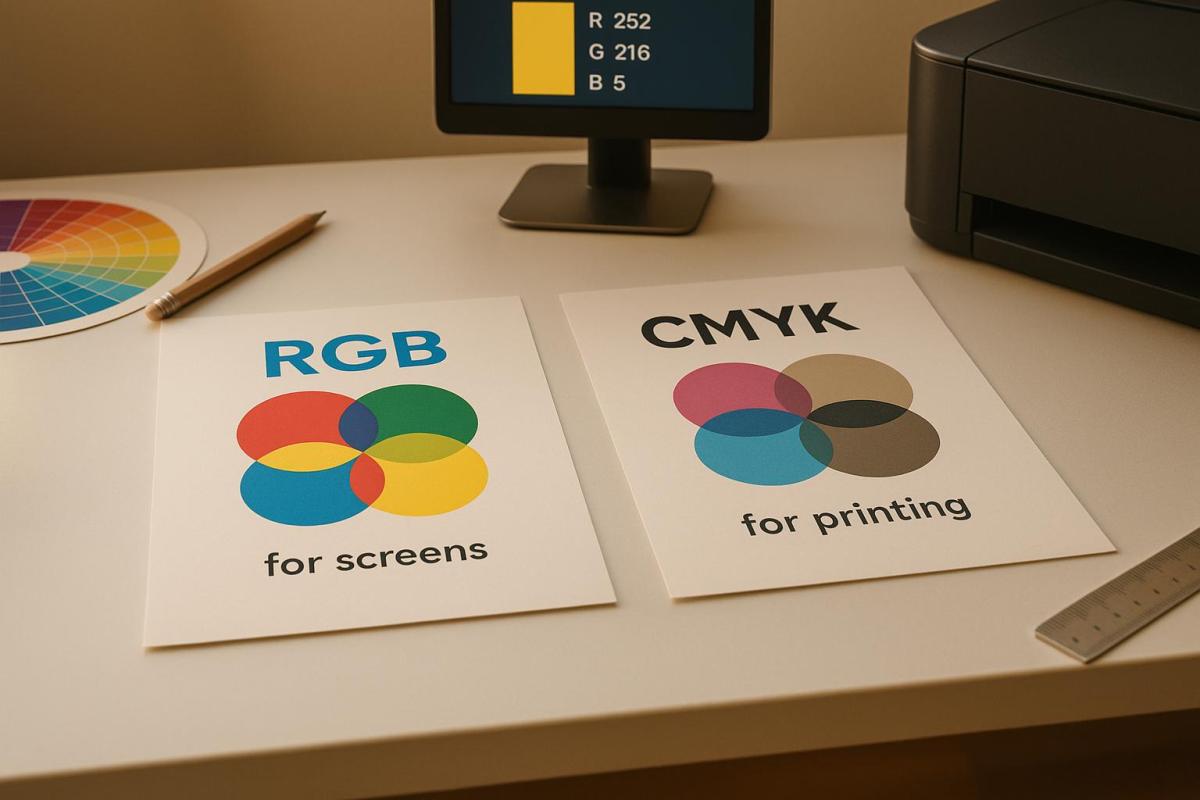
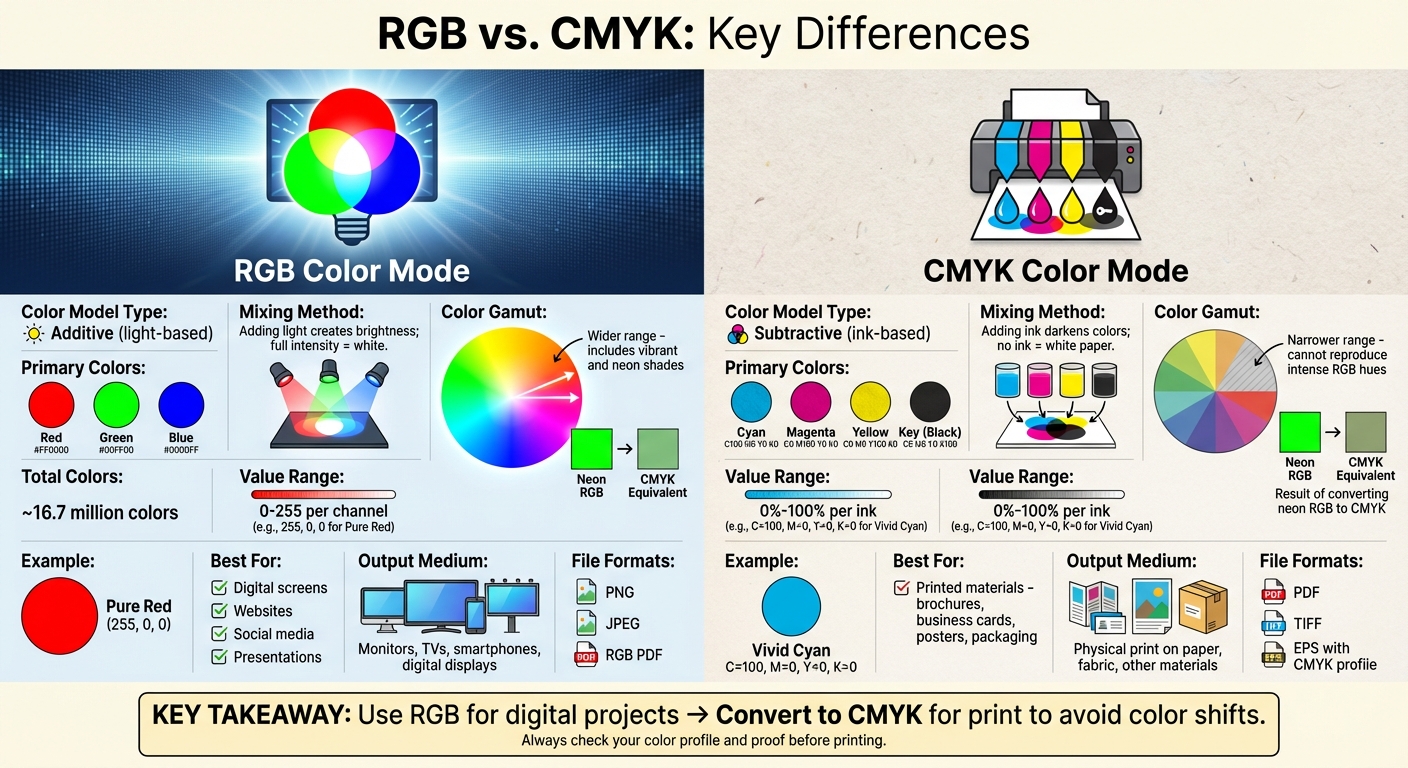
Also, don’t overlook the color mode. While many printers handle RGB files, converting your images to CMYK is often recommended for consistent color reproduction in print.

Examine Details at 100% Zoom

Once the resolution is confirmed, inspect your image visually by zooming in to 100%. This gives you a clear view of fine details. For portraits, focus on features like the eyes and hair. For landscapes, check the edges of trees, buildings, and horizon lines. If your image includes text, ensure the edges are sharp and well-defined.

Look closely at edge transitions. Sharp images will have clean, crisp edges, while soft or blurry edges could indicate focus issues or excessive processing. Keep an eye out for digital artifacts, such as halos around high-contrast areas, which could signal over-sharpening.

Tools like Photoshop’s Navigator can help you quickly move around the image while maintaining the 100% zoom level.

After this digital check, move on to a physical test print to confirm the sharpness translates well to paper.

To ensure your image looks as sharp in print as it does on screen, create a test print. Select a section of the image that includes fine details or text and print it at actual size using your intended paper and printer settings. Different paper types can impact how sharp the image appears, so testing with your chosen materials is crucial.

Inspect your test print under good lighting, such as natural daylight or high-quality LED lights. Use a magnifying glass or loupe to check for clean edges and retained detail. If the print appears softer than expected, consider applying output sharpening based on the paper type and intended viewing distance.

For critical projects, professional print services like Miro Printing & Graphics Inc. can provide test printing options. This allows you to evaluate sharpness across various paper stocks and printing methods before committing to a full print run.

High-resolution images for printing typically require a minimum of 300 PPI.

sbb-itb-ce53437

Common Sharpness Problems and How to Fix Them

When it comes to printing, achieving sharp and professional-looking images can be tricky. Various factors can impact sharpness during the printing process, but understanding these challenges – and knowing how to address them – can help you consistently produce crisp, high-quality results.

Oversharpening and Digital Artifacts

Oversharpening can ruin an image by creating unnatural halos around high-contrast edges and introducing noise that becomes glaringly obvious in print. Bright edges may develop dark outlines, and dark edges can gain bright halos, resulting in prints that look artificial. To prevent this, try sharpening your image in smaller, gradual steps rather than applying heavy adjustments all at once. In Photoshop, the Unsharp Mask filter is a great tool – set the Amount between 50-150%, Radius between 0.5-2.0 pixels, and Threshold between 0-5 levels. For output sharpening, Smart Sharpen is another solid option, especially with noise reduction enabled.

If sharpening reveals digital noise – grainy textures in smooth areas like skies or skin tones – reduce noise before sharpening. Photoshop’s Camera Raw filter provides excellent noise reduction tools to clean up your image.

Also, watch out for edge artifacts, which can appear as jagged or uneven edges around text and graphics. If you spot these, lower the sharpening amount or increase the threshold to protect smoother areas from over-enhancement.

Lastly, ensure your file’s resolution is adequate – poor resolution can limit sharpness no matter how well you edit.

Low-Resolution Files

Low-resolution images (below 150 PPI) tend to look soft and pixelated when printed. While upsampling – increasing the resolution – can sometimes help, it’s not a magic fix. Photoshop’s "Preserve Details 2.0" algorithm works well for photos, while "Bicubic Smoother" is better for illustrations or graphics. However, remember that upsampling can’t add detail that wasn’t there to begin with.

The quality of your source file plays a huge role. A sharp, well-exposed image at 200 PPI will often outperform a blurry 300 PPI image. Additionally, file compression can reduce sharpness. JPEGs with high compression lose fine details and develop visible artifacts, so whenever possible, work with uncompressed TIFF files or save JPEGs at maximum quality settings.

For critical projects, starting with a higher-resolution capture or scan is often a better approach than trying to salvage a low-resolution file.

How Print Materials Affect Sharpness

Your choice of print material significantly impacts how sharp your images appear. For instance, paper finishes make a big difference – glossy papers reflect light and enhance detail and contrast, while matte papers absorb light, softening the image but also masking minor sharpness issues.

Paper texture and ink absorption also play a role. Smooth, coated papers like photo paper preserve fine details, while textured or uncoated papers allow ink to spread, softening the edges. Coated papers keep ink on the surface, resulting in sharper prints.

Don’t forget about viewing distance. Prints meant for close-up viewing benefit from glossy papers that highlight every detail, while images displayed on walls can use matte papers without any noticeable sharpness loss.

Before committing to a final print, test your image on the paper stock you plan to use. A print that looks sharp on glossy paper might require extra sharpening for matte paper, and an image that seems oversharpened on gloss might look just right on a textured surface. Testing ensures your final product meets your expectations.

Adding Sharpness Checks to Your Print Workflow

Image sharpness plays a key role in delivering professional-quality prints. By integrating sharpness checks into your workflow, you can maintain consistent quality from the digital file to the final print, avoiding costly mistakes and reprints. When sharpness becomes a standard part of your process rather than an afterthought, you’ll save time and see better results. These checks complement earlier steps, like verifying resolution and inspecting images on-screen, ensuring your work transitions smoothly to the printing stage.

Creating Standard Sharpness Checks

A consistent sharpness protocol helps you achieve reliable and repeatable results. Start by creating a checklist to guide your process. For example:

  • Confirm a minimum resolution of 300 PPI at the final print size.
  • Inspect image details at 100% zoom to catch any issues.
  • Look for oversharpening or artifacts that could degrade quality.

It’s also helpful to document the optimal sharpening settings for different project types. For instance, smaller prints like business cards may require stronger sharpening, while larger formats like banners benefit from a more subtle approach.

Using standardized test strips can also streamline your workflow. These strips act as a reference point, letting you quickly compare your current project to a benchmark with proven sharpness.

Another useful practice is naming files to reflect the sharpening applied and the intended print material (e.g., "BusinessCard_Sharp_Gloss.tif"). This makes it easy to identify the file’s preparation at a glance.

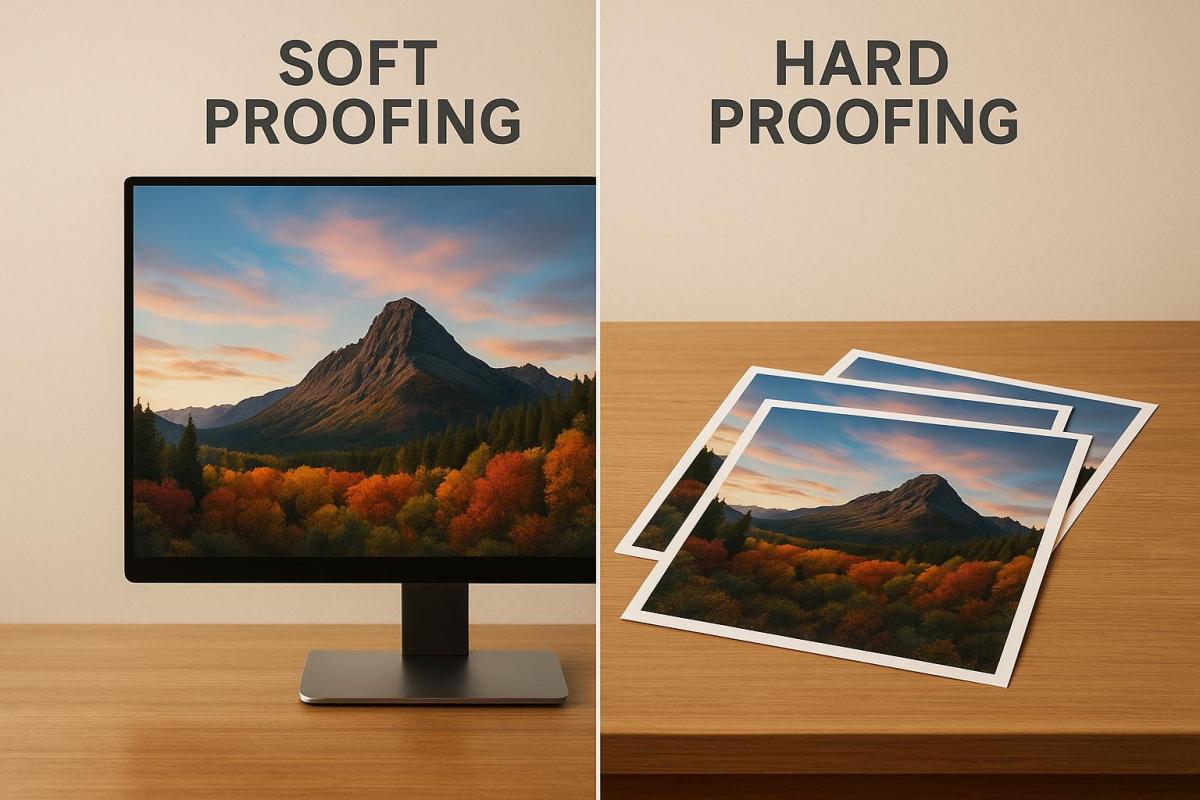
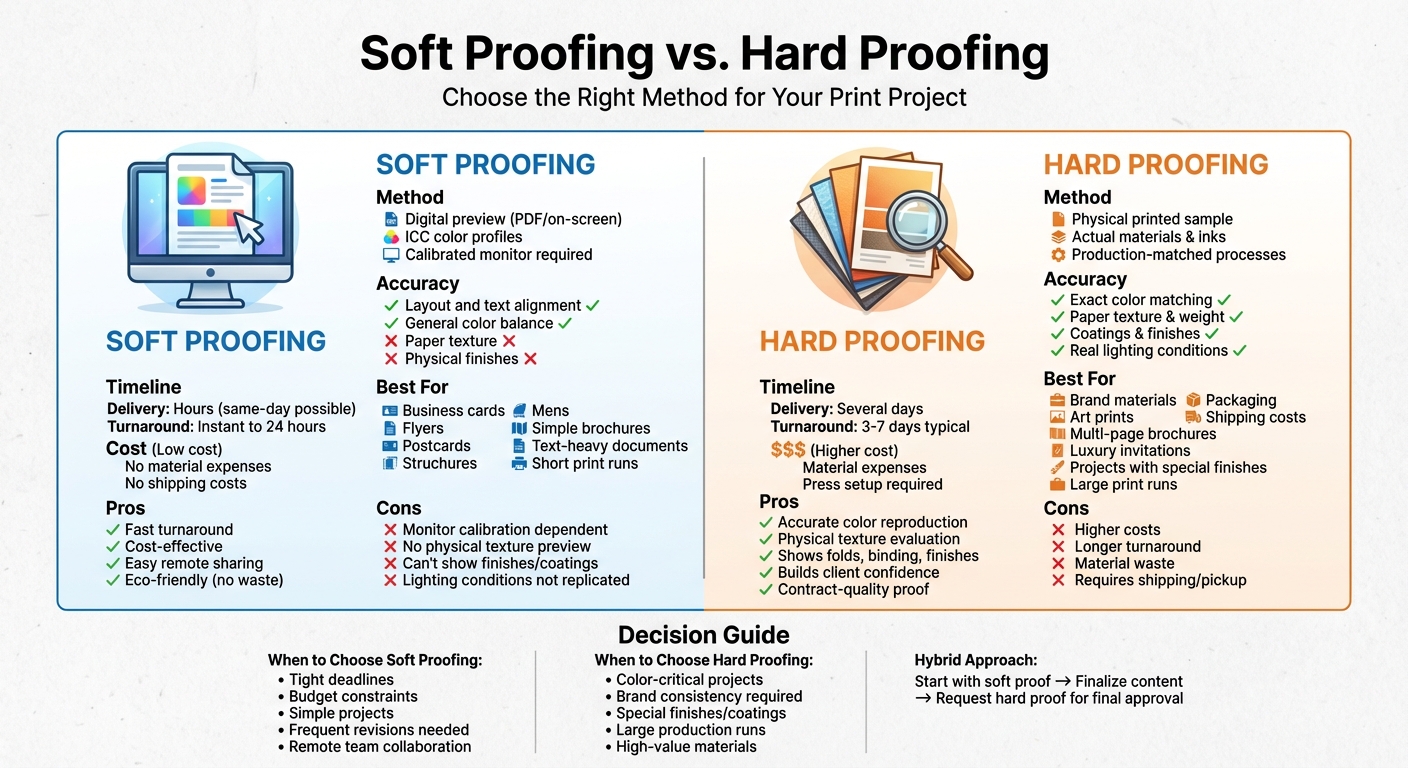
Lastly, enable soft proofing in your editing software. This feature simulates how your image will look on specific paper types, providing a more accurate preview than a standard RGB display. It’s an effective way to spot potential sharpness issues before printing.

Working with Professional Print Services

Once you’ve established internal sharpness standards, collaborating with professional print services can elevate your results even further. An experienced print shop, like Miro Printing & Graphics Inc. in Hackensack, NJ, offers a range of services – digital, offset, and large-format printing – along with expert advice on optimizing sharpness for different materials and methods.

Professional printers bring a level of expertise that’s hard to match. They understand how various inks interact with different paper stocks and how specific printing processes can affect sharpness. By communicating your sharpness requirements clearly, you can benefit from their tailored recommendations. Many print shops can even handle output sharpening as part of their workflow, ensuring your images look just as crisp on paper as they do on screen.

Following your printer’s file preparation guidelines – covering aspects like resolution, color space, and sharpening techniques – can reduce guesswork and improve your final results. Additionally, post-press processes like binding, cutting, and finishing can influence the perceived sharpness of your product, so understanding these interactions is crucial.

Partnering with a professional print service is often a worthwhile investment. It minimizes waste, enhances the quality of your prints, and saves you the time and effort of troubleshooting sharpness issues on your own. When image clarity is essential to your project’s success, working with experienced professionals is the best way to ensure your prints stand out.

Conclusion: Getting Sharp Images for Professional Prints

Creating sharp, professional-quality prints isn’t just about capturing a high-resolution image. It’s about understanding how sharpness transitions from your screen to the printed page and carefully managing every step of the process.

The steps outlined earlier ensure that your digital file is ready to meet the demands of printing. Paper absorbs ink, which can soften images and blur fine details. An image that looks crisp on your screen at 72 PPI might appear pixelated or lack clarity in print. This makes sharpness a key factor in distinguishing a professional print from one that falls short.

FAQs

What mistakes should I avoid when sharpening images for printing?

When preparing images for printing, there are a few common pitfalls to steer clear of:

  • Over-sharpening: This can lead to halos around edges and amplify noise, leaving the image looking artificial and harsh.
  • Using the same sharpening settings for all images without accounting for their individual characteristics and needs.
  • Skipping the step of resizing the image to the correct resolution before sharpening. This misstep can result in prints that are either too soft or overly sharp.

For the best outcomes, always view your image at 100% zoom while fine-tuning the sharpening settings. Tailor these adjustments to the specific image and its intended print size to produce sharp, professional-quality prints without any distracting artifacts.

How does the type of paper impact the sharpness of a printed image?

The paper you select can significantly impact the sharpness and clarity of your printed images. Coated papers, such as those with gloss or satin finishes, have smooth surfaces that absorb ink efficiently. This reduces ink spread, resulting in crisp, detailed prints – perfect for projects where precision and sharpness are key.

In contrast, uncoated or textured papers absorb more ink, which can soften edges and reduce detail. While these papers offer a distinctive, artistic feel, they might not be ideal for prints that demand high levels of detail. Choosing the right paper ensures your prints align with both your quality expectations and aesthetic preferences.

Can Photoshop or similar tools help preview how sharp an image will look when printed?

When preparing images for print, tools like Photoshop can be incredibly helpful for previewing and fine-tuning sharpness. Features like Unsharp Mask and Smart Sharpen are designed to enhance edges and bring out fine details, giving you a good idea of how the final print will look.

For even better accuracy, try using soft proofing. This feature lets you simulate how your image will interact with your specific printer and paper type, helping you ensure the sharpness meets your expectations. Keep in mind that resolution and print size are also key factors in achieving the desired level of sharpness.

Related Blog Posts

https://app.seobotai.com/banner/banner.js?id=68c5f27b119e7220d7dda8b5

Benefits of Using Bagasse Paper for Printing

Explore the benefits of bagasse paper as an eco-friendly alternative to traditional printing paper, reducing waste and resource use.

Bagasse paper is a practical alternative to wood-based paper, offering a way to reduce waste and use resources more efficiently. Made from sugarcane byproducts, it turns agricultural leftovers into high-quality paper suitable for printing. Here’s why it matters:

  • Eco-friendlier production: Requires less energy, water, and chemicals compared to traditional paper manufacturing.
  • Reduces deforestation: Repurposes sugarcane waste, cutting down on the need for wood pulp.
  • Reliable for printing: Maintains durability and supports both digital and offset printing methods.
  • Cost-effective: Delivers quality results without inflating costs.

Bagasse paper is gaining popularity for business materials like brochures, business cards, and packaging. It’s a smart choice for companies aiming to reduce their impact while maintaining professional results.

What Is Bagasse Paper? – Graphic Design Nerd

Graphic Design Nerd

Problems with Traditional Printing Paper

The production of conventional printing paper takes a heavy toll on the environment, relying on methods that consume significant resources and contribute to ecological harm.

Deforestation and Loss of Wildlife Habitats

Every ton of traditional paper requires cutting down about 17 trees. This not only reduces forest cover but also disrupts ecosystems, eliminating critical habitats for countless species.

High Resource Use and Pollution

Creating a single ton of standard paper demands an enormous amount of resources: 7,000 gallons of water and 6,500 kWh of energy. On top of that, the process involves numerous chemicals, further contributing to water and air pollution.

Carbon Emissions from Paper Production

The carbon footprint of wood-based paper is substantial. The energy-intensive manufacturing process, combined with the use of harmful chemicals, leads to significant greenhouse gas emissions, amplifying its environmental impact.

These challenges highlight the urgent need to explore more sustainable options for paper production.

How Bagasse Paper Solves These Problems

Bagasse paper offers a clever solution to the twin challenges of deforestation and resource overuse by turning sugarcane residue into a practical alternative to traditional paper.

Made from Agricultural Waste

Bagasse, a byproduct of sugarcane processing, is already partially refined before it even reaches the paper-making stage. This makes it an efficient resource to repurpose. By using this abundant agricultural waste, we can cut down on the need for wood pulp, easing the strain on forests. Plus, bagasse’s natural properties make the production process smoother and more efficient.

Conserves Energy and Water

Bagasse paper production doesn’t just save trees – it also minimizes energy and water use. Since bagasse undergoes partial processing during sugar extraction, it requires fewer steps to turn it into paper. The pulping process is also more resource-friendly, operating at lower temperatures and using fewer chemicals due to the reactive lignin in bagasse. These factors combine to significantly reduce the environmental footprint of manufacturing bagasse paper.

sbb-itb-ce53437

Benefits of Bagasse Paper for Commercial Printing

For businesses looking to make eco-conscious choices, bagasse paper is becoming a popular option for commercial printing. Made from sugarcane byproducts, it helps reduce waste while offering dependable print quality. Let’s dive into why bagasse paper stands out in commercial printing.

Durable and Reliable for Printing

Bagasse paper is crafted to deliver sharp, consistent prints. Its sturdy composition ensures that materials like business cards, brochures, and flyers retain their professional look, even with frequent handling.

Compatible with Multiple Printing Methods

One of the standout features of bagasse paper is its flexibility. It works well with both digital and offset printing, making it a reliable choice for a wide range of projects – think catalogs, magazines, or promotional materials. No matter the method, the results remain consistent and polished.

Cost-Effective and Environmentally Friendly

By using less wood and repurposing agricultural waste, bagasse paper supports eco-friendly practices. And the best part? It does so without straining budgets, offering an affordable way to align with sustainable business goals.

Using Bagasse Paper in Custom Printing Projects

Bagasse paper is making waves in custom printing projects, combining sustainability with reliable print quality. Made from sugarcane waste, this eco-friendly alternative is gaining traction across industries looking to reduce their environmental footprint without compromising on results.

Marketing and Business Material Applications

Bagasse paper shines in marketing and business materials. For direct mail campaigns, items like postcards, flyers, and promotional pieces benefit from its durability and unique texture, making a lasting impression.

When it comes to corporate stationery, such as business cards, letterhead, and envelopes, bagasse paper offers a smooth surface that ensures sharp text and vibrant logos. It’s also a fantastic choice for event materials and packaging elements like hang tags or product information sheets – perfect for businesses and events aiming to highlight eco-conscious values. Beyond functionality, using bagasse paper in these applications reinforces a commitment to sustainable practices while showcasing creative possibilities.

Printing Services by Miro Printing & Graphics Inc.

For those seeking sustainable printing options with high-quality results, Miro Printing & Graphics Inc. in Hackensack, NJ, offers a wide range of services tailored to diverse project needs. Their expertise includes digital printing, offset printing, large format printing, in-house bindery, computer layout and design, and mailing & fulfillment services. While eco-friendly materials like bagasse paper aren’t explicitly listed in their offerings, their extensive capabilities allow clients to explore various substrates, including sustainable options.

If you’re interested in incorporating bagasse paper into your project, the team at Miro Printing & Graphics Inc. can help ensure your design and quality goals align with your environmental values. Discussing your specific needs with their experts can open up creative and sustainable possibilities for your next printing project.

Conclusion: The Future of Green Printing

Bagasse paper stands out as a game-changer in the journey toward greener printing practices. Made from sugarcane waste, this eco-friendly alternative requires less energy and water during production, which helps cut down on carbon emissions. It’s a smart way to turn agricultural waste into something both practical and sustainable.

What’s even better? Bagasse paper performs exceptionally well. It provides crisp text and vibrant colors, whether you’re using digital or offset printing methods. Its smooth surface and durability make it perfect for a wide range of uses, from corporate stationery to marketing materials and packaging. Plus, it offers businesses the chance to reduce costs while enhancing their reputation among environmentally conscious consumers.

As production methods improve and more companies embrace this option, bagasse paper is poised to offer a competitive edge. It allows businesses to shrink their environmental footprint without sacrificing quality or professionalism. By adopting bagasse paper, companies can align their branding with sustainability – a win-win for both the planet and their bottom line.

The future of printing is all about finding solutions that meet business needs while respecting the environment. Bagasse paper transforms waste into top-notch printed materials, proving that eco-friendly choices don’t have to mean compromising on quality. With its growing appeal, bagasse paper is set to become a leading option in the printing industry.

FAQs

How does bagasse paper perform in printing compared to traditional wood-based paper?

Bagasse paper provides an eco-conscious alternative to traditional wood-based paper, though it does come with some unique characteristics. Its fibers are shorter, and the paper often has a lower brightness level, which can slightly affect the sharpness and vibrancy of printed designs. While it may not offer the same durability or polished finish as premium wood pulp paper, it remains a practical option for a variety of printing projects.

By using the right inks and printing methods, bagasse paper can produce impressive results. It’s an excellent choice for businesses and individuals aiming to prioritize sustainability without sacrificing usability or functionality.

What are the environmental advantages of using bagasse paper instead of traditional paper?

Bagasse paper stands out as a greener alternative to traditional paper. Crafted from sugarcane fibers – a byproduct of sugar production – it not only cuts down on waste but also encourages the reuse of natural materials that might otherwise go unused.

Producing bagasse paper uses less energy and water, which means it leaves behind a smaller carbon footprint. Plus, it breaks down quickly, making it an excellent compostable option for businesses aiming to minimize their environmental impact. Opting for bagasse paper is a step toward a cleaner, more resource-conscious printing solution.

Is bagasse paper suitable for all types of printing projects, or does it have specific limitations?

Bagasse paper offers a more environmentally conscious choice for various printing needs, though it does have a few drawbacks. Its surface tends to be slightly rough, and the fibers can be distributed unevenly. These factors might impact the quality of prints that require a high-gloss finish or intricate details. Another consideration is that bagasse pulp contains elements like silicon dioxide, which, if not properly processed, could potentially damage printing equipment.

For everyday printing tasks, bagasse paper performs reliably and comes with the added benefit of being a greener option. However, it might not be ideal for projects demanding perfectly smooth surfaces or exceptional image precision. It’s always a good idea to check with your printer to see if bagasse paper suits the needs of your project.

Related Blog Posts

https://app.seobotai.com/banner/banner.js?id=68ae4e2ab36f318d4f10bee3

5 Steps to Use ICC Profiles for Accurate Colors

Learn how to achieve precise color management in printing using ICC profiles for consistent results across devices.

Want your printed colors to match what you see on screen? ICC profiles are the key. These files ensure color consistency across devices like monitors, printers, and scanners. Without them, your prints may look drastically different from your digital designs.

Here’s a quick breakdown of how to use ICC profiles for precise color management:

  • Set Up Your Workflow: Organize your workspace, turn off automatic color management, and ensure consistent lighting.
  • Calibrate Your Monitor: Use tools like X-Rite i1Display Pro to match your screen’s colors to real-world standards.
  • Print and Measure Charts: Print color targets, let them dry, and measure with a spectrophotometer.
  • Install and Apply Profiles: Save and apply custom ICC profiles for your specific printer, ink, and paper setup.
  • Soft Proof and Adjust: Preview prints on your screen, make adjustments, and test final prints under proper lighting.

How to DIY ICC Printer Profile Making – Uncover the Secrets with X-Rite i1 Profiler

What You Need Before Starting

Getting accurate colors with ICC profiles starts with the right tools and a properly calibrated setup. Here’s what you’ll need to ensure precise color management.

Required Equipment and Software

First, make sure you’re using a calibrated monitor. If your display isn’t showing colors correctly, any adjustments you make will be based on flawed data. Look for monitors that cover at least 99% of the sRGB color space; for professional work, monitors with Adobe RGB coverage are even better.

You’ll also need a spectrophotometer or a colorimeter to measure colors accurately. These devices are essential for creating ICC profiles. Popular tools include the X-Rite i1Display Pro for monitor calibration and the i1Pro series for printer profiling.

For software, Adobe Photoshop and Illustrator come with built-in color management tools. However, specialized programs like X-Rite i1Profiler or ColorMunki Photo are ideal for creating custom ICC profiles tailored to your specific equipment and materials.

Keep in mind that each printer and paper combination requires its own ICC profile. For example, a profile designed for glossy photo paper won’t work correctly on matte cardstock or canvas.

Monitor Calibration Requirements

Calibrating your monitor regularly is crucial. Over time, monitors "drift" as backlights age and components wear down, so aim to recalibrate every 2–4 weeks. Even brand-new monitors can be far from accurate straight out of the box.

Ambient lighting in your workspace plays a big role in color perception. Set up consistent, neutral lighting with a color temperature of 5000K to 6500K. Avoid working near windows where daylight changes or under fluorescent lights, as these can throw off your color judgment.

For print work, set your monitor’s white point brightness to 120 cd/m². This level closely matches typical print viewing conditions. While higher brightness settings might look good on-screen, they can result in prints that appear darker than expected.

Use a gamma setting of 2.2, which is the standard for most printing workflows. This ensures your screen preview aligns with how the final prints will look. Following these calibration steps will help your display show true colors, ready for profile creation.

Selecting the Right ICC Profile

Each printer, ink, and paper combination needs its own ICC profile. For example, a profile made for an Epson printer with Canon photo paper won’t work properly with HP paper, even on the same printer. Ink absorption, surface texture, and coatings all impact how colors appear.

The generic profiles that come with printers are only a starting point. These profiles are created under controlled lab conditions, which rarely match your real-world setup. Custom profiles, on the other hand, take your specific environment into account – factors like humidity, temperature, and even the age of your ink cartridges. Using custom profiles ensures that what you see on your screen matches the final printed output.

If you’re working with a professional print shop, ask about their ICC profile library. Many established shops maintain profiles for a wide range of paper and ink combinations. For instance, at Miro Printing & Graphics Inc., clients are provided with the exact ICC profiles used for their projects, ensuring consistency between screen and print.

Make it a habit to update your ICC profiles every 3–6 months or whenever you change ink suppliers, switch paper batches, or notice color shifts in your prints. Even environmental changes, like fluctuations in humidity, can affect your printer’s behavior enough to require new profiles.

Finally, consider the viewing conditions for your prints. A profile optimized for indoor office lighting will produce different results than one designed for outdoor signage. Always match your ICC profile to the environment where your prints will be displayed.

With your tools ready and profiles selected, you’re now prepared to move on to setting up your workflow.

5 Steps to Use ICC Profiles for Accurate Colors

Once you’ve got your equipment ready, it’s time to incorporate ICC profiles into your workflow. Follow these five steps to move seamlessly from setup to final color checks.

Step 1: Set Up Your Workflow

Begin by ensuring your workspace and equipment are properly organized. Connect your printer via USB to minimize any communication delays. Let your printer warm up for at least 30 minutes before starting – this helps maintain steady ink flow and temperature.

In your printer settings, turn off automatic color management. Automatic adjustments can conflict with your custom ICC profiles, so set the printer driver to "No Color Management" or "Application Managed Colors."

Keep your ICC profiles organized in folders based on printer model, paper type, and date. For example: "Epson_SureColor_P800/Canvas_Matte/Profile_Aug2025." This system is especially helpful when handling multiple profiles for various projects.

Lastly, make sure your workspace has consistent ambient lighting conditions for accurate color assessment.

Step 2: Calibrate Your Monitor

Use your monitor calibration software to achieve accurate color display. Tools like the X-Rite i1Display Pro will guide you through the process. Set your white point to D65 (6500K), gamma to 2.2, and luminance to 120 cd/m² – these are standard settings for print work.

During calibration, the software will display color patches on your screen while a colorimeter measures the output. This process takes about 15-20 minutes and creates a profile tailored to your monitor’s specific characteristics. A properly calibrated monitor ensures your ICC profiles work as intended.

Save the monitor profile with a descriptive name, such as "Dell_U2718Q_Aug26_2025." Most calibration tools will set this as your system default, but double-check in your operating system’s display settings.

To test your calibration, open an image with known color values. Many professionals use the Datacolor SpyderCHECKR target image, which includes precise color squares you can compare against a physical reference card.

Step 3: Print and Measure Color Charts

Download or create a color target chart suitable for your profiling software. The IT8.7/4 target, with its 288 color patches, is a popular choice for covering the full spectrum of printable colors. If you’re using X-Rite i1Profiler, select the "Large Gamut" target for comprehensive profiling.

Print the chart using the exact paper and ink combination you’ll use for your final prints. Choose the highest quality print settings, such as "Photo" or "Fine Art" mode, and ensure no color management is applied – your printer should still be set to "No Color Management" from Step 1.

Let the print dry completely before measuring. Glossy paper typically needs 30 minutes, while canvas may require up to 2 hours. Wet ink can lead to inaccurate color readings.

Using a spectrophotometer, measure each color patch carefully. Align the device precisely over each square to avoid overlapping onto adjacent patches. With tools like the X-Rite i1Pro 3 and an automated scanning ruler, you can measure an entire IT8 chart in about 8-10 minutes.

Step 4: Install and Apply ICC Profiles

After completing the measurements, your profiling software will generate a custom ICC profile. Save it with a clear, detailed name that includes the printer model, paper type, ink set, and creation date. For example: "Canon_PRO1000_Hahnemuhle_PhotoRag_CanonInk_Aug2025.icc."

Install the profile in your operating system’s color profile directory. On Windows, copy the .icc file to "C:\Windows\System32\spool\drivers\color". On Mac, place it in "/Library/ColorSync/Profiles/" for system-wide use or "~/Library/ColorSync/Profiles/" for user-specific access.

In Adobe Photoshop, set your working space (e.g., "North America General Purpose 2") and select your custom ICC profile when printing.

Test your profile by printing a small section of your color chart again. Compare this print to the original measured chart – the colors should align much more closely after applying your custom profile.

Step 5: Soft Proofing and Final Adjustments

Activate soft proofing in your image editing software to preview how your prints will look. In Photoshop, go to View > Proof Setup > Custom, select your printer profile, and choose "Relative Colorimetric" as the rendering intent – this is ideal for photographic work. Soft proofing helps confirm that your ICC profile is working as expected.

Check for out-of-gamut colors that your printer can’t reproduce. Photoshop can highlight these areas, allowing you to make selective adjustments to bring colors into the printer’s range.

Print a test image that includes a variety of colors, skin tones, and neutrals. Print it at the actual size you plan to use for your final output, as color perception can shift with different dimensions.

Evaluate the test print under the same lighting conditions where the final prints will be displayed. Compare it to the soft-proofed preview on your monitor. You may need to tweak your image files slightly, especially for tricky colors like deep blues or bright reds. Keep a record of these adjustments for future reference.

sbb-itb-ce53437

Common Problems and Solutions

Even with a well-calibrated workflow, challenges can still pop up. Knowing how to identify and address these common issues will help you maintain consistent and accurate colors throughout your printing process.

Fixing Common Issues

One frequent problem is double color management. This happens when both your printer driver and your image editing software try to apply color corrections at the same time. The result? Prints that look muddy, overly saturated, or have strange color casts.

To fix this, check your settings in both your editing software and printer driver. For example, in Adobe Photoshop, make sure you’re selecting your custom ICC profile in the print dialog under "Color Management." Letting the printer handle colors automatically can lead to these unwanted results, so ensure only one system is managing color corrections.

Aging equipment is another challenge. Over time, your monitor’s color accuracy can shift due to backlight aging or component wear. Similarly, printers may start producing inconsistent colors as printheads age or ink formulations vary between batches. You might notice subtle but noticeable differences in prints made with the same ICC profile just a few months apart.

Environmental factors like temperature and humidity also play a big role. A temperature shift of just 10°F or a humidity change of more than 20% can affect ink flow, drying times, and how paper behaves. To avoid these issues, keep your workspace within 68-72°F and maintain 45-55% relative humidity.

Another issue to watch for is profile corruption, which can occur during file transfers or updates. Corrupted profiles may cause extreme color shifts or banding in your prints. Likewise, mismatched inks or paper types can lead to unreliable results. To avoid this, maintain dedicated profiles for each specific printer, ink, and paper combination. Always keep backup copies of your profiles and test them periodically by printing small color patches to ensure they’re functioning correctly.

By addressing these problems promptly and taking preventive steps, you can maintain consistent color accuracy over time.

Maintaining Color Consistency

Once immediate issues are resolved, focus on proactive measures to keep your workflow steady.

Regular calibration is key. Monitors, even high-quality LED models, gradually shift over time. Stick to a consistent calibration schedule based on your monitor type and usage.

Update your printer profiles whenever you switch paper brands, receive a new ink batch, or notice a change in lighting conditions. Professional print shops often create new profiles every quarter or whenever they get a new shipment of paper.

Environmental stability is also crucial. Use a digital hygrometer to monitor temperature and humidity in your workspace. Sudden environmental changes can lead to color shifts in both your monitor display and print output. Document these conditions in your profile names to make troubleshooting easier in the future.

Make profile validation a habit. Print the same reference image every month using your existing profiles and compare it to previous prints. Store these test prints in a dark, dry place to prevent fading. If you notice any shifts, it’s a sign to recalibrate your equipment or create new profiles.

Proper paper storage can also make a difference. Keep paper in its original packaging, sealed with plastic bags and silica gel if humidity levels are high. Paper that absorbs moisture from the air won’t interact with ink the same way, throwing off the accuracy of your ICC profiles.

Finally, keep detailed records of your workflow. Track calibration dates, profile creation dates, environmental conditions, and any issues you encounter. This documentation will help you spot patterns and avoid repeating mistakes. Make notes about which paper batches work best with certain profiles and how long those profiles remain accurate under specific conditions.

Be mindful of software updates as well. Updates to your operating system, printer drivers, or editing software can sometimes reset your color management settings or alter how profiles are applied. After any update, double-check your settings and test-print a reference image to ensure everything is still working as it should.

Key Takeaways

Here’s a quick recap of the essential steps for achieving precise and predictable color management in your printing workflow. By properly using ICC profiles, you can shift from guesswork to consistent results. The five-step process – setting up your workflow, calibrating your monitor, printing and measuring color charts, installing profiles, and soft proofing – forms the foundation for maintaining color accuracy across all your projects.

One crucial point to keep in mind: ICC profiles aren’t a “set it and forget it” solution. Over time, equipment like monitors and printers naturally change. This means profiles need periodic updates to account for factors like monitor drift or printer wear. Regular updates ensure your colors stay true to your expectations.

Creating a stable workspace is also vital. Environmental factors, like lighting, can influence the performance of your calibrated system. Using proper calibration tools not only reduces waste but also boosts client satisfaction. Professional print shops, for instance, often update profiles whenever consumables change or equipment conditions shift. This proactive approach prevents costly reprints and ensures consistent quality.

Additionally, system updates can sometimes overwrite monitor profiles without warning.

As Berntsen, a Community Expert, advises, "Calibrate and maintain devices regularly to ensure optimal performance."

To avoid setbacks, always check your profiles after software updates and keep backup copies of your working profiles.

It’s also worth noting that each printer and paper combination needs its own dedicated profile. A profile that works perfectly for one setup won’t necessarily deliver the same results with another, as manufacturing differences between devices can impact color reproduction.

These takeaways summarize the best practices covered in this guide. The key to long-term success in color management lies in viewing it as an ongoing process. Regular calibration, monitoring your environment, and keeping detailed records will ensure your workflow stays smooth and your colors remain accurate. At Miro Printing & Graphics Inc., these methods are part of our promise to deliver exceptional print quality every time.

FAQs

How do ICC profiles help maintain consistent colors between monitors and printers?

ICC profiles serve as color interpretation guides, ensuring colors remain consistent and accurate across various devices like monitors and printers. Every device has its own unique color range, known as a gamut, and ICC profiles describe these characteristics to make sure colors are rendered properly.

With ICC profiles, colors are fine-tuned to match the specific capabilities of each device. This means the final output – whether displayed on a screen or printed – closely aligns with the original design. In short, they help ensure that the colors you see on your monitor are a reliable preview of the printed result, maintaining dependable color accuracy.

Why don’t my prints match the colors on my screen, even after following all the steps?

If your prints still don’t match the colors on your screen, the issue might lie in calibration or how ICC profiles are being used. Start by confirming that the ICC profile for your specific printer and paper type is installed correctly and assigned within your color management settings.

Also, make sure your monitor is properly calibrated to display colors as intended. Use the appropriate ICC profiles in your design software for both soft proofing and printing. If the mismatch continues, try recalibrating your monitor and updating your ICC profiles. Even small tweaks in your workflow can greatly improve color accuracy.

How often should I recalibrate my ICC profiles and equipment to ensure accurate color management?

To keep color management consistent and accurate, it’s a good idea to recalibrate your ICC profiles and equipment every 1 to 3 months. In settings where precise color accuracy is essential – like professional printing or design – more frequent recalibration, such as weekly adjustments, might be necessary. This is especially true if factors like temperature, humidity, or lighting conditions fluctuate.

By recalibrating regularly, you can ensure your prints turn out exactly as intended, minimizing inconsistencies and maintaining high-quality results. For any project that relies on precise color reproduction, this step is crucial.

Related posts

https://app.seobotai.com/banner/banner.js?id=68acfd105d4c81d674964d43

Weatherproof Cardstock for Custom Outdoor Projects

Explore the best weatherproof cardstock options for outdoor projects, focusing on durability, water resistance, and eco-friendliness.

When creating outdoor materials, regular cardstock doesn’t hold up to harsh weather. Weatherproof cardstock is specifically designed to withstand rain, UV rays, temperature changes, and frequent handling. Options range from synthetic and PVC-based materials to coated paper and eco-friendly alternatives. Here’s a quick breakdown:

  • Synthetic Cardstock (e.g., Yupo): Durable, water-resistant, tear-proof, and UV-stable. Ideal for long-term outdoor use but less eco-friendly.
  • PVC/Plastic-Based Cardstock: Fully waterproof, strong against UV exposure, and tear-resistant. Requires special printing methods.
  • Coated Paper Cardstock: Budget-friendly with water and UV-resistant coatings. Best for short-term outdoor projects.
  • Eco-Friendly Options: Includes stone paper, bamboo fiber, and recycled materials. Sustainable but pricier.
  • Heavy-Weight Cardstock: Thicker and sturdier for windy or demanding conditions.
  • All-Weather Printer Paper: Lightweight, moisture-resistant, and compatible with standard printers.

Choosing the right option depends on your project’s durability needs, budget, and environmental concerns. Each type offers unique strengths, from long-lasting synthetic materials to affordable coated paper for temporary use. Below, we’ll explore these materials in detail to help you make the best choice for your next outdoor project.

Printing water resistant posters without lamination

1. Synthetic Cardstock (e.g., Yupo)

Yupo

For outdoor projects that need to stand up to the elements, synthetic cardstock, like Yupo, is a standout option. Made from polypropylene film, it takes durability to the next level compared to traditional paper. While paper can absorb moisture and break down, synthetic cardstock holds up under tough conditions.

Water Resistance

One of its key features is its non-porous surface, which effectively repels water. Whether it’s rain, snow, or high humidity, synthetic cardstock keeps its structure and printed designs intact, making it a reliable pick for outdoor use.

Tear Resistance

Its film-based construction gives synthetic cardstock impressive tear resistance. The polymer material distributes stress evenly, making it tough enough to handle strong winds or frequent handling without ripping.

UV/Fade Resistance

Synthetic cardstock also offers solid protection against UV exposure. The polypropylene base helps prevent printed inks from fading, even under prolonged sunlight. This makes it a dependable choice for outdoor signs or displays that need to maintain their quality over time.

The smooth, non-absorbent surface of synthetic cardstock is ideal for digital printing. Latex and UV-curable inks adhere well, ensuring vibrant and durable results. For offset printing, specialized inks designed for non-porous surfaces may be required to achieve the best performance.

Environmental Considerations

While synthetic cardstock isn’t biodegradable, it is recyclable at facilities that handle plastic films. Plus, its long lifespan means fewer replacements, which can help offset some environmental concerns over time.

2. PVC and Plastic-Based Cardstock

PVC and plastic-based cardstock are built to handle tough conditions where standard paper would fall short. Designed for durability and protection, these materials shine in demanding environments. Let’s break down how PVC cardstock performs in key areas.

Water Resistance

PVC cardstock doesn’t just resist water – it’s fully waterproof. This makes it perfect for outdoor menu boards, construction site signs, or even marine settings where materials might face constant moisture or submersion.

Thanks to its non-porous surface, water simply rolls off, leaving prints dry and intact. Unlike other materials, PVC won’t warp, swell, or peel when exposed to water.

Tear Resistance

When it comes to strength, PVC cardstock is hard to beat. Its plastic-based structure spreads force evenly, making it extremely tear-resistant. This makes it ideal for temporary outdoor setups that require repeated handling, like signs or banners.

PVC’s flexibility also plays a role here. It bends without cracking or breaking, unlike rigid materials that can snap under pressure.

UV and Fade Resistance

PVC cardstock offers impressive resistance to UV rays, keeping colors vibrant and intact for the long haul. When paired with UV-resistant inks, it’s a great option for outdoor signs, vehicle wraps, or any project that requires lasting color.

Because it resists fading, businesses can save on replacement costs while maintaining a consistent brand image in outdoor settings.

Printing on PVC cardstock requires specialized methods to ensure the ink adheres properly. UV-curable inks work particularly well, creating a durable bond that won’t flake or peel. Solvent-based inks are another option, though they require careful ventilation during the process.

The smooth surface of PVC allows for sharp, vibrant prints, but it’s worth noting that standard water-based inks used in home printers won’t stick. For the best results, professional printing services are a must.

Environmental Considerations

PVC cardstock does come with some environmental concerns. While it’s recyclable through specific programs, it’s not biodegradable and can linger in the environment if improperly discarded.

That said, its durability means it lasts longer, reducing the need for frequent replacements. For projects where weather resistance is a priority, the long lifespan of PVC might outweigh its environmental drawbacks.

Price Range (USD)

PVC cardstock is a premium option, typically priced between $0.75 and $2.50 per square foot, depending on thickness and quality. While it’s more expensive than paper-based materials, its durability and extended lifespan often make it a cost-effective choice for long-term outdoor use. Bulk orders can help lower the cost, making it a smart option for larger projects or businesses with ongoing outdoor printing needs.

3. Coated Paper Cardstock (Weatherproof Coatings)

After considering fully synthetic and plastic-based materials, coated paper cardstock presents a more budget-friendly option. This material combines the familiar feel of paper with added durability through specialized coatings. By starting with a paper base and applying weather-resistant coatings, coated cardstock achieves a balance of outdoor performance and affordability. This makes it a practical choice for a variety of outdoor projects.

Water Resistance

The weatherproof coatings on this cardstock create a barrier that helps repel water. Depending on the type of coating, the level of water resistance varies:

  • Aqueous coatings: Provide protection for 2–4 weeks in moderate conditions.
  • UV-cured coatings: Extend durability to 6–8 weeks.
  • Laminated coatings: Offer the longest-lasting protection, typically 3–6 months.

While coated cardstock handles light to moderate moisture well, prolonged exposure to heavy rain or humidity can lead to warping or delamination.

Tear Resistance

In addition to moisture protection, coatings also enhance the material’s structural durability. Heavier paper stocks, such as 14–16 pt, paired with laminated coatings, offer better tear resistance, making them suitable for outdoor use.

Among the available options, laminated coatings provide the highest tear resistance. The plastic film bonds tightly to the paper, creating a composite material that resists punctures and tearing along the grain. This makes laminated coated cardstock a strong candidate for outdoor signs that might endure wind or accidental handling.

UV and Fade Resistance

Coated cardstocks with UV-resistant finishes can greatly prolong the vibrancy of printed colors when used outdoors. Here’s how different coatings compare:

  • Standard aqueous coatings: Offer minimal UV protection.
  • Specialized UV-resistant coatings: Block up to 95% of harmful UV rays, keeping colors vibrant for months instead of weeks.

The durability of colors depends on the pairing of ink and coating. For instance, digital prints using UV-cured inks combined with protective coatings resist fading much better. Conversely, offset prints with conventional inks may begin fading after 4–6 weeks of direct sun exposure, even when coated.

Coated cardstock works well with both digital and offset printing, ensuring sharp, vibrant results. It also supports finishing processes like cutting, scoring, and folding, provided these steps are completed before the coating fully cures. This flexibility makes it a versatile option for a range of printing needs.

Environmental Friendliness

Compared to plastic-based materials, coated paper cardstock has an edge in environmental considerations due to its renewable paper base. However, the coatings themselves can complicate recycling:

  • Aqueous coatings: Can often be recycled through standard paper recycling systems.
  • Plastic-based coatings: May require separation, making recycling more challenging.

While the shorter outdoor lifespan of coated cardstock may lead to more frequent replacements, it can still strike a reasonable balance for projects lasting under three months, offering a blend of functionality and eco-consciousness.

Price Range (USD)

Coated paper cardstock is priced between standard paper and synthetic materials, making it accessible for many budgets:

  • Aqueous-coated cardstock: Costs range from $0.15 to $0.35 per square foot.
  • UV-cured coatings: Typically priced between $0.25 and $0.50 per square foot.
  • Laminated options: Fall between $0.40 and $0.80 per square foot.

This moderate pricing makes coated cardstock an appealing choice for short-term outdoor campaigns, seasonal signage, or projects where enhanced durability is needed without the higher cost of synthetic materials. Up next, we’ll look at eco-friendly and heavier-weight options for outdoor printing projects.

4. Eco-Friendly Weatherproof Cardstock (PVC-Free, Tree-Free)

Growing environmental awareness has led to new, sustainable options for weatherproof cardstock designed for outdoor use. These materials avoid traditional tree-based paper and harmful PVC, instead opting for alternatives like stone paper, bamboo fiber, and recycled ocean plastics. While these choices may come at a higher cost, they provide a responsible way to minimize environmental impact. Let’s break down how these materials deliver water and tear resistance, UV protection, and print compatibility.

Water Resistance

One of the standout features of eco-friendly weatherproof cardstock is its natural resistance to water. Unlike traditional options that rely heavily on chemical coatings, these materials are inherently water-resistant. Stone paper, for example, naturally repels water, making it a strong choice for wet environments. Bamboo fiber offers moderate moisture protection, while recycled ocean plastic is highly effective at resisting water exposure.

Tear Resistance

Durability is another key factor. Stone paper is particularly strong when it comes to tear resistance, making it ideal for projects requiring longevity. Bamboo cardstock provides moderate tear strength, with heavier weights performing better. Recycled ocean plastic, on the other hand, is engineered for high durability, standing up to significant wear and tear.

UV and Fade Resistance

When it comes to UV protection, each material has its own strengths. Stone paper contains natural minerals that reflect UV rays, offering built-in defense against sunlight without needing extra treatments. Bamboo cardstock may require eco-friendly UV coatings to maintain its color and integrity under prolonged sun exposure. Recycled ocean plastic is specifically designed to resist fading, helping preserve print quality even in bright conditions.

Printing on eco-friendly cardstock is generally straightforward, though some materials may need specific settings. Stone paper works well with digital printing methods like latex and UV-cured inks. Bamboo cardstock is versatile, accommodating both digital and offset printing techniques. Recycled ocean plastic, however, often requires specialized digital printing adjustments to achieve fine details.

Environmental Friendliness

These materials are crafted with sustainability in mind. Stone paper uses fewer production resources compared to traditional paper, bamboo benefits from its fast-growing nature, and recycled ocean plastic helps reduce waste in marine ecosystems. These eco-conscious features make them appealing for projects that prioritize green practices.

Price Range (USD)

It’s true that eco-friendly weatherproof cardstock tends to be more expensive than conventional options. However, the combination of durability and reduced environmental impact can make the investment worthwhile. Prices vary depending on the material and its quality, so it’s important to balance your project needs with your budget.

Up next, we’ll dive into heavy-weight cardstock options for even greater durability.

sbb-itb-ce53437

5. Heavy-Weight Weatherproof Cardstock (e.g., 100# YouLLin)

YouLLin

Heavy-weight weatherproof cardstock, like 100# YouLLin, stands out for its ability to work seamlessly with various printing methods – making it a go-to choice for custom outdoor projects. This type of cardstock strikes a fine balance between durability and print quality. Its sturdy build provides a reliable surface for producing sharp, vibrant prints, while also holding up to the challenges of outdoor use. However, achieving the best results often requires some adjustments to printing settings, as outlined below.

This cardstock is well-suited for both digital and offset printing. Its thicker composition enhances ink adhesion and ensures rich, saturated colors. That said, adjustments to printer pressure and drying times are necessary to avoid issues like ink bleeding. With these tweaks, 100# YouLLin becomes a dependable option for outdoor projects where durability and crisp print quality are essential.

6. All-Weather Printer Paper (e.g., Rite in the Rain)

Rite in the Rain

If you’re looking for a dependable option to tackle the demands of outdoor use, all-weather printer paper is a solid choice. Designed to withstand tough conditions, this type of paper combines strength with resistance to moisture and physical wear, making it ideal for outdoor signage or fieldwork. Unlike heavier cardstocks, it’s crafted to work seamlessly with standard printers for quick and efficient use.

Water Resistance

One of its standout features is a special coating that keeps it resistant to water. This means you can write on it with a pen – even in damp or rainy conditions – without smudging or losing clarity.

Tear Resistance

Built tough, this paper resists tearing, ensuring that your printed materials stay intact even when subjected to frequent handling or harsh outdoor environments.

All-weather printer paper is designed to work with most common printers, including laser, inkjet, and copiers. For the best results, follow any specific print settings recommended by your printer.

This type of paper strikes a balance between the practicality of regular paper and the durability needed for outdoor applications.

Price Range

The added durability and performance come at a higher price, which can vary depending on the sheet size, quantity ordered, and the supplier.

Pros and Cons

When choosing weatherproof cardstock, it’s important to weigh factors like water resistance, tear strength, UV protection, print compatibility, and sustainability. The table below breaks down the key advantages and drawbacks of various options to help you decide.

Cardstock Type Key Strengths Limitations
Synthetic Cardstock (e.g., Yupo) Exceptional water resistance with flexible and durable properties Petroleum-based, less eco-friendly, and more expensive
PVC/Plastic-Based Strong water and tear resistance with built-in UV protection Requires specialized printing settings and is difficult to recycle
Coated Paper Cardstock (Weatherproof Coatings) Water-repellent surface and works well with standard printers Limited durability in extreme conditions; coating quality affects performance
Eco-Friendly Weatherproof Cardstock Made from sustainable materials with moderate weather resistance Durability and water resistance depend on material composition
Heavy-Weight Weatherproof Cardstock (e.g., 100# YouLLin) Thick build provides extra strength and durability May require printer adjustments due to its thickness
All-Weather Printer Paper (e.g., Rite in the Rain) Designed for moisture resistance and reliable print results Synthetic coatings can impact recyclability and long-term durability

Each option has its trade-offs, so your choice should align with your project’s specific needs. For example, synthetic and PVC-based options excel in harsh outdoor conditions but are less eco-conscious and costlier. In contrast, coated paper cardstocks are often more affordable and printer-friendly but may struggle in extreme weather.

Ultimately, consider factors like durability, environmental impact, print compatibility, and budget to find the right balance for your project.

Weatherproof Cardstock Solutions by Miro Printing & Graphics Inc.

Miro Printing & Graphics Inc.

At Miro Printing & Graphics Inc., we specialize in creating durable, weatherproof cardstock solutions tailored for outdoor signage and displays. These services are designed to ensure both longevity and performance, aligning with the high standards discussed earlier. Here’s how we optimize every step of the outdoor printing process to deliver exceptional results.

Digital and Offset Printing Capabilities

Whether you need a small batch or a large-scale campaign, we’ve got you covered. For short- to mid-size runs, our digital printing services provide vibrant, high-quality prints with precision. If your project involves thousands of pieces, our offset printing capabilities ensure consistent results while keeping costs manageable. We’ll recommend the best method based on your project’s size, deadline, and budget.

Large Format Solutions for Outdoor Applications

Our expertise doesn’t stop at standard sizes. We excel in large-format printing, producing outdoor materials like banners and signs that pair perfectly with weatherproof cardstock. These oversized solutions maintain their durability and visual appeal, making them ideal for projects that demand a bold, lasting impression.

Complete In-House Bindery Services

With our in-house bindery services, we handle cutting, creasing, scoring, and drilling to ensure your weatherproof cardstock maintains its integrity. This attention to detail ensures your materials are ready to withstand outdoor conditions without compromising on quality.

Design and Pre-Press Support

Durable materials are just one part of the equation. Our design and pre-press team offers comprehensive support, including logo creation, color adjustments, layout optimization, and photo retouching. Using industry-standard tools, we make sure your project looks its best, even in challenging outdoor environments.

Integrated Project Management

To simplify the process, we also offer integrated mailing and fulfillment services. By managing everything in-house, we maintain strict quality control and streamline workflows, ensuring your outdoor projects are completed efficiently and effectively.

Conclusion

Picking the right weatherproof cardstock for your outdoor project boils down to finding the right mix of durability, cost, and environmental responsibility. If you’re looking for something that can handle extreme weather and last for years, synthetic options like Yupo or PVC are your go-to. These materials are tough, water-resistant, and perfect for permanent outdoor signage or displays that need to stay sharp across multiple seasons.

On the other hand, if your project needs moderate weather protection without breaking the bank, coated paper cardstock is a solid choice. It’s a great fit for temporary outdoor displays, event signage, or seasonal promotions – offering reliable performance at a more budget-friendly price compared to synthetic materials.

For many businesses, sustainability is a growing priority. Eco-friendly weatherproof cardstocks provide a greener alternative that aligns with corporate responsibility goals. Additionally, the weight and thickness of your cardstock matter. Heavier options, like 100# cardstock, stand up better to wind and resist curling, making them ideal for tougher outdoor conditions. Lighter weights, however, may work just fine for short-term use or in more protected outdoor spaces.

Don’t forget about print compatibility – some synthetic materials need specific inks or printing techniques to ensure vibrant, long-lasting results. It’s always a good idea to consult with printing experts to get the best outcome for your project.

While premium weatherproof materials might seem costly upfront, they often save money in the long run by reducing replacement needs and keeping your signage looking professional over time. Think about factors like water resistance, tear strength, and UV stability when making your decision.

Outdoor conditions like temperature swings, UV exposure, humidity, and physical handling can all affect how well your cardstock performs. Take the time to assess your environment and match the material to your specific needs. By aligning the properties of your cardstock with the demands of your project, you’ll set yourself up for professional, lasting results.

FAQs

What should I consider when selecting weatherproof cardstock for outdoor projects?

When selecting weatherproof cardstock for outdoor projects, prioritize durability, water resistance, and environmental impact. Synthetic options, such as polypropylene or polyethylene, stand out for their toughness – they’re tear-resistant, water-repellent, and built to last, making them a solid choice for long-term outdoor use. PVC-based cardstock also offers strong durability and water resistance, though it comes with the downside of being less eco-friendly since it’s not biodegradable.

If sustainability is a key concern, look into eco-friendly cardstock crafted from natural fibers or biodegradable materials. While these options might not match the durability and water resistance of synthetic alternatives, they’re a thoughtful choice for projects that aim to minimize environmental impact. Ultimately, weigh the specific requirements of your project to strike the right balance between performance and sustainability.

What’s the best way to ensure high-quality and durable prints on weatherproof cardstock for outdoor projects?

To produce durable and high-quality prints on weatherproof cardstock, start by selecting a water-resistant or waterproof material, like synthetic paper or coated cardstock. These materials are specifically designed to handle exposure to water, grease, and outdoor conditions without degrading. Laser printing works especially well with these surfaces, as it creates a strong bond that ensures your prints last longer.

For even greater resilience, you might want to add a UV coating or laminate. This extra layer of protection guards against fading, scratches, and general wear – making it ideal for outdoor use where sunlight and harsh weather can take a toll. Choosing the right combination of materials and finishes will help your prints remain vibrant and durable over time.

Are there eco-friendly weatherproof cardstock options with strong water and UV resistance?

Yes, there are weatherproof cardstock options that are also eco-friendly, offering solid water and UV resistance while being mindful of the environment. Some synthetic papers are specifically made to handle outdoor conditions and are designed to be recyclable or environmentally conscious. They’re tough, tear-resistant, and ideal for outdoor projects where durability and sustainability go hand in hand.

For example, some waterproof and UV-resistant cardstocks are crafted from recyclable materials or synthetic fibers, combining strength with environmental care. These are great choices for creating weatherproof signage, menus, or other outdoor items while keeping their environmental impact to a minimum.

Related posts

https://app.seobotai.com/banner/banner.js?id=68ac7240237382efb191f143

Ultimate Guide to Large Format Printing Resolution

Learn how to optimize large format printing resolution considering viewing distance, file formats, and image quality for professional results.

Large format printing resolution is all about balancing sharpness, file size, and viewing distance to ensure high-quality prints. Here’s what you need to know:

  • Resolution Basics: Higher resolution means clearer prints, but it also increases file size. For close-up prints, aim for 150–300 PPI. For distant viewing, 50–100 PPI is often enough.
  • DPI vs. PPI: DPI refers to the printer’s ink dot density, while PPI measures the pixel density of your digital image. Both work together to determine print quality.
  • Viewing Distance: The farther away the print is viewed, the lower the resolution required. For example, billboards can use 30–50 PPI, while trade show displays need 200–300 PPI.
  • File Formats: Use vector formats like PDF or EPS for logos and text. For photos, TIFF is best due to its lossless quality. Avoid JPEG for large prints as it compresses and loses detail.
  • Common Issues: Pixelation happens when low-resolution images are enlarged. Always start with high-res files and check designs at 100% zoom.

Quick Tips:

  • Match resolution to viewing distance to avoid oversized files.
  • Use CMYK color mode for accurate printing.
  • Work with professional print services to optimize files and avoid errors.

Proper resolution and file preparation ensure your large format prints look sharp and professional.

Viewing Distance and Resolution for Large Format Graphics

Factors That Determine Large Format Print Resolution

Several factors play a role in determining the right resolution for large format printing, guiding decisions about DPI settings and file preparation.

How Viewing Distance Affects Resolution Requirements

The distance from which a print will be viewed significantly impacts the resolution it needs.

For prints meant to be seen up close (2–3 feet), a resolution of 150–300 PPI is ideal. This ensures fine details and crisp edges are visible to the viewer.

When the viewing distance extends to 4–10 feet, a resolution of 100–150 PPI strikes a good balance between image quality and manageable file size.

For prints viewed from even farther away, such as outdoor banners or building signage (beyond 10 feet), resolutions as low as 50–100 PPI can still deliver clear visuals. The increased distance naturally reduces the need for intricate detail while maintaining the overall impact.

Next, let’s explore how the size of the print further influences resolution choices.

The size of a print directly affects the resolution it requires. Larger prints, often viewed from a distance, can function well with lower PPI. For instance, a standard poster designed for close inspection may need a resolution of 200–300 PPI, but that same design scaled up for a large outdoor banner can maintain quality with a much lower resolution.

Additionally, larger print sizes can increase production time and costs. Adjusting resolution based on viewing distance and the type of visual content – such as detailed text versus simple graphics – ensures both high-quality results and efficient production.

How File Formats Affect Image Quality

The choice of file format is another critical factor in determining the final quality of large format prints. Some formats handle enlargement better than others, and the wrong choice can lead to issues like pixelation, color distortion, or compression artifacts.

Vector-based formats like EPS, SVG, and PDF are excellent for logos, text, and simple graphics. These formats use mathematical descriptions to represent shapes, which means they can be scaled infinitely without losing clarity or sharpness.

TIFF files are ideal for large-scale printing and fine art projects because they use lossless compression, preserving accurate colors and subtle tonal details. While TIFF files tend to be larger in size, they are invaluable for projects that require precise color reproduction and smooth gradients.

On the other hand, JPEG files, which use lossy compression, are generally unsuitable for large format printing. The compression process removes fine details, often leading to visible artifacts and blurry edges when enlarged. While JPEGs are practical for web use, they fall short when it comes to high-quality print production.

Here’s a quick comparison of popular file formats:

Format Best Use Advantages Disadvantages
TIFF Photos/Fine art Lossless compression; accurate colors Large file sizes
EPS Logos/Vector graphics Infinite scaling; sharp edges Limited to simple graphics
PDF Mixed content Versatile; supports text and images May include compressed elements
JPEG Web-based images Smaller file sizes Lossy compression causes artifacts

PNG files also use lossless compression and are well-suited for digital graphics. However, their large file sizes and limitations in handling high-resolution images make them less practical for print. Similarly, GIF files, designed primarily for web use, should be avoided for print projects.

For raster images like photographs, ensure they are set to 150–300 PPI at the final print size to maintain quality. For vector graphics, exporting them as PDF, TIFF, or EPS ensures sharpness and scalability. Starting your project with print-specific formats helps preserve quality while streamlining production workflows for large format printing.

Resolution Guidelines for Common Large Format Projects

When working on large format projects, choosing the right resolution is key to balancing quality and file size.

For outdoor banners and large displays, resolutions between 100–120 DPI strike the perfect balance between clarity and manageable file sizes.

  • Vinyl Banners (4’×8′ and larger): These banners look sharp at 100 DPI when viewed from 15–20 feet. The lower resolution reduces file size, making it easier to handle design files and speeding up the printing process.
  • Building Wraps and Billboards: These massive displays typically use 72–100 DPI. For instance, a 20-foot-wide building banner can appear crisp at 72 DPI when viewed from across the street.
  • Mesh Banners: Designed for outdoor durability, mesh banners work best at 90–100 DPI. The texture naturally softens fine details, so higher resolutions don’t add much visual value.

For indoor projects, where viewers examine details up close, higher resolution settings are essential.

Poster and Photo Print Resolution

Indoor posters and photographic prints require higher resolutions to maintain sharpness and vibrant colors.

  • Indoor Posters (Retail and Presentations): These should be printed at 150–200 DPI, ensuring text is crisp and images look polished from 3–6 feet away.
  • Photo Enlargements and Fine Art Prints: For preserving subtle details and smooth color transitions, resolutions of 200–300 DPI are ideal. For example, a 24"×36" photo print at 240 DPI captures the fine details expected in close-up viewing.
  • Retail Displays and Menu Boards: These often combine text and images viewed at arm’s length, making 150 DPI a suitable choice for sharp text and manageable file sizes.
  • Trade Show Graphics and Presentation Boards: Bright exhibition lighting highlights any flaws, so 180–200 DPI ensures a professional finish.

For projects requiring even more precision, such as trade show displays or technical drawings, the resolution needs to be even higher.

Trade Show Display and Technical Drawing Resolution

Trade show displays and technical materials demand the highest resolution settings to ensure clarity for close-up viewing.

  • Pop-Up Displays and Retractable Banners: Resolutions of 200–250 DPI keep text, logos, and product images sharp, especially when viewers stop to read detailed information.
  • Technical Drawings and Schematics: Architectural plans and engineering drawings should be printed at 250–300 DPI to preserve fine lines, dimensions, and annotations. This ensures accuracy when converting CAD drawings for large format printing.
  • Fabric Displays and Tension Systems: These work well at 200–220 DPI, as the fabric’s texture naturally smooths minor imperfections while keeping text and graphics clear.
  • Backlit Displays: Printed at 180–200 DPI, these displays benefit from added illumination, which enhances contrast but can also make lower-quality images appear pixelated.

When preparing files for professional trade show printing, remember that higher resolutions result in larger file sizes, which may require more processing time. By carefully planning resolutions during the design phase, you can ensure your large format prints not only look outstanding but also streamline production.

At Miro Printing & Graphics Inc., we help you achieve professional-quality results for banners, posters, and trade show displays, ensuring your business stands out.

How to Prepare High-Resolution Files

Creating high-resolution files for large format printing requires attention to detail. Proper preparation ensures your digital designs look flawless when printed, avoiding costly mistakes and preserving the integrity of your work.

Image Scaling and Editing Methods

Avoid upscaling low-resolution images. Stretching a 72 DPI web image to fit a banner will result in pixelation, no matter the software tricks you try. Always start with high-resolution source files to maintain clarity.

Keep the original aspect ratio of photographs intact – stretching an image distorts its proportions. If you need to adjust dimensions, crop the image thoughtfully or use background elements to fill the space.

When resizing images, choose interpolation methods carefully. For smooth gradients, use bicubic interpolation; for sharp-edged graphics, opt for nearest neighbor. While most professional tools automatically select the best option, manual control gives you greater precision.

For scalable designs, work with vector files like AI, EPS, or SVG. Vector graphics can be resized infinitely without losing quality, making them perfect for logos and other elements that need to appear at various sizes.

Lastly, apply sharpening sparingly and only at the final stage of editing. A subtle sharpening filter can enhance details, but overdoing it can create unsightly halos that become more visible in large prints.

Software and Tools for Large Format Design

Adobe Photoshop is a go-to tool for working with high-resolution raster images and performing detailed photo edits. Set your document to the actual print size and resolution right from the start to avoid scaling issues later.

Adobe Illustrator is ideal for designs that mix text, logos, and graphics. Since it’s vector-based, artwork created in Illustrator remains crisp at any size, making it perfect for banners and signage. If you’re adding raster images to your Illustrator designs, ensure they’re already at the correct resolution for the final print size.

Professional RIP (Raster Image Processor) software used by print services can handle tasks like color conversions and print-specific adjustments. To make the process smoother, set your color profiles correctly from the beginning. Always work in CMYK mode for print projects, as RGB colors, while vibrant on screens, don’t translate accurately to print.

Using templates with the correct size, resolution, and bleed can also simplify your workflow and help avoid errors, especially when deadlines are tight.

Working with Professional Print Services

Collaborating with professional print services can significantly enhance your final output. Pre-press teams are experts at optimizing files for specific materials, inks, and printing processes. They also understand how lighting conditions and viewing distances can affect color perception.

Pre-press consultations can save you time and money. Experienced professionals can identify potential problems early, such as colors that won’t print accurately or text that’s too small to read from a distance.

"A professional printing company will be able to spot any issues with your artwork before going into production."
– Stan Tan, Digital Marketer, Selby’s

These services perform thorough checks on resolution, color profiles, bleed areas, and overall image quality. They can catch issues like missing cut lines, transparency problems, or incorrect dimensions before production starts, avoiding costly reprints or delays.

Professional printers also offer file optimization services to reduce file sizes without compromising quality. Large format files can be massive – sometimes several gigabytes – but RIP software can process them efficiently while applying necessary print adjustments.

"PrimeCenter saves me, depending on the workload, from 20 minutes to 2-3 hours per day, by not having to set things up manually."
– Mike Kasold, PrimeCenter User, MK Signs

Test prints and proofs are invaluable for checking colors and quality before committing to a full production run. Professional print services can provide small-scale proofs or print sections of your design to verify critical details, like skin tones in photos or brand colors in logos.

At Miro Printing & Graphics Inc., our pre-press team meticulously reviews every large format file to ensure top-notch print quality. We assist with resolution settings, color management, and file preparation, ensuring your project transitions seamlessly from design to installation.

Clear communication throughout the process is key. Professional printers can explain how your design will look on specific materials and suggest adjustments to enhance the final result – all while staying true to your creative vision.

sbb-itb-ce53437

Common Problems and How to Fix Them

Even seasoned designers encounter resolution challenges when working on large format printing projects. Tackling these issues early can save time, money, and ensure a polished, professional result.

Building on the file preparation guidelines, here’s how to address common resolution and compatibility problems before they compromise your print job.

Preventing Pixelation and Blurry Prints

Start with high-resolution images – this is non-negotiable. Enlarging small, low-resolution images will lead to pixelation, and no amount of editing can recover the lost quality.

A quick check: view your image at 100% zoom in your design software. If it looks blurry or pixelated at actual size, it will print exactly the same way.

Maintain consistent resolution throughout your project. If you’re combining multiple images, ensure every element meets the target resolution. Even a single low-resolution logo can ruin the overall look of an otherwise flawless design.

For best results, work in uncompressed formats like TIFF or PSD instead of saving repeatedly as JPEGs, which degrade quality over time. Also, make sure fonts are properly sized for readability from the intended viewing distance. A safe rule: font height should be at least 1 inch for every 10 feet of viewing distance. Stick to clean, sans-serif fonts like Arial or Helvetica for better clarity in print, especially over decorative or thin-stroked typefaces.

Fixing File Compatibility and Resolution Issues

Convert RGB files to CMYK early in the design process to avoid unexpected color shifts during printing. Embedded color profiles can behave unpredictably across different software programs, so ensure all applications are using the same settings to maintain color consistency.

Simplify designs with transparency effects. Transparency layers sometimes don’t translate well to print, resulting in issues like white boxes or missing elements. Flatten transparency or convert layers to solid colors to ensure your file prints correctly.

Large file sizes slowing down your workflow? Use linked files instead of embedding them. This keeps your project manageable without sacrificing image quality.

When mixing vector graphics and raster images, confirm that the raster elements meet the resolution requirements for your project. Vector graphics like text and logos will always appear sharp, but photographs and bitmap graphics need to match the overall resolution to avoid looking blurry.

Once you’ve resolved these issues, use the checklist below to double-check your file settings before sending it to print.

Pre-Print File Checklist

  • Verify dimensions and bleed: Ensure your file dimensions are correct and include a 0.125-inch bleed on all sides as per the print specifications.
  • Match resolution to viewing distance: For outdoor banners viewed from 20 feet away, 100-150 DPI is sufficient. For closer viewing, such as trade show displays, aim for 200-300 DPI.
  • Ensure format compatibility: PDF files with embedded fonts and images are the most reliable for print services. If submitting native files (e.g., AI or PSD), include all linked images and fonts in a packaged folder.
  • Test print a small section: Use a desktop printer to check colors and text readability. While not an exact match for large format output, this step can reveal glaring issues like missing fonts or color errors.
  • Review text and details: Zoom in to 100% magnification to ensure all text is sharp and readable. Double-check critical details like phone numbers, website URLs, and logos for accuracy.
  • Address software alerts: Look for warnings about RGB images, missing fonts, or low-resolution elements in your design software. Fix these issues before submitting the file to avoid delays or quality problems.
  • Save backups: Keep a copy of your original design file with layers intact, as well as a flattened, print-ready version. This makes it easier to make edits without starting from scratch.

At Miro Printing & Graphics Inc., our pre-press team follows this checklist to ensure every print meets the highest standards of quality and professionalism.

Key Points to Remember

When it comes to achieving success with large format printing, a few critical factors can make all the difference. Let’s break them down.

The resolution of your large format print hinges on three things: viewing distance, print size, and image quality. Prints meant for close-up viewing need higher resolution, while those viewed from a distance can get by with less. For example, a highway billboard only requires 30-50 DPI since it’s seen from hundreds of feet away. On the other hand, a trade show banner demands 150-300 DPI because people will examine it up close. Defining your display context and viewing distance before designing saves time, money, and potential headaches.

File preparation is another cornerstone of success. Always work in CMYK color mode, include the correct bleed, and save a layered backup of your design. Before sending your file to print, inspect it at 100% zoom to catch issues like pixelation, missing fonts, or color inconsistencies. Keep in mind that vector elements, such as logos and text, will always print sharply, but raster images like photographs must meet the required resolution. Running a small test print on a desktop printer can help you spot any problems before committing to the final, full-size version.

Best Practices for Large Format Print Success

Now that the technical essentials are clear, let’s look at practical steps to ensure your large format print turns out exactly as you envision.

  • Use high-resolution source images and scale them appropriately based on the viewing distance.
  • Simplify your file structure by flattening transparencies and converting text to outlines.
  • Save your design in PDF format with embedded fonts and images for consistent results across different printing systems.

Clear communication with your print provider is equally important. Share details about your display’s purpose, viewing distance, and any special requirements upfront. This eliminates guesswork and reduces the chance of costly errors. For example, at Miro Printing & Graphics Inc., their pre-press team carefully reviews every file to catch potential issues before the printing process begins, ensuring a professional finish.

Investing in quality from the start pays off. Professional large format printing delivers consistent and polished results when you follow the right resolution guidelines and work with experienced providers who understand the technical nuances.

Ultimately, the difference between a print that looks amateurish and one that stands out comes down to getting the basics right: appropriate resolution, thorough file preparation, and attention to detail. These fundamentals ensure your message is sharp, clear, and impactful every time.

FAQs

What’s the difference between DPI and PPI, and why do they matter for large format printing?

DPI vs. PPI: What’s the Difference?

DPI (dots per inch) measures how many tiny ink dots a printer lays down in a single inch of printed material. This directly affects how sharp and detailed your printed image looks. The higher the DPI, the crisper and more refined the print – especially important for large format prints that people might view up close.

PPI (pixels per inch), on the other hand, relates to the resolution of a digital image. It tells you how many pixels are packed into each inch of the image. A higher PPI means more detail, which translates into better quality when the image is printed.

For large format printing, 100 DPI is typically enough to produce a quality result. However, for prints intended to be viewed closely, like photographs or fine art prints, 300 DPI is the gold standard for sharpness. Starting with a high-resolution file is key – images with less than 100 PPI can look blurry or pixelated when printed, which can ruin the professional look of your project.

How does viewing distance affect the resolution needed for large format prints?

Viewing distance is a key factor in deciding the resolution needed for large format prints. The closer someone will view the print, the higher the resolution must be to ensure it looks sharp and clear. For prints meant to be seen up close, a resolution between 180 and 300 PPI works best. On the other hand, prints viewed from several feet away can typically maintain clarity with a resolution around 150 DPI, since the human eye struggles to pick up fine details from a distance.

Striking this balance ensures great visual quality without creating unnecessarily large file sizes or driving up production costs. By factoring in viewing distance, you can create large format prints that look impressive and professional.

Why is selecting the right file format crucial for large format printing, and which formats work best?

Choosing the right file format plays a key role in ensuring high-quality large format prints. It directly affects how sharp, vibrant, and properly detailed your images appear – qualities that are essential for professional-grade results.

Best File Formats for Large Format Printing

  • PDF and TIFF: These formats are excellent for large format printing as they support high-resolution images and are highly compatible with professional printing systems.
  • EPS and SVG: Ideal for vector graphics, these formats maintain crisp, scalable designs without losing quality.
  • JPEG: Works well for photographs, but be mindful of compression, which can reduce image quality.

Choosing the correct format ensures your banners, posters, or other large-scale designs come out looking polished, clear, and visually striking.

Related posts

https://app.seobotai.com/banner/banner.js?id=68aba8172fcc51307e6d8e66

How Supplier Negotiations Lower Printing Material Costs

Learn effective strategies for negotiating supplier contracts to reduce printing material costs while enhancing quality and service.

Want to cut printing costs without sacrificing quality? Supplier negotiations can help you save money on materials like paper, ink, and toner. Here’s how:

  • Understand Your Spending: Analyze 12 months of purchase data to identify high-cost items and seasonal trends.
  • Negotiate for Better Deals: Use volume discounts, competitive quotes, and long-term contracts to secure lower prices and better terms.
  • Go Beyond Price: Ask for perks like free shipping, extended payment terms, or priority delivery.
  • Build Strong Relationships: Reliable suppliers often offer better pricing and early access to new materials when treated as partners.

At its core, successful supplier negotiations combine preparation, clear communication, and a focus on long-term benefits. These strategies not only cut costs but also improve efficiency and strengthen supplier relationships.

8 Rules of Supplier Price Negotiation

Know Your Printing Material Needs and Current Costs

To negotiate effectively, you need a clear understanding of the printing materials you purchase – what you buy, how much, and when. While most printing businesses track expenses, many don’t analyze their material costs deeply enough to uncover the best opportunities for savings.

Start by identifying the specific paper, ink, and other materials you use, including their exact types, quantities, and timing. Then, dig into your spending patterns to find areas where you can cut costs.

Review Your Material Usage and Spending Patterns

Begin by collecting 12 months of purchase data for all your printing materials. This timeframe captures seasonal trends and provides a solid foundation for negotiations. Use invoices, purchase orders, and inventory records to create a comprehensive overview.

Organize your spending by material category, not just by supplier. For example, group similar items like coated papers, uncoated papers, digital inks, offset inks, specialty substrates, and finishing materials. This approach helps you see exactly where your money is going.

Take note of seasonal trends in your material usage. Many print shops, for instance, experience higher paper consumption during back-to-school season or increased demand for specialty substrates around the holidays. Recognizing these patterns can help you negotiate better volume discounts.

Evaluate your order frequency and timing. If you’re placing small, frequent orders for the same materials, you’re likely paying more per unit and missing out on bulk discounts. Frequent small orders can also indicate to suppliers that your inventory management might need improvement.

Determine your average monthly spend for each material category. These numbers will serve as a strong starting point during supplier discussions and help you decide which materials to prioritize in negotiations.

Also, assess waste or spoilage patterns. For instance, if a particular paper stock frequently causes jams or color-matching issues, this information can be useful when negotiating quality standards or replacement policies with suppliers.

Find Your High-Volume and High-Cost Items

To maximize savings, focus on materials with the greatest potential for cost reductions. These typically fall into two categories: items you purchase in large quantities and items with high per-unit costs.

Paper stocks often present the largest savings opportunity for print shops. For example, cutting the cost of 50,000 sheets per month by just $0.02 could save you $1,000 annually. Identify your top five most-used paper grades and calculate the potential savings from a 5-10% price reduction.

Ink and toner prices can vary widely between suppliers, especially for specialty colors or large-format printing. Digital printing shops, in particular, often save significantly by purchasing toner cartridges directly from manufacturers instead of distributors.

Specialty substrates like vinyl, canvas, or metallic papers often have higher supplier margins, making them excellent candidates for price negotiations. Suppliers may have more flexibility on pricing for these items.

Look beyond the unit price and consider the total cost impact of each material. For example, a substrate costing $2.00 per square foot but requiring special handling may end up being more expensive overall than a $2.50 option that runs smoothly through your equipment.

Explore opportunities to consolidate orders. If you’re buying similar paper weights from multiple suppliers, consolidating with one can increase your order volume and strengthen your negotiating position.

Focus on materials with predictable, steady demand. Suppliers value customers who can commit to consistent order volumes. For instance, if you know you’ll need 10,000 business cards made from 14pt cardstock every month, that consistency can be a powerful bargaining tool.

Don’t overlook smaller items like binding materials, adhesives, or finishing supplies. While they may seem minor, these costs can add up significantly over the course of a year. Including them in your analysis ensures you don’t miss out on potential savings.

Research and Prepare for Supplier Negotiations

Using your material usage data as a foundation, let your spending insights guide your supplier research. By combining detailed usage analysis with a clear understanding of market prices, you’ll be better equipped to approach negotiations with confidence and secure more favorable pricing and terms.

Research Market Prices for Printing Materials

Knowing the current market rates is key to avoiding inflated prices during negotiations. Start by gathering quotes from at least three suppliers for your high-volume materials. This will give you a solid baseline for comparison and provide concrete figures to reference in discussions.

When reaching out to suppliers, ask for detailed pricing tiers based on volume and terms. Be sure to request specifics, such as quantities, delivery timelines, and quality standards. Many suppliers offer discounts for bulk purchases or extended payment terms, so understanding these options can help you identify the best deal.

Industry trade publications like Printing Impressions and Print+Promo often publish reports on paper and ink pricing trends. These resources can offer insights into market fluctuations and help you stay informed.

Additionally, consider contacting paper mills and ink manufacturers directly. While these options may require larger minimum orders, the per-unit cost savings can make it worthwhile for high-volume operations.

Another strategy is joining buying groups or industry cooperatives. These organizations often negotiate group purchasing agreements, allowing members to benefit from collective buying power and gain access to better pricing.

Once you’ve established competitive pricing benchmarks, the next step is evaluating supplier reliability.

Check Supplier Reliability and Performance

Price is only part of the equation – reliability is just as important. A supplier offering low prices but failing to deliver on time or maintaining consistent quality can end up costing you more in the long run through lost revenue or rework.

Look for suppliers with a solid track record in the printing industry. Companies with decades of experience – especially those that have weathered economic shifts and technological advancements – tend to be better equipped to meet the unique demands of print shops.

Assess their capabilities. Suppliers that offer a range of services, such as digital and offset printing, bindery, design, large-format printing, mailing, and fulfillment, can simplify your workflow by reducing the need to juggle multiple vendors.

Ask for references and speak directly with their current customers. Inquire about delivery reliability, quality consistency, and how they handle issues like defective materials or late deliveries. Print shops with similar needs can provide valuable insights into a supplier’s performance.

Finally, observe their customer service during your initial interactions. Suppliers who respond quickly, provide detailed quotes, and show genuine interest in your needs are more likely to maintain high service standards throughout the relationship. Reliable suppliers also take responsibility for problems and address them promptly, ensuring smoother operations for your business.

Proven Methods for Negotiating Better Deals

When it comes to cutting costs on printing materials, a little preparation goes a long way. By using market research and supplier data, you can approach negotiations with a clear strategy that prioritizes long-term value over short-term savings.

Use Volume Discounts and Long-Term Contracts

Suppliers often reward consistent, high-volume orders with better pricing. Instead of placing sporadic orders, consider negotiating a contract based on your regular consumption. For example, if you know your typical monthly needs, you can lock in tiered pricing by committing to a longer-term agreement. Bulk orders for non-perishable items not only reduce shipping and administrative costs but also strengthen your bargaining position.

When structuring a long-term contract, make sure to include terms that lock in rates for a specific period, giving you budget stability. At the same time, build in some flexibility in case your volume requirements change. These types of agreements often open the door to additional perks, like faster delivery or priority service.

Negotiate Beyond Price: Look for Added Value

Price is just one piece of the puzzle. To reduce overall expenses, negotiate for added benefits that can make a big difference. For instance, ask for free shipping on orders above a certain amount, extended payment terms to help with cash flow, or priority rush delivery when you’re in a pinch.

Other value-added services – like technical support, staff training, or free samples of new materials – can also enhance your operations without inflating your budget. These extras can often be secured with a bit of negotiation and can provide significant benefits over time.

Use Competitive Quotes to Strengthen Your Position

Once you’ve laid the groundwork with volume commitments and added benefits, bring competitive quotes into the mix. Instead of simply asking for a price match, highlight the overall terms and advantages offered by other suppliers. For example, mention that other proposals include perks like complimentary shipping or extended payment options – without naming competitors directly.

Timing is key here: introduce this information only after building a strong rapport with your supplier to keep the conversation collaborative. Keep detailed records of competing offers to ensure you can objectively compare service quality, delivery terms, and other factors. Once you’ve identified the best deal, act quickly to secure it.

These strategies can help print shops achieve meaningful cost savings without sacrificing quality. For instance, Miro Printing & Graphics Inc. in Hackensack, NJ, has successfully used these methods to manage material expenses while maintaining excellent service levels. With the right approach, better deals are well within reach.

sbb-itb-ce53437

Structure Contracts for Long-Term Savings

Once you’ve secured better pricing through negotiations, the next step is to lock in those benefits for the long haul. Well-structured contracts not only ensure long-term savings but also provide predictability for budgeting and managing cash flow.

Negotiate Payment Terms and Discounts

Payment terms can have a big impact on cash flow, so it’s worth negotiating beyond the usual net 30 days. For instance, extending terms to net 45 or net 60 gives you more time to collect payments from your own customers before paying suppliers. This extra breathing room can be especially helpful for managing large projects. When pushing for extended terms, highlight your consistent payment track record and the strength of your business relationship.

Early payment discounts are another great way to save. Take a common example: a 2/10 net 30 term means you save 2% if you pay within 10 days. On a $10,000 order, that’s $200 saved each month, adding up to $2,400 annually.

Suppliers may also offer volume-based or prompt payment discounts, so don’t hesitate to ask. Seasonal payment arrangements can also be useful if your business has predictable slow periods. For instance, you could negotiate deferred payments that align with your cash flow during off-peak times.

These adjustments to payment terms not only improve savings but also set the stage for including contract clauses that protect you from unpredictable market changes.

Add Clauses for Market Changes

Raw material costs can fluctuate due to factors like fuel prices, trade policies, or supply chain disruptions. To guard against these uncertainties, consider adding market-sensitive clauses to your contracts.

One option is a price ceiling clause, which limits how much costs can rise during the contract period. This provides budget stability while still giving suppliers some flexibility. Another approach is to use market adjustment triggers, which tie price changes to measurable indicators like commodity indexes. This adds transparency and reduces the chance of arbitrary price hikes.

Supply chain disruption clauses are also worth considering. These can outline steps to address issues like shortages or delays, such as securing alternative sourcing options or requiring advance notice of potential problems. Annual price review mechanisms can help both parties reassess terms based on current market data, keeping agreements fair and up-to-date.

Other useful clauses might include minimum order adjustments or force majeure provisions to handle changing business needs or unforeseen events.

The key to effective contracts is balancing protection with flexibility. Contracts that are too rigid may fail you if market conditions shift dramatically, while overly loose agreements might not offer enough control over costs. By collaborating with suppliers to create agreements that safeguard your interests while fostering a cooperative relationship, you can achieve long-term savings and pricing stability. For example, Miro Printing & Graphics Inc. (https://bergencountyprinters.com) uses structured contract terms to effectively manage printing material costs and support steady business growth.

Build Strong Supplier Partnerships

Establishing solid relationships with your suppliers goes beyond standard contracts and pricing negotiations. True partnerships can bring down costs while improving service quality. When suppliers view you as a key partner instead of just another customer, they’re more likely to offer perks like better pricing, faster service, and early access to new materials that could drive your costs down.

This kind of trust lays the groundwork for collaboration and fresh ideas.

Maintain Open Communication and Collaboration

Regular communication with your suppliers is critical. Schedule periodic reviews to discuss their performance, your future needs, and projected order volumes. Being transparent allows suppliers to plan ahead, potentially offering you better prices and reserving production capacity for your orders.

Timely and clear feedback is another key element. By addressing quality concerns or other issues as they arise, you build mutual respect and encourage suppliers to prioritize your business.

When unique challenges come up – tight deadlines or special material requirements, for example – work with your suppliers to find solutions. Their expertise might uncover cost-effective alternatives you hadn’t considered. For instance, they might recommend a different paper weight that meets your standards but lowers costs.

It’s also smart to build relationships with multiple contacts within a supplier’s organization, such as account managers, production leads, and customer service reps. This ensures faster issue resolution and keeps you in the loop on important updates.

Such open communication can also lead to discovering new material solutions that improve quality and efficiency.

Work with Suppliers on New Printing Materials

Suppliers often have first access to new materials that could help reduce your costs. Partner with those who actively invest in research and development and are eager to share insights about trends in the printing industry.

During your regular meetings, ask suppliers to present new materials. They might introduce eco-friendly paper options that match the performance of traditional ones while appealing to environmentally conscious customers. Or they may suggest synthetic materials that are more durable, cutting down on reprint costs for outdoor applications.

Before committing fully to new materials, collaborate on small-scale tests to ensure they meet your needs. This approach not only validates quality but can also lead to discounted pricing during the trial phase and better rates if you decide to adopt the material long-term.

Stay connected to industry trends through your supplier network. Suppliers working with multiple print shops often spot emerging materials or potential supply chain issues early, giving you a competitive edge.

If a supplier offers a unique material that could set you apart in the market, consider negotiating priority access or even regional exclusivity. Such arrangements can secure your competitive advantage while strengthening your supplier relationship.

Investing time and effort into building strong supplier partnerships pays off in more ways than one. Beyond cost savings, these relationships bring stability, innovation, and competitive advantages that can make a real difference to your business. Companies like Miro Printing & Graphics Inc. demonstrate how these partnerships translate into consistent service and competitive pricing.

Conclusion: Lower Costs Through Smart Supplier Negotiations

Lowering costs through supplier negotiations isn’t just about driving hard bargains – it’s about preparation, clear communication, and long-term planning. By analyzing your printing material needs and staying informed on market prices, you create a solid foundation for productive discussions with suppliers. These efforts can lead to savings that directly improve your bottom line.

Negotiating effectively goes beyond simply reducing prices. Adjusting payment terms, incorporating market-based clauses, or securing additional services can bring long-term benefits. Building strong partnerships with suppliers often unlocks opportunities to streamline operations and improve efficiency in ways that go beyond cost.

Supplier relationships should be viewed as investments. Regular communication, constructive feedback, and collaboration help ensure stability, even during market shifts or supply chain challenges.

For businesses in Hackensack, NJ, seeking a reliable partner to implement cost-saving strategies, Miro Printing & Graphics Inc. offers a tailored solution. With a personalized approach to printing, they leverage long-standing supplier relationships to secure competitive pricing. Their services cover everything from digital and offset printing to large-format projects and mailing fulfillment, making them a one-stop shop for cost-effective printing needs.

Smart supplier negotiations aren’t just about saving money – they’re about creating sustainable partnerships that enhance efficiency, maintain quality, and support long-term success.

FAQs

Understanding seasonal trends in printing material usage can give businesses a real edge. During slower periods, suppliers are often more willing to offer discounts or flexible contract terms to attract buyers.

By timing your purchases to match these low-demand seasons, you can negotiate bulk discounts or secure better pricing, helping to cut costs significantly. Plus, this strategy ensures you’re stocked up and ready for busy periods without having to pay premium prices for materials.

How can I negotiate supplier contracts to gain more value beyond just lowering costs?

To get more out of supplier contracts, aim to create a partnership that works for both sides. Start by outlining your objectives clearly and pinpointing ways the supplier can bring extra value – like faster delivery, better product quality, or added services.

Do your homework by understanding the supplier’s strengths and potential hurdles. Go into negotiations with a spirit of collaboration. Rather than focusing only on cutting costs, look for ways to achieve long-term benefits. Options like flexible payment plans, bundled services, or discounts for larger orders can help lower expenses while also building a stronger, more reliable relationship with the supplier. This approach benefits everyone involved and sets the stage for better results.

How can strong supplier relationships help reduce printing material costs and provide access to new materials?

Building solid relationships with suppliers can be a game-changer when it comes to cutting printing material costs. When there’s trust and collaboration, suppliers are often more inclined to provide better deals, like volume discounts or early payment perks. These connections can also open doors to priority access to new materials or advancements, giving your business a leg up on the competition.

On top of that, good supplier relationships can help minimize supply chain hiccups, making it easier to negotiate terms that work in your favor. With open communication and a focus on long-term partnerships, businesses like Miro Printing & Graphics Inc. can stay on top of industry shifts, ensuring they have cost-efficient access to top-quality materials.

Related posts

https://app.seobotai.com/banner/banner.js?id=68aa565f7407e20dea5540f3

Matte vs Gloss Lamination: Key Differences

Explore the key differences between matte and gloss lamination to find the right finish for your printed materials’ needs.

Choosing between matte and gloss lamination comes down to your project’s needs.

  • Matte lamination offers a smooth, non-reflective finish that reduces glare, hides fingerprints, and provides a subtle, professional look. It’s ideal for business cards, luxury packaging, menus, and text-heavy materials.
  • Gloss lamination creates a shiny, reflective surface that enhances color vibrancy and makes images pop. It’s great for marketing materials, product catalogs, and projects where bold visuals are key.

Quick Overview:

  • Matte: Softer colors, glare-free, fingerprint-resistant, suited for frequent handling.
  • Gloss: Bright colors, reflective, eye-catching, better for short-term or visually vibrant designs.

Your choice depends on factors like lighting, handling, and the impression you want to create.

What is the Difference Between Matte and Glossy Lamination?

Matte Lamination: Features and Benefits

Matte lamination provides a sleek, non-reflective finish by absorbing light, giving printed materials a polished and refined appearance. It’s a go-to choice for professional and high-end uses where subtlety and sophistication are key.

Visual Appearance of Matte Lamination

This type of lamination offers a soft, velvety texture that minimizes glare, softens colors, and ensures the focus stays on the content, even under bright or direct lighting. The result is a calm, muted visual effect that avoids the distractions caused by shiny surfaces. Another bonus? Matte lamination hides fingerprints and smudges, keeping materials that are frequently handled looking clean and presentable. These visual perks are paired with the practical advantage of increased durability.

Durability and Texture

The smooth, non-slip surface of matte lamination not only feels great to the touch but also prevents items from slipping when stacked. It provides solid protection against moisture, dirt, and everyday wear and tear. However, it’s worth noting that the matte surface can be more prone to showing scratches compared to glossy finishes, so careful handling and storage are advised.

Another benefit is the added rigidity it brings to paper. For instance, a standard 20-pound sheet feels sturdier and more durable after matte lamination, extending its lifespan and usability.

Best Uses for Matte Lamination

Matte lamination strikes the perfect balance between style and durability, making it suitable for a wide variety of applications:

  • Luxury packaging: Ideal for cosmetics, jewelry, and other premium goods, matte lamination conveys an air of elegance and exclusivity that aligns with high-end branding.
  • Business cards: Perfect for professional industries like law, finance, and consulting, matte lamination not only enhances the card’s sophisticated look but also provides a textured finish that makes handling easier during networking events.
  • Art reproductions and photography: The reduced glare allows viewers to fully appreciate details without the distraction of reflections. This is why many museums and galleries choose matte finishes for smaller prints and informational materials.
  • Restaurant menus: With resistance to fingerprints and food stains, matte-laminated menus maintain a clean, professional look while remaining easy to read under various lighting conditions.
  • Corporate brochures and annual reports: These materials benefit from the serious, polished image matte lamination projects, helping to communicate quality and attention to detail.
  • Instructional materials and manuals: Matte lamination ensures text remains clear and readable, even with frequent handling, making it a practical choice for heavily used documents.

Whether for luxury branding or practical applications, matte lamination combines aesthetics with functionality, making it a versatile option for a range of printed materials.

Gloss Lamination: Features and Benefits

Gloss lamination adds a sleek, shiny finish to printed materials, turning them into striking pieces that stand out. This reflective coating not only grabs attention but also gives a polished, high-end feel to your designs.

Visual Appearance of Gloss Lamination

One of the standout features of gloss lamination is how it amplifies the visual appeal of printed materials. The shiny, reflective surface enhances colors, making them look richer and more vivid. Blues appear deeper, reds become more intense, and photos take on an almost lifelike, three-dimensional effect. This happens because the smooth surface reflects light evenly, creating sharp contrasts and vibrant clarity.

Text and intricate designs also benefit from this finish. The glossy surface improves readability and detail, making small fonts easier to read and complex visuals more defined. While it can produce glare in direct light and show fingerprints more easily, the overall boost in vibrancy and sharpness is hard to beat.

Durability and Texture

Gloss lamination isn’t just about looks – it’s built to last. The smooth, hard surface protects materials from moisture, spills, and wear, making it ideal for items that are frequently handled or exposed to tough conditions.

Its texture is also resistant to scratches, as the hard coating helps deflect minor scuffs that might otherwise damage the material. Plus, it adds strength to lightweight prints, giving them a sturdier, more professional feel. For instance, a thin brochure laminated with gloss becomes noticeably tougher, extending its lifespan significantly.

Best Uses for Gloss Lamination

Gloss lamination shines brightest in projects where vivid colors and eye-catching designs are essential. Its reflective finish enhances visual appeal, making it a top choice for materials meant to grab attention.

  • Marketing materials like flyers, postcards, and brochures benefit from the vibrant colors and sharp details that help brands make a bold statement.
  • Restaurant menus featuring food photography look more appetizing with enhanced colors, while the moisture-resistant surface protects against spills and condensation.
  • Product catalogs and retail displays use gloss lamination to highlight merchandise in a way that feels polished and professional.
  • Corporate materials and presentation folders project a dynamic, modern image that reflects innovation and precision.
  • Children’s books and educational materials gain durability and visual appeal, standing up to frequent use while keeping colors bright and engaging.

The true strength of gloss lamination lies in its ability to elevate designs, turning them into visually stunning pieces that demand attention. When bold colors and a striking finish are priorities, gloss lamination is the perfect choice.

sbb-itb-ce53437

Matte vs Gloss Lamination Comparison

Understanding the differences between matte and gloss lamination can help you make the right choice for your project. Each finish offers unique benefits and trade-offs that influence the look, durability, and usability of your printed materials.

The primary distinction lies in how the two finishes interact with light. Matte lamination absorbs light, resulting in a non-reflective surface that eliminates glare, making it ideal for materials displayed in brightly lit environments. On the other hand, gloss lamination reflects light, creating a shiny, eye-catching surface that enhances color vibrancy but can hinder readability under direct lighting. These characteristics are key to determining which option aligns with your needs.

Matte tends to create a more subdued, elegant appearance, while gloss amplifies color intensity and shine.

Comparison Table: Matte vs Gloss Lamination

Feature Matte Lamination Gloss Lamination
Visual Appearance Smooth, non-reflective, understated finish Shiny, reflective, bold finish
Light Reflection Reduces glare by absorbing light Reflects light, creating a glossy shine
Color Impact Muted, softer colors Bright, vibrant colors
Texture Soft, velvety feel Smooth and reflective
Scratch Visibility Conceals scratches and scuffs Makes scratches more noticeable
Fingerprint Resistance Resists fingerprints and smudges Shows fingerprints easily
Cleaning Requirements Easy to maintain with minimal cleaning Needs regular cleaning to retain its shine
Readability Great readability under bright light May cause glare, affecting readability
Durability in High-Traffic Ideal for items handled frequently Good protection but shows wear more easily
Best Applications Business cards, luxury packaging, premium prints Catalogs, flyers, children’s books, marketing materials

This side-by-side comparison highlights the strengths and limitations of each finish, helping you decide which is better suited for your specific project. Choosing the right lamination can make a significant difference in the overall impact and longevity of your materials, as we’ll explore further in the next section.

How to Choose the Right Lamination for Your Project

Selecting the right lamination finish can make a big difference in how your project looks and functions. Whether you’re aiming for a sleek, modern feel or a bold, eye-catching vibe, choosing between matte and gloss finishes depends on how the material will be used and the impression you want to create.

Key Factors to Consider

Think about the display environment. If your materials will be showcased in spaces with bright lighting, like offices or conference rooms, matte lamination is a smart choice because it reduces glare. On the other hand, gloss lamination shines – literally – when used in controlled lighting where you want the colors and graphics to pop.

Consider how the material will be handled. For items that are frequently touched, such as business cards or menus, matte lamination is a practical option because it hides fingerprints and scratches. Meanwhile, gloss lamination works well for short-term materials like marketing brochures or catalogs, where vibrant colors are key and wear-and-tear is less of a concern.

Match the finish to your brand’s personality. Matte finishes give off a vibe of sophistication and professionalism, making them ideal for luxury brands, corporate presentations, or upscale real estate materials. Gloss finishes, with their bold and energetic appeal, are perfect for retail promotions, children’s products, or marketing campaigns that need to grab attention.

Factor in your budget. Gloss finishes may show wear more quickly, potentially requiring reprints sooner, while matte finishes tend to hold up better under heavy use, making them a cost-effective choice for long-term projects.

Consider the content. Gloss lamination enhances vibrant graphics, rich photography, and bold colors. For materials that are text-heavy or use muted color schemes, matte lamination offers an elegant, distraction-free presentation.

Maintenance matters. Gloss finishes require more upkeep to stay pristine, especially in high-traffic areas. Matte surfaces, on the other hand, resist smudges and scratches, making them easier to maintain with minimal effort.

Weighing these factors can help you narrow down your options, but consulting with professionals can provide additional clarity.

Expert Guidance from Miro Printing & Graphics Inc.

When it’s time to make your final decision, working with experts can make all the difference. Miro Printing & Graphics Inc. in Hackensack, NJ, brings decades of experience to the table, offering comprehensive post-press services to guide you through the lamination process.

Their in-house bindery services handle everything from cutting and folding to binding and lamination, ensuring consistent quality across every step of your project. This streamlined approach allows their team to provide tailored recommendations based on your project’s specific needs, whether it’s a business card, brochure, catalog, or presentation folder.

At Miro Printing & Graphics Inc., the team carefully considers factors like your target audience, distribution method, and durability requirements when advising on the best lamination finish. Their experience with a wide variety of projects means they can offer practical insights to help your materials achieve their intended purpose.

With digital and offset printing capabilities, Miro Printing & Graphics Inc. ensures that your chosen lamination finish pairs perfectly with the printing method. Since matte and gloss finishes interact differently with printed designs, their technical expertise guarantees the best possible results.

Their customized project approach includes hands-on consultations where you can compare samples of different finishes. Seeing and feeling the options in person takes the guesswork out of the decision-making process, helping you choose a finish that aligns with both your vision and your practical needs.

Additionally, their design services can help optimize your project from the start. By understanding how lamination affects aspects like color reproduction and readability, their designers create layouts that maximize the strengths of your chosen finish, ensuring your materials look as impressive as they function.

Conclusion

Deciding between matte and gloss lamination ultimately comes down to what your project needs most. Matte finishes provide a non-reflective surface that’s resistant to fingerprints, making them perfect for materials that will be handled often or displayed under bright lighting. On the other hand, gloss finishes amplify colors and make graphics stand out, though they do require a bit more care to maintain their pristine look. While matte is built for durability and frequent use, gloss might need more attention over time. So, the choice isn’t just about looks – it’s also about how well the finish will perform in the long run.

Your project goals play a key role in making this decision. If you’re designing for a luxury brand or a professional setting where subtle elegance is a priority, matte lamination fits the bill. But if you’re working on marketing materials, retail displays, or anything that demands immediate attention, the vibrant and eye-catching appeal of gloss lamination is hard to beat.

Don’t overlook the environment where your materials will be used. Think about factors like lighting, how often they’ll be handled, and whether easy upkeep is important. Practical considerations like these often outweigh personal preferences, ensuring you’re satisfied with your choice over time. Matching the finish to the function is essential for success.

For personalized advice, Miro Printing & Graphics Inc. offers expert support to help you choose the best lamination for your project. With their hands-on approach, including sample comparisons and customized consultations, they make it easy to find a solution that balances visual appeal with durability, ensuring your materials look great and perform well.

FAQs

What’s the difference between matte and gloss lamination, and how do I choose the right one for my project?

The decision between matte and gloss lamination comes down to the style and functionality you’re aiming for in your project.

Matte lamination offers a smooth, non-reflective finish that reduces glare and gives a refined, understated look. It’s an excellent choice for items like menus, reading materials, or projects where a subtle and professional feel is key.

Gloss lamination, on the flip side, adds a shiny, reflective surface that enhances colors and makes visuals pop. This makes it ideal for marketing materials, book covers, or packaging where bold, attention-grabbing designs are a priority.

When choosing, consider the purpose of your project, your audience’s preferences, and the setting where your materials will be used. For instance, matte performs well in brightly lit areas, while gloss is great for highlighting vibrant designs.

How do the maintenance needs of gloss lamination compare to matte lamination?

Gloss lamination stands out with its sleek, shiny finish, but it does demand a bit more care. Fingerprints, smudges, and scratches are more noticeable, so keeping it looking its best means regular cleaning. A damp cloth or a laminate-safe polish works well to maintain its polished appearance.

On the other hand, matte lamination is much easier to manage. Its surface is less prone to showing fingerprints and smudges, making it a great choice for items that are frequently handled. With less need for cleaning, it’s a practical option for maintaining a neat look over time.

How does lamination impact the durability and lifespan of printed materials?

Lamination is essential for keeping printed materials in top shape by adding a protective layer that shields them from scratches, smudges, moisture, and general wear over time.

If you’re after a polished, professional appearance that holds up well under frequent handling, matte lamination is a smart choice. It resists fingerprints and conceals minor scratches, making it ideal for materials like business cards or menus that get a lot of use. On the flip side, gloss lamination not only protects against moisture and dirt but also enhances colors and sharpness, making it perfect for bold, vibrant designs or items used in tougher conditions.

The best lamination finish for your project depends on its purpose, but both options provide a reliable way to extend the life and durability of your printed materials.

Related posts

https://app.seobotai.com/banner/banner.js?id=68a904eb42f3821c925d6429

How to Print on Heavy Cardstock Digitally

Learn how to achieve professional-quality prints on heavy cardstock with expert tips on design, printer settings, and finishing techniques.

Printing on heavy cardstock digitally requires careful preparation, the right printer settings, and proper handling to achieve professional results. Here’s a quick guide:

  • Cardstock Basics: Heavy cardstock starts at 80 lb cover weight, with 100–130 lb cover being ideal for most projects. It’s thicker, sturdier, and commonly used for business cards, invitations, and marketing materials.
  • Design Setup: Use 300 DPI resolution, CMYK color mode, and include a 0.125-inch bleed for edge-to-edge designs. Save files as press-quality PDFs with embedded fonts.
  • Printer Settings: Ensure your printer supports heavy cardstock and use settings like "Cardstock" or "Heavy Paper." Load fewer sheets, use manual feed if available, and reduce print speed for better results.
  • Finishing Touches: Score folds to prevent cracking, use sharp tools for clean cuts, and consider lamination for added durability. Allow ink to dry fully before handling.
  • Storage Tips: Store prints flat in a cool, dry place to avoid warping or curling.

Digital Scrapbook Printing with Canon ImagePROGRAF PRO-300 – DIFFERENT CARD-STOCK TESTING REVIEW

Canon ImagePROGRAF PRO-300

Preparing for Digital Printing on Heavy Cardstock

Getting your files, materials, and design elements ready ahead of time can save you a lot of headaches and ensure your heavy cardstock prints come out looking polished and professional. Let’s break down the key steps to make the process as smooth as possible.

Setting Up Your Design Files

To get crisp, sharp prints on heavy cardstock, start by setting up your design files with the right specifications. Always use a resolution of 300 DPI – this ensures that both text and images are clear and detailed.

Switch your color mode to CMYK instead of RGB. Why? Digital printers rely on cyan, magenta, yellow, and black inks, and designing in CMYK avoids unexpected color shifts during printing. While your monitor might show colors differently, designing in CMYK ensures your print colors are accurate.

If your design extends to the edges of the cardstock, adding a bleed is non-negotiable. Include a 0.125-inch bleed on all sides and keep key elements at least 0.125 inches away from the trim line. For example, if you’re designing a business card, set the file size to 3.75" × 2.25" instead of the finished size of 3.5" × 2".

When exporting, save your file as a PDF with embedded fonts using press-quality settings. This step ensures your text prints exactly as designed, avoiding any font substitution issues.

Once your design file is ready, it’s time to choose the right cardstock for the job.

Selecting the Right Cardstock

The type of cardstock you pick can make or break your final print. For most heavy cardstock projects, a weight between 100–130 lb cover is ideal – it offers a balance of durability and compatibility with digital printers.

  • Matte finishes are great for readability, as they absorb ink well and reduce glare. They’re a solid choice for business cards, invitations, or marketing materials.
  • Glossy finishes enhance color saturation, making them perfect for photo-heavy designs. However, they can show fingerprints more easily.
  • Uncoated cardstock gives a softer, more natural look, which works beautifully for elegant invitations or understated business cards.
  • Coated cardstock keeps ink on the surface, resulting in sharper text and vibrant colors. It’s a go-to for brochures and other marketing pieces.

Don’t forget about the grain direction of the cardstock, especially if your project involves folding. Folding along the grain prevents cracks along the fold lines, so ask your supplier for grain direction details and adjust your layout accordingly.

Finally, consider the cardstock’s brightness level. A brightness range of 92–96 provides excellent contrast for text while maintaining natural color tones. Higher brightness levels tend to make colors appear cooler, while lower levels create warmer, softer tones.

With your cardstock selected, fine-tune your design to take full advantage of this sturdy material.

Design Tips for Heavy Cardstock

Designing for heavy cardstock requires a few tweaks to make the most of its unique qualities. Avoid large solid areas of color – these can highlight ink inconsistencies. Instead, use gradients, textures, or patterns to create a more polished look.

For folded designs, include scoring lines to prevent cracking. Mark the scoring locations in your file and communicate these details to your printer. Common scoring spots include the center of greeting cards, fold lines on brochures, or pocket lines on presentation folders.

When it comes to text, keep it readable. Use at least an 8-point font for body text and a 10-point font for contact information on business cards.

If you’re planning to incorporate special effects like foil stamping, embossing, or die-cutting, allocate enough space around these elements. Metallic inks and foils stand out beautifully on heavy cardstock, but they need room to shine without crowding other design elements.

Be mindful of ink coverage limits. Heavy cardstock is durable, but excessive ink coverage – anything over 280% – can cause drying issues or bleed-through. Use your design software to check ink coverage levels before finalizing your file.

Lastly, print small samples to test your color choices. Colors can appear slightly different on heavy cardstock compared to standard paper, so it’s worth checking how they’ll look before committing to a full print run. Some colors that pop on screen might not translate as well on your chosen cardstock.

Digital Printing Process for Heavy Cardstock

Once your files are prepped and you’ve chosen your cardstock, it’s time to start printing. Printing on heavy cardstock requires careful attention to printer compatibility, settings, and some trial runs to avoid wasting materials.

Checking Printer Compatibility

Before loading your cardstock, confirm that your printer is equipped to handle its weight and thickness. Consult your printer’s manual to find the maximum paper weight it supports. For best results, opt for a printer with a straight-through paper path, which reduces the chances of jams. Keep in mind that thicker cardstock takes up more space in the tray, so you might need to load fewer sheets at a time to ensure smooth feeding. Once you’ve confirmed compatibility, you can move on to fine-tuning your printer’s settings.

Adjusting Printer Settings

Getting your printer settings right is crucial for a smooth printing process. Start by selecting the appropriate paper type in your printer’s settings – look for options like "Cardstock" or "Heavy Paper" instead of "Plain Paper." These settings help the printer adjust to the unique feeding requirements of thicker paper. If your printer has a manual feed or bypass tray, use it for a straighter paper path and better control over each sheet. Load a few sheets at a time and adjust the guides to prevent buckling or misalignment. If possible, reduce the print speed to allow the cardstock more time to pass through the printer.

Running Test Prints

After adjusting the settings, run test prints to ensure everything looks right. This step is essential to catch potential issues early. As The Paper Mill Blog suggests, "Always do a test run so you can see how well certain weight will print in your specific machine". Similarly, SignBliss advises, "Print an initial test page to verify the accuracy of color and alignment prior to making a commitment to a complete batch".

Start by printing a single sheet on your chosen cardstock. Watch for any signs of jamming, misalignment, or curling during the feed. Inspect the print quality for streaks, smudges, or other defects that might require further adjustments.

It’s also helpful to experiment with grain direction. Try printing with the grain running lengthwise and then widthwise to see which orientation feeds more smoothly and delivers better results. Review your test prints under good lighting to spot any color inconsistencies or registration errors. If you notice any issues, tweak your printer settings and run additional tests until you’re satisfied with the outcome. Only then should you proceed with your full print run.

sbb-itb-ce53437

Finishing and Handling Heavy Cardstock Prints

Turning heavy cardstock prints into polished, professional pieces requires the right finishing touches and careful handling. While the thickness and sturdiness of heavy cardstock offer plenty of creative opportunities, they also demand extra attention to maintain quality.

Finishing Techniques

Heavy cardstock allows for a variety of finishing techniques that can elevate both its look and functionality. Cutting is usually the first step, and achieving clean, precise edges is key to a polished result. For this, use a sharp cutter and a metal ruler on a self-healing mat to ensure accuracy and avoid rough edges.

Scoring is essential when folding heavy cardstock. Without it, the thickness can lead to cracking along the fold. Use a bone folder and ruler to compress the fibers along the fold line without cutting through the material. This technique ensures smooth, crack-free folds.

For more intricate projects, like tri-fold brochures or custom folders, die-cutting is the go-to method. Die-cutting uses custom steel dies to cut, score, and perforate in one seamless operation. This process is perfect for achieving consistent results across large batches and for creating complex shapes that would be nearly impossible to replicate by hand.

Lamination adds durability and a professional finish. For standard needs, a 3-mil laminate works well, while a thicker 5–7 mil laminate is ideal for items that will experience heavy handling.

These finishing steps set the stage for proper handling and storage, ensuring your prints maintain their quality and appearance.

Handling and Storage Tips

After printing and finishing, the way you handle and store your heavy cardstock prints is crucial to preserving their integrity. Right after printing, the ink may take longer to fully cure on thick paper, leaving it prone to smudging. Allow the prints to air dry completely before stacking or handling them extensively. When you do handle them, hold the edges to avoid leaving fingerprints on the surface.

Storage conditions play a big role in maintaining print quality. Store your prints flat in a cool, dry environment, away from direct sunlight. Fluctuating humidity can cause the cardstock to warp or curl, so aim for consistent environmental conditions. If you need to store prints vertically, use dividers to prevent scratching and ensure they’re fully supported to avoid bending.

For transportation, use protective sleeves or sturdy boxes to shield the prints from damage. While heavy cardstock is more resistant to bending than regular paper, it’s still vulnerable to dents or creases from impacts. For especially valuable or time-sensitive projects, rigid mailers or portfolio cases offer the best protection during shipping or delivery.

Temperature changes can also affect heavy cardstock, causing it to expand or contract, which may lead to curling or warping. If your prints have been stored in a different environment, let them adjust to room temperature before handling or displaying them. This step is particularly important for prints that will be mounted, framed, or used in larger displays where stability is key.

Getting Professional Results with Heavy Cardstock

Printing on heavy cardstock can achieve results that rival traditional offset printing, provided the process is handled with precision. When done right, digital printing on thick materials offers both high-quality output and the added benefits of speed and flexibility.

Key Takeaways

Achieving success with heavy cardstock printing depends on three main factors: proper preparation, accurate printer settings, and careful finishing. It all starts with your design files – these need to be set up correctly with high resolution and the right color profiles. Mistakes at this stage can’t be fixed later, especially on thick materials.

Printer compatibility is another critical piece of the puzzle. Not all digital printers are equipped to handle cardstock heavier than 14 pt. Testing your printer with the chosen cardstock weight is essential. You’ll likely need to adjust settings like the paper path, speed, and fuser temperature to ensure smooth operation.

The finishing process is where cardstock can truly stand out. Proper scoring is essential to avoid cracking when folding, and clean cutting ensures sharp, polished edges. Adding lamination – using a 3-mil or thicker film – can protect the cardstock while maintaining its premium look and feel. Keep in mind that ink takes longer to cure on heavy cardstock, so you’ll need to allow extra drying time before moving on to finishing or handling.

It’s also important to maintain stable temperature and humidity levels during printing and storage to prevent warping or other issues.

How Miro Printing & Graphics Inc. Can Help

For those looking to achieve professional results without the trial and error, Miro Printing & Graphics Inc. in Hackensack, NJ, offers the expertise and tools needed to handle heavy cardstock projects with precision. Their digital printing capabilities are specifically designed to manage heavier cardstock weights, removing the guesswork from printer settings and material compatibility.

Miro’s in-house bindery services provide a full range of finishing options tailored to heavy cardstock. From precision cutting and scoring to custom die-cutting for intricate designs, their services ensure your prints look polished and professional. Their expertise in folding, creasing, and micro-perforation makes them a go-to for projects like presentation folders, brochures, and custom packaging where accuracy is critical.

What makes Miro Printing & Graphics Inc. stand out is their end-to-end approach to heavy cardstock printing. They offer computer layout and design services to optimize your files specifically for thick materials, and their large-format printing capabilities can handle oversized projects, which many other shops might struggle with. Whether you’re looking to print business cards on 16 pt cardstock, custom die-cut presentation folders, or large posters on heavyweight material, Miro has the equipment and know-how to deliver consistent, polished results.

For businesses or individuals who want the durability and quality of heavy cardstock without navigating the complexities of the process, Miro manages everything – from file preparation to finishing and delivery. This ensures that every project meets professional standards, every time.

FAQs

What’s the difference between matte and glossy finishes on heavy cardstock, and how do they impact print quality?

Matte finishes on heavy cardstock offer a smooth, non-reflective surface that reduces glare, making text and details easier to read. This finish works well for professional designs where clarity and a subtle touch are important – think business cards or invitations.

Glossy finishes, in contrast, provide a shiny, reflective surface that boosts color intensity and sharpness. This makes them a great choice for projects that rely on bold, attention-grabbing visuals, such as promotional materials or photo prints.

When deciding between matte and glossy, consider the goal of your project: choose matte for a refined, understated appearance and glossy for vibrant, striking visuals.

How can I make sure my printer works with heavy cardstock and avoid issues like jams or misalignment?

To make sure your printer can handle heavy cardstock without issues, start by checking its specifications for the maximum paper weight it supports. Many printers can work with cardstock up to 275 gsm, but some models are built to handle weights as high as 350 gsm. The exact details can be found in your printer’s manual.

For optimal results, use the manual feed slot if your printer has one, as it’s specifically designed for thicker paper. Be sure to adjust the paper guides in the tray so the cardstock fits snugly, and keep the feed rollers clean. Dust buildup on rollers can lead to jams or misfeeds, so regular maintenance is key.

By following these steps, you can enjoy smooth, hassle-free printing on heavy cardstock. If you require professional assistance for thicker materials, Miro Printing & Graphics Inc. in Hackensack, NJ, provides expert digital printing services on a wide range of media.

What’s the best way to store and protect heavy cardstock prints to keep them in great condition?

To keep heavy cardstock prints in excellent condition, it’s important to store them in a climate-controlled space. Aim for a stable temperature of about 75°F and a relative humidity level of 50%. This setup helps protect the prints from warping, fading, or other forms of damage over time.

For added protection, use acid-free materials like foam boards, folders, or storage boxes. These materials prevent harmful chemical reactions that could degrade the prints. Always store them flat and away from direct light, as extended exposure can lead to fading or discoloration. With proper care, your prints will remain vibrant and well-preserved for years.

Related posts

https://app.seobotai.com/banner/banner.js?id=68a7da27deeb0fcef4e0832b

How to Embed Fonts in Print PDFs

Learn the importance of embedding fonts in PDFs for consistent print quality, licensing considerations, and steps to ensure professional results.

Font embedding ensures your PDF looks exactly as designed, regardless of the device or printer used. Without embedding, fonts may be substituted, causing layout shifts, distorted text, or missing characters. Here’s what you need to know:

  • Why Embed Fonts?
    Embedding prevents font substitution, preserves special characters, and ensures consistent design. It’s required for professional printing standards like PDF/X-1a and PDF/X-4.
  • Licensing Matters:
    Not all fonts can be embedded due to licensing restrictions. If embedding isn’t allowed, convert text to outlines or use alternative fonts.
  • How to Embed Fonts:
    Tools like Adobe InDesign and Illustrator automatically embed fonts during PDF export. Adjust settings to include all characters by setting the subset threshold to 0%.
  • Check Embedded Fonts:
    Use Adobe Acrobat Pro to verify fonts are embedded. Look for "(Embedded)" or "(Embedded Subset)" in the document properties.
  • Prepare for Printing:
    Convert colors to CMYK, add bleed and trim marks, and use high-resolution images (300 PPI) for the best print quality.

Embedding fonts is crucial for professional results and avoids costly printing errors. Follow these steps to ensure your PDFs are print-ready.

How to Embed Fonts in a PDF

Font Embedding Requirements

Creating print-ready PDFs that meet professional standards involves adhering to specific technical and legal guidelines. These requirements ensure U.S. print shops can produce consistent, high-quality results.

Font Licensing and Permissions

Font licensing dictates whether you can legally embed fonts in your PDF files. Not all fonts allow embedding, and ignoring these restrictions can lead to legal issues or production delays.

Most commercial fonts outline their embedding permissions, which are typically classified as "preview and print", "editable", or "installable." For print production, you need at least "preview and print" permissions to embed fonts properly. Without these permissions, software like Adobe InDesign and Illustrator will skip embedding restricted fonts.

Common system fonts and widely used typefaces, such as Helvetica, Times, and Courier, generally allow embedding for print purposes. However, custom or proprietary fonts might have stricter rules. Always confirm that the fonts in your project are licensed for embedding before finalizing your design.

If a font doesn’t permit embedding, you have two options: convert text to outlines or replace it with a font that allows embedding. Converting text to outlines turns the text into vector shapes, removing font dependency but making the text uneditable.

Both legal compliance and adherence to PDF standards are crucial for seamless, professional printing.

File Formats and Prepress Standards

Once you’ve confirmed font licensing, it’s time to follow the technical standards required for commercial printing. PDF/X standards are the industry benchmarks for professional printing, and they include strict font embedding rules. The two most common formats, PDF/X-1a and PDF/X-4, both require proper font embedding to ensure consistent results.

  • PDF/X-1a: Demands that all fonts be either embedded or outlined. This makes it a reliable choice for commercial printing since it eliminates the risk of missing fonts.
  • PDF/X-4: Provides more flexibility with transparency and color management but still enforces strict font embedding for any text elements.

When exporting PDFs from tools like Adobe InDesign or Illustrator, the software will automatically attempt to embed all referenced fonts. However, ensuring you’ve secured the proper licensing beforehand is your responsibility – don’t rely on the software to catch licensing issues.

Even the base 14 fonts – such as Helvetica, Times, Courier, Symbol, and ITC Zapf Dingbats – are embedded during export from InDesign or Illustrator. This eliminates potential substitution problems on different systems or printers.

Whenever possible, provide print-ready PDFs to the print shop. If native files (like InDesign or Illustrator documents) are required, include all fonts in a compressed folder along with the document files. This ensures the print shop has everything needed for proper font embedding during their prepress workflow.

For critical print projects, set the subset threshold to zero when embedding fonts. This ensures every glyph is included, slightly increasing file size but guaranteeing no characters are left out during production. This approach maximizes compatibility and minimizes issues during printing.

How to Embed Fonts in Adobe InDesign and Illustrator

Adobe InDesign

When using Adobe InDesign or Illustrator, both applications can automatically handle font embedding during PDF export. However, the steps and options differ slightly between the two tools. Here’s a guide to help you navigate the process and ensure your files meet professional print standards.

Embedding Fonts in Adobe InDesign

InDesign provides robust font embedding controls, making it ideal for print production. Here’s how to embed fonts in your PDF:

  1. Go to File > Export and choose Adobe PDF (Print) as the format.
  2. In the Export Adobe PDF dialog box, select PDF/X-1a:2001 or PDF/X-4:2010 from the Adobe PDF Preset dropdown menu.
  3. Navigate to the Advanced panel on the left. Under the Fonts section, you’ll see the option to adjust font embedding settings. To ensure all characters are included, set the Subset fonts when percent of characters used is less than field to 0%. This embeds the full font but may increase file size.
  4. Review the Fonts panel, which lists all fonts used in your document. Watch for warning icons next to fonts, as these indicate licensing restrictions that prevent embedding. If a font cannot be embedded, you can either replace it with an embeddable font or convert the text to outlines by selecting Type > Create Outlines.

Before finalizing your PDF, check the export summary for any font embedding warnings to ensure everything is properly set up.

Embedding Fonts in Adobe Illustrator

Adobe Illustrator

Illustrator simplifies the font embedding process but offers fewer customization options compared to InDesign. Follow these steps:

  1. Select File > Save As and choose Adobe PDF as the format.
  2. In the Save Adobe PDF dialog box, pick a PDF/X preset from the Adobe PDF Preset dropdown menu.
  3. Click on the Fonts panel on the left. Illustrator automatically embeds fonts when using a PDF/X preset, which is optimized for print production.

During export, Illustrator displays the embedding status of your fonts in the Fonts panel. If a font cannot be embedded due to licensing restrictions, you can convert the text to outlines by selecting Type > Create Outlines.

U.S. Settings for Font Embedding

When preparing files for U.S. print standards, it’s important to use the correct measurement units and formatting. Adobe InDesign defaults to measuring type size in points, where one point equals 1/72 of an inch. This aligns with traditional U.S. printing practices.

To ensure your documents meet U.S. specifications, set InDesign’s measurement units to inches. On a Mac, go to InDesign > Preferences > Units & Increments, or on Windows, navigate to Edit > Preferences > Units & Increments. Use standard dimensions like 8.5" × 11" for letter size or 11" × 17" for tabloid size.

While both InDesign and Illustrator embed fonts regardless of regional settings, maintaining consistent U.S. formatting throughout your workflow can help avoid miscommunication with print vendors.

sbb-itb-ce53437

Checking Embedded Fonts in PDFs

Once you’ve exported your PDF, the next step is to confirm that all font data is intact. Verifying that fonts are properly embedded ensures your design stays consistent, especially when it’s time to print.

How to Check Font Embedding Using Adobe Acrobat Pro

Adobe Acrobat Pro

Adobe Acrobat Pro provides two simple ways to check if your fonts are embedded:

Using Document Properties
Open your PDF in Adobe Acrobat Pro and go to File > Document Properties (on macOS) or Menu > Document Properties (on Windows). In the Document Properties window, select the Fonts tab. Here, you’ll see a list of all the fonts used in your document. Fonts that are embedded will have (Embedded Subset) or (Embedded) displayed next to their names.

Using Edit PDF Mode
Switch to the Edit PDF mode and click on any text element. Right-click, choose Properties, and check the Font section. This will indicate whether the font is "Embedded" or "Not Embedded".

Commercial Print Project Guidelines

When you’re preparing files for commercial printing, embedding fonts is a crucial step. It ensures your design looks exactly as intended, avoiding delays or expensive reprints.

Why Font Embedding Matters

Embedding fonts keeps your design consistent and true to your original vision, whether you’re printing a small batch of business cards or thousands of brochures. By embedding fonts, all necessary design elements are included in a single file, making it easier for print providers to maintain accuracy. This process not only preserves your brand’s look but also simplifies the printing workflow, reducing the chances of errors. To ensure the best results, combine font embedding with proper print-ready settings.

Tips for Preparing Print-Ready Files

Once you’ve embedded your fonts, finalize your files by following these essential guidelines:

  • Add Bleed and Trim Marks: Include a 1/8" bleed and trim marks that align with the final dimensions to avoid unwanted white edges.
  • Color Conversion: Convert colors from RGB to CMYK for accurate color reproduction.
  • Black Text Settings: Set black text to 100% black for the sharpest results.
  • High-Quality Images: Use images with at least 150 PPI; for the best clarity, aim for 300 PPI. Low-resolution images can appear pixelated or blurry in print.

If your printer requires editable files, use the File > Package feature. This will collect all linked assets and fonts, ensuring nothing gets left behind during file transfer.

Collaborating with Full-Service Print Shops

After preparing your file, it’s time to work with a professional print shop. Companies like Miro Printing & Graphics Inc. in Hackensack, NJ, offer prepress services that carefully examine your files for issues like font embedding, color settings, resolution, and bleed requirements. Their expertise helps catch potential problems before printing begins, saving you time and money while delivering high-quality results.

Many full-service print shops also provide in-house design support. This can be invaluable for resolving font embedding challenges or optimizing files for their equipment, especially for complex projects with multiple fonts or intricate designs.

By partnering with an experienced print shop, you gain more than just printing services. These professionals understand U.S. printing standards and can guide you through the file preparation process from start to finish. With capabilities in digital, offset, and large-format printing, they can handle projects of any size while ensuring fonts and other design elements are rendered consistently.

Additionally, full-service providers offer post-press expertise, including binding, cutting, and finishing. Proper font embedding ensures your text remains sharp and clear throughout every stage of production.

Conclusion

Embedding fonts in print PDFs is key to maintaining your design’s look and avoiding costly mistakes caused by font substitution.

Programs like Adobe InDesign and Illustrator simplify this process by embedding fonts automatically during PDF export. To ensure every character is included, adjust the subset threshold to 0% in the Advanced settings. However, always check font licensing. If embedding isn’t allowed, converting text to outlines is an option, but keep in mind this makes the text uneditable and can affect clarity, especially at smaller sizes.

For a polished print result, don’t forget to convert colors from RGB to CMYK, add 1/8" bleed margins, and use high-resolution images at 300 PPI. These steps help ensure your printed piece looks as good as it does on screen.

Partnering with a professional print provider, like Miro Printing & Graphics Inc. in Hackensack, NJ, can make a big difference. Their prepress reviews catch potential issues with fonts, colors, or resolution early, saving you both time and money.

FAQs

What should I know about font licensing when embedding fonts in a PDF, and how can I stay compliant?

When you’re embedding fonts in a PDF, it’s crucial to check the font’s licensing terms. Many fonts come with specific rules about whether you can embed them and any conditions for doing so. Overlooking these terms can lead to serious legal trouble, like copyright violations or even financial penalties.

To avoid these issues, take the time to review the licensing agreement for each font you plan to use. If the license restricts embedding, you’ll need to either get explicit permission or purchase the proper license. Following these guidelines not only keeps you on the right side of the law but also ensures your PDFs maintain a professional quality.

What happens when I convert text to outlines in a PDF, and when should I use this option?

Converting text to outlines in a PDF transforms the text into vector shapes, which makes it both uneditable and unsearchable. This change can also impact text clarity, particularly at smaller sizes or lower resolutions, as it removes font hinting – a feature that ensures sharper, more legible text.

This method should only be used when preserving the exact appearance of the text is absolutely necessary. For instance, it can be helpful in printing scenarios where font compatibility or embedding issues might occur. However, it’s best to avoid this approach for documents that may need to be edited or updated in the future.

What steps should I follow to make my PDF print-ready, including font embedding, color settings, and image quality?

To prepare your PDF for printing like a pro, start by embedding all fonts to prevent any unexpected substitutions during the printing process. Next, switch your color mode to CMYK, which is the go-to standard for professional printing, ensuring your colors appear just as intended. For crisp, clear visuals, make sure all images have a resolution of 300 dpi or higher.

It’s also important to size your images correctly to avoid excessive scaling that could compromise quality. Don’t forget to add a bleed margin of at least 0.125 inches around the edges. This step ensures there are no unwanted white borders after trimming. By following these tips, you’ll set yourself up for a polished and print-ready PDF.

Related posts

https://app.seobotai.com/banner/banner.js?id=68a7b3ace3a7915ec3550aa6

Ultimate Guide to Varnish Coatings in Printing

Explore varnish coatings in printing, their types, benefits, and applications to enhance durability and visual appeal of materials.

Varnish coatings are clear layers applied to printed materials to protect them from damage and improve their appearance. They can make colors pop, reduce glare, or add texture, depending on the type used. Whether you’re printing business cards, brochures, or packaging, varnishes enhance durability and visual appeal while also influencing how your materials feel and stand out.

Key Points:

  • Types of Varnish: Gloss (shiny), Matte (non-reflective), Satin (soft sheen), Spot (specific areas), Flood (entire surface).
  • Benefits: Protects against scratches, moisture, and wear; adds shine or texture; improves perceived quality.
  • Drawbacks: Increases cost, may yellow over time, slows production, and reduces recyclability.
  • Best Uses: Business cards, brochures, packaging, book covers, and marketing materials.

Choosing the right varnish depends on your project’s goals, budget, and desired finish. Gloss works well for vibrant visuals, matte is ideal for readability, and specialty coatings create unique textures. For complex projects, working with professionals ensures high-quality results.

How to enhance your labels with glossy varnish (Spot Varnish vs Screen Printing)

Types of Varnish Coatings

Now that we’ve covered the benefits of varnish, let’s dive into the different types available. Each varnish coating brings its own flair and level of protection, offering options that range from understated finishes to eye-catching effects.

Gloss, Matte, and Satin Varnishes

Gloss varnish creates a shiny, reflective surface that amplifies colors, making them appear more vibrant. This finish is perfect for projects like photography portfolios, luxury product catalogs, or marketing materials where bold visuals are key. It also resists fingerprints and moisture, keeping your materials looking polished.

Matte varnish provides a smooth, non-reflective finish that reduces glare and adds a touch of sophistication. It’s an excellent choice for text-heavy materials, such as annual reports or fine art prints, where readability matters and small imperfections need to be less noticeable.

Satin varnish strikes a balance between gloss and matte, offering a soft sheen that isn’t too overpowering. This versatile finish works well for items like business cards, brochures, or packaging when you want to add subtle visual appeal without the intensity of a full gloss.

Pro Tip: These finishes can be applied either selectively or across the entire surface, depending on your design needs (more on that below).

Spot Varnish vs. Flood Varnish

The way varnish is applied can dramatically impact the final look of your project.

Spot varnish is applied to specific areas, like logos, images, or text, to draw attention to those elements. Think of it as a highlighter for your design, making certain features "pop" off the page. However, because it requires custom printing plates, spot varnish can increase production costs.

Flood varnish, on the other hand, covers the entire surface of your material evenly. This method not only enhances the overall appearance but also provides consistent protection. It’s a practical and cost-effective option for items that will face frequent handling or exposure to moisture.

When deciding between spot and flood varnish, consider your project’s goals – whether it’s about creating a striking visual emphasis or ensuring durability within your budget.

Applications and Effects of Varnish Coatings

Varnish coatings transform printed materials into durable, eye-catching pieces. Knowing when and how to use these coatings can mean the difference between a forgettable print and one that makes a lasting impression.

Common Uses in Printing

The practical applications of varnish depend on project goals and the desired outcome.

For instance, spot varnish works wonders on logos, while flood varnish can elevate the overall look and durability of business cards. Many industries use varnished business cards to enhance their brand image and leave a polished impression.

Marketing brochures and flyers benefit greatly from varnish. Gloss varnish on product images makes them pop with vibrant colors, while spot varnish on company logos ensures they stand out. This approach is especially effective for industries like automotive dealerships, restaurants, and retail businesses, where visual appeal plays a critical role in attracting customers.

Book covers and magazines often rely on varnish to grab attention on crowded shelves. Gloss varnish on cover images adds shine and vibrancy, while matte varnish on text areas enhances readability. This combination not only improves aesthetics but also helps these materials withstand the wear and tear of frequent handling.

Packaging materials, such as product boxes, labels, and in-store displays, gain both protection and visual appeal from varnish coatings. These treatments help maintain a polished look over time and convey a sense of quality. Industries like food, cosmetics, and electronics often use varnish to reinforce their products’ premium positioning.

Annual reports and corporate materials use varnish to showcase professionalism. Matte varnish on text-heavy pages reduces glare, making them easier to read, while selective gloss varnish highlights charts, graphs, and key visuals. This strategic use of varnish enhances readability and adds a touch of sophistication.

Across these applications, varnish not only elevates the visual appeal but also adds a layer of durability to printed materials.

Visual and Tactile Effects

Varnish enhances colors, making them richer and more vibrant. Gloss varnish, for example, adds depth and saturation, while matte finishes offer a refined, understated look that doesn’t distract from the content. This makes varnish ideal for photography portfolios, art prints, and product catalogs where accurate color representation is crucial.

The tactile quality of varnish also plays a key role in shaping perceptions. Glossy finishes feel sleek and polished, while matte textures provide a soft, elegant touch. These physical sensations can influence how customers perceive the quality of a product or service, often justifying higher price points.

Contrast effects created by combining varnished and unvarnished areas add visual interest and guide the viewer’s attention. A business card with a glossy logo and a standard finish on contact details, for instance, naturally directs the eye to the brand first. This deliberate design choice improves how effectively information is communicated.

Professionally applied varnish enhances the perceived quality of printed materials. A well-varnished piece suggests premium products or services, helping businesses position themselves as high-end providers. This is particularly valuable for service-based companies where tangible indicators of quality are limited.

Protection Benefits

Varnish doesn’t just look good – it also protects printed materials from everyday wear and tear.

It offers scuff and scratch resistance, which is especially important for items like business cards, menus, and product catalogs that are frequently handled. This keeps them looking professional for longer.

Varnish also acts as a barrier against moisture, scratches, and fading. Items like restaurant menus, outdoor signage, and packaging materials benefit from this added durability. Additionally, varnish resists fingerprints and smudges, ensuring materials stay clean and presentable.

From a financial perspective, varnish can lead to cost savings. By extending the lifespan of printed materials, businesses can reduce the need for frequent reprints. While applying varnish adds to the initial cost, it often pays off in the long run, especially for high-volume projects or materials intended for extended use.

For businesses that rely on printed materials to support marketing efforts or maintain a professional image, varnish coatings provide both aesthetic and practical advantages. They protect investments and ensure that printed pieces continue to impress over time.

sbb-itb-ce53437

Pros and Cons of Varnish Coatings

When deciding whether to use varnish coatings for your printing projects, it’s important to weigh the benefits against the potential drawbacks. While varnish can elevate the look and durability of printed materials, it’s not always the perfect solution for every situation.

Benefits of Varnish Coatings

Varnish coatings offer several advantages that can take your printed materials to the next level.

  • Improved durability: Adding varnish makes your prints more resistant to wear and tear. For instance, varnished business cards hold up much better to frequent handling compared to uncoated ones.
  • Enhanced visuals: Varnish can make colors appear richer and more vibrant. A gloss finish adds a striking shine, while matte varnish creates a sleek, understated look that exudes sophistication.
  • Design versatility: Varnish opens up creative possibilities. Spot varnish can highlight key elements like logos or headlines, while flood varnish provides consistent protection and aesthetic appeal across an entire surface.
  • Long-term cost savings: Although the upfront cost may be higher, varnish extends the lifespan of your materials, reducing the need for frequent replacements.
  • Professional appeal: Varnished materials often feel more premium and polished, leaving a lasting impression on clients or customers. Marketing materials with varnish can help convey a higher level of professionalism.

Drawbacks and Considerations

Despite its advantages, varnish coatings also come with some challenges that are worth considering.

  • Higher upfront costs: Applying varnish can increase printing expenses by 15-30%, depending on the type and coverage. For large-scale projects or tight budgets, this added cost might be a concern.
  • Yellowing over time: Prolonged exposure to UV light or heat can cause varnish to yellow, especially on white or light-colored prints. This could affect the appearance of materials meant for long-term use.
  • Environmental impact: Some varnishes contain volatile organic compounds (VOCs), and varnished paper is harder to recycle than uncoated stock. This makes it less eco-friendly.
  • Complex application process: Proper varnish application requires specialized equipment and expertise. Mistakes like uneven coverage or bubbling can occur without professional handling.
  • Slower production times: Varnished prints need additional drying and curing time, which can delay your project if you’re working on a tight deadline.
  • Limited writability: Glossy varnish, in particular, makes it difficult to write on the surface with standard pens or markers. This is something to keep in mind for forms or materials that require handwritten notes.

Varnish Types Comparison Table

Varnish Type Durability Cost Best For Limitations
Gloss High Moderate Product catalogs, photos, marketing materials Shows fingerprints, can be overly shiny for text-heavy designs
Matte High Moderate Books, reports, elegant business cards Can appear flat on vibrant images, harder to clean
Satin High Moderate-High Versatile applications, premium materials Pricier than gloss or matte, less widely available
Spot Variable High Logos, selective highlighting, creative designs Complex application, higher setup costs
Specialty Variable Very High Unique effects, luxury applications Limited use cases, requires expert handling

Each varnish type offers distinct advantages, but the best choice depends on your project’s goals, budget, and intended audience. For example, gloss varnish is ideal for eye-catching marketing materials but may not suit professional documents. Matte varnish, on the other hand, delivers a refined look but might not bring out the best in vibrant images. Balancing these factors will help you select the most suitable option for your needs.

Tips for Best Results with Varnish Coatings

To make your printed materials stand out, applying varnish coatings requires thoughtful planning and attention to detail. A well-executed varnish can elevate your project, but missteps can lead to wasted time and resources.

How to Choose the Right Varnish

Selecting the right varnish depends on your project’s purpose and the material you’re working with. For example, postcards, business cards, and food packaging each have specific requirements.

Consider your audience and design goals when choosing between finishes. Gloss or spot varnish works great for bold, high-contrast looks, while matte is ideal for a softer, more readable finish. If you want to create a tactile experience, specialty coatings like soft touch (for a velvety feel) or raised UV (for textured effects) can add a layer of sophistication. For dynamic effects, motion UV or pearlescent UV are excellent options.

Durability and budget also play a role. UV coatings are highly resistant to wear but tend to be pricier. Aqueous coatings are a more eco-friendly choice and protect against scuffs, while standard varnish offers basic coverage. Additionally, be sure to match the varnish to the paper type. For instance, aqueous coatings work best on heavier paper (80# text weight or more), while matte or satin finishes pair well with uncoated stocks.

Application Best Practices

To ensure a smooth application, start by checking the paper weight and reviewing proofs to confirm color accuracy. Allow enough time for the varnish to dry and cure properly. During the drying process, control factors like temperature, humidity, and ventilation to avoid issues. When stacking coated materials, leave space between them to prevent sticking.

Inspect the work regularly to catch and fix problems like streaks or bubbles. Once the varnish has dried, handle the materials with care. Using anti-offset spray can help prevent smudging, and it’s best to minimize handling until the coating is fully cured.

When to Work with a Professional

For complex or large-scale projects, especially those involving specialty coatings like raised UV or soft touch, it’s often best to bring in professional help. Companies like Miro Printing & Graphics Inc. offer post-press services that ensure a high-quality finish and efficient application. Whether you’re working on premium packaging or a critical marketing campaign, professionals can help avoid issues like adhesion problems and keep your project on track.

Conclusion and Summary

After diving into the world of varnish types and their applications, let’s wrap things up by highlighting the key takeaways and practical advice for making the most of varnish coatings.

Varnish coatings can take your printed materials to the next level, turning them into durable, polished, and professional pieces. Whether it’s a business card, brochure, or packaging, these finishes can transform ordinary projects into something far more impactful.

Main Benefits of Varnish Coatings

Varnish coatings offer much more than just a visual upgrade. Here’s a recap of their standout benefits:

  • Protection: A varnish layer shields your printed materials from scratches, moisture, and daily wear. This is especially important for items that are frequently handled, like business cards or product packaging.
  • Visual Appeal: Whether you choose a glossy finish for shine, a matte coating for a subtle look, or spot varnish to highlight specific areas, varnishes add depth and dimension. Specialty options, like soft-touch finishes or raised UV effects, can create a tactile and eye-catching experience.
  • Perceived Quality: A well-applied varnish communicates professionalism and attention to detail, making your materials more memorable and likely to be kept by your audience.
  • Versatility: Varnish coatings work with a variety of paper stocks and printing methods. From lightweight postcards with aqueous coatings to thick cardstock with UV finishes, there’s a varnish option for nearly any project.

Final Recommendations

Selecting the right varnish for your project is essential to achieving the best results. If you’re new to varnishes, start with simpler options like gloss or matte flood coatings to see how they enhance your designs. Once you’re comfortable, try experimenting with spot varnishes to emphasize specific elements in your layout. Be sure to match the varnish to your paper type, allow enough drying time, and account for environmental conditions during application to avoid issues and ensure consistency.

For expert guidance, Miro Printing & Graphics Inc. offers top-notch post-press services to help you navigate the technical details of varnish selection and application. Their team can ensure your projects meet your quality standards while staying on schedule and within budget.

FAQs

What’s the difference between gloss, matte, and satin varnishes, and how do I choose the right one for my print project?

When deciding between gloss, matte, and satin varnishes, it all comes down to the style and functionality you want for your printed materials.

  • Gloss varnish gives your prints a shiny, reflective finish that makes colors vibrant and details sharp. This is a great choice for bold, attention-grabbing designs like ads or brochures.
  • Matte varnish has a smooth, non-reflective surface that reduces glare and hides fingerprints. It’s perfect for creating an elegant, polished look – ideal for professional or more refined projects.
  • Satin varnish strikes a balance, offering a subtle sheen that enhances colors without the intense shine of gloss. It’s a versatile option that works well for a variety of designs.

Think about your project’s purpose, design, and target audience when selecting the right varnish. Not sure which one fits your needs? A professional print shop, such as Miro Printing & Graphics Inc., can guide you in making the best choice.

What environmental impacts and recyclability challenges are associated with varnish coatings in printing?

Varnish coatings often come with environmental concerns, primarily due to the release of volatile organic compounds (VOCs) during the drying process. These emissions not only contribute to air pollution but can also pose health risks. Moreover, traditional petroleum-based varnishes can make recycling printed materials more challenging by interfering with the breakdown of paper and packaging.

The good news is that UV and electron-beam cured varnishes present a greener alternative. These coatings are solvent-free, produce minimal VOC emissions, and are generally easier to recycle. This makes them a smarter choice for meeting today’s printing demands while being kinder to the environment.

What’s the difference between spot varnish and flood varnish, and how does spot varnish enhance printed designs?

Spot varnish is a technique used to emphasize specific parts of a printed design, like a logo, text, or image, by applying a glossy or matte finish to those areas only. This creates a noticeable contrast, making key design elements pop while adding a sense of depth and a high-end touch to the final piece.

Flood varnish, in contrast, covers the entire surface of the printed material with a consistent finish. It not only protects the piece but also provides an even sheen across the whole design. While flood varnish is great for overall protection, spot varnish is the go-to choice for highlighting details and creating a memorable visual impact.

Related Blog Posts

https://app.seobotai.com/banner/banner.js?id=68a6b9caeb70dcaaa30124cd