Balancing image detail and file size is all about optimizing resolution based on viewing distance and print purpose. Large format printing doesn’t always require high DPI like smaller prints, thanks to how the human eye perceives detail from a distance. Here’s how you can strike the right balance:
- Match resolution to viewing distance: Closer prints need higher DPI (150–300), while distant ones like billboards work with as low as 10–30 DPI.
- Choose the right file format: Use TIFF for detail, PDF for flexibility, and vector formats (AI, EPS, SVG) for logos and text.
- Compress smartly: Apply lossless compression (LZW/ZIP) for TIFFs or lossy compression (JPEG) when necessary.
- Simplify files: Flatten layers, crop to canvas size, and optimize elements to reduce file size.
These steps ensure your prints look sharp while keeping file sizes manageable for efficient production.
What really matters when you make bigger prints. Resolution, viewing distances and sharpness
sbb-itb-ce53437
Understanding Resolution in Large Format Printing
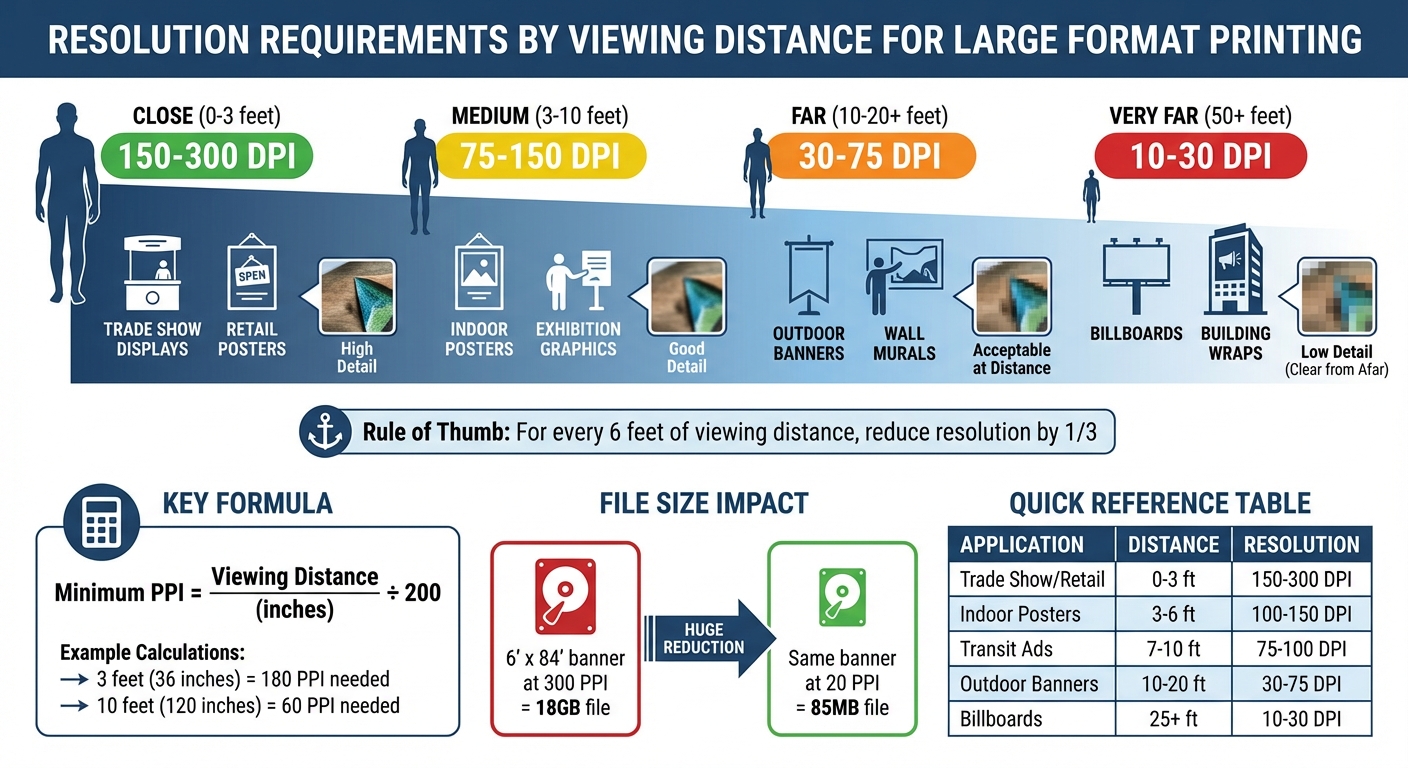
Large Format Print Resolution Guide by Viewing Distance
When it comes to large format printing, resolution plays a critical role. The resolution you need depends on the type of project – what works for a business card won’t work for a billboard. Knowing these differences is essential for producing large prints that are both efficient and high-quality.
DPI vs. PPI: What Sets Them Apart?
PPI (Pixels Per Inch) refers to the digital resolution of your image file – essentially, how many pixels are packed into each square inch of the image. This is something you control in design software.
On the other hand, DPI (Dots Per Inch) describes the physical resolution of a printed image. It measures how many ink dots the printer applies to the paper. HP explains the distinction like this:
"DPI is the specific number of dots printed on a page, ppi refers to the number of pixels within an inch on a computer screen. In short, while ppi applies specifically to digital images, dpi relates to printed images".
While many design tools treat DPI and PPI as if they’re interchangeable, they’re not. For smaller prints like brochures, 300 DPI is the gold standard. But for large format printing, you can often achieve great results with much lower resolutions – sometimes as low as 100 DPI. For instance, a 24-megapixel image (6,000 x 4,000 pixels) printed at a width of 6.5 feet results in a resolution of about 76 DPI, which is perfectly fine for large-scale prints.
The key takeaway? DPI and PPI influence how you prepare your files and how the final print looks, especially when factoring in viewing distance.
How Viewing Distance Impacts Resolution
The distance from which people view your print directly affects the resolution you need. As the viewing distance increases, the human eye perceives less detail. This means you can lower the resolution without sacrificing quality. Essentially, pixels and dots blend together when viewed from farther away.
Here’s a rule of thumb: for every 6 feet of additional viewing distance, you can reduce the required resolution by about one-third. For example, a 10-foot banner viewed from 20 feet away only needs about 72 PPI to appear sharp. For larger applications like billboards, resolutions between 10 and 50 DPI are often sufficient.
"The further away your print is, the lower its resolution can and should be." – ArtisanHD
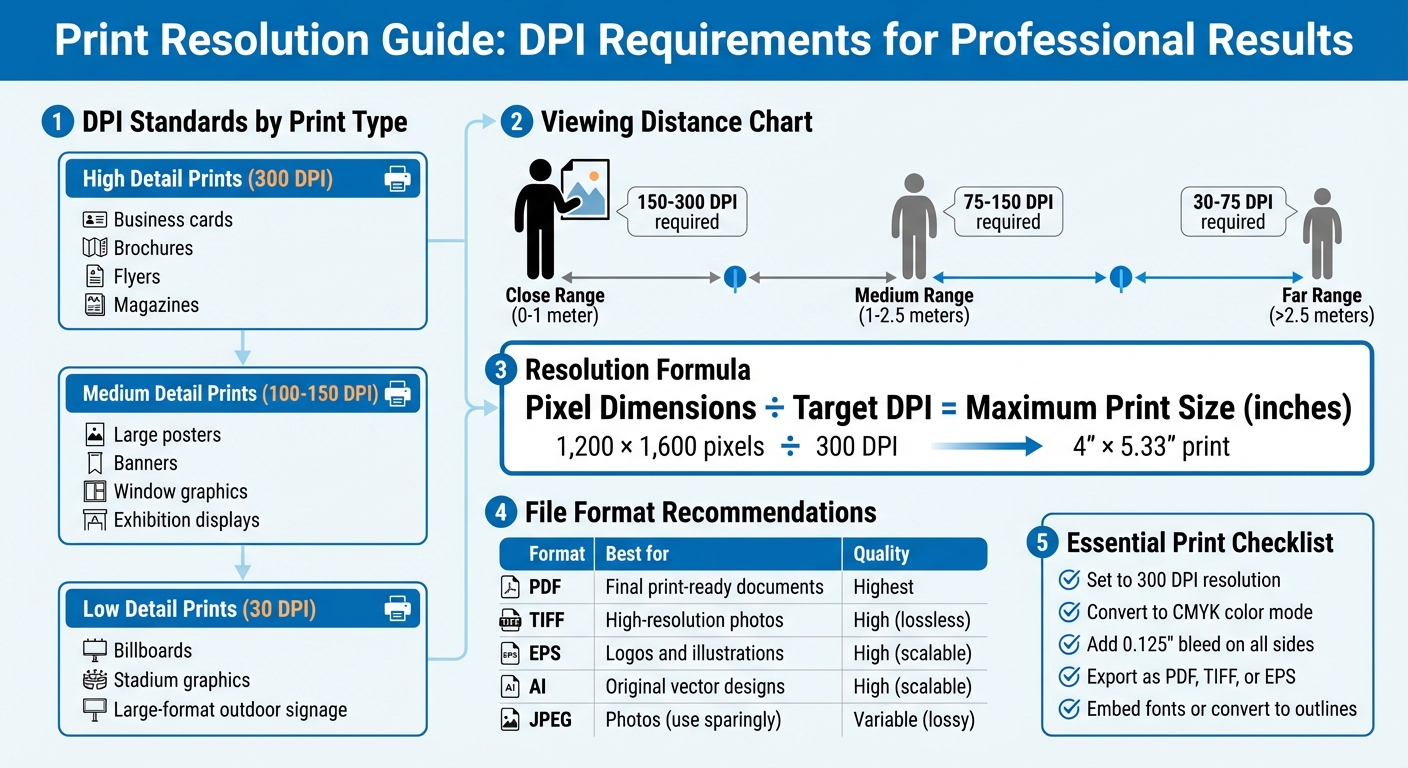
Here’s a quick guide to recommended resolutions based on viewing distance:
| Viewing Distance | Recommended Resolution | Examples |
|---|---|---|
| Close (0–3 feet) | 150–300 DPI | Trade show displays, retail posters |
| Medium (3–10 feet) | 75–150 DPI | Indoor posters, exhibition graphics |
| Far (10–20+ feet) | 30–75 DPI | Outdoor banners, wall murals |
| Very Far (50+ feet) | 10–30 DPI | Billboards, building wraps |
To determine the minimum PPI needed for your project, divide the viewing distance (in inches) by 200. For instance, a trade show graphic viewed from 3 feet (36 inches) would need about 180 PPI, while an outdoor banner viewed from 10 feet (120 inches) would only require around 60 PPI. Adjusting resolution to match viewing distance not only ensures the image looks great but also keeps file sizes manageable.
Assessing Your Project Requirements
Start by identifying the purpose of your print. The goal of your project, along with its physical size, will determine the level of detail required – and how large your files need to be.
Defining Your Print’s Purpose
Think about where the print will be displayed. The environment and viewing distance dictate the resolution you’ll need. For example, trade show displays viewed from 3 to 6 feet benefit from 150–200 PPI, while outdoor banners seen from 20 to 50 feet can work with 75–100 PPI.
Lighting conditions matter, too. A well-lit indoor wall mural requires higher quality than a vehicle wrap that’s typically seen in motion. If your design includes high-contrast details, like fine hair or fabric textures, you’ll need a higher resolution to avoid jagged edges. On the other hand, soft-focus or low-contrast images are more forgiving and can be produced at lower resolutions.
The material you’re printing on also affects the outcome. Canvas absorbs ink differently than high-gloss vinyl, which can impact how details appear. For fine art reproductions on canvas, higher resolution helps preserve tonal details. Meanwhile, mesh banners for outdoor use can be printed at lower resolutions.
Once you’ve accounted for the environment, lighting, and material, you can calculate the exact pixel dimensions needed to ensure your print looks its best.
Matching Resolution to Print Size
To determine the right pixel dimensions for your project, multiply the print size (in inches) by the desired PPI. For example, a 24 x 36-inch poster at 150 PPI requires 3,600 x 5,400 pixels. This ensures the file meets the print’s resolution needs.
For very large prints exceeding 150 inches, working at full size can create massive, unwieldy files. Instead, design at 10% of the actual size and adjust the DPI proportionally. For instance, if the full-size resolution is 75 DPI, work at 750 DPI at the reduced scale. This approach keeps your software running smoothly while maintaining the necessary detail for printing.
Always use vector graphics for logos and text, saving them in formats like .AI, .EPS, or .SVG. Vectors can scale infinitely without losing quality or increasing file size, ensuring sharp results no matter the print dimensions. Reserve raster formats, such as TIFF or high-quality JPEG, for images like photographs.
Reducing File Size While Maintaining Quality
Once you’ve nailed down your project’s resolution needs, it’s time to tackle file optimization. Large format prints often result in hefty files that can slow down your workflow and make file transfers a headache. But with the right approach, you can trim file sizes without losing the detail necessary for high-quality prints.
Choosing the Right File Format
Your choice of file format plays a big role in balancing image quality and file size. For instance, TIFF files are a go-to for professional printing because they support lossless compression methods like LZW or ZIP, which preserve every detail. However, this precision comes at the cost of larger file sizes.
For most large format projects, PDFs are a highly practical option. They can handle both vector and raster graphics, retain fonts and formatting, and offer flexible compression options that keep file sizes manageable. When working with vector-based graphics like logos, EPS files are ideal. They scale perfectly without any quality loss and typically result in smaller files compared to high-resolution raster images.
If you’re dealing with massive banners and file size is becoming unmanageable, a high-quality JPEG (95–100%) can work as a last resort.
| Format | Quality | Compression | Best For | File Size |
|---|---|---|---|---|
| TIFF | Excellent | Lossless (LZW/ZIP) | Professional photography, fine art | Large |
| Excellent | Various (Lossy/Lossless) | Complex layouts combining text and images | Medium | |
| EPS | Excellent | Vector-based | Logos, illustrations, large-scale text | Small–Medium |
| JPEG | Good–High | Lossy | Massive banners as a last resort | Small |
Once you’ve chosen the right format, the next step is to fine-tune file size using efficient compression techniques.
Applying Compression Techniques
Compression methods fall into two categories: lossless, which preserves all data, and lossy, which sacrifices some details. For TIFF files, enabling LZW or ZIP compression is a must. LZW is especially effective for images with large areas of solid color, cutting file size by up to 50%. ZIP compression can go even further, reducing file size by as much as 60%.
"The golden rule of file compression is: don’t compress photos or images any more than you need to."
– Adobe
When using JPEG compression, aim for a quality setting of 8–10 on a 1–12 scale (or "Medium" in most software). This strikes a good balance between quality and file size. For PDFs, using the "Smallest File Size" preset in design software can significantly reduce file size without compromising print quality.
Even vector files can benefit from optimization. For example, in August 2018, web.dev demonstrated how running an SVG file through the SVGO minification tool reduced its size from 470 bytes to 199 bytes – an impressive 58% reduction – by removing unnecessary metadata and XML namespaces while keeping the visual output intact.
Now, let’s look at how simplifying image layers and elements can further slim down your files.
Simplifying Image Layers and Elements
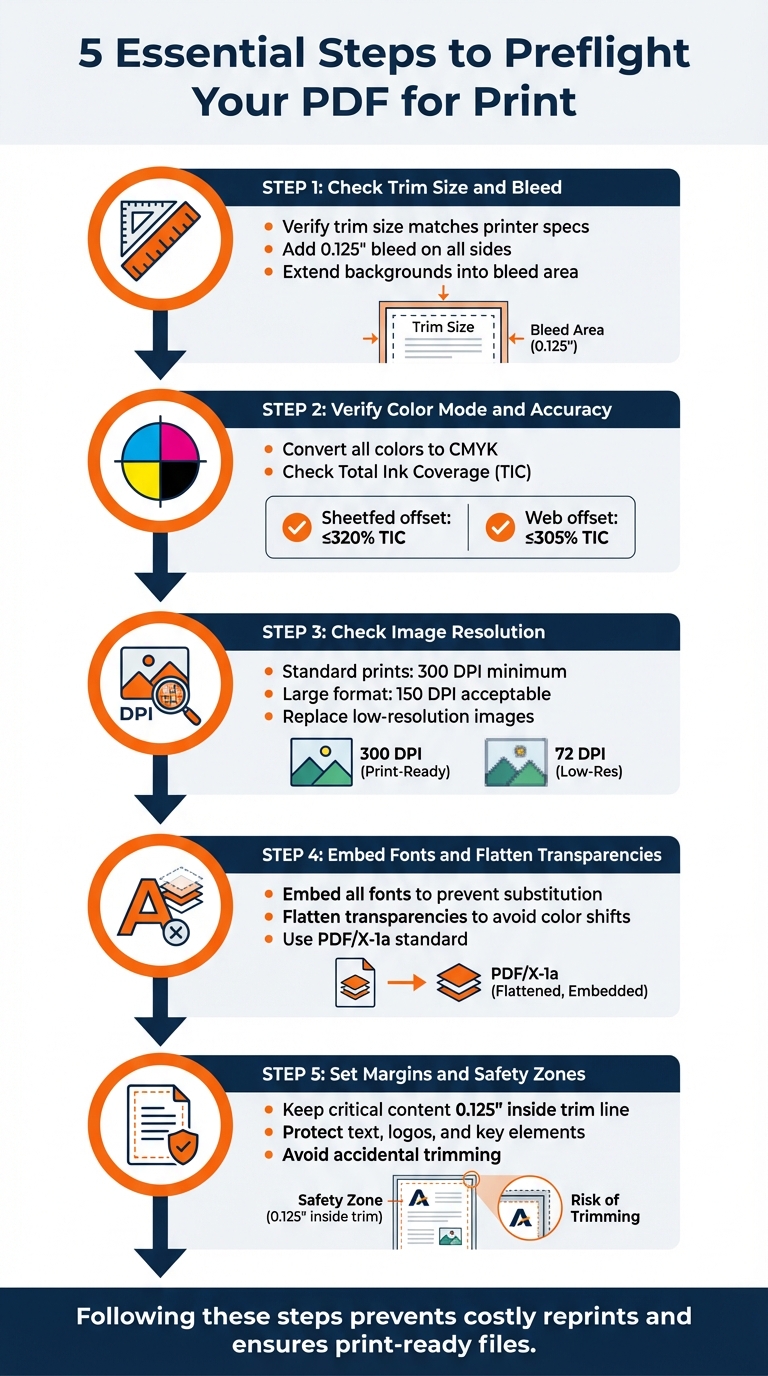
After compression, you can shrink file sizes even more by simplifying layers and elements. Flattening all layers into a single background layer before exporting can reduce file size by up to 98%. Tools like Photoshop’s "Flatten Image" command not only merge layers but also simplify the file structure, making it easier for the printer’s RIP software to process.
Another trick is to rasterize smart objects, which retain original data and non-destructive filters. While useful during editing, these features can unnecessarily inflate file size. Similarly, deleting hidden or unused layers is crucial since these invisible elements can add up to 76 MB to your file.
Cropping your image to the canvas size is another quick win. Elements or textures extending beyond the document edges still consume storage space, so cropping can save roughly 74 MB. At the same time, keeping text and logos as vectors ensures they remain sharp and clear in the final print.
In April 2024, designer Ivan Gromov shared a workflow where he reduced a 181 MB Photoshop template to just 28 MB. His process included compressing textures, cropping elements to the canvas, merging non-essential layers, and deleting invisible layers – all while keeping smart objects editable.
"For printing, a flat tiff file is recommended (no layers), as the interpretation of layers can differ between different software implementations."
– Prinfab
Resolution Guidelines for Common Large Format Projects
Once you’ve optimized your files, setting the right resolution becomes crucial for creating detailed, efficient large-format prints. The correct resolution strikes a balance between avoiding unnecessary file size and maintaining quality. Here’s how resolution needs vary by project type.
Banners, Posters, and Trade Show Displays
The resolution requirements for these projects depend heavily on viewing distance. For example, trade show displays and retail signage viewed up close (0 to 3 feet) need 150 to 300 DPI for sharp clarity. Indoor posters, typically viewed from 3 to 6 feet, can work well with 100 to 150 DPI, while outdoor banners designed to be seen from 10 to 20 feet away only require 30 to 75 DPI.
"Large-format printing, however, typically uses image files that are 100 dpi resolution."
– Jacques Jourdain, Gordon Flesch Company
Here’s a practical breakdown: an A0 poster (33.1" x 46.8") optimized at 150 DPI for close viewing creates a file size of about 100 MB. Reducing the resolution to 100 DPI for medium viewing drops the file size to roughly 45 MB, without compromising visual quality for its intended viewing distance.
For much larger outdoor banners, the resolution requirements become even more lenient. A 15-foot banner, for example, might only need an effective resolution of 14 PPI when viewed from a distance. Similarly, billboards designed to be seen from 50 feet or more can be printed at just 11 to 30 DPI and still appear crisp to the human eye.
| Application Type | Typical Viewing Distance | Recommended Resolution (DPI/PPI) |
|---|---|---|
| Trade Show Displays / Retail | 0–3 feet | 150–300 DPI |
| Indoor Posters (A0/A1) | 3–6 feet | 100–150 DPI |
| Transit / Bus Shelter Ads | 7–10 feet | 75–100 DPI |
| Outdoor Banners | 10–20 feet | 30–75 DPI |
| Billboards / Fleet Graphics | 25+ feet | 10–30 DPI |
These looser resolution standards for large-scale projects differ significantly from those required for fine art, where close inspection demands much higher detail.
Fine Art and High-Detail Reproductions
Fine art prints are in a league of their own. Typically viewed from less than one meter, these reproductions require 150 to 300 DPI to capture every nuance – whether it’s subtle color shifts, tonal gradations, or intricate textures like fabric or hair.
"For fine art reproduction (giclee), TIFF files are particularly advantageous. They preserve precise color accuracy and extensive tonal detail, critical for accurately reproducing an artist’s original intent."
– Intermedia Print Solutions
Museum graphics and gallery reproductions generally need 150–180 PPI, ensuring that every detail – down to the smallest brushstroke – stands out. While this results in larger file sizes, the clarity and precision make it worth the extra storage for projects where detail is paramount.
Before moving forward with a full print run, it’s a good idea to request a 100% scale physical crop. This allows you to check for pixelation and sharpness in a small section of the final design.
Conclusion
This guide highlights the importance of balancing image detail with file size by aligning resolution to the intended viewing distance. Since our ability to perceive fine details decreases as the distance increases, adjusting resolution accordingly avoids unnecessarily large files. For instance, a 6′ x 84′ banner at 300 PPI could result in an 18GB file, but lowering the resolution to 20 PPI (ideal for distant viewing) reduces it to just 85MB. These strategies ensure efficient file sizes while maintaining visual quality.
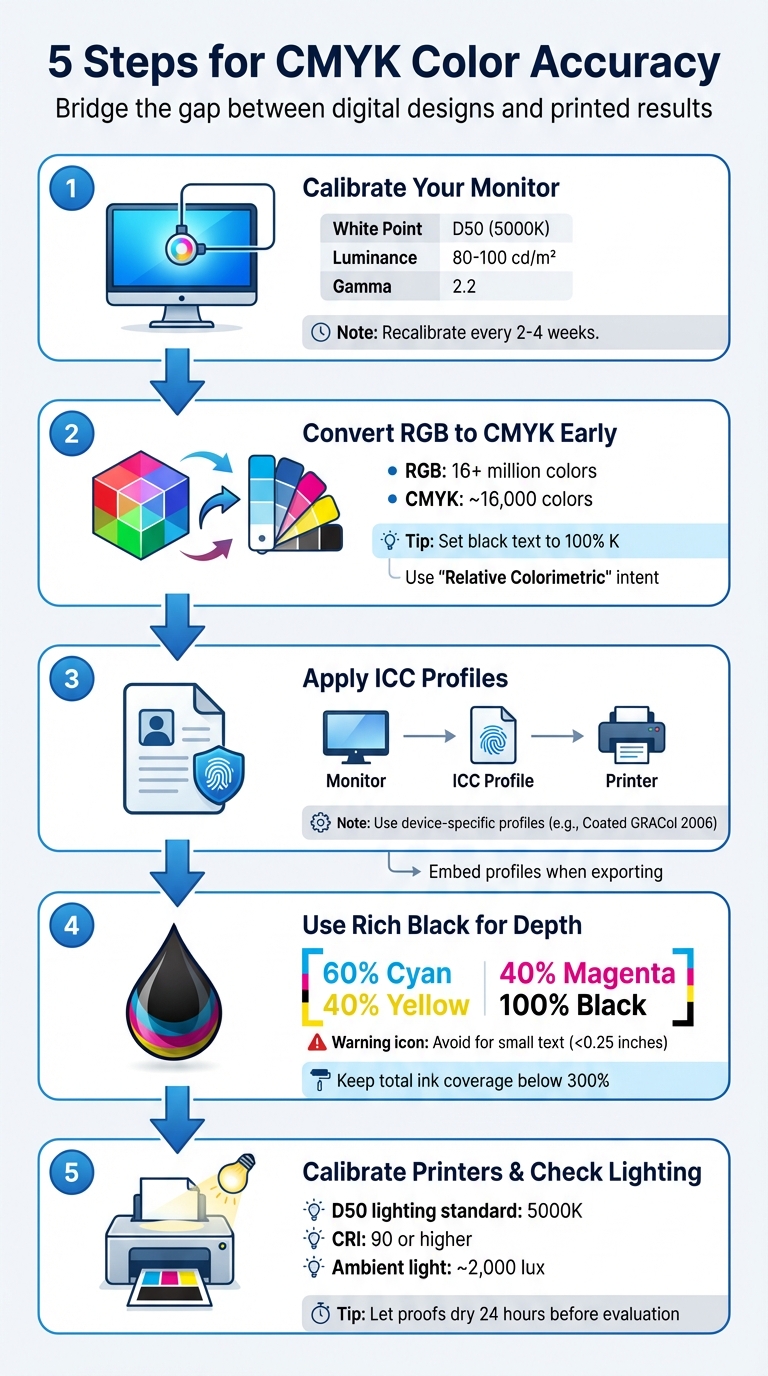
Choosing the right file format and compression method is equally crucial. Using TIFF with LZW compression can shrink file sizes by about 50% without losing detail. For elements like logos and text, vector graphics are ideal since they maintain sharpness at any scale without bloating the file size. Additionally, designing in CMYK rather than RGB ensures accurate color reproduction during printing.
"Resolution above what the output device can render provides no benefit. A 600 DPI image printed on a 300 DPI printer looks identical to a 300 DPI image – but the file is 4x larger."
– Professional Prepress Standards
When upscaling images, consider using AI-based tools such as Photoshop’s "Preserve Details 2.0" and upscale in small increments (10–20%) to maintain edge sharpness. Before proceeding with a full production run, always request a physical proof at 100% scale. This step is vital to confirm clarity and color accuracy, as digital screens can’t fully replicate how ink will interact with the chosen material. By applying these practices, you can achieve efficient, high-quality large-format prints while ensuring the final product meets your expectations.
FAQs
What resolution do I need for my print size?
The resolution you need varies depending on how the print will be viewed and its type. For prints that will be seen up close, 150–300 DPI is recommended, with 300 DPI being the go-to standard for smaller prints. On the other hand, large-format prints meant to be viewed from a distance can work well with resolutions between 20–100 DPI.
For instance, if you’re creating a 24-inch-wide print at 100 DPI, your image should be at least 2400 pixels wide. Always adjust the resolution based on the size and expected viewing conditions.
Should I export as TIFF, PDF, or JPEG?
When preparing files for large format printing, TIFF and PDF are your best options because they preserve high resolution and image quality. Steer clear of JPEG for professional printing, as its compression can result in quality loss. Make sure your file has a resolution of at least 150-300 DPI, is set to the CMYK color mode, and is adjusted for precise color accuracy and sharp details. The exact settings may vary based on how far the print will be viewed from.
How can I shrink my file without losing print quality?
To shrink file size without sacrificing print quality, tweak the resolution and compression settings. Dropping the resolution from 300 dpi to about 240 dpi can noticeably reduce the file size while still delivering good quality for large-format prints. Opt for lossless compression or a thoughtfully adjusted lossy compression to maintain image sharpness. Make sure the resolution aligns with the print size and expected viewing distance for the best outcome.
Related Blog Posts
- Large Format Printing: DPI vs. PPI Explained
- How to Compress Images for Large Format Printing
- How to Adjust DPI for Large Format Prints
- Ultimate Guide to Large Format Printing Resolution
https://app.seobotai.com/banner/banner.js?id=69953eb4efc60cc2af080db6

 BergenCountyPrintersBlogs