Ultimate Guide to Grid Systems in Printing

Learn how grid systems enhance print design with organization, readability, and visual appeal across various formats.

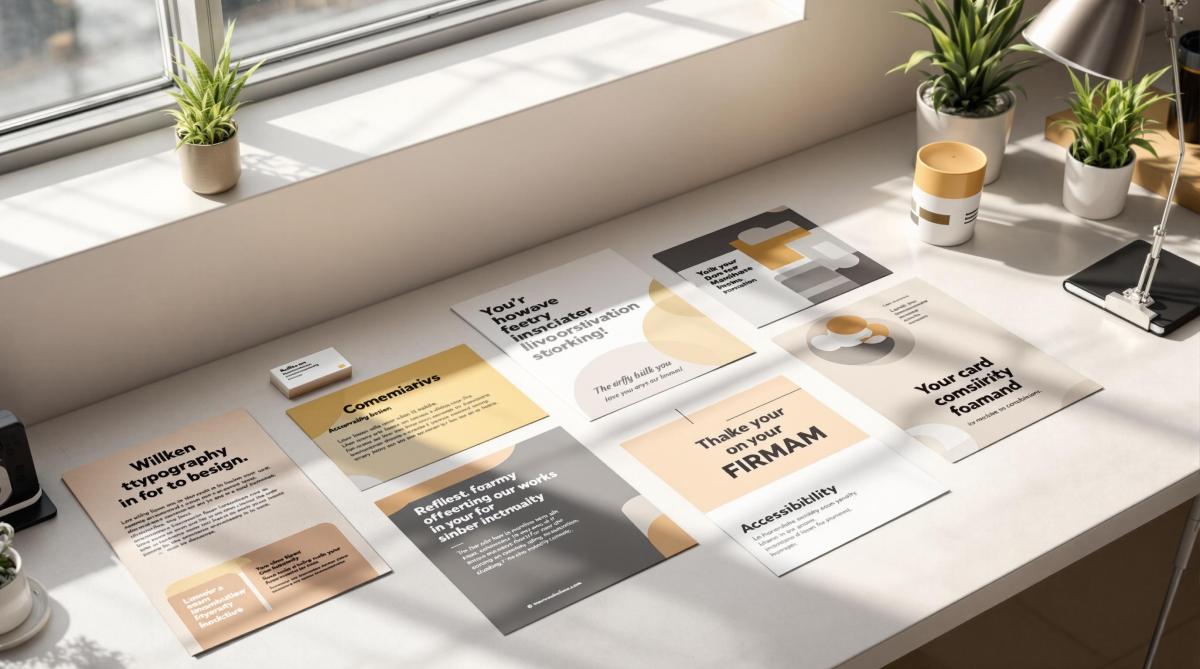
Grid systems are essential for creating clear and organized print designs. They use columns, rows, margins, and gutters to structure layouts, improving readability and visual appeal. Here’s a quick overview of what you’ll learn about grid systems:

  • What They Are: Frameworks of intersecting lines to guide content placement.
  • Types: Single-column (for books), multi-column (for magazines), modular (for brochures), and combined grids.
  • Benefits: Consistency, readability, professional looks, and efficiency.
  • Setup Tips: Use tools like Adobe InDesign, test across formats, and avoid common mistakes like misaligned elements or poor spacing.
  • Advanced Techniques: Modular grids for magazines, print-to-digital grids, and case studies like Miro Printing & Graphics Inc.

Grid systems streamline the design process and ensure your print materials look polished and professional.

The Missing Guide to Grid Systems

Grid System Categories

Grid systems in print design are divided into specific types, each suited to different kinds of projects. These systems serve as the foundation for creating organized and visually appealing layouts.

Single-Column Grids

Single-column grids provide a straightforward layout, making them ideal for text-heavy documents. They keep the reader’s attention on the content by reducing visual distractions. This design works well for materials like books, reports, and academic papers, where a clear reading flow is essential. For instance, Miro Printing & Graphics Inc. uses single-column grids in book printing to ensure easy readability.

Multi-Column Grids

Multi-column grids are perfect for more intricate layouts, commonly used in newspapers, magazines, and promotional materials. By dividing the page into multiple columns, designers can organize content effectively. For example, a 6-column grid is frequently used in newspaper layouts to structure stories clearly. A great example of this approach is The Guardian‘s 2018 redesign, which used a modular grid to give each section its own style while maintaining the overall brand’s visual identity.

Combined Row-Column Grids

Combined row-column grids add both horizontal and vertical divisions, allowing for precise placement of design elements. These grids are especially useful for layouts where content flows in multiple directions, such as annual reports, catalogs, or magazine spreads. In modern magazine design, this type of grid helps balance text and images, establish visual hierarchy, and maintain consistent spacing. Designers typically start with a base grid and adjust it to meet the specific needs of the project.

Grid System Setup and Use

Building Your Grid

Start by setting the dimensions, margins, and gutters to create a layout that’s easy to read. Tools like Adobe InDesign allow you to customize columns, gutter widths, and margins to fit your needs. For instance, magazine layouts often use moderate gutter widths to balance readability and space efficiency. Adjust your grid setup based on the specific demands of each project.

Grid Use by Project Type

Different print materials require different grid systems. Here’s how they align:

Project Type Grid Type Key Considerations
Magazines Multi-column grid Enables flexible layouts with varied column combinations
Books Single-column grid Prioritizes readability with uniform margins
Brochures Modular or combined grid Balances text and visuals for an engaging layout
Posters Hierarchical grid Offers creative flexibility while keeping structure intact

Grid Design Software

Creating effective grids often involves specialized tools. Adobe InDesign is a top choice for professional designers, offering advanced features like column spanning for complex layouts. If you’re looking for a budget-friendly option, Affinity Publisher provides similar functionality with an easier learning curve, making it great for simpler projects.

Consistent spacing is key to a polished design. Professional printers like Miro Printing & Graphics Inc. (https://bergencountyprinters.com) highlight how a well-structured grid can simplify production and reduce printing errors.

Before finalizing your design, test your grid system on different print formats. This step helps catch potential issues early and ensures your layout works well across various sizes and formats.

sbb-itb-ce53437

Grid System Standards

Keeping Grids Uniform

Establish a master grid template with consistent margins, gutters, and column widths. This approach ensures a visually balanced design across your project and simplifies the layout process. For multi-page documents, using baseline grids to align text across pages improves readability and gives your design a polished, professional feel.

Adjusting Grids by Format

Adapt grid settings to fit the specific needs of each format. For instance, magazine layouts often work well with flexible, multi-column grids and wider gutters, while business cards and brochures need simpler grids with tighter margins. Large-format posters, on the other hand, may require larger margins to keep content easy to read from a distance. Adjusting column widths and spacing based on the format’s size helps maintain a well-organized and visually pleasing design. Proper adjustments also help avoid layout issues.

Common Grid Mistakes

Knowing common grid mistakes can save you from design headaches later. Misaligned elements, for example, can make your layout look messy and unprofessional. Similarly, poorly planned gutter spacing – whether too narrow or too wide – can either clutter your design or waste space. Another frequent issue is breaking the grid without purpose. While intentional grid breaks can enhance a design, random deviations often lead to visual chaos. Failing to adjust grids for various formats can also result in mismatched and awkward layouts.

Expert Grid Techniques

Taking grid design to the next level, advanced techniques help create layouts that handle the challenges of complex publications.

Magazine Grid Systems

Magazine layouts demand grids that combine visual appeal with easy readability. A modular grid approach works well here – using primary grids for main content, secondary grids for elements like captions and sidebars, and a baseline grid to keep text aligned. This setup creates dynamic spreads that naturally guide the reader’s eye.

Some key points to keep in mind: wider gutters improve readability, flexible columns allow for varied content arrangements, and strategic image placement adds balance without disrupting harmony.

Creating grids that work across both print and digital platforms requires careful planning. For example, The New York Times uses a grid system that ensures a consistent look while adapting to different screen sizes and print formats.

For print, fixed measurements are used, while digital grids rely on percentage-based widths, responsive padding, scalable typography, and fluid image containers. These methods make grids flexible enough to handle real-world design challenges, as we’ll see in the case study below.

Case Study: Miro Printing & Graphics Inc.

Miro Printing & Graphics Inc. showcases how advanced grid systems can be tailored to a wide range of print projects. From simple single-column layouts for business cards to intricate multi-column grids for catalogs and booklets, their approach is customized for each project.

Their success lies in using consistent baseline grids for alignment across multi-page documents and modular frameworks that adapt to different content needs.

"Studies have shown that designs with a structured layout can improve comprehensibility for the user by up to 50%."

For complex projects like catalogs or brochures, Miro often employs hierarchical grid systems. These create clear visual pathways while keeping the design structured. Their large-format printing services further highlight how well-designed grids can maintain readability and visual impact, even at different viewing distances.

Summary

Grid systems are the backbone of print design, providing structure and clarity. Here’s a closer look at their benefits and practical tips for effective implementation. These insights expand on the grid concepts introduced earlier.

Grid System Benefits

Grid systems have been shaping print design since the 15th century. Visionaries like Jan Tschichold and Josef Müller-Brockmann introduced methods that still guide modern designs. A great example is The Guardian’s 2018 redesign, which used a modular grid to achieve balance and improve readability.

Benefit How It Helps
Visual Hierarchy Organizes content clearly, making information easier to follow
Consistency Keeps layouts uniform across multiple pages
Efficiency Speeds up the design process by providing a reliable framework
Flexibility Supports varied content arrangements without losing structure

Tips for Using Grid Systems

To get the most out of your grid system, try these practical tips:

  • Match the grid to your content: Use manuscript grids for text-heavy projects or modular grids for more intricate layouts, like those seen in Miro Printing & Graphics Inc.’s catalogs.
  • Leverage design tools: Programs like Adobe InDesign can simplify layout creation, ensuring technology enhances your design rather than restricts it.
  • Keep baseline grids consistent: While maintaining alignment, allow for some flexibility to balance structure with creativity.
  • Use white space wisely: Strategic margins and gutters can make your design more readable and visually pleasing.

"Studies have shown that designs with a structured layout can improve comprehensibility for the user by up to 50%."

FAQs

Here are answers to common questions about grid types and standard layouts in print design.

What are the different types of image grids?

Print design typically utilizes five main grid types, each tailored for specific layout needs. These grids help structure content effectively in various print materials.

Grid Type Best Used For Key Characteristic
Manuscript Books, reports Single-column layout
Column Magazines, newspapers Vertical divisions
Modular Complex layouts Combines horizontal and vertical divisions
Hierarchical Custom designs Structure based on content needs
Baseline Text alignment Ensures consistent typography

What is the standard grid layout?

A standard grid includes three main components: columns to create vertical structure, gutters to separate the content, and margins to frame the page. Professional print shops, like Miro Printing & Graphics Inc., often adjust these elements to fit specific project needs. For more technical details, check out the guide Grid System Setup and Use.

Related Blog Posts

https://app.seobotai.com/banner/banner.js?id=67b7c70da97035aabf3dce42

How to Save on Print Marketing Costs

Learn effective strategies to cut print marketing costs while maintaining quality, using materials wisely and leveraging local services.

Print marketing can be cost-effective if you use the right strategies. Here’s how to save money without sacrificing quality:

  • Choose Affordable Materials: Opt for uncoated or matte paper and simpler finishes like folding instead of expensive options like foil stamping.
  • Print in Bulk: Larger orders reduce per-unit costs, but plan carefully to avoid waste.
  • Simplify Designs: Use standard sizes, lighter paper weights, and fewer graphics to lower expenses.
  • Work with Local Printers: Save on shipping, reduce turnaround times, and get personalized service.
  • Use Print-on-Demand: Avoid waste and storage costs by printing only what you need, when you need it.
  • Combine Print Jobs: Group similar projects to cut setup costs and reduce waste.

These methods can cut costs by up to 50% and minimize waste by 30%. Partnering with local print shops, like Miro Printing & Graphics Inc., can further streamline your efforts and improve efficiency.

5 Simple Tips to Reduce Printing Costs

Choosing Cost-Effective Print Materials

Making smart choices about materials can significantly lower print marketing costs. By understanding paper options, bulk pricing, and design strategies, businesses can save money while maintaining a professional look. Let’s break down these key factors.

Paper Types and Finish Options

Your choice of paper and finish has a direct impact on both cost and presentation. For example, matte or uncoated paper is often more affordable than glossy or coated paper, yet still looks polished. Similarly, simpler finishes like folding and stapling cost less than options like die-cutting or foil stamping.

Here’s a quick comparison of paper and finish options based on cost and use:

Paper/Finish Type Cost Level Best Used For
Uncoated House Stock Low Flyers, internal documents, newsletters
Matte Standard Medium Brochures, presentations, catalogs
Coated Premium High High-end marketing materials, annual reports

Volume Discounts and Bulk Orders

Printing in bulk can drastically cut costs by spreading setup expenses across a larger quantity. For example, printing 5,000 brochures might cost nearly the same as printing 2,500, cutting the per-unit cost in half.

When planning bulk orders, keep these factors in mind:

  • Storage space for your materials
  • Seasonal updates that might require changes to your content
  • Distribution timeline to ensure materials stay relevant

These considerations help you avoid waste while taking full advantage of bulk pricing.

Cost-Saving Design Tips

Thoughtful design choices can also help trim printing costs. Here are some effective strategies:

  • Opt for standard sizes to reduce paper waste
  • Keep graphics simple to save on ink
  • Choose house stock paper from your printer’s inventory
  • Use lighter basis weight when suitable for the project
  • Plan for gang-run printing to combine multiple items in one print job

Don’t hesitate to consult your print shop for advice – they can often suggest additional ways to save without compromising quality.

Working with Local Print Shops

Local print shops can help you save on print marketing expenses while providing personalized service and quicker turnarounds.

Why Choose Local Printing?

Local printing can cut costs in a few important ways:

  • Lower shipping expenses by avoiding long-distance delivery.
  • Faster turnaround times that help you skip rush fees.
  • In-person reviews to catch errors early, reducing the risk of costly reprints.

On top of these savings, visiting a local shop for hands-on consultations ensures your final product matches your expectations.

Partnering with Miro Printing & Graphics Inc.

If you’re in Hackensack, NJ, Miro Printing & Graphics Inc. is a great example of what a local print shop can offer. They cover a wide range of needs – digital printing, offset printing, and large-format printing – so you can handle all your projects with one provider.

Their in-house bindery and design services simplify the process even further. Instead of juggling multiple vendors for design, printing, and finishing, you can rely on Miro for everything. This approach not only saves time but also reduces costs. Some of their standout services include:

  • Digital printing for small, budget-friendly runs.
  • Offset printing for cost-efficient bulk orders.
  • In-house bindery to avoid extra finishing charges.
  • Integrated mailing and fulfillment to streamline distribution.

When choosing a local print shop, look for one that offers a full suite of services tailored to your needs. This can help you avoid coordination headaches and build a strong, long-term partnership – often leading to better pricing and faster service for urgent projects.

Working with local print shops is a smart way to cut print marketing costs while maintaining quality and convenience.

sbb-itb-ce53437

Money-Saving Print Methods

Smart printing techniques can help reduce marketing expenses when paired with thoughtful material choices and local service strategies.

Print-on-demand eliminates storage costs and waste by producing materials only when needed. This approach is perfect for targeted efforts, like sending personalized direct mail to shoppers who abandoned their carts. Plus, automation can cut manual tasks by up to 80%, streamlining processes such as list management and variable data printing (VDP).

By focusing on high-value prospects, such as those who left items in their shopping carts, businesses can create more impactful campaigns while saving time and resources.

Combining Print Jobs

Batch printing is another way to save time and reduce material waste by grouping similar projects together.

Here are some ways to combine print jobs effectively:

Print Job Type Combination Strategy Cost-Saving Benefit
Marketing Materials Group seasonal campaigns Cuts setup time and reduces material waste
Business Essentials Combine letterhead, envelopes, etc. Shares paper stock and press setup
Direct Mail Batch similar-sized mailers Lowers postal rates and boosts efficiency

Using pre-printed templates (also known as "shells") allows for quick, on-demand customization, saving even more time and money.

Web2Print platforms simplify the process of managing combined print jobs. These tools help businesses track inventory, coordinate batch printing, and maintain consistent quality across materials. By using these systems, companies can better manage their printing budgets while improving the effectiveness of their marketing efforts.

Work closely with your print provider to group projects and schedule print runs strategically. These cost-saving methods will also complement the distribution strategies covered in the next section.

Smart Distribution Methods

By combining cost-effective materials with local printing, well-thought-out distribution can cut waste and make campaigns more impactful.

Focused Marketing Campaigns

Instead of blanketing everyone with your message, zero in on high-value customer segments using data. This not only lowers costs but also boosts response rates. Think about seasonal trends and customer habits – like timing print runs to match busy shopping seasons for retail or syncing distribution with key industry events for B2B. Placement matters too – where you put your materials can make or break engagement.

Effective Material Placement

Put your printed materials where your audience is already spending time. For example, local businesses can team up with complementary establishments – like leaving gym brochures at health food stores or placing restaurant menus in nearby hotels.

Some smart placement ideas include:

  • High-Traffic Areas: Focus on spots where your audience naturally gathers.
  • Complementary Locations: Partner with businesses that serve a similar crowd.
  • Seasonal or Event-Based Timing: Distribute materials during peak times or related events.

Keep an eye on how people respond and adjust your locations as needed. Using local insights and staying flexible can help you get the most out of your efforts.

Conclusion: Print Cost Reduction Tips

Effective print marketing doesn’t have to break the bank. Partnering with local print shops, like Miro Printing & Graphics Inc. in Hackensack, NJ, can save you money while delivering professional results. Local providers eliminate shipping fees and offer services like in-house bindery and design consultations, making the entire process smoother and more affordable.

Studies suggest that combining bulk printing with print-on-demand services can cut costs by up to 50%, reduce waste by 30%, and boost efficiency. To maximize savings, focus on using budget-friendly materials, consolidating print jobs, and working with local experts. By making smart material choices and tapping into nearby resources, you can ensure every printed piece adds value to your business.

FAQs

How can I save the cost of printing?

Here’s a quick summary of effective ways to cut your printing expenses:

  • Opt for lighter, more affordable paper options.
  • Combine multiple projects into a single bulk print run to save on setup fees.
  • Work with local printers like Miro Printing & Graphics Inc. to lower shipping costs and get personalized service.
  • Use print-on-demand to produce materials only when needed.
  • Automate processes to reduce manual effort and improve efficiency.
  • Take advantage of Web2Print platforms to better manage inventory and avoid waste.

These strategies help you stretch your budget while still delivering high-quality print materials.

Related Blog Posts

https://app.seobotai.com/banner/banner.js?id=67b67530acf635f489c48d64

How to Create Die-Cut Templates for Printing

Learn to create precise die-cut templates for printing, ensuring accuracy and professionalism in your custom designs.

Die-cut templates are essential for creating custom shapes in printed products like business cards, packaging, and promotional materials. Here’s how to create them effectively:

  • Use the Right Software: Adobe Illustrator for precision, InDesign for text-heavy designs, or Silhouette Studio for simpler projects.
  • Set Up Your Document: Use CMYK color mode, 300 DPI resolution, and include a 0.125-inch bleed area.
  • Organize Layers: Separate artwork, cut lines, fold lines, and guidelines with clear names and color codes (e.g., magenta for cut lines, cyan for folds).
  • Add Key Details: Include registration marks, safe zones, and perforation lines for accuracy.
  • Final Checklist: Ensure 300 DPI resolution, CMYK color mode, outlined fonts, proper bleed, and overprint settings before exporting as PDF/X-4.

Quick Tip: Mistakes like incorrect spot colors, missing bleed, or complex cutting patterns can lead to costly errors. Test your design with a physical prototype and consult a print shop for professional guidance.

Want precise results? Follow these steps and communicate early with your print provider to ensure your design meets production standards.

How to Create Die-Cut Files Using Adobe Illustrator

Step 1: Choose Template Design Software

Pick software that aligns with your project’s complexity and technical requirements.

Adobe Illustrator is a go-to for intricate commercial die-cut templates. Its vector-based tools allow for precise control over shapes and paths, which is critical for accurate die lines. Adobe InDesign is ideal for multi-page layouts or text-heavy designs, while Silhouette Studio is a user-friendly option for simpler, smaller-scale projects.

Software Best For Key Features Learning Curve
Adobe Illustrator Complex commercial designs Precise vector tools and advanced path control High
Adobe InDesign Multi-page layouts Excellent text handling and master pages Medium
Silhouette Studio Craft and small projects Pre-set cutting tools and simple interface Low

Adobe Creative Cloud tools like Illustrator and InDesign dominate the market, used by 90% of creative professionals[4]. Once you’ve selected your software, the next step is preparing your document for print.

Setting Up Your Document

Start a new document with these key settings:

  • Color Mode: CMYK
  • Resolution: Minimum 300 DPI
  • Bleed: Add 0.125 inches (3mm) beyond cut lines
  • Document Size: Include the bleed area in your dimensions

To keep your project organized and professional, use a clear layer system:

Layer Type Purpose Color Coding
Artwork Main design elements CMYK values
Cut Lines Paths for die-cutting 100% magenta
Fold Lines Crease locations 100% cyan
Guidelines Safe zones and measurements Non-printing

Miro Printing & Graphics Inc. advises saving your templates as AI, EPS, or PDF files with all layers intact. This ensures compatibility with die-cutting equipment and allows for easy adjustments if needed.

Step 2: Build Your Template

Set Up Design Layers

Start by organizing your template with a clear layer hierarchy. A well-structured system makes your design process smoother and helps avoid mistakes during revisions.

Layer Name Purpose Color Coding Line Style
Artwork Design elements and graphics CMYK values N/A
Cut Lines Material cutting paths 100% magenta Solid, 0.25pt
Fold Lines Crease and fold locations 100% cyan Dashed, 0.25pt
Glue Tabs Adhesive areas 20% black Dotted, 0.25pt
Perforations Tear lines 100% yellow Long-short dash

Lock layers you’re not actively working on and use clear, descriptive names for each. For glue tabs, aim for a width of 0.5–1 inch and consider slightly rounded corners for better usability. If your design involves intricate folds, adjust the panel widths to account for the material’s thickness where folds occur.

Add Print Marks and Bleed

Once your layers are set up, focus on adding print marks and bleed areas. These details are essential for precision. Extend background elements 0.125 inches (3 mm) beyond the cut line, or up to 0.25 inches (6 mm) for more intricate shapes.

Create a "safe zone" by keeping key design elements at least 0.125 inches (3 mm) inside the cut lines. This ensures that important details, like text, remain intact and legible after folding and assembly.

In January 2022, BoxMaker, a packaging design firm, streamlined their process by introducing standardized layer structures for die-cut designs. Led by Senior Designer Mark Johnson, the team created templates with pre-defined layers for cut lines, artwork, and bleed areas. This approach cut their template creation time by 40%, reduced pre-press errors by 25%, and sped up client approvals. (Source: PackagingWorld.com, 2022 Case Studies)

For registration marks:

  • Place at least three marks near the corners of your artwork.
  • Use 100% black for maximum visibility.
  • Position marks 0.25 inches (6 mm) from the trim lines.
  • Keep placement consistent across all layers.

When working with perforations, align them with the paper grain for smoother tears. End perforation lines just before the edges to maintain the structure of your design. Test the perforation patterns to ensure they balance ease of tearing with durability.

sbb-itb-ce53437

Step 3: Print Preparation

Now that your design is structured, it’s time to focus on the final steps to ensure your file is ready for production.

Final Template Checklist

Before submitting your die-cut template, double-check these key elements:

Element Requirement Common Issues
Resolution 300 DPI minimum Pixelation in the final print
Die Lines Spot color, overprint enabled Knockout issues, misalignment
Fonts Outlined or embedded Missing characters, substitution
Bleed Area 1/8 inch (3mm) extension White edges after cutting
Color Mode CMYK for artwork Incorrect color reproduction

Make sure all raster images have a resolution of 300 DPI to avoid blurry prints [1]. Convert your file’s color mode to CMYK, and define spot colors – especially for die lines – as 100% magenta or the specific PMS color required by your print shop [2]. Double-check your overprint settings for die lines to prevent unwanted knockouts in the final print [5].

File Export Guidelines

Once your template passes the checklist, export it properly to maintain quality and accuracy.

Export your file as PDF/X-4, which preserves transparency, layer details, and color consistency [1]. Use these settings for the best results:

  • PDF compatibility: Acrobat 7 (PDF 1.6) or higher
  • Image compression: 300 ppi for color and grayscale, 1200 ppi for monochrome [1]
  • Overprint settings: Enable overprint and Illustrator editing capabilities [5]
  • Fonts: Embed fonts or convert text to outlines [1]
  • Marks and bleed: Include trim marks and document bleed settings
  • Color conversion: Select "No Color Conversion"
  • Transparency: Use the "High Resolution" transparency flattener preset
  • Layers: Preserve layers if your printer requires them

For intricate projects that involve special finishes, consider consulting a professional print shop like Miro Printing & Graphics Inc.. They can provide customized templates and ensure your die-cut design meets production standards.

Prevent Template Errors

Before finalizing your project, double-check both the design details and material choices to avoid costly production mistakes.

Design Problems to Check

Mistakes in die-cut templates can lead to expensive errors. Here’s a quick guide to common issues and how to address them:

Design Element Common Error Prevention Method
Dielines Incorrect spot colors or weights Use standard magenta for cut lines and cyan for folds [2]
Safe Zone Text placed too close to edges Keep a 0.25-inch gap from the trim [1]
Structural Integrity Overly complex cutting patterns Simplify cuts to maintain material strength [3]
Color Settings Using RGB instead of CMYK Convert all artwork to CMYK before exporting [3]

For example, in June 2022, a beverage company had to discard 50,000 misaligned boxes, resulting in a $75,000 loss (PrintWeek Magazine, August 2022).

To avoid similar issues, use your design software’s outline view to spot hidden elements [1]. For intricate designs, request a physical prototype to ensure everything aligns properly [3].

Once you’ve addressed design concerns, turn your attention to the materials you plan to use.

Material Selection Issues

When selecting materials, keep these key factors in mind:

  • Paper Stock

    • Coated paper requires different cutting pressures compared to uncoated stock [3].
    • Material thickness can impact the size of cut-outs [3].
    • Some materials may stretch or warp during cutting, so adjust your design accordingly [3].
  • Testing

    • Create mock-ups using a desktop cutter for early validation [3].
    • Test complex designs with printed proofs on the actual production material [1][3].

Working with a professional print provider, like Miro Printing & Graphics Inc., can help you navigate these challenges. Their expertise is especially useful when dealing with specialty materials that need specific die types or cutting pressures.

Clear communication with your print shop about material specs and finishing requirements is crucial. This ensures your design aligns with the material’s limitations and the production process.

Professional print services play a crucial role in managing complex die-cut projects, helping you avoid common production challenges.

Miro Printing & Graphics Inc.

Miro Printing & Graphics Inc.

When it comes to working with die-cut templates, professional print shops offer several key advantages:

Service Aspect Benefit Technical Consideration
Design Review Expert assessment of template feasibility Ensures compatibility with die-cutting equipment
Material Consultation Advice on the best substrate to use Matches paper type to cutting needs
Quality Control Careful proofing Reduces risk of production errors
Production Efficiency Use of industrial-grade equipment Delivers precise, consistent results for large runs

Miro Printing & Graphics Inc. stands out by integrating specialized die-cutting into its in-house bindery, ensuring smooth quality control from the design phase to the final cut.

To make the most of professional print services, you should:

  • Provide print-ready files that meet the shop’s specifications.
  • Confirm the best paper stock and finishing options for your project.
  • Allow enough time for proofing and production to ensure a flawless outcome.

For more intricate projects, involving a print service early in the design process can save both time and money. Their expertise in materials and cutting techniques helps refine your template design, avoiding potential production hiccups.

Conclusion: Die-Cut Template Success Tips

Creating successful die-cut templates requires careful design and precise execution. Using professional design software helps ensure accurate template preparation.

Keep all die lines on a separate layer and set the transparency to "Multiply." This avoids white lines interfering with the final print. Use solid lines for cutting paths and dotted lines for folds, making sure every element is functional and clear [1]. Here’s a quick checklist to guide you through the process:

Phase Key Action Important Consideration
Setup Match print specs Align with exact project dimensions
Design Separate artwork layers Keep die-cut lines distinct from other design elements
Proofing Create full-scale mock-up Test the design’s practicality before production
Materials Choose proper stock Ensure the substrate works well with cutting requirements

To achieve sharp and accurate results, use brass or copper dies combined with appropriate paper stocks [1]. For intricate designs, it’s a smart move to involve print experts early on to confirm feasibility and avoid production issues.

Related Blog Posts

https://app.seobotai.com/banner/banner.js?id=67b54880eac600a2c6716acd

Biodegradable vs. Compostable Printing: Key Differences

Explore the differences between biodegradable and compostable printing materials, their environmental impacts, and suitable applications for businesses.

Biodegradable and compostable printing materials are often confused, but they serve different purposes. Here’s a quick breakdown:

  • Biodegradable materials: Break down naturally with microorganisms over months or years. May leave residues like microplastics and don’t always require specific conditions.
  • Compostable materials: Fully decompose into non-toxic components (like water and biomass) within 90-180 days in industrial composting facilities. Require controlled conditions like heat, humidity, and aeration.

Quick Comparison

Characteristic Biodegradable Materials Compostable Materials
Raw Materials May include petroleum-based additives Typically plant-based (e.g., corn, sugarcane)
Breakdown Time Months to years 90-180 days under proper conditions
End Result May leave microplastics or residues Fully decomposes into soil-enriching elements
Certification Few or no standards Requires certifications (ASTM D6400, EN 13432)
Disposal Method Regular waste streams Needs industrial composting facilities
Environmental Impact May release methane in landfills Enriches soil when composted correctly

Businesses should choose based on their needs, disposal infrastructure, and environmental goals. Compostable options are ideal for food-related or zero-waste projects, while biodegradable options work for broader use cases but may have higher environmental risks.

Basic Differences: Biodegradable vs. Compostable

Biodegradable Materials Explained

Biodegradable materials break down with the help of microorganisms, moisture, and oxygen. They can decompose in different environments, but the process may take anywhere from a few months to several years. For example, biodegradable inks often include petroleum-based resins with additives to speed up the process[2], while biodegradable papers rely on natural fibers for quicker breakdown.

A biodegradable plastic film used in printing might degrade within 3-6 months under ideal conditions. However, in a landfill, it could last much longer[1]. Even when these materials break down, they may leave behind microplastics or other residues. In comparison, compostable materials require specific conditions to fully decompose.

Compostable Materials Explained

Compostable materials need controlled settings to break down completely. These settings are typically found in industrial composting facilities, where specific conditions are maintained:

Requirement Specification
Temperature 50-60°C (122-140°F)
Environment Controlled humidity
Process Proper aeration
Breakdown Period 90-180 days
Certification ASTM D6400 or EN 13432

One example is Burton’s Biscuit Company, which uses compostable packaging made from wood pulp and corn starch. This material, certified to EN 13432, decomposes within 26 weeks in industrial composting facilities. By adopting this approach, the company has reduced its plastic use by 61 tonnes per year[4]. Such certifications ensure compostable materials meet strict standards, making them an attractive option for businesses aiming to minimize waste.

Side-by-Side Comparison

Here’s a quick look at how biodegradable and compostable materials differ:

Characteristic Biodegradable Materials Compostable Materials
Raw Materials May include petroleum-based components with additives Primarily plant-based (corn, sugarcane, cellulose)
Breakdown Time Months to years 90-180 days under proper conditions
End Result May leave residues like microplastics Fully decomposes into non-toxic elements
Certification Few or no standards Requires certifications (ASTM D6400, EN 13432)
Disposal Method Can go into regular waste streams Needs industrial composting facilities
Environmental Impact May release methane in landfills Enriches soil when composted correctly

The main difference lies in the decomposition process. Biodegradable materials can break down in a variety of environments but might leave harmful residues. Compostable materials, on the other hand, are designed to decompose completely under specific conditions, leaving nothing toxic behind[6]. This makes compostable options especially appealing for zero-waste goals and businesses with access to industrial composting systems.

Biodegradable vs Compostable Food Packaging: What’s The Difference?

Effects on the Environment

The environmental impact of biodegradable and compostable materials sets them apart even further, especially when considering their breakdown processes, production, and chemical effects.

Breakdown Process and Results

Biodegradable materials decompose naturally but often under anaerobic conditions in landfills. This can lead to the release of methane – a greenhouse gas far more potent than CO2 – and leave behind microplastics or toxic residues[1]. In contrast, compostable materials, when processed in dedicated composting facilities, fully break down and contribute to soil health by enriching it with nutrients[1][3].

Production Requirements

Compostable materials are usually made from renewable sources like corn, cassava, and sugar cane[2]. A prime example is PLA (Polylactic Acid), which is created by fermenting plant starch into lactic acid. This process results in a lower environmental impact:

Production Aspect Environmental Impact
Raw Materials Sourced from renewable plants
Energy Usage Reduced carbon emissions compared to plastics
Resource Consumption Limited reliance on non-renewable resources
Waste Generation Produces less manufacturing waste

Biodegradable materials, however, can be derived from a wider range of sources, including petroleum-based plastics with added chemicals[1]. While they may use fewer resources than traditional plastics, their overall environmental impact is higher compared to compostable options[2].

Chemical Impact

The chemical differences during decomposition are also notable. Biodegradable materials can emit methane, release microplastics, and leach harmful additives. Certified compostable materials, on the other hand, break down into water, CO2, and biomass without leaving harmful residues[1][3].

Research into industrial composting standards shows that certified compostable materials must convert at least 90% of their mass into CO2, water, and biomass within 180 days to meet certification requirements[8].

sbb-itb-ce53437

Business Uses and Applications

Choosing the right material can help reduce waste and meet specific project requirements. These decisions tie into the earlier discussions on material properties and production methods.

When to Use Biodegradable Materials

Biodegradable materials are ideal for projects where durability is needed but eventual breakdown is planned. For instance, Dunkin’ Donuts successfully transitioned to biodegradable options in 2022, replacing nearly 1 billion foam cups with eco-friendly alternatives[1].

Here are some common uses for biodegradable materials:

Application Benefits Examples
Marketing Materials Long-lasting quality Brochures, catalogs
Shipping Materials Strong and reliable Mailers, protective wraps
Event Signage Resistant to weather Banners, posters
Product Packaging Maintains structure Non-food containers

When to Use Compostable Materials

Compostable materials are better suited for food-related uses or items that may come into contact with organic waste. These materials fully break down in industrial composting facilities within 90-180 days[1].

Typical applications include:

  • Restaurant Takeout: Containers and utensils that can be composted along with food scraps.
  • Grocery Packaging: Produce bags and wraps that are safe for composting.
  • Event Catering: Disposable plates, cups, and utensils that meet eco-friendly standards.
  • Agricultural Products: Items like mulch films and plant containers designed to decompose naturally.

Material Selection Guide

A study found that 64% of consumers are willing to pay more for sustainable packaging, making material choice a key business decision[9].

To select the best option, keep these factors in mind:

  1. Usage Environment
    Think about where and how the material will be used. For example, compostable materials may not hold up well in humid conditions.
  2. Disposal Infrastructure
    Check local waste management systems. If there aren’t commercial composting facilities nearby, biodegradable materials might be a better fit.
  3. Cost Considerations
    Compare the upfront cost of materials with potential long-term gains. Market trends show these options are becoming more competitive over time[7].

For tailored advice, businesses can reach out to companies like Miro Printing & Graphics Inc., who specialize in eco-friendly solutions and can guide you based on your needs and local disposal systems[4].

Disposal and Certification Issues

As eco-friendly printing gains popularity, businesses face challenges with limited infrastructure and navigating complex certifications. One of the main hurdles is the lack of facilities: only 185 full-scale composting sites in the U.S. accept compostable packaging, and less than 5% of such materials are processed correctly[7].

Disposal Systems and Access

Many areas lack the industrial composting facilities necessary for proper decomposition[1].

Challenge Impact Solution
Limited Facility Access Materials end up in landfills Partner with specialized waste services
Contamination Risk Reduces recycling effectiveness Establish strict sorting protocols
Inconsistent Local Rules Disposal methods vary widely Research area-specific requirements
Collection Gaps Improper material handling Set up private collection programs

Programs like Pela 360 offer innovative solutions. Since 2022, Pela 360’s mail-back program has kept over 100,000 units of compostable phone cases out of landfills by providing a closed-loop system[7]. However, disposal isn’t the only concern – ensuring materials meet proper standards is just as critical for avoiding legal risks and maintaining customer confidence.

Material Standards and Claims

Certifications play a key role in validating environmental claims and guiding material choices for sustainable printing. Here are some of the most recognized standards:

  1. ASTM D6400 Certification
    This North American standard outlines the requirements for labeling materials as compostable in municipal and industrial facilities[1].
  2. EN 13432 Certification
    Widely used across Europe, this standard ensures that materials meet strict compostability requirements[2].
  3. BPI Certification
    The Biodegradable Products Institute provides third-party verification for compostable products in North America, helping businesses avoid misleading claims[1].

"Compostable materials must break down within 180 days in industrial composting facilities to meet certification requirements[9]."

To maintain compliance and trust, businesses should verify certifications through official databases, supplier documentation, independent testing, and regular audits.

For expert assistance, consider working with providers like Miro Printing & Graphics Inc. (https://bergencountyprinters.com) to address certification and disposal challenges effectively.

Miro Printing & Graphics Inc.: Green Printing Options

Miro Printing & Graphics Inc. provides eco-conscious printing solutions designed to align with biodegradable and compostable standards. By using certified materials and offering clear disposal instructions, they help businesses make responsible environmental choices.

Eco-Friendly Printing Services

Here’s a breakdown of their eco-friendly printing services:

Service Type Materials Used Environmental Benefits
Digital Printing Soy-based inks, FSC-certified papers Less chemical use, sustainably sourced materials
Large Format Recycled materials, corn-based PLA Reduced waste, biodegradable options
Offset Printing Vegetable-based inks, agricultural waste papers Renewable inputs, lower toxicity

Miro Printing & Graphics Inc. holds FSC certification, ensuring that their paper products come from responsibly managed forests [1]. They also adhere to Sustainable Green Printing Partnership (SGP) standards, reflecting their dedication to high environmental practices [2][5]. These services are further supported by their focus on effective waste management.

Waste Management Solutions

Eco-friendly printing isn’t just about materials – it’s also about handling waste responsibly. Miro Printing & Graphics Inc. provides:

  • Material Recovery Programs
    They offer take-back programs for printed materials, helping to close the loop on waste management.
  • Disposal Guidance
    Clients receive detailed guidance on local composting and recycling programs [1][6], making it easier to manage eco-friendly materials properly.

To further support these efforts, the company uses an environmental tracking system to monitor energy use, water consumption, and waste reduction [1][5]. This data not only highlights the benefits of their green printing options but also empowers clients to make informed choices for future projects.

Choosing the Right Printing Material

Key Takeaways

When selecting printing materials, consider both their environmental impact and their practicality. Compostable materials break down in industrial composting facilities within 90–180 days, leaving behind non-toxic components. This makes them a good fit for short-term printing needs [1][6]. On the other hand, biodegradable materials can decompose under more varied conditions, but the process may take longer and could leave some residual substances [1][4].

Understanding these differences can help you make an informed decision tailored to your needs.

Practical Steps to Get Started

Here are some actions to help you adopt sustainable printing practices effectively:

  • Assess Local Facilities: Determine if industrial composting facilities are available in your area. If not, biodegradable materials may be a more suitable choice [1][6].
  • Check for Certifications: Look for certifications like ASTM D6400 to ensure the materials meet industry standards. This helps avoid misleading claims and confirms the material’s quality [1][11].
  • Work with Experts: Collaborate with trusted providers, such as Miro Printing & Graphics Inc., to select the best materials and manage waste efficiently.
  • Track Results: Keep an eye on waste reduction and gather customer feedback. These insights can help you measure the environmental impact and improve your sustainability efforts [10].

Related Blog Posts

https://app.seobotai.com/banner/banner.js?id=67b523e6eac600a2c6711cf6

Top 7 Typography Trends in Commercial Printing 2025

Explore the 2025 typography trends transforming commercial printing with innovative designs and eco-friendly practices.

Typography in 2025 is evolving to meet modern design and sustainability needs. Here are the top 7 trends shaping commercial printing this year:

  1. Variable Fonts: Flexible fonts that adjust weight, width, and style for efficient, high-quality printing.
  2. Modern Serif Fonts: Classic yet updated serif fonts designed for readability and elegance.
  3. Vintage-Modern Blends: Combining retro styles with sleek, contemporary designs for unique branding.
  4. Custom Hand-Style Fonts: Hand-drawn fonts that add a personal and emotional touch to designs.
  5. High-Impact Typography: Bold, oversized fonts that dominate layouts and grab attention.
  6. 3D Typography Effects: Advanced printing techniques creating depth and texture in text.
  7. Green Fonts: Eco-friendly, ink-saving fonts designed for sustainability without losing clarity.

Quick Overview (Comparison Table)

Trend Key Features Best Uses
Variable Fonts Adjustable styles in one file Packaging, corporate materials
Modern Serif Fonts Elegant, readable, refined serifs Magazines, luxury branding
Vintage-Modern Blends Retro meets modern design Posters, artisanal branding
Custom Hand-Style Fonts Personal, human feel Packaging, boutique branding
High-Impact Typography Bold, oversized letters Posters, tech ads
3D Typography Effects Depth, texture with printing effects Luxury packaging, marketing
Green Fonts Ink-efficient, eco-conscious designs Sustainable projects, brochures

These trends blend creativity, functionality, and eco-consciousness, helping brands stand out while meeting practical needs.

1. Variable Fonts in Print

Variable fonts are transforming commercial printing by offering new levels of flexibility and efficiency in 2025. These single-file fonts allow for adjustments in weight, width, and style while maintaining high-quality output across various print formats. This shift is helping printers cut down on material waste and energy use.

Take Nike‘s 2024 product catalogs as an example. By using variable fonts, they reduced file sizes by 65% and sped up production timelines by 30%. This allowed them to adapt typography seamlessly across different layouts while keeping their branding consistent [1].

Key uses and considerations for variable fonts in commercial printing include:

  • Optimizing magazine headlines
  • Scaling text for better packaging legibility
  • Ensuring brand consistency in corporate materials
  • Adjusting billboard text for different viewing distances
  • Managing color density for weight variations
  • Meeting 300+ DPI resolution standards
  • Embedding fonts properly in PDFs

Raster Image Processor (RIP) systems are now equipped to handle these fonts, enabling designers to create responsive designs without needing multiple font files [10][7].

This dynamic approach to typography paves the way for the next trend: the return of modern serif fonts that blend traditional elegance with today’s design needs.

2. Modern Serif Fonts

Modern serif fonts combine classic elegance with a contemporary touch, featuring clean serifs and open counters. Their taller x-heights and refined proportions make them easy to read, especially in print formats[1][4].

To use modern serifs effectively in print, consider three key factors: print resolution, paper stock, and font characteristics. For example, high-contrast serifs often look sharper on coated paper, which helps preserve their fine details[2][4].

Font Name Key Features Best Print Applications
Freight Text Highly readable and flexible Long-form documents, magazines
Noe Display Bold contrast, expressive look Headlines, packaging
Recoleta Rounded serifs, retro style Branding, posters
Canela Delicate, high-contrast design Luxury print materials
Roslindale Scotch Roman-inspired style Editorial, corporate materials

Modern serifs are widely used in luxury branding, editorial layouts, and premium print projects[1][8]. To achieve the best results in commercial printing, tweak kerning and tracking, ensure strong font-background contrast, and set minimum font sizes based on the application[2][4].

This balance of classic and modern design leads us to the next trend: vintage-modern hybrids that reimagine historical styles.

3. Vintage-Modern Font Blends

Vintage-modern typography is making waves in 2025 print designs by combining nostalgic elements with sleek, contemporary styles.

Key Characteristics

The best vintage-modern designs strike a balance between old and new. Here’s how they do it:

Element Traditional Component Modern Touch
Letterforms Classic serif typefaces Clean sans-serif accents
Layout Heritage-inspired ornaments Minimalist composition
Texture Distressed or aged effects Crisp digital rendering
Spacing Traditional typesetting Contemporary kerning
Color Muted earth tones Vibrant accent colors

This thoughtful pairing helps designers create pieces that feel both timeless and fresh.

Clarendon paired with Helvetica Neue, and Bodoni with Futura, are standout choices for their striking contrasts [1][9].

Modern printing techniques have elevated these typography styles. Designers now use specialized finishes to add depth and polish, such as:

  • Letterpress impressions for a tactile feel
  • Foil stamping to introduce metallic details
  • Spot UV coating for selective gloss effects
  • Embossing to create raised textures

Real-World Implementation

One example? A craft brewery revamped its branding with hand-drawn scripts and sans-serifs, paired with embossing and UV effects. The result? A 30% increase in brand recognition [4][9].

This approach ensures vintage elements complement modern design without overshadowing it [1][6].

"The trend towards vintage-modern blends is not just about aesthetics, but also about creating authentic brand narratives and origin stories[1]"

To make these designs come to life, understanding print production is key. Miro Printing & Graphics Inc. provides the expertise and tools to ensure both vintage charm and modern precision shine in the final product.

4. Custom Hand-Style Fonts

Custom hand-style fonts bring a personal, human feel to printed materials, balancing out the clean, digital precision that dominates much of today’s design. These imperfect, hand-drawn letterforms add warmth and personality, making them a great choice for brands looking to stand out.

Impact on Brand Communication

Research shows that handwritten fonts can increase purchase intent by 17% in packaging tests [1][4][6]. This highlights their ability to forge an emotional connection with consumers.

Where to Use Them

These fonts work well in:

  • Artisanal product packaging
  • Farm-to-table restaurant menus
  • Boutique branding materials
  • Personalized correspondence campaigns

Some standout hand-style fonts in 2025 include "Brusher" by Hustle Supply Co., known for its bold and energetic strokes, and "Selima" by Sudtipos, which offers an elegant, flowing script ideal for luxury brands [1][4].

Practical Tips

When using hand-style fonts, test them at different sizes to ensure they remain readable. Also, consider how paper types and color modes (CMYK vs. RGB) might influence the final look of your design.

Cost and Timeline

Creating a custom hand-style font for your brand can take 2-6 months and cost between $3,000 and $30,000, depending on the design’s complexity [1][4][6]. While it’s a significant investment, it can help establish a lasting and unique identity, especially for artisanal and boutique branding [4][6].

sbb-itb-ce53437

5. High-Impact Typography

High-impact typography is all about making bold visual statements that dominate layouts. Unlike the personal feel of hand-style fonts, this approach is designed to grab attention with strong typefaces and unconventional arrangements.

This trend is gaining traction in commercial printing for 2025, as brands aim to stand out in an increasingly crowded visual space. Eye-catching typography helps print materials leave a lasting impression.

Key Design Elements

The best high-impact typography often features oversized letters and dramatic weight contrasts. In fact, modern designs dedicate up to 70% of the layout to typography [1][4]. This creates a clear visual hierarchy, guiding the viewer’s attention while leaving a strong impact.

Element Best Use
Ultra-bold Sans-serifs Headlines, posters
Bold Serifs Luxury brand materials
Geometric Fonts Tech industry designs
Distorted Typefaces Creative industry projects

Technical Considerations

Advances in digital printing make it easier to execute intricate designs. Printers can now incorporate features like:

  • Metallic and holographic finishes
  • Embossing and debossing
  • Spot UV coating

These techniques add depth and texture, elevating the visual appeal of bold typography.

Balancing Impact and Readability

Striking visuals are important, but readability should never be sacrificed. To achieve this balance, designers use:

  • High-contrast color pairings
  • Proper letter spacing
  • Thoughtful use of negative space
  • Restricting extreme styles to headlines

Real-World Applications

Apple’s minimalist product ads are a great example of how clean, large-scale typography can make a lasting impression [8][9].

6. 3D Typography Effects

Dimensional typography takes bold text design to the next level. By using advanced printing methods, it creates text with depth and texture, making brand messages more engaging and visually striking.

Modern 3D Techniques

Today’s printing technologies offer several ways to achieve dimensional text effects:

Technique Effect Best Use Cases
Embossing/Debossing Raised or recessed text Business cards, luxury packaging
Layered Cut-outs Depth through paper layers High-end brochures, annual reports
Holographic Printing Dynamic, shifting 3D visuals Magazine covers, security printing
Isometric Typography 2D designs with a 3D illusion Posters, marketing materials

How It Impacts Consumer Engagement

Studies show that 3D typography boosts information retention by 67% [3]. These techniques not only elevate design but also add security features, such as microscopic 3D effects [5]. This reflects the growing trend of blending technical advancements with practical design.

"The American Printing House for the Blind recommends that 3D typography effects should not reduce text legibility by more than 10% compared to standard print" [12].

Where It Shines

Although 3D typography costs about 40% more than standard printing, it delivers results – customer satisfaction rates increase by 25% [9]. It works especially well for:

  • Limited-edition packaging
  • High-end marketing campaigns
  • Luxury brand materials

Real-World Wins

For example, a premium magazine saw a 60% jump in sales, while luxury brands reported a 25% increase in orders after using 3D-enhanced designs [4].

Accessibility and Sustainability

To ensure inclusivity, alternative formats should be available when needed. Additionally, many modern 3D printing techniques now use recycled materials, maintaining quality while being eco-conscious [4].

These advancements open the door to combining eye-catching design with sustainable practices.

7. Easy-to-Read Green Fonts

Green fonts play a key role in eco-friendly design by offering ink-efficient letterforms that don’t compromise readability. These fonts are crafted with thin strokes and space-saving designs, addressing concerns about ink usage and environmental impact [1][2].

Ink-Saving Features

Modern green fonts take ink-saving to the next level with clever design techniques:

  • Ecofont Vera Sans uses tiny perforations in its characters, which aren’t visible at normal sizes but significantly cut down on ink use [11].
Font Name Key Feature
Ryman Eco Hollow letterforms
Ecofont Vera Sans Micro-perforations

Printing Compatibility

Green fonts work well across various printing methods, provided they’re used correctly:

  • Offset printing is ideal for large-scale projects, maximizing ink savings.
  • Digital printing ensures steady quality while reducing ink moderately.
  • Large format printing benefits from noticeable savings due to the scale of the prints.

Tips for Using Green Fonts

To use green fonts effectively:

  • Opt for slightly larger font sizes to enhance visibility of thinner strokes.
  • Maintain strong contrast between text and background for readability.
  • Pair the fonts with paper stocks that are optimized for ink efficiency [13].

Many print providers now include green fonts as part of their sustainability efforts, helping businesses reduce ink usage while keeping communication sharp and clear. These fonts represent a practical step toward combining eco-conscious design with effective typography.

Green fonts may address eco-conscious goals, but making the most of 2025 typography trends involves careful planning and thoughtful material choices. For example, smooth papers work well with modern serif fonts, while textured stocks add depth to vintage and hand-drawn styles.

Material Selection Guide

Trend Paper Weight Finish
Variable Fonts Bright White 80lb Text Smooth
Modern Serif Premium Coated 100lb Cover Satin
3D Typography Ultra White 120lb Cover High Gloss
Green Fonts Recycled 70lb Text Matte

Budget Planning

Typography-focused print projects often use 10-20% of a marketing budget. This includes costs like font licensing, which can range from $2,000 to $50,000 for custom fonts.

Scaling Considerations

Maintaining consistent visuals across different print formats is key. Print specialists can adjust designs to ensure they scale properly. For example, Miro Printing & Graphics Inc. offers digital printing for consistent quality and large-format printing for bold, impactful typography.

Real-World Success

A luxury skincare brand increased shelf engagement by 40% by using a mix of vintage and modern typography on textured paper (Beauty Packaging Magazine 2024) [4].

Technical Considerations

For clarity and readability, body text should meet a minimum contrast ratio of 4.5:1. When combining typography trends, stick to 2-3 styles per project to avoid overwhelming the design. Always test prints at different sizes to ensure they look great across all applications.

Partnering with experienced print professionals can help bring these typography trends to life while ensuring the materials and techniques align with your project’s goals.

Conclusion

Typography in 2025 highlights how printing is evolving to meet both creative and practical needs. For instance, 72% of consumers now favor brands that use custom fonts [14], while the push for eco-friendly practices has led to an increased focus on ink-efficient designs.

Print businesses that tap into these typography shifts are seeing real benefits, including stronger client connections and better project results. Companies like Miro Printing & Graphics Inc. show how blending time-tested skills with modern typography trends can elevate services and provide greater value to customers.

Whether it’s bold 3D effects or eco-conscious green fonts, today’s commercial typography strikes a balance between artistic flair and functionality. These seven trends illustrate how modern typography meets the dual demands of visual appeal and practical use – like the efficiency of variable fonts or the emotional touch of hand-drawn styles. Printers who embrace this balance are set to excel by delivering designs that are both impactful and purposeful.

Related Blog Posts

https://app.seobotai.com/banner/banner.js?id=67b3d1f7147c4c67492d0c8b

Fire-Resistant Fabrics for Printing: Types and Uses

Explore the essential features and applications of fire-resistant fabrics for printing, including types, safety standards, and innovative developments.

Fire-resistant fabrics are crucial for printed materials in safety-conscious environments. They resist ignition and self-extinguish, making them ideal for banners, safety gear, and decor in high-risk areas. Here’s what you need to know:

  • Types:

    • Inherently Fire-Resistant (IFR): Built-in fire resistance that lasts a lifetime.
    • Chemically Treated: Requires regular retreatment to maintain protection.
  • Key Features:

    • Durability: IFR fabrics are long-lasting, while treated ones lose effectiveness over time.
    • Print Compatibility: Polyester works well with dye sublimation for vibrant, durable results.
    • Safety Standards: Must meet NFPA 701 compliance for fire resistance.
  • Applications:

    • Events: Stage curtains, backdrops, and partitions.
    • Safety Equipment: Labels and vests for hazardous environments.
    • Decor: Upholstery, acoustic panels, and custom designs.
  • New Developments:

    • Recycled polyester and plant-based flame retardants offer eco-friendly options.
    • Nano-engineered coatings enhance fire resistance while maintaining print quality.

Quick Comparison

Feature IFR Fabrics Chemically Treated Fabrics
Durability Lifetime fire resistance Requires regular retreatment
Print Compatibility Excellent May impact ink reception
Cost Higher upfront Cheaper initially, higher upkeep
Washing Impact No loss of properties Loses up to 75% effectiveness after 50 washes

For safety, durability, and print quality, IFR fabrics are the go-to choice, especially for long-term applications.

What is Flame Resistant (FR) Fabric?

Key Features of Fire-Resistant Fabrics

Knowing the key traits of fire-resistant fabrics can guide you in picking the right material for your printing needs. These fabrics are engineered to resist ignition, slow down fire spread, and maintain high print quality.

Built-in vs. Chemical Fire Resistance

Feature Inherently Fire-Resistant (IFR) Chemically Treated
Durability Fire resistance lasts a lifetime Needs regular re-treatment
Print Compatibility Excellent ink adhesion Ink reception may be impacted
Washing Impact Properties remain intact Loses up to 75% effectiveness after 50 washes
Cost Structure Higher initial cost Cheaper upfront, but higher upkeep costs

Aramid fibers, such as Kevlar, are a great choice for printed safety gear that requires frequent washing. They retain their protective qualities even after multiple washes[1][3][4].

Safety Standards and Testing

Fire-resistant fabrics undergo strict testing to meet safety benchmarks for printed materials. The NFPA 701 standard is widely used, requiring materials to self-extinguish within 2 seconds after the flame is removed and limiting char length to under 6.5 inches[6][4].

Tests focus on factors like flame spread rate, ignition temperature (fire-resistant fabrics can withstand over 600°C[1][2]), toxic emissions, and the ability to self-extinguish.

Recent advancements include nano-engineered coatings that enhance fire protection while keeping the fabric’s texture intact. Some of these coatings are eco-friendly, using materials like chitosan derived from crustacean shells, and they work well with printing processes[2][4].

Common Fire-Resistant Printing Fabrics

These fabric types align with the resistance mechanisms discussed earlier, each designed for specific printing needs.

Polyester Materials

Polyester-based fabrics, especially modified versions, are widely used in fire-resistant printing. They stand out for their durability and compatibility with dye sublimation printing, which produces bold, long-lasting colors while retaining protective qualities. This makes them a top choice for dye sublimation projects.

Property Performance
Temperature Resistance Up to 260°C
Print Method Compatibility Excellent with dye sublimation
Color Retention High vibrancy and fastness
Best Applications Exhibition displays, event backdrops, banners

Aramid Fabrics

Aramid fabrics, such as Kevlar and Nomex, represent the high-performance end of fire-resistant materials. Known for their outstanding heat resistance and strength – five times stronger than steel [5] – these fabrics are ideal for demanding applications. Although they require specialized printing techniques, their durability makes them perfect for safety equipment and other critical uses.

Coated Fire-Resistant Fabrics

Coated fabrics use a blend of polyester and cotton treated with fire-retardant chemicals. While they offer reliable initial protection, their fire-resistant properties may diminish over time and often require retreatment after multiple washes [4].

Eco-friendly coatings are now available, using halogen-free retardants that maintain print compatibility while addressing environmental concerns [2].

Tips for working with coated fabrics:

  • Use water-based inks for better results.
  • Test fabric samples before starting production.
  • Perform regular checks to ensure the coating’s effectiveness.
sbb-itb-ce53437

Printing Methods for Fire-Resistant Materials

These printing techniques ensure both high-quality results and adherence to safety standards. The choice of method depends on the type of fabric and its intended use.

Dye Sublimation Process

Dye sublimation operates at temperatures between 380-420°F (193-216°C) for 35-55 seconds [3]. During this process, dyes are transformed into gas and bond directly with fabric fibers. This approach works well with polyester, as it aligns with the material’s heat resistance and maintains NFPA 701 compliance.

Screen Printing Methods

For fabrics treated with specialized coatings, such as eco-friendly finishes, screen printing involves:

  • Using inks compatible with fire-resistant materials
  • Curing at controlled temperatures
  • Conducting flammability tests after production

Direct Fabric Printing

Digital printing methods, enhanced by nano-engineered coatings, allow direct application on fire-resistant fabrics. Key steps include:

  • Pre-treating fabrics to improve ink adhesion
  • Using pigment-based inks designed for fire-resistant materials
  • Verifying safety compliance through mandatory testing

Manufacturers emphasize testing printed samples before large-scale production to ensure both print quality and fire-resistant properties [7]. Digital printing is particularly useful for custom designs and small-batch orders.

Uses and Markets

Fire-resistant fabrics, enhanced with advanced printing methods, play an essential role in three main industries:

Events and Displays

Fire-resistant printed fabrics are a staple in trade shows, exhibitions, and entertainment venues. They help create visually appealing yet safe environments. Key applications include:

Application Use Case
Stage Curtains Theaters, concert venues
Exhibition Booths Trade shows, conventions
Backdrop Displays Corporate events, museums
Temporary Partitions Compliance with safety rules

Museums often use these fabrics in large-scale displays, showing how fire resistance can be maintained without compromising design or print quality[3].

Safety Equipment and Labels

Industries requiring high safety standards depend on materials that combine fire resistance with durability. For instance, high-visibility safety vests now incorporate fire-resistant fibers that withstand repeated industrial washes while keeping printed details clear[5].

In hazardous environments, Kevlar-based fabrics are used for equipment labels. These materials ensure safety information remains readable even under extreme conditions[1].

Building and Decor

In commercial spaces, fire-resistant fabrics are used in decorative elements while adhering to strict building codes. Hotels, hospitals, and public buildings benefit from these fabrics’ ability to provide safety without sacrificing customization[9].

Examples of modern uses include:

  • Acoustic Panels: Printed panels that combine sound absorption with artistic visuals
  • Smart Textiles: Fabrics with integrated LED safety features, customized through printing
  • Interior Elements: Fire-resistant upholstery with custom designs

New Developments

Recent advancements in materials are addressing fire resistance while considering environmental priorities.

Recycled Materials

ECOPET®FR fabric, made from recycled PET bottles, achieves the UL94 V-0 fire safety rating with 32% fewer emissions. It also features coatings that improve ink adhesion for digital printing[8]. These coatings not only enhance ink absorption but also maintain the fabric’s flame-retardant properties, meeting strict fire safety standards[6].

Natural Fire Retardants

"Compounds extracted from seaweed and spinach have demonstrated flame-retardant properties comparable to some synthetic alternatives"[3].

New options include:

  • DNA-based treatments for cotton fabrics[5]
  • Graphene-based coatings that improve fire resistance while keeping fabrics breathable[10]
  • Phosphorus-based solutions with a smaller environmental footprint[3]

Water-based inks now pair effectively with these bio-based fire retardants, making digital printing safer for custom designs[1]. These advancements are influencing printing processes, requiring updated compliance checks when selecting materials.

Selection Guide

Picking the right fire-resistant fabric for printing involves balancing safety standards with the desired print quality. To make the best choice, focus on the specific application and ensure compliance with safety regulations.

For indoor displays like trade show booths or event backdrops, inherently fire-resistant polyester fabrics work well. These fabrics pair effectively with dye sublimation printing, offering excellent quality and long-term cost savings[3].

Application Recommended Fabric Printing Method
Safety Labels Aramid (Nomex/Kevlar) Direct fabric printing
Banners FR-treated polyester Dye sublimation

These suggestions align with the material properties and printing techniques discussed in earlier sections.

When dealing with safety equipment labels (explored in section 4), opt for inherently fire-resistant fabrics that self-extinguish within 2 seconds of ignition[3]. While these materials may have higher upfront costs, they save money over time by removing the need for chemical retreatments.

Specialized print services, such as Miro Printing & Graphics Inc., can guide you in choosing materials that deliver the right visual results while ensuring fire resistance, as highlighted in the section on modern printing techniques.

Key Considerations for Material Selection:

  • Environment: Determine if the material will be used indoors or outdoors.
  • Certifications: Confirm that the fabric meets required safety standards.
  • Compatibility: Ensure the fabric suits your chosen printing method.

For outdoor applications, silicone-coated fabrics are ideal. They maintain print vibrancy while offering reliable fire resistance[1].

Related Blog Posts

https://app.seobotai.com/banner/banner.js?id=67b2caeb5a615c2345d7da15

Folded Print Formats: Cost Breakdown

Explore the cost differences of tri-fold, z-fold, and gatefold brochures to choose the best format for your marketing needs.

Choosing the right folded print format depends on your budget and marketing needs. Here’s a quick cost comparison for the three most common formats:

  • Tri-Fold: Budget-friendly, costs start at $115 per 1,000 units. Ideal for general marketing.
  • Z-Fold: Slightly pricier, starting at $125 per 1,000 units. Great for step-by-step guides.
  • Gatefold: Premium option, starting at $140 per 1,000 units. Perfect for bold visuals.

Quick Comparison Table

Format Base Cost (per 1,000) Complexity Best Use
Tri-Fold $115 Low General marketing
Z-Fold $125 Medium Sequential storytelling
Gatefold $140 High High-impact visuals

Bulk orders and premium finishes like UV coating or foil stamping can increase costs. Tri-folds are the most cost-effective, while gatefolds offer the best visual impact. Choose based on your goals and budget.

Brochure Printing Examples: Trifold, Bifold, and Z-Fold Formats

1. Tri-Fold Costs

Tri-fold brochures are one of the more budget-friendly options for folded print materials. Pricing depends on factors like order quantity, paper type, and production methods. The standard format uses an 8.5" x 11" sheet folded into three equal sections, making it a popular choice for general marketing.

As highlighted earlier, tri-fold brochures are the most economical starting point for folded marketing materials.

Ordering in bulk helps lower the cost per unit:

Quantity Cost Range
500 $50–$200
1,000 $80–$300
5,000 $300–$1,000

Your choice of paper stock also plays a big role in pricing. A 70 lb. uncoated paper keeps costs low, while specialty stocks can add 10-30% to the price.

If you’re looking for premium touches, additional finishing options can increase costs:

  • Spot UV coating
  • Foil stamping
  • Die-cutting
  • Full-bleed printing

Turnaround time is another factor to consider. Standard production takes 5-7 business days, but expedited options come with added charges:

  • Express (3-4 days): 15-25% extra
  • Rush (1-2 days): 30-50% extra
  • Same-day: 75-100% extra (if available) [1][3]

2. Z-Fold Costs

Z-fold brochures generally cost 8-15% more than tri-folds. This is because the folding process is more intricate and requires specialized equipment, with labor contributing an additional 20-30% to the overall expense [7]. Despite the higher price, Z-folds are ideal for presenting content in a clear, sequential layout.

Here’s how pricing typically breaks down based on volume:

Quantity Total Cost Cost/Piece
100 $150 – $250 $1.50 – $2.50
500 $400 – $600 $0.80 – $1.20
1,000 $500 – $800 $0.50 – $0.80
5,000 $1,500 – $2,500 $0.30 – $0.50
10,000 $2,000 – $3,500 $0.20 – $0.35

The cost per piece drops significantly as quantities increase, a trend similar to other folded brochure formats.

Material costs can also vary, typically accounting for 10-30% of the total, depending on the type of paper used [1][2]. Additionally, the printing method impacts the final price:

  • Digital printing is better suited for smaller orders under 500 units, costing around $1.00-$2.00 per piece.
  • Offset printing becomes more affordable for larger quantities (over 1,000 units), with costs ranging between $0.30-$0.60 per piece [2].

If you’re looking to add premium finishes, here are some options and their approximate costs:

  • Full-color printing [7]
  • UV coating: $0.10-$0.20 per piece [3]
  • Spot UV: $0.15-$0.30 per piece [3]
  • Foil stamping: $0.50-$1.00 per piece [6]

These finishing touches can elevate the look and feel of your Z-fold brochures, making them stand out even more.

3. Gatefold Costs

Gatefold brochures, known for their dual-panel folding that demands precise alignment, are among the most expensive folded print options. These typically cost 20-30% more than standard tri-fold brochures [2]. While the price is higher, gatefolds are a go-to choice for creating a striking visual impression, making them ideal for high-impact marketing campaigns.

Here’s a pricing breakdown for standard 11" x 17" gatefold brochures [5]:

Quantity Price Range Cost/Piece
500 $414 – $513 $0.83 – $1.03
1,000 $553 – $685 $0.55 – $0.69
2,500 $829 – $1,027 $0.33 – $0.41
5,000 $1,200 – $1,600 $0.24 – $0.32
10,000 $2,000 – $2,500 $0.20 – $0.25

The higher costs reflect the additional material requirements and the precise handling needed for this style of fold.

Choices like paper weight and coating also play a role in determining the price, similar to other formats (refer to the Tri-Fold section for more details). Adding premium finishes can further increase costs by 10-50% [1][4], with options including:

  • Gloss or matte coating
  • Spot UV treatment
  • Foil stamping
  • Embossing or debossing

For projects with tight deadlines, opting for 24-hour turnaround services can double the base cost, with surcharges ranging from 50-100% [1][3].

To keep costs manageable, using standard sizes like 8.5" x 11" or 11" x 17" is a practical approach.

sbb-itb-ce53437

Format Comparison

Let’s break down how these three folded formats compare in terms of cost and practical use.

Feature Tri-Fold Z-Fold Gatefold
Base Cost (500 pieces) $50–$200 $400–$600 $414
Panel Layout 6 panels total 6 panels total 8 panels total

Beyond the initial cost, structural differences play a role in long-term expenses. For instance, at 1,000 units (printed on 100lb gloss paper, full-color): Tri-folds range from $300–$500, Z-folds from $350–$550, and Gatefolds from $400–$650 [6][8].

Production Complexity
Tri-folds are straightforward to produce, thanks to their standardized design. Gatefolds, on the other hand, demand extra setup time and skilled labor to ensure proper alignment. This added complexity increases labor costs and can lead to longer production times [7][3].

Space Utilization
Gatefolds stand out by providing the largest single-panel space, making them perfect for bold visuals. Z-folds, however, excel at sequential storytelling, offering a flow that tri-folds can’t match. These space advantages can lead to more efficient messaging in campaigns that aim to make a strong impact [9].

For projects that need a polished look without overspending, Z-folds often strike a balance between cost and creative flexibility. Meanwhile, Tri-folds remain the go-to option for economical and straightforward informational materials [1][3].

Additional Cost Factors

When calculating the total cost of folded print materials, it’s important to consider more than just the base printing expenses. Several elements can significantly influence the final price.

Paper Stock Selection

The type of paper you choose has a big impact. For instance, using heavier paper like 100 lb. gloss can cost 10-20% more per piece compared to the standard 80 lb. option [7][10].

Setup Costs

Different fold types come with varying setup costs due to their complexity:

  • Tri-fold: $50-$200 for a standard setup
  • Z-fold: $75-$250, as it requires precise alignment
  • Gatefold: $100-$300 due to the intricate setup and design adjustments [1][2]

Finishing Options and Costs

Adding finishing touches can enhance the look and feel of your materials, but they come with additional costs:

Finishing Type Cost Addition (per piece)
Aqueous Coating $0.02-$0.05
UV Coating $0.05-$0.10
Matte Lamination $0.10-$0.20
Embossing $0.15-$0.30

Bulk Discounts

Ordering in larger quantities can save you money. The per-unit cost typically drops by:

  • 15-25% at 1,000 units
  • 20-30% at 5,000 units
  • 5-10% for orders over 10,000 units [8][3]

These savings apply across all folded formats, making bulk orders a cost-effective choice regardless of the design complexity.

Shipping and Handling Costs

Shipping costs can add 5-15% to your total project expenses. For example:

  • Shipping 1,000 tri-folds locally costs $30-$50
  • Shipping the same quantity nationally costs $75-$150 [5]

Larger orders often benefit from better shipping rates per unit, making them more economical in the long run.

Rush Production Fees

Need your materials quickly? Expedited production comes with extra charges:

  • 3-5 day rush service: Adds 20-30%
  • 1-2 day rush service: Increases costs by 50-100%

Design Complexity

Intricate designs, such as those requiring precise fold alignment or exact brand color matching, can raise prepress costs by 20-40%.

Conclusion

After analyzing the costs of tri-fold, z-fold, and gatefold formats, it’s clear that selecting the right brochure style depends on balancing budget and communication goals. The data highlights that tri-fold brochures are the most budget-friendly, costing about 20-30% less than other formats for print runs under 5,000 units [1].

While tri-folds hold their cost advantage for smaller print runs, gatefolds become a more practical option for large campaigns, as the price difference narrows to just 10-15% for orders over 10,000 units [1][6]. Here’s a quick comparison:

Format Type Ideal Use Cost Efficiency Typical Cost per 1,000 (100lb gloss)
Tri-fold Marketing materials, Direct mail Most economical $250-$350
Z-fold Step-by-step guides, Timelines Moderate $300-$400
Gatefold High-end visuals, Premium projects Higher cost $350-$450

For larger print volumes, the cost gap between these formats becomes less significant. Digital printing also makes intricate folds more affordable for smaller batches, giving businesses more flexibility to choose based on their messaging needs rather than just cost.

Keep in mind that production timelines can also influence costs. Expedited printing often leads to higher expenses, so plan accordingly. Ultimately, your choice of format should align with both your budget and campaign goals. Tri-folds are perfect for cost-conscious projects, gatefolds deliver a more polished look, and z-folds work well for structured, sequential messaging.

FAQs

What is the difference between Z fold and tri fold?

The main difference between Z-fold and tri-fold brochures lies in their folding style and panel sizes. A Z-fold uses equal-sized panels that fold in an accordion style, while a tri-fold features uneven panels, with the right panel typically narrower to allow for proper overlapping during the fold[1]. This design difference influences both production costs and layout options.

Feature Z-Fold Tri-Fold
Panels Equal Uneven
Fold Pattern Zigzag Standard
Cost Premium +8-15% Base

The Z-fold design often requires a different press setup, which can slightly increase production costs. However, it’s a great choice when you need larger panels to showcase detailed content or visuals[6]. For a detailed breakdown of costs by quantity, check the Format Comparison section above.

Related Blog Posts

https://app.seobotai.com/banner/banner.js?id=67b288d50d4a761ccc990085

Print Volume Estimation: Common Mistakes

Explore the common mistakes in print volume estimation that lead to overruns and delays, and learn how to improve accuracy and profitability.

Print volume estimation errors can cost businesses up to 15% in overruns and cause delays. Accurate estimation ensures smooth operations, reduces waste, and improves profitability. Here’s what often goes wrong and how to fix it:

  • Manual Calculation Errors: Outdated methods and spreadsheet mistakes lead to inaccuracies.
  • Equipment and Material Limitations: Overestimating machine capacity or ignoring setup times creates delays.
  • Outdated Data Usage: Using old pricing or performance data results in incorrect quotes.
  • Hidden Costs: Overlooked expenses like energy, staffing, or rush orders add up.
  • Workflow Issues: Bottlenecks in prepress, approvals, or maintenance disrupt timelines.

Solutions:

  • Use automated print management tools to eliminate human errors.
  • Update equipment and material data regularly.
  • Monitor hidden costs with real-time tracking.
  • Streamline workflows with centralized management systems.

By addressing these mistakes and leveraging technology, print shops can improve estimation accuracy by up to 30%, cut delays, and boost profits.

1. Manual Calculation Errors

Manual calculation errors remain a major issue in print volume estimation. Despite advancements in technology, many shops still rely on outdated methods. A 2024 PrintTech survey found that 63% of print shops continue to use manual processes [7]. Similarly, research from the University of Hawaii shows that 88% of spreadsheets contain errors, with 1-2% of formula cells being flawed on average [1].

Common Manual Process Problems

As print jobs become more complex, the likelihood of manual errors increases. An industry survey highlighted that 78% of print estimators have found it harder to make accurate manual estimations over the past decade [5]. Here are some common issues:

  • Formula Complexity: Modern print jobs often involve multiple variables, such as different paper types and finishing options. This complexity can lead to:
    • Incorrect cell references in spreadsheets
    • Misuse of absolute vs. relative references
    • Mistakes in nested formulas
    • Misapplication of functions
  • Version Control: Outdated spreadsheets can wreak havoc. For example, one print shop underestimated costs by 15% due to an obsolete file, wiping out profits [2].

These challenges not only impact profitability but can also create downstream issues, such as equipment overloading.

Many of these problems can be avoided with modern print management software. For example, Miro Printing & Graphics Inc. cut estimation errors by 30% after adopting such a system [4].

Key features that address manual errors include:

Feature Benefit
Automated Calculations Removes human error in formulas
Real-time Price Updates Reflects current material and labor costs
Error Validation Flags unusual or incorrect entries
Centralized Database Ensures consistent pricing across jobs

During the transition to automated systems, running manual and automated estimates side-by-side can help validate accuracy.

"The implementation of a mandatory peer review process for all quotes over $5,000 led to a 40% reduction in estimation errors", according to a case study from a large commercial printer [6].

2. Equipment and Material Limitations

Print volume estimation often misses the mark due to equipment constraints and material challenges. In fact, a 2023 survey found that 68% of print shops underestimated job times because of these limitations [9]. This issue impacts businesses of all sizes, causing missed deadlines and cutting into profits.

Equipment Capacity Mismatches

Beyond calculation errors, equipment limitations demand careful attention. Print shops often overestimate their equipment’s capabilities, overlooking key operational factors that slow down production.

Production Factor Common Assumption Reality
Press Speed Assumes maximum rated speed Slower due to material handling
Setup Time Minimal time estimated Eats up a large portion of job time
Maintenance Often ignored Takes up to 15% of production time [1]
Finishing Operations Based on ideal conditions Operates at only 67% of rated speed [11]

Digital Planning Tools

Digital planning tools have emerged as a game-changer for improving estimation accuracy. Shops using these tools report a 23% improvement in their estimates [10].

Take Acme Printing Co., for example. After adopting capacity-matching software, they saw:

  • 37% fewer estimation errors and 28% fewer rush jobs
  • A $180,000 profit increase in just 90 days [10]

"Digital planning gave us data-driven capacity insights instead of guesswork."

  • Tom Chen, Acme Printing Co. [10]

These tools focus on three key areas:

  • Material Waste: Different paper stocks require varying setup times, with waste allowances ranging from 5-20% [3].
  • Equipment-Specific Limits: Digital and offset presses operate differently, impacting production speeds.
  • Finishing Constraints: Machines like folders typically run at only 67% of their rated speed [11].

To improve accuracy, maintain detailed specs for all equipment and include a 10-15% time buffer for maintenance or unexpected delays [9].

3. Outdated Data Usage

Outdated data may not be as visible as equipment issues, but it can still create major inefficiencies. Businesses relying on old data often incur 12% higher operational costs [1].

Problems with Old Data

Using outdated data can lead to issues in these areas:

  • Material waste: Estimates may overlook newer, more efficient techniques.
  • Pricing: Market fluctuations aren’t accounted for, creating pricing gaps.
  • Scheduling: Obsolete speed data leads to planning errors.
  • Customer trends: Shifts in preferences are missed, impacting competitiveness.

For example, PrintWorks Inc. struggled with underquoting until they updated their material cost data. Sarah Kim, their Operations Manager, shared:

"After analyzing two years of production data and implementing real-time supplier pricing feeds, we saw an 8.5% increase in profit margins. The impact on our bottom line was immediate and substantial."

Data Analysis Tools

Modern tools have changed the way print shops handle estimation data. Businesses using real-time analysis report 15–20% better estimation accuracy than those sticking to older methods [12].

Here’s where these tools shine:

  • Material tracking: Systems automatically adjust estimates based on waste percentages.
  • Equipment monitoring: Tracks machine speeds and downtime for better planning.

To stay accurate, update data regularly:

Data Type Update Frequency
Equipment Performance Monthly
Material Costs Weekly
Labor Rates Quarterly
Market Trends Bi-annual
Production Metrics Daily/Weekly

Stats show that 62% of print shops using modern tools reduced waste and overruns by 18% [10]. Top-performing shops rely on:

  • Automated data collection: IoT sensors for real-time equipment metrics.
  • Consistent reviews: Monthly checks on estimation accuracy versus actual costs.
  • Market updates: Weekly adjustments to material costs based on supplier data.
sbb-itb-ce53437

4. Hidden Cost Factors

Outdated data can lead to systemic errors, but even the most up-to-date data often misses hidden costs that quietly add up. Studies reveal that as much as 40% of print jobs are underestimated due to overlooked expenses [1]. Identifying these hidden costs is key to getting accurate print volume calculations.

Overlooked Cost Drivers

These hidden expenses can have a much bigger impact on large-volume jobs, where even small miscalculations can snowball. Some common hidden costs include:

Cost Category Impact on Estimates Typical Annual Increase
Staffing Costs 40-60% of total cost [10] 5-7%

Supply chain disruptions often lead to unexpected costs, such as:

  • Fees for storing extra inventory
  • Extra charges for rush orders
  • Substitutions required for compliance

Real-time Cost Adjustments

Addressing these hidden costs requires more than basic estimation tools. Advanced tracking systems now monitor factors like material prices, labor costs, and equipment depreciation directly through supplier connections. Monthly reviews help keep estimates accurate and up to date.

Energy costs are another expense often ignored, yet they can make up as much as 15% of a print job’s total cost [3].

5. Production Workflow Issues

Production workflow inefficiencies are a major factor that can throw off print volume estimates. In fact, these inefficiencies affect about 40% of estimates, with prepress bottlenecks responsible for 60% of delays [3]. These delays lead to inaccurate calculations of time and materials, often causing underestimations.

Common Process Delays

Prepress bottlenecks, such as file preparation and proofing, are some of the biggest challenges in production workflows. Here are a few common causes of delays:

  • Waiting for client approvals on proofs and color matching
  • Equipment breakdowns or maintenance interruptions
  • Shortages of materials or inconsistent deliveries
  • Quality control problems that result in reprints

For example, AlphaGraphics Seattle managed to cut their turnaround time by 36% and boost their monthly capacity by 25% by using RICOH ProcessDirector [8].

Workflow Improvement Methods

Many print shops are turning to performance analytics and centralized workflow management systems to streamline their processes. These tools can cut production time by as much as 30%, leading to better volume estimates [8].

Some effective strategies include:

  • Using automated tracking systems to identify bottlenecks in real time
  • Adopting cloud-based proofing tools to speed up approval processes
  • Implementing unified MIS platforms to connect sales and production teams

Conclusion: Improving Print Volume Estimation

By tackling common issues like manual errors and equipment constraints, print shops can greatly enhance their estimation accuracy. Right now, 78% of print businesses report delays and cost overruns linked to estimation challenges [10]. The approaches covered in this article offer practical ways to address these problems, especially through smart use of technology.

Print management software plays a key role in boosting accuracy. Companies using advanced analytics have seen up to a 30% increase in estimation precision by tracking factors like equipment performance and material costs [3]. This improvement stems from closely monitoring material waste, equipment downtime, and seasonal demand patterns.

Tailored estimation models also help print shops better align with specific material needs and production schedules. The most effective strategies reflect the challenges discussed earlier:

  • Automated systems to reduce manual mistakes
  • Real-time material databases to ensure up-to-date information
  • Staff training for consistent and accurate implementation
  • Post-project reviews to refine future estimates

With 92% of printers now using estimation software [10], these methods are becoming essential for staying competitive.

FAQs

What is estimation in printing?

Print estimation involves calculating the cost of a print job before production begins, based on the project’s specific requirements [1]. Getting this right is essential for avoiding costly mistakes and ensuring the job remains profitable.

This process evaluates several factors, including materials, labor, equipment usage, and overhead, to ensure both cost efficiency and smooth operations.

Some key factors include:

  • Material costs like paper, inks, and finishes
  • Production timelines, including setup and runtime
  • Labor and overhead expenses

"The estimating process can make or break a print job’s profitability. Accurate estimation requires balancing customer expectations with production capabilities while maintaining competitive pricing." [1]

The choice of production method plays a big role in how accurate the estimate will be. Coordination across departments is crucial to ensure everything runs smoothly.

Related Blog Posts

https://app.seobotai.com/banner/banner.js?id=67b12d754899b66d1dc8e450

How to Set Up Files for Die-Cutting

Learn how to prepare your files for die-cutting with essential tips on formats, dielines, bleed, and safety margins for optimal results.

Die-cutting is a process that uses metal dies to cut materials like paper and vinyl into custom shapes. To ensure successful results, your design files must follow specific guidelines. Here’s a quick summary:

  • File Format: Use vector-based formats like AI, EPS, or PDF.
  • Bleed Area: Add at least 1/8 inch (3mm) beyond the cutline.
  • Safety Margins: Keep important elements 5mm inside the cutline.
  • Dieline Setup: Use a magenta spot color with a 0.25pt stroke on a separate layer.
  • Resolution: Ensure images are at least 300 DPI.
  • Color Mode: Use CMYK for printing, with all fonts converted to outlines.

How to Create Die-Cut Files Using Adobe Illustrator

Adobe Illustrator

Step 1: Select the Right File Format

Picking the correct file format is key for achieving precise results in die-cutting projects. Vector-based formats are a must because they keep lines sharp, allow scaling without losing quality, and ensure clean cuts in the final product.

Best File Formats for Die-Cutting

Here are the top file formats to consider for die-cutting:

Format Primary Use Key Benefits
AI (Adobe Illustrator) Industry standard Supports layers, easy editing, native vector format
PDF (Portable Document Format) Universal compatibility Preserves design details, compact file size
EPS (Encapsulated PostScript) Legacy support Compatible with complex graphics across platforms

Adobe Illustrator (AI) files are especially useful. They allow you to separate artwork and cut lines into layers, make quick edits, and create die-cut templates with ease[5].

File Format Errors to Avoid

Mistakes with file formats can disrupt your project. Be aware of these common issues:

  • Using Raster Formats: Avoid JPEG, PNG, or GIF – they don’t offer the scalability needed for die-cutting[2][6].
  • Font Issues: Always convert text to outlines to avoid missing or altered fonts[1].
  • Color Mode Problems: Stick to CMYK for accurate colors; RGB can cause mismatches[2].
  • Linked Images: Embed all assets to avoid missing files during production[1].

Once you’ve chosen the right file format, the next step is to design a precise dieline, which serves as the cutting guide.

Step 2: Make Your Dieline

A dieline is the cutting guide for your design. You can create it in Adobe Illustrator using the specifications outlined below:

Element Specs Purpose
Stroke Weight 0.25pt Ensures clear visibility without interfering with cutting
Cut Lines Solid lines Marks where the material will be cut
Fold Lines Dashed lines Indicates where folds will occur
Layer Name "Dieline" or "CutContour" Makes it easy to identify during production
Color Magenta spot color Standard for die-cutting in the industry

Use the Pen or Shape tools to draw your dieline. For intricate shapes, the Pathfinder tool will help you achieve precise cuts.

Dieline Design Rules

Stick to these rules to avoid common production problems:

  • Path Requirements: All paths should be seamless – no gaps or overlaps [2][5][6].
  • Layer Organization: Keep your elements well-organized to streamline the production process.
  • Special Features: If your project includes additional elements like embossing or windows (as mentioned in Step 1), follow these steps:
    • Assign separate layers for each feature.
    • Use distinct spot colors (e.g., blue for windows, green for embossing).
    • Add clear annotations to explain each element.

Creating a physical mockup can also help you catch structural issues before production.

Once your dieline is ready, the next step is setting up bleed and safety margins to ensure your design stays intact during cutting.

sbb-itb-ce53437

Step 3: Add Bleed and Safety Margins

Adding bleed and safety margins is key to achieving clean and professional die-cut results. These margins account for the ±0.1mm tolerance mentioned earlier, reducing the risk of cutting errors.

Standard Bleed Measurements

Extend background elements 3mm beyond the cutlines for a standard bleed. If you’re working with materials over 300gsm, increase the bleed to 5mm to account for texture variations.

Setting Up the Safety Zone

Using your dieline as a guide, create a "Safety Zone" layer with a 5mm inner boundary. Place all critical elements at least 5mm inside the cutlines to keep them safe during production.

Once you’ve added the bleed and safety margins, you’re ready to prepare your files for production.

Step 4: Submit Your File

Double-check your files carefully before submitting to avoid any production hiccups.

Pre-Submission Checklist

Make sure the dieline is on its own layer, labeled "CutContour"[2], and uses a 100% magenta spot color for easy identification during production.

Here’s a quick checklist to review:

Element What to Check
Images Resolution of 300 DPI or higher, embedded only
Dieline Ensure it’s a vector path with no breaks or overlaps
File Format Save as PDF/X-4:2010 standard

File Export Steps

Follow these PDF export settings:

  • Use the PDF/X-4:2010 standard.
  • Enable the option for Preserve Illustrator Editing Capabilities.
  • Set image compression to Do Not Downsample.
  • Choose Press Quality for the overall output.
  • Apply the bleed settings you’ve already set up.
  • Include trim and registration marks.

For intricate die-cutting projects, especially those with multiple panels or 3D elements, include a low-resolution JPG mockup. This extra step helps the production team confirm complex designs before printing.

If you’re working with shops like Miro Printing & Graphics Inc., using these settings ensures your design is executed exactly as planned.

Optional: Miro Printing & Graphics Inc. Services

If you’re submitting designs to Miro Printing & Graphics Inc., make sure to follow these additional guidelines while keeping all previous setup requirements intact:

Element Requirement Details
Safety Margin 0.25 inches (6mm) Measured from the cut line (1mm larger than standard).

Miro Printing’s Die-Cutting Services

With over 30 years of expertise in die-cutting [7], Miro Printing provides tailored solutions that align with the file preparation steps mentioned earlier:

Service Key Specifications
Kiss-cutting Precision control for top-layer cuts.
Perforating Customizable tear-point spacing.
Multi-level Effects Requires layer-separated design files.

Their services include:

  • Pre-flight checks to ensure your files are ready for production.
  • Digital proofs for reviewing your design before printing.
  • Production inspections to maintain quality throughout the process.

If you’re working with specialty materials like synthetics, metallics, or recycled stocks, note that safety margins may need adjustments. It’s a good idea to consult with their team during submission to ensure everything aligns perfectly.

Conclusion: Die-Cutting File Setup Checklist

Here’s a handy checklist to make sure your die-cutting files are ready for production:

Setup Element Requirement Common Errors to Check
File Format Use vector-based formats like AI, EPS, or PDF [1][2] Avoid raster formats for dielines
Dieline Layer Place dielines on a separate layer with 0.25 pt thickness [6][7] Missing layer labels or incorrect line weight
Bleed Area Maintain a minimum of 1/8 inch (3mm) [3][9] Missing or inconsistent bleed areas
Safety Margin Keep elements 0.25 inches away from the cut line [3] Designs placed too close to the dieline
Color Settings Use CMYK for artwork and spot color for dielines [4][7] RGB mode or missing spot colors
Typography Convert all fonts to outlines [8] Live text or missing font files
Resolution Ensure raster elements are at least 300 DPI [6] Low-resolution images included

For more intricate projects that involve Miro Printing & Graphics Inc., keep these additional tips in mind:

  • Remove any hidden layers or objects [6].
  • Clearly mark the gripper edge for precise alignment [6].
  • Package all linked files along with finishing specifications.

While this checklist covers the basics, Miro Printing’s prepress team is available to help with any specialized needs for your project.

Related Blog Posts

https://app.seobotai.com/banner/banner.js?id=67afdd213823fbac65afd7b6

How Die-Cutting Impacts Waste Reduction

Explore how modern die-cutting techniques significantly reduce waste, enhance precision, and promote eco-friendly practices in manufacturing.

Die-cutting reduces waste by improving precision, optimizing layouts, and enhancing quality control. Modern tools like CNC systems and CAD software help manufacturers cut material waste by 15-30%, save on disposal costs, and minimize production errors. Key strategies include:

  • Precise cuts: Steel rule dies and computerized systems lower scrap rates by up to 25%.
  • Smarter layouts: Nesting algorithms and combining designs on sheets can save 6-7% of materials.
  • Better quality control: Automated inspections reduce rejected pieces, saving up to $150,000 annually for some businesses.

These advancements not only lower costs but also support eco-friendly practices, making die-cutting a crucial tool for efficient manufacturing.

Waste Reduction Methods in Die-Cutting

Modern die-cutting methods have made it easier to cut down on waste by combining precise tools and smart planning. Thanks to new technologies, traditional cutting processes are now more efficient, using materials more effectively.

Precise Cuts Lead to Less Waste

Die-cutting tools, like custom steel rule dies and computerized systems, offer incredible accuracy. They create clean edges and detailed shapes while keeping material distortion to a minimum. According to the Paperboard Packaging Council, die-cutting can lower scrap rates by up to 25% compared to manual cutting in packaging applications [1].

CAD software has also been a game-changer. Advanced nesting algorithms automatically arrange parts on material sheets in the most efficient way possible. This optimization helps ensure materials are used more effectively.

Smarter Layout Planning

Planning how materials are laid out is key to reducing waste. Here are some strategies that help:

  • Combining multiple designs on a single sheet (7% less waste)
  • Using algorithms to arrange parts (6% material savings)
  • Standardizing sizes (5% efficiency boost)

Together, these methods help get the most out of the materials used.

Better Quality Control Reduces Waste

Sensors integrated into die-cutting systems can spot irregularities during production, ensuring consistency and reducing the number of rejected pieces. This complements smart layout planning, creating a system designed to minimize waste.

A greeting card company shared that by using high-precision die-cutting, they cut their rejection rate from 3.5% to 0.8%. This saved them about $150,000 in materials annually [5].

Automated quality control systems catch issues early, preventing material loss before it happens [3]. This proactive approach makes modern die-cutting a key tool for more efficient and sustainable manufacturing.

sbb-itb-ce53437

Modern Die-Cutting Tools and Waste Reduction

Modern CNC systems are transforming waste reduction in die-cutting with three major advancements:

Computer-Controlled Cutting

Today’s Computer Numerical Control (CNC) die-cutting systems bring a new level of precision and consistency to production. Using advanced software, these machines optimize cutting patterns and minimize errors that often lead to wasted material. With real-time monitoring, operators can quickly adjust settings to avoid unnecessary material loss [3].

Laser die-cutting technology has also become a standout in reducing waste. Unlike traditional methods, lasers don’t require physical dies, cutting down on setup waste. They also make it easy to tweak designs without adding tooling costs [2]. This flexibility works well with the increasing use of recycled materials in production.

Materials for Recycling

Advancements like improved tension controls and advanced blade coatings now allow for accurate cuts on fully recycled substrates [3]. Automated sorting systems further streamline the process by directing recyclable scraps into the proper recycling streams without needing manual intervention.

High-speed cameras and sensors have elevated quality control, detecting even the tiniest irregularities in real time [2]. This ensures a consistent product while keeping material waste to a minimum.

These cutting-edge tools and techniques are helping manufacturers achieve 15-20% better material usage compared to older methods, addressing both cost and environmental concerns [1].

Miro Printing & Graphics Inc.: Waste Reduction Results

Miro Printing & Graphics Inc. has achieved impressive waste reduction results at their Hackensack, NJ facility by focusing on three key strategies:

  • Precision cutting with CNC systems: This approach has reduced material waste by 15-20%.
  • Seamless integration between die-cutting and printing services: This minimizes alignment errors.
  • Use of CAD software for pre-production planning: This step has significantly cut down on setup waste [1][6].
Achievement Impact
Material Waste 15-20% decrease
Error Waste 30% reduction
Disposal Costs 30% savings

Quality control has been another game-changer. Automated inspection systems working alongside die-cutting equipment have helped reduce production error waste by 30% [2][4].

For example, a retail client saw a 25% reduction in packaging waste without compromising the packaging’s structural integrity. Similarly, when working on a non-profit organization’s annual report, Miro achieved a 40% reduction in paper waste by using digital die-cutting methods [6][7].

These results highlight how precision cutting, layout optimization, and quality control come together to significantly reduce waste across projects.

Additionally, Miro’s dedication to sustainability goes beyond production. They have implemented a robust recycling program, partnering with local facilities to recycle materials effectively [2][4]. For materials that aren’t easily recyclable, they collaborate with suppliers to create upcycling solutions, further enhancing their waste management efforts [3][6].

Summary: Die-Cutting’s Role in Waste Reduction

Die-cutting technology, as showcased by companies like Miro Printing & Graphics Inc., plays an important part in making modern printing more sustainable. This approach combines environmental responsibility with cost-saving efficiencies, benefiting both the planet and businesses [1] [2].

Here are some key benefits of these advancements:

  • 15-30% reduction in material usage, cutting down on waste [1] [2]
  • Lower energy consumption by minimizing the need for rework
  • Reduced landfill contributions and lower disposal expenses

Modern die-cutting processes highlight how environmental care and efficient operations can go hand in hand, setting an example for sustainable practices in the printing industry.

Related Blog Posts

https://app.seobotai.com/banner/banner.js?id=67af0aab269a66caa43de81d