Explore ISO proofing standards that enhance print quality, ensuring accurate color reproduction and consistency in production runs.
ISO proofing standards ensure accurate color reproduction and consistent quality in printing. The ISO 12647 series outlines specific parameters, like color values and tone reproduction limits, to standardize proofing processes. Key standards include:
ISO 12647-2: For offset printing.
ISO 12647-7: For contract proofs.
ISO 12647-8: For validation prints.
ISO 3664: Defines viewing conditions for color evaluation.
ISO 13655: Specifies methods for measuring color and density.
Colour Matching with ISOISO 12647 and FOGRA Proofing 51 …
Main ISO Proofing Standards
Printers rely on a set of ISO standards to ensure consistent and predictable results. At the core is the ISO 12647 series, which includes:
ISO 12647-2: Defines parameters for offset printing.
ISO 12647-7: Covers requirements for contract proofing.
ISO 12647-8: Sets targets for validation prints.
These standards specify precise color values, tone reproduction limits, and density targets, ensuring uniform output across different printing processes.
In addition to these, ISO 3664 outlines standardized viewing conditions for color evaluation, while ISO 13655 provides methods for measuring color and density. Together, these guidelines ensure proofs are accurate by controlling lighting conditions, standardizing measurement techniques, and verifying calibration.
This framework creates a reliable, repeatable proofing process for any print operation. With these standards as a foundation, we can see how they enhance quality control in actual print production.
Quality Control Through ISO Standards
The ISO 12647 framework helps ensure consistent quality control throughout every production run.
Consistency in Print Runs
ISO proofing standards are designed to keep quality steady across all production runs, reducing variations in output.
Aligning with Client Expectations
ISO standards clearly define deliverables, ensuring both printers and clients are on the same page. Contract proofs act as binding agreements that specify exact print results. These proofs allow clients to review and approve designs and content, helping to catch and fix errors before printing begins.
"Miro Printing & Graphics Inc. delivers print proofs that match your vision – on time and on budget."
Standards for the Global Market
Up next, we’ll look at ISO-compliant proofing methods, including contract proofs and validation prints.
sbb-itb-ce53437
ISO-Compliant Proofing Methods
ISO-compliant proofing ensures that proofs meet ISO 12647 standards, guaranteeing accurate color reproduction and minimizing errors before printing.
At Miro Printing & Graphics Inc., they provide ISO 12647-7–compliant video and contract proofs for client approval. This approach helps maintain color consistency, accurate reproduction, and timely delivery.
Let’s take a closer look at how print shops across the U.S. apply these ISO-compliant techniques.
ISO Standards in U.S. Print Production
Using ISO-compliant proofing methods, U.S. printers cater to both domestic and international clients. Companies like Miro Printing & Graphics Inc. rely on these standards to ensure consistent results that meet ISO requirements for clients in the U.S. and abroad.
Local Business Impact
Since its founding in 1994, Miro has maintained a proofing process that aligns with ISO standards, ensuring brand consistency and timely project delivery. By following ISO 12647-7 and ISO 12647-8 for contract proofs and validation prints, Miro helps businesses achieve accurate color reproduction – whether for business cards or large-format banners. This approach reflects global practices while meeting specific U.S. needs.
"I even received a video of my print sample (a mini booklet) for approval before they proceeded. Best service I’ve ever received from a printer; couldn’t recommend Miro more highly." – Julia I. [2]
These tailored workflows allow print shops to deliver on ISO’s commitment to consistent and precise color quality.
Summary
ISO proofing standards provide accurate color management and consistent print results that align with client expectations. These standards ensure reliable color reproduction, standardize proof checks, and deliver predictable results. Whether it’s contract proofs (ISO 12647-7) or validation prints (ISO 12647-8), these guidelines simplify proofing processes and maintain brand consistency.
Explore the efficiency and benefits of digital die-cutting in packaging, including its process, tools, and materials used for custom designs.
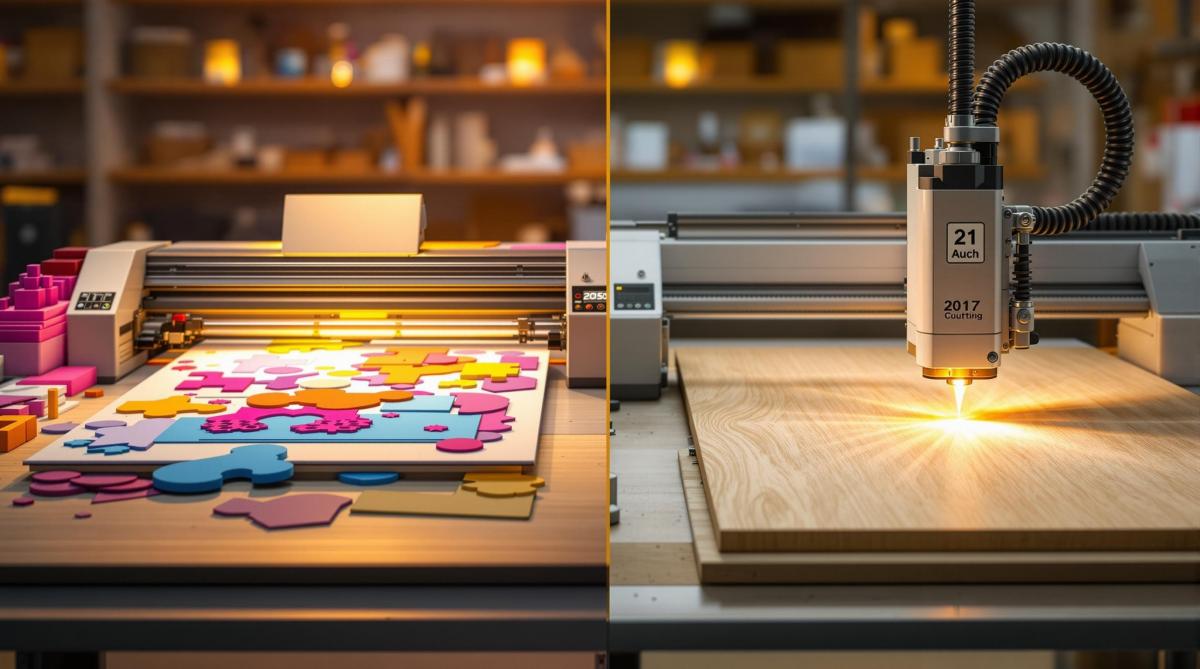
Digital die-cutting is a fast, precise way to create packaging without traditional steel dies. Here’s how it works:
What It Is: A computer-controlled machine uses blades or lasers to cut materials based on digital designs, saving time and reducing waste.
Key Tools: Flatbed cutters for rigid materials, roll-to-roll systems for flexible ones, and software (like CAD) to design and control cuts.
Materials Used: Paperboard, vinyl, corrugated board, plastics (PET, polypropylene), and more.
Process: Design files are prepared, materials are loaded, test cuts are done, and final adjustments ensure accuracy.
Benefits:
Saves time and costs by skipping metal dies.
Allows custom designs and quick changes.
Reduces waste with efficient material usage.
For businesses, this method is ideal for prototyping, short runs, and custom orders. Miro Printing & Graphics Inc. in NJ specializes in this process, delivering high-quality results with quick turnarounds.
Digital cutting at an industrial level – Packaging industry
Essential Tools and Equipment
Digital die-cutting combines specialized hardware and software to create precise cuts on various packaging materials.
Machine Types and Their Uses
Digital cutters generally fall into two categories:
Flatbed Cutters: These machines work on fixed surfaces, ideal for sheets and boards. They can score, crease, and perform multi-layer cuts at varying depths. Many models include registration-mark sensors to ensure graphics align perfectly.
Roll-to-Roll Systems: Designed for continuous-feed operations, these machines handle films and flexible materials. They feature adjustable tension and automated feeding, making them perfect for high-volume production.
Software and Templates
The software plays a critical role in digital die-cutting:
CAD Software: Handles file formats like AI, EPS, and PDF. It also provides pre-designed packaging templates and nesting tools to maximize material usage.
Control Software: Regulates cutting depth, speed, and presets. It can also track metrics and manage job schedules for efficient production.
Compatible Materials
Digital die-cutting works with a variety of packaging materials, such as:
Corrugated and Solid Board: Used for shipping boxes and display cartons.
Paperboard: Commonly used in folding cartons and point-of-sale packaging.
Vinyl and Films: Ideal for labels and decals.
Rigid Plastics (e.g., PET/PETG): Used for blister packs and clear presentation boxes.
Flexible Plastics (e.g., Polypropylene): Suitable for pouches and bags.
To ensure the best results, store materials under stable temperature and humidity conditions. Always perform test cuts to fine-tune settings before starting full production.
Once you have the right tools and materials, the next step is preparing your design file for cutting.
The Digital Die-Cutting Process
Once you’ve chosen your cutter and materials, you’re ready to start the job. Here’s how to get it done step by step.
Setting Up the Design
Using CAD software, map out your cut and score lines. Add registration marks, define safety margins, and double-check all dimensions to ensure they meet the final specifications. When your file is good to go, prep your materials for cutting.
Preparing the Material
Make sure the cutting surface is clean and free of debris. Adjust the feed and hold-down settings to match the thickness and firmness of your chosen material. Once everything is set, you’re ready to move on to cutting and finishing.
Cutting and Finishing Process
This part involves three key steps:
Test Cuts: Check the blade’s depth, pressure, speed, and alignment to ensure accuracy.
Monitor and Adjust: Keep an eye on the material feed and overall quality during the process. Tweak settings as needed to maintain precision.
Final Touches: Trim any waste, apply coatings, inspect edges and depth, and let the pieces rest before moving on to lamination.
sbb-itb-ce53437
Benefits of Digital Die-Cutting
Digital die-cutting offers three main perks: saving time and money, enabling customization, and reducing waste.
Time and Cost Savings
By removing the need for metal dies, digital die-cutting drastically reduces setup time and tooling expenses. Companies like Miro Printing & Graphics Inc. can quickly start prototypes or short production runs. This efficiency keeps projects moving fast and on budget.
Customization
Digital die-cutting opens up a world of design possibilities:
Works with materials like paperboard, corrugated board, vinyl, and specialty substrates
Allows instant artwork adjustments without extra tooling costs
Handles intricate cuts, precise scoring, and detailed perforations
Supports variable data, such as serial numbers or QR codes
Ideal for multi-panel folding boxes and pop-up displays
Waste Reduction
With optimized nesting and digital previews, waste and errors are minimized. On-demand production eliminates the need for large minimum orders and prevents excess inventory from piling up. This approach not only cuts costs but also supports more eco-friendly packaging practices.
Common Uses and Markets
Now that we’ve covered the advantages, let’s look at how digital die-cutting is used in various products.
Package Types
Design custom folding cartons and distinctive box shapes for industries like food, beverages, and cosmetics. This enhances product presentation and strengthens brand identity.
Label Making
Craft detailed label shapes and precise edges for products in food, cosmetics, and pharmaceuticals. This ensures product details are displayed clearly and positioned correctly.
Conclusion
Once you’ve got the design, materials, and finishing techniques down, digital die-cutting becomes a game-changer for creating accurate and efficient packaging.
For expert help, check out Miro Printing & Graphics Inc. With more than 30 years in the business, they provide a range of services – like digital printing, in-house bindery, design, and large-format printing – while keeping things personal. Customers often highlight their high-quality work, quick turnaround times, and fair pricing.
Reach out to Miro Printing & Graphics Inc. today and take your packaging to the next level with their digital die-cutting expertise.
Learn how ISO 2846 standards ensure consistent ink color quality in printing, benefiting businesses with reliable branding and improved customer satisfaction.
ISO 2846 ensures consistent, reliable color quality in printing by defining standards for CMYK process inks. It helps businesses maintain uniform brand visuals, reduce waste, and improve customer satisfaction.
Key Takeaways:
What It Covers: Color specifications, transparency standards, and testing methods for CMYK inks.
Benefits for Businesses: Consistent branding, fewer color errors, and better print quality.
Testing Requirements: Uses tools like spectrophotometers and follows strict temperature and humidity controls.
Certification: Requires regular testing, equipment calibration, and staff training to maintain compliance.
ISO 2846 is essential for achieving precise and dependable print results, ensuring your printed materials look exactly as intended.
ISO 2846 focuses on ensuring that process inks provide consistent color reproduction and maintain transparency. This helps achieve reliable color performance while minimizing waste during printing. Its standards apply to a range of printing methods, ensuring dependable results.
Supported Print Methods
The standard is relevant to popular printing techniques in the US, such as offset and digital printing, guaranteeing uniform color quality.
Applications in the US Print Industry
Companies like Miro Printing & Graphics Inc. rely on ISO 2846 to guide their digital, offset, and large-format printing. This helps them deliver precise, consistent colors and maintain strong brand representation.
Testing Standards and Methods
Ink Testing Steps
ISO 2846 testing follows strict protocols and uses specialized equipment. The process starts with preparing print samples on standardized substrates under controlled conditions. The testing environment must be kept at 73°F (±3.6°F) with a relative humidity level of 45-55%.
Once the samples are prepared, color measurements are taken using defined metrics.
Color Measurement Guidelines
The CIELAB color space system is used to assign precise numerical values to color properties. Each process ink – Cyan, Magenta, Yellow, and Black – must meet specific tolerance ranges:
Process Ink
L* Value Range
a* Value Range
b* Value Range
Cyan
54.0 – 56.0
-37.0 to -35.0
-50.0 to -48.0
Magenta
47.0 – 49.0
74.0 to 76.0
-3.0 to -1.0
Yellow
88.0 – 90.0
-5.0 to -3.0
93.0 to 95.0
Black
15.0 – 17.0
0.0 to 1.0
0.0 to 1.0
After measuring color, the transparency of the ink is tested on black substrates.
Transparency Testing
Transparency testing ensures that inks perform well in overprinting scenarios. Here’s how it works:
Sample Preparation: Print test patches on a standardized black backing.
Measurement and Assessment: Use a calibrated densitometer to measure ink density and visually check for color consistency.
Documentation: Record all measurements and maintain detailed testing logs.
For process colors, transparency values need to be at least 70% to guarantee proper color mixing and reproduction in multi-color printing.
sbb-itb-ce53437
Print Quality Results
Print Shop and Client Feedback
ISO 2846 standards ensure consistent print quality and help establish trust with clients. At Miro Printing & Graphics Inc., these standards translate into reliable results and satisfied customers. Here’s what one client had to say:
"Great customer service that we didn’t get with our old online printer. Attention to detail is what makes the difference!" – Mike B.
This kind of feedback highlights the importance of adhering to standardized practices.
Comparing Standard and Non-Standard Inks
Using ISO 2846-compliant inks guarantees timely, high-quality prints, showcasing the print shop’s commitment to excellence. The impact is clear in the words of another happy client:
"Mike and his team completed a complex job in record time for a very reasonable price… Best service I’ve ever received from a printer; couldn’t recommend Miro more highly." – Julia I.
Getting and Keeping Certification
Certification Process
Earning ISO 2846 certification means understanding color standards thoroughly and prioritizing quality control. Here’s how the process works:
Initial Assessment: Evaluate your current inks and color management systems.
Equipment Calibration: Ensure all measurement devices meet ISO standards.
Staff Training: Educate your team on proper color management techniques.
Documentation: Keep accurate and detailed records.
Quality Control: Perform regular tests to maintain consistent print quality.
These steps lay the groundwork for meeting certification requirements and staying compliant over time.
Long-term Compliance
Keeping ISO 2846 certification isn’t a one-and-done deal – it requires consistent effort and regular checks. Sustaining compliance involves:
Regular Quality Assessments: Conduct monthly tests to monitor color accuracy. Detailed records help catch issues early, ensuring print quality stays on track.
Client Communication: Keep an open line of communication with clients during the printing process to meet their expectations.
Continuous Training: Regularly update your team on the latest ISO standards and color management techniques to maintain high-quality results.
Conclusion
ISO 2846 standards play a key role in maintaining reliable print quality. By sticking to these guidelines, businesses can ensure consistent and high-quality printing, which is essential for clear and effective branding. These standards help maintain strict color accuracy and detail, ensuring printed materials represent a brand as intended.
Miro Printing & Graphics Inc. Standards
At Miro Printing & Graphics Inc., ISO 2846 compliance is at the heart of our quality control process. We prioritize color precision and exceptional print quality in every project we handle.
Here’s how we maintain our high standards:
Daily color calibration checks to ensure accuracy.
Ongoing staff training focused on color management techniques.
Advanced spectrophotometer measurements for precise color matching.
Thorough quality control documentation for every project.
Our motto, "Presentation is the first step to a successful, lasting relationship," reflects our belief in the power of outstanding print quality to drive business success. From our Hackensack facility, we deliver printing services that meet or exceed ISO 2846 standards, ensuring that every piece we produce aligns perfectly with our clients’ branding and messaging needs.
Learn to identify and correct common printing substrate defects to maintain high-quality results and reduce production issues.
Print quality issues can ruin your project before it even starts. Here’s how to spot and fix common substrate defects in printing, like uneven ink coverage, pinholing, contamination, and color misalignment. These problems often stem from issues with materials, equipment, or environmental conditions.
Key Takeaways:
Uneven Ink Coverage (Mottling): Caused by ink viscosity issues or substrate absorption problems.
Pinholing: Tiny unprinted spots from improper substrate prep or environmental factors.
Contamination: Dust, debris, or pollutants disrupting ink transfer.
Ink Bonding Problems: Poor adhesion leading to peeling or flaking.
Color Misalignment: Blurry or misaligned overlays due to equipment calibration or substrate movement.
Quick Solutions:
Inspect prints for defects early using quality control tools.
Test substrate properties like moisture and surface energy before printing.
Regularly clean and calibrate equipment.
Train staff to handle substrates properly and follow quality checks.
By identifying and addressing these issues early, you can save time, reduce costs, and maintain high print quality.
Static Electricity on Corrugated Plastic Substrates Causes …
Main Types of Substrate Defects
Recognizing substrate defects is key to solving printing problems before they affect the final product. Below is a closer look at the most common issues in commercial printing.
Uneven Ink Coverage (Mottling)
Mottling refers to uneven color distribution caused by inconsistencies in ink viscosity or substrate absorption. At Miro Printing & Graphics Inc., technicians rely on precision viscometers to maintain consistent ink flow and viscosity.
Some common causes of mottling include:
Incorrect ink-water balance
Uneven substrate coating
Poor drying conditions
Variations in surface tension
Small Unprinted Spots (Pinholing)
Pinholing appears as tiny white spots where ink fails to adhere, especially in solid color areas. Properly preparing the substrate and controlling environmental factors can help minimize this issue.
Print Contamination
Print contamination happens when foreign particles disrupt ink transfer onto the substrate. Common culprits include:
Paper dust
Static-attracted debris
Dried ink particles
Environmental pollutants
Maintaining a strict cleaning routine and using advanced air filtration systems can effectively prevent contamination.
Ink Bonding Problems
When ink doesn’t adhere properly, it can lead to peeling, rubbing, or flaking. Here’s a breakdown of factors affecting ink adhesion and their solutions:
Factor
Impact on Adhesion
Solution
Surface Energy
Reduces ink wetting
Use corona treatment
Material Compatibility
Weakens adhesion
Adjust ink formulation
Drying Conditions
Affects curing
Control the environment
Substrate Cleanliness
Reduces bond strength
Pre-print cleaning
Color Alignment Issues
Misaligned colors can result in blurry images or incorrect overlays. These issues often stem from:
Faulty plate registration
Substrate movement during printing
Calibration errors in equipment
Fluctuations in temperature and humidity
To address this, print specialists use advanced registration systems to ensure precise color alignment in every print run.
Next, we’ll explore methods to identify and fix these defects effectively.
sbb-itb-ce53437
Finding and Fixing Defects
Print Quality Inspection
At Miro Printing & Graphics Inc., we follow a clear quality control process to catch substrate issues early. Our team starts with a visual review of prints under standard lighting, using magnification when necessary. Key areas we check include:
Surface uniformity: Ensuring ink coverage is even across the print area.
Color accuracy: Comparing printed colors to approved proofs under calibrated lighting.
Registration alignment: Confirming that color overlays align perfectly using registration marks.
Surface integrity: Looking for physical flaws like scratches or dents.
After this inspection, we evaluate equipment and materials to pinpoint possible sources of defects.
Material and Equipment Checks
Once the visual inspection is complete, we conduct detailed checks of materials and equipment to confirm findings. These tests help identify specific causes of substrate defects. Our process includes:
Measuring substrate moisture levels.
Assessing surface energy.
Monitoring press room conditions.
Checking ink viscosity.
Verifying registration accuracy.
These steps help us catch and address issues before they affect an entire production run.
Problem-Solving Guide
We take a structured approach to troubleshooting by addressing problems step-by-step:
Initial Assessment
Review print samples under standard conditions. Use high-resolution photos to document defects.
Environmental Control
Adjust press room conditions, such as temperature, humidity, air filtration, and static control, to maintain an optimal environment.
Material Verification
Test substrate properties before large print jobs. Check for surface tension, moisture content, thickness uniformity, and dimensional stability.
Process Adjustment
Fine-tune printing settings like ink viscosity, pressure, ink-water balance, and drying parameters based on test results.
Defect Prevention Methods
Preventing defects is just as important as identifying them. At Miro Printing & Graphics Inc., we follow strict measures to maintain consistent print quality and reduce substrate-related issues.
Equipment Maintenance
Keeping equipment in top shape is key to avoiding defects. This includes cleaning printing components, checking moving parts, and fine-tuning systems like registration, tension controls, and feed mechanisms. We also regularly inspect rollers, bearings, and moisture control systems to ensure they are performing as they should.
Material Quality Standards
We maintain high standards for the materials we use. Substrates are checked for moisture, thickness, and smoothness to ensure they meet our specifications. For example, moisture levels are tested with electronic moisture meters, and thickness is measured using digital micrometers. Here’s a quick look at our process:
Quality Parameter
Specification
Testing Method
Moisture Content
Per quality standards
Electronic moisture meter
Thickness Variation
Within defined tolerance
Digital micrometer
Surface Smoothness
Meets industry standards
Visual or energy test
By working closely with certified suppliers and setting clear expectations, we ensure each delivery meets our strict requirements. This approach helps address potential issues before they arise.
Staff Training and Work Area Control
Well-trained staff and organized workspaces go a long way in preventing substrate problems. We provide ongoing training on substrate handling, quality checks, and contamination prevention, ensuring consistent and high-quality printing results.
Summary
With over 30 years of experience, Miro Printing & Graphics Inc. tackles substrate defects using proven quality control processes, skilled staff, and strict protocols. Substrate defects can harm print quality, but identifying and addressing them ensures consistently great results.
"With meticulous attention to detail, our print shop offers a customized approach tailored to each project."
Miro Printing & Graphics Inc.
Here’s how Miro Printing & Graphics Inc. maintains top-tier print quality:
Quality Control Systems
Regularly maintaining and calibrating equipment
Enforcing strict material quality standards
Training staff thoroughly
Maintaining controlled work environment conditions
Professional Expertise
The team brings years of experience and treats every project as unique. As one happy customer shared:
"Great customer service and unmatched attention to detail make all the difference!"
Mike B.
Prevention and Solutions
To ensure flawless results, Miro Printing & Graphics Inc. employs:
Advanced inspection protocols
Rigorous material testing
Scheduled equipment maintenance
Continuous staff training
These efforts ensure every project meets the highest standards while staying on budget. By keeping substrate defects under control, Miro Printing & Graphics Inc. guarantees exceptional results for every print job.
Learn to identify and resolve common post-press quality issues to ensure high-quality printed materials and client satisfaction.
Post-press operations are critical for ensuring high-quality printed materials that meet client expectations. Here’s a quick rundown of the most common quality problems and how to fix them:
Paper Warping: Caused by temperature changes, improper storage, or uneven drying. Prevent with climate-controlled storage and proper material handling.
Uneven Print Density: Results from irregular paper surfaces or uneven pressure. Regularly calibrate equipment and monitor environmental conditions.
Ink Issues: Includes smudging, offsetting, scuffing, and flaking. Address with proper drying times, careful handling, and compatible materials.
Alignment Problems: Misaligned folds, registration errors, or uneven trims. Fix with precise calibration and regular equipment maintenance.
Paper Surface Flaws: Scratches, fiber lifting, and coating damage. Use high-quality materials and gentle handling.
To prevent these issues:
Maintain consistent temperature and humidity.
Clean and calibrate equipment regularly.
Handle materials carefully and store them properly.
Implement thorough quality inspections.
Pro Tip: Regularly track quality metrics and seek expert support for complex problems to ensure top-notch results.
Smart QI – the quality inspection system for high-speed digital …
Post-Press Quality Problems
Post-press quality issues can negatively affect the final printed product, often leading to expensive reprints and dissatisfied clients. Recognizing these problems early allows for quick fixes.
Paper Warping Issues
Paper warping, which creates waves or ripples, can ruin the look of a printed product. Common causes include:
Temperature changes
Improper storage under fluctuating conditions
Uneven drying during finishing
Misaligned paper grain during folding
This issue is particularly troublesome in perfect-bound books, where it can cause buckling and misaligned spines. At Miro Printing & Graphics Inc., climate-controlled storage helps maintain stable conditions to reduce warping. Next, let’s address print density concerns.
Uneven Print Density
Uneven print density shows up as inconsistent color intensity across the material. This can result from:
Irregular paper surfaces affecting ink absorption
Variations in paper thickness
Uneven pressure during finishing
Temperature changes during drying
Ink Problems
Post-press ink issues can take several forms, each impacting quality differently:
Issue Type
Common Causes
Impact on Quality
Smudging
Inadequate drying time
Blurred text and images
Offsetting
Pressure from stacking
Unwanted ink transfer
Scuffing
Mechanical handling
Surface damage
Flaking
Poor ink adhesion
Ink separating from paper
Alignment Problems
Misalignment during post-press processes can result in:
Crooked folds
Registration errors in multi-color prints
Uneven margins in perfect-bound books
Inconsistent trimming
These problems often occur in high-speed finishing operations, where precise calibration is critical.
Paper Surface Issues
Surface imperfections can arise during post-press handling, including:
Fiber lifting from aggressive scoring
Scratches from finishing equipment
Dust contamination during binding
Coating damage caused by folding
These flaws are especially noticeable on glossy or dark-colored stocks, where even small blemishes stand out. Environmental conditions, material quality, and process control all play a role in maintaining post-press quality.
Problem Sources and Prevention
Our approach targets key areas to ensure final products consistently meet high-quality standards.
Climate Control
Fluctuations in temperature and humidity can harm paper stability and print quality. To prevent issues like paper warping, uneven ink drying, or material degradation, maintain steady temperature, humidity, and airflow levels. Once these are under control, focus on keeping equipment in top condition.
Equipment Care
Well-maintained equipment is essential for reliable quality. Clean finishing equipment daily, calibrate machines regularly, and schedule monthly inspections to catch wear and tear early. These measures keep machines running smoothly and help avoid production setbacks.
Materials Management
How materials are handled directly affects product quality. Best practices include acclimating new paper stocks before use, following a first-in-first-out system for inventory, handling materials with care, and ensuring coatings are compatible with finishing processes.
Quality Tracking
Consistent quality tracking helps catch problems early. Monitor equipment performance, document environmental conditions, and keep detailed records of material properties. Regularly reviewing this data can highlight trends, allowing for timely adjustments.
sbb-itb-ce53437
How to Fix Quality Issues
Alignment Corrections
Getting alignment right is key for polished post-press results. Check that registration and crop marks are clearly visible. For multi-page documents, make sure folding marks line up exactly with the trim edges. If needed, make tiny adjustments – about 0.008 inches – to achieve perfect alignment. To keep things precise, regularly clean and calibrate optical sensors.
Quality Control Steps
Quality Inspection List
A thorough quality inspection ensures the final product meets high standards and complements earlier quality checks. Pay attention to print density and color consistency across all pages. Check that folding and binding are even and secure. Examine trimmed edges to ensure they are clean and meet the required dimensions.
Key areas to review include:
Color consistency throughout the print run
Binding quality, ensuring it is secure and properly aligned
Surface finish, looking for a smooth and even texture
Paper stock condition, confirming it meets specifications
Trim accuracy, ensuring clean and precise edges
Keeping records of these inspections helps identify patterns and improve processes over time.
Process Review Steps
Regularly reviewing workflow steps can uncover potential problems early. Document each stage of the post-press process, from handling materials to final packaging. Consistently monitor and record temperature and humidity levels during production to maintain optimal conditions.
Key items to include in your checklist:
Equipment maintenance and monitoring environmental conditions
Material storage, ensuring proper handling to avoid damage
Operator training, verifying skill levels and up-to-date certifications
Quality control metrics, tracking performance and identifying areas for improvement
Professional Support
If internal reviews fall short, seeking professional expertise can help maintain consistent quality. For complex post-press issues, experienced professionals bring valuable solutions. At Miro Printing & Graphics Inc., their team is known for delivering exceptional results across a wide range of printing projects.
"Mike and his team completed a complex job in record time for a very reasonable price… Best service I’ve ever received from a printer; couldn’t recommend Miro more highly." – Julia I.
Their services include pre-press consultations, routine equipment calibration, expert quality inspections, and quick issue resolution.
"Work quality is terrific, the staff is warm and helpful, I highly recommend them for any of your printing needs!" – Julieth R.
"Mike and his team at Miro have delivered stars, comet, and galaxy size projects for Lycored. No matter how little or large, no matter what the deadline, I sleep at night knowing Miro is on it. Truly, a gem printer shop and more in New Jersey." – LycoRed T.
Customer feedback shows that meticulous post-press processes – paying close attention to every detail – play a big role in client satisfaction. At Miro Printing & Graphics Inc., this dedication shines through in the consistent praise from their clients.
Key elements of a strong quality management strategy include:
Regular maintenance and calibration of equipment
Controlled conditions for production
Proper handling of materials
Detailed quality inspection processes
Expert assistance when necessary
Client testimonials, such as this one from Julieth R., highlight the importance of combining technical precision with responsive service:
"Work quality is terrific, the staff is warm and helpful, I highly recommend them for any of your printing needs!"
This kind of feedback emphasizes that every print job reflects the professionalism of the brand behind it. As Miro Printing & Graphics Inc. puts it:
"Presentation is the first step to a successful, lasting relationship."
Strong quality control not only ensures great results but also builds trust and long-term partnerships with clients.
Learn how to properly prepare files for die-cutting and laser cutting, ensuring precision and high-quality results with practical guidelines.
Die-cutting and laser cutting require precise file preparation to avoid errors and ensure high-quality results. Here’s a quick guide to get started:
Use Vector Formats: Stick to AI, EPS, DXF, or SVG files. Avoid raster formats like JPG or PNG.
Set Proper Cut Lines: Use specific colors (e.g., magenta for cuts, blue for scores) and a 0.25pt stroke weight. Ensure all paths are closed and strokes are converted to outlines.
Include Bleed and Margins: Extend designs beyond cut lines and keep important elements away from edges.
Export Correctly: Save as PDF, SVG, or DXF depending on your cutting method.
Test Cuts: Run sample cuts to check material compatibility and design accuracy.
Quick Tip: Organize your file with labeled layers for different cut types (e.g., "THROUGH CUTS" or "SCORE LINES") to streamline production.
This ensures smooth production, reduces waste, and delivers precise cuts. Read on for detailed steps and file setup tips.
Required File Specifications
Accepted File Types
For precise and scalable cuts, stick to vector-based file formats. The most commonly used ones include:
Adobe Illustrator (AI): Perfect for accurate control over cut lines.
Encapsulated PostScript (EPS): Retains vector quality across different platforms.
Drawing Exchange Format (DXF): Ideal for CAD-based cutting systems.
Scalable Vector Graphics (SVG): A web-compatible vector format.
Note: Avoid raster formats like JPG, PNG, or PSD. These formats lack the precise paths required for clean cuts.
Color and Resolution Settings
Ensure your file is set up correctly with these configurations:
Color Mode: Use CMYK for printed designs.
Resolution: Linked images should have a minimum resolution of 300 DPI.
Spot Colors: Convert spot colors to process colors unless they’re necessary for cut lines.
Overprint Settings: Turn off overprint to avoid unexpected results.
Cut Line Color Coding
When defining cut lines, use the following color coding system:
Cut Type
Color Name
RGB Values
Purpose
Cut Line
Magenta
255, 0, 255
Full through-cuts
Score Line
Blue
0, 0, 255
Partial cuts for folding
Perforation
Green
0, 255, 0
Dotted lines for perforation
Kiss Cut
Red
255, 0, 0
Surface-level cuts
Key Cut Line Requirements:
Set line weight to 0.25pt (0.003 inches).
Ensure all paths are closed vector paths.
Avoid overlapping cuts.
Remove any hidden paths.
Convert strokes to outlines.
For intricate designs, organize cut lines on separate, clearly labeled layers (e.g., "THROUGH CUTS", "SCORE LINES").
Up next: Learn how to manage bleed, margins, and layers for an optimal design setup.
Design Setup Steps
Setting Bleed and Margins
To ensure precise cuts, extend your background graphics slightly beyond the cut line – this is called the bleed. At the same time, keep important elements like text or logos away from the edges to avoid accidental trimming. It’s a good idea to test a sample cut to confirm everything is aligned correctly. Lastly, arrange your design layers in a way that creates clear and efficient cutting paths.
Once your design is ready, the next step is to create a clean, production-ready file for export.
Export Settings
Save your design in a vector format. If you’re using Adobe Illustrator, choose the ‘Save As’ option and export as either a PDF or SVG.
File Format
Best Use Case
PDF
Ideal for professional die-cutting and printing
SVG
Perfect for laser cutting and digital applications
DXF
Suited for CAD and technical cutting
After selecting your export format, make sure your file is properly cleaned for production.
File Cleanup
Before exporting, go through your design and remove any hidden layers or stray objects. Double-check that all cutting paths are closed vector shapes to ensure accuracy during production.
If you need more detailed guidance for preparing your files, Miro Printing & Graphics Inc. is available to assist.
Material Selection and Testing
Once your file export is ready, the next steps are picking the right materials and testing them. These steps are crucial to ensure high-quality cuts and a polished final product.
Test Cuts
Start by performing test cuts on a small section of your design. This helps you check factors like cut depth, edge quality, detail retention, and how the material reacts – all while reducing waste. Use a sample that includes both intricate details and larger shapes to get a full picture of the cutting performance. These tests play a big role in deciding which materials to use.
Choosing Materials
Every project demands materials that work best for the specific cutting method.
Die-cutting often uses materials like standard paper stocks, coated papers, vinyl, adhesive-backed options, and synthetic papers.
Laser cutting works well with acrylic, select woods, paper, cardboard, fabric, leather, and some non-chlorinated plastics.
When selecting your materials, keep these factors in mind:
Material Thickness: Thicker materials can impact cut quality and may push the limits of your equipment. Choose a thickness that ensures clean cuts and preserves your design.
Surface Finish: Glossy or metallic finishes might need adjustments to avoid surface damage. Matte finishes tend to deliver more consistent results.
Material Density: Dense materials like hardwood or thick acrylic require slower cutting speeds or multiple passes. Less dense materials are easier to work with and adjust.
Getting Professional Help
Preparing files for die-cutting and laser cutting can be tricky. Experienced professionals make it easier by spotting potential problems, fine-tuning design files, and offering advice on materials. At Miro Printing & Graphics Inc., their years of expertise deliver precise, efficient production with high-quality results.
Working with professional print services comes with several perks:
Technical know-how to ensure designs meet cutting specifications
In-house computer layout services for better file preparation
Material selection advice tailored to your project
"With meticulous attention to detail, our print shop has a customized approach that is unmatched by big online printing companies or franchises." – Miro Printing & Graphics Inc.
For projects that demand precision, it’s crucial to provide your print shop with all the necessary details. Key elements to include are:
Original design files in supported formats
Clear project specifications
Material preferences
Deadlines
Any special finishing requests
Professional print shops can also run test cuts to confirm your design works well with the chosen materials before moving to full production. This step ensures the final product meets quality standards while reducing the risk of errors during manufacturing.
Learn to troubleshoot common ICC profile issues like color shifts, banding, and errors for consistent, high-quality prints.
ICC profiles ensure consistent colors across devices and printers, but they can cause problems like banding, color shifts, or error messages. Here’s a quick summary of common issues and solutions:
Print Banding: Use 16-bit profiles, match profiles to your printer and media, and reset color settings.
Unexpected Color Changes: Align profiles across software, calibrate monitors monthly, and check for embedded profile conflicts.
Color Matching Problems: Create specific profiles for each printer and paper, control environmental factors, and calibrate devices weekly.
ICC Profile Errors: Fix missing or outdated profiles, resolve permission issues, and replace corrupted files.
Color Management Conflicts: Avoid double color management by disabling redundant settings in software or printers.
Key Tip: Regular calibration, consistent settings, and test prints can save time and ensure accurate results. Read on for detailed fixes and best practices!
ICC Profile mismatch, What the #%$# happened to my image.
1. Print Banding Issues
Print banding refers to the appearance of horizontal or vertical stripes on your prints. This often happens when ICC profile settings are misconfigured. Poorly adjusted profiles can disrupt gradients, solid colors, or photographic images, leading to noticeable imperfections.
One common mistake is using an 8-bit ICC profile instead of a 16-bit one, which can result in harsh color transitions instead of smooth gradients.
Here’s how you can address banding problems:
Check Profile Bit Depth: Make sure your ICC profile is set to 16-bit color depth for smoother color transitions.
Match Profile to Device: Double-check that the ICC profile matches your printer model and the media you’re using.
Reset Color Management Settings: In your design software, reset the color management settings to ensure the correct profile is applied.
You can also use soft proofing to catch potential banding problems early, helping you save both time and materials.
2. Unexpected Color Changes
Unexpected color shifts happen when ICC profiles aren’t properly aligned between design software and output devices. Here’s a breakdown of common causes and how to address them:
Profile Mismatch Between Applications
Switching files between design programs can cause color inconsistencies. For instance, working in Adobe Photoshop with an Adobe RGB profile and then opening the file in InDesign with a different profile can result in noticeable shifts.
How to fix it:
Turn on profile warnings in your design software.
Assign the correct ICC profile when opening files.
Conflicts between embedded profiles and assigned workspace profiles can also lead to color changes.
Solution:
Check for embedded profiles in your design software’s document info panel.
Remove conflicting embedded profiles.
Reassign the correct ICC profile for your intended output.
Monitor Calibration Issues
Your monitor’s calibration affects how you see colors during editing. If your display isn’t calibrated, what you see on-screen might not match the final output.
For accurate colors:
Calibrate your monitor monthly.
Use a professional calibration device.
Work in a room with consistent lighting conditions.
Our pre-press team carefully checks profiles before every job to ensure colors are accurate.
Pro Tip: Always run a test print on your target media using the intended ICC profile before starting full production. This simple step can save time and materials by catching color issues early.
sbb-itb-ce53437
3. Print Color Matching Problems
After addressing unexpected color shifts, ensuring consistent color matching across various print jobs is crucial. Here’s how to handle common challenges using ICC profiles effectively.
Device-Specific Variations
Even printers of the same model can produce slight color differences. These variations are more noticeable when:
Using different types of paper
Printing across multiple machines
Running jobs on different days
Operating older equipment
Tip: Create specific ICC profiles for each printer and paper combination to minimize inconsistencies.
Media-Related Inconsistencies
The paper you use – its brightness, coating, and weight – affects how ink appears on the final print.
Develop custom ICC profiles tailored to each paper type
Store paper in a controlled environment (68–72°F, 45–55% humidity)
Run test prints on new paper stocks before full production
Environmental Factors
Temperature and humidity changes can impact color consistency. Maintain stable environmental conditions:
Temperature: 70°F ±2°F
Humidity: 50% ±5%
Managing ICC Profiles
Proper ICC profile management is key to maintaining consistent colors across devices and media:
Keep detailed records of ICC profile settings for each printer and paper combination
Calibrate printers weekly to ensure accuracy
Regularly compare prints to approved color standards
Pro Tip: For long-term projects, save dated ICC profiles to ensure accurate color matching in the future.
Verifying Color Standards
Use professional tools to confirm color accuracy:
Spectrophotometers for precise color measurements
Digital proofs for client sign-off
Physical color swatches for reference
At Miro Printing & Graphics Inc., we carefully document color measurements and regularly check our output against Pantone standards. This ensures reliable and consistent color reproduction for every print job.
If your system can’t find ICC profiles, you might encounter errors related to missing profiles. Here’s how to address them:
Check your system’s color management folders to ensure profiles are stored in the correct location.
Verify file permissions to ensure the profiles are accessible.
Reinstall the profiles from their original sources to avoid any issues.
Rename profiles to avoid using special characters that might cause problems.
Profile Version Conflicts
Older ICC profiles can cause compatibility issues with modern software, leading to errors like "Incompatible profile version" or "Profile version mismatch."
To fix this:
Update profiles to version 4 specifications for compatibility.
Convert older profiles using updated conversion tools.
Download profiles directly from manufacturers to ensure they’re current.
Remove outdated versions to avoid confusion or conflicts.
Corrupt Profile Data
Profiles can become corrupted during file transfers or updates. Signs of corruption include:
Messages like "Invalid profile structure."
Crashes in your color management system.
Profiles behaving unpredictably.
Failed attempts to load profiles.
To resolve this, download fresh copies from trusted sources and replace the corrupted files.
Profile Permission Issues
Permission errors may appear as:
Error: Access denied to color profile
Error: Unable to write profile changes
Error: Profile locked by another process
To fix these issues:
Ensure you have administrator privileges on the system.
Check network permissions to ensure profiles can be accessed.
Release any file locks that might be preventing changes.
Clear temporary color management files to resolve conflicts.
Profile Loading Timeouts
Large or complex ICC profiles can cause timeouts during loading. Symptoms include:
Slow application startup.
Validation failures for profiles.
Delays in system-wide color management.
Pro Tip: At Miro Printing & Graphics Inc., we keep our profile library organized and optimized to avoid slowdowns.
Profile Validation Errors
Validation errors might show up as:
Warnings like "Invalid tag structure."
Alerts such as "Profile checksum mismatch."
Messages indicating "Incomplete profile data."
Troubleshooting Tools
To address ICC profile issues, consider using these tools:
Profile validation utilities to check for errors.
Checksum verification tools to ensure data integrity.
Structure analysis tools for diagnosing profile problems.
System configuration checks to identify underlying issues.
5. Multiple Color Management Conflicts
Managing color conflicts is crucial for keeping print quality consistent. These issues often arise when multiple software or devices try to control color simultaneously, leading to oversaturation, color shifts, and inconsistent results.
Common Conflict Scenarios
These conflicts typically occur in situations like:
Application-level conflicts: Both design software and printer drivers attempt to manage color.
Device-level conflicts: Multiple devices apply their own color adjustments.
Software-hardware conflicts: RIP software and printer firmware both handle color management.
How to Spot Double Color Management
You might notice overlapping color controls if:
Oversaturation or unexpected color shifts occur between your screen, proof, and final print.
The printed output looks significantly different from what’s displayed on your screen.
Identical print jobs produce inconsistent results.
How to Prevent These Conflicts
Choose one color management control point: Decide whether the design software, printer driver, or RIP software will handle color management.
Disable competing color management settings:
Set unused control points to "No Color Management."
Turn off printer color management if you’re managing color in your design software.
Disable application control if you’re using RIP software.
Keep a record of your settings, including:
The primary color management system.
ICC profile configurations.
Color space settings.
Output parameters.
Best Practices for Managing Color
Assign Profiles Early
Assign ICC profiles at the start of your workflow. Use device-specific profiles for better accuracy and ensure working spaces remain consistent.
Configure Software Properly
Synchronize color settings across your software, calibrate devices regularly, and document all profile assignments.
Streamline Your Workflow
Companies like Miro Printing & Graphics Inc. maintain consistent results by following strict protocols, including system audits, standardized workflows, consistent profile assignments, and ongoing staff training.
Fixing Existing Conflicts
If you’re already dealing with color management issues, try these steps:
Audit Your Current Settings
Review all color settings to find the source of the conflict.
Test Systematically
Print test pages with different settings.
Compare the results.
Document the configurations that work best.
Reset and Rebuild
Reset all color settings.
Rebuild the workflow step by step.
Introduce controls one at a time to avoid new conflicts.
These steps will help ensure consistent output once the issues are resolved.
System-wide Configuration Tips
For consistent results across all applications and devices:
Use the same rendering intent across your workflow.
Synchronize settings in Adobe applications.
Regularly update ICC profiles.
Keep devices calibrated and monitor their status consistently.
Conclusion
Effectively managing ICC profiles is key to producing consistent, high-quality prints. Troubleshooting issues like print banding, unexpected color changes, or conflicts in color settings early in the process can save time, improve results, and cut down on expensive reprints.
To maintain proper ICC profile management, focus on:
Regularly calibrating devices and updating profiles
Using consistent color management settings across all software
Documenting successful configurations for future reference
Testing systematically when making changes
As customers often highlight, attention to detail and precision can make a big difference in print quality.
With more than 30 years of experience, Miro Printing & Graphics Inc. provides in-house expertise in digital and offset printing. Their services include custom ICC profile management, regular calibration, and workflow guidance, helping ensure you achieve reliable and high-quality print results.
Learn how to prepare vector files for print to avoid common issues and ensure professional-quality results in your printing projects.
Properly preparing vector files for print ensures sharp, professional results and avoids common issues like mismatched colors, blurry graphics, or missing fonts. Here’s what you need to know:
Use Vector Formats: Save files in print-ready formats like PDF/X-1a:2001, AI, or EPS.
Set Correct Colors: Convert all elements to CMYK and use spot colors for Pantone® matching.
Add Bleed and Safe Zones: Include a 0.125-inch bleed and keep critical elements 0.25 inches from the trim edge.
Embed Fonts or Outline Text: Ensure text stays consistent by embedding fonts or converting them to outlines.
Check Resolution: Linked images should be at least 300 DPI for sharp prints.
Organize Layers: Use separate layers for text, images, and technical elements like crop marks.
For a smooth printing process, double-check these settings, review proofs, and export files in high-quality formats. Proper preparation ensures your materials look professional and print-ready.
Vector Files Basics
Vector Files Explained
Vector graphics are built differently from raster images. Instead of pixels, they rely on mathematical coordinates, allowing them to scale indefinitely without losing quality. This makes them ideal for projects where precision and flexibility are key.
Key features for print production include:
Scalability: Graphics remain sharp no matter the size.
Compact file sizes: Even complex designs stay manageable.
Easy updates: Individual elements can be adjusted without affecting overall quality.
Smooth curves: Lines and shapes stay flawless at any scale.
Accurate colors: Maintains exact color values throughout.
Print-Ready Vector Formats
Different vector formats are suited for specific printing needs. Here’s a breakdown of common formats:
At Miro Printing & Graphics Inc., we generally recommend using properly formatted PDFs for most print jobs. For offset printing, the PDF/X-1a:2001 standard ensures fonts are embedded and CMYK colors are defined precisely.
"Choosing the right vector format is crucial for achieving high-quality prints. We advise saving final files as press-ready PDFs with embedded fonts and accurate color settings to ensure optimal results", says the pre-press team at Miro Printing & Graphics Inc.
Technical tips for creating print-ready vector files:
Use the CMYK color mode for all design elements.
Convert text to outlines or ensure fonts are embedded.
Linked raster images should have a resolution of at least 300 DPI.
Include proper bleed settings, typically 0.125 inches.
Set up your document at the actual print size (1:1 scale).
Design Setup Steps
Basic Document Settings
To prepare your vector file for printing, follow these key settings recommended by Miro Printing & Graphics Inc.:
Setting Type
Specification
Details
Document Size
Actual print dimensions
Match the size to the final trim dimensions.
Bleed Area
0.125" on all sides
Extends beyond the trim to avoid white edges.
Safe Zone
0.25" from trim
Keeps critical elements from being too close to the edge.
Resolution
300 DPI minimum
Ensures linked images appear sharp when printed.
Color Mode
CMYK
Standard for professional-quality printing.
For projects like brochures or business cards, include crop and registration marks to guide the cutting process. Set ruler units to inches and enable snap-to-grid for precise alignment of design elements.
Once your document settings are in place, focus on organizing your layers for a smoother printing process.
Layer Organization
After setting up your document, structure your layers to keep your design elements organized and safe from accidental changes:
Base Elements Layer: Use this bottom layer for background colors, gradients, or other foundational elements. This makes global adjustments easier and keeps your design clean.
Content Layers: Group your main design components into separate layers. For instance:
Keep text elements on one layer.
Place images and graphics on another layer. This separation simplifies edits and helps avoid accidental modifications.
Technical Layers: Place printer marks, such as crop and registration marks, on a dedicated top layer. Lock this layer to prevent accidental adjustments.
For designs using spot colors or special finishes like foil or varnish:
Create separate layers for each spot color.
Clearly label layers with the specific Pantone® or specialty ink names.
Keep varnish or foil details on their own layers.
Use color coding in your layers to easily distinguish between print processes.
A well-structured layer setup reduces the chances of printing errors and ensures a smoother pre-press process.
Color and Text Setup
Color Mode Conversion
Getting accurate color conversion is key to achieving high-quality print results. Here’s what to do:
Switch Vector Elements to CMYK: Convert all vector artwork from RGB to CMYK. Keep in mind that vibrant RGB colors may look less intense in CMYK.
Spot Colors: If you’re using Pantone® colors, keep them as spot colors instead of converting them to CMYK.
Ink Coverage Check: Make sure total ink coverage stays below 300%. Colors exceeding this can lead to oversaturation and printing issues.
Color Element
Recommended Settings
Common Issues to Avoid
Black Text
100% K (Rich Black)
Using mixed CMYK blacks
Large Black Areas
40C, 30M, 30Y, 100K
Pure black appearing gray
Gradients
Max 2 spot colors
Banding in long gradients
White Elements
Apply ‘Knockout’
Accidentally printing underneath
Once colors are prepped, focus on text formatting to ensure crisp, clean print results.
Text Formatting Rules
To avoid font issues and guarantee the design stays consistent, convert your text to outlines.
1. Text Size Guidelines
Text Type
Minimum Size
Ideal Size
Body Text
6 pt
8-12 pt
Reverse Text
8 pt
10-14 pt
Small Print
4 pt
6-8 pt
2. Key Text Considerations
When applying special printing techniques:
Use knockout text no smaller than 8 pt for readability.
Avoid thin serif fonts for reverse text, as they may appear blurry.
Keep outlined text strokes at least 0.5 pt thick.
Stick to single-color text for small font sizes to maintain clarity.
sbb-itb-ce53437
File Export Guidelines
Best File Formats
Selecting the right export format is crucial for maintaining quality and ensuring compatibility. Adobe PDF is widely recognized as the standard, particularly the PDF/X-1a:2001 format, thanks to its reliable color management and support for embedded fonts.
Format
Best Use Case
Key Settings
PDF/X-1a:2001
Commercial printing
Embedded fonts, CMYK/spot colors
Native AI/EPS
Complex vector artwork
Preserve layers, maintain editability
SVG
Web-first designs
Convert to outlines, flatten effects
When exporting, make sure to:
Set the bleed area to 0.125 inches (3.175 mm).
Include crop marks with a 0.25-inch (6.35 mm) offset.
Add trim and registration marks.
Embed all fonts or convert them to outlines.
Disable compression for vector elements to retain quality.
After choosing the file format, double-check resolution settings to ensure the best print quality.
Resolution Requirements
Once the file setup is complete, confirm that all embedded elements meet the required resolution standards for high-quality output.
Element Type
Minimum Resolution
Optimal Resolution
Embedded Images
300 dpi
450 dpi
Line Art
600 dpi
1200 dpi
Gradients
150 lpi
175-200 lpi
Key steps to follow:
Export vector paths at full resolution.
Use a minimum stroke weight of 0.25 pt to avoid printing issues.
Simplify compound paths to prevent rendering problems.
Ensure all linked images meet resolution standards.
Enable the overprint preview to catch potential printing errors.
For files with mixed content, prioritize vector quality while ensuring raster images meet resolution requirements.
Pre-Print Review
File Check List
Before sending your vector files to print, use this checklist to ensure everything is set up correctly:
Category
Checks
Specifications
Color Settings
CMYK Profile
US Web Coated (SWOP) v2
Spot Colors
Pantone matching
Color Separations
Preview enabled
Document Setup
Bleed Area
0.125 inches
Safe Zone
0.25 inches from trim
Page Size
Matches final output
Technical Elements
Font Outlines
All text converted
Image Links
All embedded
Stroke Weights
Minimum 0.25 pt
For color settings, double-check the following:
Colors are set to CMYK or assigned as spot colors.
Rich black values are configured as C:60 M:40 Y:40 K:100.
Overprint settings are applied where necessary.
Total ink coverage does not exceed 300%.
Once these checks are completed, move on to the proof review process for a thorough evaluation.
Proof Review Process
Go through these steps to ensure your files are print-ready:
This is a calibrated hard copy proof that closely represents the final printed product. At Miro Printing & Graphics Inc., we use proofing systems that:
Adhere to G7 color calibration standards
Provide precise color representation
Include actual size and trim marks
Highlight any potential printing issues
3. Press Proof
For projects requiring precise color matching or special printing effects, request a press proof. This proof is produced using the actual equipment that will be used for the final print, ensuring accuracy.
How To Prepare An Illustrator File For Print
Conclusion
A final review is crucial to ensure your vector files are ready for top-notch print production. Preparing vector files requires attention to detail and adherence to industry standards. By using detailed checklists and thorough proofing, you can ensure your files are print-ready.
Key elements of successful vector file preparation include:
CMYK color conversion with appropriate ink coverage
Organized layers and outlined fonts for clarity
Standard bleed areas (typically 0.125 inches)
Comprehensive pre-flight checks to catch errors
Both digital and physical proof reviews for accuracy
Proper preparation leads to consistent, high-quality results that reflect your brand’s professionalism. Whether you’re printing business cards, brochures, or large-format materials, following these steps ensures excellent outcomes.
For expert assistance, reach out to the Miro Printing & Graphics Inc. team in Hackensack, NJ. Their dedication to quality shines through in their philosophy:
"Presentation is the first step to a successful, lasting relationship."
Explore cross fold designs for presenting large visuals in a compact format, perfect for maps, marketing, and education.
Cross fold designs are a practical way to present large visuals – like maps, diagrams, or brochures – in a compact, foldable format. They use perpendicular folds to create smaller, connected panels, making it easy to navigate complex information step by step.
Key Features:
Compact Size: Large documents fold into pocket-sized formats.
Logical Layout: Panels unfold sequentially or fully for easy navigation.
Durable Materials: Paper type and scoring ensure smooth, clean folds.
Common Uses:
Maps: Hiking trails, road maps, travel guides.
Marketing: Product catalogs, event brochures, real estate flyers.
Education: Step-by-step guides, training manuals, assembly instructions.
Cross fold designs are ideal for anyone needing to share detailed information in a portable, organized way.
Designer Folds: Square Folded Cross
Basic Structure and Components
Cross fold designs rely on precise engineering and careful material selection to achieve their unique layout.
How Cross Folds Work
Cross folds use perpendicular folds to create a grid-like structure. The process begins with horizontal folds, followed by vertical folds, resulting in evenly sized panels. Each panel must be accurately measured to ensure proper alignment.
Standard Dimensions:
Panel Type
Typical Dimensions (inches)
Common Uses
Standard Map
24 x 36 folded to 4 x 6
Road maps, hiking trails
Brochure Size
17 x 22 folded to 8.5 x 11
Marketing materials
Poster Format
36 x 48 folded to 9 x 12
Educational displays
Designs include a small 1/16-inch gap between panels. This gap accommodates paper thickness and ensures smooth, seamless folding. Paper type and printing methods also play a critical role in the final quality of the fold.
Paper Types and Print Methods
The direction of the paper grain is essential for achieving clean folds. Folds should always align with the grain direction to avoid cracking or uneven edges.
Recommended Paper Types:
80# text: Ideal for standard documents.
100# text: Suited for maps that will be handled often.
Synthetic papers: Perfect for waterproof or outdoor applications.
Print Methods:
Digital printing: Best for short runs or projects requiring variable data.
Offset printing: Ideal for high-volume jobs and precise color consistency.
UV-cured inks: Adds durability, especially when printing on synthetic papers.
To prevent cracking along fold lines, scoring is typically done before folding. This ensures clean, professional-looking folds that can withstand repeated use without compromising the document’s integrity.
Main Uses and Applications
Cross fold formats are widely used across industries, combining detailed information with easy portability. Their design offers a practical way to present complex content in a compact and accessible format.
Maps and Travel Documents
Cross fold designs are a staple for travel materials, balancing convenience and functionality. Thanks to their perpendicular folds, users can view specific sections of a map without fully unfolding it. This makes them a popular choice for trail maps and visitor guides at national parks and tourist destinations. Their structure ensures travelers can carry detailed information without sacrificing ease of use.
Marketing Materials
In marketing, cross folds offer an interactive way to present information, guiding viewers through details in a structured and engaging manner. Miro Printing & Graphics Inc. emphasizes the importance of presentation: "Presentation is the first step to a successful, lasting relationship." Cross folds allow businesses to create a step-by-step flow that holds the audience’s attention.
Some common uses include:
Product catalogs with detailed specifications
Real estate brochures showcasing properties
Event information packets
Displays for trade shows
Learning and Training Tools
For educational and instructional purposes, cross folds help break down complex information into organized, bite-sized sections. This format is particularly useful for:
Step-by-step guides for technical or procedural instructions
Quick-reference materials with easy-to-navigate panels
Assembly manuals that combine visuals and text
Training modules designed to progress in stages
The combination of precise folding and high-quality printing enhances their effectiveness for learning and training purposes.
sbb-itb-ce53437
Benefits of Cross Fold Designs
Compact and Convenient
Cross fold designs are perfect for turning large visuals into smaller, more manageable forms. Think of maps or diagrams that can fold down to pocket size. This makes them easy to transport and store. Plus, customized folds allow users to access specific sections without needing to open the entire document. For example, technical documents like architectural blueprints or detailed diagrams can stay clear and organized while taking up minimal space.
Engaging and Interactive
Cross fold designs do more than save space – they make the user experience more engaging. By dividing content into logical sections, this format encourages interaction. Each fold reveals new information, helping users stay focused and understand how different sections connect.
There are three ways to navigate cross fold designs:
Step-by-step: Unfold panels in sequence to follow the content flow.
Direct access: Open specific sections as needed.
Full view: Unfold everything to see the entire layout at once.
This flexibility makes cross fold designs both practical and user-friendly.
Print Production Guidelines
Print Quality Standards
Producing professional cross fold designs requires top-notch print quality. High-resolution printing – usually 300 DPI or higher – ensures text stays sharp and images remain clear, even after multiple folds. Precise alignment is crucial, especially when designs extend across multiple panels.
For intricate cross fold projects, partnering with a printing service that offers detailed proofing is key. At Miro Printing & Graphics Inc., every project undergoes rigorous checks to ensure accurate colors, exact registration, and properly aligned folds.
Material Selection
The type of paper you choose plays a big role in the durability and usability of a cross fold design. Here are some important factors to weigh:
Weight: Pick a paper weight that balances strength with flexibility.
Coating: Matte or gloss finishes not only affect the look but also impact how well the paper folds.
Durability: Opt for paper that resists tearing at creases for longer-lasting designs.
For items like maps or technical documents that are handled often, moisture-resistant paper is a smart choice. It helps maintain the structure and appearance of the design over time. Once the right material is selected, precise folding is the next step to achieving a polished cross fold.
Folding Precision
Meeting high print and material standards ensures that each folded panel aligns perfectly, enhancing both the look and function of the design. Modern folding machines use scoring techniques to create smooth, clean creases without damaging the paper – an essential step when multiple folds need to line up perfectly.
As one happy customer shared:
"Great customer service that we didn’t get with our old online printer. Attention to detail is what makes the difference!" – Mike B.
Accurate scoring and even folds are non-negotiable. Experienced print shops rely on calibrated equipment and strict quality controls to deliver flawless results.
Summary
This section recaps the key elements and practical advantages covered earlier.
Main Points
Cross fold designs provide an efficient way to present detailed information in a compact format. Here are the highlights:
High-resolution printing for sharp, clear visuals
Durable paper choices with the right weight and finish for longevity
Accurate folding and scoring to ensure panels align perfectly
These aspects support the production steps outlined previously.
Print Services
For the best results, businesses should partner with skilled print providers. Miro Printing & Graphics Inc. offers custom cross fold designs that combine functionality with visual impact. Their process includes thorough proofing, top-quality printing, and precise folding techniques. This dedication to detail ensures every cross fold meets high standards and serves its purpose effectively.
Collation in printing is essential for organizing multi-page documents, ensuring accuracy, efficiency, and a professional finish.
Collation in printing means arranging printed pages in the correct order for multi-page documents. It ensures each set of pages is complete, organized, and ready for use. For example, if you’re printing 50 copies of a 10-page booklet, collation makes sure every copy is in the proper sequence: pages 1 through 10.
Key Points:
Collated Printing: Pages follow a sequence (e.g., 1, 2, 3…).
Uncollated Printing: Identical pages are grouped together (e.g., all page 1s, all page 2s).
Uses of Collation: Business reports, training manuals, catalogs, and textbooks.
Methods:
Machine Collation: Fast and precise for large jobs.
Manual Collation: Best for small or custom projects.
Quick Comparison:
Aspect
Collated Printing
Uncollated Printing
Page Organization
Sequential order (1, 2, 3)
Identical pages grouped
Best For
Multi-page documents
Single-page items
Production Speed
Slower
Faster
Post-Processing
Essential for binding
Not needed
Collation saves time, reduces errors, and ensures professional results. Whether automated or manual, it’s a key step in creating polished, multi-page documents.
Understanding Print Collation
What Collation Means
Collation in printing refers to arranging printed pages in the correct order. When printing a multi-page document, collation ensures each set of pages is organized sequentially. Think of it as creating multiple decks of cards, where each deck is complete and properly ordered.
This process involves gathering and organizing pages into complete sets, ready for binding or distribution. For instance, if you’re printing 100 copies of a 20-page document, collation ensures you end up with 100 complete, correctly ordered sets. It’s a crucial step that printers depend on to maintain accuracy and order.
Why Printers Use Collation
Collation plays a key role in ensuring efficiency and quality in print production. Here’s how:
Streamlined Assembly
Removes the need for manual sorting
Reduces the chance of missing pages
Saves time during production
Improved Accuracy
Keeps documents consistent and intact
Reduces errors in page sequencing
Ensures a polished, professional look
Enhanced Presentation
The way printed materials are organized affects how they’re perceived. Whether it’s a training manual, business proposal, or marketing collateral, well-organized documents show care and professionalism.
Aspect
Without Collation
With Collation
Time Required
Manual sorting needed
Automatic, orderly arrangement
Error Risk
High chance of misplaced pages
Minimal risk of errors
Professional Appeal
May appear disorganized
Clean and ready-to-use
Resource Usage
Extra time for manual sorting
Efficient production process
For businesses managing large-scale printing, collation simplifies what could otherwise be a tedious task. It ensures materials are properly arranged and ready for immediate use or distribution.
Collation Methods
Hand vs. Machine Collation
In modern printing, automated collation is the go-to method for high-volume projects, while manual collation is best suited for smaller, custom, or delicate jobs. Machines can handle thousands of pages per hour with impressive precision, thanks to advanced sensors and sorting mechanisms.
Manual collation is ideal for:
Custom projects with unique or intricate materials
Small batches (usually fewer than 50 sets)
Specialty papers that need gentle handling
Projects involving mixed media or complex elements
Advantages of Machine Collation
Processes 2,000–10,000 sheets per hour
Accuracy rates consistently above 99.9%
Cuts down on labor costs
Includes built-in quality control features
When to Use Manual Collation
Handling fragile materials like vellum or handmade paper
Mixing paper weights within a single project
Incorporating special inserts or fold-outs
Producing limited edition or highly customized prints
Collation Process Steps
The collation process is methodical and ensures proper assembly:
1. Pre-sorting
Pages are grouped into separate stacks according to their sequence. Each stack contains identical pages that will be part of the final document.
2. Quality Check
Before assembling, every sheet is inspected for:
Print quality
Paper consistency
Correct page order
Proper orientation
3. Sequential Assembly
Pages are assembled in order. Machines often use vacuum-fed systems to minimize paper jams and misfeeds.
4. Verification
Quality control ensures accuracy through:
Page count checks
Sequential numbering reviews
Random sample inspections
Edge alignment checks
Process Stage
Manual Method
Automated Method
Pre-sorting
Arranged by hand
Automated feed system setup
Assembly
Assembled manually
Vacuum-fed collection
Verification
Visual inspection
Electronic monitoring
Output
100–200 sets per hour
2,000+ sets per hour
The choice between manual and automated collation depends on the project’s requirements, the volume of work, and the materials involved. For most standard printing needs, automated collation offers a practical combination of speed, precision, and cost efficiency. Both methods ensure accurate, well-organized results tailored to different project demands.
Common Uses for Collation
Types of Projects
Collation plays a key role in projects where maintaining accurate page order is critical. Here are some common applications:
Business Documents: Includes multi-chapter annual reports, training manuals, policy-specific employee handbooks, and sales presentations.
Educational Materials: Examples are course workbooks, student textbooks, study guides, and teaching resources.
Marketing Materials: Covers category-specific product catalogs, multi-page brochures, direct mail packages, and sales kits.
Project Type
Typical Page Count
Common Elements
Business Reports
25–100 pages
Financial data, charts, appendices
Training Manuals
50–200 pages
Chapters, worksheets, glossaries
Product Catalogs
20–150 pages
Categories, pricing, specifications
Educational Books
100–500 pages
Chapters, exercises, indexes
Collation is not just about organizing pages; it also brings operational benefits that improve efficiency and quality.
Advantages of Collation
Collation enhances both production processes and the end-user experience in several ways:
Time and Quality Benefits: Cuts down on assembly time, prevents costly reprints, ensures consistent page order, and simplifies binding and finishing tasks.
Production Efficiency: Improves bulk printing workflows, supports quality control checks, and works seamlessly with various binding methods.
End-User Convenience: Provides documents that are ready to use, keeps pages in order during handling, and removes the need for manual organization.
Professional printers like Miro Printing & Graphics Inc. in Hackensack, NJ (https://bergencountyprinters.com), use advanced collation techniques to ensure every project – whether for business, education, or marketing – is completed with precision and high standards. Properly collated documents not only look polished but also streamline workflows and enhance usability.
sbb-itb-ce53437
What Does the Term Collate Mean In The Printing Industry?
Collated vs. Uncollated Printing
Knowing the difference between collated and uncollated printing helps you choose the right method for your project. Collated printing organizes pages in sequential order within each set, while uncollated printing groups identical pages together in separate stacks.
Here’s a quick comparison to highlight the key distinctions:
Aspect
Collated Printing
Uncollated Printing
Page Organization
Pages follow a sequence (1, 2, 3…)
Identical pages grouped together (1, 1, 1…)
Best For
Multi-page documents like books, manuals
Single-page items like flyers, handouts
Production Time
Slower due to sorting
Faster for simple jobs
Cost Consideration
Higher for smaller runs
Lower for straightforward tasks
Quality Check
Sequence ensures built-in verification
Requires manual review
These factors can help you decide which method suits your project best.
Choosing the Right Option
When deciding between collated and uncollated printing, consider these points:
1. Type of Project
Think about how the materials will be used. Multi-page documents like training manuals or booklets require collation to maintain order. For single-page items like posters or flyers, uncollated printing works just fine.
2. Quantity and Distribution
For large orders where sets need to be distributed as complete packages, collated printing saves time and effort. It ensures each set is ready to go, without extra sorting.
3. Post-Processing Needs
If your project involves binding, stapling, or assembling into folders, collated printing is essential to keep everything in order. On the other hand, projects where individual pages are handed out separately are better suited for uncollated printing.
Your choice depends on your project’s requirements, timeline, and budget. A professional print shop can help you navigate these options to ensure the best outcome for your needs.
Printer Collation Settings
This section covers how to configure and troubleshoot printer collation settings. Many modern printers include built-in features to simplify the process.
Setting Up Collation
Most printers allow you to manage collation directly from the print dialog box:
Access the Print Dialog: Use Ctrl+P (Windows) or Command+P (Mac) to open the print dialog. Look for options labeled "Collate" or "Page Order."
Enable Collation: Check the "Collate" box to print complete sets of your document. Specify the total number of copies you need.
Additional Options: Adjust settings like stapling, binding, paper orientation, size, and print quality.
If your printer struggles with large jobs, ensure it has enough memory. You might need to split large documents into smaller batches.
Fixing Common Problems
When collation issues arise, these steps can help:
Paper Jams During Collation: Clear all paper paths and adjust the guides to fit the paper properly. Stick to recommended paper weights (20–24 lb bond paper works well for most office printers).
Memory Overflow Errors: Break down large print jobs. For example, instead of printing 10 copies of a 100-page document at once, print in smaller groups – say, 5 sets at a time.
Page Order Errors: Double-check the page range and orientation settings. Make sure "Reverse Order" isn’t accidentally enabled.
Print Quality Problems: Match the printer settings to the paper type, check toner or ink levels, and adjust the print speed for complex jobs.
For digital documents, take advantage of your software’s page numbering and organization tools before printing. If you need more help with printer configurations, visit Bergen County Printers.
Summary
Print collation is key to keeping documents organized and polished. By using proper collation techniques, you can simplify document production and ensure consistent quality.
It also boosts workflow efficiency by automating the arrangement of pages and cutting down on material waste. This approach not only saves resources but also ensures the integrity of your documents throughout the process.
"Presentation is the first step to a successful, lasting relationship." – Miro Printing & Graphics Inc.
This quote highlights how attention to detail in collation adds value to any print project. Collation goes beyond just ordering pages – it’s an essential step in creating professional, well-organized materials.