How to Choose Substrates for Large Format Printing

Match substrate to location, lifespan, and weather—compare vinyl, PVC, Coroplast, Sintra, Dibond, finishes, and durability for lasting large-format prints.

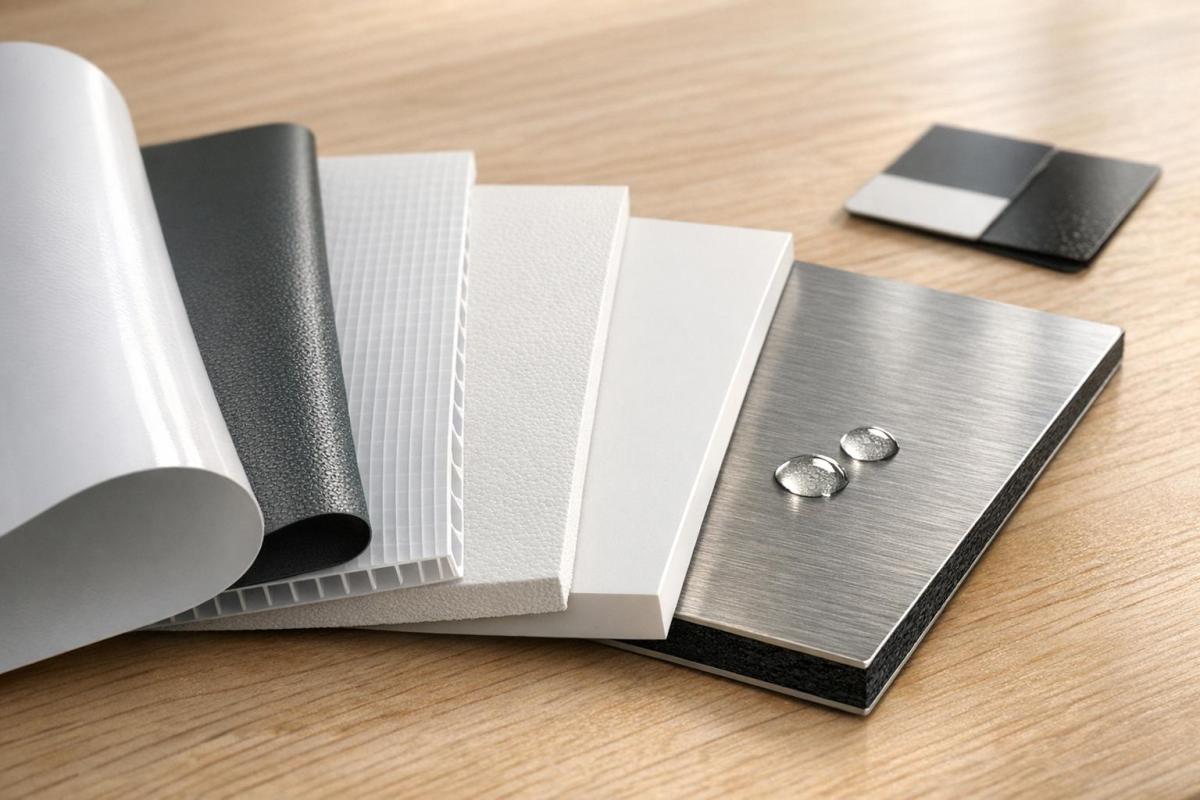
When selecting a substrate for large format printing, the key is to match the material to your project’s location, duration, and environmental conditions. The substrate directly impacts durability, color quality, and overall performance. Here’s a quick guide to help you make the right choice:

  • Indoor or Outdoor Use: Outdoor projects need weather-resistant materials like vinyl, PVC, or aluminum composite, while indoor projects can use lighter options like foamcore or paper-based substrates.
  • Lifespan: For short-term use (e.g., events), affordable materials like Coroplast or foamcore work well. Long-term signage benefits from durable options like Dibond or acrylic.
  • Weather Resistance: Consider UV protection, waterproofing, and temperature tolerance. For windy areas, mesh vinyl is ideal, while aluminum composite resists rust and warping.
  • Finish: Matte reduces glare, gloss enhances color vibrancy, and textured finishes add visual or tactile interest.
  • Durability: Thickness and rigidity matter – PVC and aluminum are sturdy, while foamcore is lightweight but fragile.

The right substrate ensures your prints not only look great but also last as intended. Work with printing professionals for tailored advice.

Best Print Media for Large Format Printers | Substance Media and Laminate

Step 1: Identify Your Project Needs

Start by defining the key details of your project: its location, expected lifespan, and the environmental conditions it will face. Will it be indoors or outdoors? How long does it need to last? What kind of weather or exposure will it endure? Answering these questions will help you narrow down the best substrate options for your project.

Indoor vs. Outdoor Use

The location of your print is one of the most important factors to consider. For outdoor projects, you’ll need materials that can withstand weather conditions like rain, snow, and humidity. Substrates such as vinyl, PVC, and Coroplast are built for these challenges. On the other hand, indoor prints can use lighter, more affordable materials like foamcore or paper-based substrates. However, keep in mind that these won’t hold up if exposed to the elements.

Sunlight is another critical consideration. UV exposure can fade colors and weaken materials over time, so outdoor signage often requires UV-resistant inks or protective lamination to maintain its appearance. Temperature fluctuations also play a role – extreme heat can warp certain plastics, while freezing conditions may cause some materials to crack. Flexible options like polymeric or cast vinyl are better suited for cold environments. For windy locations, mesh vinyl is a smart choice because its perforations reduce the risk of tearing.

Other factors like finish and usage also matter. Matte finishes help reduce glare in bright lighting, while glossy finishes can make colors pop in low-light settings. If you’re creating floor graphics, prioritize slip-resistant materials with high durability. For lobby signs or displays viewed up close, opt for substrates that allow for higher resolution and detail.

Lifespan and Environmental Factors

After considering location and weather, think about how long the print needs to last and what level of durability is required. For short-term projects like a weekend event or trade show, lightweight and inexpensive materials such as foamcore or Coroplast are practical. They’re easy to transport, set up, and dispose of when the event is over. For retail signage that needs to last several months, PVC (Sintra) or certain grades of vinyl strike a balance between cost and durability.

If your project involves permanent outdoor signage, you’ll need something much tougher. Materials like aluminum composite (Dibond) or acrylic are excellent choices because they resist warping, rust, and UV fading over time.

"Choosing the wrong substrate can result in warped or curled signage, poor image clarity, or a short lifespan, especially outdoors." – Schiele Group

Waterproof materials are essential in high-humidity environments or areas exposed to direct rain. Paper-based substrates will warp or delaminate under such conditions, so avoid them for outdoor use. To extend the life and vibrancy of outdoor prints, consider using UV-protective lamination, especially for projects intended to last several months or longer.

Step 2: Assess Durability and Weather Resistance

After defining your project needs, the next step is to determine how well different substrates handle physical stress and environmental exposure. The material you choose should retain its appearance and structural strength for the duration of its intended use – whether that’s just a few days or several years. This step builds on your earlier analysis by focusing on how materials perform under real-world conditions.

Material Thickness and Rigidity

The thickness of a substrate plays a big role in its ability to maintain shape and resist damage. For instance, PVC substrates come in thicknesses ranging from about 0.12 inches (3mm) to 1 inch (25mm), making them adaptable for various project requirements. Temporary outdoor projects often use Coroplast (corrugated plastic) in thicknesses of around 0.16 inches (4mm) to 0.39 inches (10mm). On the other hand, foamcore is lightweight due to its high air content, but it’s more susceptible to damage. This makes foamcore great for indoor displays but unsuitable for outdoor or high-traffic environments.

"A more durable substrate, such as PVC or aluminum, will yield a longer-lasting print." – Electronic Office Systems

For projects requiring high durability, rigid materials like Aluminum Composite Material (ACM) and PVC outperform flexible options like paper or foamcore. Material composition is just as important as thickness. For example, aluminum resists rust in humid conditions, while some plastics may warp when exposed to intense heat. These attributes are critical when pairing materials with the environmental challenges you identified earlier.

Resistance to Fading, Tearing, and Temperature Extremes

Substrates react differently to sun, rain, wind, and temperature changes. To extend their lifespan, consider using UV-protective laminates or coatings with weather-resistant materials. These add an extra layer of defense against UV rays and physical wear.

Temperature extremes also demand careful material selection. Polymeric or cast vinyl stays flexible and resists cracking in freezing conditions, while calendered vinyl may not hold up as well. For regions with significant temperature swings, Aluminum Composite (commonly called Dibond) and PVC board are reliable choices because they resist warping under heat. Acrylic substrates naturally block UV rays to minimize image fading, though they can cost 30% to 100% more than aluminum alternatives.

Wind is another factor to consider. While standard vinyl works fine in calm environments, mesh vinyl is better for windy areas like fences or scaffolding. Its perforated design allows air to flow through, reducing the "sail effect" that can tear solid materials. Additionally, the type of ink used impacts durability – UV-curable and pigment-based inks generally resist fading better than dye-based inks when paired with the right substrate. Finish options, which will be discussed later, can also improve a material’s ability to withstand environmental stressors.

Step 3: Choose the Right Finish

After considering durability and weather resistance, it’s time to select a finish that complements both the material and the environment where your print will be displayed. The finish you choose plays a big role in how your design is perceived, influencing color vibrancy, detail clarity, and overall readability under various lighting conditions.

Matte, Gloss, and Textured Finishes

Matte finishes are excellent for reducing glare and diffusing light, making them a great choice for text-heavy designs or bright indoor spaces like trade shows or conferences. They have a smooth, velvety texture that hides fingerprints and smudges well. While matte finishes tend to soften colors, giving them a more natural feel, this can sometimes make designs look less bold. To counter this, you can boost contrast and saturation in your design files by 5–10%. If you’re working with deep blacks, avoid using 100% K alone; instead, use a rich black formula (e.g., C=60, M=40, Y=40, K=100) to achieve a more dynamic result.

"Matte is often the go-to for a premium, tactile experience, conveying a sense of quality and professionalism." – Emma Davis, Content Writer, 4OVER4

Gloss finishes are perfect for creating vibrant, high-contrast visuals. They reflect light, making colors pop and details sharper, which works well for photo-heavy designs or outdoor banners where bold visuals are key. The glossy coating smooths the surface, allowing inks to sit on top for a richer appearance. However, gloss finishes can emphasize fingerprints and imperfections and may create glare in bright or uneven lighting. On the plus side, they’re moisture-resistant and easy to clean.

Textured finishes add a layer of tactile interest to your prints. Options like "Soft Touch" (which feels suede-like), "Grit" (a rougher texture), or "Pearl" (a subtle shimmer effect) can elevate high-end displays. For practical applications, such as floor graphics, textured finishes with anti-slip properties are a smart choice, offering both style and safety.

By understanding these finish options, you can better tailor your design to achieve the desired aesthetic and functionality.

How Finish Affects Color and Appearance

Gloss finishes amplify details and depth, making them ideal for applications like outdoor billboards where vivid colors and sharpness need to grab attention from a distance.

Satin finishes offer a middle ground, balancing vibrant colors with reduced glare, making them suitable for mixed-light environments like trade shows or conference spaces.

When deciding on a finish, consider the lighting conditions of your display location. Matte finishes excel in direct sunlight or under bright overhead lights, as they maintain readability without creating distracting reflections. On the other hand, gloss finishes deliver the most visual impact in controlled indoor settings but may cause glare in areas with strong natural light, such as near windows. If your print will be handled frequently, matte finishes are generally a better option since they hide smudges more effectively, though gloss finishes remain easier to clean.

These details about how finishes affect appearance and usability will help you fine-tune your print strategy as you move forward.

Step 4: Compare Common Substrate Materials
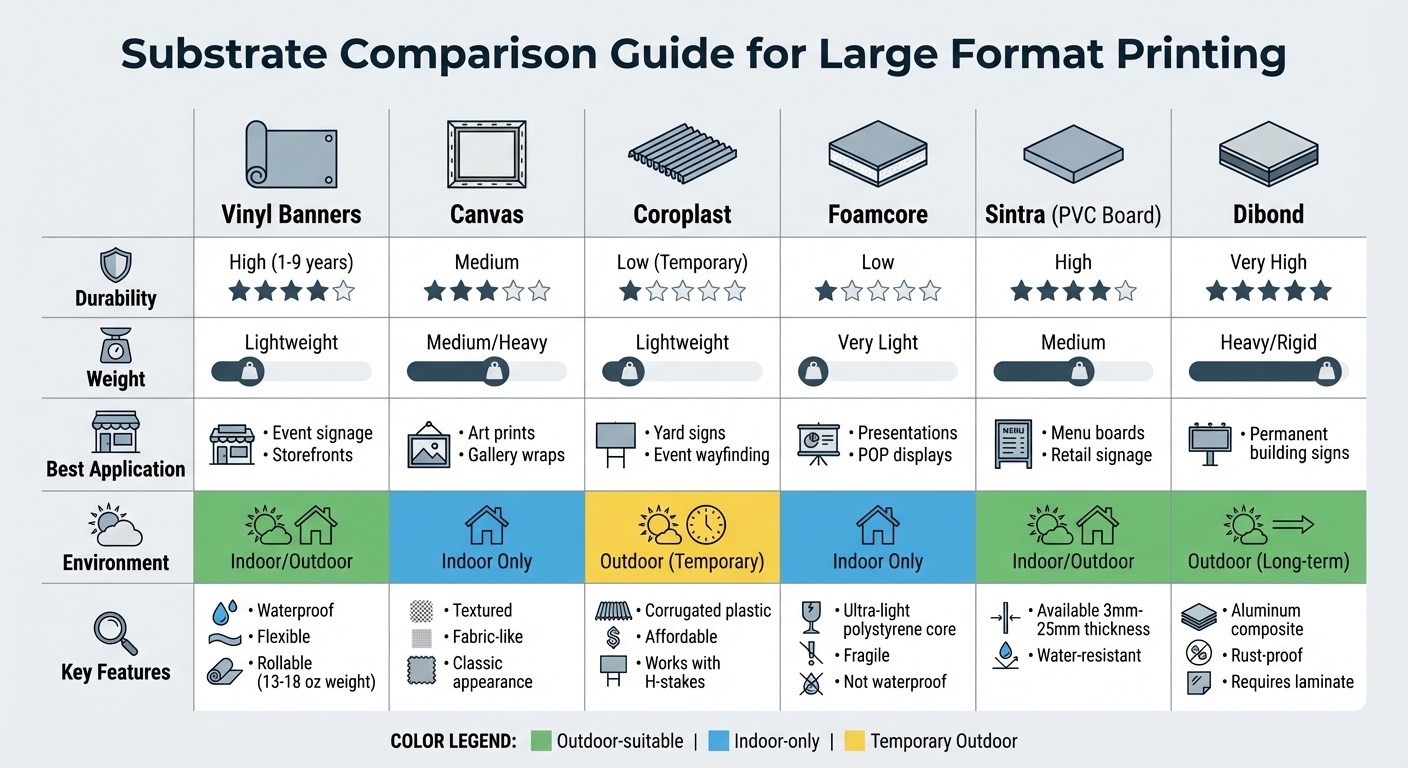
Large Format Printing Substrate Comparison Guide

Large Format Printing Substrate Comparison Guide

Once you’ve decided on your desired finish, it’s time to evaluate substrate options that align with your project’s durability and environmental requirements. Each material has its own strengths when it comes to weight, cost, and resilience.

Vinyl Banners

Vinyl, made from polyvinyl chloride (PVC), is a go-to choice for both indoor and outdoor use. It’s flexible, waterproof, and built to handle harsh conditions like rain, intense sunlight, and temperature swings. This makes vinyl banners ideal for event signage, promotional displays, and storefront advertising. Plus, they’re easy to roll up for shipping or storage without damage.

"Vinyl is dependable for outdoor prints that need to look good and stay strong in rough weather." – Max Deng, MaxPrintHub

Vinyl banners are commonly available in weights like 13 oz and 18 oz. While traditional vinyl weighs around 550gsm, newer 440gsm options offer similar strength with easier handling. High-quality vinyl can last anywhere from 1 to 9 years, depending on care and conditions. For double-sided banners, blockout vinyl prevents light from passing through, and adding lamination or UV coatings can further extend its lifespan.

Canvas

Canvas provides a textured, fabric-like surface that’s perfect for high-end indoor applications. Its classic, woven appearance makes it a favorite for art reproductions, photo prints, and gallery displays. While durable enough for indoor use, canvas is heavy in larger formats and not suitable for outdoor conditions due to its limited weather resistance. Typically, canvas prints are stretched over wooden frames or mounted on boards for display.

Coroplast (Corrugated Plastic)
Coroplast

Coroplast is a lightweight, corrugated plastic material best suited for temporary outdoor signage. Think yard signs, political campaigns, or event wayfinding. It’s waterproof and affordable, making it a practical option for short-term projects like real estate signs or weekend promotions. Coroplast works well with H-stakes for easy installation in the ground. However, while it handles rain effectively, it can weaken over time, bending or breaking without proper support.

Foamcore

Foamcore is an ultra-light material with a polystyrene core, making it ideal for indoor use. It’s easy to transport and mount but also quite fragile, prone to denting and damage. Foamcore isn’t waterproof, so it warps or disintegrates when exposed to moisture. It’s best for short-term indoor displays like posters, presentations, or trade show graphics. Velcro strips or easels can help protect its edges during installation in controlled environments.

Sintra (PVC Board)
Sintra

Sintra is a PVC board known for its durability and flexibility, making it a solid choice for both indoor and outdoor signage. It’s commonly used for menu boards, directional signs, and retail displays. Available in thicknesses from 3mm to 25mm, Sintra offers options for projects requiring different levels of structural support. Outdoor-grade Sintra is water-resistant and provides a polished look for exterior applications. It’s also easy to cut, drill, or mount, allowing for custom designs.

Dibond (Aluminum Composite)
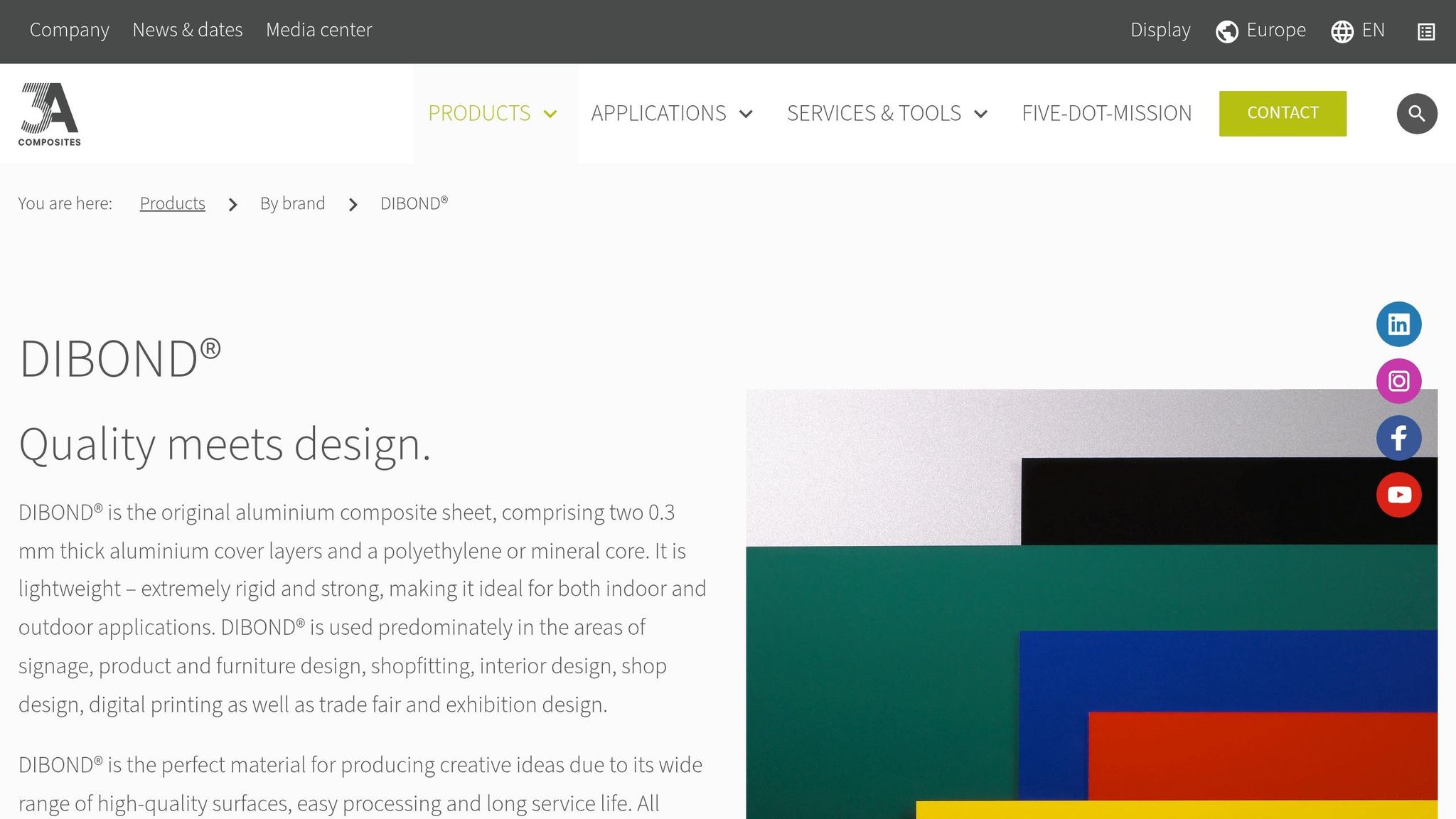
Dibond

Dibond is one of the toughest substrates available, made from two aluminum sheets bonded to a solid core. It’s rigid, rust-proof, and perfect for permanent outdoor installations like building signage or architectural displays. While heavier and more expensive than other options, Dibond’s longevity makes it worth the investment for long-term use. To protect against scratches or fading, always apply a laminate or UV coating.

Substrate Durability Weight Best Application Environment
Vinyl Banners High (1–9 years) Lightweight Event signage, storefronts Indoor/Outdoor
Canvas Medium Medium/Heavy Art prints, gallery wraps Indoor
Coroplast Low (Temporary) Lightweight Yard signs, event wayfinding Outdoor (Temp)
Foamcore Low Very Light Presentations, POP displays Indoor Only
Sintra (PVC) High Medium Menu boards, retail signage Indoor/Outdoor
Dibond Very High Heavy/Rigid Permanent building signs Outdoor (Long-term)

"The substrate you choose for a large format project isn’t just a surface. Each material offers unique strengths depending on where and how your print will be displayed." – Leech Group

Now that you’ve reviewed the material options, move on to Step 5: Work with Printing Professionals to bring your project to life.

Step 5: Work with Printing Professionals

Once you’ve decided on your materials and finishes, the next step is collaborating with printing professionals to bring your vision to life. Choosing the right substrate becomes a lot simpler with the guidance of experienced experts. With so many options available, a full-service print shop can help you identify the best fit based on your project’s goals, the display environment, and your budget. It’s worth noting that large format printing requires specialized equipment – printers capable of handling materials over 100 inches wide – which are usually only found in professional facilities.

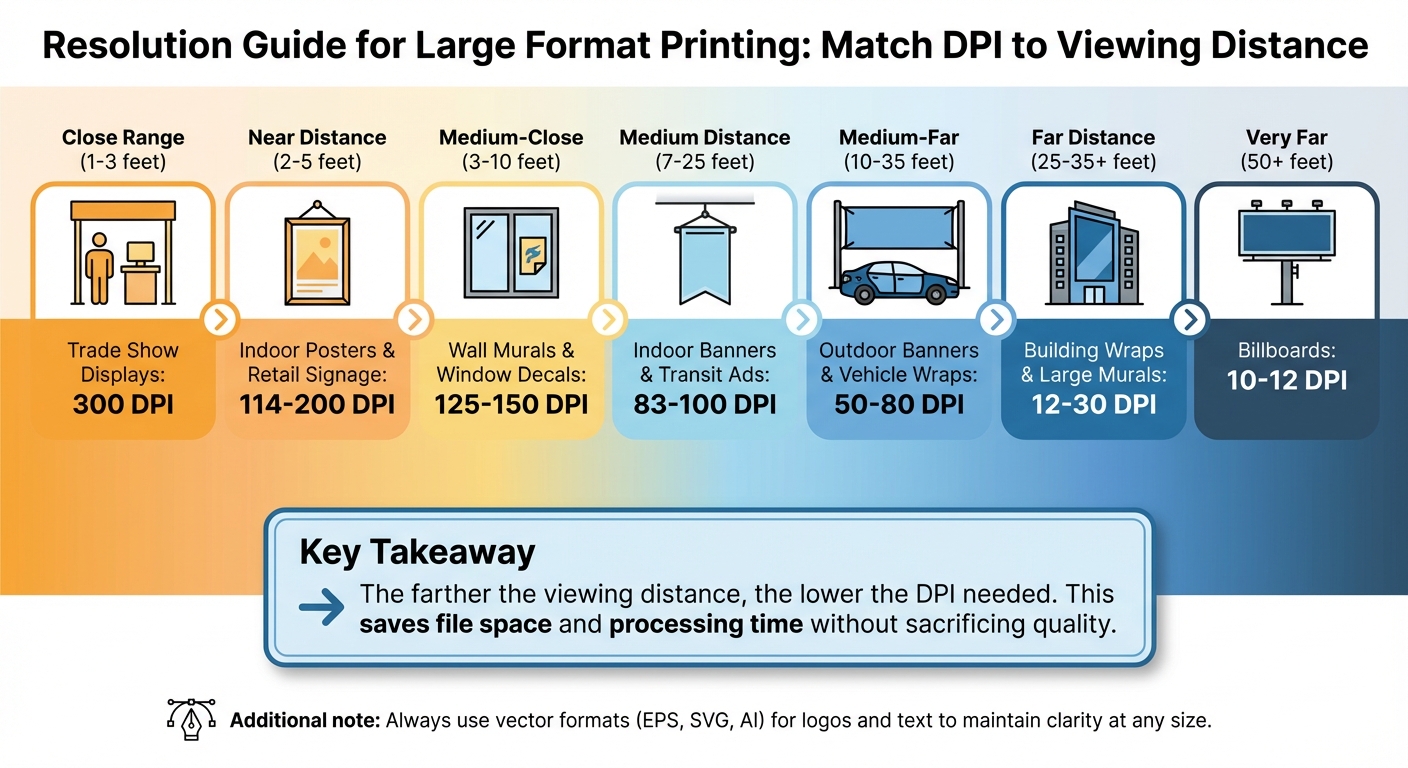
When consulting with a printing professional, be sure to provide all the key details about your project. Is your sign going indoors or outdoors? Will it face extreme conditions like strong winds, intense heat, or freezing cold? Is it meant to be temporary or permanent? What’s the expected viewing distance? And how do you plan to install it – flat or rolled? These specifics help the experts tailor their recommendations to your needs.

Printing professionals can match substrates to your project’s technical and environmental demands. They might suggest additional features like UV lamination for sun protection, grommets for secure hanging, or custom contour cutting for unique shapes. Their expertise ensures that your print not only looks great but also holds up under the conditions it’ll face. They also understand how different materials interact with various inks, temperatures, and moisture levels. Since printing full-scale samples isn’t practical for large format projects, it’s a good idea to request proofs. This lets you preview colors and image clarity before committing to a full production run.

For those in Hackensack, NJ, Miro Printing & Graphics Inc. offers a full range of large format printing services. Their team provides expert guidance on substrate selection, along with printing, finishing, shipping, and installation advice. They’re committed to making sure your project meets all your expectations from start to finish. To explore their services and get personalized recommendations, visit bergencountyprinters.com.

Conclusion

When choosing a substrate, think about where your display will be, how long it needs to last, and the conditions it will face. Outdoor prints need to handle UV exposure, rain, and temperature changes, while indoor prints should focus more on aesthetics and managing glare in well-lit areas.

The material’s finish is just as important. It influences everything from how vibrant the colors look to how long the print lasts. Gloss finishes make colors pop, making them ideal for eye-catching advertisements, while matte finishes minimize glare, giving a polished look to indoor displays.

Don’t forget to consider shipping and installation. Factors like whether the print will be rolled or shipped flat depend on the material’s weight, stiffness, and mounting requirements. For example, mesh vinyl works well for outdoor banners in windy spots since its tiny holes let air pass through, reducing the risk of damage.

FAQs

What’s the best substrate for my specific install method (grommets, adhesive, or mounting)?

The best material to use depends on how you plan to install your project:

  • Grommets: For banners or signs, sturdy materials like vinyl or PVC are ideal. They can handle wear and tear effectively.
  • Adhesive: If you’re creating decals or wall graphics, adhesive-backed vinyl is a reliable choice. It sticks well and offers a clean finish.
  • Mounting: For projects requiring stability, rigid materials such as foam core, ultraboard, aluminum, or acrylic are excellent options.

Always factor in the conditions where the material will be used and how long it needs to last to make the right choice.

Do I need lamination or UV coating for my print?

When deciding between lamination and UV coating, it all comes down to how durable and polished you need the final product to be.

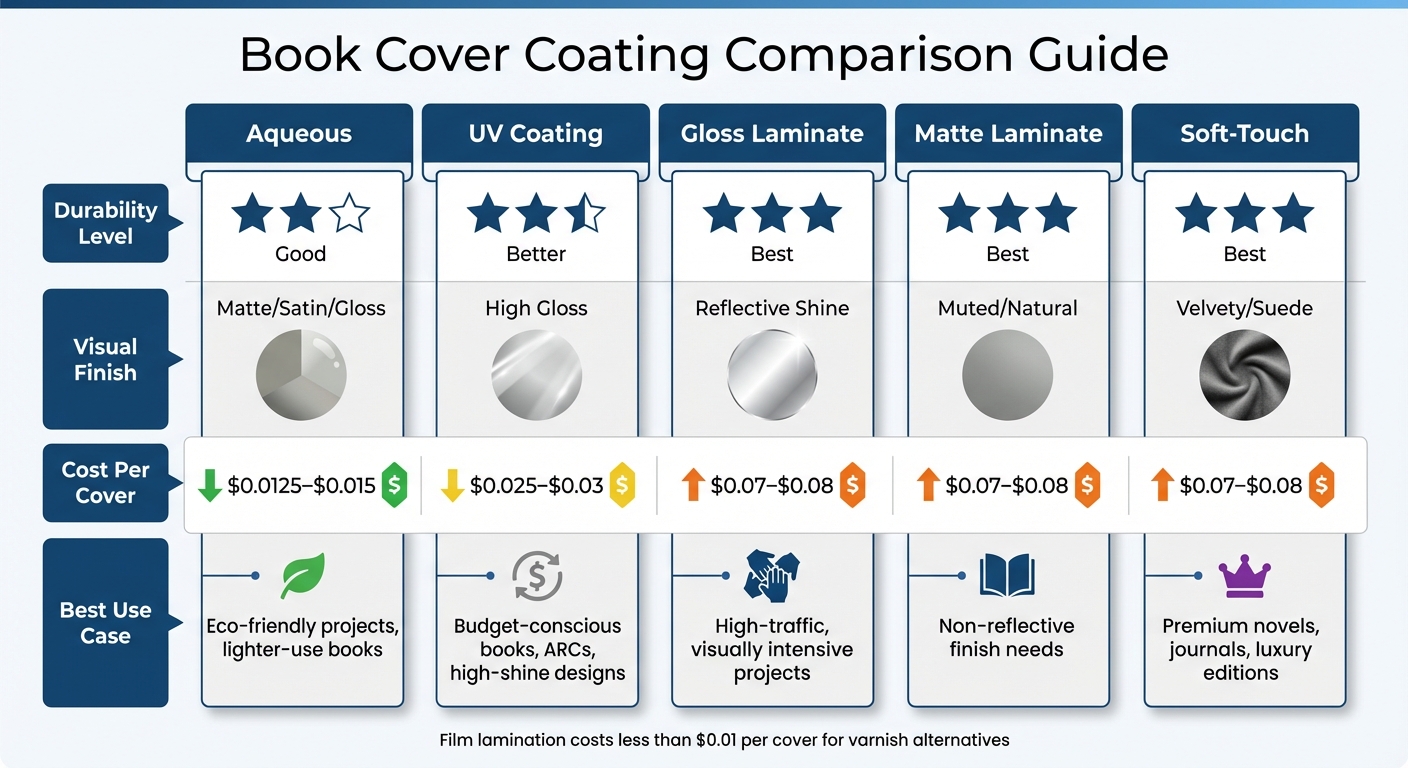
UV coating creates a shiny, eye-catching finish that enhances colors and provides moderate resistance to scuffs. However, it’s less flexible and can crack along folds or creases.

On the other hand, lamination offers superior protection against moisture and general wear, making it a better choice for items exposed to outdoor conditions or frequent handling.

Go with lamination if you need long-lasting durability, or opt for UV coating if your priority is a sleek, vibrant look for prints that won’t face heavy use.

How do I choose between Sintra (PVC) and Dibond for outdoor signs?

Sintra (PVC) is a lightweight plastic that’s built to withstand the elements, making it a solid choice for outdoor signs. Its weather-resistant nature means it can handle sun exposure, dents, and scrapes without breaking the bank. If you need a durable yet affordable option for general outdoor use, Sintra fits the bill.

On the other hand, Dibond is an aluminum composite panel known for its rigidity, sleek finish, and exceptional durability. It’s a top-tier choice for premium outdoor signage when you want a polished look and long-lasting performance.

Ultimately, your decision comes down to durability requirements, the aesthetic you’re aiming for, and your budget. Both materials have their strengths – choose the one that aligns best with your project’s goals.

Related Blog Posts

https://app.seobotai.com/banner/banner.js?id=69bd0a381b352ff267cb2743
Retail Brands Requiring GMI Certification

Why top U.S. retailers require GMI certification for packaging: ensures color accuracy, print consistency, audits, and smoother supply chains.

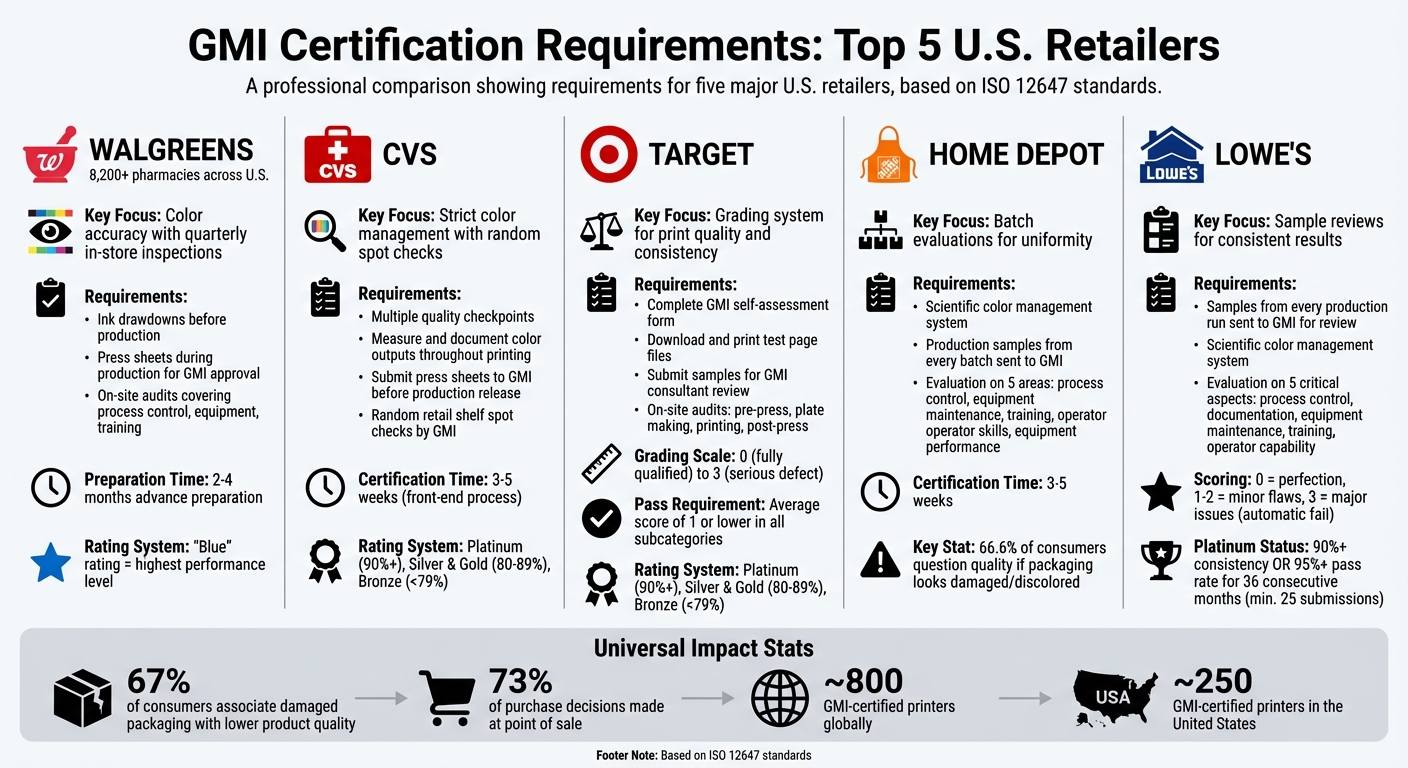
GMI certification is mandatory for packaging suppliers working with top U.S. retailers like Walgreens, CVS, Target, Home Depot, and Lowe’s. This certification ensures packaging meets strict quality and color consistency standards, protecting brand reputation and consumer trust.

Key Points:

  • What is GMI Certification? A quality control system based on ISO 12647 standards, evaluating process control, equipment, training, and print consistency.
  • Why it Matters: Ensures consistent packaging quality across production runs and locations. Poor packaging can lead to negative consumer perceptions, with 67% associating damaged packaging with lower product quality.
  • Retailers Requiring GMI Certification:
    • Walgreens: Focuses on color accuracy and quarterly inspections.
    • CVS: Demands strict color management and random spot checks.
    • Target: Uses a grading system to evaluate suppliers on print quality and consistency.
    • Home Depot: Requires batch evaluations to maintain uniformity.
    • Lowe’s: Enforces sample reviews for consistent results.

Benefits for Suppliers:

  • Access to contracts with major retailers.
  • Reduced risks of shipment rejections and costly reprints.
  • Streamlined supply chain operations with consistent quality benchmarks.

GMI certification is a rigorous but crucial step for suppliers aiming to meet the high standards of these leading retailers.

GMI Certification Requirements by Major U.S. Retailer

GMI Certification Requirements by Major U.S. Retailer

1. Walgreens

Walgreens, with over 8,200 pharmacies across the U.S., enforces strict packaging standards through GMI certification to safeguard its brand across thousands of private-label products. To begin the certification process, suppliers must first receive a customer nomination to gain facility access for evaluation.

Color Accuracy

Walgreens places a high priority on color accuracy, which is measured against their stringent standards by GMI. Quarterly in-store inspections are conducted to ensure packaging consistency. In 2014, Dion Label Printing became a certified print provider for Walgreens, achieving and maintaining the prestigious "Blue" rating – the highest performance level – for both digital and flexographic label printing.

The GMI certification ensures uniformity in packaging appearance across various production runs, facilities, and printing technologies. Walgreens requires suppliers to submit ink drawdowns prior to production and press sheets during production for GMI approval. This meticulous process guarantees that packaging produced in one location matches perfectly with packaging from another.

Process Control

In October 2016, Netpak, a packaging firm, underwent a comprehensive on-site audit by a GMI certification engineer to renew its status as a preferred printer for Walgreens. The audit covered critical areas like process control, equipment maintenance, staff training, operator skills, and equipment performance. Netpak, certified since 2014, continues to provide Walgreens with access to its extensive distribution network. Suppliers must prepare months in advance – typically 2 to 4 months – to address potential compliance issues caused by equipment wear or staff changes.

"Netpak have always set very high quality standards to serve the valuable brands of our partners and the GMI Full certification comes as an acknowledgment of the quality of our staff, the strength of our procedures and the rigor of our production processes."

  • Islem Yezza, Vice-President Sales & Marketing, Netpak

Walgreens’ rigorous standards serve as a benchmark for other major retailers.

2. CVS

CVS

CVS mandates GMI certification for all its private-label packaging suppliers. By collaborating with Graphic Measures International (GMI), the pharmacy chain sets strict requirements and ensures precise print quality and color management across its packaging supply chain.

Color Accuracy

CVS’s certification process includes multiple quality checkpoints to uphold its approved color standards. Printers working with CVS must measure and document color outputs throughout the entire label printing process. Additionally, suppliers are required to submit press sheets to GMI for review before production release. To ensure compliance, GMI conducts random spot checks on CVS retail shelves to confirm that packaging aligns with approved color standards.

In February 2018, Dion Label Printing became the first U.S. printer to earn GMI certification for both digital and flexographic printing for CVS brands. By adhering to GMI’s monitoring guidelines, Dion Label Printing achieved a "blue" rating – the highest performance level at the time – ensuring consistent brand presentation.

GMI certification also assesses the repeatability of print jobs across multiple production runs and facilities, ensuring uniform packaging across all CVS locations. Printers are rated based on their historical consistency: Platinum (90% or higher), Silver & Gold (80–89%), and Bronze (below 79%). Inovar Packaging achieved a Platinum-level certification with a historical consistency score surpassing 90%, making them a key packaging supplier for CVS. These high standards for print consistency support CVS’s focus on maintaining a consistent and reliable brand image.

"GMI has partnered with CVS to ensure consistent brand appearance by establishing detailed requirements and monitoring each aspect of print quality and color management."

  • Dion Label Printing

Brand Integrity

CVS takes additional steps to protect its brand integrity by conducting thorough production audits. Consistent color and superior print quality are essential for maintaining customer trust, as visual appeal heavily influences purchasing decisions. GMI certification plays a critical role in safeguarding CVS’s brand by evaluating production workflows, equipment performance, operator training, and processes like prepress, plating, and post-press operations. The front-end certification process typically takes 3–5 weeks to complete.

3. Target

Target

Target requires GMI certification for its private-label packaging to ensure consistent brand presentation across all its stores. This involves working with GMI to certify suppliers through independent evaluations and regular monitoring, guaranteeing uniform quality and adherence to brand standards.

Color Accuracy

The certification process includes on-site audits that assess a supplier’s equipment, workflows, and processing capabilities across four key areas: pre-press, plate making, printing, and post-press. GMI uses a standardized system, grounded in ISO 12647 best practices, to evaluate color accuracy and print quality across different suppliers and platforms.

Suppliers are graded on a scale from 0 (fully qualified) to 3 (serious defect). To achieve full certification, suppliers must maintain an average score of 1 or lower in every subcategory. Those scoring between 1 and 1.5 are granted “pending” status and given six months to improve under GMI’s guidance.

"The main goal of GMI certification is to improve the packaging quality of Target products and help its printing plants improve production efficiency and stabilize printing colors."

  • Shanghai Nanbei Enterprise Management Consulting Center

This meticulous color evaluation helps ensure consistent printing results across suppliers.

Target’s GMI certification system is designed to achieve uniformity in product appearance across all store shelves. Suppliers are evaluated using a grading system: Platinum for scores of 90% or higher, Silver & Gold for 80–89%, and Bronze for below 79%. These grades reflect the supplier’s performance in meeting Target’s private-label packaging standards.

To prepare for an on-site audit, suppliers must first complete a GMI self-assessment form, reducing the likelihood of failure during formal evaluations. Once ready, they download specific test page files from Target’s website, print them, and submit the samples for review by GMI consultants.

By focusing on both color precision and print uniformity, Target ensures that suppliers meet its quality expectations at every stage of production.

Process Control

GMI also evaluates process control elements such as equipment maintenance, operator training, and overall performance to ensure that every production run meets Target’s strict quality benchmarks. This ensures certified printers can consistently deliver results that uphold Target’s brand integrity and maintain consumer trust.

"GMI certification is more than a seal of approval, it’s a system that safeguards your brand and helps you succeed at retail."

  • Inovar Packaging Group

These thorough evaluations not only uphold Target’s standards but also prepare suppliers for meeting the demands of other major retailers.

4. Home Depot

Home Depot

Home Depot requires GMI certification for all its packaging suppliers to maintain consistent packaging standards across the board and protect how its products are displayed on shelves. This means that whether you’re looking at Home Depot’s signature orange packaging in New York or California, it meets the same strict measurements set by GMI, leaving no room for subjective visual checks. By relying on GMI certification, Home Depot ensures its brand image remains reliable and consistent.

Color Accuracy

Home Depot uses a scientific color management system to guarantee that its packaging colors match the brand’s exact standards. This system eliminates any guesswork, ensuring precise color matching every time. GMI evaluates suppliers based on five key areas: process control and documentation, equipment maintenance, training procedures, operator skills, and equipment performance.

"Graphic Measures International (GMI) certification is a process that holds packaging suppliers accountable to established brand owner color standards."

In January 2021, Chief, a printing company, expanded its GMI certification for Home Depot by adding Spot Color Flexo to its existing Digital Print certification. This upgrade allowed Chief to produce a broader range of packaging and displays for Home Depot while adhering to the retailer’s strict quality requirements.

With such precise color management in place, Home Depot also ensures print quality remains consistent through thorough post-production inspections.

Even after suppliers obtain GMI certification, Home Depot requires production samples from every batch to be sent to GMI for evaluation before the products hit the shelves. This ongoing process guarantees that quality remains consistent across all packaging. Completing the initial GMI certification typically takes three to five weeks.

Suppliers are assessed based on historical consistency benchmarks to maintain high standards.

Brand Integrity

Poor packaging – whether due to inconsistent colors or low-quality labels – can harm a retailer’s reputation and shake consumer confidence. Research indicates that 66.6% of consumers question a product’s quality if its packaging looks damaged or discolored. And with around 73% of purchase decisions made at the point of sale, having uniform, high-quality packaging is crucial for brand success.

"Retailers have a vested interest in protecting the look and integrity of the products on their shelves. Inconsistent colors or low-quality labels can damage both the retailer’s reputation and the brand’s."

  • Daniele Smith, Inovar Packaging Group

5. Lowe’s

Lowe's

Lowe’s ensures consistent branding across all its locations by requiring packaging suppliers to collaborate with GMI-certified printers. This partnership guarantees high-quality packaging that meets strict retail standards nationwide. GMI certification involves an intensive on-site evaluation by engineers to confirm that suppliers can consistently deliver results that align with Lowe’s requirements.

This meticulous process is the foundation of Lowe’s commitment to quality, starting with precise color management.

Color Accuracy

Lowe’s prioritizes precise color accuracy by using a scientific color management system to measure packaging colors against their stringent brand standards. GMI evaluates five critical aspects of a printer’s operation – process control, documentation, equipment maintenance, training, and operator capability – to ensure that every label mirrors the intended design.

"GMI certification is one of the ways that allow all printing companies to adhere to the same set of standards so that the brand identity is consistent all over the world."

To maintain quality over time, Lowe’s suppliers are required to send samples from every production run to GMI for review before the batch is approved. This post-certification process ensures repeatable print quality across different jobs and facilities. Printers are scored based on their consistency, with Platinum status awarded for a 90% or higher consistency score. Alternatively, Platinum status can be achieved by maintaining a combined pass rate of 95% or more for 36 consecutive months with at least 25 submissions.

GMI’s scoring system is strict: a ‘0’ represents perfection, ‘1’ and ‘2’ indicate minor flaws, and a ‘3’ signifies major issues that automatically fail the print job. This rigorous evaluation guarantees that only top-quality packaging reaches Lowe’s shelves.

Brand Integrity

Packaging is often the first interaction consumers have with a product, making quality critical. Poor or inconsistent packaging can harm both Lowe’s and its product reputations, as 66% of consumers associate discolored or damaged packaging with lower product quality. With about 73% of purchase decisions made at the point of sale, maintaining high-quality, consistent packaging is essential for protecting the brand’s image.

"The GMI full Certification guarantees that the final packaging will meet the highest standards of quality, thereby safeguarding the brand integrity."

  • Netpak Packaging

How GMI Certification Affects Packaging Supply Chains

GMI certification reshapes how packaging moves from the printing stage to the retail shelf by introducing a standardized quality control system rooted in ISO 12647 standards. It focuses on five key production areas: process control and documentation, equipment maintenance, training procedures, operator capability, and equipment performance. This system ensures consistent production quality, reducing uncertainty across the supply chain and paving the way for smoother operations in production and distribution.

One major benefit? It helps avoid costly delays. GMI-certified suppliers are less likely to face shipment rejections due to color or quality issues. This means faster delivery to shelves and fewer expenses tied to reprints. For brands working with multiple suppliers, GMI certification acts as a universal quality benchmark, ensuring consistent results no matter where the packaging is produced.

"By choosing a GMI Certified printer, brands reduce costly risks while ensuring their packaging performs at the highest level."

  • Daniele Smith, Inovar Packaging Group

Another advantage lies in material efficiency. Standardized controls reduce the chance of misprints or errors during large production runs, catching problems before thousands of packages are wasted. This not only saves materials and money but also strengthens supplier reliability. Continuous monitoring ensures that quality standards are maintained long after the initial certification, reinforcing trust between brands and suppliers.

For suppliers aiming to work with major retailers, GMI certification isn’t just helpful – it’s essential. With about 800 GMI-certified printers globally, including around 250 in the United States, certification signals to top retailers like Walgreens, Target, CVS, Home Depot, and Lowe’s that a supplier meets strict packaging standards. Platinum-level certification, in particular, gives brands confidence in supplier dependability and guarantees uniform packaging quality across all store locations. These rigorous standards help unify supply chain performance, meeting the high expectations of major retailers.

Conclusion

For packaging suppliers aiming to collaborate with major retailers like Walgreens, Target, CVS, Home Depot, and Lowe’s, GMI certification is essential. This certification sets a universal quality benchmark, ensuring that packaging consistently meets strict color accuracy and quality standards, no matter where it’s printed.

This robust framework brings clear advantages to both suppliers and retailers. GMI certification not only provides access to preferred printer programs but also opens doors to North American retail distribution channels. It also reduces risks tied to packaging quality – since a large portion of purchase decisions happen at the point of sale, damaged or discolored packaging can lead consumers to question product quality. By ensuring consistent quality, GMI certification helps avoid costly rejections and reprints, speeding up the time it takes for products to reach store shelves.

The certification process, as outlined earlier, is thorough and demands ongoing compliance. It evaluates critical factors like process control, equipment maintenance, operator skills, and training procedures. Suppliers must maintain these standards through regular audits and by submitting production samples for review before batch release. This continuous oversight builds the trust retailers require to manage complex supply chains with multiple facilities.

"GMI certification is more than a seal of approval, it’s a system that safeguards your brand and helps you succeed at retail."

  • Daniele Smith, Inovar Packaging Group

Retailers such as Walgreens, CVS, Target, Home Depot, and Lowe’s rely on GMI standards to maintain their premium brand image. For suppliers, achieving this certification signals reliability and the ability to deliver consistent, scalable results. In a competitive market, where damaged packaging can erode consumer trust, GMI certification ensures products remain shelf-ready and brand reputations stay intact.

At Miro Printing & Graphics Inc., we are committed to upholding these rigorous standards. Through precision, consistency, and quality, we ensure every package meets the exacting demands of GMI certification. This not only strengthens brand integrity but also streamlines supply chain operations, ensuring packaging excellence at every step.

FAQs

How do I start the GMI certification process?

To kick off the GMI certification process, start with an online self-evaluation. This step checks your facility’s equipment and procedures against GMI’s baseline standards, covering areas such as color measurement tools, calibration practices, and maintenance routines.

Once you’ve met these requirements and paid the certification fees, you’ll be sent a print test kit. Your task is to submit test prints for review. If your prints meet the criteria, your facility will achieve GMI certification.

How long does GMI certification take for a print facility?

The GMI certification process for a print facility typically takes 3 to 5 days once payment is received. During this period, GMI provides a print test kit to evaluate whether the facility meets their required standards.

What happens if a batch fails GMI review after certification?

If a batch doesn’t pass the GMI review after certification, the entire print job is considered a failure. In such cases, the job must be reprinted to meet the necessary quality standards. This process ensures that all packaging consistently adheres to GMI’s strict guidelines.

Related Blog Posts

https://app.seobotai.com/banner/banner.js?id=69b968f91b352ff267ca952b

Custom Thermal Binding for Branding

Learn how thermal binding creates durable, tamper-evident, customizable covers to enhance brand identity for proposals, reports, and marketing materials.

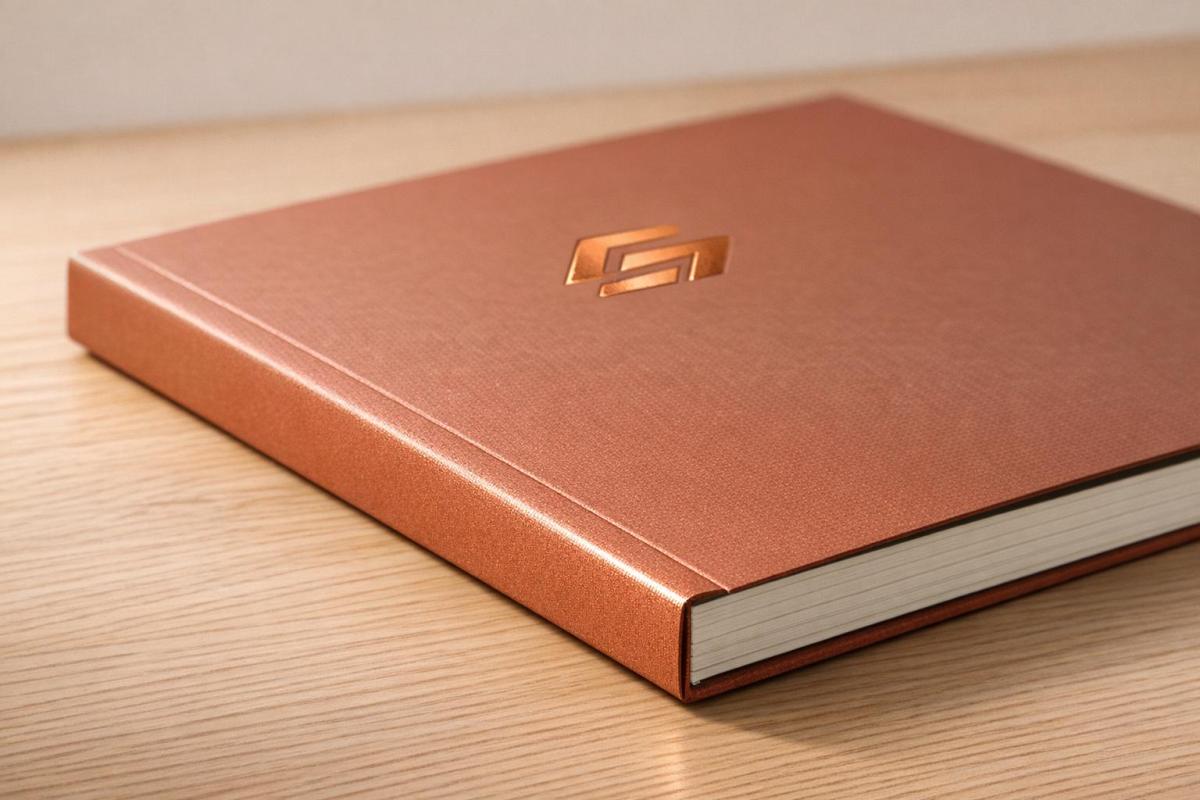
Thermal binding is a simple yet effective way to give your documents a polished, professional look while preserving your branding elements. It uses heat to secure pages in an adhesive-lined cover, creating a clean, book-like spine. This method is ideal for businesses looking to elevate proposals, reports, and marketing materials with custom covers featuring logos, colors, and finishes like foil stamping or embossing.

Key Highlights:

  • Professional Finish: No punched holes; clean, glue-bound spine for a sleek appearance.
  • Durability: Heat-activated adhesive ensures long-lasting bonds, even for frequent handling.
  • Customization: Covers can include logos, brand colors, and premium textures like leatherette or linen.
  • Applications: Perfect for proposals, annual reports, brochures, and marketing materials.
  • Security: Tamper-evident binding ensures document integrity.

Thermal binding not only enhances the look of your materials but also reinforces your brand identity with high-quality, personalized designs. Whether you’re preparing client presentations or corporate handouts, this method ensures your documents leave a lasting impression.

How to use Thermal Binding

Key Benefits of Thermal Binding for Branding

Thermal binding offers a range of advantages for businesses aiming to enhance their brand image through printed materials. Its refined look, durability, and customization options make it a standout choice.

Professional and Polished Appearance

Thermal binding creates a sleek, book-like finish thanks to its smooth, glue-bound spine. Unlike other binding methods, it doesn’t require punching holes, which helps preserve the integrity of layouts and branding elements. This feature is especially useful when your materials include custom designs or high-quality visuals.

"The smooth, glue-bound spine gives documents a clean, book-like finish. It’s ideal for reports, proposals, manuals, and self-published books." – PrintFinish

Another key benefit is its tamper-resistant nature. The heat-activated adhesive fuses the pages firmly into the spine, making it difficult to alter the document without reheating the glue. Any attempt to add or remove pages becomes immediately noticeable. This added security is critical for legal documents, contracts, and high-stakes business proposals where maintaining document integrity is essential. Beyond aesthetics, the polished finish also contributes to the document’s durability and professional presentation.

Durability and Longevity

Thermal binding uses heat-activated adhesive to penetrate paper fibers, creating a secure and lasting bond. This method ensures that documents can withstand frequent handling without falling apart. It’s capable of holding hundreds of pages securely, making it suitable for large reports or manuals.

For added protection, library-quality hardcovers are available. These not only enhance durability but also provide a formal and professional look, ideal for materials that require long-term storage or frequent use. The combination of strength and style ensures your branded materials retain their quality over time, reinforcing a strong professional image.

Customization for Brand Identity

Thermal binding isn’t just about durability – it’s also highly customizable, allowing businesses to reflect their brand identity in every detail. Covers can feature logos, brand colors, and graphics, applied through techniques like one-color and multi-color offset printing or four-color process printing. To add a premium touch, options like foil stamping, embossing, and custom die-cut windows are available.

"The wide range of colors and textures of our cover materials, when coupled with our graphic capabilities, provides you with endless possibilities to reflect your company’s image." – ThermoBind

Material choices include linen, premium leatherette, and even recycled paper, so you can select a texture and feel that aligns with your brand’s values. By tailoring the cover materials and finishes, you create a lasting impression that sets your business apart. Considering that up to 93% of consumers base decisions on the visual appeal of logos and materials, investing in these customizations can have a powerful impact on how your brand is perceived.

Customization Options for Thermal Bound Covers

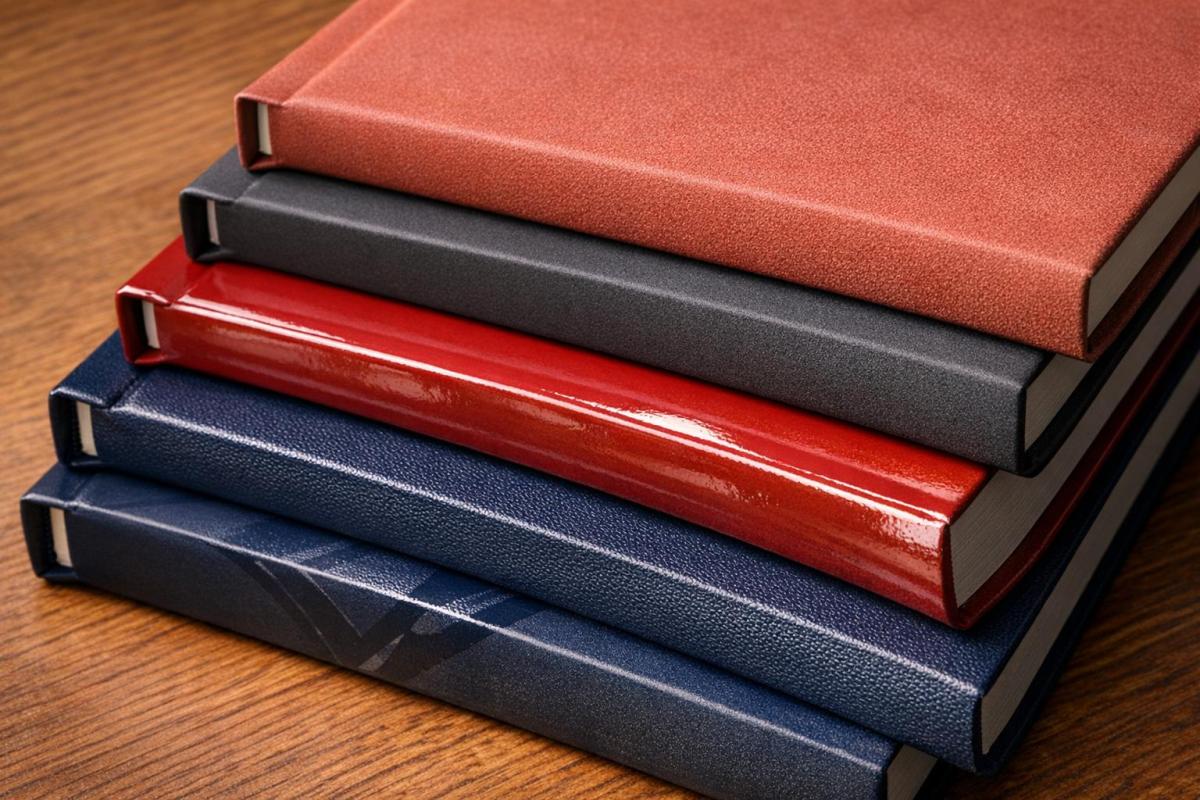
Thermal binding covers come in two main styles: hardcovers and softcovers. Hardcovers are built with 100 pt. chipboard wrapped in premium materials like Kivar, Silktouch Nuba, and Skivertex Silver Linen, making them perfect for more upscale uses. Softcovers, on the other hand, are designed for frequent handling and include options such as Presidential, Executive, Prestige Linen, Whitegloss, and Leatherflex. For added flair, specialty finishes like frosted fronts (SteelMat) or crystal-clear covers (SteelCrystal) protect and highlight the first page of your document. These material and finish choices allow you to align your thermal bound covers with your brand identity seamlessly.

Material Options

Hardcovers are ideal for premium projects like proposals, annual reports, or self-published books, accommodating sizes from 1/8" (15–30 sheets) to 2" (430–500 sheets) thick. Softcovers are better suited for items like catalogs or brochures that require flexibility for mailing and handling. If you’re aiming for a timeless look, Prestige Linen or Elegant Linen finishes provide a classic texture. For a more polished, sophisticated feel, consider leather-like options such as Leatherflex or Premium Leatherette. Glossy Lithowrap and matte lamination are also available, enhancing the visual appeal while minimizing glare. Beyond the material itself, adding logos and brand colors ensures your documents reflect your company’s image.

Logo and Color Integration

Take your branding to the next level by incorporating your logo and colors through techniques like offset printing, silkscreening, foil stamping, or embossing. Both 1-4 color offset printing and silkscreening produce high-resolution graphics while matching your brand’s exact colors using the Pantone Matching System (PMS). For an elevated look, foil stamping adds a metallic touch in shades like shiny gold, silver, red, or blue, as well as pigment finishes in black or white. Pairing embossing with foil stamping creates a raised effect, giving your logo both visual and tactile prominence.

Custom die-cut windows are another way to enhance branding, allowing internal pages – such as title pages or letterheads – to peek through. These windows can be tailored to any shape or size, from standard rectangles (1 3/4" x 4") to unique designs that reflect your brand’s personality. Keep in mind that custom covers often require a minimum order of 100 pieces for laminated covers or 300 pieces for specific hardcover styles. Discounts are available for bulk orders at quantities like 200, 300, 500, 1,000, 2,500, 5,000, and beyond. These options not only protect your pages but also create a strong visual impact, ensuring your brand stands out with a professional, polished presentation.

Applications of Thermal Binding in Business Branding

Proposals and Presentations

Thermal binding transforms client documents into polished, professional presentations. For instance, real estate agencies often use thermal-bound listing books to present properties with a sleek, high-end finish during competitive pitches. Similarly, corporate presentations and client proposals benefit from the clean, glue-bound spine, which avoids the industrial look of mechanical binding methods and maintains the design’s visual appeal. Plus, the quick process allows for fast preparation of documents when time is tight. Beyond proposals, thermal binding adds a sophisticated touch to a variety of business documents.

Annual Reports and Brochures

Annual reports, catalogs, and pricelists gain a professional edge with thermal binding, offering durability for frequent handling. Companies often choose hardcover options with leather-like finishes for formal annual reports, while softcovers provide the flexibility needed for mail-friendly catalogs. Thermal binding accommodates a wide range of document sizes, with spine widths that can handle up to 500 sheets. This flexibility makes it suitable for everything from slim brochures to detailed company reports. Such refined presentation reinforces your brand’s premium image and professionalism.

Marketing Materials

Thermal binding also elevates marketing materials, giving them a polished, eye-catching finish. Whether it’s promotional booklets, photo books, or portfolios, these materials stand out at trade shows and client meetings. Customized covers featuring company logos and brand colors further strengthen brand identity. Additionally, the tamper-evident nature of thermal binding ensures document security, as any page removal is immediately noticeable. For portfolios requiring even greater security, VeloBind systems can secure up to 750 pages with pronged bars, making edits impossible without a full rebind. Window-cut covers provide an extra branding opportunity by showcasing specific artwork or title pages without opening the document. Across all applications, thermal binding consistently enhances the professional image of your brand in every business material.

Step-by-Step Thermal Binding Process at Miro Printing & Graphics Inc.

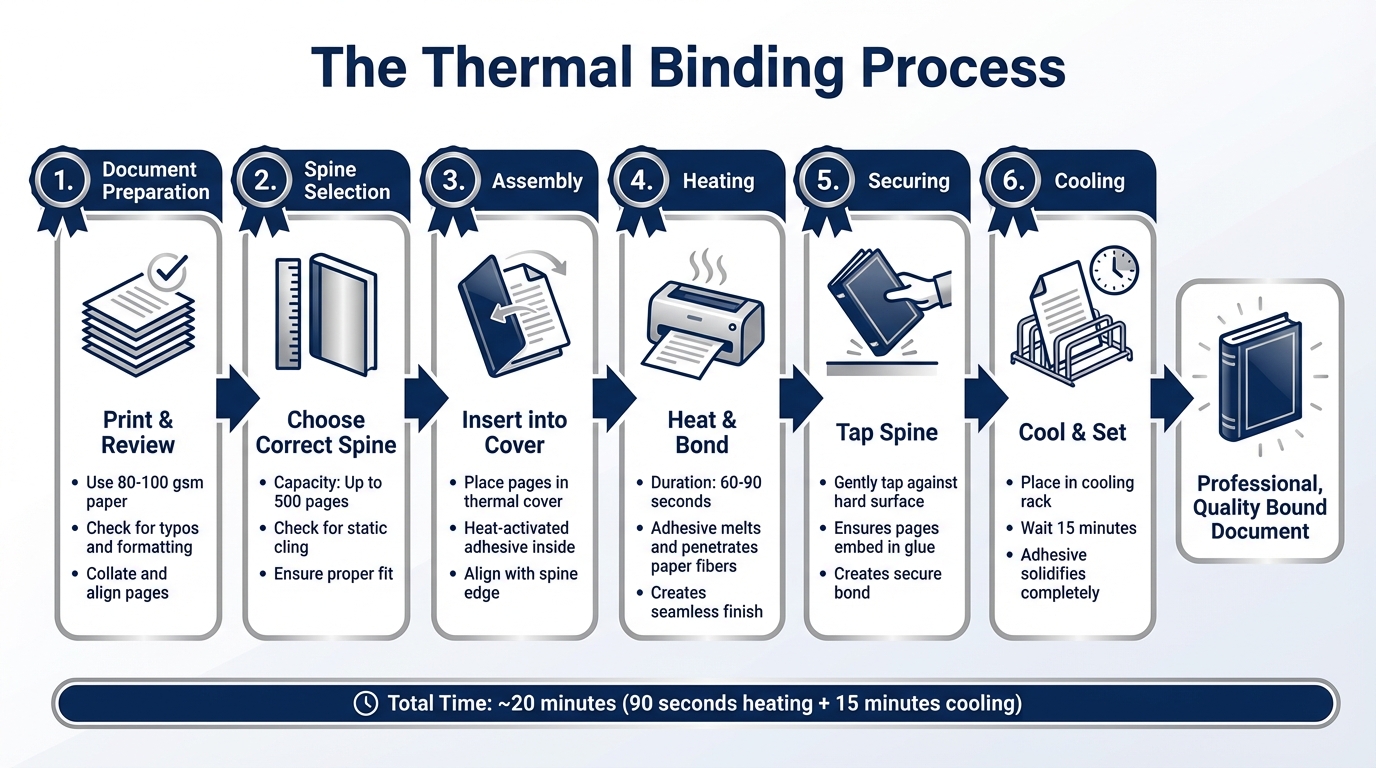
Thermal Binding Process: From Document Preparation to Professional Finish

Thermal Binding Process: From Document Preparation to Professional Finish

Document Preparation

At Miro Printing & Graphics Inc., the thermal binding process starts with careful preparation. Before binding, every document undergoes a thorough check to ensure print readiness and proper formatting. High-quality paper, typically between 80 and 100 gsm, is used for printing, and documents are reviewed for typos to guarantee a polished final product. Once printed, the pages are collated and aligned perfectly with the spine using a paper jogger. This step ensures the adhesive can bond evenly to the paper.

Choosing the correct spine width is another crucial step. Thermal binding covers can accommodate up to 500 pages, so selecting a cover that’s too small may lead to jamming, while an oversized cover could result in a weak binding. Additionally, static cling is checked to prevent misalignment of the first and last pages. Once these details are addressed, the documents are ready for binding, ensuring a smooth and precise outcome.

Binding and Finishing

After preparation, the binding process begins. The document is inserted into a thermal binding cover, which contains heat-activated adhesive. The assembly is then placed into a thermal binding machine, where the adhesive melts and bonds to the paper fibers, creating a seamless, hole-free finish. This heating process typically takes 60 to 90 seconds.

Once the adhesive has melted, the spine is gently tapped against a hard surface to ensure the pages are securely embedded in the glue. The bound document is then placed in a cooling rack for about 15 minutes, allowing the adhesive to solidify completely. This step results in a durable, professional finish that resembles a book.

Miro Printing & Graphics Inc. also offers custom cover options to enhance the document’s appearance and reinforce brand identity. For clients needing precise color matching, the Pantone Matching System is used to ensure the cover colors align seamlessly with other corporate materials. This attention to detail ensures that every bound document is both functional and visually impressive.

Conclusion

Thermal binding does more than just polish your documents – it turns them into tools that strengthen your brand. With its sleek, book-like finish, thermal binding not only enhances the look of your materials but also ensures they’re durable enough for long-term use. This method is particularly cost-effective, cutting printing expenses by 30%–70%, while enabling the production of over 420 documents per hour. Plus, its heat-activated adhesive provides a secure, tamper-evident seal, making it a practical choice for both small and large-scale projects. As Sarah Cordeiro from Southwest Business Products puts it, "Thermal binding is recommended for documents that need to both look professional and remain intact".

Miro Printing & Graphics Inc. takes thermal binding to the next level with their expertise in custom design. From precise Pantone Matching to foil stamping and embossing, they handle every detail, ensuring your materials are not just functional but visually impressive. Their combination of technical skill and creative design makes it easier for businesses to stand out in competitive markets.

Whether it’s client presentations or corporate handouts, thermal binding offers an affordable way to deliver polished, professional materials that last. Choosing custom thermal binding doesn’t just improve the look of your documents – it boosts your brand’s credibility and leaves a lasting impression on your audience.

FAQs

What’s the best cover type for my document?

The right cover type depends on what you value most – durability, appearance, or style. Hard covers provide a polished, high-end look, making them perfect for formal presentations or professional reports. On the other hand, soft covers are lightweight and more suited for casual or versatile uses. Both options can be tailored with features like embossing or die-cut windows, helping your document reflect your branding and presentation objectives.

How do I choose the right spine size?

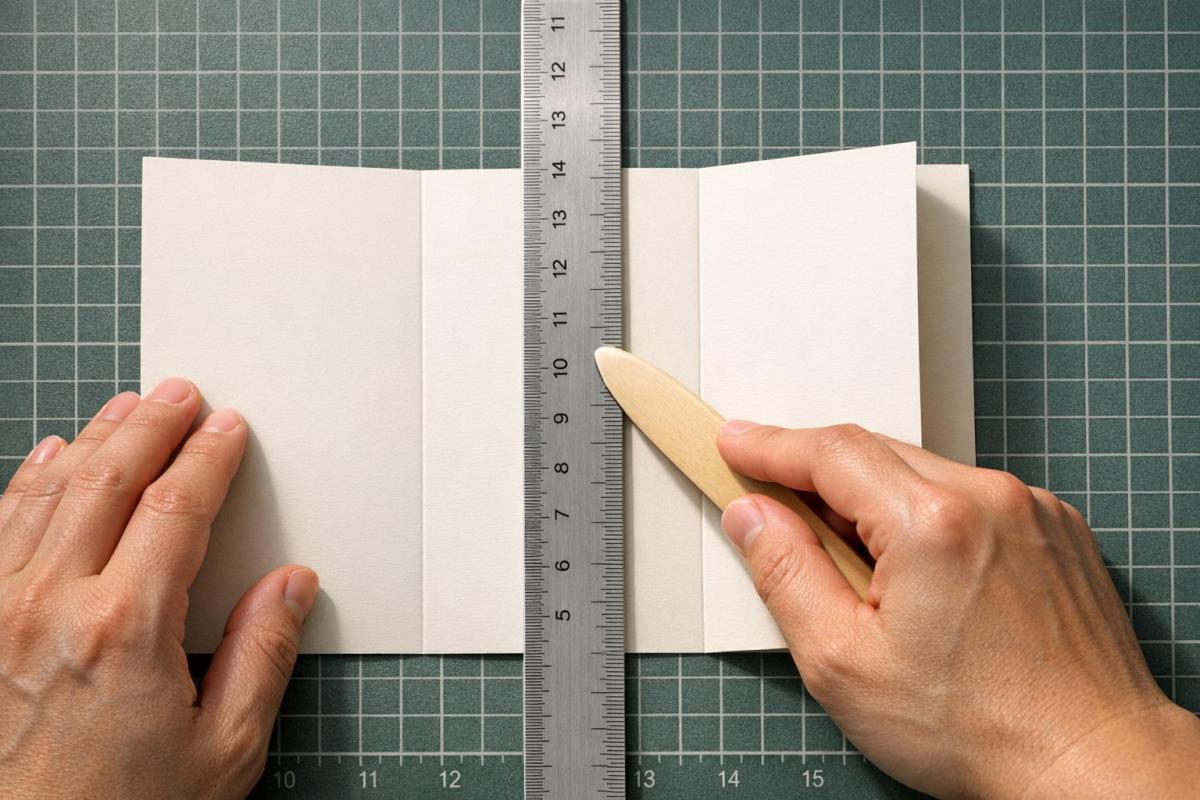
To choose the right spine size for thermal binding, start by measuring the thickness of your document’s pages when they’re loosely stacked together. A helpful guideline is to estimate 8–10 sheets of 20 lb paper per millimeter of spine width. If you’re uncertain, try fanning the pages near the spine to minimize any gaps. If you opt for a slightly larger spine, you can crease the cover with a ruler after binding to achieve a neater finish.

What files are needed for logo color matching?

For precise logo color matching, it’s crucial to supply vector files like EPS, paired with Pantone or CMYK color codes. Additionally, high-resolution images (at least 300 DPI) are necessary to maintain color accuracy and ensure top-notch quality during printing.

Related Blog Posts

https://app.seobotai.com/banner/banner.js?id=699ceec7efc60cc2af096ec6

Ultimate Guide to Specialty Substrates

Guide to printing on specialty substrates—wood veneer, natural fibers, stone, metal—covering surface prep, inks, printing methods and durable finishing.

Specialty substrates are transforming the printing industry by offering materials beyond paper and cardboard. These include wood veneer, bamboo, hemp, stone-based papers, metal, and glass. They deliver unique textures, durability, and eco-conscious options for businesses aiming to stand out. Here’s what you need to know:

  • Materials: Options like wood veneer, natural fibers (bamboo, hemp, cotton), and stone-based papers offer durability, moisture resistance, and premium aesthetics.
  • Applications: Perfect for signage, luxury packaging, custom awards, and promotional items.
  • Preparation & Printing: Proper surface prep (sanding, sealing) and using the right printing techniques (UV inkjet, offset) are critical for high-quality results.
  • Benefits: These substrates resist wear, water, and chemicals, making them ideal for outdoor or high-touch uses.

For businesses, partnering with experts ensures flawless execution and long-lasting results. Specialty substrates aren’t just a surface – they’re a statement.

Golden Digital Ground – Printing on Specialty Papers

Wood Veneer Substrates

Wood veneer adds a sophisticated, natural touch to custom printing projects. It’s made by bonding a thin decorative wood layer – typically between 1/25" and 1/50" (1.0 mm to 0.51 mm) thick – to a core material like MDF, particleboard, or plywood. This combination offers not just visual appeal but also structural stability, making wood veneer a standout choice among specialty substrates.

Natural wood veneers dominate the market, accounting for about 60% of total sales. These veneers are sliced directly from logs such as oak, walnut, cherry, mahogany, and maple, showcasing the unique grain patterns of each species. For projects requiring uniformity over large areas, engineered wood veneers are created by reconstructing natural wood fibers into consistent patterns. Reconstituted veneers – making up around 25% of the market – are crafted from real wood fibers (commonly poplar or pine) and designed to mimic the appearance of rarer species. This option is both cost-effective and environmentally conscious. The fastest-growing segment, digitally printed wood veneer, enables custom high-resolution designs, from logos to intricate imagery, offering unmatched flexibility.

"Opt for natural wood veneer if you want to highlight the natural beauty of wood, especially in projects where grain patterns are a key design feature."
– Steve Kitts, JSO Wood Products

Types of Wood Veneer

Each type of wood veneer brings its own strengths to the table:

  • Natural veneer: Perfect for luxury designs where organic grain patterns add character and uniqueness.
  • Engineered veneer: Offers consistent patterns, making it ideal for sleek, modern spaces.
  • Reconstituted veneer: Balances affordability and sustainability, catering to high-volume needs.
  • Digitally printed veneer: Delivers limitless design possibilities, making it a favorite for branded or themed environments.

Surface Preparation Methods

Achieving professional results on wood veneer starts with proper surface preparation. Begin by cleaning the veneer with 99% isopropyl or denatured alcohol to remove dust and residues. Always handle the material with gloves to avoid contamination from skin oils.

For MDF or particleboard cores, lightly sand the surface with 80-grit sandpaper to create a texture that improves ink or adhesive bonding. Test readiness with a water drop test – if water doesn’t absorb within 10 seconds, additional sanding is needed.

Since untreated wood veneer is porous, UV ink can sometimes absorb unevenly, leading to fuzzy prints. To prevent this, apply a sanding sealer, primer, or a 25% matte varnish as a pore sealant before printing. Allow the veneer and core to acclimate together for 48 hours to avoid warping during production.

Ink Adhesion Problems and Fixes

Even with careful preparation, adhesion issues can occur. For example:

  • Ink beading: This happens when the surface is too smooth or has low energy. A quick scuff sanding with 60- to 100-grit sandpaper can fix this.
  • Fuzzy or ghosted images: High porosity can cause ink to diffuse into the fibers. A sealing coat applied beforehand can resolve this.
  • Ink cracking: Heated conveyor dryers can over-dry wood fibers, causing cracks. Air drying is a better option, as it allows moisture to dissipate naturally. For UV printing, regularly inspect curing lamps to ensure even curing and prevent tacky spots.

"Untreated wood might need a primer or 25% matte varnish layer to seal it. Otherwise, UV ink may partially absorb into the surface and ‘spread out,’ which may lead to lower image quality."
– Philip Chu, Product Manager for UV and Specialty Devices, Roland DGA

To confirm proper ink adhesion, perform a cross-hatch tape test. With these steps in place, wood veneer becomes a versatile and reliable substrate for premium printing projects. Next, we’ll delve into natural fiber substrates to explore even more specialty printing options.

Natural Fiber Substrates

Building on our discussion of wood veneers, natural fiber substrates offer a blend of organic textures and eco-friendly aesthetics. These materials fall into three primary groups: cellulose fibers (plant-based, such as cotton), bast fibers (stem-based, like hemp, linen, and jute), and protein fibers (animal-based, including silk and wool). Each category has unique traits that influence how ink interacts with the surface and affects overall print quality.

Cotton is the most commonly used natural fiber. Its softness and absorbency make it ideal for both screen and digital printing. Typically, cotton used for printing ranges from 120 to 180 GSM (grams per square meter). However, it’s prone to shrinking, so heat fixation must be handled with care.

Linen, derived from flax, stands out for its strength and quick-drying abilities. With weights generally between 150 and 200 GSM, it’s heavier than cotton and has a natural sheen. However, its low elasticity makes it stiffer and more likely to wrinkle, although it softens over time. Bold designs tend to work better on linen, as its coarse texture can obscure finer details.

Hemp is incredibly strong, with a tensile strength of 550–900 MPa. It resists mold naturally and can absorb 7–9% of its weight in moisture without feeling damp. Despite these advantages, hemp paper is about six times more expensive than traditional wood-fiber paper due to limited processing facilities. Jute, another bast fiber, is a more affordable option with moderate strength (250–500 MPa) and a higher moisture regain of 10–12%. Its rough texture is well-suited for industrial uses, packaging, and home décor.

"The fabric directly affects the value proposition behind the final product."
– Nessan Cleary

Each fiber type requires specific pre-treatment methods to achieve the best printing results.

Properties of Natural Fibers

The chemical composition of natural fibers plays a key role in their print performance. For instance, hemp contains 70–74% cellulose and only 5–8% lignin, contributing to its exceptional strength and durability. Linen has a similar cellulose content (64.1–71.9%), while jute features slightly lower cellulose levels (60–70%) and higher lignin content (10–13%), giving it a rougher texture.

All natural fibers are hydrophilic, meaning they naturally absorb water due to the hydroxyl groups in their lignocellulose structure. While this property enhances ink absorption and produces vibrant colors, it can also lead to excessive ink spread (dot gain) and bleeding if not properly managed.

The growing demand for environmentally friendly materials has made natural fibers increasingly popular. By 2024, 67% of fashion and merchandise companies were expected to require suppliers to use eco-friendly materials. Hemp, for example, absorbs more carbon dioxide than trees and uses significantly less water compared to cotton. These sustainable materials often command a 15–30% price premium over conventional textiles.

Wool is known for its excellent moisture management, capable of absorbing up to 30% of its weight in moisture without feeling wet. It’s highly valued for insulation and luxury winter clothing. Silk, the only natural filament fiber, creates a unique shimmering effect due to its triangular prism-like structure. Its high tensile strength and dyeability make it a favorite for upscale printing projects, although it requires acid dye inks and careful steaming post-print for the best results.

Pre-Treatment for Ink Application

Proper pre-treatment is essential for achieving high-quality prints on natural fibers. Industry data shows that 60–80% of textile printing defects can be traced back to issues in fabric preparation. As the saying goes:

"The golden rule in the dyeing of textiles is that a fabric well prepared is a fabric half dyed."
CottonWorks

The preparation process begins with scouring, which removes dirt, oils, and natural waxes that can interfere with ink absorption. Natural fibers often have a waxy outer layer that must be stripped away to allow for even ink bonding. Next, bleaching eliminates color and impurities, creating a uniform white base for accurate color reproduction. For cotton, mercerization – a treatment with caustic soda – enhances strength, luster, and dye absorption, resulting in brighter, longer-lasting prints. Finally, singeing burns off loose fibers to create a smoother surface, improving the sharpness of printed designs.

Before printing, ensure the fabric is absorbent, clean, and flat – commonly referred to as "Prepared for Printing". A quick water drop test can verify readiness: if water beads on the surface instead of soaking in, additional scouring may be needed.

Chemical coatings and primers are applied as a final step to optimize the fabric for printing. These coatings often include thickeners to prevent ink bleeding and maintain sharp image quality. The type of coating depends on the ink being used. For reactive dyes (suitable for cellulose fibers like cotton and linen), alkali-based top coatings enable the dyes to form chemical bonds with the fibers. For pigment inks, which don’t naturally adhere to fibers, binders or resin systems are used to secure the color particles to the fabric surface.

"Pigments exist in a particle state… The process of pigment printing utilizes a binder system since pigments inherently lack an affinity for cotton fabric."
– Faujia Mushtari, TexSPACE Today

Once printed, fixation processes lock the design in place. Reactive dyes require steaming and washing to remove unreacted dyes and restore the fabric’s softness. Pigment inks, on the other hand, need dry heat curing at 300–325°F to set the binders. When working with pigments, finding the right balance is crucial – while more binder improves durability, it can also make the fabric feel stiff.

For digital inkjet systems, pre-heating the fabric or using specialized coatings helps control ink spread and bleeding. This step is especially important for bast fibers like hemp and linen, as their coarse textures can cause unpredictable ink behavior. Additionally, always preshrink natural fibers before printing to prevent image distortion during heat fixation, as natural fibers are prone to shrinking. These preparation techniques ensure the unique qualities of each material are preserved while delivering top-tier print results.

Next, we’ll dive into printing methods that maximize the potential of these substrates.

Printing Techniques for Specialty Substrates

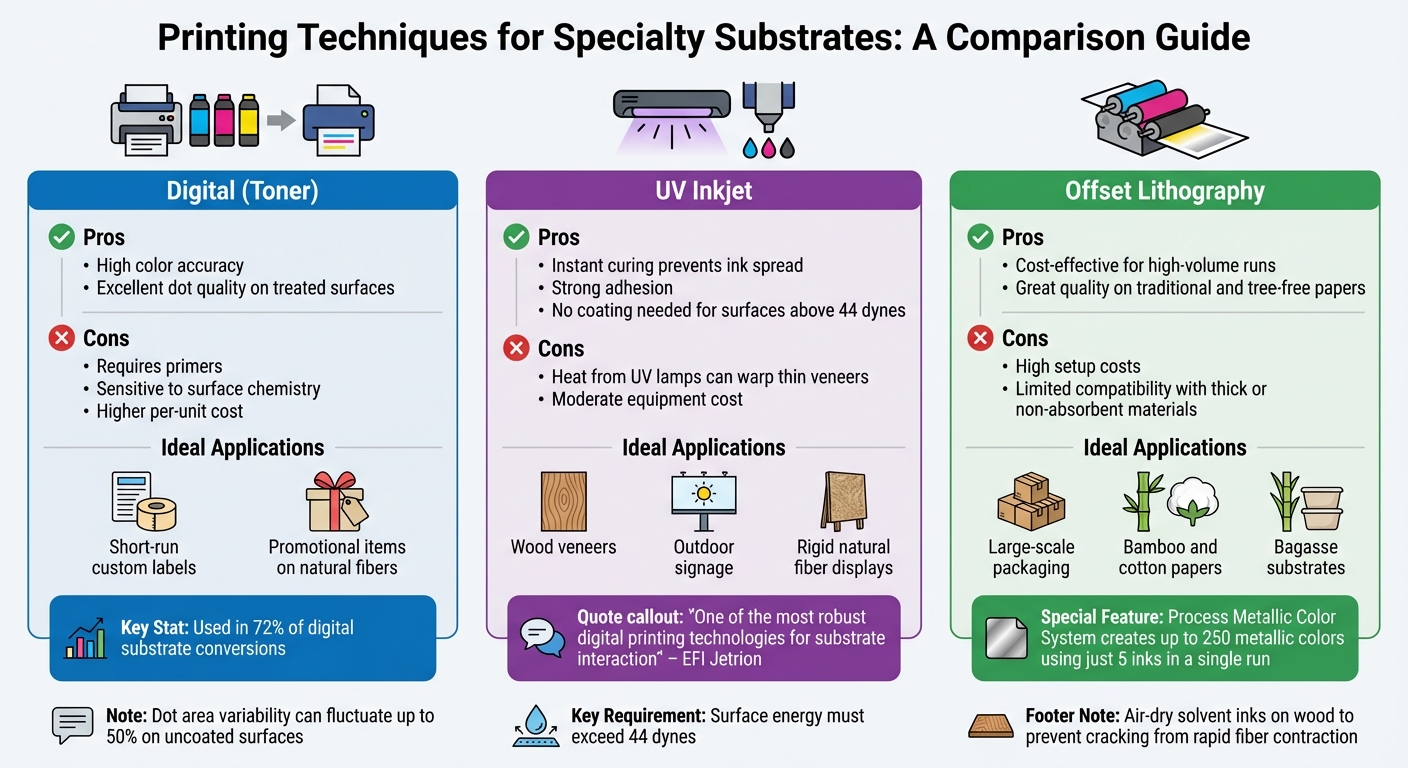
Comparison of Digital, UV Inkjet, and Offset Printing Techniques for Specialty Substrates

Comparison of Digital, UV Inkjet, and Offset Printing Techniques for Specialty Substrates

When working with wood veneers and natural fibers, selecting the right printing method is key to achieving high-quality results. The interaction between the substrate and printing technology can make or break the final product.

Digital, UV, and Offset Printing

Different printing technologies offer unique benefits depending on the substrate. UV inkjet is particularly versatile for specialty materials. Its instant curing process prevents ink from soaking into porous materials, making it a great choice for wood veneers and coarse natural fibers.

"UV inkjet is one of the most robust digital printing technologies around in terms of substrate interaction" – EFI Jetrion

For optimal results, ensure the substrate’s surface energy exceeds 44 dynes. If not, treatments like corona or flame must be applied.

Liquid toner technology is another strong option, used in about 72% of digital substrate conversions. It offers exceptional color accuracy but requires precise surface preparation. The ink bonds at a molecular level, sometimes as thin as 50 layers, making surface chemistry critical. Substrates like natural fibers and wood veneers often need pre-applied coatings or primers to ensure consistency. Without these treatments, dot area variability can fluctuate by up to 50% on uncoated surfaces.

Offset lithography works well for tree-free papers like bamboo, cotton, and bagasse, especially for high-volume projects. However, it’s less effective with thicker or less absorbent materials.

"Offset lithography is more limited in substrate choice… But exotic choices are available, workable, and more readily obtainable" – Trish Wales

When using natural fiber papers such as bagasse, confirm the fiber strength with your supplier. Shorter fibers can negatively impact print quality. For wood veneers, pre-optimized surfaces are essential to prevent ink absorption issues. Applying a sanding sealer can help block ink absorption, while solvent-based inks should be air-dried to avoid rapid fiber contraction.

"Drying ink on a wood surface is especially troublesome when using a heated conveyor dryer, because the wood fibers dry and contract too rapidly, which results in cracks" – Johnny Shell, Vice President of Technical Services at SGIA

Printing Technique Comparison

Technique Pros Cons Ideal Applications
Digital (Toner) High color accuracy; excellent dot quality on treated surfaces Requires primers; sensitive to surface chemistry; higher per-unit cost Short-run custom labels, promotional items on natural fibers
UV Inkjet Instant curing prevents ink spread; strong adhesion; no coating needed for surfaces above 44 dynes Heat from UV lamps can warp thin veneers; moderate equipment cost Wood veneers, outdoor signage, rigid natural fiber displays
Offset Cost-effective for high-volume runs; great quality on traditional and tree-free papers High setup costs; limited compatibility with thick or non-absorbent materials Large-scale packaging, bamboo and cotton papers, bagasse substrates

For specialty projects, the Process Metallic Color System offers a unique advantage, allowing up to 250 metallic colors to be produced using just five inks in a single run. This feature enhances the natural look of materials like wood and fibers.

These techniques provide a solid foundation for creating custom printed items, from signage to promotional products, while maintaining the integrity of specialty substrates.

Applications in Custom Printing

Specialty substrates like wood veneer bring a distinct charm to printing projects, turning them into memorable branding opportunities. The natural warmth and texture of wood veneer make it a standout choice for both signage and promotional uses.

Signage and Packaging

Wood veneer is often the go-to material for high-end signage and architectural branding. From lobby signs to wayfinding elements and dimensional branding, it provides a polished, professional look that’s hard to match. It’s even ideal for construction site signs like "Future Home of…" displays or corporate lobby installations where a sophisticated appearance is key.

"Wood is an eye-catching alternative to synthetic materials, offering warmth, texture, and durability that stands out in both indoor and outdoor applications." – Steve, Thysse

In the world of packaging, wood veneer brings an unmistakable luxury feel. Popular uses include wine bottle boxes, labels, candy boxes, and flower packaging. Retailers also use wood substrates for pedestals, footwear walls, platforms, and freestanding point-of-purchase displays, combining strength with visual appeal.

Choosing the right wood type is critical. Plywood-based veneers are excellent for outdoor signage due to their durability and resistance to weather. On the other hand, MDF (Medium-Density Fiberboard) works best for indoor displays, as it’s prone to warping in moist environments.

Beyond signage and packaging, wood veneer shines in creating unique awards and promotional items.

Awards and Promotional Items

Wood veneer’s natural beauty makes it a perfect choice for custom plaques, nameplates, and interior decor like wall art or branded conference room accents. Techniques like laser engraving and etching add precision and dimension, making awards and promotional pieces truly stand out.

For items with curved surfaces, such as electronics casings, 0.6 mm paper-backed veneers offer the flexibility needed for a perfect fit. Plus, wood veneer is incredibly resource-efficient, offering a 40:1 surface ratio advantage over solid wood. This means a single log can produce 40 times more usable material while reducing carbon emissions by 40% to 70%. Fast-growing species like bamboo and poplar provide renewable options, with bamboo maturing in just 3–5 years and poplar in 10–15 years. For environmentally conscious brands, FSC or PEFC certifications ensure sustainability.

Reclaimed wood offers an additional layer of uniqueness. Salvaged from old barns or industrial buildings, it brings a rich patina and a compelling story of sustainability to any project.

Working with Miro Printing & Graphics Inc.

Full-Service Solutions for Specialty Substrates

When it comes to custom projects that require specialty substrates like wood veneer or natural fibers, Miro Printing & Graphics Inc., based in Hackensack, NJ, is a standout partner. They bring extensive expertise to every stage of the process, from substrate testing to finishing, ensuring a tailored and high-quality result. Their direct-to-substrate printing technology skips the need for transfer paper, allowing digital images to be printed directly onto materials with exceptional detail and precision.

Using UV-curing inks, Miro ensures strong adhesion to textured surfaces such as wood and specialty fibers. Their two-stage UV curing process not only secures the print but also enhances its durability, helping your wood veneer signage or natural fiber packaging look great even under tough conditions. This attention to detail ensures long-lasting results that meet both functional and aesthetic needs.

In addition to printing, Miro offers a full range of in-house finishing services, including die-cutting, scoring, folding, and laminating. Whether you need slip-resistant laminates for wood displays or custom shapes for unique promotional items, they handle it all under one roof. Their digital, offset, and large-format printing capabilities provide the flexibility to tackle projects of all sizes, from small custom awards to large-scale signage. This combination of advanced technology and comprehensive services makes partnering with a local expert like Miro a smart choice.

Benefits of Working with Local Experts

Collaborating with a local provider like Miro Printing & Graphics Inc. offers more than just technical expertise – it adds a layer of personalized service that enhances the entire process. Their team works closely with clients to select the right materials, whether it’s wallcoverings, textiles, rigid boards, or synthetic papers, ensuring the project aligns with both functional and aesthetic goals. During early consultations, they address key factors such as project goals, application (indoor or outdoor), installation surface, appearance, durability, budget, and timeline.

"In digital print, the substrate isn’t just something you print on – it’s a strategic tool. It influences quality, sustainability, cost, and customer satisfaction." – Substrate Bank

Local expertise also ensures consistency across materials and locations. Miro’s understanding of how inks interact with challenging surfaces like metal, wood, and plastic helps avoid common problems like bleeding, warping, or poor adhesion. Their quick turnaround times and personalized service make it easy to conduct test runs and make adjustments as needed. For businesses looking to create tactile, memorable branding through alternative surfaces, Miro offers both the quality and convenience needed to bring those ideas to life.

Conclusion

Specialty substrates like wood veneer and natural fibers bring a rustic charm and a high-end feel to custom printing that standard paper simply can’t replicate. But getting great results means understanding the quirks of each material. For instance, wood substrates absorb moisture unevenly, while natural fibers can vary in quality from batch to batch.

Preparation is critical when working with these materials. Wood often needs a sanding sealer to manage ink absorption, and natural fibers may require pre-treatment to ensure the ink adheres properly. As Johnny Shell, Vice President of Technical Services at SGIA, wisely points out:

"The end result is only as good as the compatibility between the ink and the wood sealer; therefore, test before you print."

Skipping these steps can lead to problems like ink bleeding, warping, or a lack of durability. Taking the time to prepare properly sets the stage for printing success.

Choosing the right printing method is just as important. UV-cured inks, for example, provide strong adhesion on textured surfaces, while digital printing offers the precision needed for intricate designs. Each material-ink pairing has unique requirements – heated dryers might crack wood fibers, and some materials need longer curing times for adhesives to fully set.

Working with experienced professionals can make all the difference. Miro Printing & Graphics Inc., based in Hackensack, NJ, is a great example of a company that blends technical know-how with a range of in-house services. From testing substrates to using advanced direct-to-substrate printing and two-stage UV curing, they ensure your wood veneer signage or natural fiber packaging looks stunning and holds up over time.

Whether you’re crafting eco-friendly packaging, tactile promotional materials, or custom awards, the substrate you choose plays a key role in shaping the customer experience. Partnering with local experts who understand the complexities of these materials ensures your project delivers the quality and professionalism your brand demands.

FAQs

What is the best specialty substrate for outdoor use?

Polycarbonate and acrylic are strong options for outdoor applications because they offer UV resistance, long-lasting durability, and the toughness to handle different weather conditions. These materials are built to hold up well, even under constant sunlight and challenging environments.

Do I need primers or sealers before printing on wood or fabric?

Primers or sealers are commonly suggested to improve ink adhesion and ensure better print quality when working with materials like wood or fabric. Whether or not they’re required largely depends on the surface characteristics of the material and any existing coatings. Performing a few quick tests can help you figure out if applying a primer or sealer is necessary.

How can I prevent warping, bleeding, or poor ink adhesion?

When working with specialty substrates, issues like warping, bleeding, or poor ink adhesion can arise if the materials and techniques aren’t well-matched. To avoid these problems, it’s crucial to select compatible materials and printing methods. Here’s what to focus on:

  • Ink selection: Use inks specifically formulated for the substrate you’re working with.
  • Moisture content: Ensure the substrate’s moisture level falls within the ideal range of 4.7% to 5.3%.
  • Heat resistance: Verify that the substrate can withstand temperatures of up to 200°C.

For substrates like wood veneer or natural fibers, proper surface preparation and thorough testing are essential. Always align your printing technology to the substrate and conduct preliminary tests to guarantee a smooth process.

Related Blog Posts

https://app.seobotai.com/banner/banner.js?id=699bdad8efc60cc2af093f63

Manual Folding Techniques for Print Projects

Manual folding is the backbone of precise print work — plan folds, score heavy stocks, and adjust panel widths to avoid buckling.

Folding isn’t just about creasing paper – it’s about precision and design. Whether you’re crafting brochures, maps, or invitations, the way you fold impacts readability, alignment, and overall quality. Manual folding ensures control over these details, especially for projects requiring specific layouts or tactile finishes. Here’s what you need to know:

  • Plan folds early: Design with folding in mind to avoid costly errors. Adjust inner panels by 3/32" to 1/8" to prevent buckling.
  • Choose the right fold type: Options include half folds (simple), tri-folds (common for brochures), double parallel folds (compact), and roll folds (progressive reveals).
  • Use proper tools: Bone folders, scoring tools, and templates are key for clean, sharp folds.
  • Pay attention to paper: Fold parallel to the grain to avoid cracking, especially with heavier stocks. Scoring is a must for thick paper.

Manual folding is all about precision and preparation. Testing your design with a physical dummy and understanding fold mechanics can save time, money, and frustration. Ready to fold like a pro? Dive into the details.

How to Crease Paper

Parallel Folding Methods

Manual Folding Techniques Comparison Guide for Print Projects

Manual Folding Techniques Comparison Guide for Print Projects

Parallel folds all move in the same direction, stacking panels neatly on top of one another. These folding techniques are a staple for print projects like brochures and event programs. Let’s break down some popular methods – half, tri-, double parallel, and roll folds – and their practical applications.

One challenge with parallel folds is panel compensation. To prevent buckling, inner panels need to be slightly narrower than outer ones. As Puget Bindery explains:

"Inside panels must be slightly narrower than outside panels. Without this adjustment, nested panels buckle and the piece will not sit flat."

For standard paper, reduce the fold-in panel by 3/32" to 1/8". For heavier cover stock, adjust this to 1/8" to 3/16". Additionally, always fold parallel to the paper grain to avoid uneven or cracked creases, especially with thicker paper.

Before committing to a full print run, it’s smart to create a physical dummy. Print a copy, trim it, and fold it manually to check panel alignment and ensure the reading flow makes sense. Below are details on specific parallel fold types and their ideal uses.

Half Fold (Bi-Fold)

A half fold divides a sheet with a single central fold, creating four panels (two on each side). Both panels are equal in width, making this method straightforward for manual folding. It’s a go-to for greeting cards, event programs, menus, and simple booklets. When designing, think of the layout as two facing pages, ensuring the left and right panels work together visually.

Tri-Fold (Letter Fold)

The tri-fold divides a sheet into three sections using two parallel folds, resulting in six panels. One end folds inward by about a third of the width, and the other folds over it. This style is widely used for brochures and mailers because it fits neatly into standard business envelopes. For an 8.5" x 11" sheet, the two outer panels are typically 3.6875 inches wide, while the inner fold-in panel is about 3.625 inches wide – a slight difference (1/16 inch) that prevents telescoping. To avoid design issues, keep text and graphics at least 1/8 inch away from fold lines.

Double Parallel Fold

This fold starts by halving the sheet, then folding it in half again in the same direction, creating eight panels. Since the panels nest twice, each inner panel needs to be slightly smaller than the previous one to avoid uneven edges. For thicker paper (above 170gsm or 100# cover), scoring the folds first can help prevent cracking along the edges.

Roll Fold

The roll fold creates a cascading effect with multiple inward folds, resulting in eight or more panels. It’s perfect for step-by-step guides, detailed pamphlets, or marketing materials where content is revealed progressively. Each inner panel should be about 1/16 inch smaller than the one it folds into to prevent buckling. Keep in mind that many people flatten roll-folded documents immediately, so design the inside spread with this in mind.

Fold Type Total Panels Panel Sizing (8.5" x 11" Sheet) Best Use Case
Half Fold 4 Two equal panels (≈5.5" each) Greeting cards, programs, menus
Tri-Fold 6 Two panels ≈3.6875"; inside ≈3.625" Brochures, mailers
Double Parallel 8 Outer panels slightly larger Compact promotional inserts
Roll Fold 8+ Successive panels reduced by ≈1/16" Step-by-step guides, tutorials

Combination Folding Methods

Combination folds alternate folding directions to create compact, dynamic layouts, making them perfect for collapsing large sheets or guiding readers through step-by-step content. Two popular options here are the French fold and Z-fold variations.

Unlike parallel folds, which rely on consistent crease directions, combination folds introduce variety, enhancing how content flows. For example, the French fold uses a right-angle approach – one horizontal fold followed by a vertical fold – while Z-folds create a zig-zag pattern by alternating fold directions. As Puget Bindery explains:

"Folding structure directly influences how readers move through content. Choose the fold before beginning layout, not after."

These folds don’t require adjustments to panel widths, unlike roll folds where panels nest inside each other. However, grain direction is critical – fold parallel to the grain to avoid cracking, especially with heavier paper stocks. For such stocks, scoring the fold lines is essential to reduce stress on the paper fibers.

French Fold (Right Angle Fold)

The French fold, also known as a quarter fold, involves folding a sheet in half horizontally, then folding it again vertically at a 90-degree angle. This creates eight panels (four on each side) and reduces a large sheet into four equal quadrants. It’s ideal for invitations, maps, posters, and programs where you want a dramatic "grand reveal" effect – starting with a compact piece that unfolds into a larger display.

Typically, French folds are printed on one side, with the blank side folding inward. This layout works well for designs needing uninterrupted space, like product imagery, technical diagrams, or event posters. To ensure clean results, keep all text and key design elements at least 1/8 inch away from fold lines to accommodate any panel shifts during folding.

Z-Fold Variations

The standard Z-fold uses two alternating parallel folds to create three equal-width panels, opening like an accordion. Because the panels don’t overlap, they can all remain the same width without causing buckling. This setup is great for brochures, timelines, or step-by-step instructions since content flows naturally across the panels as the reader unfolds them.

For extended content, accordion folds continue the zig-zag pattern across four or more panels, making them perfect for longer timelines or detailed guides. Map folds take this concept further by combining multiple parallel and cross folds, allowing large sheets – like tourism maps or engineering layouts – to collapse into pocket-sized formats. When designing Z-fold pieces, avoid placing heavy ink on fold lines, as these areas are more likely to crack, exposing the white paper underneath.

With these folding methods clarified, the next section will explore the tools and materials needed for precise manual folding.

Specialty and Asymmetric Folds

Specialty and asymmetric folds push beyond traditional methods, offering creative ways to make print projects stand out. These designs incorporate unique shapes, diagonal creases, and dimensional elements that often require extra steps like scoring, die-cutting, or even manual folding. Trish Witkowski, Founder of Foldfactory, highlights their appeal:

"The Specialty category is the most exciting of the bunch. Filled with unique formats, many of these styles require scoring and die‐cutting, and possibly hand‐folding."

Asymmetric folds take this creativity to another level with panels of varying sizes that create layered, dynamic effects. However, this approach demands precision – outer panels need to be slightly narrower (by 1/16" to 1/8") than inner panels to ensure smooth nesting and avoid buckling. Because of their complexity, it’s crucial to request a finishing template from your printer before starting your layout. While standard folds typically add about $0.01 to the base printing cost, specialty folds requiring manual labor can add around $0.06 per piece. Below are examples of common specialty folds and how to design for them.

Gate Fold

The gate fold, sometimes called a barn door fold, is designed to immediately capture attention. It features two outer panels that fold inward from opposite sides to meet at the center, creating a dramatic "reveal" effect. Readers first see the outer spread, then open the "gates" to uncover the full interior content. This format works especially well for product launches, invitations, or premium marketing pieces where building anticipation is key.

A standard gate fold includes three panels (six surfaces in total), while a closed gate fold adds an additional fold along the center, resulting in eight panels with a booklet-like structure. To avoid production issues, adjust panel widths to prevent buckling, and keep text and graphics at least 1/8" away from fold lines to account for slight mechanical shifts during printing.

Short Panel Folds

Short panel folds add both visual appeal and practical functionality, such as pockets for holding additional materials. These folds use panels of different lengths, giving them a modern and layered look. For example:

  • Stepped Double Parallel: This design shortens the cover panel and adjusts the trailing panels to create visible tabs along one edge, perfect for navigation-heavy content like catalogs or guides.
  • Asymmetrical Accordion: Here, panel lengths vary in pairs, creating overlapping layers while maintaining a clean, flush appearance when folded.

For a more functional twist, the Carrier Combo fold flips a short panel inward from the bottom, forming a pocket to hold items like business cards or coupons. This not only adds utility but also increases engagement with your print piece. When working with short panel folds, ensure the paper grain runs parallel to the folds for smoother results, as previously mentioned.

Tools and Materials for Manual Folding

Having the right tools on hand is crucial for achieving precise manual folds. Basic essentials include a ruler, scissors, and a pencil to mark fold lines accurately. Using these tools helps maintain alignment, which is key to preserving print quality. Another critical factor is paper grain – it should always run parallel to the fold line. Folding against the grain forces all the fibers to bend simultaneously, leading to resistance and cracking, especially with heavier paper stocks. These basics set the stage for more advanced techniques like scoring and using guides to handle different paper types effectively.

Bone Folders and Creasing Tools

For heavier paper weights, scoring tools are indispensable. Scoring compresses the paper fibers before folding, which prevents cracking and ensures the finished piece lays flat. Without scoring, heavy stocks can develop ragged edges and visible damage along the fold lines. A bone folder is particularly useful for creating sharp, clean creases after the initial fold, giving your project a polished and professional look. After scoring and folding, templates can help maintain consistent dimensions across your work.

Templates and Guides

Templates are a lifesaver when it comes to ensuring accurate panel geometry before folding. Many commercial printers offer free downloadable templates in formats like InDesign, Illustrator, or PDF. These templates come with pre-set fold lines and die-cut marks, making them an essential tool for projects involving precise panel adjustments. They also account for panel math, which ensures that inner panels are slightly narrower – by 1/16" to 1/8" – than outer panels to prevent buckling. Jesse Park from Action Graphics highlights the importance of testing designs early:

"It’s much better (not to mention less expensive) to discover design problems on your own laser proof than after it has gone to press".

Printing and folding a test copy is a simple but effective way to verify alignment and catch potential issues.

Paper Types and Weights

Choosing the right paper weight is essential for successful manual folding. Heavier cover stocks require scoring to avoid cracking and also need wider panel adjustments. As noted by the Puget Bindery:

"Grain should run parallel to the fold whenever possible. Incorrect grain direction increases cracking, warping, and inconsistent folds".

Each fold doubles the paper’s thickness, which reduces the area available for subsequent folds and makes precision even more critical. For sturdy folded pieces, 160 gsm cardstock offers a great balance between durability and ease of folding.

Step-by-Step Folding Process

Once you’ve gathered your tools and materials, you’re ready to dive into the folding process. Follow these steps to ensure precise and professional results.

Preparing Your Workspace and Materials

Start by setting up on a flat, clean surface, and make sure your hands are clean as well. Before committing to the final design, it’s a good idea to test things out. As RoyerComm suggests:

"Before finalizing your design, print a test copy and physically fold it according to your chosen technique. This step can help you identify any issues with alignment, content placement, or folding accuracy."

To maintain precision, draw fold lines on the paper using a pencil and ruler, or opt for a patterned sheet to help guide your folds evenly. Keep in mind that inner panels should be slightly narrower (by about 1/16"–1/8") to avoid buckling when folded. For heavier paper stocks, scoring the fold lines beforehand is crucial – it compresses the fibers and prevents cracking. Also, ensure that critical text and design elements are positioned at least 1/8" away from the fold lines to accommodate slight shifts during the folding process.

Making Precise Folds

Precision starts with proper alignment. Carefully match the edges of the paper before applying any pressure. Once aligned, secure the edges and crease from the center of the fold outward using a bone folder. Always fold parallel to the paper’s grain when possible. Folding against the grain can create resistance, leading to a rough, uneven finish and increasing the chance of cracks. For larger stacks of paper, a paper jogger can help align the sheets perfectly and remove static, making the folding process smoother. Paying attention to these details ensures a polished, professional outcome.

Fixing Common Folding Errors

Even with careful preparation, mistakes can happen – but addressing them promptly can save your project. Here’s how to tackle some common folding issues:

  • Telescoping (rounded edges that won’t stay closed): This occurs when the inner panels are too wide. To fix it, trim the inner panel width by at least 3/32".
  • Cracking along the folds: This is often a result of heavy paper stock. Switch to a lighter, more flexible paper or ensure you’re scoring the fold line before applying pressure.
  • Uneven folds: If folds aren’t lining up, slow down and apply consistent pressure throughout the process.

Trish Witkowski, President of Finishing Experts Group, underscores the importance of catching mistakes early:

"A mistake caught in the bindery almost always means a reprint, or an undesirable work-around."

Quality Control and Finishing

Once the precise manual folding is done, a thorough quality control process ensures your print project achieves a polished, professional appearance. This step involves checking alignment, crease quality, and the overall condition of the paper to avoid expensive reprints.

Creasing for Clean Folds

When working with heavier paper stocks – anything over 170g for standard boards or 140g for translucent papers – pre-creasing is a must to prevent cracking during folding. Creasing compresses the paper fibers to create a hinge, while scoring partially cuts the stock. Typically, the crease bead should be positioned inside the fold. As printing consultant Steven Waxman explains:

"The bump that the scoring rule creates should be inside the final fold rather than outside of it. This allows for more even folding and less stress on the paper fibers".

However, translucent papers are an exception; they should be folded away from the bead to avoid surface damage. Maintaining a relative humidity of around 50% is also important to keep the fibers flexible and prevent cracking. Once creased and folded, check that every fold aligns perfectly to maintain consistency.

Checking Alignment and Consistency

Small inaccuracies in folding can quickly escalate. Jesse Park from Action Graphics highlights this issue:

"If the first fold is off by 1/32 of an inch, the next one multiplies any variation, shifting the second 1/16 of an inch, and the third 1/8 of an inch and so on".

To avoid such problems, create a physical folding dummy. Mark it with letters or incremental lines – like "A" meeting "A" or one line for the first fold, two for the second – to act as your guide. These alignment checks, combined with proper creasing, ensure consistent results. For nested panels, such as tri-folds or roll folds, confirm that interior panels are 1/16" to 1/8" narrower than the outer panels to avoid telescoping.

Handling Specialty Papers

Specialty papers demand extra care to avoid damage during folding. Always fold parallel to the paper grain for the best results. For papers with heavy ink coverage or dark solids, avoid placing these elements directly on fold lines, as cracking is most visible in these areas. Bali Print Shop offers this advice:

"The only way to totally eliminate cracking is to apply a film laminate to the surface. The laminate encapsulates the surface of the paper and will not allow any cracking".

Recycled papers, with their shorter fibers, are more prone to tearing and poor-quality folds compared to virgin paper. For translucent papers weighing 200gsm or more, leave at least 4–6 mm (0.16–0.24 inches) of space between parallel folds to maintain structural integrity. Additionally, when using slow-drying or metallic inks, apply varnish before folding to prevent smudging. Keep in mind that varnish creates a slippery surface, which can affect grip during the folding process.

Conclusion

Mastering manual folding techniques revolves around three main types: parallel folds (like half, tri-fold, or roll), accordion or Z-folds (with alternating directions), and gate or specialty folds (such as inward folds or intricate designs like the French fold). Grasping these basics not only ensures precision but also unlocks creative possibilities in print design.

Attention to detail is key: fold parallel to the grain, adjust inner panels by 3/32" to 1/8" to avoid buckling, and leave at least 1/8" of clearance around text and images. As Trish Witkowski, President of the Finishing Experts Group, advises:

"Think finishing at the beginning. Resist the temptation to design in a vacuum and get your printer’s opinion early".

Creating a physical folding dummy early in the process is critical. It helps verify reading order, panel measurements, and catch potential errors. Tools like bone folders and scoring for heavier stocks can make a big difference, and frequent alignment checks prevent mistakes from adding up.

Cost-wise, standard folds typically add about $0.01 to your base print price, while more intricate hand-finished folds start around $0.06. Folding remains one of the most cost-effective ways to enhance both the visual and tactile appeal of your print projects. Experimenting with paper weights and specialty folds can further elevate engagement. By applying these techniques, your designs will consistently deliver both functionality and striking visual impact.

FAQs

How do I know the paper grain direction before folding?

To figure out the grain direction of a sheet of paper, you can try the fold method:

  • Take a standard 8.5 x 11-inch sheet of paper.
  • Fold it once along the length (long side) and then along the width (short side).
  • Pay attention to which fold feels smoother or easier. The direction where the paper folds more effortlessly is the grain direction.

Why does this matter? Folding against the grain can lead to cracks or uneven folds, which can affect the quality of your print projects. Knowing the grain direction helps you achieve cleaner, sharper folds.

When should I score instead of just folding by hand?

When working with heavier or thicker paper stocks – typically those measuring 0.006 inches or more – it’s better to score the paper rather than folding it by hand. Scoring creates a crease that minimizes fiber stress, prevents cracking, and ensures a neat, polished fold. This is especially important for heavy cardstock, designs with dark inks, or full-coverage prints. While thinner paper that folds easily might not need scoring, it’s strongly advised for thicker materials or folds made against the grain.

Which fold style is best for my project’s content flow?

The best fold style depends on what you’re aiming to achieve and the type of content you’re presenting. For neatly organized sections or step-by-step instructions, a tri-fold or half fold is a solid choice. If your content follows a timeline or sequence, an accordion fold can make it easier to follow. Want something visually bold? A gate fold or Z-fold can make your design stand out. Pick a fold that improves readability and draws readers into your content.

Related Blog Posts

https://app.seobotai.com/banner/banner.js?id=699b9d6fefc60cc2af0910ef

Anti-Scratch Coatings for Book Covers

Compare soft-touch, matte anti-scratch, gloss, nylon laminates and spot UV to protect book covers—durability, costs, maintenance, and best uses.

Anti-scratch coatings protect book covers from damage like scratches, fingerprints, and moisture, while improving durability and appearance. They’re ideal for heavily used books like textbooks, cookbooks, and children’s books. Options include soft-touch lamination, anti-scratch matte lamination, gloss finishes, and spot UV coating. Prices vary from less than $0.01 to $0.30 per cover, depending on the type and order size. Each finish offers unique benefits, such as vibrant colors with gloss lamination or a velvety texture with soft-touch finishes. Choosing the right coating depends on factors like handling frequency, design goals, and budget.

A Guide To Book Cover Finishes.

Soft-Touch Lamination

Soft-touch lamination, often referred to as velvet or suede lamination, involves applying a thin, pre-textured polyester film to a book cover using heat and pressure. This technique not only delivers a velvety texture that feels high-end but also serves as a protective layer. It shields the cover from scratches, scuffs, and water while adding thickness and rigidity to reduce the risk of spine cracking.

Features and Benefits

What sets soft-touch lamination apart is the tactile experience it provides. Its suede-like texture enhances the perceived value of products, making it a popular choice for premium items like coffee-table books, luxury catalogs, and board game boxes. Additionally, it resists fingerprints and smudges, keeping covers looking pristine even after frequent handling.

Natalie Wiley, Content Marketing Supervisor at Printivity, highlights its appeal:

"The velvet feel and soft touch finish of this lamination instantly create a luxurious experience for anyone holding your product." – Natalie Wiley, Content Marketing Supervisor, Printivity

This finish pairs especially well with thicker paper stocks (typically over 105 gsm) and complements techniques like spot UV coating or metallic foil stamping. These additions create glossy accents that stand out beautifully against the soft, matte background. Proper care ensures the finish retains its premium look and durability over time.

Maintenance Tips

While soft-touch lamination is durable, proper care is necessary to keep it looking its best. Though modern anti-scratch formulations have improved resistance to scuffs, rough handling can still leave marks. If fingerprints or dirt appear, gently wipe the surface with a soft cloth. Avoid storing laminated books in humid environments, as moisture can compromise the finish. For perfect-bound books, limit the lamination to the exterior cover to ensure proper adhesion. The film’s resistance to moisture and dust helps maintain its polished appearance, supporting the goal of long-lasting aesthetics and protection.

Matte Lamination with Anti-Scratch Coating

Matte lamination has a sleek, professional look but tends to show marks and scuffs easily compared to other lamination types. Anti-scratch matte lamination solves this issue by adding a hardened coating – often made with cross-linked polymers – that resists everyday wear while maintaining its soft, non-reflective surface. Lab tests back these claims, as outlined below.

Research shows that this coating reduces visible damage by 70% compared to standard matte films. Additionally, materials treated with anti-scratch lamination last up to three times longer, cutting down on the need for expensive reprints. The finish also minimizes glare under direct light and effectively hides fingerprints, smudges, and oil marks.

Advantages of Anti-Scratch Matte Lamination

The non-reflective finish provides an elegant look, making it a popular choice for business materials, educational books, and literary works. Lauren Harpum from Spine Book Printing highlights its appeal:

"The non-reflective finish of matt lamination gives book covers a refined, professional appearance. This makes it suitable for business publications, educational resources, and literary novels." – Lauren Harpum, Spine Book Printing

Beyond its visual appeal, the texture of the finish – whether smooth or slightly textured – adds a tactile element that enhances the reader’s experience. Combining anti-scratch matte lamination with Raised Spot UV creates a bold contrast, highlighting glossy, textured elements against the matte background. Despite these benefits, pricing remains accessible, with international offset printing costing about $0.30 per unit for orders over 700 units, or a flat rate of roughly $200 for smaller runs.

Best Use Cases

This type of lamination is especially valuable for items that face heavy use. For books that need to withstand frequent handling while maintaining a polished look, anti-scratch matte lamination is a top choice. PrintNinja emphasizes its importance for materials that "see more action than a typical book does", such as custom game boards. High-traffic items like reference manuals, workbooks, journals, and children’s board books benefit greatly from this added protection. For hardcover books with printed wraps, this lamination is essential to prevent wear at the hinges and avoid tearing.

If you’re looking for a way to combine durability with a sophisticated finish, Miro Printing & Graphics Inc. offers expert anti-scratch matte lamination services to keep your book covers looking flawless.

Gloss Lamination

Gloss lamination creates a sleek, glass-like finish that enhances colors and details, making them appear more vibrant and striking. This finish not only boosts visual appeal but also adds a layer of protection against scratches. The clear plastic film reflects light, adding depth and making ink colors appear to "pop" off the page.

In addition to intensifying colors, gloss lamination protects against scratches, scuffs, moisture, water, and even chemical exposure. For perfect-bound books, a 1.3 mil laminate strikes a balance between flexibility and durability, reinforcing the cover to prevent cracks along the spine and fold lines. Natalie Wiley, Content Marketing Supervisor at Printivity, explains:

"Gloss lamination produces a shiny, glass-like appearance that enhances the color and vibrancy of the ink on a page."

Key Benefits of Gloss Lamination

The reflective surface of gloss lamination is easy to clean, making it an excellent option for books that are frequently handled. It also offers strong durability, with better resistance to tearing and wear compared to other finishes. Rick from Formax Printing highlights this durability:

"When toughness and longevity are important factors, a Laminate coating is your best coating choice."

Another advantage is its cost-effectiveness. While gloss lamination might have a slightly higher upfront cost than basic liquid coatings, it can save money over time by extending the lifespan of books and reducing the frequency of reprints. This makes it a smart choice for books that endure heavy use, like children’s books, cookbooks, textbooks, and field guides.

Considerations for Gloss Lamination

One potential drawback of gloss lamination is the glare it produces under direct lighting. The reflective surface can make text harder to read at certain angles, particularly in bright or overhead lighting conditions. For this reason, it’s less suitable for text-heavy books or materials meant for brightly lit environments. As PRC Book Printing notes:

"Glossy lamination is often preferred for book covers that have a lot of color or high-quality images, as it makes them appear more vibrant and eye-catching."

Although the smooth surface resists stains, its high shine can make fingerprints and smudges more noticeable. Thankfully, these marks are easy to clean with a cloth. Additionally, when using thicker gloss laminate, rounded corners are recommended to avoid sharp edges that could pose a safety concern. For the best results, gloss lamination pairs well with coated paper stock.

Miro Printing & Graphics Inc. can guide you in deciding if gloss lamination is the right fit for your book cover, ensuring vibrant colors and lasting protection. Up next, we’ll explore how Spot UV coating can further enhance design details while adding protective benefits.

Clear Acrylic Sprays and Nylon-Based Laminates

When it comes to custom book projects, there are alternative options for protecting covers from wear and tear. Clear acrylic sprays and nylon-based laminates each bring their own strengths to the table. Clear acrylic sprays are a cost-effective and simple choice for smaller or DIY projects, offering a layer of protection against smudges, scratches, and toner rub-off on digitally printed covers. While they don’t provide the same level of durability as film laminates, they’re perfect for artistic or low-volume applications where ease of use is a priority.

Clear Acrylic Sprays

Clear acrylic sprays are a budget-friendly solution, especially for hand-painted or custom book covers where professional lamination might not be practical. These sprays create a protective barrier that’s easy to apply, making them a popular choice for small-scale or one-off projects.

Nylon-Based Laminates

Nylon laminates stand out for their ability to prevent curling, making them a top pick for perfect-bound books and paperbacks. Unlike polypropylene or polyester films, nylon’s hygroscopic nature allows it to absorb moisture, which helps the book covers lay flat, even in challenging conditions.

Don Leeper, CEO of Bookmobile, highlights this benefit:

"Lay-flat lamination is made of nylon, which is more permeable to water molecules in the air than the alternative polypropylene or polyester films."

At a thickness of 1.2 to 1.3 mil, nylon films provide excellent clarity, vibrant colors, and strong scratch resistance. They also support additional features like spot UV and foil stamping, making them versatile for high-end projects. However, this quality comes at a cost – nylon laminates can be about twice as expensive as standard gloss films. Their reliability in handling fluctuating climates makes them a solid choice for books that need to withstand environmental changes.

If curl resistance and premium finishes are a priority for your book project, companies like Miro Printing & Graphics Inc. can guide you in deciding if nylon-based laminates are the right fit. Up next, we’ll explore how Spot UV coating can enhance designs while adding an extra layer of protection.

Spot UV Coating

Spot UV coating steps up book cover protection by blending eye-catching visuals with targeted scratch resistance. This method involves applying a clear, liquid varnish to specific design elements – like titles, logos, or patterns – and curing it instantly with ultraviolet light. The result? A striking contrast between glossy, raised areas and a matte or soft-touch laminated background. While it builds on the protective qualities of gloss lamination, spot UV adds an extra layer of visual flair by selectively highlighting design features.

How Spot UV Works

The process starts with a specialized UV plate created from the designer’s file, which pinpoints where the gloss should be applied. Once the varnish is in place, ultraviolet light cures it instantly, creating a durable, glassy finish. The thickness of the coating can vary, from a subtle 10 microns to a bold 100 microns for a pronounced 3D effect. This precision allows designers to emphasize specific elements with a high-gloss finish.

Susan Han, CEO of QinPrinting, highlights the appeal of this technique:

"Spot UV coating… elevates the aesthetic and tactile appeal of book covers by applying a clear, glossy coating selectively… This process accentuates specific design elements, making them stand out, and adds a luxurious depth and contrast to what might otherwise be considered a flat design."

For the best results, spot UV should always be applied over a matte or soft-touch laminate. The interplay between the subdued background and the glossy highlights enhances the design’s overall impact. Experts suggest keeping spot UV coverage to no more than 25% of the total cover area for optimal effect.

Design Applications

Spot UV doesn’t just protect – it transforms. It’s particularly effective on bold typefaces, logos, and larger solid areas where the glossy finish truly shines. The coating also seals the ink, protecting against smudges, scratches, and moisture while enriching color depth and vibrancy.

A creative twist known as "blind" spot UV applies the varnish to unprinted areas, creating subtle patterns or text that reveal themselves at certain angles. That said, placement matters. Avoid applying spot UV near edges, spine folds, or score lines, as the hardened coating can crack when the cover bends or trims. A clearance of at least 1/8 inch (3 mm) from these areas is recommended to prevent damage. Additionally, using vector-based mask files ensures precision and crisp edges.

Spot UV coatings also have an eco-friendly edge. They’re free of solvents and don’t emit volatile organic compounds (VOCs). By pairing seamlessly with matte or soft-touch laminates, spot UV enhances both the look and durability of book covers. If your project needs a finishing touch that combines striking visuals with localized protection, Miro Printing & Graphics Inc. can guide you on whether spot UV is the right choice for your design.

Choosing the Right Anti-Scratch Coating

Anti-Scratch Book Cover Coating Comparison: Durability, Cost & Best Uses

Anti-Scratch Book Cover Coating Comparison: Durability, Cost & Best Uses

Factors to Consider

When deciding on the best anti-scratch coating, think about how often the item will be handled, the desired appearance, and your budget. For books that see heavy use, like textbooks, cookbooks, or children’s books, film lamination is a solid choice. It protects against moisture, stains, and frequent handling. On the other hand, books that spend most of their time on shelves can benefit from UV coating, which offers reliable protection at a lower price.

The visual finish plays a big role, too. Gloss finishes enhance color vibrancy, while matte and soft-touch finishes provide a more sophisticated, glare-free look. Covers with darker or solid colors tend to show scuffs, fingerprints, and streaks more easily. In these cases, soft-touch matte lamination is a great option to hide imperfections. The coating you choose should balance both the practical and aesthetic needs of your project.

Budget is another important factor. Varnish is the most affordable, costing less than $0.01 per cover. Film lamination costs around $0.07–$0.08 per cover, while UV coating falls in the middle, at $0.025–$0.03. For high-end editions, such as memoirs or luxury novels, the velvety texture of soft-touch lamination is worth the added expense, as it enhances the perceived value of the book.

If you’re looking for eco-friendly options, aqueous coatings are a good pick, though they are slightly less durable. Meanwhile, UV coatings cure instantly and release no VOCs, making them another environmentally conscious option.

Comparison of Coating Options

Coating Type Durability Visual Finish Cost Per Cover Best Use Case
Aqueous Good Matte/Satin/Gloss $0.0125–$0.015 Eco-friendly projects, lighter-use books
UV Coating Better High Gloss $0.025–$0.03 Budget-conscious books, ARCs, high-shine designs
Gloss Laminate Best Reflective Shine $0.07–$0.08 High-traffic, visually intensive projects
Matte Laminate Best Muted/Natural $0.07–$0.08 Ideal for projects needing a non-reflective finish
Soft-Touch Best Velvety/Suede $0.07–$0.08 Premium novels, journals, luxury editions

For children’s books, gloss film lamination is a practical option – it’s both durable and easy to clean. If you’re working on a budget, like with advance reader copies (ARCs), UV coating offers a professional shine at a lower cost. For premium editions, pairing soft-touch matte lamination with Spot UV creates a striking, tactile design that stands out. Additionally, if you’re worried about cover curling, UV coating is a better choice since it creates less surface tension compared to film lamination.

For tailored advice on coating options, reach out to Miro Printing & Graphics Inc. for expert assistance.

Conclusion

Choosing the best anti-scratch coating for your book cover involves balancing protection, longevity, and the overall feel. Whether you’re producing children’s books that need to endure rough use or memoirs that call for a refined finish, your choice of coating will influence both the book’s durability and its visual appeal.

As Jordyn from Gorham Printing notes:

"The type of cover finish you choose should be considered in tandem with cover design since it will complement your cover artwork".

This interplay between functionality and aesthetics is key. Think about how often the book will be handled, who the readers are, and whether features like moisture resistance or vibrant color enhancement are priorities. For instance, film lamination offers excellent durability at around $0.07–$0.08 per cover, while UV coating provides solid protection at nearly half the price. These price points highlight the trade-offs between durability and finish options discussed earlier.

Technical compatibility is another crucial factor. Some UV coatings may not adhere well to specific digital toners, potentially leading to a brittle surface that compromises protection. It’s always a good idea to request samples before committing to a large print run to ensure the finish works as intended.

For personalized guidance, professional support can simplify the decision-making process. Miro Printing & Graphics Inc. in Hackensack, NJ, offers a range of printing and post-press services. Their expertise can help you address technical details, such as ensuring toner compatibility or recommending PUR adhesive for heavily coated covers, so your books maintain their quality and appeal.

FAQs

Which coating works best for dark or solid-color covers?

Spot UV coating works beautifully on dark or solid-color covers. It boosts contrast, adds a sense of depth, and delivers a sleek, glossy finish. When used selectively on certain design elements, it makes colors stand out and gives the cover an upscale, polished appearance.

Will lamination or UV coating cause cover curl or spine cracking?

Lamination tends to hold up better than UV coating when it comes to durability. While UV coating can crack if the cover is bent or folded, lamination is less likely to lead to issues like cover curling or spine cracking, making it a sturdier choice for book covers.

How do I test coating compatibility with digital toner before a print run?

To check if a coating works well with digital toner, try an adhesion test, such as a cross-hatch or tape test. Here’s how it works: make small cuts in the coating, press adhesive tape over the area, and then peel it off. If the coating remains in place, it’s a good sign that it’s compatible. Testing this on a sample print helps confirm the coating’s adhesion and durability before committing to a full print run.

Related Blog Posts

https://app.seobotai.com/banner/banner.js?id=699a4943efc60cc2af08df61

Resolution Guide for Large Format Printing

Viewing distance, not 300 DPI, dictates the resolution needed for banners, billboards, posters — with recommended DPI ranges and file prep tips.

Large format printing isn’t about 300 DPI. Unlike small prints like business cards or brochures, large-scale projects like banners and billboards rely on viewing distance to determine resolution. The farther away your audience is, the lower the resolution you can use without sacrificing sharpness. For example:

  • Billboards (50+ feet away): 10–12 DPI
  • Outdoor banners (10–35 feet): 50–80 DPI
  • Indoor posters (2–5 feet): 114–200 DPI
  • Close-up displays (1–3 feet): 300 DPI

This approach saves file space, reduces processing time, and ensures professional results. Always match resolution to viewing distance and use vector formats for logos or text to maintain clarity at any size. If unsure about file prep, check PPI, use CMYK color, and consult professionals to avoid common mistakes.

Large Format Print Resolution Guide by Viewing Distance

Large Format Print Resolution Guide by Viewing Distance

How Resolution Works in Printing

DPI vs. PPI Explained

When it comes to understanding resolution, two key terms often come up: PPI (Pixels Per Inch) and DPI (Dots Per Inch). These terms may seem interchangeable at first glance, but they refer to different aspects of image and print quality.

PPI is all about the density of pixels in a digital image or on a screen. Think of it as the "input" resolution – how much detail your digital file holds. On the other hand, DPI deals with the "output" resolution, describing how many ink dots a printer places on a physical surface per inch.

As Investopedia puts it, "PPI tends to refer to an input resolution… Dots per inch (DPI), on the other hand, refer to an output resolution". While designers often use PPI and DPI interchangeably, there’s typically a 1:1 mapping between them in practice. The essential takeaway? Higher PPI or DPI means sharper, more detailed images.

This distinction becomes especially important when printing. For example, a 1.92-megapixel camera (1,600 x 1,200 PPI) can produce a crisp 4 x 6-inch print. However, if you try to enlarge that image, the quality will drop, resulting in blurry prints. To calculate the maximum print size for high-quality output at 300 DPI, divide the pixel dimensions by 300. For instance, a 1,024-pixel-wide image translates to a print width of about 3.4 inches.

Grasping these concepts is essential for properly preparing files, especially for large-scale printing projects.

Why Large Format Prints Need Different Resolution

The resolution requirements for large format prints differ significantly from smaller prints, largely due to viewing distance. Unlike a photo held in your hand, large prints are typically viewed from several feet away.

"The further a pixel is away from the viewer’s eye, the less visible that pixel becomes, and the lower resolution your graphic can be." – Infinity Images

This explains why large format prints can look sharp even at just 100 PPI when viewed at their intended distance. In fact, billboards – often viewed from 20 feet or more – can appear crisp with resolutions as low as 30 to 50 DPI. At these distances, the human eye simply can’t distinguish the loss of detail below 100 PPI.

There’s also a practical reason for using lower resolutions in large format printing: file size. A 10 x 20-foot banner printed at 400 DPI would require a staggering 17.2 GB file, which most design tools and printers can’t handle efficiently. Even the highest-end digital cameras don’t capture enough megapixels to maintain 300 PPI for something as massive as a billboard. By tailoring resolution to the viewing distance, designers can achieve sharp results without overwhelming their hardware.

Understanding how resolution ties into viewing distance and file size is the key to producing professional-quality large format prints without unnecessary complications. This sets the foundation for determining the ideal resolution for different projects, which will be explored further in the next sections.

Resolution Standards for Common Large Format Projects

Billboards and Outdoor Signs

When it comes to billboards and outdoor signage, the resolution requirements are surprisingly low. This is because these displays are typically viewed from far away. For instance, a billboard seen from a distance of 51 feet needs only about 11.2 DPI. In general, most billboards placed over 50 feet from the viewer look sharp with resolutions ranging between 10 and 12 DPI.

Similarly, building wraps and large murals, which are often viewed from 25 to 35 feet away, require resolutions between 12 and 30 DPI. The key here is to match the resolution to the viewing distance, ensuring the final image looks clear from where it’s meant to be seen. Let’s move on to banners and indoor signs, where closer viewing distances demand higher resolutions.

Banners and Indoor Signs

Indoor banners need higher resolution than outdoor displays because they are examined from much closer distances. For banners and transit ads viewed from 7 to 25 feet, a resolution of 83 to 100 DPI is recommended. On the other hand, wall murals and window decals, often seen from just 3 to 10 feet away, should be printed at 125 to 150 DPI to ensure sharpness in both text and images.

Outdoor banners and vehicle wraps, typically seen from 10 to 35 feet away, work well with resolutions between 50 and 80 DPI. As a general rule, the closer the audience, the higher the resolution needed to maintain a polished, professional look. For applications viewed from extremely close distances, such as trade show displays, let’s examine the resolution requirements for rigid materials.

Rigid Materials and Close-View Prints

For prints on rigid materials designed for close-up viewing, the highest resolution standards are essential. Trade show displays and retail signage, which are viewed from just 1 to 3 feet, should be printed at 300 DPI for maximum clarity. Intermedia Print Solutions emphasizes this point:

"For graphics viewed from a close distance (like tradeshow banners or retail displays), resolutions of around 300 PPI provide exceptional clarity and sharpness".

Fine art reproductions and museum graphics, also viewed at close range, typically require resolutions of 150 to 180 DPI for a high-quality finish. Posters and retail window graphics, which are generally seen from 2 to 5 feet, perform well with resolutions between 114 and 200 DPI. For these close-view applications, using vector formats (like .EPS, .SVG, or .AI) for text and logos is a smart choice, as they scale without losing quality.

This breakdown underscores the importance of aligning resolution with viewing distance – a fundamental principle in large format printing.

Application Viewing Distance Recommended Resolution
Billboards 50+ feet 10–12 DPI
Building Wraps / Murals 25–35+ feet 12–30 DPI
Outdoor Banners / Car Wraps 10–35 feet 50–80 DPI
Indoor Banners / Transit Ads 7–25 feet 83–100 DPI
Wall Murals / Window Decals 3–10 feet 125–150 DPI
Posters / Retail Signage 2–5 feet 114–200 DPI
Fine Art / Museum Graphics Close range 150–180 DPI
Trade Show Displays 1–3 feet 300 DPI

How to Calculate Image Size for Your Print

The Formula: DPI, Print Size, and Pixels

To determine the pixel dimensions needed for your print, multiply the physical size (in inches) by the desired resolution (PPI). The formula is straightforward: Physical Dimension (inches) × Resolution (PPI) = Required Pixels.

You’ll need to apply this formula separately for both the width and height. For example, if you want a print that’s 48 inches wide at 100 PPI, you calculate 48 × 100, which equals 4,800 pixels. Repeat the same process for the height to get the complete pixel dimensions.

This method provides the baseline for ensuring your file is prepared at the correct size for printing.

Sample Calculations for Large Format Prints

Using the formula above, let’s break down a few examples to see how pixel dimensions are calculated for different large-format prints:

  • For a 48" × 72" banner printed at 100 DPI, you multiply 48 × 100 to get 4,800 pixels wide, and 72 × 100 to get 7,200 pixels tall. This means your image should be 4,800 × 7,200 pixels.
  • A 24" × 36" poster designed for closer viewing at 150 PPI requires higher resolution. Multiply 24 × 150 to get 3,600 pixels for the width, and 36 × 150 to get 5,400 pixels for the height. The final dimensions: 3,600 × 5,400 pixels.
  • For an A0 poster measuring 33.1" × 46.8" at 150 PPI, the required dimensions are 33.1 × 150 = 4,965 pixels wide and 46.8 × 150 = 7,020 pixels tall, resulting in 4,965 × 7,020 pixels.

To ensure quality, always round up your calculations. Many professionals go a step further, designing files at 1.25 to 1.5 times the calculated dimensions. This extra buffer allows for production tweaks without affecting print quality. By following these steps, you can guarantee your files are ready for high-quality large-format printing.

Preparing Files for Large Format Printing

Which File Format to Use

Choosing the right file format is just as important as nailing the resolution. For most large format printing needs, PDF is the go-to option. It’s reliable because it embeds fonts, preserves your design elements, and supports both raster and vector graphics. This ensures your design looks exactly as intended, no matter where it’s printed.

If you’re working on high-quality photographic prints or fine art, TIFF is your best bet. It uses lossless compression, meaning you won’t lose any image quality, and it retains maximum color depth. On the other hand, if your project involves logos, icons, or designs heavy on text, EPS or AI formats are ideal. These vector-based formats allow for infinite scaling without any pixelation, ensuring sharp results every time.

File Format Best Use Case Key Advantage
PDF General layouts, banners, signs Embeds fonts and maintains formatting across devices
TIFF High-res photos, fine art Retains maximum detail and color with lossless compression
EPS/AI Logos, icons, text-heavy designs Allows infinite scaling with no quality loss

Steer clear of formats like JPEG or PNG for large format projects. These use lossy compression, which can introduce visible artifacts, and they don’t support CMYK color profiles – essential for accurate print colors.

Once you’ve selected the right file format, it’s time to focus on avoiding common mistakes during file preparation.

Common File Preparation Mistakes to Avoid

Even with the correct file format, mistakes in preparation can compromise the final print quality. One major error is upscaling low-resolution images. Images optimized for web use – typically at 72 PPI – won’t cut it for large format printing. Enlarging these files will only result in grainy or blurry prints. Always start with high-resolution source files to ensure crisp results.

Another critical step is converting your files from RGB to CMYK. RGB is designed for screens, but printers use CMYK to reproduce colors accurately. Failing to make this conversion can cause unexpected color shifts in the final print.

Don’t forget to convert text to outlines. If you skip this step, the printer’s software might substitute your fonts with defaults, completely throwing off your design. Additionally, include a proper bleed – usually about 2 inches on all sides – to avoid unwanted white edges in the final print.

"300 dpi images at large sizes can produce extremely large files – in the Gigabytes range. This is usually not necessary and places an extra burden on all raster image processing systems (RIPs)." – Tectonics

Before submission, flatten all layers in your file to prevent unexpected printing errors. For large black areas, use a "Rich Black" formula (50C, 50M, 50Y, 100K) instead of just 100% K. This creates a deeper, more vibrant black that looks much better in print.

What really matters when you make bigger prints. Resolution, viewing distances and sharpness

Matching Resolution to Viewing Distance

The resolution you need for a print isn’t a one-size-fits-all deal – it depends on how far away people will be when they view it. The farther the distance, the lower the resolution can be, which means smaller file sizes without sacrificing how sharp the print looks. This is especially important for large-scale prints where balancing quality and file management is key.

For example, a billboard viewed from over 50 feet away only needs 10–25 DPI to appear sharp, while a poster inspected up close (about 2 feet away) requires 150–300 DPI. Sarah Chen, a Print Production Specialist at ForestXL, highlights the risks of going overboard:

"One of the most common mistakes is over-resolution. Sending a 300 DPI file for a billboard wastes time uploading, costs more to process, and won’t look any better than a properly prepared 25 DPI file."

Here’s a practical illustration: a 10 ft x 4 ft banner at 300 DPI creates a file size of around 400–600 MB. However, the same banner at 75 DPI results in a file size of just 25–40 MB – perfect for viewing from 10+ feet away. This simple adjustment can reduce file sizes by over 90%, speeding up uploads and processing while keeping the print visually impressive.

Resolution and Viewing Distance Reference Chart

To make things even clearer, here’s a quick reference chart showing recommended DPI based on viewing distance and common applications:

Viewing Distance Recommended DPI/PPI Common Applications
1–3 feet 150–300 Posters, brochures, retractable banners
3–10 feet 75–150 Trade show displays, window graphics, wall murals
10–25 feet 50–100 In-store banners, hanging signs
25–50 feet 25–50 Building wraps, large outdoor signs, car wraps
50–100+ feet 10–25 Billboards, stadium graphics

As a general rule, it’s smart to add about 25% to the minimum recommended DPI. This extra cushion ensures your print looks sharp even if viewers get closer than expected or if your design includes high-contrast elements like text or logos that can make imperfections more obvious.

Finding the Right Balance Between Quality and File Size

Choosing the right resolution is all about finding the sweet spot between visual quality and manageable file sizes. Start by considering where your print will be displayed and estimating the typical viewing distance. For instance, a trade show banner viewed from 5–8 feet away would look great at 100–125 DPI, keeping the file size reasonable without compromising clarity.

The material you’re printing on also plays a role. Glossy photo paper tends to show more detail, so it benefits from higher resolutions. On the other hand, textured materials like matte canvas or fabric naturally soften the image, allowing you to use a lower resolution without losing much visual appeal. For printed fabric, 180 DPI is often the maximum useful resolution since the texture limits how much detail can be displayed.

Lastly, for text and logos, always use vector formats like EPS or AI. These formats scale perfectly to any size, ensuring your design stays sharp and professional. By following these steps, you can strike the perfect balance between crisp visuals and efficient file management for any large-format print project.

Checking Quality and Getting Professional Help

Ensuring your file’s image quality is up to par can save you from costly reprints. You don’t need to be a tech wizard – just follow a few straightforward steps in your design software.

How to Check Image Quality Before You Print

Start by opening your file in design software like Adobe InDesign or Illustrator, and check the "Links" tab. This will show the "Effective PPI" at the final printed size. For most large-format prints, aim for a minimum of 100 PPI at the final output size.

Next, zoom in to 100% magnification to scrutinize the details. Watch for pixelation (visible square blocks), jagged edges on curves or text, and "noise" (random color specks, especially in smooth areas like skies). These issues might not be obvious when viewing the design at a smaller scale, but they’ll stand out in the final print.

To get a better sense of how your design will look, print an 8×10-inch section of it at full resolution on a standard office printer. This provides a real-world preview of the sharpness of your text and details. You can also double-check using a simple formula: multiply your print width and height (in inches) by your target PPI to ensure you have enough total pixels.

For high-stakes projects, consider requesting physical proofs from your print shop. These are printed on the actual material you’ll use, giving you an accurate preview of the final quality. If you’re still unsure or your file’s resolution is borderline, it’s time to bring in an expert.

When to Work with a Professional Print Shop

Once you’ve reviewed your file, professional input becomes crucial when the stakes are high or technical issues arise. Reach out to a print shop like Miro Printing & Graphics Inc. if your file’s resolution is slightly below the recommended threshold (e.g., 80 PPI instead of 100 PPI). Skilled prepress operators can use advanced tools like interpolation or AI-based upscaling to improve image quality without noticeable degradation. For example, in September 2025, Infinity Images shared how their team routinely enhances resolution from 80 PPI to 100 PPI for borderline files, ensuring production quality remains intact.

Professional help is especially valuable for intricate projects like museum displays, fine art reproductions, or retail branding. These often require careful decisions about materials and viewing distances. Experts can advise on specialized inks (such as UV or Latex) and substrates (like acrylic, metal, or textiles) to ensure your project meets durability and environmental requirements. Additionally, print shops run automated preflight checks to catch resolution or technical issues you might overlook.

If your design exceeds software size limits (typically 18–19 feet), involves specialty inks like white or spot varnish, or demands precise brand color matching, professional expertise ensures your vision is faithfully translated to the final product. Miro Printing & Graphics Inc. in Hackensack, NJ offers large-format printing services and in-house design support, making them a reliable partner for projects where quality and precision are non-negotiable.

Conclusion

The resolution needed for large-format images largely depends on how far away the viewer will be. For instance, a billboard seen from 50 feet away might only require about 11.2 DPI to look sharp, while an indoor poster viewed up close may need around 114 DPI to maintain clear details. By using a resolution based on viewing distance, you can avoid creating unnecessarily large files – a 10×20‑foot banner at 400 DPI, for example, would result in a massive 17.2 GB file.

For most large-format projects, 100 DPI is often a reliable starting point, though it’s not a one-size-fits-all rule. Additionally, vector graphics are an excellent choice for logos and text, as they bypass resolution limitations entirely.

Before sending your project to print, it’s essential to verify the quality of your file. Check the effective PPI in your design software and print test sections at full resolution to ensure everything looks as expected. Also, converting your files to the CMYK color space is a smart move to maintain accurate colors during printing.

If you run into resolution issues or face complex requirements – like specialty inks, precise color matching, or oversized files – don’t hesitate to consult a professional. Companies like Miro Printing & Graphics Inc. in Hackensack, NJ, offer expert design support and high-quality printing services to handle even the most demanding projects.

FAQs

What DPI should I use if people might view the print from different distances?

For prints meant to be viewed up close, aim for a resolution of 150–300 DPI. However, for displays intended for distant viewing, such as billboards or large outdoor signs, a lower resolution of 20–100 DPI works just fine. Selecting the right DPI based on the viewing distance helps maintain a good balance between image quality and file size.

How can I tell if my image resolution is high enough at the final print size?

To get sharp and clear results for large format printing, your image resolution should ideally be 300 PPI (pixels per inch) at the final print size. For instance, if you’re printing something that’s 24 inches wide, your image needs to be at least 7,200 pixels wide. While larger prints that are meant to be viewed from a distance can work with lower resolutions, sticking to 300 PPI ensures crisp detail for close-up viewing.

When should I use vector files instead of photos for large format prints?

When designing graphics for large format prints – like logos, illustrations, or line art – it’s best to use vector files. Why? Unlike photos, which rely on pixels, vectors are built using mathematical formulas. This means they can be scaled up infinitely without losing clarity or becoming blurry. Perfect for projects where crisp, clean lines are a must!

Related Blog Posts

https://app.seobotai.com/banner/banner.js?id=6998f88cefc60cc2af08a7bf

How Maintenance Reduces Printing Downtime

How routine printer maintenance lowers downtime, cuts repair costs, extends equipment life, and keeps print quality consistent.

Printer downtime can cost businesses up to $1,200 per hour, disrupting workflows and straining budgets. Regular maintenance is the simplest way to avoid these issues, saving repair costs, extending equipment life, and ensuring consistent performance. Here’s what you need to know:

  • Key Benefits:

    • Reduces repair costs by 20%.
    • Extends printer lifespan by 30–50%.
    • Avoids emergency repair fees, often 2–3x higher on weekends or after hours.
  • Simple Maintenance Tasks:

    • Clean printheads and feed rollers monthly.
    • Replace parts like fuser units and pickup rollers before failure.
    • Keep firmware and drivers updated.
  • Environmental Tips:

    • Maintain 65–75°F and 45–55% humidity.
    • Store paper properly to avoid moisture damage.
    • Ensure proper airflow around printers.
  • Staff Training:

    • Teach employees proper printer use and basic troubleshooting.
    • Designate a key operator for quick fixes.
How Printer Maintenance Reduces Downtime and Costs

How Printer Maintenance Reduces Downtime and Costs

The Costs of Printing Downtime

Financial Impact

Printer downtime hits harder than just the repair bill – it can drain up to $1,200 per hour. That kind of loss isn’t just about the machine; it’s about employees sitting idle, workflows grinding to a halt, and the frantic search for quick fixes.

Then there are the emergency repairs. If your printer breaks down on a weekend or after hours, expect repair costs to skyrocket – 2 to 3 times higher than usual. For instance, a simple $20 pickup roller replacement could balloon into a $200+ emergency service call if left unaddressed. Add to that the waste of toner, ink, and paper caused by jams, and the expenses keep piling up.

"Neglecting routine maintenance often leads to unexpected breakdowns and malfunctions. When this happens, you’re suddenly faced with repair bills that strain your budget."
– Alex Nicholas, Senior Imaging Sales Manager, Loffler Companies

The damage doesn’t stop at your wallet – it can tarnish your reputation. In industries like legal, finance, and education, a non-functioning printer can mean missed court filings, compliance issues, or lost client trust. And delivering documents with streaks, faded text, or smudges? That not only looks unprofessional but can also make others question your attention to detail. Keeping up with regular maintenance not only saves on repairs but ensures your credibility stays intact.

On top of all this, downtime often creates ripple effects that disrupt operations even further.

Workflow Disruptions

When your printer fails, it’s like knocking over the first domino in a long chain. Work piles up, deadlines shift, and employees spend valuable time troubleshooting instead of focusing on their actual responsibilities .

And let’s face it – printers have a knack for breaking down at the worst possible moment. Whether it’s 4:45 PM on a Friday before a Monday presentation or right in the middle of prepping critical client materials, the timing is rarely convenient . Once the issue is fixed, the backlog doesn’t magically disappear. Clearing it often means paying for overtime, adding yet another layer of cost. These interruptions ripple across your operations, throwing off schedules, projects, and client commitments.

Maintenance Practices That Reduce Downtime

Cleaning and Inspection

The paper handling path is a common trouble spot for printers, so it’s worth giving extra attention to components like feed, pickup, and transfer rollers, along with toner or ink systems and heat elements such as the fuser assembly. A simple monthly cleaning of feed rollers using a damp, lint-free cloth can help prevent jams caused by buildup. For vents and fans, use short bursts of compressed air to remove dust without pushing debris further inside.

Different printer types require tailored maintenance. For inkjet printers, running a weekly test page can keep nozzles clear and prevent clogs from dried ink. Laser printers, on the other hand, need regular cleaning to remove toner dust and occasional replacement of components like fuser assemblies and transfer rollers. Thermal printers are generally low-maintenance but benefit from wiping down the platen and paper path whenever you change rolls.

Software upkeep is just as important. Updating firmware, drivers, and security patches not only fixes bugs but can also boost performance. Brand-specific tasks can’t be ignored either – HP pickup rollers should be replaced every 50,000 pages, Lexmark fuser units typically last 100,000–200,000 pages, and Ricoh scanner glass needs weekly cleaning to avoid streaks on copies.

Routine cleaning and timely part replacements are key to avoiding unexpected printer failures.

Parts Replacement

Replacing parts before they fail can save you from costly emergency repairs, which can run two to three times higher than standard service calls. Keeping track of page counts is crucial – for example, if a Lexmark fuser is approaching 100,000 pages, it’s better to replace it proactively rather than risk a sudden breakdown.

Pay attention to unusual printer sounds. Humming, grinding, or chirping noises often indicate issues like a failing fuser unit or worn gears that need immediate attention. Similarly, if your printer starts pulling multiple sheets at once, it’s likely time to replace the separation pad. Another tip: avoid running ink or toner cartridges until they’re completely empty. Replacing them when the "low" alert appears can prevent unnecessary strain on the hardware.

"Neglecting regular copier maintenance is like never changing your car’s oil. Your expensive office equipment will die years before it should."
Toner Cartridge Depot

These preventive measures, combined with proper environmental management, can significantly improve printer reliability.

Environmental Controls

Environmental conditions play a bigger role in printer performance than you might think. Keeping the workspace between 65–75°F with 45–55% humidity helps prevent moisture-related paper jams. Storing paper in a climate-controlled area is another simple but effective step. If your printer operates in a dusty area, like a warehouse, consider shortening maintenance intervals from quarterly to monthly.

Ventilation is equally important. Make sure there’s at least six inches of space around the printer for proper airflow, and clean the ventilation system and fan assembly regularly to avoid overheating during heavy use. Also, keep your printer out of direct sunlight to protect sensitive internal components. Following these guidelines can extend your printer’s lifespan by up to 30%.

RolandDG Printer Maintenance Tips

RolandDG

Creating a Maintenance Schedule

Having a structured maintenance plan can make a huge difference in keeping your printer running smoothly. In fact, it can extend the printer’s lifespan by up to 50%. A well-thought-out schedule ensures that preventive maintenance happens on time, cutting down on expensive downtime. The trick is to divide tasks into manageable intervals – daily, weekly, and monthly – so your team knows exactly what to do and when. This approach builds on earlier preventive practices and ensures no task gets missed.

Daily, Weekly, and Monthly Tasks

Daily tasks are all about quick visual checks. Look at paper and ink or toner levels, run a test print, and wipe down the exterior surfaces. If you’re using an inkjet printer, make sure to do a daily nozzle check to avoid clogs.

Weekly maintenance goes a little deeper. Clean the rollers and encoder strips, check the tension on belts, and inspect waste tanks to prevent them from overflowing. This is also a good time to run alignment and calibration tests to catch any quality issues early.

Monthly tasks require a more thorough approach. Lubricate moving parts like lead screws and shafts, clean the ink delivery system, and check for firmware updates from the manufacturer that might fix bugs or boost performance. For printers handling high volumes, review the page counts using self-test pages to predict when long-lasting components, like fusers, might need replacing.

By sticking to these regular tasks, you set the stage for consistent printer performance. Adding documentation to the mix makes this system even more effective.

Documenting Maintenance Records

Keeping detailed maintenance logs is like having a cheat sheet for your printer’s history. Instead of relying on memory, you’ll have a clear record of past services, which means less time spent troubleshooting. Your logs should include the service date, who performed the tasks, and what was done. Make sure to also record error codes, part replacements, usage stats, and costs. This kind of documentation helps spot wear patterns and recurring issues, keeping you ahead of potential breakdowns.

Whether you use a shared whiteboard, digital forms, or maintenance management software, having a centralized log improves communication between team members and supervisors about part needs and performance issues. Plus, businesses that stick to documented maintenance routines often see their repair bills drop by about 20%.

Staff Training for Downtime Prevention

At Miro Printing & Graphics Inc., we believe that thorough staff training is key to minimizing printing downtime. Even with the most well-planned maintenance schedule, downtime can still occur if employees aren’t familiar with proper equipment usage. In fact, user error is one of the leading causes of printer issues requiring maintenance or service. Just as regular upkeep prevents mechanical failures, well-trained staff can prevent user-induced problems. When employees know how to operate equipment and handle minor issues, breakdowns become less frequent, and time waiting for technicians is significantly reduced.

Correct Printer Usage

The foundation of effective printer operation lies in understanding the basics. Employees should be familiar with how the paper path works – covering components like feed, pickup, transfer, and separation rollers – as well as how heat systems, such as the fuser assembly, function. This knowledge helps prevent actions that could harm delicate parts. For instance, using the wrong type of paper or forcibly removing jammed sheets can lead to unnecessary wear and costly repairs.

Training should also include best practices for paper storage, such as keeping it in cool, dry areas to avoid moisture damage, and proper loading techniques. Using supplies recommended by the manufacturer is equally important. Additionally, staff should know when to replace ink or toner cartridges – ideally before they run completely dry – to avoid damaging the hardware. Routine cleaning is another critical aspect; high-touch areas like keypads should be disinfected daily with lint-free cloths and 70% isopropyl alcohol.

"A quick training session on how to properly load paper, change toner, and handle small jams can prevent over 50% of common issues."
Stargel Office Solutions

However, good training doesn’t stop at proper usage. Employees should also be equipped to handle minor troubleshooting tasks.

Basic Troubleshooting

Teaching your team to resolve simple printer issues can save both time and money. They should know how to safely clear paper jams by following the manufacturer’s guidelines, interpret common error codes, and perform alignment cycles to improve print quality when needed.

Designating a key operator – a tech-savvy team member with advanced training – can be particularly effective. This person can act as the go-to resource for troubleshooting before escalating problems to a technician. Keeping quick-reference guides or troubleshooting cheat sheets near the printers can also help staff resolve minor issues on the spot.

That said, it’s important for employees to recognize when to stop and call for professional help. Unusual grinding noises, smoke, or persistent error codes are clear signs that the issue requires expert attention.

"Well-trained users not only prevent problems but can often resolve minor issues quickly, minimizing downtime and avoiding costly repair calls."
– Toner Cartridge Depot

Conclusion

Taking care of your printers isn’t just about keeping them operational – it’s about protecting your bottom line and maintaining your professional reputation. Regular maintenance can increase equipment lifespan by 30%–50%, lower repair costs by 20%, and cut energy consumption by 15%. With downtime averaging $1,200 per hour, staying ahead with proactive maintenance is a smart move.

Adjust your maintenance schedule based on how much your printers are used. For high-volume operations, this might mean daily inspections, weekly cleanings, and monthly deep maintenance. Keep the workspace stable – ideally between 65–75°F with 45–55% humidity – use high-quality paper, and ensure firmware is updated to keep everything running smoothly.

Effective maintenance isn’t a solo effort; it’s a team endeavor. A solid routine combined with well-trained staff who know how to operate equipment properly and handle basic troubleshooting creates a strong defense against costly downtime. At Miro Printing & Graphics Inc., we’ve witnessed how this approach turns printers from a potential headache into a dependable business tool.

"Maintenance serves as a protective shield, safeguarding your initial investment and ensuring that your printers and copiers continue to perform at their best."
– Alex Nicholas, Senior Imaging Sales Manager, Loffler Companies

The cost savings and improved reliability make it clear: disciplined maintenance is worth the effort. Start today by tracking print volumes, assigning someone to oversee maintenance, and keeping detailed service logs. Preventive care now avoids emergency repairs later and ensures your printers deliver professional results. Use these steps to turn downtime into consistent, reliable performance.

FAQs

How do I know which printer parts to replace before they fail?

To figure out which parts of your printer need replacing, keep an eye on key components and pay attention to maintenance alerts or signs of wear and tear. Regular upkeep typically includes swapping out items like fuser units, laser units, or paper feed kits after your printer reaches a certain page count. Look out for messages such as "Replace Fuser" or "Replace Laser" – these alerts help you avoid unexpected breakdowns and minimize downtime.

What maintenance tasks can staff safely do without a technician?

Staff can confidently manage routine tasks to keep printers in good shape. This includes removing dust and debris from both the interior and exterior, paying attention to areas like print heads and rollers. They can also activate automatic cleaning systems, replace consumables such as toner or ink cartridges, and ensure the printer is covered when not in use to prevent dust buildup. However, more complicated repairs or anything involving electrical components should be handled by qualified technicians to avoid risks.

How should I adjust maintenance for high-volume printing?

For high-volume printing, it’s crucial to step up the frequency of inspections, cleaning, and part replacements to avoid unexpected breakdowns. If your equipment handles over 80,000 pages per month, consider scheduling weekly professional maintenance to tackle wear and tear effectively. Regularly swap out worn components and carry out preventive tasks designed for heavy-duty use. This approach helps maintain smooth operation, reduces downtime, and keeps your printing equipment running longer.

Related Blog Posts

https://app.seobotai.com/banner/banner.js?id=6997ae75efc60cc2af086d8a

File Prep Standards for Variable Data Printing

Practical file-prep standards for VDP: use PDF/VT, embed fonts once, optimize images (150–200 dpi), manage color and clean data.

Variable Data Printing (VDP) allows businesses to create personalized printed materials at scale, like customized mailers or invoices. But preparing files for VDP is critical – poor preparation can slow down production and increase costs. Here’s what you need to know:

  • VDP Basics: Combines static elements (logos, backgrounds) with variable data (names, offers) for tailored prints.
  • File Formats: PDF/VT is the preferred format for its efficiency and ability to cache static data.
  • Key Practices:
    • Embed fonts once to avoid redundancy.
    • Optimize images (150–200 dpi) and avoid transparency issues.
    • Use ICC profiles for consistent color management.
  • Data Prep: Clean and organize data, match headers to placeholders, and test for text overflow.
  • Prepress Checks: Ensure proper file structure, metadata, and proofing to catch errors early.

Proper file prep ensures efficient production, high-quality output, and reduced delays. The right approach can make all the difference in a seamless VDP workflow.

How to use CorelDRAW’s Variable Data Printing (VDP) | Step-by-step tutorial

CorelDRAW

Variable Data Printing and File Prep Basics

Traditional Static Printing vs Variable Data Printing Comparison

Traditional Static Printing vs Variable Data Printing Comparison

This section dives deeper into the essentials of Variable Data Printing (VDP) and highlights why proper file preparation is critical for success.

What is Variable Data Printing?

Variable Data Printing (VDP) is a digital printing technique that allows elements like text, images, and graphics to change from one printed piece to the next without slowing down production. Unlike traditional offset printing – which creates identical copies using a single plate – VDP enables mass customization, producing unique pieces at scale.

VDP combines static content, like logos or backgrounds, with variable fields pulled from a database. This makes it possible to personalize each printed piece with unique messages. The term "Variable Data Printing" was first introduced by Frank Romano at the Rochester Institute of Technology. VDP operates on three levels:

  • Basic VDP: Simple changes, such as personalizing names or salutations.
  • Versioning: Tailored content for specific market segments.
  • Full Variability: Completely unique content for every recipient.

To better understand the distinction between traditional static printing and VDP, here’s a quick comparison:

Feature Traditional Static Printing Variable Data Printing (VDP)
Technology Offset Lithography Digital Printing
Output Identical copies of a single design Unique, personalized pieces
Message One-size-fits-all Tailored messages for individual recipients
Data Source None (Static plate) Database or external file (e.g., Excel, CSV)

Grasping these fundamentals is key to understanding the role of file preparation in ensuring efficient VDP workflows.

Why File Preparation Standards Matter

The success of VDP hinges on precise file preparation, which directly affects production speed, costs, and print quality. For example, a digital press printing at 180 pages per minute gives the RIP (Raster Image Processor) only 0.33 seconds to process each page. If files are not optimized, the RIP slows down, causing idle machine time. On a 10,000-page job, even a 0.5-second delay per page can result in an additional 90 minutes of production time.

Optimized files enable the RIP to process static elements once and reuse them, a technique known as caching. This reduces the workload and ensures smooth production. However, poorly prepared files can disrupt caching, leading to inefficiencies. Dietrich von Seggern from callas software GmbH underscores the importance of proper file prep:

"If the press has to wait for the data to be prepared, the job will naturally take longer… the agreed price for the job may no longer be economical".

The takeaway? Designers and developers can significantly influence RIP performance – even without altering the final printed result. Proper file preparation isn’t just a technical step; it’s the backbone of a successful VDP project.

File Formats and Standards for Variable Data Printing

When it comes to variable data printing (VDP), choosing the right file format is just as important as preparing your files correctly. The format you select can significantly impact the efficiency of your workflow. It determines whether the Digital Front End (DFE) can cache static elements or if it has to reprocess every page individually. The right choice ensures smoother workflows and minimizes delays in prepress.

PDF/VT: The Go-To Standard

PDF/VT (ISO 16612) has been the cornerstone of VDP since its introduction in 2010. It builds on the reliability of PDF/X workflows, tailoring them for variable and transactional printing. What sets PDF/VT apart is its use of "DPart" metadata, which helps the DFE distinguish between static and variable elements. This distinction allows for more efficient processing by caching reusable content. As Dietrich von Seggern from callas software GmbH puts it:

"If the DFE is able to distinguish between this variable and static data, it can cache all the static ones and thus store them temporarily for the next page. The DFE then only has to calculate the variable data for each page, which is much faster".

PDF/VT comes in several versions to suit different needs:

  • PDF/VT-1: A self-contained file that embeds all layout and variable data.
  • PDF/VT-2: Allows the main file to reference external PDF objects, ideal for managing large datasets.
  • PDF/VT-3: Introduced in November 2020 (ISO 16612-3:2020), this version is based on PDF 2.0 and PDF/X-6. It supports advanced features like improved transparency handling and device-independent color management.

The standard also ensures consistency by requiring all fonts to be embedded. It supports modern graphics capabilities, including transparency, layers, and ICC profile-based color management, making it a robust option for today’s workflows.

Although PDF/VT dominates modern VDP, some older formats still linger in specific applications.

Other File Formats

While PDF/VT is the preferred choice, legacy formats like PPML and AFP/IPDS still serve niche purposes.

  • PPML (Personalized Print Markup Language): Once popular, this XML-based language is now mostly considered outdated and often tied to specific vendors.
  • AFP/IPDS (Advanced Function Presentation): Still a standard in high-volume transactional printing, but its limitations make it less suitable for complex designs.

On the other hand, standard PDF and PostScript, while widely used, lack the metadata needed for efficient VDP workflows. Without this, the DFE has to process more data for each page, slowing down production. PostScript, in particular, struggles with modern requirements like transparency, making it less practical for today’s needs. As Martin Bailey, Former Distinguished Technologist at Global Graphics Software, aptly notes:

"The only thing more important than speed is quality; the only thing more important than quality is cost; and the only thing more important than cost is speed".

For most commercial VDP projects, PDF/VT strikes the ideal balance between speed, quality, and compatibility, making it the preferred format for modern printing systems.

Managing Fonts, Images, and Color Settings

When it comes to ensuring smooth and efficient Variable Data Printing (VDP), managing fonts, images, and colors is just as important as choosing the right file format and preparing your data. These elements directly influence processing speed and print quality. A well-prepared file allows the Digital Front End (DFE) to handle these components seamlessly, boosting overall performance. Below are some key practices to help you optimize fonts, images, and colors in your VDP files.

Font Management Best Practices

One of the most effective ways to streamline font handling is to embed all fonts and limit each font to a single subset for the entire PDF file. Many designers unknowingly create separate subsets for each page, forcing the DFE to process the same font repeatedly. This redundancy slows down production. By using one subset per font, the DFE can cache and reuse fonts across multiple pages. Dietrich von Seggern from callas software GmbH emphasizes this point:

"It is therefore recommended to use only one subset per font for the entire PDF file".

Image Handling and Optimization

Images are a cornerstone of VDP workflows, and how they’re managed can make or break your file’s performance. Here’s how to handle images efficiently:

  • Embed repeating images like logos or backgrounds only once using XObjects. This allows the DFE to cache these elements rather than recalculating them for every page.
  • Stick to a resolution of 150–200 dpi. Higher resolutions unnecessarily inflate file sizes without improving print quality.
  • Crop and scale images to their final size in an image editing program before placing them in your layout. Cropping within software like InDesign can leave hidden pixels in the output file, increasing file size.
  • For personalized images, break them into a static background and a smaller variable overlay. This reduces the data processed for each record.
  • Avoid transparency overlays between static and variable elements. For example, if a variable text box with a drop shadow is placed over a static image, the DFE may need to flatten the combination for every unique record, creating large bitmap files. Instead, use clipping paths with formats like EPS or JPG rather than relying on PNGs with alpha transparency.

Color Settings for Consistency

Consistent color management starts with the right ICC profiles and output intents. ICC v4 profiles or later, compliant with ISO 15076-1, are recommended for accurate color reproduction.

Each PDF/VT file must include an output intent, which defines the intended printing conditions. This can be achieved through an embedded or referenced ICC color profile or an output condition identifier like FOGRA27.

  • Use 8-bit images for better compatibility. While 16-bit images are supported in PDF/VT, they can cause issues with some RIPs and are rarely necessary.
  • Select the appropriate transparency blending color space to avoid unexpected color shifts. This is especially important in digital print environments, where overprint rules may differ.

Quick Reference Table

Element Best Practice Performance Impact
Font Subsetting Use one subset for the entire file Enables DFE caching
Image Embedding Embed repeating images once as XObjects Reduces file size and RIP time
Image Resolution 150–200 dpi for digital/VDP Optimizes processing speed
Transparency Avoid overlays between static and variable data Prevents caching issues
Color Profiles Use ICC v4 or later Ensures color consistency

Data Preparation and Organization

Getting your data ready for Variable Data Printing (VDP) means organizing it in a way that ensures smooth, error-free processing by both design software and printing equipment. A well-structured dataset not only helps avoid delays but also improves the quality of the final print.

Data Cleansing and Formatting

Start by making sure your data headers match the placeholders in your design template exactly. For instance, if your template uses a field called "first_name", your spreadsheet column must also be named "first_name" – not "First Name" or "firstname."

Stick to simple naming conventions. Use only letters, numbers, and underscores, and keep header names to 13 characters or fewer. Avoid special characters like equals signs, plus symbols, or periods, as these can lead to import errors. For example, instead of "Customer.Address", write "customer_address."

Pay attention to case formatting. For envelope windows, use ALL CAPS to meet postal standards. For letter salutations, use mixed case to maintain a more personal tone. You may need to create separate columns, such as one for "ADDRESS_LINE1" (all caps) and another for "Greeting_Name" (mixed case).

When working with variable images, ensure your data field contains the exact file name for each image. Store all images in a single folder without subfolders. To avoid scaling issues, make sure all images for the same position have identical dimensions. Additionally, test the longest text strings in your dataset to prevent overflow issues during printing.

Finally, save your cleaned database as either a CSV (Comma Separated Values) or TSV (Tab Delimited) file. These formats are widely compatible with VDP software and help prevent production hiccups.

Once your data is prepared, the next step is to structure your PDF/VT file correctly for efficient printing.

File Organization and Metadata

After cleaning your data, organizing your files effectively is key to speeding up processing. Keep static and variable content separate in your file structure. Place static elements before variable ones to enable the Digital Front End (DFE) to cache static content for reuse across pages. As Dietrich von Seggern of callas software GmbH explains:

"If the DFE is able to distinguish between this variable and static data, it can cache all the static ones and thus store them temporarily for the next page. The DFE then only has to calculate the variable data for each page, which is much faster".

Using DPart (Document Part) metadata is another important step. This metadata defines record boundaries, allowing the DFE to cache static content and process variable elements more quickly. For example, if you’re printing 4-page brochures personalized for different recipients, DPart metadata ensures that pages 1-4 are linked to recipient A, pages 5-8 to recipient B, and so on. This organization is critical for maintaining production speeds, especially when printing systems process up to 180 pages per minute – leaving just a fraction of a second to handle each unique page.

To make things easier for your printing team, place each dynamic element on its own clearly labeled layer in your design template. For instance, name a layer "Variable Data – Promo Code" so it’s easy to identify during preflight checks and troubleshooting.

Data Preparation Step Action Required Why It Matters
Header Naming Use letters, numbers, underscores; keep under 13 characters Avoids import errors in prepress software
Case Formatting ALL CAPS for envelopes; mixed case for letters Ensures postal compliance and polished presentation
Image Referencing Use exact file names; store all images in one folder Ensures the RIP can correctly locate and place images
File Export Save as CSV or TSV Ensures compatibility with VDP software
Layout Testing Test longest text strings Prevents text overflow and formatting problems

Prepress Workflow and Quality Control

Once your data is prepared, the prepress workflow ensures your VDP (Variable Data Printing) file aligns with industry standards. This step is all about catching potential issues that could disrupt your print run or impact quality. As Martin Bailey, Distinguished Technologist at Global Graphics Software, explains:

"The main aim… is to provide practical recommendations that help ensure that VDP jobs don’t slow down the print production workflow, without affecting the visual appearance."

Preflight Checklist for VDP Files

Start by embedding all fonts as a single subset. Double-check that your file includes correct box definitions – MediaBox, TrimBox, and BleedBox settings need to be properly configured.

Ensure your file has an output intent, either through an embedded ICC color profile or a text-based identifier like FOGRA27. Remove hidden objects to eliminate unnecessary processing.

Pay close attention to transparency. Overlapping static and variable data can force individual page flattening, which slows processing times. Dietrich von Seggern of callas software GmbH highlights this issue:

"When a static XObject interacts with variable content on the same page through transparency and overprinting, it can no longer be cached in a meaningful way because it does not always look the same."

Organize your file so static content appears before variable content, and avoid overlapping these elements. For repeated images, embed them only once and remove any masked pixels to reduce processing demands.

Proofing and Error Detection

This phase ensures your file is fully optimized for printing. After completing preflight checks, proof each record to catch any lingering issues. Use your design software’s preview function to review multiple records, focusing on potential problems like text overflow or rewrap issues caused by longer variable strings. Testing the longest entries in your dataset can help you identify and fix these problems before production begins.

The stakes are high when it comes to VDP jobs. For example, when a press is producing three pages per second, the DFE (Digital Front End) has only one-third of a second to prepare each unique page. Even a 0.1-second delay per page on a one-million-page job can add 24 hours to the processing time. Similarly, a 0.5-second delay per page on a 10,000-page job adds 90 minutes to the schedule.

For larger jobs, splitting them into batches can save time. This approach allows printing to begin on the first batch while subsequent records are still being processed. Additionally, set image resolution to the minimum required for quality – typically 150–200 dpi for digital printing. Higher resolutions rarely improve visible quality but can significantly increase file size and slow down RIP (Raster Image Processor) performance.

Conclusion

Precise file preparation is the cornerstone of successful variable data printing. When files are well-prepared, the Digital Front End can maximize efficiency by caching static elements and focusing only on the variable data for each page. On the other hand, poorly optimized PDFs can slow down the RIP process, even if the printed output remains unaffected.

Dietrich von Seggern from callas software GmbH highlights this challenge:

"If the press has to wait for the data to be prepared, the job will naturally take longer… the agreed price for the job may no longer be economical".

To avoid these pitfalls, there are a few critical practices to follow: use PDF/VT for better caching, separate static and variable content, embed fonts and images only once, and handle transparency carefully to maintain performance. These principles underscore the importance of structuring files correctly, as outlined earlier.

Martin Bailey, Former Distinguished Technologist at Global Graphics Software, perfectly captures the balance required in variable data printing:

"The only thing more important than speed is quality; the only thing more important than quality is cost; and the only thing more important than cost is speed".

FAQs

When should I use PDF/VT-1 vs PDF/VT-2 vs PDF/VT-3?

For dependable variable data document exchange, PDF/VT-1 is a solid choice. It ensures transparency and supports ICC profiles, making it perfect for workflows involving desktop systems and digital presses. If you’re looking for enhanced options tailored to transactional printing, PDF/VT-2 is the way to go. Meanwhile, PDF/VT-3, built on the PDF 2.0 standard, introduces advanced features like document structure and metadata, making it a great fit for handling high-volume transactional outputs.

How do I keep transparency from slowing down a VDP print job?

To keep a variable data printing (VDP) job running smoothly without delays caused by transparency, it’s a good idea to flatten transparent objects or minimize the use of transparency effects during file setup. Opt for output formats like PDF/X-4 or PDF/VT. These formats are specifically designed for high-speed printing workflows and handle transparency more effectively.

To link variable images from a CSV or TSV file without issues, include only the precise file names in your data fields. Make sure all image files are stored in a single folder – don’t use subfolders. This approach helps minimize errors and ensures the images link correctly during variable data printing.

Related Blog Posts

https://app.seobotai.com/banner/banner.js?id=6996558defc60cc2af0824f3

How to Balance Image Detail and File Size

Match resolution to viewing distance, pick the right format, and compress smartly to keep large-format prints sharp while minimizing file size.

Balancing image detail and file size is all about optimizing resolution based on viewing distance and print purpose. Large format printing doesn’t always require high DPI like smaller prints, thanks to how the human eye perceives detail from a distance. Here’s how you can strike the right balance:

  • Match resolution to viewing distance: Closer prints need higher DPI (150–300), while distant ones like billboards work with as low as 10–30 DPI.
  • Choose the right file format: Use TIFF for detail, PDF for flexibility, and vector formats (AI, EPS, SVG) for logos and text.
  • Compress smartly: Apply lossless compression (LZW/ZIP) for TIFFs or lossy compression (JPEG) when necessary.
  • Simplify files: Flatten layers, crop to canvas size, and optimize elements to reduce file size.

These steps ensure your prints look sharp while keeping file sizes manageable for efficient production.

What really matters when you make bigger prints. Resolution, viewing distances and sharpness

Understanding Resolution in Large Format Printing

Large Format Print Resolution Guide by Viewing Distance

Large Format Print Resolution Guide by Viewing Distance

When it comes to large format printing, resolution plays a critical role. The resolution you need depends on the type of project – what works for a business card won’t work for a billboard. Knowing these differences is essential for producing large prints that are both efficient and high-quality.

DPI vs. PPI: What Sets Them Apart?

PPI (Pixels Per Inch) refers to the digital resolution of your image file – essentially, how many pixels are packed into each square inch of the image. This is something you control in design software.

On the other hand, DPI (Dots Per Inch) describes the physical resolution of a printed image. It measures how many ink dots the printer applies to the paper. HP explains the distinction like this:

"DPI is the specific number of dots printed on a page, ppi refers to the number of pixels within an inch on a computer screen. In short, while ppi applies specifically to digital images, dpi relates to printed images".

While many design tools treat DPI and PPI as if they’re interchangeable, they’re not. For smaller prints like brochures, 300 DPI is the gold standard. But for large format printing, you can often achieve great results with much lower resolutions – sometimes as low as 100 DPI. For instance, a 24-megapixel image (6,000 x 4,000 pixels) printed at a width of 6.5 feet results in a resolution of about 76 DPI, which is perfectly fine for large-scale prints.

The key takeaway? DPI and PPI influence how you prepare your files and how the final print looks, especially when factoring in viewing distance.

How Viewing Distance Impacts Resolution

The distance from which people view your print directly affects the resolution you need. As the viewing distance increases, the human eye perceives less detail. This means you can lower the resolution without sacrificing quality. Essentially, pixels and dots blend together when viewed from farther away.

Here’s a rule of thumb: for every 6 feet of additional viewing distance, you can reduce the required resolution by about one-third. For example, a 10-foot banner viewed from 20 feet away only needs about 72 PPI to appear sharp. For larger applications like billboards, resolutions between 10 and 50 DPI are often sufficient.

"The further away your print is, the lower its resolution can and should be." – ArtisanHD

Here’s a quick guide to recommended resolutions based on viewing distance:

Viewing Distance Recommended Resolution Examples
Close (0–3 feet) 150–300 DPI Trade show displays, retail posters
Medium (3–10 feet) 75–150 DPI Indoor posters, exhibition graphics
Far (10–20+ feet) 30–75 DPI Outdoor banners, wall murals
Very Far (50+ feet) 10–30 DPI Billboards, building wraps

To determine the minimum PPI needed for your project, divide the viewing distance (in inches) by 200. For instance, a trade show graphic viewed from 3 feet (36 inches) would need about 180 PPI, while an outdoor banner viewed from 10 feet (120 inches) would only require around 60 PPI. Adjusting resolution to match viewing distance not only ensures the image looks great but also keeps file sizes manageable.

Assessing Your Project Requirements

Start by identifying the purpose of your print. The goal of your project, along with its physical size, will determine the level of detail required – and how large your files need to be.

Defining Your Print’s Purpose

Think about where the print will be displayed. The environment and viewing distance dictate the resolution you’ll need. For example, trade show displays viewed from 3 to 6 feet benefit from 150–200 PPI, while outdoor banners seen from 20 to 50 feet can work with 75–100 PPI.

Lighting conditions matter, too. A well-lit indoor wall mural requires higher quality than a vehicle wrap that’s typically seen in motion. If your design includes high-contrast details, like fine hair or fabric textures, you’ll need a higher resolution to avoid jagged edges. On the other hand, soft-focus or low-contrast images are more forgiving and can be produced at lower resolutions.

The material you’re printing on also affects the outcome. Canvas absorbs ink differently than high-gloss vinyl, which can impact how details appear. For fine art reproductions on canvas, higher resolution helps preserve tonal details. Meanwhile, mesh banners for outdoor use can be printed at lower resolutions.

Once you’ve accounted for the environment, lighting, and material, you can calculate the exact pixel dimensions needed to ensure your print looks its best.

Matching Resolution to Print Size

To determine the right pixel dimensions for your project, multiply the print size (in inches) by the desired PPI. For example, a 24 x 36-inch poster at 150 PPI requires 3,600 x 5,400 pixels. This ensures the file meets the print’s resolution needs.

For very large prints exceeding 150 inches, working at full size can create massive, unwieldy files. Instead, design at 10% of the actual size and adjust the DPI proportionally. For instance, if the full-size resolution is 75 DPI, work at 750 DPI at the reduced scale. This approach keeps your software running smoothly while maintaining the necessary detail for printing.

Always use vector graphics for logos and text, saving them in formats like .AI, .EPS, or .SVG. Vectors can scale infinitely without losing quality or increasing file size, ensuring sharp results no matter the print dimensions. Reserve raster formats, such as TIFF or high-quality JPEG, for images like photographs.

Reducing File Size While Maintaining Quality

Once you’ve nailed down your project’s resolution needs, it’s time to tackle file optimization. Large format prints often result in hefty files that can slow down your workflow and make file transfers a headache. But with the right approach, you can trim file sizes without losing the detail necessary for high-quality prints.

Choosing the Right File Format

Your choice of file format plays a big role in balancing image quality and file size. For instance, TIFF files are a go-to for professional printing because they support lossless compression methods like LZW or ZIP, which preserve every detail. However, this precision comes at the cost of larger file sizes.

For most large format projects, PDFs are a highly practical option. They can handle both vector and raster graphics, retain fonts and formatting, and offer flexible compression options that keep file sizes manageable. When working with vector-based graphics like logos, EPS files are ideal. They scale perfectly without any quality loss and typically result in smaller files compared to high-resolution raster images.

If you’re dealing with massive banners and file size is becoming unmanageable, a high-quality JPEG (95–100%) can work as a last resort.

Format Quality Compression Best For File Size
TIFF Excellent Lossless (LZW/ZIP) Professional photography, fine art Large
PDF Excellent Various (Lossy/Lossless) Complex layouts combining text and images Medium
EPS Excellent Vector-based Logos, illustrations, large-scale text Small–Medium
JPEG Good–High Lossy Massive banners as a last resort Small

Once you’ve chosen the right format, the next step is to fine-tune file size using efficient compression techniques.

Applying Compression Techniques

Compression methods fall into two categories: lossless, which preserves all data, and lossy, which sacrifices some details. For TIFF files, enabling LZW or ZIP compression is a must. LZW is especially effective for images with large areas of solid color, cutting file size by up to 50%. ZIP compression can go even further, reducing file size by as much as 60%.

"The golden rule of file compression is: don’t compress photos or images any more than you need to."
Adobe

When using JPEG compression, aim for a quality setting of 8–10 on a 1–12 scale (or "Medium" in most software). This strikes a good balance between quality and file size. For PDFs, using the "Smallest File Size" preset in design software can significantly reduce file size without compromising print quality.

Even vector files can benefit from optimization. For example, in August 2018, web.dev demonstrated how running an SVG file through the SVGO minification tool reduced its size from 470 bytes to 199 bytes – an impressive 58% reduction – by removing unnecessary metadata and XML namespaces while keeping the visual output intact.

Now, let’s look at how simplifying image layers and elements can further slim down your files.

Simplifying Image Layers and Elements

After compression, you can shrink file sizes even more by simplifying layers and elements. Flattening all layers into a single background layer before exporting can reduce file size by up to 98%. Tools like Photoshop’s "Flatten Image" command not only merge layers but also simplify the file structure, making it easier for the printer’s RIP software to process.

Another trick is to rasterize smart objects, which retain original data and non-destructive filters. While useful during editing, these features can unnecessarily inflate file size. Similarly, deleting hidden or unused layers is crucial since these invisible elements can add up to 76 MB to your file.

Cropping your image to the canvas size is another quick win. Elements or textures extending beyond the document edges still consume storage space, so cropping can save roughly 74 MB. At the same time, keeping text and logos as vectors ensures they remain sharp and clear in the final print.

In April 2024, designer Ivan Gromov shared a workflow where he reduced a 181 MB Photoshop template to just 28 MB. His process included compressing textures, cropping elements to the canvas, merging non-essential layers, and deleting invisible layers – all while keeping smart objects editable.

"For printing, a flat tiff file is recommended (no layers), as the interpretation of layers can differ between different software implementations."
Prinfab

Resolution Guidelines for Common Large Format Projects

Once you’ve optimized your files, setting the right resolution becomes crucial for creating detailed, efficient large-format prints. The correct resolution strikes a balance between avoiding unnecessary file size and maintaining quality. Here’s how resolution needs vary by project type.

Banners, Posters, and Trade Show Displays

The resolution requirements for these projects depend heavily on viewing distance. For example, trade show displays and retail signage viewed up close (0 to 3 feet) need 150 to 300 DPI for sharp clarity. Indoor posters, typically viewed from 3 to 6 feet, can work well with 100 to 150 DPI, while outdoor banners designed to be seen from 10 to 20 feet away only require 30 to 75 DPI.

"Large-format printing, however, typically uses image files that are 100 dpi resolution."
– Jacques Jourdain, Gordon Flesch Company

Here’s a practical breakdown: an A0 poster (33.1" x 46.8") optimized at 150 DPI for close viewing creates a file size of about 100 MB. Reducing the resolution to 100 DPI for medium viewing drops the file size to roughly 45 MB, without compromising visual quality for its intended viewing distance.

For much larger outdoor banners, the resolution requirements become even more lenient. A 15-foot banner, for example, might only need an effective resolution of 14 PPI when viewed from a distance. Similarly, billboards designed to be seen from 50 feet or more can be printed at just 11 to 30 DPI and still appear crisp to the human eye.

Application Type Typical Viewing Distance Recommended Resolution (DPI/PPI)
Trade Show Displays / Retail 0–3 feet 150–300 DPI
Indoor Posters (A0/A1) 3–6 feet 100–150 DPI
Transit / Bus Shelter Ads 7–10 feet 75–100 DPI
Outdoor Banners 10–20 feet 30–75 DPI
Billboards / Fleet Graphics 25+ feet 10–30 DPI

These looser resolution standards for large-scale projects differ significantly from those required for fine art, where close inspection demands much higher detail.

Fine Art and High-Detail Reproductions

Fine art prints are in a league of their own. Typically viewed from less than one meter, these reproductions require 150 to 300 DPI to capture every nuance – whether it’s subtle color shifts, tonal gradations, or intricate textures like fabric or hair.

"For fine art reproduction (giclee), TIFF files are particularly advantageous. They preserve precise color accuracy and extensive tonal detail, critical for accurately reproducing an artist’s original intent."
Intermedia Print Solutions

Museum graphics and gallery reproductions generally need 150–180 PPI, ensuring that every detail – down to the smallest brushstroke – stands out. While this results in larger file sizes, the clarity and precision make it worth the extra storage for projects where detail is paramount.

Before moving forward with a full print run, it’s a good idea to request a 100% scale physical crop. This allows you to check for pixelation and sharpness in a small section of the final design.

Conclusion

This guide highlights the importance of balancing image detail with file size by aligning resolution to the intended viewing distance. Since our ability to perceive fine details decreases as the distance increases, adjusting resolution accordingly avoids unnecessarily large files. For instance, a 6′ x 84′ banner at 300 PPI could result in an 18GB file, but lowering the resolution to 20 PPI (ideal for distant viewing) reduces it to just 85MB. These strategies ensure efficient file sizes while maintaining visual quality.

Choosing the right file format and compression method is equally crucial. Using TIFF with LZW compression can shrink file sizes by about 50% without losing detail. For elements like logos and text, vector graphics are ideal since they maintain sharpness at any scale without bloating the file size. Additionally, designing in CMYK rather than RGB ensures accurate color reproduction during printing.

"Resolution above what the output device can render provides no benefit. A 600 DPI image printed on a 300 DPI printer looks identical to a 300 DPI image – but the file is 4x larger."
– Professional Prepress Standards

When upscaling images, consider using AI-based tools such as Photoshop’s "Preserve Details 2.0" and upscale in small increments (10–20%) to maintain edge sharpness. Before proceeding with a full production run, always request a physical proof at 100% scale. This step is vital to confirm clarity and color accuracy, as digital screens can’t fully replicate how ink will interact with the chosen material. By applying these practices, you can achieve efficient, high-quality large-format prints while ensuring the final product meets your expectations.

FAQs

What resolution do I need for my print size?

The resolution you need varies depending on how the print will be viewed and its type. For prints that will be seen up close, 150–300 DPI is recommended, with 300 DPI being the go-to standard for smaller prints. On the other hand, large-format prints meant to be viewed from a distance can work well with resolutions between 20–100 DPI.

For instance, if you’re creating a 24-inch-wide print at 100 DPI, your image should be at least 2400 pixels wide. Always adjust the resolution based on the size and expected viewing conditions.

Should I export as TIFF, PDF, or JPEG?

When preparing files for large format printing, TIFF and PDF are your best options because they preserve high resolution and image quality. Steer clear of JPEG for professional printing, as its compression can result in quality loss. Make sure your file has a resolution of at least 150-300 DPI, is set to the CMYK color mode, and is adjusted for precise color accuracy and sharp details. The exact settings may vary based on how far the print will be viewed from.

How can I shrink my file without losing print quality?

To shrink file size without sacrificing print quality, tweak the resolution and compression settings. Dropping the resolution from 300 dpi to about 240 dpi can noticeably reduce the file size while still delivering good quality for large-format prints. Opt for lossless compression or a thoughtfully adjusted lossy compression to maintain image sharpness. Make sure the resolution aligns with the print size and expected viewing distance for the best outcome.

Related Blog Posts

https://app.seobotai.com/banner/banner.js?id=69953eb4efc60cc2af080db6