Explore the different types of shrink wrap films, their properties, applications, and environmental impacts to choose the best option for your printing projects.
Shrink wrap films are essential for protecting and presenting printed materials. They provide a secure seal, safeguard against damage, and enhance the visual appeal of packaged items. The three primary types of shrink films – PVC (Polyvinyl Chloride), POF (Polyolefin), and PE (Polyethylene) – each serve specific needs based on clarity, durability, cost, and environmental considerations.
PVC: Offers high clarity and durability at a moderate cost but has recycling challenges and environmental concerns.
POF: Known for its crystal-clear finish, strong seals, and recyclable properties, making it ideal for high-end printed materials.
PE: Durable and suitable for bundling heavier items, though it provides less clarity and requires specialized machinery.
Each type has trade-offs, so choosing the right film depends on your project’s protection, budget, and presentation needs.
Quick Comparison
Film Type
Key Features
Cost
Best Use Cases
PVC
Clear, durable, easy to print on
$2–$4/kg
Magazines, promotional items
POF
High clarity, recyclable, durable
$3–$6/kg
Books, brochures, food packaging
PE
Flexible, supports heavy items
$1.50–$3/kg
Bundling, large-format prints
Selecting the right shrink film ensures your printed materials are protected, visually appealing, and cost-effective.
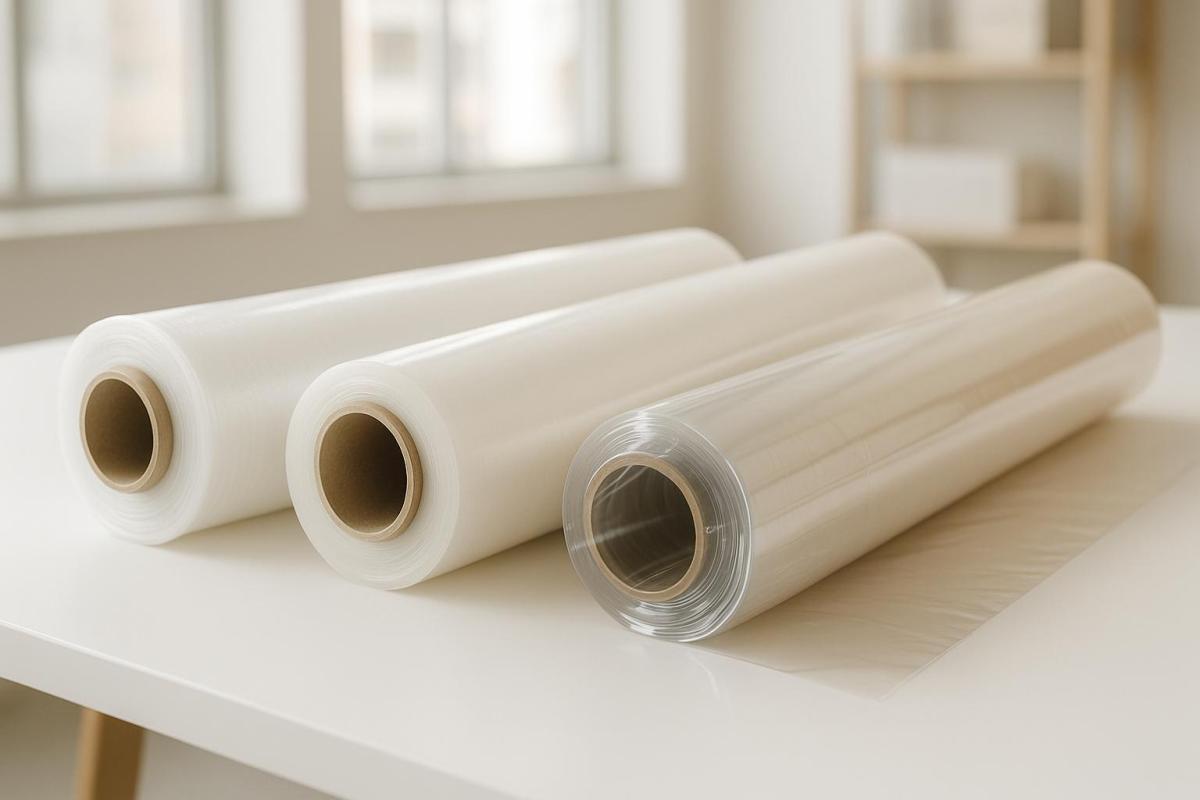
Shrink wrap comparison
1. Polyvinyl Chloride (PVC) Shrink Film
PVC shrink film is a trusted choice for protecting and showcasing printed products. As one of the most widely produced plastics globally, PVC stands out for being clear, durable, flexible, and easy to print on, making it a go-to material for various packaging needs.
Key Properties
PVC shrink film is prized for its optical clarity, allowing printed materials to be displayed without any distortion. Its strength and durability provide excellent resistance to tears and punctures, ensuring reliable protection during handling, transportation, and storage.
What sets PVC apart is its printability – it easily accepts inks and coatings, making it perfect for printing and labeling. Its flexibility allows it to conform snugly to irregular shapes, creating a polished, shiny finish that enhances the visual appeal of packaged items. These qualities make PVC shrink film a staple for a wide range of printing applications.
Best Printing Applications
PVC shrink film excels in bundling printed materials like magazines, newspapers, and promotional items. Its clear surface ensures covers and designs remain visible while keeping the contents secure. In the signage and graphics industries, PVC’s vibrant color reproduction and ease of printing make it a popular choice for display materials, banners, and point-of-sale graphics. Additionally, the electronics sector frequently uses PVC shrink bags and centerfold PVC shrink wrap for product packaging.
Cost
When it comes to pricing, PVC shrink films are positioned between other popular options. They typically cost $2–$4 per kilogram, compared to POF ($3–$6/kg) and PE ($1.50–$3/kg). Factors like thickness, volume, and customization can influence the final cost.
Environmental Impact
PVC’s market is growing at an impressive rate of about 15% annually, far outpacing the general label market’s growth of 5%. This aligns with the domestic heat shrinkable film market, which is projected to grow by over 20%. Despite ongoing environmental concerns, PVC shrink film labels continue to gain traction in the broader label market, reflecting their strong acceptance and demand.
2. Polyolefin (POF) Shrink Film
Polyolefin (POF) shrink film is a standout material in the packaging world, known for its excellent shrinking ability and crystal-clear transparency – all without relying on chloride. Its durability and environmental advantages make it a go-to choice for demanding printing needs and set it apart from other shrink films.
Key Properties
One of POF shrink film’s most notable features is its clarity, ensuring that branding, product details, and printed designs remain sharp and visible. Its impressive tensile strength and resistance to abrasion provide reliable protection during shipping and handling. Additionally, its cross-linked structure enhances both burst strength and seal integrity, making it a highly durable option.
"Polyolefin is highly durable, offering excellent tensile strength and abrasion resistance. Its cross-linked properties enhance burst strength and seal integrity, making it ideal for various applications, including food and healthcare packaging." – US Packaging & Wrapping
The film adapts well to irregularly shaped items without sacrificing protection. Unlike PVC, POF stays soft to the touch after heat application and doesn’t emit odors during the sealing and shrinking process. It also offers reliable resistance to moisture and chemicals, shielding printed materials from oils, greases, and certain solvents. Plus, it maintains thermal stability in both hot and cold conditions.
Best Printing Applications
POF shrink film is particularly suited for food packaging, as it is FDA-approved for direct contact with food. In healthcare, its strong seals and protective properties make it an excellent choice for safeguarding printed materials. Centerfold polyolefin shrink wrap is versatile enough to package a wide range of printed products, from consumer items to industrial goods.
Cost
POF shrink film comes at a higher price point compared to PVC. Its advanced features and performance justify the cost difference. It also requires a higher shrink temperature – over 300°F compared to PVC’s lower threshold – potentially increasing energy expenses during processing.
Environmental Impact
POF stands out as an eco-conscious option. It is fully recyclable and free from harmful substances like chlorine, making it a safer choice for the environment. Unlike PVC, POF doesn’t release toxic gases when heated. Recycled POF can be transformed into other plastic products, contributing to a circular economy. Additionally, biodegradable POF made from renewable materials like natural resins or starch breaks down faster, helping reduce plastic waste and pollution.
sbb-itb-ce53437
3. Polyethylene (PE) Shrink Film
Polyethylene (PE) shrink film, crafted from either high-density polyethylene (HDPE) or low-density polyethylene (LDPE), strikes a practical balance in the world of shrink wrap materials. Known for its dependable performance, this film is a versatile pick for a variety of packaging needs. Let’s dive into its features, uses, and environmental considerations.
Key Properties
When heated, PE shrink film shrinks by 60–70% in both length and width. This level of shrinkage allows it to tightly conform to products of different shapes, creating tamper-evident seals. The film’s high transparency ensures that printed materials, such as logos, remain sharp and visible, making it an excellent choice for branding. It also supports direct printing and is available in a range of finishes, including glossy, matte, clear, or colored. Plus, it’s user-friendly and works seamlessly with standard shrink wrapping machines.
Best Printing Applications
PE shrink film is a standout choice for bundling multiple items together, simplifying handling and transportation while also enhancing shelf appeal. Its transparency ensures that individual products remain visible, which is especially useful for retail displays. Additionally, businesses have the flexibility to print logos or product details directly onto the film – or skip printing altogether, depending on their needs. This makes it a go-to option for packaging a wide array of products, including home decor, stationery, cosmetics, frozen foods, apparel, and consumer electronics.
Environmental Impact
From an environmental perspective, PE shrink film falls somewhere in the middle. While it’s not as eco-friendly as polyolefin (POF), it’s generally considered a better option than polyvinyl chloride (PVC). PE is more recyclable than PVC in many regions and requires less energy to produce, which lowers its carbon footprint. That said, it still lags behind POF in terms of environmental performance. To address these concerns, manufacturers are exploring biodegradable PE alternatives to reduce its environmental impact. This makes PE an appealing choice for companies looking to balance cost, functionality, and sustainability.
Advantages and Disadvantages
This section builds on the individual film profiles and provides a comparative overview of the key advantages and disadvantages, focusing on both performance and environmental aspects. Below is a summary table that outlines the trade-offs for each type of film:
Film Type
Advantages
Disadvantages
Best For
Polyvinyl Chloride (PVC)
Clear appearance, becomes rigid when heated, and has a lower upfront cost
Storage challenges, production of sealing by-products, recycling difficulties, and releases toxic chemicals when burned
Non-consumable goods (being phased out)
Polyolefin (POF)
Excellent clarity, soft texture, strong puncture resistance, durable seals, and recyclable without harmful emissions
Higher cost compared to PVC
Books, brochures, and high-end printed materials
Polyethylene (PE)
Supports heavier items, widely recyclable, flexible and durable, and uses less energy during production
Requires specialized equipment, offers a lower shrink rate, and provides less clarity than POF
Bundling multiple items, large-format prints
Breaking Down the Trade-Offs
PVC is an affordable option upfront, but its limitations – such as recycling challenges and environmental concerns – often outweigh the cost savings. POF, while more expensive, offers exceptional clarity and durability, making it ideal for applications where visual appeal is essential, such as packaging for books and brochures. PE strikes a balance, excelling in bulk packaging and bundling applications thanks to its durability and recyclability, though it requires specialized machinery for optimal use.
For printed materials like books, POF has largely taken over PVC due to its superior clarity and better environmental profile. This clarity ensures that titles, cover art, and other graphics remain highly visible, making it an excellent choice for protecting and presenting printed items.
Processing and Equipment Considerations
The type of equipment required can also influence the choice of film. Cross-linked POF stands out for its enhanced strength and seal quality, making it a go-to option for high-volume operations or packaging heavier products. On the other hand, using PE effectively often demands dedicated shrink bundling machines, which might necessitate equipment upgrades for some facilities.
Each film type has its strengths and weaknesses, but the right choice ultimately depends on balancing cost, performance, and environmental priorities for the specific application.
Conclusion
When selecting shrink wrap film, it’s important to weigh cost, performance, and environmental considerations. PVC may have the lowest upfront cost, but concerns like its environmental impact and odor issues often limit its appeal for modern applications. On the other hand, POF stands out as a top-tier option due to its excellent clarity, durability, and FDA approval for food-related uses. Its transparency makes it ideal for showcasing high-quality printed materials like brochures and books, while PE is better suited for heavy-duty tasks such as bundling or packaging multipacks.
Interestingly, research reveals that 50% of users rely on thicker film gauges than necessary, leading to unnecessary costs without added benefits. For instance, reducing film width from 12 inches to 11 inches can cut material costs by 4.2%, and trimming the cut-off from 11 inches to 10 inches can save as much as 9.1%. Small adjustments like these can significantly enhance cost efficiency when paired with a thoughtful film selection process.
For those seeking expert guidance, working with Miro Printing & Graphics Inc. can help ensure your packaging solutions meet both performance and budget needs. With their expertise in digital and offset printing, as well as post-press services, they can seamlessly align your packaging choices with your printing requirements.
FAQs
What should I consider about the environment when choosing between PVC, POF, and PE shrink wrap films for printing projects?
PVC shrink wrap film poses environmental concerns because it emits harmful chlorine compounds when heated. Polyolefin (POF) and polyethylene (PE) films are better alternatives since they are chlorine-free and recyclable.
POF stands out as a more eco-conscious option. It uses less material and is easy to recycle, making it an excellent choice for minimizing environmental impact in printing projects.
How does the clarity of shrink wrap film impact the look of printed materials?
The transparency of shrink wrap film is crucial for showcasing the visual appeal of printed materials. High-clarity films offer a clear, glossy finish that enhances colors, sharpens details, and brings designs to life, giving your products a polished and professional look.
When it comes to printing projects, choosing a shrink wrap film with superior clarity not only protects your materials but also boosts their visual impact, helping them grab attention and make a memorable impression.
How does the thickness of shrink wrap film impact costs, and how can choosing the right film size help save money?
When you choose thicker shrink wrap film, costs typically go up because more material is needed, which drives up production expenses. However, for projects where extra strength or durability isn’t a priority, switching to a thinner film can be a smart way to cut costs without sacrificing performance.
Another way to save is by selecting the right size of shrink wrap film for your project. Using film with the correct width and length can minimize waste and boost cost efficiency. In fact, properly sizing your shrink wrap can reduce material usage and lower packaging costs by up to 25%, all while delivering professional-looking results.
Ensure your raster and vector files are print-ready with this comprehensive checklist covering resolution, color modes, and common pitfalls.
Preparing files for printing is all about ensuring accuracy, consistency, and quality. Whether you’re working with raster or vector files, the goal is to avoid common pitfalls like pixelation, color mismatches, or layout errors. Here’s what you need to know:
Raster Files: Use a resolution of 300 DPI, convert to CMYK color mode, and save in formats like TIFF or PNG. Avoid enlarging images beyond their original resolution, and include bleed margins for precise trimming.
Vector Files: Outline or embed fonts, set colors to CMYK, and save in formats like PDF, AI, or EPS. Flatten transparency and effects to prevent printing issues.
Common Steps for Both: Run a preflight check, proofread content, and review a test proof to catch any errors before final printing.
Quick Tip: Always communicate with your printer to confirm file requirements and preferences. Proper preparation saves time and prevents costly reprints.
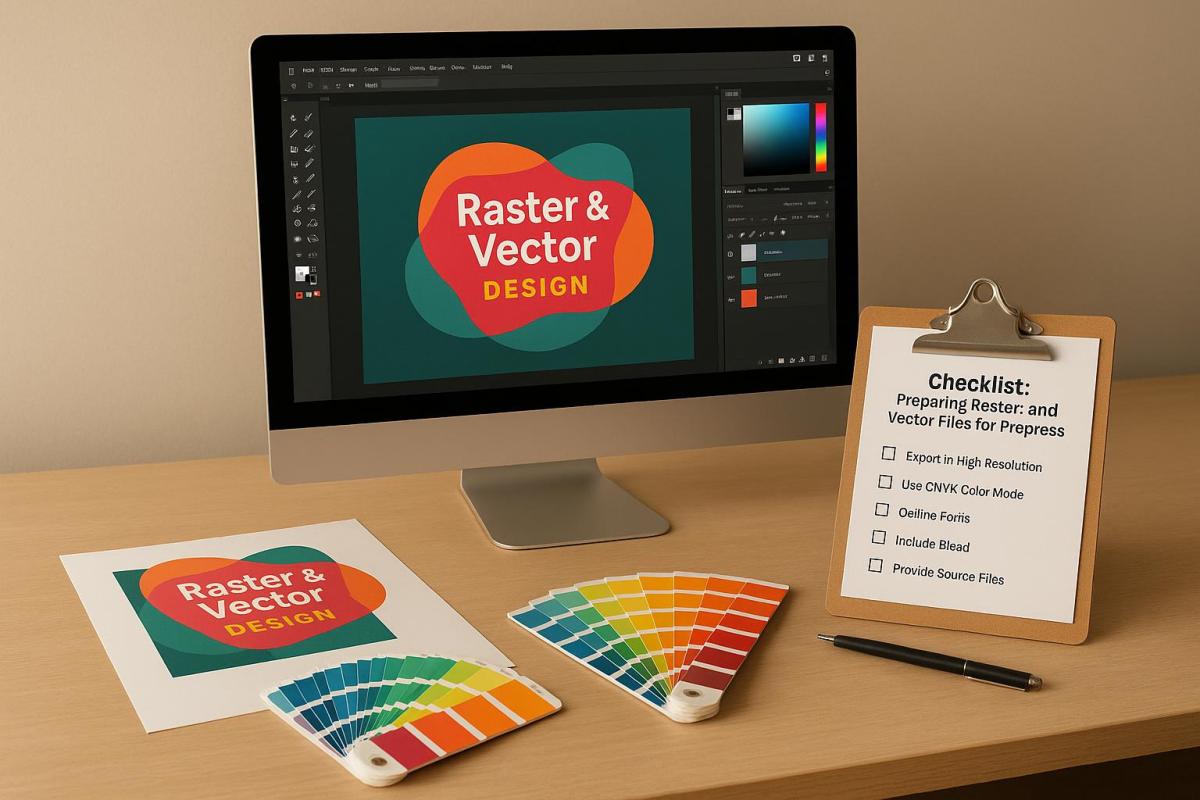
How to get Files Ready for Prepress
Checklist for Preparing Raster Files
Getting your raster files ready for high-quality print production takes a few key steps. Here’s how to ensure your images meet professional standards.
Set the Correct Resolution
The backbone of great print quality is resolution. For most projects, aim for 300 DPI – this ensures sharp text, clear details, and accurate colors. For smaller items like brochures, business cards, or flyers, 300 DPI is the standard. Larger prints, however, can work with lower resolutions: line images often look fine at 200 DPI, while photographic images on canvas may only need 100 DPI.
Keep in mind, enlarging an image reduces its PPI, and increasing resolution artificially can lead to quality loss. To calculate the pixel dimensions you need, multiply the print size (in inches) by 300. For example, a 4″ x 6″ print would require 1,200 x 1,800 pixels.
You can check an image’s DPI through file properties on Windows or macOS, or by using software like Adobe InDesign, Photoshop, or Illustrator. If the resolution is too low, try finding a higher-quality version, use AI tools to enhance it, or shrink the print size to increase the effective DPI.
Once resolution is set, it’s time to fine-tune the color mode.
Convert to CMYK Color Mode
For accurate color reproduction in print, your raster files need to be in CMYK. Most digital images are in RGB, which works great for screens but includes colors that CMYK inks can’t replicate. Automatic RGB-to-CMYK conversion might not always produce the best results, especially for color-critical projects. When precision matters, handle the conversion manually and check with your printer for their preferred file format.
"You can leave your images in RGB. You don’t need to convert them to CMYK. And in fact, you probably should not convert them to CMYK (at least not in Photoshop). Just because you place RGB images into InDesign doesn’t mean you’re sending RGB images to your printer! InDesign can convert those RGB images to CMYK when you export your PDF file." – David Blatner and Claudia McCue
To keep things simple, leave images in RGB until you’re ready to export the final PDF. If you need to convert in Photoshop, use Edit > Convert to Profile for precise control. It’s also a good idea to calibrate your monitor and print test samples to ensure what you see on-screen matches the final output.
Use the Right File Formats
The file format you choose can make or break print quality. Here’s a quick breakdown:
TIFF: Best for high-quality printing, thanks to its lossless compression, though the file sizes can be large.
JPEG: Suitable for photographs, with 24-bit color depth supporting over 16 million colors. However, its lossy compression means some image data is discarded each time you save.
PNG: Great for graphics requiring transparency, like logos or infographics, with lossless compression for sharp and clean visuals.
For top-notch print quality, TIFF is the go-to format. Use JPEG when file size is a concern, and opt for PNG when transparency or sharp edges are needed.
Check Image Scaling and Cropping
Once your file format is set, double-check the image’s dimensions and layout. Scale and crop carefully to maintain quality. Avoid enlarging images beyond their original resolution to prevent pixelation. Instead, start with your final print size and work backward to ensure the resolution is sufficient.
When cropping, don’t forget to include bleed margins. This means extending the image slightly beyond the trim edge to avoid white borders if the cut isn’t perfectly aligned. Place key elements like text and logos within a safe zone, keeping them away from the trim edges.
Common Errors to Avoid
To save yourself headaches later, watch out for these common pitfalls:
Over-compressing JPEGs, which can leave visible artifacts.
Using incorrect color profiles, leading to unwanted color shifts. Always match your images to the CMYK profiles recommended by your printer.
Skipping bleed margins and safe zones, which can cause delays or require reprints.
Mixing images with different resolutions, resulting in uneven quality within the same project.
Checklist for Preparing Vector Files
Just like with raster files, getting vector files ready for printing requires careful attention to detail. Vector files are infinitely scalable, but they still need specific preparation to ensure your print job goes off without a hitch.
Outline or Embed All Fonts
Fonts are one of the most common troublemakers during prepress. If fonts aren’t embedded or outlined, they can shift or get substituted, causing unexpected results. To avoid this, you have two main options: outlining or embedding fonts.
Outlining turns your text into vector shapes, so you don’t need the original font files anymore. In Adobe Illustrator, you can do this by selecting the text and choosing Type > Create Outlines or using the shortcut Command/Ctrl + Shift + O. This method is ideal for designs like logos or business cards where you don’t need to edit the text later.
"Outlining fonts will convert them into vectorized shapes rather than editable text. This ensures your font will print as you designed it regardless of whether or not your printer has the same font installed." – Thomas Group Printing
Embedding, on the other hand, includes the actual font data in your file. In Microsoft Word or PowerPoint, you can embed fonts by going to File > Options, selecting the Save tab, and checking the Embed fonts in the file option. This approach is better for longer documents where formatting, like bullet points or underlines, needs to stay intact.
Choose embedding for text-heavy projects (though it might increase file size and require proper licensing) and outlining for simpler designs where text won’t need further edits.
Set Color Mode to CMYK
To get accurate print colors, convert your vector designs to CMYK. RGB colors, which look vibrant on screens, often lose their punch when printed because printers use the CMYK color model. If you let the printer handle the conversion, the results might not match your expectations.
In Adobe Illustrator, you can switch to CMYK by going to File > Document Color Mode > CMYK Color. For InDesign, you can adjust individual colors through the Swatches panel or convert the entire document via Edit > Convert to Profile, selecting a CMYK profile. Use the Proof Colors feature to preview how your design will look in print. For precise color matching, especially for brand colors, consider using Pantone colors.
Save in Accepted File Formats
Stick to widely supported vector file formats like AI, PDF, or EPS.
PDFs are a safe choice because they’re compatible with almost any system and can automatically embed fonts. AI files are great if your printer uses Adobe software, while EPS files work well across different platforms. If your printer accepts CDR (CorelDRAW) files, you can use those too, but always double-check compatibility. When in doubt, a PDF with embedded fonts is usually the most reliable option.
Flatten Transparency and Effects
To avoid printing issues, manually flatten transparency, shadows, and gradients in your design.
In Adobe Illustrator, you can do this by going to Object > Flatten Transparency. If you’re saving your file as a PDF, use print-quality settings to ensure transparency is handled correctly. For complex effects, consider simplifying or rasterizing certain elements at a high resolution to maintain consistency.
Common Errors to Avoid
Here are a few common mistakes to steer clear of when prepping vector files:
Unflattened text effects: These can lead to printing errors.
Font licensing violations: If you embed fonts, make sure you have the proper licenses. If not, outlining is a safer option.
Missing bleed and trim marks: Extend your design at least 0.125 inches beyond the trim edge and keep critical elements 0.125 inches inside the trim area.
Color profile mismatches: Ensure all elements in your design use the same CMYK profile, preferably the one your printer recommends.
Version compatibility issues: If your printer’s software might not support newer file formats, save your files in legacy formats.
Comparison Table: Embedding vs. Outlining Fonts
Criteria
Embedding Fonts
Outlining Fonts
Document Length
Ideal for long, text-heavy documents
Best for short designs like logos or business cards
File Size
Increases due to font data inclusion
Smaller since text is converted to vector shapes
Formatting
Preserves formatting like underlines and bullets
May lose formatting such as bullets or underlines
Font Licensing
Requires compliance with font licensing
Avoids licensing issues by converting text to shapes
Print Precision
Ensures accurate font appearance in print
Maintains accuracy but can affect text alignment
sbb-itb-ce53437
Final Prepress Checklist for Both File Types
Taking the time to go through a thorough checklist before printing can save you from expensive reprints and delays. This applies to both raster and vector files, ensuring that every detail is in order before your project goes to press.
Run a Preflight Check
Preflighting is a critical step that reviews your digital files to ensure they’re ready for print. It’s essentially a detailed inspection to catch any issues that could disrupt the printing process.
Make sure your files are in print-ready formats like PDF or TIFF, with fonts embedded or outlined. Images should have a resolution of at least 300 dpi, colors need to be set to CMYK, and bleed areas should extend at least 1/8 inch beyond the trim. Double-check that your layout elements meet all specifications and that key content stays within the safety margins.
Most design tools, such as Adobe Illustrator, InDesign, and Photoshop, include preflight tools that can automatically flag common issues. While these are helpful, always back them up with a manual review for added assurance.
Proofread and Verify Content
Even if your file is technically flawless, any errors in the content can undermine the entire project. Carefully proofread all text for spelling, grammar, punctuation, and consistency. A fresh set of eyes – like a colleague or editor – can catch mistakes you might have overlooked. Once you’re confident the content is error-free, organize your files to keep everything running smoothly.
File Naming and Organization
A clear and consistent file naming system can eliminate confusion and make your workflow more efficient. Use descriptive names that clearly identify the file’s contents and distinguish it from similar ones.
For better organization, adopt a naming convention like the YYYY-MM-DD format paired with sequential numbering for version control. If you’re working with product images, consider sorting them by purpose – for instance, separating main listing photos from detailed close-ups. This makes files easier to locate and manage.
Review a Test Proof
Once your files are organized, reviewing a test proof is the next essential step. Whether it’s a soft proof viewed on a calibrated monitor or a physical print, this process helps confirm color accuracy, alignment, and image clarity. Seeing a test proof allows you to catch any issues before the final print run.
Conduct a Visual Inspection
A final visual inspection is your last chance to catch any lingering issues. Carefully check for artifacts, misalignments, and inconsistencies in spacing, fonts, and color use. Look for any unwanted spots, lines, or color shifts that might have occurred during file processing.
Ensure that bleed areas include the appropriate content and that no important elements are too close to the trim edges. Also, confirm that white spaces are intentional and not accidental.
At Miro Printing & Graphics Inc., we’re committed to helping your files meet all these checklist criteria. Our experienced prepress team is here to review your files, identify potential issues, and ensure your project prints exactly as you envisioned – saving you time, money, and stress.
Comparison Table: Raster vs. Vector File Preparation
Preparing raster and vector files correctly is crucial for seamless prepress work. While raster files are made of pixels, vector files rely on mathematical equations. The table below highlights the key differences between the two:
Aspect
Raster Files
Vector Files
Resolution Requirements
300 PPI for offset printing; 100 PPI for materials up to 120" wide; 80 PPI for materials over 120" wide
No fixed resolution – scalable indefinitely without quality loss
Accepted File Formats
.jpg, .tif, .bmp, .png, .psd, PDF
.ai, .eps, .cdr, .indd, PDF
Color Mode
Must convert to CMYK for printing
Must be set to CMYK for printing
Scaling Limitations
Quality degrades when resized
Scalable infinitely with no quality degradation
File Size
Generally larger
Typically smaller
Fonts
Text becomes part of the image
Fonts must be converted to outlines
Best Use Cases
Ideal for photographs and images with detailed gradients
Perfect for logos and graphics requiring flexible resizing
Quality Considerations
Quality depends on the original resolution – avoid upscaling low-res images
Maintains sharpness and clean edges at any size
To achieve the best results, always start with high-quality raster files to avoid pixelation and never upscale low-resolution images. For vector files, ensure fonts are outlined and images are embedded to guarantee accurate printing.
When preparing files for printing, converting artwork to CMYK is a must. RGB files can cause color discrepancies, as some RGB hues don’t translate well to CMYK, resulting in muted or inaccurate colors.
Choosing between raster and vector files depends on the type of content and its intended use. Raster files shine when working with detailed images like photographs, while vector files are the go-to for logos, text-heavy designs, and graphics that need to be resized for different applications. This breakdown will help you prepare your files for flawless prepress results.
Conclusion: Key Points for Prepress Success
Getting your files ready for print is the backbone of professional printing. Whether you’re handling raster images or vector designs, paying close attention to the details can be the difference between a perfect print and an expensive do-over.
For raster files, make sure they have a resolution of 300 DPI, are converted to CMYK, saved in the right formats (like TIFF or EPS), and sized correctly. Vector files, on the other hand, need fonts to be outlined or embedded, set to CMYK color mode, and saved in compatible formats such as EPS.
"It’s the little things like color, resolution, and font embedding, that can turn a polished design into a disaster if overlooked." – Nicole Steffen, Creative Director
Before sending your files off for printing, always preflight them to catch any formatting issues. Proofread carefully for errors in spelling, typography, and spacing. And don’t underestimate the importance of clear communication with your print team to keep the production process smooth.
Stick to these best practices: use professional-grade design software, trust software color metrics rather than your screen, keep file names simple, verify that all graphics are properly linked, and tidy up your artboards before submission.
At Miro Printing & Graphics Inc., we pride ourselves on helping you achieve flawless results. Our experienced prepress team ensures your files are print-ready, whether you need digital printing, offset printing, or large-format projects. With proper file preparation and expert support, you can count on the quality your business deserves.
FAQs
Why is it important to convert images to CMYK before printing, and how can I ensure accurate colors?
Failing to convert images to CMYK before printing can result in noticeable color shifts between what you see on your screen and the final printed product. This happens because screens rely on the RGB color model, which offers a broader range of colors compared to CMYK, the standard used for printing.
To get accurate colors, make sure to convert your images to CMYK before sending them off to print. It’s best to do all your editing in RGB first, as this color space provides greater flexibility. Once your edits are complete, convert the file to CMYK as the final step. This method helps ensure consistent colors and reduces the chance of unexpected surprises in the printed result.
How do I figure out the right resolution for my raster images if my print size isn’t standard?
To figure out the right resolution for non-standard print sizes, start by multiplying the desired print dimensions (in inches) by 300 dpi (dots per inch). For instance, if you want a 5 x 7-inch print, the image resolution should be at least 1500 x 2100 pixels.
If your image doesn’t meet these pixel requirements, you have two options: shrink the print size or resample the image to boost its resolution. But be careful – resampling can sometimes compromise image quality. To achieve sharp, professional-quality prints, always aim for 300 dpi at the intended print size.
Why should you outline or embed fonts in vector files before sending them to print?
When preparing vector files for printing, outlining or embedding fonts is a key step to ensure your text looks just as you designed it. Skipping this process could result in font substitutions or layout problems if the required fonts are missing or incompatible, potentially impacting the final print quality.
Outlining fonts transforms your text into vector shapes, so it no longer relies on the original font file. Embedding fonts, on the other hand, incorporates the font data directly into the file. Both approaches safeguard the typography and layout of your design, guaranteeing the printed output aligns with your original concept.
Explore how effective color management can enhance brand identity, build trust, and influence customer decisions across platforms.
Color management ensures that your brand’s colors stay consistent across all platforms – digital and print. This consistency builds trust, strengthens recognition, and influences customer decisions. Up to 90% of first impressions are based on color, and brands with consistent colors see up to a 23% increase in revenue.
Key takeaways:
Color consistency across devices (monitors, printers) is vital for maintaining brand identity.
Tools like ICC profiles and calibration ensure accurate color reproduction.
Poor color management can confuse customers and hurt sales, as seen with Tropicana’s 2009 redesign.
Standards like ISO 12647 and G7 methodology simplify collaboration between designers and printers.
Investing in color management systems saves time, reduces waste, and protects your brand image.
Effective color management isn’t just about looking good – it directly impacts how customers perceive your brand and their willingness to buy from you.
Master Colors a Guide to Setting Up a Color Management Workflow
The Science Behind Color Consistency
Creating consistent colors across various materials and devices is no small feat – it’s a highly technical process rooted in the science of color reproduction. This involves using advanced systems to ensure that every printed piece matches the original design as closely as possible. Achieving this level of precision means delivering high-quality, on-brand materials that meet professional standards.
Core Elements of Color Management
At the heart of color consistency lies a system often referred to as the "4 C’s" of color management: Consistency, Calibration, Characterization, and Conversion. These components work together to create a cohesive framework that ensures all devices speak the same "color language."
Color calibration is the process of tuning devices to a standardized state, ensuring that colors appear consistent across different platforms. This step minimizes variations between what you see on your screen and what ends up on the printed page.
ICC profiles act as standardized guides that describe how individual devices reproduce colors, enabling seamless color conversion between different pieces of equipment. The Profile Connection Space (PCS) plays a crucial role here by serving as a bridge between diverse color environments. For example, when transferring colors from a computer screen to a printing press, the PCS ensures the transition is smooth and accurate.
A Color Management Module (CMM) is the software responsible for handling color conversions within your operating system. It uses specific algorithms, known as rendering intents, to decide how colors should be adjusted during this process.
One of the biggest challenges in color management is that input, display, and output devices often interpret digital colors differently. Device-independent color spaces solve this problem by establishing a common reference point. This ensures that a specific shade of blue looks the same on a monitor in New York as it does on a printed banner in California.
"It’s been exciting to observe a company such as Tectonics making excellence in color management a priority… They are now reaping the benefits by saving money on ink and faster time to consistent and repeatable color. I’m sure their customers, and their competitors, are taking notice." – Ray Weiss, Director of Digital Print Programs at SGIA
Color Management in Different Printing Methods
While the principles of color management remain the same, different printing methods require unique strategies to maintain consistent results. Each method comes with its own set of challenges, demanding tailored tools and approaches.
Digital printing heavily depends on regular calibration and ICC profiling. Digital printers are prone to color drift over time due to factors like ink cartridge replacements, print head wear, and environmental changes. Frequent test prints and adjustments are necessary to uphold strict color standards.
Offset printing benefits from methodologies like G7, which establish a framework for achieving visual similarity across different print processes. These standards allow printing teams to align on shared color goals, ensuring consistency even when jobs are transferred between facilities or equipment types.
Large format printing presents additional challenges because of the variety of substrates and the need for an expanded color gamut. This segment, projected to reach USD 12.70 billion by 2030, often involves outdoor displays and specialty materials, making precise color management critical. Since large format printing typically requires converting colors from an RGB color space (used in digital designs) to CMYK, careful handling is essential to maintain accuracy.
Professional color management for large format projects includes selecting the right substrates to achieve the desired color outcomes and conducting regular color audits to maintain uniformity across multiple prints. On such a large scale, even minor color inconsistencies become glaringly obvious, making precision absolutely necessary.
Modern printing facilities are increasingly adopting closed-loop color control systems, which use inline spectrophotometers to measure color directly on the press. These systems automatically adjust ink densities in real time, ensuring consistent color throughout long print runs. This not only reduces waste but also boosts efficiency. Additionally, AI-powered tools are now being integrated into color management systems, enabling them to analyze print data, predict inconsistencies, and make automatic adjustments to maintain color fidelity. Cloud-based solutions further enhance these processes by centralizing color management across multiple locations, ensuring uniform standards whether production is handled in-house or outsourced. Such meticulous control protects a brand’s visual identity and ensures every project meets its intended quality.
Industry Standards and Best Practices
The printing industry depends on established standards to ensure color accuracy throughout its processes. These standards create a shared framework that allows designers, brand managers, and printers to collaborate effectively, ensuring consistent color reproduction. This shared language simplifies teamwork and enhances the reliability of results, as outlined below.
Key Color Management Standards
One of the most widely recognized standards is ISO 12647, which ensures consistent color reproduction globally. A great example of its application comes from Kellogg Company. Steve Wardle, European Marketing, Process Senior Manager at Kellogg, described their approach:
"For us as brand owners, everything made sense. We would need to set our standard, aligned closely to ISO 12647, and then our procured printers of cartons and flexibles would be trained and certified to ensure that they can print consistently to that level. This would naturally lead to a reduction in wasted time and materials, not just for Kellogg’s, but for any or all of their customers. The pay back would justify any investment very quickly".
Another key methodology is G7, which emphasizes achieving gray balance for consistent visual output. According to Idealliance:
"G7 is Idealliance’s industry-leading set of specifications for achieving gray balance and is the driving force for achieving visual similarity across all print processes".
The Pantone Matching System (PMS) remains a cornerstone for spot color reproduction. Its Formula Guide offers 2,161 colors, while the CMYK Color Guide includes 2,868 colors. Meanwhile, newer systems like the Spot Matching System (SMS) are expanding the possibilities, claiming to ensure visual color consistency across both print and digital channels, including web design, TV, and augmented reality. SMS provides 869 colors in three variations: standard, ECO for eco-friendly papers, and MAX for coated papers.
Regional standards also play a role in shaping practices. For instance, GRACoL is widely used in the United States, while FOGRA is preferred by many European companies.
How Standards Improve Team Collaboration
By building workflows around these standards, teams can enhance brand consistency and streamline their processes. When everyone – designers, printers, and brand managers – works from the same set of specifications, communication becomes more efficient. Designers can confidently specify colors, while production teams can ensure those colors remain consistent throughout the process. This alignment is essential for maintaining the precise color reproduction that is so critical to brand identity. It also reduces costs by minimizing press time, which is often one of the most expensive stages of production.
Certification programs bolster this reliability even further. For example, Pantone Certified Printers demonstrate their ability to match and reproduce colors precisely, while SWOP Certification ensures printed materials meet industry benchmarks for color and image quality.
Chris Schowalter, director of market segment management at EFI Fiery, highlights the importance of consistent results:
"The key is to have repeatability. Even if you have achieved customer satisfaction and a sign off, you need to ensure that you can reprint a job on any given day, and even if it is months or years after the original job".
Standards also simplify workflows. When a designer includes exact color codes in a brand style guide based on these established standards, every stakeholder in the production chain can reference the same specifications. This reduces guesswork and the time spent on revisions. Mark Geeves, director of sales and marketing at Color-Logic Inc., explains:
"Calibration and control of your process are critical. This way all of your production at least looks the same".
From the client’s perspective, Jonathan Rogers, international marketing manager at Onyx Graphics, Inc., emphasizes:
"Print buyers need to know their PSP can provide accurate, consistent color that conforms to these standards".
In sum, these standards and certifications not only enhance efficiency but also ensure that a brand’s visual identity remains consistent across all platforms and over time.
sbb-itb-ce53437
How Color Management Affects Brand Perception
Color management goes beyond ensuring technical accuracy – it plays a pivotal role in shaping how people feel about a brand. By leveraging the psychology of color, businesses can use this tool to create emotional connections, influence buying behavior, and build customer loyalty. A well-executed color strategy isn’t just about looking good; it’s about making a lasting impression.
The Psychology of Color in Branding
Did you know that color can drive split-second decisions? Research reveals that up to 80% of initial impressions about a brand are based on its color, with brand recognition improving by the same percentage, and recall rates climbing as high as 82% when colors are used effectively. Consistent color schemes across branding materials can also boost customer retention by as much as 23%, while websites with cohesive brand colors see a 39% increase in user engagement.
"Color harmony transforms a good photo into an unforgettable one, evoking emotions and telling a story that resonates in marketing and design." – Julien Kibler, Telluride wedding photographer
This insight carries over to branding. When a company uses consistent colors, it creates a sense of familiarity and trust. These color cues form mental associations that encourage repeat purchases and strengthen emotional ties with customers. On the flip side, inconsistent colors can weaken these bonds, leaving the brand vulnerable.
Problems Caused by Poor Color Consistency
When color management slips, the consequences go far beyond aesthetics. Inconsistent colors can confuse customers, erode trust, and even hurt the bottom line – potentially reducing revenue by up to 23%. Considering that 92.6% of consumers prioritize visual elements when making purchases, and 84.7% say color is a key factor in their decision-making, maintaining consistency is non-negotiable.
The risks are real. Take, for example, Tropicana’s infamous 2009 packaging redesign. The new look sparked such strong backlash that the company had to revert to its original design. This serves as a cautionary tale: when colors vary across business cards, websites, packaging, and ads, customers may start to question the brand’s reliability. On the other hand, a unified color scheme signals professionalism and inspires confidence. After all, up to 90% of snap purchase decisions are influenced by a brand’s visual presentation.
Color isn’t just decoration – it’s a powerful tool that can make or break how customers perceive your brand.
Setting Up Color Management in Printing
A solid color management system is key to ensuring your brand colors stay consistent from the design phase to the final printed product. This process takes theoretical color standards and brings them to life, creating a workflow where every device involved in the production process communicates in the same "color language." The ultimate goal? To ensure your brand’s colors look the same on every printed piece, reinforcing your visual identity time and time again.
Steps for Effective Color Management
To maintain your brand’s color consistency, follow the "Four C’s" of color management: Consistency, Calibration, Characterization, and Conversion:
Consistency: Make sure all devices used in printing can reliably reproduce your brand colors across multiple print runs.
Calibration: Regularly calibrate all equipment to ensure accurate color reproduction.
Characterization: Use precise measurement tools to assess and document each device’s unique color output.
Conversion: Leverage ICC profiles to accurately translate color data between devices.
Environmental factors like lighting, temperature, and humidity can also influence how colors appear, so keeping these elements under control is essential . Using premium-quality inks and substrates further enhances color accuracy. And don’t overlook the importance of staff training – well-informed team members are vital for maintaining color precision throughout the entire printing process.
By following these steps, professional print shops can implement tailored solutions to deliver brand-specific color accuracy.
Color Management Solutions at Miro Printing & Graphics Inc.
Miro Printing & Graphics Inc. serves as a great example of how to put these color management principles into action. They’ve integrated comprehensive color management techniques into their digital, offset, and large-format printing services. Their dedication to color accuracy is reflected in their rigorous quality control processes, which have earned praise from customers for their meticulous attention to detail.
Miro’s approach includes custom projects, in-house bindery, and design services, ensuring consistent color reproduction across every aspect of a project. Whether it’s business cards that perfectly match your website’s colors or large-format banners that align with your brand guidelines, they deliver results that uphold your visual identity.
Additionally, Miro employs the G7 methodology, a proven system for achieving consistent visual results across various printing processes, substrates, and devices. This approach allows printers to reach accurate colors more quickly, reduce waste, and align proofs across different platforms. By setting target color values based on actual production samples rather than just digital files, G7 ensures a higher level of reliability.
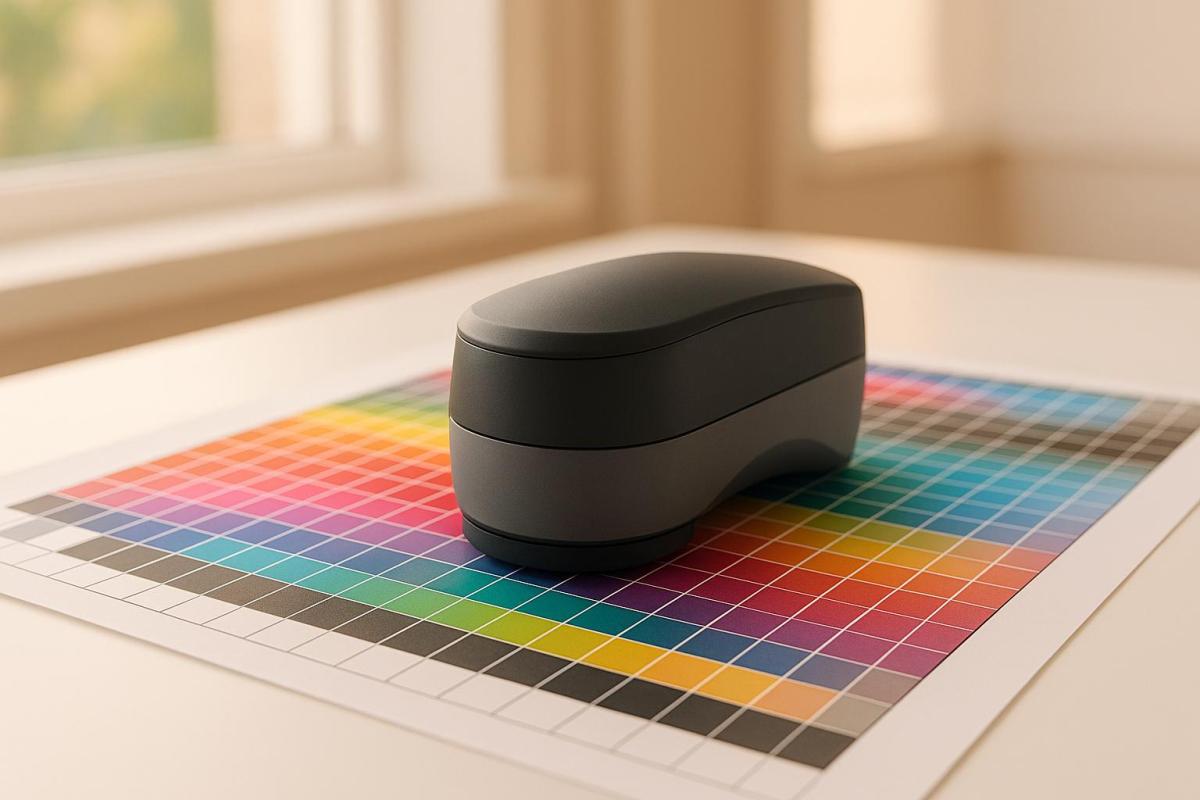
Investing in professional-grade tools like spectrophotometers is another critical step. These devices offer precise color measurement and are essential for maintaining the level of accuracy that protects your brand’s identity. While they may require a significant financial commitment, their value in avoiding costly reprints and building trust with clients is undeniable.
Conclusion: Why Color Management Matters for Branding
Color management plays a crucial role in shaping and maintaining your brand’s identity. Consistent use of brand colors can boost recognition by an impressive 80%, and businesses with cohesive branding are often valued up to 20% higher than those with inconsistent messaging.
Research shows that 81% of consumers are more likely to remember a brand’s color than its name. This kind of instant recognition fosters trust and loyalty, both of which are essential for driving sales. In fact, 71% of consumers are more likely to purchase from a brand they recognize, and 81% agree that trust is a fundamental factor in their buying decisions.
"Your brand colours aren’t just a design element; they’re a key tool in your brand’s identity, acting as a visual shortcut that helps people instantly recognise your business."
Martin Sanders
The risks of inconsistent branding can’t be overstated. A staggering 71% of consumers report that inconsistent branding creates confusion in the market. On the other hand, companies that maintain consistent color schemes across platforms see 23% higher customer retention and a 23% average revenue increase.
To avoid these pitfalls, it’s essential to establish a strong color management process. This includes creating detailed brand guidelines with exact color codes, regularly calibrating equipment to ensure accuracy, and working with professional print services that understand the technical nuances of color reproduction.
Jessica Wong, Founder and CEO of Valux Digital, highlights this importance:
"Maintaining branding consistency creates trust, improves brand recognition and increases customer loyalty in every industry. Prioritizing consistency will help you build a strong brand that is instantly recognizable and beloved by its audiences."
As mentioned earlier, consistent color reproduction is the foundation of brand trust. With up to 90% of first impressions relying on color, investing in a reliable color management system ensures that every visual element reinforces your brand identity. This not only strengthens trust but also gives your business a competitive edge in the marketplace.
FAQs
How can businesses maintain consistent colors across digital and printed materials?
To keep colors consistent across both digital and printed materials, it’s important to rely on standardized color profiles like ICC and adhere to industry standards such as G7 calibration. Using color management tools can also help ensure colors remain accurate. Don’t forget the basics – regular calibration of monitors, printers, and other equipment is key to achieving dependable color reproduction.
For top-notch and consistent results in your branding materials, consider working with a professional print shop, such as Miro Printing & Graphics Inc. in Hackensack, NJ. Their expertise can make all the difference.
What are the risks to your brand identity if color management is overlooked?
Neglecting color management can result in visuals that don’t align across your brand materials. This lack of consistency might confuse your audience and dilute your brand’s identity, ultimately impacting how recognizable and reliable your business appears.
On top of that, inaccurate colors can disrupt the emotional connection your customers feel toward your brand. This could lead to missed sales opportunities and weaken customer loyalty over time. Keeping your colors consistent and accurate is key to building a strong, lasting impression.
Why are industry standards like ISO 12647 and G7 essential for color management?
Industry standards such as ISO 12647 and G7 play an essential role in ensuring precise, consistent, and high-quality color reproduction across different printing systems. By aligning with these standards, businesses can produce printed materials that maintain a unified appearance, strengthen their brand identity, and meet professional quality expectations.
Following these standards not only simplifies production workflows but also minimizes mistakes and enhances customer confidence by consistently delivering dependable results. For brands, this level of consistency is crucial in establishing a strong and easily recognizable visual identity.
Effective font selection is crucial for commercial printing, impacting readability, brand identity, and legal compliance. Learn how to choose wisely.
Typography is a cornerstone of effective print design. The fonts you choose can define your brand’s personality, improve readability, and directly impact how your audience perceives your materials. Here’s what you need to know:
Readability and Legibility: Fonts should be easy to read across different sizes and formats. Serif fonts work well for long texts, while sans-serif fonts are better for headlines and modern designs.
Brand Alignment: Match fonts to your brand’s tone. Serif fonts suggest tradition, while sans-serif fonts feel contemporary. Use two or three complementary fonts for consistency.
Font Licensing: Always ensure proper licensing to avoid legal and financial risks. Different licenses cover desktop use, commercial applications, and embedding.
Testing and Proofing: Print test samples to check how fonts appear on paper. Adjust for clarity, spacing, and contrast.
Consistency: Develop a typography style guide to maintain uniformity in font usage, sizes, and colors.
Proper font selection ensures your printed materials look professional and communicate your message effectively. Let’s explore these steps in detail.
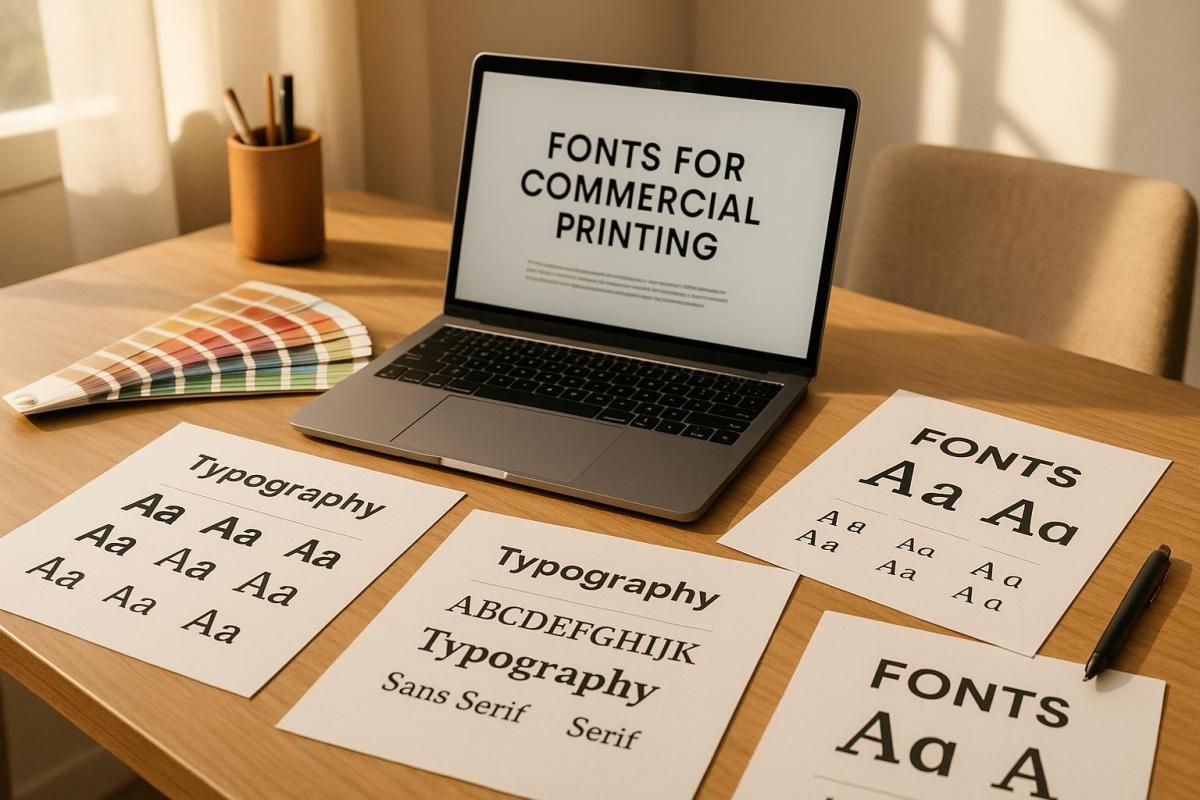
Digital Fonts & Typography for Letterpress Printing. FontLab lecture with Peter Fraterdeus
How Typography Affects Print Design
Typography is the backbone of any print design, combining visual appeal with the power to communicate your brand’s message. The way fonts are used can influence not just how your design looks but also how effectively it delivers your message. Typography guides readers through the content, shapes their emotional response, and becomes a tangible reflection of your brand when used in printed materials.
Let’s dive into how font choices can improve readability and enhance the overall visual experience.
How Fonts Impact Readability and Visual Appeal
The right font choices can make or break your print design. Elements like font size, weight, and style create a visual hierarchy, naturally drawing attention to key points like headlines while making the rest of the content easy to follow. Adjusting spacing – such as kerning, tracking, and leading – can transform crowded, hard-to-read text into something clean and accessible.
Contrast is another critical factor. A strong contrast between text and its background not only improves clarity but also adds visual interest. And don’t skip the step of reviewing print proofs; what looks great on a screen doesn’t always translate perfectly to paper. Testing ensures your typography maintains its clarity and impact once printed.
Matching Fonts with Brand Identity
Readability is crucial, but your font choices should also align with your brand’s personality. Fonts are more than just letters – they’re a visual representation of your brand’s character. They help set the tone, establish trust, and influence how your audience feels about your message.
For instance, serif fonts often convey a sense of tradition and reliability, while sans-serif fonts feel modern and straightforward. Script and display fonts, on the other hand, can add elegance, creativity, or boldness, depending on the context. By carefully selecting two or three complementary fonts, you can create a cohesive and polished look across all your materials.
At Miro Printing & Graphics Inc. in Hackensack, NJ, they emphasize maintaining typographic consistency across various formats – whether digital, offset, or large-scale printing. This consistency strengthens your brand identity and ensures a unified presentation across all platforms.
What to Consider When Selecting Print Fonts
Typography plays a big role in defining your brand, and choosing the right print fonts can make all the difference. The fonts you pick for commercial printing affect how clear, professional, and effective your materials appear.
Maintaining Legibility Across Different Sizes and Applications
Legibility is key, no matter the size or type of print. A font that works beautifully on a poster might not translate well to a business card. For most print materials, a font size of 10–12 points is typically best, but keep in mind that each typeface varies in how readable it is at different sizes. If you’re targeting a specific audience, such as older readers, you may need to use larger fonts to ensure accessibility.
"Good typography in your marketing materials keeps both ‘readability’ and ‘legibility’ in mind. While readability means exactly what you think it means: easy to read and understand, legibility means having sufficient contrast with a background (as in, not putting white on yellow on a billboard)." – A Better Image Printing
To ensure your design works well in real-life applications, always print a test version at 100% size. If the text looks blurry or hard to read from about 4 feet away, you might need to tweak the font size or increase the contrast.
White space also plays a big role in readability. Adjusting the spacing between lines (known as leading) can make text significantly clearer. For smaller font sizes under 22pt, stick to using no more than three CMYK colors to avoid blurring caused by mis-registration.
Once you’ve ensured legibility, compare different font styles to find the one that matches the tone and scale of your project.
Serif vs. Sans Serif Fonts: When to Use Each
Serif and sans serif fonts each have their strengths, depending on the context. Serif fonts, with their small decorative lines (serifs) at the ends of letters, are ideal for longer texts and formal documents. On the other hand, sans serif fonts, which lack these lines, offer a cleaner and more modern look, making them perfect for designs with limited space .
"Serifs often lend a bit more legibility at smaller scales. When you’re reading a 9.5 font in a printed book, serifs help you distinguish the letterforms and create flow as you’re reading." – Madeline DeCotes, Designer
Sans serif fonts shine in applications like signs, labels, and other designs where simplicity is key. They are also more accessible for individuals with low vision, with fonts like Arial, Helvetica, and Verdana being particularly effective.
Font Type
Best Applications
Character
Advantage
Serif
Books, brochures, formal docs
Authoritative, traditional
Great for small print sizes
Sans Serif
Signs, labels, modern designs
Clean, modern
Ideal for tight spaces
Serif fonts often feel more formal and stable, while sans serif fonts come across as neutral and contemporary.
With these distinctions in mind, the next step is ensuring your typography stays consistent to reinforce your brand identity.
Maintaining Typography Consistency for Branding
Consistency in your fonts is essential for building a strong brand identity. Start by creating a typography style guide that outlines the fonts to use for headlines, body text, sizes, spacing, and any specific styles . Stick to one primary font for headlines and branding, and a secondary font for body text. Limiting your font choices to just one or two can actually make your brand more recognizable.
Font management tools are a lifesaver when it comes to keeping your team on the same page. These tools ensure everyone has access to the correct fonts, reducing the risk of substitutions that could throw off your branding. Regularly auditing how fonts are being used can also help catch any inconsistencies before they become a bigger issue.
At Miro Printing & Graphics Inc., maintaining consistent typography across all printing methods – whether it’s digital, offset, or large format – helps ensure your brand always looks polished and professional.
Font Licensing and Legal Usage Requirements
While consistent typography strengthens brand identity, ensuring proper font licensing is essential to keep your projects legally sound. Fonts are treated as intellectual property, and using them without the correct licenses can lead to serious legal and financial repercussions.
Types of Font Licenses for Commercial Use
Font licenses are agreements that define how you can use, modify, or share font files. Knowing the different types of licenses helps you select the right one for your commercial printing needs.
Desktop Licenses: These allow installation on specific devices for use in design software. However, they often limit the number of users and might restrict usage to prototypes or personal projects.
Commercial Licenses: Required for business purposes like advertising, branding, or packaging. These licenses can vary in scope, covering print, web, or mobile use, and often specify limits on devices or users.
Open Font Licenses: These permit modification, distribution, and broad usage, often at no cost. However, modifications may need to be shared under the same open-source terms.
Embedding Font Licenses: These allow fonts to be embedded into documents or PDFs but might restrict certain file formats or usage contexts.
App Licenses: Designed for mobile applications, these typically limit the number of installations.
The cost of font licenses depends on factors like font type, usage scope, licensing duration, and the foundry or designer. Since licensing terms differ between foundries, a "basic commercial license" from one may not cover the same usage as one from another.
How to Read and Understand Font EULAs
End User License Agreements (EULAs) detail the terms for font usage, but they can be confusing. A staggering 80% of designers don’t regularly read font licenses, and 78% of those who do still find the terms unclear. Additionally, 57% are unsure about their organization’s font licensing policies.
To navigate a EULA, start by identifying the license type and its coverage. Look for sections outlining permitted uses, restrictions, and the number of users or installations allowed. Pay close attention to clauses about commercial use, as some free fonts explicitly prohibit such applications.
If you plan to share font files with clients or vendors, review the agreement for transfer restrictions. Some licenses allow embedding fonts in deliverables, while others require the recipient to obtain their own license.
Be mindful of usage limitations. For instance, desktop licenses might only cover design creation, while commercial licenses may include broader applications like client work or mass distribution.
Keep thorough records of all font licenses, including EULAs, purchase receipts, and correspondence with foundries. With creative teams managing an average of 4,500 fonts, proper documentation is crucial. If any terms seem unclear, reach out to the foundry for clarification.
By understanding EULAs, you can avoid the costly mistakes outlined below.
Legal and Financial Risks of Improper Font Usage
Ignoring font licensing terms can lead to severe consequences. Willful copyright infringement may result in statutory damages of up to $150,000 per font per project. In one instance, a company paid approximately $3 million in damages for using a font that would have cost only $200 to license.
Several high-profile lawsuits underscore these risks. Font Bureau sued NBC for $2 million after the network installed a font on more devices than allowed by its license. Similarly, P22 filed a $1.5 million claim against NBC for using the "Harry Potter" font on merchandise beyond the scope of its digital-only license. Berthold pursued Target for using its "Akzidenz-Grotesk" font without proper licensing, seeking $150,000 in damages per font.
The issue is widespread. A global survey revealed that 59% of creative professionals admitted to sharing fonts with colleagues, while about one-third reported downloading fonts online without proper licensing. By 2016, it was estimated that 300 to 700 million fonts had been shared or downloaded without appropriate permissions.
The fallout from such violations includes legal fees, settlement costs, project delays, and loss of client trust. Beyond the financial impact, the reputational damage can be equally devastating. In commercial printing, even seemingly minor details like font licensing can have major legal implications.
To safeguard your business, always license fonts directly from type designers, foundries, or reputable retailers. Establish clear guidelines and conduct regular audits to ensure compliance with licensing terms.
sbb-itb-ce53437
Step-by-Step Guide to Choosing Print Fonts
Choosing the right fonts for print is more than just picking something that looks good – it’s about ensuring clarity, consistency, and alignment with your brand. A well-thought-out selection process can make all the difference in how your printed materials are perceived.
Font Selection Process: From Start to Finish
Start by identifying the needs of your project. Whether it’s a business card, a banner, or a brochure, each print format has different space and readability requirements.
Next, think about your audience and the message you want to convey. For instance, a fun, playful font might be perfect for an event flyer, while a clean, straightforward font is better for technical manuals. The tone – be it serious, elegant, or approachable – should guide your font choices.
Narrow it down to two or three fonts. Typically, you’ll need a primary font for body text and a secondary font for headings. These should complement each other to create visual harmony without overwhelming the design . Look for fonts that offer a variety of weights and styles (like bold or italic) to help establish a clear hierarchy and add visual interest without needing multiple font families.
Before finalizing, check the licensing terms and the End User License Agreement (EULA) to ensure your fonts are cleared for commercial use.
Finally, print test proofs. What looks sharp on a screen can appear very different on paper. Print samples at actual size to see how the fonts hold up in real-world conditions. Also, communicate with your printer about their preferred file formats and font handling requirements. If you’re working with a professional service like Miro Printing & Graphics Inc., discuss their specific needs upfront to avoid production delays.
Once you’ve locked in your choices, create a style guide to maintain consistency across all your printed materials.
Building a Typography Style Guide
A typography style guide is your go-to document for ensuring your font choices stay consistent across every project. It acts as a roadmap for designers, helping your brand maintain a unified look across different formats and campaigns.
Start with your brand’s existing guidelines. If you already have designated brand fonts, include them in your print style guide, but also consider how they perform in various print applications.
Define a primary font for body text that’s easy to read and aligns with your brand’s personality. Specify font sizes for different uses – 9–12 points generally work well for body text – and include line spacing guidelines to avoid a cramped appearance.
Choose secondary fonts for headings and subheadings that complement your primary font. Detail how these should be used, including size, weight, and style variations, to create a clear visual hierarchy. Include precise measurements and spacing requirements to ensure consistency in your designs.
Your style guide should also cover color specifications, including RGB, CMYK, and HEX values, to ensure accurate printing. Provide guidelines for text color, background contrast, and accent colors for emphasis. Don’t forget to specify details like paper type, weight, finish, and trim size, as these factors can influence how your fonts appear.
After finalizing your style guide, validate your choices with thorough print testing.
Testing Fonts with Print Proofs
Print proofs are an essential step in confirming that your font choices work as intended. Fonts that look great on a screen can behave differently when printed, so testing under real conditions is key.
Print sample pages using your selected fonts in different sizes and applications. For example, create mockups of business cards, letterheads, or brochure sections to see how your chosen fonts perform together in print.
Pay attention to two key aspects: legibility (how easy it is to distinguish individual characters) and readability (how smoothly the reader can absorb the overall text). Experiment with font sizes to find the best balance between clarity and efficient use of space. Studies show that 86% of people prefer larger text for better legibility.
Test the contrast between your text and background colors by printing on the same paper stock you plan to use. Paper can significantly affect how colors and fonts appear. Also, review your materials under different lighting conditions – fluorescent office lights, natural daylight, and indoor ambient lighting – to ensure readability across environments.
Consider user testing as well. Feedback from readers can offer valuable insights into how your materials are perceived. Always save an editable version of your files before converting fonts to outlines, so you can make adjustments based on your test results. For example, you might find that serif fonts like Times New Roman or Georgia work better for long blocks of text, while sans-serif fonts like Helvetica are ideal for headings.
Summary: Font Selection Best Practices for Commercial Printing
Choosing the right fonts for commercial printing is a balancing act between aesthetics, brand identity, and functionality. Your font choices directly influence how your audience perceives and interacts with your printed materials, making this decision a crucial part of the design process.
To start, stick to your brand guidelines and limit your selection to just two or three fonts. This keeps your materials clear and visually cohesive. As PrintPlace.com puts it:
"Font selection can make the difference between interesting and boring printed materials".
Consistency in font use reinforces your overall brand strategy and makes your designs more effective.
For body text, prioritize readability. Serif fonts are a solid choice for lengthy passages, offering a classic, easy-to-read feel. Meanwhile, sans-serif fonts bring a clean, modern look that’s ideal for headlines and shorter sections . Also, ensure there’s enough contrast between your text and background colors so your materials remain legible in various lighting conditions.
Don’t overlook font licensing. Fonts are intellectual property, and using them without proper licensing can lead to legal troubles. Always secure the correct licenses before starting any print project to avoid unnecessary complications.
Testing your font choices with print proofs is essential. A font that looks crisp on a screen might not translate the same way on paper. Factors like paper texture, print resolution, and lighting can all affect the final appearance. Print samples at actual size on your chosen paper stock to confirm that your fonts achieve the desired effect.
Lastly, develop a detailed typography style guide. This document should outline your font choices, sizes, spacing, and color specifications. A well-crafted guide ensures consistency across all your printed materials and simplifies the production process. When working with commercial printers such as Miro Printing & Graphics Inc., share your font requirements early to avoid delays and ensure everything runs smoothly. Following these practices helps your printed materials consistently reflect your brand’s professionalism and attention to detail.
FAQs
What should I consider when selecting fonts for commercial printing to match my brand’s identity?
When selecting fonts for commercial printing, it’s important to pick ones that align with your brand’s personality and message. Choose typefaces that are clear and legible across different print formats and sizes, ensuring they work well whether they’re scaled up for posters or minimized for business cards.
Maintain a consistent font palette to give your materials – like brochures, flyers, and signage – a unified appearance. Also, double-check that the fonts you choose are licensed for commercial use to avoid any potential legal complications. These careful choices will ensure your printed materials effectively represent your brand.
How can I test and review fonts to ensure they look great in my printed materials?
To make sure your fonts look flawless in print, start by creating test documents with sample text in various sizes and styles. This allows you to assess character spacing, kerning, and how readable the text is overall. Export these files as PDFs to see how the fonts render in context. Be sure to use sample text that includes unique font elements, like punctuation, special characters, or numbers, so you can spot any potential issues right away.
For an extra layer of precision, print a physical proof to see how the fonts appear on paper. This step is essential for catching subtle details that might not be noticeable on a screen. Following these steps will help ensure your fonts give your project the polished, professional finish you’re aiming for.
Why is it important to understand font licensing for commercial printing, and what risks can improper use pose?
Why Font Licensing Matters in Commercial Printing
Using fonts in commercial printing isn’t just about picking something that looks good – it’s about making sure you have the legal right to use them. Fonts are considered intellectual property, and using them without the proper license can lead to serious consequences, like copyright infringement claims, lawsuits, or hefty fines. This becomes even more crucial when working on commercial projects, as the stakes are higher and proper usage rights must be secured.
Beyond the legal risks, using unlicensed fonts can damage your professional reputation. Imagine a client or partner discovering that your work includes fonts you don’t have the rights to use – it’s not a good look and could harm future opportunities. To protect your business and maintain trust, always double-check the licensing terms and ensure you have the necessary permissions for every font you include in your designs.
Explore various types of recycled paper for printing, including their characteristics, uses, benefits, and environmental impact.
Recycled paper is an eco-conscious choice for printing, offering various types to suit different needs. From everyday office tasks to high-end marketing materials, these papers combine functionality with reduced environmental impact. Here’s a quick breakdown:
White Office Paper: Ideal for daily use, with 30-100% post-consumer waste content. Features like ColorLok Technology improve print quality.
Colored Paper: Adds visual flair with eco-friendly dyes, great for branding and marketing.
Glossy and Coated Paper: Perfect for vibrant, high-resolution prints like brochures and catalogs.
Cardstock: Durable and thick, suitable for business cards, invitations, and crafts.
Specialty Papers: Unique textures and finishes for luxury packaging, art books, and creative projects.
Each type offers specific features and benefits, making it easier to align your printing choices with your goals. For the best results, consider factors like brightness, weight, and print compatibility.
PAPER CHOICES FOR PRINTING: A showcase of silk, gloss, uncoated and recycled finishes | Ex Why Zed
1. White Office Paper
White office paper made from recycled materials is a go-to choice for everyday printing. It takes post-consumer waste and turns it into high-performing sheets, offering an eco-friendly alternative to traditional virgin paper. For businesses aiming to reduce their environmental footprint, this option is both practical and effective.
Characteristics
Recycled white office paper stands out for its balance of sustainability and performance. It typically contains between 30% and 100% post-consumer waste and has a brightness rating of 92, making it a reliable option for standard office tasks.
Modern advancements have further improved its functionality. Features like ColorLok Technology enhance print quality by delivering richer blacks and more vibrant colors when used with inkjet printers. Additionally, curl control technology minimizes paper jams, ensuring smooth operation across various office equipment.
Producers like Hammermill maintain rigorous quality standards, testing over 13.5 million sheets annually to ensure consistency in their recycled paper products.
Typical Uses
Recycled white office paper is designed to handle a wide range of business needs. Whether you’re using copiers, laser printers, or inkjet printers, this paper is versatile enough for tasks like internal memos, client presentations, and more. Its ability to deliver high-quality full-color prints makes it a great choice for marketing materials and professional reports.
With the average office worker using about 10,000 sheets of paper each year, recycled white office paper becomes an essential tool for routine printing tasks. It performs well for both single-sided and double-sided documents, adding to its practicality.
Benefits
The environmental benefits of recycled white office paper are impressive. Compared to virgin fiber paper, its production requires 26% less energy, generates 40% less wastewater, and saves around 17 trees per ton.
Choosing recycled paper also supports corporate sustainability goals and resonates with consumer values around environmental responsibility. Endorsements from organizations like UNEP, WWF, and Greenpeace further validate recycled paper as a smart ecological choice.
"This dependable, everyday copier paper runs efficiently through all equipment and has a distinct contrast for easy readability." – Hammermill
Considerations/Limitations
While recycled white office paper performs well, it’s important to check the percentage of post-consumer waste in each product, as this can vary. Look for FSC certification to ensure the paper meets sustainability standards.
Additionally, brightness ratings can influence print quality, so make sure to choose a paper that suits your specific needs. At Miro Printing & Graphics Inc., we can assist you in selecting the right recycled white office paper to match both your environmental goals and performance expectations. Stay tuned as we dive into other types of recycled paper designed for specialized printing tasks.
2. Colored Recycled Paper
Following the success of white recycled paper, colored versions bring a creative flair to sustainable printing. These papers combine eco-friendly practices with a splash of color, using dyes and pigments that are environmentally conscious to produce a wide range of hues. This challenges the outdated notion that recycled paper is always dull or uninspiring.
Characteristics
Colored recycled paper maintains the same eco-friendly benefits as its white counterpart but adds a vibrant, visual edge. By using environmentally responsible dyes, it often skips the heavy bleaching processes needed for white paper, reducing chemical usage. The natural brown tones from mixed fibers lend a rustic feel, while advancements in production ensure excellent opacity, smoothness, and ink absorption. As Barbara Pavey aptly puts it:
"Because colours mixed together give brown, of one shade or another. Try it with paints, you’ll see".
Typical Uses
This type of paper is perfect for projects that demand both aesthetic appeal and sustainability. Marketing materials like brochures, postcards, and business cards printed on colored recycled paper not only grab attention but also highlight a brand’s commitment to eco-friendly practices. Its organic and earthy appearance makes it an excellent choice for eco-conscious branding, food packaging, and promotions for organic products, delivering a message of authenticity and environmental awareness.
Benefits
The environmental perks of colored recycled paper align closely with those of white recycled paper, with the added advantage of fewer chemical treatments due to reduced bleaching. Opting for this paper can also boost a brand’s image. Research shows that 78% of consumers prioritize sustainability, and 84% avoid brands with poor environmental practices. As one source highlights:
"When it comes to paper communications, recycled paper is the greenest option, it uses less energy, water, and produces lower carbon emissions than the manufacturing of non-recycled paper and at the same time reduces the amount of waste to landfill."
The vibrant appearance of colored recycled paper strengthens sustainability messaging, making it a valuable tool for organizations committed to corporate social responsibility. In the next section, we’ll dive into how textured recycled papers expand the range of sustainable printing options.
Considerations/Limitations
Before choosing colored recycled paper, evaluate factors like smoothness, brightness, opacity, and ink absorption to ensure the best printing results. Keep in mind that color intensity may vary slightly between batches, so ordering extra material for larger projects can help maintain consistency.
At Miro Printing & Graphics Inc., we suggest including a note on your printed materials to indicate they are made with recycled paper. This small detail not only emphasizes your dedication to sustainability but also enhances the appeal of your marketing efforts.
3. Glossy and Coated Recycled Paper
Expanding on the creative possibilities of colored recycled paper, glossy and coated options take things up a notch by enhancing image quality and durability. These papers are designed to deliver a polished, professional look while maintaining their eco-friendly credentials. Thanks to specialized surface treatments, they provide a shiny, reflective finish without sacrificing sustainability, using recycled materials and environmentally conscious coating methods.
Characteristics
Glossy coated recycled paper stands out for its smooth, reflective surface that makes images and text pop with vibrant colors and sharp contrasts. The coating reduces ink absorption, ensuring crisp and detailed prints. Plus, it adds a layer of protection, making the paper more resistant to smudges, fingerprints, and even water damage.
Modern glossy papers often incorporate ground calcium carbonate (GCC) instead of traditional kaolin clay in their coatings, which helps cut down on energy use during production. Another eco-forward trend is the use of water-based coatings, which lower the reliance on solvents and reduce volatile organic compound (VOC) emissions.
This advanced coating technology creates a sleek surface that enhances color brilliance and fine details, making it particularly effective for high-resolution images and graphic-heavy designs. However, the reflective finish can sometimes lead to glare under certain lighting conditions, which is worth keeping in mind.
Typical Uses
Glossy and coated recycled papers are perfect for projects where visual appeal takes center stage. They shine in applications like photographs, promotional materials, and marketing pieces that demand vibrant color and sharp image reproduction. Typical examples include:
High-end brochures
Product catalogs
Annual reports
Premium flyers
"For projects with more detailed images, coated or glossy paper can enhance color reproduction and image sharpness." – Target Print & Mail
These papers are a go-to choice for marketing teams looking to create a strong first impression while also showcasing their commitment to sustainability.
Benefits
The perks of using glossy and coated recycled papers go beyond aesthetics. Producing recycled paper uses about 60% less energy compared to making paper from virgin materials. On top of that, these papers deliver exceptional image quality and a polished finish, making them versatile for everything from marketing materials to packaging.
To further reduce environmental impact, many paper mills now incorporate recycling loops, energy recovery systems, and safer chemical processes. While these papers offer a premium look and feel, it’s important to weigh the benefits against the practical aspects of the coating process.
Considerations/Limitations
As impressive as glossy coated recycled papers are, they do come with some trade-offs. The reflective surface, while visually striking, can be prone to scratches, scuffs, and glare in certain lighting. From an environmental standpoint, the coatings can complicate recycling efforts, as they need to be separated from the paper fibers, potentially affecting the quality of the recycled material. Additionally, glossy coated paper takes longer to break down in landfills compared to uncoated alternatives.
At Miro Printing & Graphics Inc., we suggest carefully evaluating the texture, weight, and print quality of glossy and coated recycled papers before finalizing your choice. Think about how and where the paper will be used, as well as the lighting conditions, to ensure the reflective finish enhances your project rather than detracting from it.
4. Cardstock and Heavy Recycled Paper
When your project demands sturdier materials, cardstock and heavy recycled paper step up to the plate. These options blend the durability of traditional heavyweight paper with the eco-friendly benefits of recycled content. Cardstock, in particular, stands out for its thickness and strength, making it a go-to choice for projects that need to leave a lasting impact while keeping sustainability in mind.
Characteristics
Recycled cardstock combines durability, thickness, and versatility. Unlike standard printer paper, it typically weighs between 65 and 110 lbs, giving it a solid, premium feel. Made primarily from post-consumer materials, it may include some fresh fibers to maintain its quality and structure. One thing to note: recycled cardstock often has a slightly less bright white tone and a firmer texture compared to pure pulp paper. This difference doesn’t compromise quality – it’s just a natural trait of recycled materials.
The surface of recycled cardstock is smooth and consistent, making it ideal for ink applications without issues like bleeding or feathering. It’s available in various sizes, such as 8.5 x 11 inches, 11 x 17 inches, and 13 x 19 inches, and comes in weights like 80lb and 110lb to suit different needs. However, keep in mind that recycled paper can only be reused 5–7 times before it reaches the end of its life cycle. These qualities make recycled cardstock an excellent choice for projects that require durability and a polished look.
Typical Uses
Recycled cardstock builds on the reliability of recycled office paper but with added durability for more demanding applications. Its sturdiness and professional appearance make it a natural fit for business cards, where a smooth finish helps showcase your brand in the best possible light.
"Cardstock paper is thicker and more durable than regular paper, ideal for high-quality creative projects like greeting cards and art prints." – Gelato
It’s also a favorite for greeting cards and invitations, offering a polished look and excellent ink handling for personalized designs. For art prints and photos, recycled cardstock enhances color vibrancy and detail, ensuring your visuals pop while preventing ink bleed. In marketing, it’s perfect for flyers and posters, adding a professional touch that stands out. Creative enthusiasts often choose it for craft projects and DIY decor due to its ability to handle folds, cuts, and adhesives without tearing.
"Cardstock is a versatile material for craft projects and DIY decor, perfect for everything from scrapbooking to paper flowers and seasonal decorations." – Gelato
Benefits
Recycled cardstock shares the environmental advantages of other recycled papers. By choosing it, you help reduce landfill waste and methane emissions, which is significant considering paper accounts for 25% of landfill waste and produces methane – a greenhouse gas 25 times more potent than carbon dioxide.
From a practical perspective, recycled cardstock offers strength and stability, ensuring your projects maintain their shape while delivering high-quality prints. Its thickness and rigidity give it a luxurious feel, making it ideal for branding opportunities. Additionally, recycled paper tends to have higher opacity, which is great for clear, vibrant printing even on lighter stock.
Considerations/Limitations
While recycled cardstock has plenty of advantages, there are a few things to keep in mind. It’s generally more expensive than regular paper and, due to its thickness, can be trickier to fold or store. Under heavy pressure, it might collapse or deform, and its bulkiness isn’t ideal for every situation. It also lacks cushioning properties, making it unsuitable for protective packaging.
At Miro Printing & Graphics Inc., we suggest tweaking your printer settings to accommodate the weight of recycled cardstock and using eco-friendly inks for a greener printing process. Keep in mind that recycled cardstock may not have the bright white hue of virgin paper, which could influence color reproduction in some designs. When choosing recycled cardstock, weigh factors like weight, durability, and how well it aligns with your project’s goals. Striking the right balance between eco-consciousness and performance is key.
sbb-itb-ce53437
5. Specialty Recycled Papers
Expanding on the options of white, colored, glossy, and cardstock papers, specialty recycled papers bring sustainable printing into a realm of creativity and uniqueness. These papers not only support eco-friendly practices but also offer distinct textures, finishes, and designs, giving brands and designers the chance to create truly memorable printed pieces.
Characteristics
What sets specialty recycled papers apart is their unique coatings, textures, and finishes that leave a lasting impression both visually and to the touch. They often feature unconventional elements like pearlescent effects, wool-based fibers, or inclusions from everyday waste materials, such as orange peels or used coffee cups, which result in a textured, flecked, or off-white appearance.
A standout example is Favini‘s Refit wool paper, celebrated for its textured feel and innovative use of recycled materials. However, these papers often require extra care during printing. While they may not be ideal for all printing methods, such as litho presses, they shine in applications like packaging or embossed covers. It’s also worth noting that these specialty stocks tend to be priced higher than similar papers made from virgin fibers due to their unique qualities and sustainable production methods.
Typical Uses
Specialty recycled papers are perfect for projects where sustainability and standout design go hand in hand. They are particularly favored by brands that prioritize environmental responsibility and want their printed materials to reflect that ethos.
For example, Wild Alchemy Journal used Favini’s Crush paper, made with 15% food by-product and 40% recycled pulp, for the belly-band on their front cover. Kinfolk magazine opted for Remake paper, which combines 65% recycled material with 25% leather by-product, for a section of their publication. Similarly, G.F. Smith’s "Extract" paper – crafted partly from recycled coffee cups – was featured on the cover of the photography anthology On the Line.
These papers are especially suited for high-end marketing materials, luxury packaging, art books, and any project where tactile and visual impact are equally important. Options like seed paper, which can be planted after use, add an interactive twist, extending the life of the material while aligning with sustainable values.
Benefits
The environmental advantages of specialty recycled papers are impressive. Producing recycled paper uses about 26% less energy and generates 40% less wastewater compared to virgin fiber production. Thanks to advancements in manufacturing, modern recycled papers now rival the quality of non-recycled options.
Beyond sustainability, these papers offer unique branding opportunities. Their distinctive textures and finishes can enhance a brand’s identity and communicate a clear dedication to eco-conscious practices.
Considerations and Limitations
Using specialty recycled papers requires thoughtful planning. These materials are often more expensive, and their unique qualities may necessitate on-press testing to ensure the desired results. When choosing a specialty recycled paper, it’s important to consider factors like the project’s purpose, the paper’s weight and texture, environmental impact, and compatibility with your printing methods. Keep in mind that some papers may affect ink absorption and color reproduction due to their textures.
At Miro Printing & Graphics Inc., we always recommend testing these papers before committing to large print runs. Taking the time to evaluate your paper needs and ensuring they align with your design and practical goals is essential.
Comparison Table
Here’s a quick look at the key features of different types of recycled paper and how they stack up for various uses.
Paper Type
Key Characteristics
Typical Uses
Main Benefits
Limitations
White Office Paper
Smooth texture with high whiteness; text weight ranges from 70# to 100#
Excellent color reproduction and professional finish
Higher cost; ink setting can be tricky and not ideal for writing
Cardstock and Heavy Recycled Paper
Thick and durable with cover weights from 65# to 120#+
Business cards, greeting cards, invitations, packaging, premium materials
Durable with a premium look and feel
More expensive; may need special printing equipment and lacks flexibility
Specialty Recycled Papers
Unique textures and finishes, often made from alternative fibers like cotton or agricultural waste
High-end marketing, luxury packaging, art books, sustainable branding projects
Distinct tactile experience and eco-friendly appeal
Most expensive option; may require testing and limited compatibility with some printers
Weights are listed in U.S. standards: text weights range from 70# to 100#, and cover weights vary from 65# to 120#. Cover-weight paper is thicker and sturdier than text-weight, perfect for projects needing extra durability. Coated paper features a glossy finish that enhances color and durability, while uncoated paper provides a natural, easy-to-read surface. Keep in mind, recycled paper often has slight variations in texture or color, adding to its eco-conscious charm.
Certifications and labels play a critical role in helping you make environmentally conscious choices when it comes to recycled paper. With a wide range of eco-standards available globally, understanding the most prominent ones can help you align your paper choices with sustainability goals.
Here’s a closer look at the key certifications that verify a paper’s environmental credentials.
The Forest Stewardship Council (FSC) certification is one of the most widely recognized standards for sustainability. This non-profit organization is dedicated to safeguarding forest ecosystems, promoting biodiversity, and protecting the rights of indigenous communities and workers.
"FSC forest management certification confirms that the forest is being managed in a way that preserves biological diversity and benefits the lives of local people and workers, while ensuring it sustains economic viability." – FSC
FSC enforces strict guidelines that include conserving biodiversity, protecting endangered species, and banning genetically modified organisms. Their Chain of Custody (CoC) certification ensures that wood-based products are traceable to responsibly managed forests throughout the entire supply chain. Products carrying the FSC recycled logo are certified to include at least 70% post-consumer waste or recycled content.
A practical example of FSC’s impact is Canon’s recent launch of FSC-certified, carbon-neutral wide-format papers. These products are both FSC-certified and 100% carbon neutral, showcasing the real-world application of these standards.
The Sustainable Forestry Initiative (SFI) certification emphasizes a balance between environmental, social, and economic factors. Particularly prevalent in North America, SFI also employs Chain of Custody certification to ensure that fibers used in paper production come from legal and responsibly managed sources. SFI places additional focus on the economic sustainability of forestry operations and community involvement.
The Programme for the Endorsement of Forest Certification (PEFC) supports sustainable forest management through independent, third-party verification. This program assists forest owners in implementing responsible practices for growing and harvesting forest resources. Globally, around 71% of certified forests are endorsed by PEFC, making it a significant force in promoting renewable forestry practices.
Post-Consumer Waste (PCW) Content Labels
Post-Consumer Waste (PCW) labels indicate the percentage of recycled materials that were previously used by consumers, then collected and repurposed. This type of recycling is particularly impactful because it keeps waste out of landfills and reduces the demand for virgin materials. For recycled paper, a PCW content of 30–80% is recommended.
Here’s a compelling statistic: every ton of recycled post-consumer waste prevents one metric ton of carbon equivalent emissions. Additionally, paper and paperboard boast the highest recycling rate – 68% – compared to other types of municipal solid waste.
Why These Certifications Matter
Certifications provide assurance that your paper choices reflect a commitment to responsible sourcing and environmental stewardship.
In 2012, heightened awareness about recycling led to 65% of domestic paper being recycled in the U.S., with recycled paper accounting for 33% of the materials used in the nation’s paper production. When selecting recycled paper, look for brands that clearly state the percentage of recycled content and differentiate between pre-consumer and post-consumer materials.
Understanding these certifications empowers you to make informed decisions when choosing sustainable paper options.
Looking to incorporate certified recycled paper into your next project? Miro Printing & Graphics Inc. can help you navigate these certifications and find the best sustainable solution for your printing needs.
Conclusion
Opting for recycled paper is a simple yet impactful way to align your printing needs with sustainability goals. Start by assessing your project requirements – whether it’s 20 lb paper for everyday tasks or 24 lb for double-sided printing – and ensure compatibility with your printer, whether it’s a laser or inkjet model. As discussed earlier, understanding paper weight and coatings plays a key role in achieving consistent, high-quality prints.
When it comes to cost, recycled paper offers options to suit a range of budgets, with pricing varying based on paper type and intended use. Beyond affordability, recycled paper delivers environmental and economic benefits, including energy savings and reliable performance.
Today’s recycled paper matches the quality of virgin paper while using up to 60% less energy during production. This means you can achieve excellent print results while reducing your environmental impact.
"Choosing recycled paper goes beyond simply ticking a green box. It’s a deliberate decision to reduce your environmental impact. Recycled paper production requires significantly less energy and water compared to virgin paper, resulting in a smaller carbon footprint and a healthier planet for all." – The Green Office
For expert guidance, consider partnering with a professional print shop to ensure your recycled paper choice meets your sustainability and quality standards. Miro Printing & Graphics Inc. can assist with selecting the right paper, offering design advice, and providing custom finishing services like cutting, perforating, and scoring. These services help you achieve polished, professional results while staying true to your environmental values [66, 67].
As more consumers prioritize sustainability, switching to recycled paper is an easy and effective way to align your printing practices with both your principles and your customers’ expectations.
FAQs
What are the environmental advantages of using recycled paper over virgin paper for printing?
Using recycled paper for printing comes with a range of benefits for the environment. It cuts down greenhouse gas emissions, saves energy and water, and lowers pollution during the manufacturing process. Plus, it reduces the need for logging, helping to conserve forests and safeguard wildlife habitats.
Opting for recycled paper also contributes to a circular economy. This approach focuses on reusing materials instead of discarding them, which helps reduce waste and encourages more eco-friendly practices in printing.
What factors should I consider when choosing recycled paper for my printing project?
When choosing recycled paper for your printing needs, start by evaluating the specific requirements of your project. Key factors to consider include paper weight (measured in pounds or GSM), brightness (how white or reflective the paper looks), and any eco-certifications like FSC (Forest Stewardship Council) or papers made from 100% post-consumer content. These elements ensure your paper aligns with both your quality standards and environmental goals.
Also, think about how the printed material will be used. For instance, lightweight recycled paper is great for flyers, while sturdier options work better for business cards or brochures. If you’re unsure about what to pick, a professional print shop – like Miro Printing & Graphics Inc. – can offer expert advice to help you find the perfect recycled paper for your project.
What should I know about using glossy or coated recycled paper for high-quality printing?
Glossy and coated recycled papers can give your prints a sleek, professional finish. However, they do come with a few trade-offs. These papers tend to reflect light, which can create glare and potentially impact readability or the clarity of images, especially under bright lighting. Plus, their smooth texture often makes them less ideal for tasks like writing or stamping.
To achieve the best results, you might need specialized printing equipment to ensure the toner adheres properly and to avoid smudging. If you’re uncertain about what will work best for your project, it’s a good idea to reach out to a professional print shop for guidance.
Explore the transformative benefits of waterless printing in textiles, including reduced water usage, energy savings, and enhanced fabric quality.
Waterless printing is reshaping how textiles are made, cutting water use by up to 95% and energy consumption by 75%. Traditional methods waste massive resources and pollute water systems, but this new approach removes water and harmful chemicals entirely. Here’s what makes waterless printing stand out:
Saves Water: Uses as little as 0.02 liters per kilogram of fabric compared to 150 liters in older methods.
Eliminates Wastewater: No contaminated water discharge, reducing pollution and treatment costs.
Cuts Energy Use: Avoids energy-heavy steps like drying and steaming, lowering power needs by 75%.
Reduces Chemicals: Skips pre- and post-treatment processes, cutting chemical costs by 80%.
Improves Efficiency: Produces only what’s needed, reducing waste and speeding up production.
Preserves Fabric Quality: No water-related distortion or shrinkage, ensuring better texture and vibrant colors.
Shortens Production Time: Simplifies steps, enabling faster turnaround and on-demand production.
Lowers Costs: Saves on water, energy, and chemicals while reducing waste and equipment expenses.
Supports Compliance: Meets stricter regulations and aligns with eco-conscious consumer demands.
This process is transforming textile manufacturing, offering a cleaner, more efficient, and cost-effective way to produce fabrics without compromising quality.
Mimaki TRAPIS: The Future of Sustainable Textile Printing
1. Major Water Conservation
Waterless printing is a game-changer when it comes to saving water in textile production. Traditional printing methods require anywhere from 95 to 400 liters of water per kilogram of fabric. In contrast, digital waterless printing uses just 5–9 cc per meter, slashing water consumption by up to 95%. These numbers highlight the dramatic difference waterless methods can make.
Take Kyocera’s FOREARTH printer as an example. Using pigment ink, it consumes only 0.02 liters of water per kilogram of fabric compared to the staggering 150 liters used in conventional processes. That’s a reduction of over 99.9%, which translates into massive savings, especially for large-scale production.
Different digital systems also contribute to water conservation in unique ways:
Dye-sublimation and pigment systems save 70–80 liters per meter.
Disperse, reactive, and acid ink digital systems save 30–40 liters per meter.
These savings are especially crucial when you consider the textile industry’s enormous water footprint. Each year, traditional analog textile production consumes around 93 billion cubic meters of water. Alarmingly, over 94% of the world’s printed fabric is still produced using water-intensive screen printing methods.
Waterless printing doesn’t just conserve water – it also helps protect the environment. Traditional printing methods often release harmful chemicals into water sources, leading to contamination. By removing water from the process entirely, waterless printing avoids this issue, offering both environmental and conservation benefits. It’s a step toward a more sustainable future for textile production.
2. Zero Wastewater Production
One standout benefit of waterless printing is its complete elimination of wastewater production. Unlike traditional methods that produce contaminated water requiring expensive treatment, waterless printing sidesteps this issue entirely. This approach paves the way for operations that are cleaner and more efficient.
Textile printing, in particular, is a major contributor to water pollution. Globally, traditional printing and dyeing processes are estimated to account for around 20% of clean water pollution. To put this into perspective, the textile industry uses up to 9 trillion gallons of water annually to produce 60 billion kilograms of fabric. These conventional methods rely heavily on water to stabilize ink, creating wastewater that harms ecosystems and increases treatment costs.
Waterless printing flips this script. By removing water from the equation, it eliminates the need for wastewater treatment altogether. As Seacourt highlights:
"Waterless printing brings numerous benefits that make it a valuable choice for modern businesses. Its innovative technology offers high-quality, precise prints without the need for water, cutting down on both waste and pollution." – Seacourt
This zero-discharge system prevents harmful chemicals and pollutants from entering water systems, safeguarding ecosystems from contamination. Businesses that switch to waterless printing also save on the costs of wastewater treatment facilities, chemicals, and the regulatory challenges tied to managing industrial wastewater.
3. Reduced Energy Use
For textile manufacturers, energy consumption is one of the biggest operational costs. This is where waterless printing offers a clear edge. Digital textile printing technologies use much less energy compared to traditional methods, bringing both cost savings and environmental advantages.
The key to this energy efficiency lies in eliminating water-intensive steps like heating and drying, which are notorious for their high power demands. Traditional textile printing heavily depends on these energy-draining processes and requires complex machinery that consumes significant electricity. Digital textile printing, on the other hand, skips these steps entirely, slashing power usage in the process.
How much energy can be saved? Digital printing reduces energy use by up to 75% compared to conventional methods. For instance, a digital printing machine typically consumes about 0.14 kW per meter printed, while a rotary screen printer uses around 0.46 kW per meter printed. That’s a power saving of over 63%.
The energy savings don’t stop there. Alchemie Technology, a company specializing in inkjet solutions for textiles, demonstrates the impact of waterless dyeing. Their technology cuts energy use by 70% for cotton processing and a staggering 85% for polyester compared to traditional methods.
These efficiencies are also due to a streamlined production process. Unlike rotary screen printing, which forces ink through water-heavy emulsions, digital printing uses minimal physical force, making it far less energy-intensive.
"Waterless printing is more energy-efficient because it requires fewer steps and less equipment." – SureRank Access
Another example is dry dyeing, which reduces energy consumption by up to 50%. This method not only cuts energy use but also simplifies production, lowering costs and shortening setup times. Up next, we’ll explore how waterless printing’s reduced reliance on chemicals further enhances its sustainability and cost-effectiveness.
4. Less Chemical Usage
Traditional printing methods often rely on water-heavy pre-treatments, steaming, and fixation agents, which can harm both workers and the environment. Waterless printing offers a cleaner alternative, eliminating the need for these chemical-intensive pre- and post-treatment processes.
By skipping these steps, waterless printing avoids the use of solvents, developers, stabilizers, cleaning agents, and fountain solutions. Taner Güven, CEO of Optimum Digital, highlights that this approach completely removes water usage and eliminates the need for contaminated chemicals. This simplified process not only reduces chemical dependency but also lowers costs and enhances workplace safety.
A prime example is Optimum Digital’s Nirvana Belt textile printer, which cuts chemical costs by 80% and slashes overall production expenses by half. Additionally, with fewer chemicals involved, worker safety improves significantly, reducing both health risks and environmental pollution.
Beyond cost savings and worker safety, waterless printing brings broader environmental benefits. It reduces VOC emissions, minimizes reliance on petroleum-based inks, and eliminates toxic wastewater, creating a zero-discharge production cycle. The result? Safer workplaces, cleaner surroundings, and a substantial drop in chemical expenses.
5. Better Resource Efficiency
Waterless printing stands out for its ability to use raw materials more efficiently through precise, on-demand production. Unlike traditional methods, which often involve extensive material preparation and generate significant fabric waste, waterless printing ensures that only the required quantity is produced. This level of accuracy not only reduces overproduction but also cuts down on waste, resulting in notable resource savings.
Digital waterless printing systems further enhance efficiency by enabling faster setups and minimizing waste throughout the production process. These streamlined operations save resources across multiple fronts.
Practically speaking, this means manufacturers can significantly reduce water, energy, and material consumption. Traditional printing methods demand far more water, but waterless systems can cut water usage by up to 95%. They also lower energy consumption by 75% compared to conventional techniques, while dye-sublimation and pigment-based systems save between 70 and 80 liters per meter printed.
A prime example of this efficiency is Kyocera’s FOREARTH digital textile printer. It uses just 0.02 liters of water per kilogram of fabric, a staggering reduction from the 150 liters typically required in conventional printing. That’s about 99.9% less water, all while delivering high-quality prints on fabrics like cotton, silk, and polyester.
"Initially, many customers were hesitant to work with pigment ink. But once they witness the actual print quality, they are more and more willing to use it", says Sho Taniguchi, Deputy General Manager of Kyocera’s IDP Business Development Division.
For manufacturers, this improved efficiency offers more than just environmental benefits – it also provides a competitive edge. By producing exactly what’s needed, companies can respond faster to market demands, cut down on inventory costs, and reduce waste disposal expenses. This approach not only supports a more sustainable business model but also boosts profitability.
sbb-itb-ce53437
6. Higher Fabric Quality
Waterless printing offers a major advantage: it preserves the integrity of fabrics throughout the printing process. By removing water from the equation, manufacturers can sidestep common issues like fabric distortion and shrinkage, which are often unavoidable with traditional methods. Conventional textile printing relies on water during pre-treatment, printing, steaming, and washing stages, all of which can compromise the fabric’s structure.
This innovative method uses silicone-coated plates and inks to repel ink from non-printing areas, eliminating the need for dampening systems. It also avoids the paper stretch that occurs in water-based printing methods, ensuring greater precision and stability.
Waterless printing also shines when it comes to color quality. Without water-induced damage, colors appear more vibrant and are less prone to fading over time. The process is gentler on fabrics, maintaining their original texture and structural integrity. This combination of vibrant colors and preserved texture elevates the overall print quality, paving the way for advancements like Kyocera’s cutting-edge system.
Kyocera’s FOREARTH digital textile printer exemplifies these benefits. It uses proprietary pigment ink coupled with specialized pre- and post-processing techniques to overcome traditional challenges. Older pigment dyes often left printed areas stiff, but Kyocera’s approach achieves a soft, natural finish comparable to dye-based inks. The printer’s versatility allows it to handle a variety of fabrics – cotton, silk, polyester – while delivering consistent quality and excellent lightfastness.
Overall, waterless printing ensures uniform, precise results that enhance fabric quality, making it ideal for durable and comfortable textiles.
7. Shorter Production Times
Waterless printing slashes production time by cutting out several traditional steps. Gone are the days of pre-treatment processes, post-printing washing, steaming, and lengthy drying phases that often stretch manufacturing cycles by hours or even days.
One of the most dramatic time-saving benefits comes from simplifying production lines. For instance, Kyocera’s FOREARTH digital textile printer reduces the production line length from 100 meters to just 10 meters. This streamlined setup not only boosts throughput but also allows for much faster turnaround times. Shorter production lines are further enhanced by other efficiencies built into the process.
Another game-changer is the elimination of printing plates. Digital waterless printing makes it easy to switch between designs instantly, enabling quick small-batch production without the time-consuming setup that traditional screen printing requires. Plus, skipping washing stages means fabrics can move straight from printing to finishing, saving even more time.
Energy efficiency also plays a role in speeding up production. By optimizing energy use, waterless printing reduces machinery downtime, further accelerating workflows.
For an example of speed in action, consider Optimum Digital’s Nirvana Belt textile printer, which can print up to 8,611 square feet (800 m²) per hour – all without using a single drop of water. CEO Taner Güven highlights the broader impact:
"The waterless printing technology eliminates the need for litres of water required to produce printed textiles with zero water consumption, and also prevents the use of contaminated chemicals."
This streamlined process allows manufacturers to respond to market demands with agility, making it an excellent choice for on-demand production and rapid customization.
8. Smaller Environmental Impact
Waterless printing offers a way to significantly cut down on pollution and conserve resources in textile production. Traditional dyeing and treatment processes in the textile industry are responsible for about 20% of global industrial water pollution. By reducing the use of raw materials, waterless printing not only addresses this issue but also brings additional ecological and operational advantages.
This method tackles both water and energy consumption at once. Digital systems used in waterless printing can lower energy use by 75% and slash water usage to less than 1% of what traditional methods require. By eliminating energy-intensive steps like drying, steaming, and washing, manufacturers can dramatically shrink their carbon footprints. These energy savings are further complemented by the use of safer, cleaner chemicals in modern waterless systems.
Waterless printing employs VOC-free inks and environmentally friendly materials like urea, reducing dependency on synthetic dyes that harm ecosystems. By eliminating wastewater discharge, it also prevents hazardous pollutants from contaminating water sources.
To put this into perspective, traditional textile production consumes approximately 93 billion cubic meters of water every year. Furthermore, traditional screen printing still accounts for over 94% of the printed fabric worldwide. This underscores the massive potential for industry-wide change through the adoption of waterless printing technology.
One standout example of this shift is Optimum Digital’s Nirvana Belt waterless textile printing solution, introduced in January 2022. This innovative system eliminates the need for pre- and post-treatment processes, reduces energy and chemical costs by 80%, and entirely removes water from the equation [doc].
On top of these environmental benefits, digital printing machinery requires far less factory space compared to traditional rotary screen machines. This means manufacturers can optimize their facilities for greater efficiency.
9. Lower Operating Costs
Switching to waterless printing can reduce operating costs while aligning financial benefits with its eco-friendly perks. By cutting overhead expenses and minimizing environmental impact, it offers a win-win solution. For example, using less water not only slashes water bills but also eliminates the need for expensive wastewater treatment systems.
Digital textile printing systems are another game-changer, cutting energy consumption by an impressive 75%. Without energy-intensive steps like drying, steaming, or washing, manufacturers can significantly lower electricity costs.
The benefits don’t stop there. Reduced chemical usage and the extended lifespan of printing plates mean fewer expenses for purchasing, storage, and upkeep. Waterless printing equipment, designed for durability, further trims recurring costs. A standout example is Optimum Digital’s Nirvana Belt waterless textile printing solution, introduced in January 2022. This system reduces overall costs by 50% while slashing energy and chemical expenses by 80%, thanks to the elimination of pre-treatment and post-printing processes.
Cost Component
Traditional Printing
Waterless Printing
Water Costs
Higher
Lower
Energy Costs
Higher
75% Reduction
Chemical Costs
Higher
80% Reduction
Wastewater Treatment
Required
Eliminated
Additionally, reduced waste means fewer raw materials are needed, cutting down on material and disposal costs even further. Manufacturers adopting waterless printing not only save money but also tap into the growing market of eco-conscious consumers, adding another layer of financial benefit.
10. Meets Regulations and Green Goals
Waterless printing not only brings operational benefits but also simplifies compliance with regulatory standards and environmental objectives. For textile companies navigating strict eco-regulations and an increasing demand for sustainable practices, this technology offers a practical solution for meeting both compliance mandates and corporate responsibility goals.
The Environmental Protection Agency (EPA) has set energy efficiency benchmarks for office equipment, and waterless printing aligns with these standards by reducing energy consumption by 35% compared to traditional methods. This energy efficiency complements its other advantages, like lower resource usage and reduced operating costs.
Environmental, Social, and Governance (ESG) compliance now requires businesses to focus on cutting energy use, minimizing waste, reducing emissions, and maintaining ethical sourcing and responsible production. Waterless printing addresses these areas head-on. By significantly reducing water pollution, companies can achieve measurable environmental improvements that align with regulatory demands and stakeholder expectations.
Additionally, adopting waterless printing helps manufacturers earn respected sustainability certifications, such as Greenguard, GOTS, Oeko-Tex, and Green to Wear, which can boost brand credibility and trust.
This technology also tackles air quality concerns by reducing nearly 98% of volatile organic compound (VOC) emissions compared to conventional lithographic printing. This substantial reduction in VOCs not only helps businesses stay ahead of evolving air quality regulations but also strengthens their position as leaders in environmentally conscious practices.
The push for sustainable operations has shifted from being a marketing trend to a business imperative. As Max Murray from Pointmedia Creative aptly puts it:
"Sustainability in printing is no longer a marketing buzzword but a commercial necessity".
This shift underscores the growing reality: regulatory compliance and green initiatives are no longer optional – they’re essential for staying competitive in today’s business landscape.
Conclusion
Waterless printing is transforming the textile industry by tackling some of its biggest environmental and production challenges. This technology conserves up to 95% of water, reduces energy consumption by 75%, and slashes production costs by 50%, all while cutting energy and chemical expenses by 80%.
The environmental advantages are striking. By eliminating the release of harmful chemicals into water systems, waterless printing directly addresses a major issue: textile dyeing and treatment account for over 20% of global industrial water pollution. This makes it easier for manufacturers to comply with stricter environmental regulations and align with the values of eco-conscious consumers.
Operationally, waterless printing is a game changer. Its streamlined, single-step process removes the need for pre- and post-treatment machinery, reducing equipment costs and production times. This efficiency not only saves resources but also improves fabric quality by minimizing waste.
Industry leaders are emphasizing the urgency of adopting sustainable practices. Taner Güven, CEO of Optimum Digital, highlights the need for change:
"We must rapidly create a circular value chain for a sustainable world. Today’s traditional textile printing methods do not allow environmentally friendly production due to the excessive use of water and wastewater containing contaminated chemicals".
The textile sector is at a pivotal moment. With traditional methods consuming enormous amounts of water, adopting waterless printing is becoming a necessity for companies aiming to stay competitive while meeting their environmental obligations. This technology not only satisfies regulatory requirements but also lays the groundwork for a more sustainable future.
For manufacturers ready to take the leap, waterless printing offers a path toward creating textiles with Zero Impact. It’s a solution that blends environmental responsibility with operational efficiency, setting the stage for a greener and more profitable industry.
FAQs
How does waterless printing support environmental sustainability in textiles?
Waterless printing makes a big difference in conserving resources, cutting water usage by up to 95% compared to traditional printing methods. It also eliminates wastewater, reduces reliance on harsh chemicals, and requires less energy. This combination helps shrink the carbon footprint tied to textile production.
By reducing water pollution and preserving essential resources, waterless printing offers an environmentally conscious approach that matches the textile industry’s increasing focus on sustainability.
What cost-saving advantages does waterless printing offer to textile manufacturers?
Waterless printing brings notable cost advantages for textile manufacturers by slashing resource usage. This method can reduce water consumption by up to 95% and energy use by as much as 75%, which translates to significantly lower utility costs and overall operational expenses.
On top of that, it lessens the reliance on costly chemicals and cuts down on wastewater treatment needs. These reductions not only trim expenses but also align with environmentally conscious practices. Over time, these savings can make a meaningful difference to your bottom line while shrinking your environmental impact.
How does waterless printing enhance the quality of textiles compared to traditional methods?
Waterless printing improves textile quality by offering consistent, vibrant colors and rich ink density, which lead to sharper and more detailed designs. It reduces problems like dot gain, ensuring cleaner and more precise patterns. Unlike traditional methods that rely on water and harsh chemicals, this approach avoids substances that could weaken the fabric, preserving its strength and feel. As a result, waterless printing is not only gentler on textiles but also a more environmentally friendly option for production.
Learn how to create custom ICC profiles for printing to achieve better color accuracy and consistent results tailored to your specific setup.
Creating custom ICC profiles ensures your printer produces colors that match what you see on your screen. These profiles are tailored to your printer, ink, and paper combination, offering up to 90% better color accuracy than generic profiles. Whether you’re a photographer or run a print shop, custom ICC profiles help achieve consistent, precise color reproduction.
Key Steps:
Understand ICC Profiles: They translate colors between devices like monitors and printers.
Gather Tools: You’ll need a spectrophotometer, colorimeter, and profiling software (e.g., Adobe Photoshop, ColorLogic’s CoPrA).
Prepare Printer: Disable printer color management and use consistent ink, paper, and settings.
Measure Colors: Use a spectrophotometer to scan printed charts for accurate data.
Build the Profile: Import measurements into profiling software to generate your custom ICC profile.
Install and Use: Add the profile to your system and design software for color-managed workflows.
Maintain Profiles: Update profiles regularly, especially after changes in ink, paper, or printer settings.
By following these steps, you can produce prints with accurate and consistent colors, meeting professional standards while reducing errors and waste.
What ICC Profiles Are and Why You Need Them
ICC Profile Basics
An ICC profile is like a digital guide that ensures devices display colors accurately. Essentially, it’s a file that tells your device how to interpret and reproduce colors correctly.
Here’s how it works: ICC profiles map the colors in a digital image (the source) to the color space of the destination, whether that’s a screen or a printed page. Keith Cooper, Owner of Northlight Images, sums it up well:
"An ICC profile works as a translation between different sets of colour capabilities."
This process involves converting colors from your device’s unique color space into a standardized profile connection space, such as CIE L_a_b* or CIE XYZ. This guarantees consistent and accurate color reproduction. ICC profiles are globally recognized, including by the International Organization for Standardization (ISO 15076).
There are three main types of ICC profiles:
Input profiles: Used for devices like cameras and scanners.
Output profiles: Tailored for monitors and printers.
Working space profiles: Used within editing software.
Even the type of paper you use – whether it’s glossy photo paper, matte cardstock, or canvas – requires a specific ICC profile. That’s because ink interacts differently with each material. This level of detail is what makes custom ICC profiles so effective for achieving precise color adjustments.
Benefits of Custom ICC Profiles
While standard ICC profiles can handle basic color translation, custom profiles go a step further by addressing the unique characteristics of your setup. Generic profiles are designed to fit a wide range of devices, but they don’t account for the specific nuances of your printer, ink, and paper combination. Custom profiles, on the other hand, are tailored to your exact configuration, resulting in better color accuracy and tonal depth.
This level of precision is especially important in commercial printing, where even small color mismatches can diminish the quality of marketing materials or fine art reproductions. Custom ICC profiles excel at handling gamut mapping, ensuring that out-of-range colors are translated while maintaining the overall color balance. This means the colors on your screen will closely match the final print – an essential advantage for professionals.
For print shops like Miro Printing & Graphics Inc., custom profiles are a game-changer. They help meet the high expectations of clients who demand flawless color reproduction. Plus, for businesses managing multiple print jobs daily, these profiles reduce errors and cut down on wasted materials from reprints caused by color mismatches. Custom ICC profiles provide the consistency and reliability needed for an efficient color workflow.
Required Tools and Materials
Hardware and Software Requirements
Creating custom ICC profiles calls for precise tools to ensure accurate color measurement. A spectrophotometer is essential for measuring colors across various materials, ensuring consistency and reliability in color reproduction. These devices come in several forms – benchtop, portable handheld, and inline models. For most print shops, handheld spectrophotometers are the most practical option.
A colorimeter is another key tool, used to calibrate monitors by measuring on-screen color patches. This device works across different display types, using an optical prescription and a finely tuned sensor to capture and measure screen colors. While not as precise as spectrophotometers, colorimeters are critical for making sure your monitor displays colors accurately.
Equally important is a calibrated monitor to ensure accurate color representation throughout the profiling process. Experts recommend recalibrating your monitor monthly to maintain consistency.
On the software side, options range from the open-source ArgyllCMS (which integrates well with the user-friendly DisplayCAL interface) to commercial tools like Adobe Photoshop and ColorLogic’s CoPrA .
Vendor
Product
Create Profiles
Edit Profiles
v4 Support
Adobe Systems
Adobe Photoshop
Y
Y
Y
Agfa Graphics
Apogee Workflow
Y
Y
Y
basICColor
DeviL
Y
Y
Y
CGS
ORIS Press Matcher
Y
Y
Y
Heidelberg
Prinect Color Toolbox
Y
Y
Y
X-Rite
i1Studio
Y
.
Y
ColorLogic describes CoPrA as:
"The most intelligent and advanced profiling tool in the industry today".
CoPrA 9 has earned the G7 System Certification, making it a trusted choice for professional applications.
Setting Up Your Printer and Materials
With the right tools and software ready, the next step is configuring your production environment. Use the exact printer, ink, and paper you plan to profile. This step is critical because the profiling process encompasses the entire output system – including the printer, media, inks, environmental conditions, and even the drying process.
"Note that for output devices, you’re really profiling the WHOLE output process – printer, media, inks, environmental conditions, drying process, etc."
JerryTheC
Before starting, disable your printer driver’s color management. This prevents the driver from applying its own color corrections, which could interfere with the profile creation process. Also, ensure that the same inks and media used during calibration are consistent with those used in actual print jobs.
"If you choose to download and use an ICC profile, you need to adjust the ink limit to your printer. That’s what tunes it in and makes the rest of the profile correct."
Andy D
For businesses like Miro Printing & Graphics Inc., which handle diverse printing projects, it’s a good idea to create multiple profiles tailored to different settings. Field testing these profiles can help identify the best configurations for specific applications, whether you’re working on business cards, large-format prints, or specialty materials.
Keep in mind that environmental factors like temperature and humidity can influence how inks dry and colors appear. Maintaining consistent conditions during both profile creation and production printing is essential for achieving reliable results.
Printing Color Target Charts
How to Print Target Charts
Printing accurate color target charts is a key step in creating a custom ICC profile that reflects your printer’s actual output. To do this, you’ll need to disable your printer driver’s color management settings. This ensures the printed charts capture the true output of your printer without any automatic adjustments. Similarly, turn off any automatic color corrections to maintain accuracy during profiling.
Use the recommended utility for your printer to disable color management – options include tools like Canon Professional Print and Layout, Adobe Color Print Utility, or macOS ColorSync. Set the mode to No Color Correction.
Next, fine-tune your print settings:
Match the Media Type to your paper.
Turn off Borderless Printing.
Select the highest Print Quality.
Set the Scale to 100%.
For glossy or semi-gloss papers, choose a Clear Coating option like Printed Area or Overall. For matte papers, the Auto setting is typically ideal.
Make sure the printed charts fill a letter-size page without shrinking, so all color patches remain visible and properly oriented. Once printed, let the charts dry for 24 hours before measuring them. This drying time ensures accurate results.
After your charts are ready, you can move on to the next step: measuring and building your ICC profile to achieve the best color reproduction.
Selecting Color Patch Count
After printing your target charts, selecting the right patch count is critical for balancing accuracy with practicality. Higher patch counts provide more precise ICC profiles but require more time and resources to produce. Pre-made charts from providers like Red River Paper come in various formats, such as 1-page, 2-page, or 3-page versions. For professional-level color accuracy, the 2-page and 3-page options are the better choice.
Single-page charts work well for basic profiling and are budget-friendly for smaller projects. However, for more demanding tasks – like fine art reproduction or projects requiring strict adherence to brand colors – a higher patch count is invaluable. Multi-page charts are particularly useful for capturing subtle color transitions, which is essential for achieving precise color matches in challenging color spaces. Whether you’re handling everyday printing or high-precision jobs for clients like Miro Printing & Graphics Inc., choose your patch count based on the complexity and requirements of your project.
Measuring Colors and Creating the Profile
Taking Spectrophotometer Measurements
Once your printed charts have dried completely, it’s time to measure the color patches using a spectrophotometer. This device works by shining light on each sample and analyzing the reflected light across different wavelengths to capture detailed color data.
Start by calibrating your spectrophotometer according to the manufacturer’s instructions. For handheld and scanning models, this often involves placing the device on its charger, which typically includes a small white tile for calibration. Inline spectrophotometers, on the other hand, handle calibration automatically as needed.
Before measuring, make sure your printed charts are clean. Dust, fingerprints, or any debris can interfere with the readings and negatively affect the accuracy of your final ICC profile. Carefully position each color patch under the spectrophotometer’s measurement aperture, ensuring the patch lies flat and fully covers the measurement area. Then, press the measurement button to record the reflected light data.
Follow a systematic approach, measuring each patch in order to maintain precision. Adhere to the manufacturer’s recommendations for cleaning and updating the device’s software to ensure consistent performance.
Once all the patches have been measured, you can move on to creating your custom ICC profile.
Building Your Custom Profile
The next step is to import the measurement data into ICC profile creation software. This software evaluates your printed values against established reference standards to build a translation table that helps your printer reproduce colors accurately.
Some commonly used profiling tools include i1Profiler, ColorMunki Photo, and ProfileMaker. These programs generally follow the same steps: upload your measurement data, analyze the color properties, and generate an ICC profile tailored to your printer, ink, and paper combination.
Using the spectrophotometer data, the software maps the color space of your setup to standardized color values, producing an ICC output profile that characterizes your device. This process involves advanced calculations to ensure precise color reproduction.
After creating the profile, verification is key. Print a test chart using your new ICC profile and measure it again. Compare these results to the target values to confirm the profile’s accuracy. If there are noticeable color differences, revisit your original measurements or tweak your printer settings.
Professional printing services, such as Miro Printing & Graphics Inc., rely on custom ICC profiles to maintain consistent and reliable color reproduction across various projects and materials, meeting client expectations with precision.
Finally, save your completed profile with a clear and descriptive name. Include details like your printer model, paper type, and the creation date. This makes it easier to organize multiple profiles and identify when updates might be necessary.
sbb-itb-ce53437
Installing and Using Your ICC Profile
Installing Profiles on Windows and macOS
Once you’ve created your custom ICC profile, the next step is to integrate it into your operating system and design software to manage colors effectively. Keep in mind that administrator privileges are required for system-level installations on both Windows and macOS.
Windows Installation
To install on Windows, simply right-click your ICC profile file and select "Install Profile" from the context menu. This action automatically places the profile in the correct directory. If you prefer a manual approach, copy the .icc or .icm file directly to the folder located at C:\Windows\system32\spool\drivers\color.
macOS Installation
For macOS, copy your ICC profile to /Library/ColorSync/Profiles for system-wide access. If you only need it for a specific user, place it in /Users/[username]/Library/ColorSync/Profiles . To locate the hidden Library folder, hold down the Alt key and choose Library from the Finder’s Go menu.
Post-Installation Steps
After installing the profile, restart your design software. This ensures the application recognizes and applies the new profile .
Setting Up Profiles in Design Software
Once your ICC profile is installed, configure your design software to maintain consistent color management throughout your workflow. Here’s how to set it up in popular programs:
Adobe Photoshop Configuration
Navigate to Edit > Assign Profile to apply the custom profile to individual images.
Use Edit > Color Settings to define default working spaces and set up color management policies.
When opening images without embedded profiles, Photoshop will prompt you to select a profile. Choose your custom ICC profile for the best results.
Custom profiles can be found at the end of the profile list in the Color dialog box.
If you don’t see your profile immediately, click "More Options" to display all available profiles.
Save your color settings in Photoshop and load them into Illustrator to maintain consistency across applications.
Best Practices for Accurate Color Reproduction
To achieve precise color reproduction, follow these tips:
Calibrate Your Monitor: Use a colorimeter to ensure your screen displays colors accurately.
Enable Soft Proofing: Preview how your colors will appear when printed by enabling soft proofing in your design software.
Embed Color Profiles: Always embed color profiles when saving images to preserve color information for future use.
Turn Off Printer Color Management: Disable your printer’s color management settings when using custom ICC profiles. Let your design software handle the color management instead.
"ICC profiles allow printers to accurately reproduce what the designer saw on the screen." – Fujifilm
Professional printing services, like Miro Printing & Graphics Inc., rely on these workflows to deliver high-quality prints with consistent and accurate colors across various projects and materials. By integrating these steps, you can ensure your printed results match the color precision established during profiling.
Fixing Problems and Keeping Profiles Current
Solving Common Problems
Even with the best preparation, issues can crop up when working with custom ICC profiles. Knowing how to tackle these common problems can save you from hours of frustration.
Profile Creation Errors
One of the most frequent challenges happens during profile creation. For instance, clogged printer nozzles or driver issues can mess up your color target charts, stopping the profiling software from processing them properly. Before you start printing, double-check that the nozzles are clear, the correct driver is installed, and your print settings align with the profiling software’s requirements.
Invalid Profile Errors
If you encounter an "invalid profile" error, take a look at the profile’s filename. Make sure it only includes alphanumeric characters – special characters, spaces, or symbols can cause recognition issues in certain applications.
Missing Profiles in Software
If your profiles seem to vanish from Photoshop on Windows 11, close the program and install the profiles in the directory C:\Windows\System32\spool\drivers\color. Then, reopen Photoshop. If the problem persists, re-installing the profiles through the same method can help refresh the system’s profile database.
Color Management Conflicts
To avoid conflicts, disable the printer driver’s color management when using custom profiles. When printing from Photoshop, pressing the spacebar while printing can clear old metadata that might interfere with your custom profile.
Software Synchronization Issues
Ensure consistent color settings across different applications by saving your color settings in one program and loading them into another. This keeps everything aligned and reduces the risk of mismatched outputs.
By addressing these issues quickly, you can maintain consistent results and focus on keeping your profiles up to date.
When to Update Your Profiles
Once you’ve resolved common profiling issues, it’s important to keep your profiles current. ICC profiles aren’t static – changes in your printing setup or environment can impact color accuracy. Knowing when to update ensures your output stays consistent.
Equipment and Material Changes
Anytime you change ink, paper, or printheads, it’s time to update your profiles. These changes can shift color reproduction, making old profiles less reliable.
Update Trigger
Notes
Change in Ink Batch
Ensure consistent colors with new ink
Environmental Changes
Adjust for temperature or humidity shifts
New DTF Film Type
Create profiles for new films
Regular Maintenance Schedule
For professional results, follow a regular maintenance schedule. Here’s a quick guide:
Test Print Frequency
Notes
Weekly
Check for color shifts and fine-tune as needed
Major Configuration Change
Recalibrate thoroughly after big changes
Printing a small test target and comparing it to your reference standard is a simple way to check your profile’s accuracy.
Environmental Factors
Temperature and humidity can affect both your printer and the paper you use. If your environment changes with the seasons, consider creating separate profiles for different conditions. Update these profiles as the environment shifts to maintain consistent results.
Long-term Profile Management
Regular calibration is key to keeping your ICC profiles accurate. Incorporate profile updates into your maintenance routine. Depending on how often you print and the variability of your equipment, you might need to recalibrate monthly for high-volume operations or quarterly if you print less frequently.
Major System Changes
After significant updates – like printer maintenance, driver upgrades, or hardware replacements – run thorough tests and create a new profile if needed. Don’t assume your old profile will work seamlessly with updated components; a fresh profile ensures consistent color reproduction.
Professional printing companies, such as Miro Printing & Graphics Inc., rely on strict profile update schedules to deliver top-notch color accuracy. By adopting similar habits, you can achieve professional-quality results with your custom ICC profiles.
Making printer ICC profiles – Creating pro level paper profiles for my reviews. X-Rite i1iSis review
Conclusion
Custom ICC profiles take the uncertainty out of printing and replace it with precision. By following the process – selecting the right tools, printing color targets, measuring with a spectrophotometer, and building profiles – you can achieve highly accurate color reproduction. Each step plays a critical role in delivering results that meet professional standards.
These profiles can improve color accuracy by up to 90% while also reducing ink waste, making them indispensable for applications like branding, packaging, and fine art reproduction.
"ICC profiles are essential for your printing workflow because they help ensure that your prints’ colors are accurate. Without ICC profiles, it would be challenging to produce consistent results."
But precision isn’t a one-and-done effort – it requires ongoing maintenance. Over time, equipment performance can shift due to wear, environmental factors, or changes in consumables. As Fujifilm highlights, "Color management requires ongoing calibration to ensure the profile is properly tailored to the equipment’s performance". Regular calibration helps prevent color shifts and keeps your profiles aligned with your equipment’s current state.
Additionally, as your printing needs evolve, updating profiles becomes essential. Different paper types, ink formulations, or environmental conditions may call for tailored profiles. By creating and maintaining multiple profiles for various scenarios, you’re equipped to handle any project with confidence. Whether you’re managing a high-volume operation or printing occasionally, keeping your profiles up to date ensures the consistent color quality that separates professional work from the rest.
FAQs
Why do I need to turn off printer color management when creating custom ICC profiles?
To create custom ICC profiles, it’s important to turn off the printer’s color management. Why? Because this stops the printer from making its own internal color adjustments, giving your custom ICC profile complete control over the color output. This way, your prints are tailored to your specific materials and deliver the color accuracy and consistency you’re aiming for.
Disabling the printer’s color management also avoids any potential mismatches or errors. This allows your custom profile to work as intended, ensuring you get professional-grade prints with reliable, predictable colors every time.
How often should I update my custom ICC profiles to keep colors accurate?
When you make changes to your printing setup – like switching to different inks, paper, or even a new printer – it’s important to update your custom ICC profiles. Doing so ensures your colors stay consistent and accurate.
In addition, it’s a good idea to review and update your profiles every 6 to 12 months. Over time, equipment and materials can shift slightly in performance, and staying on top of these changes helps you maintain top-notch quality in your printing work.
What’s the difference between a spectrophotometer and a colorimeter when creating ICC profiles?
A spectrophotometer captures the entire spectrum of light that a material reflects or transmits, delivering detailed and precise color data. This level of accuracy makes it perfect for developing ICC profiles, particularly when dealing with complex printing processes or unique materials.
In contrast, a colorimeter is designed for quick and straightforward color comparisons. It’s most commonly used to maintain color consistency during production. While it doesn’t provide the same level of detail as a spectrophotometer, it’s more compact, easier to use, and well-suited for routine color monitoring.
Explore the differences between soy-based and petroleum-based inks, focusing on environmental impact, print quality, and cost considerations.
Soy-based inks and petroleum-based inks differ in key areas like environmental impact, print quality, and cost. Soy inks, derived from renewable soybean oil, emit fewer volatile organic compounds (VOCs), decompose faster, and make recycling easier. They also produce brighter colors and offer better coverage efficiency but dry slower and cost more upfront. Petroleum inks, made from fossil fuels, dry faster and are more durable for outdoor use but have higher VOC emissions and are harder to recycle. While soy inks align better with eco-conscious goals, petroleum inks remain practical for specific applications like outdoor advertising.
Quick Comparison:
Criteria
Soy-Based Inks
Petroleum-Based Inks
Resource Origin
Renewable soybean oil
Non-renewable fossil fuels
VOC Emissions
<1%
~4.6%
Biodegradability
Faster decomposition
Slower decomposition
Color Quality
Brighter and sharper
Less vibrant
Drying Time
Slower
Faster
Durability
Moderate, less suitable for outdoor use
Higher, better for outdoor applications
Cost
5–10% higher upfront
Lower initial cost
Recyclability
Easier to de-ink
Harder to de-ink
Soy inks are ideal for industries like newspapers, packaging, and marketing materials, while petroleum inks work better for projects requiring fast drying and durability. Balancing these factors helps businesses choose the right ink for their needs.
5 – Soy Ink.mov
Environmental Effects
Soy-based and petroleum-based inks have distinct impacts when it comes to resource use, air quality, and waste management.
Biodegradability and Renewability
The key difference between these two ink types lies in their origins. Soy-based inks are made from soybean oil, a resource that can be replenished, while petroleum-based inks rely entirely on fossil fuels, which are finite. This difference plays a major role in their environmental impact.
"Soy-based inks provide a green alternative to conventional petroleum-based inks. Because it is made from renewable soybeans, this soy-based ink has a smaller environmental footprint."
Soy-based inks break down much faster than their petroleum-based counterparts, which helps reduce the long-term environmental impact of printed materials. This characteristic makes them a more eco-friendly choice when it comes to disposal.
Interestingly, over 90% of daily newspapers in the United States now use soy-based color inks. This shift shows how industries can balance environmental awareness with large-scale printing demands. Beyond biodegradability, another crucial factor to consider is the emission of volatile organic compounds (VOCs).
VOC Emissions and Regulations
Soy-based inks also stand out for their lower VOC emissions. These compounds, which can evaporate from printed materials, contribute to air pollution and can be harmful to both the environment and human health. Soy-based inks contain just 0.8% VOCs, a stark contrast to the 4.6% found in petroleum-based inks.
"VOCs are the chemical compounds that evaporate off the paper surface and often create a noticeable chemical smell that can contribute to air quality impacts and can be harmful to human health." – Shelie Miller, Jonathan W. Bulkley Collegiate Professor in Sustainable Systems at the University of Michigan
According to a 1994 EPA study, soy inks have over 80% fewer volatile components than petroleum-based inks. Petroleum-based inks often contain harmful VOCs like toluene, benzene, and xylene, which pose risks to ecosystems, wildlife, and people. By reducing VOC emissions, soy-based inks help improve air quality in printing facilities, making them safer for workers and ensuring compliance with strict environmental standards.
Paper Recycling and De-Inking
Soy-based inks also make a difference in the recycling process. Publications printed with soy inks are easier to de-ink, which streamlines the recycling chain and minimizes environmental harm.
During the de-inking process, soy inks cause less damage to paper fibers, and the resulting waste is less toxic and easier to manage than waste from petroleum-based inks. This results in higher-quality recycled paper and reduces the environmental burden of waste treatment.
"Soy-based inks are definitely more sustainable than petroleum-based inks and are a better choice." – Marina Hanes, RecycleNation
The faster breakdown of soy inks allows recycling facilities to handle these materials more efficiently, generating less hazardous waste in the process.
For companies committed to environmental responsibility, soy-based inks offer a clear advantage. Their renewable source, lower VOC emissions, and improved recyclability make them a smart choice for reducing the ecological footprint of printing operations.
Performance and Print Quality
When it comes to printing, performance and print quality are just as crucial as environmental considerations. Understanding how different inks perform can help printing professionals make informed decisions about which ink to use for specific projects.
Color Brightness and Intensity
Soy-based inks are known for delivering exceptional color quality. Thanks to the clarity of soy oil, these inks require less pigment while still producing sharper and brighter colors compared to petroleum-based inks. On the other hand, petroleum-based inks often retain natural contaminants from the refining process, which can dull the vibrancy of their color pigments. Soy-based inks, in contrast, result in more vivid and intense colors. While other vegetable-based inks are a better alternative to petroleum-based inks, they often fall short of the vibrant results that soy-based inks can achieve.
Drying Time and Substrate Compatibility
Drying time and how inks interact with different materials are also important factors. Soy-based inks tend to dry more slowly than petroleum-based inks, as they lack the evaporative solvents commonly found in traditional inks. However, they make up for this slower drying time with their versatility. Soy inks perform well on a variety of materials, including paper, cardboard, and even some plastics. They are effective on both coated and uncoated papers, as well as other absorbent surfaces, making them ideal for offset and flexographic printing processes.
That said, soy inks may require additional surface treatments or primers to ensure proper adhesion on certain materials. They are also sensitive to extreme conditions like cold or high humidity, which can affect print quality. For applications that demand maximum durability – such as outdoor advertising or packaging – petroleum-based inks are often the better choice. Additionally, soy inks are more prone to color shifts when exposed to prolonged light or outdoor environments.
Durability and Clean-Up
Durability and ease of maintenance are other areas where these inks differ. Soy-based inks provide excellent rub resistance, making them ideal for publications that are frequently handled. However, they may not hold up as well in terms of lightfastness and overall wear resistance.
Feature
Soy-Based Ink
Petroleum-Based Ink
Durability
Moderate, varies by application
Generally more long-lasting
Toxicity
Lower, safer for workers and users
Higher, more hazardous
Soy inks also simplify equipment cleaning, thanks to their milder solvents. This not only reduces maintenance costs but can also lower overall ink usage by up to 85% in label printing applications. For most commercial printing needs, soy-based inks strike a good balance between durability and environmental benefits, while also being safer to handle.
At Miro Printing & Graphics Inc., these performance factors are carefully evaluated to ensure the right ink is chosen for each project, delivering reliable results without compromising on quality.
Cost Comparison
When deciding between soy-based and petroleum-based inks, it’s essential to weigh both the upfront expenses and the long-term financial impact. While traditional inks may appear cheaper initially, the broader financial picture paints a more complex reality.
Initial Costs vs. Long-Term Savings
Soy-based inks typically cost 5–10% more upfront, largely due to higher pigment expenses. Additionally, switching to soy ink often requires investing in new cleaners and solvents, which can add to the initial setup costs.
However, soy inks provide 10–15% better coverage efficiency compared to petroleum-based inks. In label printing, for example, soy inks can reduce overall ink usage by as much as 85% compared to water-based alternatives. This efficiency translates to significant savings over time.
Another advantage lies in environmental compliance. Soy inks contain less than 1% VOCs (volatile organic compounds), compared to 4.6% in petroleum-based inks. This lower VOC content not only reduces compliance costs but also helps businesses avoid potential environmental penalties. Additionally, soy inks simplify paper recycling due to their lower oil content, making waste management more cost-effective.
Cost Factor
Soy-Based Ink
Petroleum-Based Ink
Initial Price
5–10% higher
Lower upfront cost
Coverage Efficiency
10–15% better coverage
Standard coverage
VOC Content
<1%
~4.6%
Cleaning Costs
Lower maintenance costs
Higher cleaning expenses
These long-term savings align with growing market trends that prioritize sustainable printing solutions.
Market Trends and Availability
The market for soy-based inks is expanding rapidly, fueled by the increasing demand for environmentally friendly printing options. Valued at $1.1 billion in 2025, the soy-based ink market is projected to grow to $2.1 billion by 2032, reflecting a compound annual growth rate (CAGR) of 8.5%. In the United States, the eco-friendly ink market is expected to grow at a 7.1% CAGR from 2025 to 2035.
Government initiatives and shifting consumer preferences toward green products are driving this growth across North America. Notably, over 90% of daily newspapers in the U.S. now use color soy ink . This widespread adoption has significantly improved the availability of soy-based inks, with approximately 25% of all commercial printing in the U.S. now utilizing soy ink.
Despite these advancements, challenges remain. As John Kwasneski, director of sales for coatings, construction, and adhesives at Munzing, points out:
"Companies are interested in sustainability; however, the message is clear, no additional cost."
– John Kwasneski
Alex Radu, technical service manager for Shamrock Technologies, highlights the broader shift in priorities:
"Sustainability has evolved from a buzzword and a checked box to being a vital feature of all business segments."
– Alex Radu
The industry is also benefiting from increased collaboration between startups, established companies, and research institutions. These partnerships are driving innovation, improving product performance, and helping to reduce costs. As a result, soy-based inks are becoming more competitive with traditional petroleum-based options.
At Miro Printing & Graphics Inc., cost evaluations are designed to balance sustainability with performance, ensuring the best possible printing solutions for their clients.
sbb-itb-ce53437
Commercial Printing Applications
When it comes to commercial printing, understanding the best applications for different ink types can make all the difference. Soy-based and petroleum-based inks each bring unique strengths to the table, depending on factors like printing method, substrate, and quality requirements.
Best Uses for Soy-Based Inks
Soy-based inks have become a go-to choice in newspaper publishing. Major publishers favor these inks for their ability to deliver vibrant colors and efficient coverage. Beyond newspapers, soy inks shine in food packaging due to their non-toxic nature and compliance with food safety standards. They’re also a trusted option in the pharmaceutical industry, where safety is critical for medication packaging and informational materials.
In the cosmetics sector, soy inks are often used for labels, cartons, and tubes, aligning with the eco-friendly image many brands promote. High-end packaging for luxury goods and premium food products also benefits from the precise color accuracy soy inks provide.
Offset printing is another area where soy-based inks excel, producing standout results on brochures, catalogs, and other marketing materials. Even in textiles, companies like Alternative Apparel and Pact incorporate soy inks into their designs. Brands such as Nike and Patagonia have also used soy inks in advertising campaigns to highlight their commitment to sustainability. These examples underscore the versatility and appeal of soy-based inks in various industries.
Limitations of Each Ink Type
While both ink types have their advantages, they also come with trade-offs. Soy-based inks, for instance, have slower drying times and are more sensitive to moisture. They can also experience color shifts when exposed to light, making them less ideal for outdoor applications where durability is key .
In some cases, soy inks may not be suitable for food packaging that requires zero odor transfer, as even slight scent issues could be problematic. Additionally, certain substrates might need extra preparation, like surface treatments or primers, to ensure proper adhesion. For glossy finishes or specialty substrates, petroleum-based inks often provide more consistent color and performance.
Integration into Full-Service Printing
Full-service printing operations often integrate both soy-based and petroleum-based inks to cater to a range of client needs. The choice of ink depends on several factors, including environmental priorities, substrate requirements, durability, and budget. Switching between ink types usually requires process adjustments, such as equipment calibration, to account for the unique properties of soy inks.
Maintenance routines also differ. Soy inks, for example, use gentler solvents, which can simplify cleaning and reduce downtime.
At Miro Printing & Graphics Inc., both ink technologies are used to offer a wide range of services, from digital and offset printing to large-format applications. This flexibility ensures that clients can find solutions tailored to their priorities – whether they value sustainability, specific performance characteristics, or cost-effectiveness.
Additionally, offering soy-based inks allows businesses to enhance their sustainability messaging. By choosing eco-friendly printing materials, companies can weave environmental responsibility into their brand narrative, making it a meaningful part of their story.
Summary Table of Key Differences
The table below highlights the main contrasts between soy-based and petroleum-based inks:
Factor
Soy-Based Inks
Petroleum-Based Inks
Resource Origin
Made from renewable soybean oil
Derived from non-renewable fossil fuels
VOC Emissions
Less than 1% VOCs
Approximately 4.6% VOCs
Biodegradability
Up to four times more biodegradable
Lower biodegradability
Energy Production
Uses only 0.5% of the energy needed for petroleum inks
Requires significantly more energy
Print Coverage
Offers 10–15% better coverage
Provides standard coverage
Color Vibrancy
Produces brighter, more vibrant colors
Color quality varies by formulation
Drying Time
Slower drying times
Dries faster
Durability
Moderate resistance to light and wear
More durable, especially for outdoor use
Initial Cost
5–10% higher upfront cost
Lower initial price
Recycling Impact
Easier to remove during paper recycling
Harder to de-ink during recycling
Worker Safety
Safer with lower toxicity
Higher toxicity levels
Market Adoption
Used by over 90% of U.S. daily newspapers for color printing
Long-standing industry standard
This comparison underscores the strengths and trade-offs of both ink types. Soy-based inks shine in eco-friendliness, with their renewable origins, minimal VOC emissions, and easier recyclability. They also deliver vibrant colors and better print coverage, making them a strong choice for environmentally conscious printing.
However, soy inks come with slower drying times and higher upfront costs, which can be hurdles in high-speed production settings. On the other hand, petroleum-based inks are more durable and dry quickly, making them better suited for outdoor applications and projects requiring fast turnaround, though they come with environmental and safety drawbacks.
Many printers strike a balance by using both types of inks, selecting the one that aligns best with the specific needs of each project, whether it’s speed, durability, or environmental responsibility.
Conclusion
Choosing soy-based inks aligns with both business goals and a commitment to sustainability, offering long-term savings and practical advantages for modern printing operations.
Soy inks stand out for their ability to protect air quality and improve recyclability. They contribute to safer working environments and lower environmental impact due to their renewable origins and biodegradability, supporting a more sustainable approach to printing. As Shelie Miller, Jonathan W. Bulkley Collegiate Professor in Sustainable Systems at the University of Michigan, highlights:
"For inks, reduced VOCs will likely have the greatest benefit by reducing workplace exposures rather than benefits to customers."
In addition to their environmental perks, soy inks deliver exceptional performance. They provide better coverage than petroleum-based inks, which means less ink is needed – saving money and simplifying cleanup. Wendy Brannen from the American Soybean Association explains:
"Because of the more intense colors, less ink may be needed to print materials, thereby lowering costs. Also, [color] soy ink is better at resisting rub off on the reader’s hands."
While soy inks may have a higher initial cost, their efficiency results in long-term savings. With over 90% of America’s daily newspapers using color soy ink, the economic advantages are clear. Additionally, approximately 25% of all commercial printing in the United States now uses soy-based inks, showcasing their practicality and growing popularity.
FAQs
What are the environmental advantages of choosing soy-based inks over petroleum-based inks?
Soy-based inks present several clear advantages over petroleum-based inks, especially when it comes to reducing environmental impact. For starters, they emit much lower levels of volatile organic compounds (VOCs). This means less air pollution and better indoor air quality during the printing process – a win for both the planet and the people working with these materials.
These inks are also derived from soybeans, a renewable resource, which ties directly to supporting sustainable farming. Plus, their biodegradability makes recycling easier and minimizes environmental harm when disposed of. Opting for soy-based inks is a straightforward way to make a positive environmental choice without sacrificing print quality.
Are soy-based inks more cost-effective than petroleum-based inks over time?
Soy-based inks might come with a slightly higher upfront cost – about 2–5% more than petroleum-based inks – but they often pay off over time. Their formulation typically requires less material, which can reduce overall consumption. Plus, they can lower expenses tied to compliance with environmental regulations and waste disposal. On top of that, businesses adopting these inks may find added value in aligning with eco-conscious goals, cutting down on regulatory fees, and even boosting their brand reputation. In the long run, these advantages can easily offset the initial price difference.
Why are petroleum-based inks still used in certain printing applications despite their environmental impact?
Petroleum-based inks continue to be the go-to option for certain applications where their distinct characteristics are indispensable. These inks work particularly well on non-porous surfaces such as glossy paper, plastic, and metal, offering excellent adhesion and producing vibrant, high-quality prints.
You’ll often find them used in packaging, labels, and textiles, especially when durability and longevity are a priority. While soy-based inks are a greener alternative, petroleum-based inks shine in scenarios where performance and resilience take center stage.
Choosing the right booklet size is crucial for readability, cost, and usability. Explore popular sizes and their best uses for effective printing.
When printing booklets, choosing the right size impacts readability, cost, and usability. Common booklet sizes include:
5.5″ x 8.5″ (Half-Letter): Compact and portable, ideal for event programs, product catalogs, and promotional materials.
8.5″ x 11″ (Letter): Offers more space, suitable for reports, manuals, and detailed presentations.
6″ x 9″: A balanced option, often used for novels, training materials, and portfolios.
A5 (5.83″ x 8.27″): Similar to half-letter, popular for international projects.
A4 (8.27″ x 11.69″): Larger format, great for content-heavy designs and global audiences.
Smaller booklets are easier to carry and economical, while larger ones accommodate detailed visuals and text. Production and mailing costs vary by size, with standard formats like 5.5″ x 8.5″ and 8.5″ x 11″ being cost-effective in the U.S.
For custom sizes, consider your budget, audience, and content needs. Custom formats stand out but may increase production costs. Partnering with an experienced printer ensures high-quality results tailored to your project.
Designing Booklets: Choosing a Booklet Size
Standard Booklet Sizes
When it comes to printing booklets, certain dimensions have become widely used because they balance practicality, cost, and visual appeal. Here’s a breakdown of the most popular sizes and what they’re best suited for.
5.5″ x 8.5″ (Half-Letter)
This size, often referred to as half-letter or digest, is a favorite in the US. Its compact design makes it easy to carry while still offering enough space for visuals and text. That’s why it’s a go-to for product catalogs and promotional materials. It’s also a practical choice for event programs, as it fits conveniently into a purse or pocket. Many novels, memoirs, and non-fiction books also fall into this size category.
8.5″ x 11″ (Letter)
The letter size, 8.5″ x 11″, provides more room, making it ideal for content that requires clarity and detail. It’s commonly used for reports, manuals, handbooks, and technical documents, where clear text and diagrams are essential. This size is also perfect for professional business presentations and annual reports, offering a polished and organized look.
6″ x 9″ and Square Formats
The 6″ x 9″ size is a middle ground between the compact half-letter and the larger letter dimensions. It’s often chosen for portfolios, lookbooks, or marketing materials that need a sleek, sophisticated feel. Square formats, such as 6″ x 6″ or 8″ x 8″, stand out visually and are popular for art books, photography portfolios, and brand-focused designs.
A5 (5.83″ x 8.27″) and A4 (8.27″ x 11.69″)
International sizes like A5 and A4 are gaining traction in the US, especially among businesses with global audiences. A5, at 5.83″ x 8.27″, is similar to half-letter in its portable and personal feel. Meanwhile, A4 offers even more space than the standard letter size, making it ideal for detailed catalogs, comprehensive reports, and educational materials. A5 works well for projects needing a smaller, approachable format, while A4 is better for content-heavy designs.
The choice between US standard and international sizes depends on your audience and project goals. For US-focused projects, 5.5″ x 8.5″ and 8.5″ x 11″ are familiar and practical. On the other hand, international formats like A5 and A4 can add a global touch and ensure consistency for worldwide use. These dimensions provide a solid foundation for customizing your booklet to fit your needs and budget.
How to Choose the Right Size
Selecting the right booklet size is about finding the sweet spot between your content needs, how your audience will use it, and what your budget allows. The size you choose influences not only the design but also how practical and cost-effective the booklet will be.
Content and Layout Requirements
The type and amount of content you have should guide your size decision. If you’re working on detailed reports, technical manuals, or catalogs packed with charts and diagrams, a larger format like 8.5″ x 11″ is ideal. It ensures everything – from text to visuals – remains clear and easy to read. Larger sizes are also better for content with intricate visuals, as they preserve detail and impact.
For simpler materials such as event programs, product brochures, or promotional handouts, smaller formats like 5.5″ x 8.5″ are a better fit. This size encourages concise, focused messaging that’s quick for readers to digest.
If your project is heavy on visuals – like photography portfolios, art books, or architectural showcases – larger formats allow images to stand out. On the other hand, text-heavy booklets can work well in smaller sizes, as long as the content is well-organized and the font remains legible.
Purpose and Target Audience
Think about who will use your booklet and in what setting. For materials like trade show handouts, networking guides, or quick-reference booklets, portability is key. Smaller formats are easy to carry and more practical for these scenarios.
Larger formats, like 8.5″ x 11″, work best for professional settings such as boardroom presentations or client meetings. They make a strong impression and are ideal for discussing complex information like real estate brochures, corporate reports, or detailed product catalogs.
Educational materials and training manuals need a balance between portability and readability. A 6″ x 9″ size often works well, offering enough space for clear explanations and diagrams while still being easy to handle for students or employees.
Also, consider where your audience will encounter your booklet. Compact, visually appealing formats are perfect for busy trade shows, while larger, more detailed catalogs can be sent directly to prospects who are likely to spend more time reviewing them.
Budget and Mailing Costs
The size of your booklet has a direct impact on printing and shipping costs, so your budget plays a big role. Standard sizes like 5.5″ x 8.5″ and 8.5″ x 11″ are often more economical because they reduce production waste. Even small changes to these dimensions can lead to higher costs.
Mailing costs also increase with size and weight. For example, as of August 2024, USPS flat mail (large envelopes) starts at $1.50 for up to 1 ounce, with an additional $0.27 for every extra ounce. Standard letter-sized booklets are cheaper to mail than larger formats because of the way they’re processed. If your booklet can fold down to fit letter-size dimensions, you’ll save significantly on postage.
The size of your print run also affects costs. Ordering 25 booklets might cost $3–$5 per piece, but ordering 1,000 could drop the price to $0.40–$0.60 per booklet. Larger print runs make bigger formats more affordable, though rush orders will add extra charges.
"The size you select should resonate with your book’s purpose, content type, and target audience, so we’re often asked for guidance as a commercial printer on this small but crucial decision." – Thomas Group Printing
Booklet Size Comparison Chart
Choosing the right booklet size can make a big difference in your project’s impact and cost. Below is a side-by-side comparison of standard booklet sizes, highlighting their uses, advantages, and limitations to help you make an informed decision.
Offers maximum content space; professional look; great for visuals
Less portable; higher mailing and production costs
Expensive to print and ship
6″ x 9″
Novels, biographies, non-fiction books, training materials
Standard book size; good balance of readability and cost
Moderate space; average portability
Balanced printing and mailing costs
A5 (5.83″ x 8.27″)
International publications, technical manuals, academic materials
Compact and internationally recognized
Less common in the U.S.; may need custom setup
Slightly higher costs due to non-standard sizing in the U.S.
A4 (8.27″ x 11.69″)
International reports, technical documentation, academic papers
Larger international standard; great for detailed content
Rare in U.S.; higher costs and mailing challenges
Most expensive due to non-standard U.S. sizing
Key Insights on Booklet Sizes
The 5.5″ x 8.5″ size stands out for its portability and cost efficiency. It’s perfect for projects like product catalogs or zines where compactness and affordability are priorities.
If your project requires more room for visuals and detailed text, the 8.5″ x 11″ format provides the space you need. This size is ideal for professional reports, technical manuals, and catalogs loaded with charts, diagrams, or extensive information.
For a balance between compactness and content space, the 6″ x 9″ format is a reliable choice. Widely recognized as the standard for novels and non-fiction books, it offers a good mix of readability and cost-effectiveness. It’s also a popular size for training materials and educational booklets.
Cost and Mailing Considerations
Printing costs can vary significantly between formats. For instance, a 6″ x 9″ booklet with 60 full-color pages and saddle-stitch binding costs about $5.50 per unit, while increasing the page count to 92 raises the cost to $11.88. On the other hand, 1,000 perfect-bound 5.5″ x 8.5″ booklets with 80 pages cost roughly $3.97 each, while printing just 250 units increases the cost to around $5.89 per booklet.
"The thicker the paper and the more color images (and ink) you use, the more it can cost." – Zoe Fisher, Marketing Assistant, PrintingCenterUSA
Mailing costs also depend on size. Smaller formats like 5.5″ x 8.5″ are generally cheaper to mail due to their lighter weight, which often qualifies them for lower postage rates. Larger sizes, such as 8.5″ x 11″, may incur higher shipping fees and could fall into more expensive postal rate categories.
A5 and A4 Formats for Global Use
If your project targets an international audience, A5 and A4 formats are worth considering. While these sizes align with global standards, they can increase costs in the U.S. due to custom setups and mailing challenges.
Final Thoughts on Choosing a Format
Smaller booklets are great for delivering focused, concise content, while larger formats are better suited for detailed information. The 6″ x 9″ size often strikes the best balance, offering enough space for content while keeping production and mailing costs reasonable. Use this guide to weigh the trade-offs and select the format that best fits your project’s needs and budget.
sbb-itb-ce53437
Custom Booklet Sizes
When you’re looking to make a statement with your printed materials, custom booklet sizes can provide the flexibility and creativity needed to leave a lasting impression. Moving beyond standard dimensions, custom sizes allow you to tailor your booklets to meet specific needs and stand out from the crowd.
Benefits of Custom Sizes
Choosing custom dimensions for your booklets comes with several perks:
They offer unique shapes and sizes that align perfectly with specific design goals.
Square booklets, being less common than rectangular ones, naturally draw attention and set your materials apart.
Custom dimensions help reinforce your brand identity, making your booklet distinct and memorable.
These sizes are ideal for matching your brand’s visual style or accommodating particular design elements.
Custom booklet sizes can be grouped into categories based on their purpose:
Small Custom Booklets: Sizes like 9.5″ x 4.75″ or 8.0″ x 9.0″ are perfect for portable materials such as event programs, product brochures, or promotional handouts.
Medium Custom Formats: Dimensions like 12.0″ x 9.0″ provide a flexible option for educational materials, retail catalogs, or company profiles.
Large Custom Booklets: Larger sizes, such as 17.0″ x 11.0″ or 11.0″ x 17.0″, are excellent for impactful presentations, where large visuals and detailed information take center stage.
Extra-Wide Formats: Unique dimensions like 22.0″ x 8.5″ or 18.0″ x 6.0″ are ideal for panoramic layouts or timelines, making them a standout choice for artistic displays or detailed marketing campaigns.
These options not only enhance the visual appeal of your materials but also ensure they serve their intended purpose effectively.
Custom Printing Considerations
Printing custom-sized booklets involves more than just picking dimensions. Here are some key factors to keep in mind:
Cost implications: Custom sizes generally cost more than standard ones, so budget accordingly.
Paper stock selection: Use thinner paper for internal pages and thicker, more durable stock for the cover.
Binding methods: Leave enough space for binding to avoid cutting off important content. Saddle stitching is a budget-friendly option for booklets with fewer pages.
File preparation: Ensure your files are formatted correctly, use high-resolution images, and work in CMYK color mode for accurate printing.
Consult your printer early: Getting input from your printer during the design phase can help avoid costly mistakes.
Order quantity: Printing larger quantities can significantly lower the cost per unit.
Quality control: Always request a proof to check for errors. Images should have a resolution of at least 300 dpi for sharp, professional results.
Booklet Printing at Miro Printing & Graphics Inc.
Choosing the right booklet size is just one piece of the puzzle – what truly brings your vision to life is expert printing and finishing.
Since its founding in 1994 in Hackensack, NJ, Miro Printing & Graphics Inc. has been delivering professional-grade booklet printing for over 30 years. Their expertise spans both standard and custom projects, ensuring each booklet is produced to the highest standards.
"With meticulous attention to detail, our print shop has a customized approach that is unmatched by larger print providers."
Printing and Finishing Options
Miro Printing & Graphics Inc. offers a range of printing solutions, including digital and offset printing, to accommodate diverse project needs. Digital printing is perfect for short runs and tight deadlines, while offset printing provides consistent, cost-effective results for larger orders. What sets them apart is their fully in-house bindery, which keeps every step of production under one roof. This approach not only reduces delays but also ensures strict quality control.
Their post-press services cover a wide array of finishing options, including:
Binding methods like perfect binding, plastic coil, and comb binding
Collating, cutting, creasing, and die cutting
Drilling, folding, micro-perforation, and numbering
Padding and direct mailing services
These capabilities allow them to handle everything from economical production of standard formats to the intricate demands of custom designs. Whether it’s a simple saddle-stitched booklet or a catalog with unique finishes, they deliver professional results every time.
Custom Projects and Design Support
Miro Printing & Graphics Inc. goes beyond printing by offering layout and design support to create polished interiors and eye-catching covers. Their design team collaborates with clients throughout the process, from initial concept to final production, ensuring tailored solutions for even the most unique booklet projects.
"Let us know what type of project you are working on, and allow us to leverage our expertise."
For more complex projects, they provide proofs for review before moving to final production, giving clients the chance to ensure every detail is just right.
Customer testimonials highlight their dedication to quality and service. One client praised their exceptional customer service and attention to detail, while another shared how Miro completed a challenging job quickly and at a fair price – even going the extra mile to provide a video of a print sample for approval.
Conclusion
Selecting the right booklet size plays a key role in how well your content connects with readers, impacts your budget, and achieves the desired outcome. Standard formats each serve specific purposes, so your choice should reflect the type of content you’re presenting, the needs of your audience, and the resources you have available.
Smaller formats are ideal for portable, quick reads. Medium sizes shine in educational materials and profiles, while larger formats are perfect for bold, impactful presentations. Extra-wide layouts, on the other hand, are designed to showcase intricate visuals or artistic content.
For those looking to balance cost and efficiency, the 5.5″ x 8.5″ size is often the most economical for larger print runs, offering a good mix of affordability and printing ease. Careful planning and proper file preparation can also help you avoid unnecessary expenses, such as rush orders or reprints.
Beyond size, the quality of execution is equally important. Miro Printing & Graphics Inc., with over 30 years of experience, offers both digital and offset printing options, along with comprehensive finishing services. Their in-house bindery ensures consistent quality, while their design team provides layout assistance to help you make the most of your chosen format.
Once you’ve decided on the size, expert printing and attention to detail are essential for bringing your project to life. Whether it’s a small promotional booklet or a detailed product catalog, combining thoughtful size selection with professional printing ensures your booklet meets its purpose and delivers the impact you’re aiming for. This seamless approach – from choosing the right format to final production – ensures your vision becomes a reality.
FAQs
What should I consider when deciding between US standard and international booklet sizes?
When choosing between US standard and international booklet sizes, it’s important to consider your audience, the booklet’s purpose, and how it will be printed. In the United States, 8.5" x 11" is a popular size, commonly used for catalogs, instruction manuals, and business documents. Meanwhile, international sizes like A4 (8.27" x 11.7") are favored worldwide, especially for formal publications or materials targeting global audiences.
You’ll also want to think about the availability of printing services and materials for the size you select. Additionally, some design or layout requirements may naturally fit better with one format over the other. If you’re unsure, reaching out to a professional print shop, such as Miro Printing & Graphics Inc., can provide guidance tailored to your project’s needs.
How do custom booklet sizes affect production and mailing costs compared to standard sizes?
When opting for custom booklet sizes, be prepared for potentially higher production and mailing expenses compared to standard options. Why? Custom sizes often demand specialized printing setups, unique cutting processes, and adjustments to meet mailing requirements. All these extra steps can drive up both material and labor costs.
If you’re thinking about going the custom route, it’s worth balancing the appeal of a distinctive design against the likelihood of increased expenses. For those working within tighter budgets, sticking with standard booklet sizes is usually a more economical and efficient choice.
Why is the 6" x 9" booklet size a great choice for educational materials and training manuals?
The 6" x 9" booklet size is a favorite choice for educational materials and training manuals because it offers the ideal mix of ease of reading and portability. Its compact dimensions make it simple to carry around, while still providing enough room for detailed text, diagrams, and visuals.
This format is also widely recognized and convenient for readers, fitting easily into bags or sitting neatly on desks. Whether you’re creating step-by-step guides or reference materials, the 6" x 9" size delivers a polished, professional appearance without being cumbersome.
Learn how to select colors for die-cut labels that enhance brand identity, ensure readability, and influence customer behavior effectively.
Choosing the right colors for die-cut labels can directly impact how customers perceive your product and whether they choose to buy it. Here’s what you need to know:
Color Psychology Matters: Colors evoke emotions and influence purchasing decisions. For example, red grabs attention and encourages impulse buys, while blue builds trust. Studies show 85% of buying decisions are influenced by color alone.
Align Colors with Your Brand: Your label’s colors should represent your brand’s personality and values. Consistency across platforms increases brand recognition by up to 80%.
Consider Printing Methods: Digital printing is cost-effective for small runs but may not match Pantone colors perfectly. Offset printing offers better color accuracy, especially for custom shades.
Material Impacts Color: Paper absorbs ink differently than vinyl or metallic materials. Test your colors on the actual label material to ensure they appear as intended.
Ensure Readability: High-contrast combinations (e.g., black text on white) improve visibility. Avoid relying solely on color to convey meaning – use text or symbols for accessibility.
Test Before Printing: Always request printed proofs to check colors under various lighting conditions and ensure accuracy.
Brand Identity and Customer Appeal
Your die-cut labels should immediately reflect your brand’s personality. The colors you select act as a visual shortcut, communicating everything your brand stands for. This choice goes beyond personal preference – it’s a strategic decision that shapes how customers perceive your brand.
Matching Colors to Your Brand
Your brand colors serve as an instant identifier for your audience. They should clearly express your values and the essence of your business. The goal isn’t to rely on clichés but to use colors that genuinely represent your brand.
"It’s far more important for colors to support the personality you want to portray instead of trying to align with stereotypical color associations", says Hillary Weiss, Creative Director.
Start by defining your brand personality. Are you bold and forward-thinking? Reliable and trustworthy? Fun and approachable? This foundation will guide your color choices. For example, one founder opted for a soft light blue to reflect his personal story and authenticity.
Consistency is key – using the same colors across platforms can increase brand recognition by up to 80%. Take Parachute, the bedding company, as an example. They use a consistent palette of dark charcoal grey, light blush pink, cream, and white across their website, social media, storefronts, and products. These muted tones create a sense of calm, perfectly aligning with their brand promise.
Don’t be afraid to break industry norms if it fits your brand. Monzo, a digital bank in the UK, chose a bold coral pink for its debit cards. This vibrant choice stands out in the typically conservative finance sector, signaling innovation and youthfulness. On their digital platforms, they balance this with blues and greys to convey trust and professionalism.
Also, think about how your colors compare to competitors. Over 33% of brands use blue as their main color, which might make it harder to stand out. Blueland, an eco-friendly cleaning brand, avoided the common green associated with eco-products. Instead, they chose blue to emphasize water conservation, paired with yellow as a secondary color to add vibrancy.
Once you’ve nailed down your brand colors, it’s time to explore how they influence customer behavior.
How Colors Affect Customer Behavior
Colors don’t just define your brand – they also shape how customers feel and act. They trigger emotional responses, which makes understanding color psychology essential for influencing buying decisions.
Warm colors like red, orange, and yellow evoke energy, excitement, and warmth. On the other hand, cool colors like blue, green, and purple inspire calmness and relaxation. For instance, red is known to encourage impulse purchases, while navy blue tends to promote more thoughtful, budget-conscious decisions.
Major companies use these principles to great effect. Coca-Cola’s red and McDonald’s yellow are iconic examples of colors that spark immediate emotional connections and drive purchases.
However, color preferences can vary based on demographics and cultural context. What appeals to millennials might not resonate with baby boomers. Similarly, colors that symbolize positivity in one culture might carry negative meanings in another. Kevin Kaminyar, CEO of Yellow Tree Marketing, shared how customer feedback shaped his brand’s color strategy:
"I asked [my clients] what popped into their head when they looked at different colors, and yellow was overwhelmingly positive. They brought up kindness, warmth, empathy – and that aligned with my brand".
Testing your color choices with real customers is a smart way to remove guesswork. Dan Antonelli, head of marketing agency Kickcharge, emphasizes this approach:
"We use a more research-driven approach about the use of color that’s already in the market".
This kind of research ensures your colors will have the desired effect on customer behavior.
Keep in mind that 85% of customers cite color as a major reason for choosing one brand over another. Even small details, like the colors on your die-cut labels, can have a big impact on customer decisions. Choose colors that not only look appealing but also actively strengthen your brand and encourage sales.
Printing Methods and Material Compatibility
The method you choose for printing your die-cut labels plays a big role in how your colors appear. Each technique has its own strengths and limitations, which can either enhance or compromise the vibrancy and accuracy of your design. Knowing these differences is key to maintaining your brand’s visual identity.
Printing Process Limitations
Different printing processes handle colors in unique ways, directly affecting the final output. For instance, digital printing transfers the design straight onto the surface, while offset printing involves metal plates and rubber rollers to apply the ink. Offset printing uses oil-based inks that soak into the paper, creating deep and lasting color saturation. On the other hand, digital printing applies ink to the surface, which can make colors appear brighter but may compromise durability over time.
When it comes to color precision, offset printing has the upper hand. It uses the Pantone Matching System to mix custom inks, ensuring highly accurate colors. Digital printing, however, relies on the standard CMYK color model, which may not perfectly replicate all Pantone shades. If your branding depends on exact Pantone colors, offset printing is the better choice. However, for projects with a broad color range or lower print volumes, digital printing offers a more budget-friendly solution.
There’s also UV printing, a specialized form of digital printing. It uses UV light to quickly dry specially formulated inks, resulting in sharper details and better color matching compared to traditional digital methods.
Color Selection for Different Label Materials
The material you print on also has a big impact on how your colors turn out. Different surfaces absorb and reflect ink in ways that can either enhance or alter your design.
Paper labels are the most predictable option. Standard paper stocks absorb ink well and provide reliable color saturation, making them a great choice for testing color combinations. Higher-quality paper can further improve color consistency and fidelity.
Vinyl and plastic materials, however, pose unique challenges. These non-absorbent surfaces don’t take in ink like paper does, which can lead to more vibrant but less durable colors. While these materials can deliver bold visual effects, they may also be more prone to scratching or wear over time.
Offset printing shines when working with a variety of materials. It can handle everything from paper and cardboard to plastic, including thicker stocks, while still delivering a polished, professional look. Digital printing, in contrast, works best with standard paper types that are compatible with inkjet technology.
Metallic and foil substrates add another layer of complexity. Metallic surfaces can amplify vibrancy with their reflective qualities, while clear substrates allow underlying colors to influence the final appearance.
To avoid surprises, it’s important to prepare your design in the CMYK color space from the start. This ensures your colors stay within the printable range and minimizes unexpected shifts when converting from RGB to CMYK. Additionally, collaborating with your printer early in the process can make a big difference. Professional printers, such as Miro Printing & Graphics Inc., can guide you in choosing the right materials and fine-tuning your colors to suit your project’s needs.
Visibility and Readability
Die-cut labels need to perform well in a variety of environments, under different lighting, and from various viewing angles. Ensuring that your labels are easy to read isn’t just a design choice – it’s essential for effectively communicating your message to your audience.
High-Contrast Color Combinations
The readability of your label heavily depends on the contrast between the text and its background. High contrast not only makes the text pop but also strengthens your branding.
Based on the Web Content Accessibility Guidelines (WCAG 2.1), body text should achieve a contrast ratio of at least 4.5:1 to ensure readability for most people.
"The visual presentation of text and images of text [to have] a contrast ratio of at least 4.5:1." – WCAG 2.1
Classic color pairings, like black text on a white background, provide excellent readability. On the flip side, combinations like yellow text on a white background lack the necessary contrast. Complementary colors – opposites on the color wheel, such as blue and orange or purple and yellow – offer a vibrant yet readable option when used thoughtfully. Similarly, saturated colors against neutral backgrounds improve visibility, especially for labels meant to be seen from a distance.
For fonts, stick to bold, clean styles that remain legible even when scaled down. Avoid thin or overly decorative fonts that can lose clarity at smaller sizes.
Before finalizing your design, use a color contrast checker to validate your choices. These tools calculate contrast ratios with precision, eliminating guesswork.
But readability isn’t just about contrast – it’s also about accessibility for users with color vision deficiencies.
Accessible Color Design
Accessibility goes beyond contrast, requiring designs that work for everyone. Millions of people live with color vision deficiencies, including approximately 8% of men and 0.5% of women of European descent who experience red-green color blindness. To address this, use additional visual cues like text, icons, or patterns to complement color.
Never rely solely on color to convey critical information. For example, if red indicates "stop" or "danger", pair it with clear text, symbols, or patterns. Becky Kinkead, Marketing Design and UX Manager at Litmus, underscores this point:
"If color is the only way you’re conveying meaning such as using red for errors and green for success, users experiencing color blindness might not be able to interpret your design at all. Accessibility is about making sure the experience works for everyone."
Incorporate secondary elements like bold text, underlining, patterns, icons, or descriptive labels to reinforce your message. For instance, if your label uses color to distinguish product categories, adding clear text labels or unique shapes can significantly enhance clarity.
Avoid color combinations that are difficult for color-blind users to differentiate, such as green/red, green/blue, green/black, green/brown, green/gray, light green/yellow, blue/purple, and blue/gray.
To test your design for accessibility, view it in grayscale. If the label remains understandable without color, it’s more likely to work for those with color vision deficiencies. Saturated colors also tend to create stronger contrast than pastels, making them easier to see in various lighting conditions.
For a more thorough evaluation, involve individuals with color vision deficiencies during the testing phase. Their feedback can reveal potential issues that digital tools might overlook.
Professional printing services, like Miro Printing & Graphics Inc., can provide expert advice on accessibility and help you test your designs under different lighting conditions to ensure maximum readability.
As Dana Randall, Head of Accessible UI Design at Level Access, puts it:
"We fail at our jobs when we create things that are difficult to use or unpleasant to engage with. With that lens, we may forget that not all people experience color the way we do, which is why we need to check our work through an experience beyond our own."
sbb-itb-ce53437
Testing and Final Color Selection
Once you’ve chosen colors based on branding, printing methods, and accessibility, the next step is to physically test them. This process ensures that all your earlier considerations – like material and printing limitations – translate effectively into the final product. Digital screens can’t fully capture how colors will appear on actual label materials, so physical testing is essential to confirm color accuracy.
Getting Printed Proofs
Printed proofs are a must before committing to a full production run. These proofs let you see how your colors and overall design will look on the chosen material under real-world conditions. Keep in mind that converting colors from RGB to CMYK can sometimes lead to unexpected shifts. Proofs also allow you to check other critical details like label fit, barcode readability, and the unwind direction. Skipping this step could result in costly errors, so reviewing a physical sample ensures your design is ready for production without surprises.
Testing Colors Under Different Lighting
Once you’ve reviewed your printed proofs, it’s time to test your label colors under various lighting conditions. Colors can appear drastically different depending on the light source – whether it’s fluorescent office lighting, incandescent bulbs, or natural daylight. Some industries, like automotive manufacturing, even use specialized light booths to simulate different lighting environments and spot subtle color variations. Testing under these conditions helps detect issues like metamerism, where colors match in one light but differ in another. Always evaluate your labels under key lighting scenarios and consistent viewing angles to ensure they look consistent wherever they’re displayed.
Working with Professional Printers
If you notice any inconsistencies, professional printers can help fine-tune your design. Collaborating with an experienced printing company, such as Miro Printing & Graphics Inc., can make a significant difference in achieving high-quality results. These experts bring valuable knowledge about color management, material compatibility, and quality control, which can be challenging to manage on your own.
Professional printers often adhere to industry standards like Pantone matching, ISO 12647, and G7 Master Printer certifications to guarantee reliable color reproduction. Epsen Hillmer Graphics Company highlights the importance of this process:
"Color management ensures that colors remain consistent across different devices and media by creating profiles that define how each device reproduces colors. This allows for accurate color conversion between devices. Maintaining consistent colors across all platforms, whether for logos, websites, or marketing materials, is crucial for brand recognition."
To ensure accuracy, provide your printer with physical color swatches and a detailed brand style guide that includes exact color codes. Professional printers can also recommend materials, suggest adjustments for better print results, and even simulate lighting conditions during the proofing stage. This collaboration is especially important when working with specialty materials, metallic inks, or intricate die-cut designs that demand precise alignment.
Conclusion: Creating Effective Die-Cut Labels
Crafting impactful die-cut labels involves striking the right balance between your brand’s color identity, printing techniques, and accessibility.
Start with your brand’s core identity by creating a detailed brand style guide. This should include defined color palettes in formats like RGB, CMYK, and Pantone to ensure consistent color reproduction across both digital and print mediums. Pair these guidelines with printing methods and materials that align with your chosen colors for seamless execution.
Choose materials that support accurate color reproduction. The material you select plays a critical role in how colors appear. Combine this with the use of spot colors for elements like logos or key branding features to achieve greater precision and consistency.
Testing is non-negotiable. Physical proofs let you see how your design looks on the actual material under various lighting conditions. This step is essential for catching potential issues and making adjustments before moving into full production. It’s a practical way to ensure your labels meet the intended design and color standards.
Collaborate with experienced printers for the best results. Partnering with skilled printers can elevate your project through advanced color management, finishing techniques, and accurate color matching. As Penmar Industries highlights:
"Professional printers have experienced staff who understand the intricacies of label printing. They can offer valuable insights on design considerations, materials, finishes, and printing techniques to achieve the best results for your specific product".
Companies like Miro Printing & Graphics Inc. provide end-to-end support, from design consultation to final production. Their expertise in digital and offset printing, along with specialty finishes, ensures that your vision translates perfectly onto the final label.
FAQs
How can I pick the best colors for my die-cut labels to reflect my brand’s personality?
When picking colors for your die-cut labels, start by reflecting on your brand’s personality and the message you want to send. Do you want to evoke trust, energy, or sophistication? This is where color psychology comes into play. For instance, blue is often associated with trust and dependability, while red exudes energy and passion.
It’s also smart to factor in industry trends and what appeals to your target audience. A good rule of thumb for creating a balanced color scheme is the 60-30-10 rule: dedicate 60% to a dominant color, 30% to a complementary secondary color, and 10% to an accent or neutral shade. Once you’ve narrowed down your palette, test your selections on the materials and finishes you’ll use for your labels to make sure they look as good in reality as they do in your design.
Need help perfecting your label design? Miro Printing & Graphics Inc. offers custom printing services to bring your vision to life.
What are the pros and cons of using digital printing versus offset printing for accurate colors on die-cut labels?
Digital printing works best for smaller print runs, thanks to its quick setup, faster production times, and lower overall costs. That said, it may fall short in terms of color range and can sometimes lack the precise color matching that offset printing provides.
Offset printing, by contrast, shines when it comes to color accuracy and sharp, detailed results. It’s the go-to option for large-volume projects or jobs that demand exact color consistency. However, this level of quality comes with higher setup costs and longer production timelines, making it less practical for smaller orders or projects with tight deadlines.
How can I make sure my die-cut labels are easy to read for people with color blindness?
To make your die-cut labels more accessible to people with color blindness, choose high-contrast color combinations that are easier to differentiate. Don’t depend solely on color to communicate key information – include clear text labels or symbols as extra indicators. Adding textures or patterns to separate areas can also enhance usability, ensuring your labels are inclusive. These thoughtful design elements not only improve accessibility but also help your labels remain effective and visually appealing to a wider audience.