Standard Poster Sizes vs. Custom Dimensions

Compare standard and custom poster sizes to weigh cost, production time, framing, and design flexibility for any display or space.

When deciding on poster sizes, you have two main options: standard sizes or custom dimensions. Standard sizes like 11″×17″, 18″×24″, and 24″×36″ are cost-effective, widely available, and quick to produce. They’re perfect for everyday needs like event promotions, retail displays, or office notices. Custom dimensions, on the other hand, give you flexibility to fit unique spaces or create standout designs but are more expensive and take longer to produce.

Key Points:

  • Standard Sizes: Affordable, fast, and compatible with pre-made frames. Best for mass marketing or quick projects.
  • Custom Dimensions: Tailored for specific needs or unconventional spaces. Ideal for trade shows, branded environments, or unique designs.
  • Cost: Standard sizes are cheaper; custom sizes require higher budgets and specialized production.
  • Production Time: Standard posters are quicker to print; custom posters add extra time.
  • Best Use Cases: Standard works for general advertising; custom is better for unique branding or architectural fits.

Quick Comparison:

Feature Standard Poster Sizes Custom Dimensions
Cost Lower Higher
Production Time Faster (same-day/next-day) Slower (1–2 extra days)
Design Options Limited to fixed sizes Flexible, fits any space
Framing Pre-made frames available Requires custom frames
Ideal For Retail, events, movie posters Trade shows, custom wall art

Choose standard sizes for affordability and speed. Opt for custom dimensions when precision and a tailored look are priorities.

Standard vs Custom Poster Sizes Comparison Chart

Standard vs Custom Poster Sizes Comparison Chart

How To Choose The Right Size For A Poster? – Graphic Design Nerd

Standard Poster Sizes Explained

Standard poster sizes are widely used in the U.S. because they align with the dimensions of common printing equipment, paper rolls, and frames. In the U.S., poster dimensions are typically measured in inches. The most commonly recognized sizes include 11″×17″, 18″×24″, 24″×36″, and 27″×40″. These standard measurements serve as a foundation for understanding poster design.

"Poster design begins with choosing the right dimensions. The correct poster size will determine how your visual and textual elements come together." – UPrinting

Common U.S. Standard Poster Sizes

  • 8.5″×11″ (Letter/Flyer): This size is perfect for handouts, bulletin boards, and street posts. It matches standard printer paper, making it easy to print at home or through local print shops.
  • 11″×17″ (Tabloid/Bulletin): Often used for small-scale indoor advertisements, like event posters or window displays. It’s a popular choice for coffee shops and other local businesses.
  • 18″×24″ (Medium/Concert): This size strikes a balance between compactness and visibility, making it ideal for medical offices, school clubs, and decorative wall posters.
  • 24″×36″ (Large/Standard): Known for its versatility, this size is frequently used in trade shows, retail spaces, and outdoor advertising. Its 2:3 aspect ratio ensures it grabs attention even from a distance of up to 50 meters.
  • 27″×40″ (Movie One-Sheet): The go-to size for movie posters. Historically, this was slightly larger (27″×41″) until the 1980s, a detail that helps date vintage posters.
  • 40″×60″ (Bus Shelter): Designed for high-traffic areas like subway platforms and transit stops, this size ensures visibility for commuters on the move.

Here’s a quick reference table for these sizes, their common names, and typical uses:

Size (Inches) Common Name Primary Uses
8.5″ × 11″ Letter / Flyer Handouts, community boards, street posts
11″ × 17″ Bulletin / Tabloid Indoor ads, coffee shops, event postings
18″ × 24″ Medium / Concert Medical offices, wall decor, school clubs
24″ × 36″ Large / Standard Trade shows, retail displays, outdoor ads
27″ × 40″ Movie One-Sheet Cinema promotions, bus stop ads
40″ × 60″ Bus Shelter Subway platforms, transit shelters

Advantages of Standard Poster Sizes

Using standard poster sizes offers several practical benefits. For starters, they are cost-effective. Since frames, paper rolls, and printing equipment are tailored to these dimensions, there’s no need for custom cutting or additional setup fees. Pre-sized frames for popular sizes like 18″×24″ and 24″×36″ are also widely available, keeping framing costs low.

Another advantage is faster production. Most print shops are equipped to handle standard sizes quickly, often offering same-day or next-day services. Digital printing works well for smaller quantities (1–50 pieces), while offset printing becomes more economical for larger orders.

Standard dimensions also simplify the design process. A wealth of templates and design tools are available for these sizes, making it easier to create polished, professional posters – even for those without a design background.

Finally, standard sizes ensure compatibility with common display spaces. Whether it’s a bus stop, a movie theater lightbox, or a retail display, these dimensions are optimized to fit seamlessly, reducing the risk of printing or display issues.

"By selecting a widely used and standard paper size, you can reduce the amount of guesswork involved in planning for your poster’s proportions." – All Time Design

Disadvantages of Standard Poster Sizes

While standard sizes are practical, they can limit creativity. Fixed dimensions may not always align with a brand’s unique aesthetic or specific design ideas. For instance, a 24″×36″ poster might not stand out in a crowded space where many others share the same format.

Standard sizes can also pose challenges in unconventional display areas. If a wall or display unit has unusual dimensions, these formats might leave awkward gaps or require resizing, which could diminish the overall impact of the design.

Custom Poster Dimensions Explained

While standard poster sizes are practical and convenient, custom dimensions are ideal for those with specific design needs or unique spaces to fill.

What Custom Dimensions Are

Custom dimensions refer to made-to-order sizes that deviate from standard poster measurements. Unlike standard posters, which are printed on pre-cut sheets, custom posters are printed on large rolls and then trimmed to meet the exact specifications of the design. This method allows for sizes ranging from as small as 4″ × 4″ to as large as 96″ × 48″. Some printers can even produce posters up to 52 inches wide and virtually unlimited lengths, depending on the roll capacity. This level of flexibility opens up possibilities that standard sizes simply can’t match.

Popular custom formats include panoramic prints for wide landscape photos, square designs that mimic social media aesthetics, and oversized backdrops for events, which can stretch up to a staggering 1,200 inches (about 100 feet) in length. For instance, a restaurant might opt for a 30″ × 90″ panoramic print to decorate a narrow hallway, while a trade show booth might require a 10-foot-tall backdrop that doesn’t conform to standard dimensions.

"Custom poster sizing offers some flexibility between standard sizes and can be scaled to dimensions as large as 52 inches wide and any length of your choice." – Thomas Group Printing

Advantages of Custom Dimensions

Custom dimensions shine when it comes to tailored solutions. They ensure an exact fit for unconventional spaces like awkward wall areas, architectural niches, or specific display stands. This precision eliminates the need for resizing or compromising on design, maximizing the visual impact of your poster.

Beyond fitting unique spaces, custom dimensions unleash creative possibilities. They allow for narrow, slide-style designs, long panoramic prints, or unconventional shapes. When it comes to branding, oversized custom posters can make a bold statement in high-traffic locations like gymnasiums, convention centers, or outdoor events. These large-scale prints create a commanding presence that standard sizes just can’t replicate.

Disadvantages of Custom Dimensions

Despite their advantages, custom dimensions come with some drawbacks. First, they are generally more expensive due to their deviation from standard, high-volume production processes. Additionally, custom posters often require longer production times and may need specialized framing or handling, which aren’t as readily available as those for standard formats.

Another consideration is the need for high-quality design files. To avoid blurriness, your files must be set to at least 300 DPI when scaling to custom sizes. Finally, you might also face challenges with displaying or mounting custom posters, as they often require unique solutions or equipment. These factors can add complexity to your project, so it’s important to plan accordingly.

Standard Poster Sizes vs. Custom Dimensions: Side-by-Side Comparison

This section breaks down the key differences between standard and custom poster sizes, helping you weigh the pros and cons for your project.

Comparison Table

Choosing between standard and custom poster sizes often comes down to specific needs like budget, timing, and design flexibility. Here’s a quick comparison:

Feature Standard Poster Sizes Custom Poster Dimensions
Cost Lower cost with mass-produced materials Higher cost due to custom production
Production Time Quick; often same-day or next-day Typically adds 1–2 extra business days
Design Flexibility Limited to standard aspect ratios Any size up to 52" wide by any length
Framing Options Widely available off-the-shelf frames Requires custom-made frames
Best Use Cases Retail, mass marketing, movie promotions Custom wall art, trade shows, branded environments

This table highlights the trade-offs, helping you determine which option suits your project best.

When to Use Standard Sizes

Standard sizes are the go-to option for projects where speed and affordability are top priorities. They are ideal for large-scale campaigns like retail promotions, where hundreds or even thousands of posters need to be printed quickly using offset printing methods. Common sizes like 18" × 24" or 24" × 36" are popular in settings such as medical offices, concert venues, and trade show booths because they strike a balance between visibility and ease of display.

If your project demands quick turnaround and widely available framing, standard sizes are a practical choice.

When to Use Custom Dimensions

Custom dimensions shine in projects that require a tailored fit or a standout design. For example, trade show backdrops often exceed standard dimensions to create a striking visual impact. Similarly, branded office walls, museum exhibits, and architectural installations benefit from custom sizes that align perfectly with specific wall spaces or design goals.

Unique formats like panoramic prints – such as 11.75" × 36" – are perfect for creating attention-grabbing displays in restaurant hallways or retail windows where typical shapes fall short. Outdoor signage, especially in high-traffic areas like gymnasiums or convention centers, often pairs custom dimensions with durable materials like 20 mil styrene or PVC board for weather resistance. Additionally, custom square formats can mimic social media aesthetics, offering a creative edge for modern branding.

For projects where creativity and precision are key, custom dimensions open up endless possibilities.

How to Choose Between Standard and Custom Poster Sizes

Factors to Consider

Picking the right poster size can make or break its visibility and overall design impact. One of the most important considerations is viewing distance. Smaller sizes like 8.5″×11″ or 11″×17″ are ideal for close-up viewing, while larger formats, such as 24″×36″ or bigger, are better suited for high-traffic areas where they need to grab attention from afar. A helpful tip? Use a font size of at least one inch tall (72 pt) for every 10 feet of viewing distance.

Location also plays a big role. Posters displayed outdoors should be printed on durable, weather-resistant materials to withstand the elements. For indoor settings, standard paper and readily available frames usually work just fine.

Another key factor is content density. If your design is heavy on text, like a menu or schedule, you’ll need a larger size to ensure everything stays legible. On the other hand, posters focused on imagery can benefit from bigger formats to maintain the quality and impact of visuals. Don’t forget to leave enough white space to keep text-heavy designs clean and easy to read.

Finally, think about your budget. Standard poster sizes are generally more affordable since frames, paper rolls, and printing materials are mass-produced in these dimensions.

Once you’ve considered these factors, the next step is to explore how working with a professional print shop can elevate your project.

Working with a Professional Print Shop

After narrowing down your poster size and design considerations, collaborating with a professional print shop can take your project to the next level. A full-service print shop like Miro Printing & Graphics Inc. ensures your posters look polished and professional from start to finish. Their team can provide valuable input on design scalability, ensure your files are set up correctly in CMYK color space, and verify details like bleed margins (typically 0.125″) and a resolution of 300 DPI to avoid any blurry prints.

Miro Printing & Graphics Inc. also offers options like mounting, lamination, and UV coating to enhance your poster’s visual appeal while keeping costs in check. One happy customer, Julia I., shared her experience, saying the team completed a "complex job in record time for a very reasonable price" and even provided a video of the print sample for approval.

"The end result is a finished piece that exceeds your highest expectations but never your budget!" – Miro Printing & Graphics Inc.

Before committing to a full print run, always request a digital or physical proof. This step is essential for catching any last-minute changes and avoiding the expense of printing multiple sizes just to find the right fit.

Conclusion

When deciding on poster sizes, standard dimensions offer affordability and quick production, while custom sizes provide flexibility for unique designs. Sizes like 11″×17″, 18″×24″, and 24″×36″ are perfect for fast and budget-friendly projects, such as retail promotions, event announcements, or office displays. On the other hand, custom dimensions are ideal for spaces with unusual architectural features or specific branding needs, giving you more control over the final look.

Standard sizes are great for everyday use, but custom options shine when you need something designed to stand out. Consider factors like viewing distance, location, content density, and budget when making your choice. Finding the right balance between practicality and creativity ensures your poster makes the desired impact.

For a seamless experience, consult a professional print shop. Miro Printing & Graphics Inc. specializes in both standard and custom poster printing. They can guide you through file setup, material choices, and finishing touches. Their expertise ensures your design scales properly, colors print accurately in CMYK, and the final product delivers sharp visuals at 300 DPI.

"Great customer service that we didn’t get with our old online printer – attention to detail is what makes the difference!" – Mike B.

With expert guidance, you can avoid costly mistakes and create a poster that leaves a lasting impression – whether you stick to a classic size or explore custom dimensions.

FAQs

What should I consider when deciding between standard and custom poster sizes?

Choosing the right poster size boils down to what you need and the purpose it serves. Standard sizes – like 8.5 × 11 in, 11 × 17 in, 18 × 24 in, 24 × 36 in, and 27 × 40 in – are popular for a reason. They’re budget-friendly, easy to work with, and compatible with most frames, paper rolls, and mounting tools. Plus, they’re a go-to for quick projects since many templates and design software already support these dimensions. That said, standard sizes might not always fit the bill if you’re working with unique spaces or aiming for a standout design.

If you’re after something more tailored, custom sizes might be the way to go. They’re perfect for fitting specific display areas, showcasing panoramic visuals, or highlighting bold headlines. When considering custom dimensions, think about factors like the display location, how far away people will view it, the balance of text and images, and, of course, your budget. Just remember, custom sizes can come with higher costs for materials and setup, and they might require special framing or mounting solutions.

For those looking for expert help, Miro Printing & Graphics Inc. in Hackensack, NJ, offers both standard and custom large-format printing. Their team can guide you through the process, ensuring you get the right size for your project without overspending.

How do custom poster sizes affect cost and production time?

Custom poster sizes can take more time to produce and cost more than standard sizes. Why? Standard dimensions are easier and cheaper to work with because they use pre-cut materials, commonly available paper rolls, and standard frames. This streamlines the entire process, keeping costs and production times down. On the other hand, custom sizes often require extra steps like cutting paper to precise measurements or tweaking press settings. These adjustments can lead to more material waste and longer production times.

That said, custom sizes bring a level of flexibility that standard options just can’t match. They’re perfect for fitting unique spaces, meeting specific branding requirements, or creating standout displays. If you’re considering custom dimensions, it’s smart to plan ahead. Decide on your measurements early, and carefully weigh the benefits of getting the exact fit you want against the potential for higher costs and longer production timelines.

When should I choose custom poster dimensions instead of standard sizes?

Custom poster sizes are a great solution when standard dimensions just won’t cut it. They’re perfect for projects that demand specific proportions – like aligning with a company’s branding, creating eye-catching outdoor displays, or designing indoor pieces such as gallery artwork, directional signs, or window displays that need to fit snugly into a particular space.

Businesses often choose custom dimensions for trade shows, pop-up events, or office décor. This ensures their posters fit seamlessly into unique booth setups, wall areas, or promotional themes. Whether it’s a sleek, narrow banner or a large-scale display, custom posters let you craft your message and design exactly how you envision it.

At Miro Printing & Graphics Inc. in Hackensack, NJ, you can bring your vision to life with custom posters in any size. Using advanced large-format and digital printing technology, they deliver high-quality results quickly, ensuring your posters are both striking and perfectly tailored to your business or event needs.

Related Blog Posts

https://app.seobotai.com/banner/banner.js?id=694c870912e0ddc125fc35b4

Holographic vs. Lenticular Printing: Key Differences

Compare holographic and lenticular printing — technology, lighting, durability, costs and best use cases for security versus marketing.

Looking to understand the difference between holographic and lenticular printing? Here’s the quick breakdown:

  • Holographic Printing: Uses lasers to create 3D images on foil or film. Commonly seen on credit cards and security labels, it’s great for anti-counterfeiting but requires specific lighting to display properly.
  • Lenticular Printing: Combines interlaced images with plastic lenses to create effects like motion or depth. Vibrant under normal light, it’s ideal for marketing materials, postcards, and retail displays.

Quick Comparison:

Feature Holographic Printing Lenticular Printing
Technology Laser interference on foil/plates Interlaced images with plastic lenses
Lighting Needs Requires directed light Works under standard ambient light
Durability Thin and delicate Durable and mail-safe
Best For Security (e.g., IDs, banknotes) Marketing, packaging, retail displays
Cost High for production High setup, cost-effective at scale

Holographic printing excels in security applications, while lenticular printing is better for eye-catching marketing. Choose based on your project’s goals and environment.

Holographic vs Lenticular Printing: Side-by-Side Comparison

Holographic vs Lenticular Printing: Side-by-Side Comparison

Holographic Printing and Lenticular Printing UK

What is Holographic Printing?

Holographic printing is a laser-based technique that captures the full light field of an object – its amplitude and phase – to create a three-dimensional, light-responsive image on a flat surface. This process relies on splitting laser beams to replicate the intricate 3D details of the object.

Here’s how it works: a laser beam is divided into two parts. The object beam reflects off the subject, while the reference beam illuminates the holographic film. When these two beams intersect, they form microscopic interference fringes that store the object’s complete 3D information. Tracy V. Wilson describes it this way:

"Large-scale holograms… are two-dimensional surfaces that show absolutely precise, three-dimensional images of real objects. You don’t even have to wear special glasses… to see the images in 3-D."

What makes holograms fascinating is their dynamic nature. The image appears to shift as the lighting or viewing angle changes, creating natural parallax and color variations – no special glasses required. This effect happens because the interference fringes scatter light to reconstruct the original light waves, giving the illusion of depth.

The origins of holographic printing date back to 1948, when Hungarian physicist Dennis Gabor invented the technique, earning him a Nobel Prize for his groundbreaking discovery. The process requires an ultra-fine-grain film capable of capturing light variations at scales smaller than a single wavelength.

Key Features of Holographic Printing

Holographic printing stands out for its striking visuals and its effectiveness in security. The laser-recorded interference patterns are incredibly hard to replicate, making holograms a go-to choice for anti-counterfeiting measures.

Beyond security, holograms deliver mesmerizing 3D effects without the need for special viewing tools. As you move around a hologram, the perspective naturally shifts. Interestingly, even a tiny fragment of a hologram can still display the entire image, though in lower resolution.

Steven Waxman, a printing consultant, highlights their security applications:

"These holograms are specifically used to thwart forgery and tampering… They’re also used on software packages, banknotes, passports, stock certificates, and anywhere else that identity theft or the theft of intellectual or financial property might occur."

Holographic printing isn’t just about security – it’s also a favorite for premium packaging, authenticity labels, and artistic displays. The color-shifting effect, which creates a rainbow-like appearance as the viewing angle changes, is a hallmark of reflection holograms. These holograms are designed to work under white light, with the diffraction of light through the interference patterns creating their vivid colors. While high-end holograms require precise laser lighting for the best results, mass-produced versions are tailored to be visible under everyday lighting conditions.

What is Lenticular Printing?

Lenticular printing is a fascinating technique that uses plastic sheets embedded with tiny lenses – called lenticules – to create images that appear to move, transform, or have depth when viewed from different angles. Unlike the laser-based process used in holographic printing, lenticular printing relies on a straightforward optical mechanism. This simplicity doesn’t take away from its precision or the striking visual effects it produces.

Here’s how it works: multiple images are sliced into narrow strips, digitally interlaced, and then printed or laminated onto a lenticular lens sheet. Each lens ridge reveals just one strip of the image, so as you tilt the printed piece, you see different visuals emerge.

As JohnsByrne puts it:

"Lenticular is a printing method that adds dimension and/or motion to images which are normally static and flat. The ‘magic’ is actually an optical illusion."

One of the standout benefits of lenticular printing is its ability to function under regular lighting. Unlike holograms, which can appear faint or "ghosted" on foil material, lenticular images remain vibrant and fully visible. This makes them ideal for everyday uses like postcards, promotional items, and product packaging.

Key Features of Lenticular Printing

Lenticular printing is incredibly versatile, offering a range of effects depending on how the lenses are oriented and how the images are sequenced. For example, the lenses can create "flip" effects, where one image transforms into another, or 3D depth effects that give the illusion of space and dimension. For handheld prints, top-to-bottom tilting typically triggers animation, while vertical lens arrangements create parallax, allowing each eye to see a slightly different image – your brain then interprets this as depth.

The density of the lenses, measured in lines per inch (LPI), plays a big role in the final product. Low LPI (20–40) is ideal for large-scale applications like billboards, while high LPI (100–150) works best for smaller, handheld items. This flexibility makes lenticular printing suitable for a wide range of uses.

Durability is another major advantage. The plastic lens not only enhances the visual effect but also protects the print, making it tough enough to withstand mailing or frequent handling. This durability is particularly useful for retail displays and promotional materials in high-traffic areas.

Lenticular printing has proven to be highly effective in marketing. For instance, Verizon saw a dramatic boost in a direct mail campaign by replacing a standard offer with a lenticular credit card. The response rate jumped from under 0.5% to 8%, with the promotional effect lasting up to three months. Common uses include postcards that showcase before-and-after transformations, movie posters with animated elements, collectible trading cards with 3D visuals, and retail signage that changes messages as people walk by. Even postage stamps have embraced this technique – take the United States Postal Service’s August 2018 "The Art of Magic" stamp, which reveals a white rabbit popping out of a black top hat when tilted.

How Holographic and Lenticular Printing Work

Both holographic and lenticular printing deliver visually stunning effects, but their processes couldn’t be more different. Let’s break down how each technique creates its unique magic.

The Holographic Printing Process

Holographic printing begins with a laser beam split into two parts: the object beam and the reference beam. These beams pass through lens systems to spread the light. The object beam reflects off the subject being captured and onto a special holographic film, while the reference beam hits the film directly without interacting with the object.

When these two beams meet on the film, they create an interference pattern – a bit like ripples colliding in water. This pattern encodes both the intensity and phase of the light waves, unlike traditional photography, which only captures brightness. As Tracy V. Wilson puts it:

"Each interference fringe is like a curved, microscopic mirror. Light that hits it follows the law of reflection… the interference fringes of a hologram act like a diffraction grating".

Once the hologram is developed, the interference fringes are transformed into refractive index variations through a bleaching process. When illuminated with the right light source, these fringes reconstruct the original light waves, creating a three-dimensional image.

One of the most fascinating aspects of holography is its resilience. Even if you break a holographic plate into pieces, each fragment can still recreate the entire 3D image – though with reduced clarity. However, creating a hologram demands extreme stability. Even minor disruptions, like body heat or a breath, can ruin the recording.

The Lenticular Printing Process

Lenticular printing takes a much simpler approach to creating dynamic visuals. It starts by interlacing multiple images into thin strips. This interlaced image is then printed on the back of a plastic lens sheet or laminated to it.

The lens sheet is made up of tiny, repeating convex ridges called lenticules. Each lenticule acts as a magnifying glass, showing only specific slices of the interlaced image depending on your viewing angle. Precision is key – misaligned lenticules can result in blurry or ghosted visuals. As you shift your perspective, the lenticules reveal different image slices, creating effects like motion or depth. These lenses range from 40 to 150 lines per inch (LPI), with higher LPIs used for smaller items and lower LPIs for larger displays. Modern advancements even allow up to 60 video frames to be embedded in a single print.

The orientation of the lenticules determines the effect. Vertical lenticules create a 3D effect by delivering different images to each eye, tricking the brain into perceiving depth. Horizontal lenticules, on the other hand, are perfect for animations or flip effects, activated by tilting the print up and down. Unlike holograms, lenticular prints are easy to view under normal lighting, making them ideal for everyday applications.

Key Differences Between Holographic and Lenticular Printing

Although both holographic and lenticular printing techniques are known for their striking visual effects, they rely on entirely different processes. Holographic printing uses laser interference on foil or photographic plates to create a genuine 3D image. On the other hand, lenticular printing involves layering interlaced digital images beneath a plastic lens sheet, producing optical illusions like depth, motion, or transformation. These technical distinctions lead to notable differences in their performance and cost.

One of the most obvious differences lies in how they interact with light. Holograms require specific lighting conditions to counteract their "ghosted" appearance, only becoming visible when viewed from precise angles. In contrast, lenticular prints maintain their vibrancy under everyday ambient lighting, which makes them more practical for marketing and promotional purposes.

Durability is another key factor. Lenticular prints are sturdy enough to be mailed without protective envelopes, while holograms, often applied as thin transparent foils, are more fragile. This difference influences their applications: holograms are primarily used in high-security contexts like banknotes and passports due to their resistance to forgery. Meanwhile, lenticular prints are favored for packaging, posters, and retail displays, where they can handle frequent physical interaction.

Cost is another area where these methods diverge. Holographic printing tends to be expensive but is often justified by its critical role in security. Lenticular printing, while requiring a hefty initial investment – ranging from $26,000 to $39,000 – becomes more economical when produced in large quantities. However, as Andrew Roblett, Joint MD of Riot of Colour, bluntly put it:

"Lenticular is long-winded, incredibly time-consuming and there isn’t much profit!".

Comparison Table: Holographic vs. Lenticular Printing

Feature Holographic Printing Lenticular Printing
Technology Laser light interference on foil/plates Interlaced images behind plastic lenses
Lighting Requirements Needs directed light or lasers Works with standard ambient light
Image Visibility "Ghosted" until angled correctly Fully visible and vibrant
3D Effect Type True 3D from physical objects Stereoscopic illusion via parallax
Motion Capabilities Limited to basic flips Complex animation, morphs, zooms
Durability Sensitive foil or film Durable plastic; mail-safe
Primary Applications Security, IDs, anti-counterfeiting Marketing, packaging, retail displays
Cost Profile Generally costly; high-security value High setup; cost-effective at volume

Pros and Cons of Each Printing Technique

Now that we’ve gone over the technical aspects, let’s dive into the strengths and weaknesses of holographic and lenticular printing. Each method comes with distinct trade-offs depending on the intended use.

Holographic printing stands out for its unbeatable security features. Its near-impossible replication makes it ideal for anti-counterfeiting and authentication purposes. Plus, holograms deliver a precise 3D perspective, letting viewers see objects from different angles without needing special glasses. That said, holograms depend heavily on directed light to display their full detail. Without proper lighting, they can appear faint or "ghosted", which limits their practicality in everyday marketing settings.

Lenticular printing, on the other hand, thrives in marketing and promotional environments. Its vibrant images perform well under standard ambient lighting, making it a popular choice for retail displays and direct mail campaigns. Lenticular prints are also hard to miss – studies show they’re 300% more likely to grab attention compared to static images. Durability is another strong suit; thanks to their plastic lens construction, lenticular postcards can be mailed without envelopes and still arrive intact.

When it comes to cost, the two methods differ significantly. Holographic printing has steep initial costs, starting in the thousands, with mass production requiring an investment of at least $20,000. Lenticular printing, while also pricey, demands an upfront investment of $26,000–$39,000 for professional equipment. However, lenticular printing becomes more cost-effective for runs exceeding 500 pieces. Another consideration is production time: true-color holograms require extensive labor and time, whereas lenticular projects typically take 10–15 business days after artwork approval.

Andrew Roblett from Riot of Colour shared his perspective on lenticular printing, saying:

"Lenticular is long-winded, incredibly time-consuming and there isn’t much profit!"

Lenticular printing also demands precise alignment to avoid ghosting, adding to its complexity. These factors play a key role in determining the best fit for specific applications.

Comparison Table: Pros and Cons

Aspect Holographic Printing Lenticular Printing
Visual Impact Precise 3D details with a rainbow foil effect Motion and depth fully visible; 300% more eye-catching than static images
Lighting Needs Requires directed light Performs well under normal ambient lighting
Durability High for security; delicate foil may limit use Extremely durable; can be mailed without envelopes
Production Complexity Very high; laser recording is demanding High; requires precise alignment and specialized software
Production Time Time-intensive for true-color holograms Typically 10–15 business days post-artwork approval
Setup Cost Starts at $20,000 for mass production $26,000–$39,000 for professional equipment
Best For Security, anti-counterfeiting, and authentication Marketing campaigns, packaging, and retail displays
Main Limitation Sensitive to lighting conditions High setup costs and labor-intensive production
Marketing Effectiveness Limited in typical lighting conditions Proven success in direct mail campaigns

Best Use Cases for Holographic and Lenticular Printing

Both holographic and lenticular printing shine in specific areas, thanks to their unique characteristics.

Holographic Printing Use Cases

Holographic printing is a standout in security and authentication. It’s widely used by financial institutions for banknotes, credit cards, and stock certificates. Government agencies rely on it for securing driver’s licenses – like those issued by the Maryland Vehicle Association – passports, and election security seals. Its advanced security features make it a trusted choice for creating FIPS-compliant labels.

Beyond security, holographic printing plays a big role in protecting brand integrity. Companies in software, luxury goods, and sports equipment industries use holograms to combat counterfeiting and safeguard intellectual property. For consumers, seeing a hologram on packaging signals trust and authenticity, making it a powerful tool for building confidence in a brand.

Lenticular Printing Use Cases

Lenticular printing thrives in marketing and consumer engagement. It’s particularly effective in direct mail campaigns, as lenticular postcards are durable enough to be mailed without envelopes. In retail, large-format posters and displays – especially in high-traffic locations like airports – grab attention with their dynamic, eye-catching effects that shift as people move past.

This technology is also gaining traction in product packaging. A great example is Roche Pharmaceuticals, which used a lenticular insert in a home blood test kit to visually demonstrate the device’s functionality. For movie promotions, lenticular printing has made a splash too. Riot of Colour created a massive 16 ft x 8 ft lenticular poster for the Avatar DVD release, displayed in HMV‘s Oxford Street window in London. At the time, it was believed to be the largest lenticular poster ever made.

What sets lenticular printing apart is how its effects change with viewing angles, encouraging interaction. This makes it ideal for showcasing product functionality, illustrating before-and-after transformations, and creating memorable, engaging brand experiences.

Conclusion

Deciding between holographic and lenticular printing comes down to the purpose of your project. Holographic printing is ideal for applications where security is the top priority, such as credit cards, driver’s licenses, and product authentication labels. This method uses laser light interference to create highly detailed 3D images that are difficult to counterfeit. On the other hand, lenticular printing shines in settings where visual appeal and engagement are key. By using plastic lens arrays, it creates striking effects like motion, flips, and 3D depth that are fully visible under normal lighting.

The technical differences between these methods are worth noting. Holograms require specific lighting to reveal their intricate details, while lenticular prints are vibrant and attention-grabbing in any setting, reportedly drawing 300% more attention than static images. Additionally, lenticular prints are durable enough for direct mail campaigns, even without envelopes.

When making your choice, think about the environment where your materials will be viewed and how your audience will interact with them. For projects focused on security and tamper resistance, holographic printing is the clear choice. If you’re aiming for dynamic, eye-catching visuals for product packaging, displays, or marketing campaigns, lenticular printing delivers the engaging effects you need.

Both technologies serve distinct purposes, and understanding their unique strengths will help you choose the right approach to meet your project goals.

FAQs

What makes holographic printing better than lenticular printing?

Holographic printing creates a 360-degree visual experience, where the image shifts and changes as you move around it. This dynamic effect offers a level of interaction and visual intrigue that lenticular printing – limited to showing motion or depth within a fixed angle – simply can’t match.

What sets holographic printing apart is its use of precise laser-based embossing, which results in sharp, high-contrast visuals. This makes it an excellent choice for decorative designs or security features, such as those used to prevent counterfeiting. If you’re aiming for an eye-catching, interactive display or need to add a layer of authenticity, holographic printing delivers. On the other hand, lenticular printing is better suited for simpler effects, like creating a sense of 3D depth or small animations within a limited viewing range.

What are the lighting requirements for holographic prints compared to lenticular prints?

Holographic prints need very specific lighting to showcase their full 3D effect. They depend on a controlled light source, like a laser or focused illumination in a dim setting, to bring out their vibrant depth and shifting colors. If the lighting is too bright or scattered, the holographic effect can weaken or even vanish altogether.

In contrast, lenticular prints are far more flexible when it comes to lighting. Thanks to their lens array, they refract ambient light, meaning they perform well under normal room lighting. You can light them from the front or back without requiring any special equipment, making them a practical choice for everyday environments.

What is the most budget-friendly printing method for large-scale marketing campaigns?

For large-scale marketing campaigns, lenticular printing tends to be the more cost-effective route. It works with standard digital files and avoids the need for specialized lighting or expensive custom equipment. This simplicity makes it easier to produce in bulk, which helps bring down the per-unit cost.

On the other hand, holographic printing requires a more intricate setup, including specialized materials, which drives up expenses. This can make it a less practical option for high-volume projects. If your goal is to create eye-catching prints for a large audience without breaking the bank, lenticular printing is usually the smarter pick.

Related Blog Posts

https://app.seobotai.com/banner/banner.js?id=694b4d7612e0ddc125f23354

Checklist for Buying Flexographic Printing Equipment

Practical checklist for choosing flexographic presses: specs, automation, manufacturer support, total cost of ownership, installation and operator training.

When purchasing flexographic printing equipment, you need to make informed decisions to avoid costly mistakes. Here’s a quick guide to help you choose the right machine for your business:

  • Define Your Needs: Assess production volume, materials (e.g., film, foil, paper), and design complexity. Plan for future growth.
  • Technical Specifications: Look for speed, accuracy, drying systems compatible with your ink types, and automation features like AI-driven registration.
  • Manufacturer Reliability: Check machine construction, warranties, service support, and availability of spare parts.
  • Total Ownership Costs: Consider upfront costs, maintenance, labor, energy consumption, and consumables. Compare new vs. used equipment.
  • Facility and Training: Prepare your site for installation and ensure your team receives proper training for smooth operations.

Pro Tip: Choose a machine that fits your current needs but allows for upgrades as your business expands. Always calculate the total cost of ownership to ensure long-term profitability.

5-Step Flexographic Printing Equipment Buying Checklist

5-Step Flexographic Printing Equipment Buying Checklist

Spande S7 Series – Flexo Printing Machine for Labels

1. Identify Your Printing Requirements

Start by defining your printing needs. Think about your production volume, the types of materials you’ll be printing on, and the complexity of your designs. But don’t just focus on your current operations – consider where your business might be heading in the next five years. At Miro Printing & Graphics Inc. (https://bergencountyprinters.com), we understand that a clear grasp of your requirements is key to choosing the right equipment. From production volume to material behavior and color station needs, every detail matters.

1.1 Determine Production Volume and Materials

Take stock of the materials you use now and those you might need in the future. Flexographic equipment is versatile, working with substrates like foil, polyethylene film, opaque films, tissue, corrugated board, paper, folding cartons, and blister packaging. Each material has unique characteristics – film stretches, paper dries quickly, and foil can tear easily. If your business involves food, pet food, or nutraceutical packaging, you may need advanced options like high-barrier laminations, stand-up pouches, or surface and reverse printing capabilities.

For example, in May 2016, Poly Print Inc. in Tucson, Arizona, installed a 10-color, 44-inch Uteco Onyx press to meet the demands of food, beverage, and pet food packaging. Their choice included features like an automatic wash-up system, auto-registration, and re-insertion capabilities for double-sided printing on premium snack and pet food packaging.

1.2 Select Printing Width and Number of Color Stations

Flexographic presses typically offer between 1 and 12 color stations, so it’s important to match the press to your design needs. A 2-color press might work for simple branding or dual-tone designs, but for high-definition, intricate packaging, a press with 6 to 10 color stations is a better fit. Similarly, printing widths vary: narrow web presses (around 17 inches) are ideal for labels, while wide web presses (44 to 67 inches) are suited for larger products like food pouches or corrugated boxes.

Mike Reinhardt, Sales Manager at Windmoeller & Hoelscher Corp., emphasizes:

"Size the press for the business being done. A smaller press is faster and easier to change over than a larger machine."

Choose equipment that meets your current needs but leaves room for growth. For instance, if only 20% of your jobs require finishing processes like lamination, an offline solution might be more efficient than an inline system, which could slow down your primary press.

1.3 Account for Business Growth

Think ahead about the materials and features your business might need in the future. Don’t just focus on what you’re printing today – consider the substrates and capabilities you may require in the next five years. Perry Lichon, President of Retroflex Inc., explains:

"The press can be designed to accommodate certain features at a later date, if designed accordingly."

Modular press designs are a smart choice because they allow you to add components like extra color stations, drying systems, or finishing units later on without needing to replace the entire machine. This approach is especially useful if you’re planning to expand into new packaging categories or adopt techniques like expanded gamut printing. Make sure your facility can handle future upgrades, such as additional color decks or drying tunnels, to support your long-term goals.

2. Review Technical Specifications

When choosing a flexo press, it’s crucial to dive into the technical details to ensure it meets your production goals, quality standards, and operational needs. Let’s break it down.

2.1 Check Printing Speed and Accuracy

Printing speed isn’t just about hitting high numbers – it’s about efficiency and quality. Take high-performance direct drive flexo presses like the VISTAFLEX CL, which can reach speeds of up to 2,624 feet per minute. But speed alone isn’t enough. Pairing it with advanced automation is what ensures smooth, waste-free operation. Modern flexo presses now rival gravure, litho, and offset printing in quality, offering high linescreen printing.

Automation plays a big role in maintaining precision at these speeds. Features like automated registration, impression, and inspection systems help achieve production speeds quickly while minimizing waste. For instance, automated impression systems can cut waste during setup to as little as 16 to 115 feet per job.

Color consistency is another key factor. Expanded Gamut (EG) 7-color printing has become a go-to method for achieving consistent color matching across various job lengths. This is especially important for brands that demand uniformity in packaging across global markets.

Finally, make sure your drying system is compatible with your ink types to maintain both speed and quality.

2.2 Examine Drying Systems and Ink Types

The drying system you choose must align with the type of ink you’re using – whether it’s water-based, solvent-based, or UV-curable. Each ink type has unique drying requirements:

  • Water-based inks: These rely on hot air or infrared (IR) drying to remove moisture.
  • Solvent-based inks: These dry quickly with hot air and ventilation but need regular cleaning to avoid clogs.
  • UV-curable inks: These cure through polymerization using UV lamps or LED systems.

Drying too fast can cause problems like "feathering" (ink drying on the plate) or "pinholing" (ink lifting off the substrate). Adjust drying temperatures carefully to suit the material you’re printing on. As Poly Print Inc. puts it:

"They say presses come down to two major things: tension and ink."

If you’re working with fast-drying UV or solvent-based inks, look for presses with automatic wash-up systems. These systems clean internal components during changeovers, preventing dried ink buildup and ensuring smooth operation.

2.3 Look for Automation Features

Automation isn’t just a luxury – it’s a necessity for modern flexo presses. In fact, 100% of major original equipment manufacturers (OEMs) emphasize the importance of automation in today’s machines. Todd Blumsack, Vice President at Bobst North America Inc., highlights its significance:

"Automation not only means efficiency, but also consistency. It was the missing link in the flexo world for years, due to the inherent lack of standardization."

Key automation features to look for include servo motor-driven systems and camera-based technology for automatic impression and registration adjustments. These systems minimize manual intervention, reduce waste, and ensure consistent results. Digital automation programs with job memory and recall capabilities make repeat orders seamless, cutting down setup times significantly.

For example, Clondalkin’s Flexoplast factory in Holland implemented the Comexi Cingular Real2 automation system in 2015. This upgrade saved about two minutes and 492 feet of material for each of their 10 to 15 daily setups.

Advanced automation can also boost press uptime to as high as 95%. Features like toolless doctor blade systems, shaftless turrets for quicker roll changes, and automatic wash-up systems that clean ink units in minutes are game-changers for reducing downtime. Some newer machines even integrate AI to handle tasks like anti-bounce adjustments and real-time corrections for print inaccuracies. Rodney Pennings, Director of Sales at PCMC, explains:

"AI technology, such as camera-based automatic impression and register systems, takes operator error and guesswork out of the equation as presses adjust to address print inaccuracies without human intervention."

When evaluating automation, test the systems with your typical jobs to see how they perform under real-world conditions. Consider optional modules based on your production needs and budget.

3. Check Equipment Quality and Manufacturer Reliability

When choosing equipment, it’s not just about technical specifications. The quality of the machinery and the reliability of the manufacturer are just as important for ensuring smooth, long-term operations. A well-built machine paired with dependable support can make all the difference in maintaining consistent performance over time.

3.1 Examine Construction and Key Components

Start by evaluating the anilox rollers, which are essential for transferring ink consistently. The best rollers feature a steel or aluminum core with a laser-etched ceramic surface for precision ink transfer. For air mandrels, prioritize those with a hardened chrome finish, as this resists scratches and wear during regular use.

Modern anilox sleeves are built with multiple layers: a fiberglass or carbon fiber inner core, a compressible layer, and an outer shell of steel or aluminum that’s coated with ceramic. Inspect mandrels carefully for any nicks or damage, as these can harm sleeves and blades. Balanced components, especially air mandrels, are critical to avoid vibrations that can lead to premature wear.

Doctor blade systems also deserve attention. Opt for toolless designs that allow for quick blade and seal changes, minimizing downtime. Shaftless turrets at unwind and rewind stations can improve both safety and efficiency. If the equipment includes pressurized integral rolls or air mandrels, ask for pressure test certificates and ensure the construction is welded with sufficient wall thickness for durability.

Finally, test the machine under typical operating conditions. This will give you a clear picture of its performance, including dot quality and overall reliability.

3.2 Review Warranties and Service Support

A high-quality machine should come with strong warranty coverage and reliable service support. Get all warranty details in writing, including specifics on price, delivery timelines, payment terms, after-sales service, and exactly what the warranty covers. Most new equipment comes with a standard one-year "bumper-to-bumper" warranty, but confirm the fine print on what is and isn’t included.

Service is a huge factor – 67% of industry professionals rank manufacturer support as a key consideration when buying a press. Check if local technicians are available for on-site support. Many modern machines now offer remote diagnostic capabilities, enabling manufacturers to troubleshoot issues online and reduce downtime.

Preventative maintenance is another crucial aspect. Schedule annual or semi-annual maintenance visits to avoid costly production delays. Also, clarify the costs of service contracts that kick in after the initial warranty expires, as they directly affect your total ownership costs. Before signing any agreements, reach out to current customers of the manufacturer to understand their experiences with service quality and parts availability.

Training is equally important. Plan for two training sessions – one at startup and another a few weeks or months later to address questions that arise after operators gain hands-on experience. Assign a specific employee to take ownership of the equipment and act as the primary contact for the manufacturer. Recording training sessions can also be a smart move, creating a resource for both current and future operators.

Pavla Kusa, Commercial Director at SOMA, offers a valuable perspective:

"The best price at the beginning might not ultimately be the best when considering long-term performance and service/maintenance over the next five years."

Think of the manufacturer as a long-term partner – someone you’ll rely on for at least five years – not just a one-time supplier.

4. Analyze Total Ownership Costs

After evaluating performance and reliability, it’s essential to take a closer look at the full ownership costs to ensure long-term profitability. This involves analyzing the Total Cost of Ownership (TCO), which accounts for all expenses from installation to daily operations. Mickey Yu from HENGHAO Machinery highlights this point:

"The purchase price of a new flexo press goes far beyond the initial price tag. A smart investment requires a deep understanding of the Total Cost of Ownership (TCO) and Return on Investment (ROI)."

4.1 Weigh New Equipment Against Used Options

When considering new equipment, prices typically fall into three categories: entry-level ($5K–$80K), mid-range ($80K–$500K), and high-end automated platforms ($500K–$2M+). On the other hand, used mid-range presses from trusted brands like Mark Andy or Nilpeter generally range between €35,000 and $75,000.

While used equipment often comes with a lower upfront cost, it may require more frequent maintenance, rely on outdated technology, and have limited availability of spare parts. To make an informed decision, observe a used press in action on a typical job, review its maintenance history, and conduct a detailed inspection before purchasing.

4.2 Include Maintenance and Operating Expenses

Initial purchase costs are just the beginning – ongoing expenses can significantly impact the overall value of your investment. Maintenance alone can range from 2% to 5% of the equipment’s replacement value annually. For example, maintaining a $500,000 press could cost between $10,000 and $25,000 per year. Labor is another major factor, with U.S. printing industry workers earning an average of $24.42 per hour as of March 2025.

Energy consumption is also a key consideration. A typical flexo press consumes about 140 kWh per 10,000 m² printed, with electricity costs averaging $0.0827 per kWh in North America. Upgrading from traditional hot-air drying systems to LED-UV curing can cut energy use by 75% to 85%.

Consumables add another layer of expense. Costs for materials like water-based ink range from $1.30 to $4.50 per kg, UV ink from $8.80 to $22.00 per kg, solvent-based ink from $42.50 to $48.50 per kg, and flexographic plates from $29 to $69 per m².

Material waste during setup is another area to examine. Traditional flexographic presses can lead to material losses of 15% or more during setup, while modern automated presses can cut substrate waste by over 50%, offering potential savings, particularly for short-run jobs.

4.3 Create a Cost Comparison Chart

To make informed decisions, create a detailed cost comparison chart projecting expenses over five years. Include the purchase price, shipping, import duties, installation, operator training, and any additional prepress equipment like inspection systems or workflow software.

Don’t overlook ongoing costs such as labor (including wages and benefits), energy consumption based on production volume, consumables like ink and plates, and the annual maintenance budget of 2%–5%. Additionally, consider how automation features – like auto-register, auto-washup, and AI-driven impression control – can lower waste and setup time, ultimately improving ROI and shortening the payback period.

When comparing options, request standardized specification sheets with details like print width, maximum speed, and component brands (e.g., Siemens or Mitsubishi). Test equipment using typical daily jobs rather than stress-test scenarios to get a realistic picture of performance and waste levels.

TCO Category Key Factors to Include
Initial Capital (CapEx) Purchase price, prepress systems, shipping/duties, installation, and initial training
Operating Costs (OpEx) Labor (wages/benefits), electricity, ink, plates, and substrate waste
Maintenance Spare parts (2–5% of asset value), service contracts, and annual wellness visits
Productivity Gains Increases in speed, reduced setup time, and decreases in waste percentage
Financial Metrics ROI, payback period (in years), and a five-year TCO projection

5. Prepare for Setup and Ongoing Operations

After committing to your flexographic press purchase, preparation becomes key to ensuring a smooth setup and operation. Expect about four weeks from delivery to full production – two weeks for installation and another two for startup and training. By planning ahead, you can avoid unnecessary delays and make the most of your investment from day one.

5.1 Ready Your Facility for Equipment Installation

Before your new press arrives, your facility must meet the manufacturer’s requirements. Rodney Pennings, Director of Sales at Paper Converting Machine Co (PCMC), emphasizes the importance of preparation:

"Prior to the equipment’s arrival, the converter needs to have the space ready for the press. This includes adequate space per the floor plan requirements, as well as power, water and compressed air supplies, and the necessary ducting completed."

Start by assessing the installation site. Make sure there’s enough space, proper overhead clearance, and accessible truck routes. The flooring should support the press’s weight and prevent vibrations during high-speed operations. You’ll also need to arrange for specialized work like electrical wiring, plumbing for water and drainage, compressed air installations, and ducting, all according to the manufacturer’s specifications.

Plan your layout so operators can easily monitor both the unwind and rewind turrets from the control station, ensuring smooth roll changes and material flow. Reliable internet connectivity is also essential for remote diagnostics and troubleshooting. Apply for any required state and local permits well in advance to avoid delays. To streamline the process, assign a primary contact who will handle all installation-related communication and resolve any issues quickly.

Once the facility is ready, the next step is equipping your team with the right training.

5.2 Arrange Operator Training and Documentation

Proper training is crucial for optimizing equipment performance and maintaining safety. Designate a lead trainee to act as the main point of contact with the manufacturer. Initial training typically involves up to three people over a period of 4 to 10 days, with in-house training groups limited to four participants per shift to ensure effective hands-on learning.

Schedule a follow-up training session 60–90 days after installation to address practical production challenges. During these sessions, focus on running jobs that mirror your typical daily operations rather than complex or unusual tasks. Recording the training sessions can provide a valuable reference for future operators.

Create written Standard Operating Procedures (SOPs) to document key press setup details like ink pH, viscosity, and serialized anilox sleeves, ensuring consistent performance. Additionally, train your team on proper lifting techniques and ergonomic workstation adjustments to reduce the risk of repetitive strain injuries. Familiarize operators with advanced automation tools such as 100% web inspection systems, AI-driven registration, and remote diagnostic features.

Thorough training lays the groundwork for efficient daily operations and sets your team up for success.

5.3 Confirm Parts Availability and Technical Support

As discussed earlier, the reliability of your manufacturer plays a critical role in long-term performance. Ensure that aftersales support, maintenance agreements, and warranty terms are clearly outlined in your purchase contract. Verify that the press supports remote connectivity, enabling manufacturers to diagnose and resolve issues quickly without needing on-site visits.

According to industry data, 67% of flexographic printers and converters rate service and support as a top priority when choosing a press, and 56% consider "ease of maintenance" a key factor. Pavla Kusa, Commercial Director at SOMA, highlights the importance of looking beyond the initial price:

"The best price at the beginning might not ultimately be the best when considering long-term performance and service/maintenance over the next five years."

To avoid unexpected production delays, secure annual or semi-annual maintenance contracts. For hybrid systems, clarify which vendor is responsible for servicing specific components. During installation and initial trials, ensure the manufacturer provides at least one mechanical and one electrical technician to properly calibrate the press. Finally, request a detailed timeline that covers construction, delivery, training, and technical sign-off.

Conclusion

Purchasing flexographic equipment is a big decision, and having a clear checklist can help you reduce risks and make a smart investment. This checklist covers everything from production needs to ongoing support. As Kregg Albrecht, Sales Manager at Matik Inc., explains:

"It’s not about the press itself that makes it best; it’s more about investing in the right press technology that’s the right fit for your business and your customers."

Take a close look at your production volume, the substrates you plan to use, and the technical features required to meet market demands. Don’t overlook the importance of manufacturer reliability and support – 67% of industry professionals rank service, support, and training programs as top priorities when choosing equipment.

Make sure to calculate the total cost of ownership rather than focusing solely on the upfront price. Earlier sections of this guide provide detailed comparisons to help with this. KYMC Marketing emphasizes that cutting functionality to save money upfront can lead to costly downtime and repairs that outweigh the initial savings. Before the press arrives, ensure your facility is ready, arrange for thorough operator training, and confirm that replacement parts will be easily accessible.

FAQs

What should I consider when buying flexographic printing equipment for my business?

When selecting flexographic printing equipment, the first step is to assess the materials you plan to print on. Whether it’s film, foil, corrugated board, or tissue, ensure the press can handle your current substrates and has the capability to accommodate new materials as your business evolves.

Next, think about the size and setup of the equipment. Does it fit within your available space? Can your team operate it, or will they need additional training? Also, make sure it integrates smoothly with your existing workflow to avoid disruptions.

Consider the performance metrics that matter most to your business. Features like quick-change decks, automated controls, and advanced color management tools can boost efficiency and maintain consistent print quality. However, weigh these benefits against the upfront investment and ongoing costs, such as energy consumption and maintenance. Factors like setup waste and changeover time are especially critical for small- and medium-run jobs, as they can significantly affect your bottom line.

Lastly, take a close look at the total cost of ownership. This includes not just the purchase price but also maintenance, spare parts, and operational expenses. A thorough evaluation of these factors will help you choose a flexographic press that fits your budget, meets your printing needs, and aligns with your long-term business goals. Miro Printing & Graphics Inc. is available to help you find a solution tailored to your specific requirements.

How do automation features in flexographic printing presses enhance efficiency and minimize waste?

Automation in flexographic presses simplifies operations and helps reduce errors, leading to a smoother and more efficient printing process. Features such as automatic impression and register control, quick-change systems, and automated wash-up modules ensure consistent ink application, shorten setup times, and cut down on material waste.

Additionally, these systems deliver real-time performance data, which boosts uptime and productivity while minimizing unnecessary scrap. Embracing automation allows businesses to save time, lower costs, and produce higher-quality results with less hassle.

What factors should I consider when calculating the total cost of owning flexographic printing equipment?

When looking at the overall cost of owning flexographic printing equipment, there’s more to consider than just the upfront price tag. You’ll need to factor in ongoing labor costs, materials and consumables, energy consumption, and maintenance or repair expenses. On top of that, don’t forget about insurance, storage needs, and any compliance costs tied to regulations or environmental standards.

Taking these elements into account will help you make a smarter decision, ensuring the equipment aligns with your financial plan and day-to-day operations in the long run.

Related Blog Posts

https://app.seobotai.com/banner/banner.js?id=694898f112e0ddc125e68334

Checklist for Custom Banner Dimensions

Choose the right banner sizes, text scale, materials, and print specs for trade-show booths to maximize visibility and meet venue rules.

When it comes to creating banners for events or trade shows, size matters. A poorly sized banner can either get lost among displays or overwhelm your booth. To get it right:

  • Follow venue rules: Check height limits, fire codes, and placement restrictions to avoid delays.
  • Measure your booth: Match banner size to booth type (e.g., 33"x81" for 10’x10′, 4’x8′ for larger spaces).
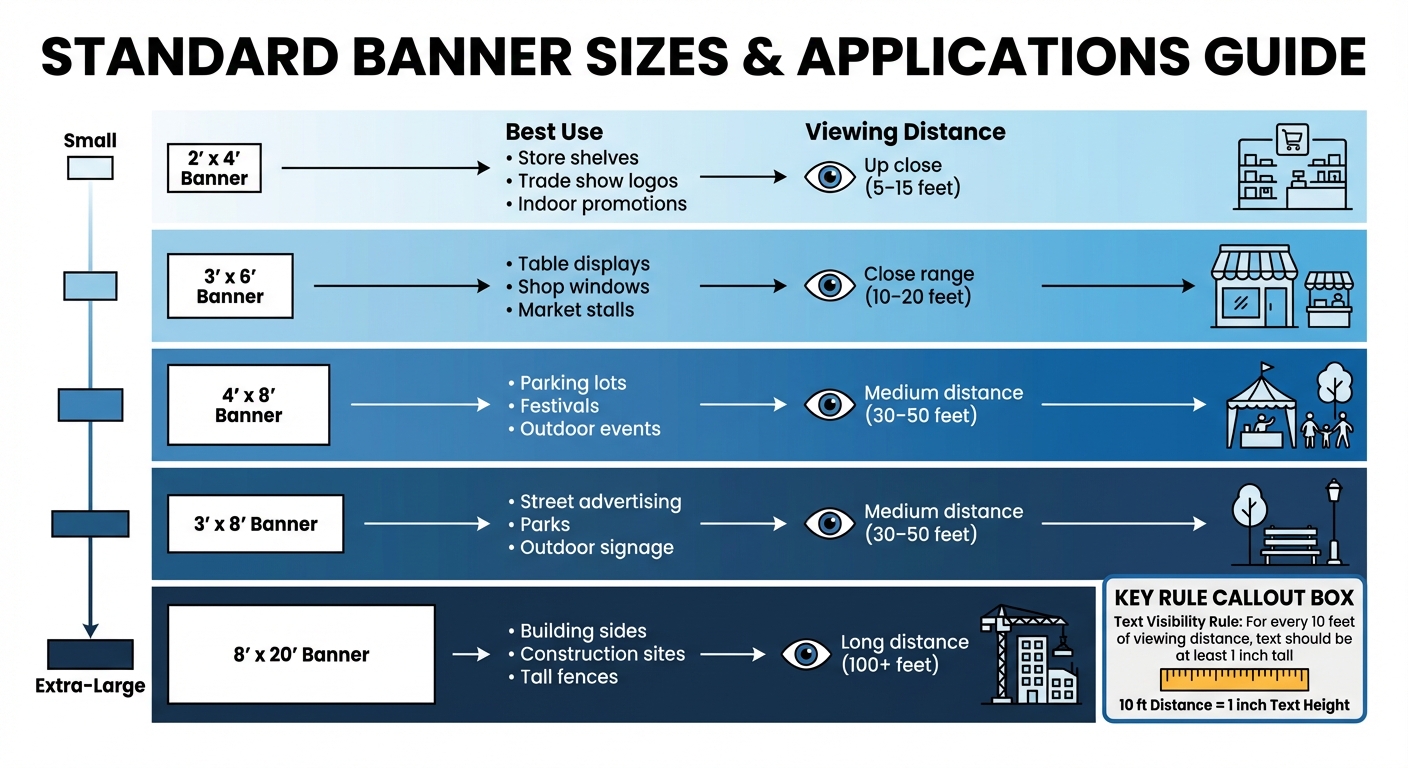
  • Plan for viewing distance: Use 1 inch of text height for every 10 feet of viewing distance.
  • Choose the right banner type: Backdrops, retractables, hanging signs, or tabletop banners – each serves a specific purpose.
  • Check print specs: Ensure proper resolution (150–300 dpi), safe margins, and finishing details like grommets or pole pockets.

The key is preparation. By aligning your banner dimensions with booth size, venue regulations, and print standards, you’ll create a polished display that stands out. Partnering with a professional printer ensures everything runs smoothly.

Step 1: Check Venue and Event Requirements

Review Venue Restrictions

Start by requesting the exhibitor manual from your venue or show organizer. This document outlines key restrictions, including height limits for displays. Most U.S. trade show venues enforce height caps – typically 8 to 12 feet for inline booths, while island or peninsula spaces might allow taller structures. Overhead signs are usually reserved for island booths, and banner height for inline booths is often strictly regulated.

Pay close attention to fire codes and aisle clearance rules. Materials must typically meet flame-retardant standards, such as NFPA 701 compliance, and displays must stay clear of marked aisles and fire equipment. Larger convention centers may permit taller structures but often require additional rigging approvals. On the other hand, smaller venues like hotels tend to have stricter height limits and may prohibit ceiling rigging due to weight restrictions or evacuation concerns. To ensure compliance, consider working with a professional printer like Miro Printing & Graphics Inc., which can provide materials that meet these venue standards.

Once you’ve reviewed the restrictions, measure your booth space to see how these rules apply to your specific setup.

Measure Your Booth Space

Start with your booth’s official dimensions, such as 10’×10′, 10’×20′, or 20’×20′, and identify its type (inline, corner, peninsula, or island). This will determine where and how you can position banners. Measure the depth, width, and usable height based on the venue’s floor plan.

For a 10’×10′ booth, compact vertical banners work best. In a 10’×20′ space, you can opt for medium-sized floor-standing banners or backdrops, typically between 3’×6′ and 4’×8′. Larger spaces, like a 20’×20′ island booth, can accommodate bigger banners such as 48"×92" or multi-panel backwalls, as long as they don’t extend into aisle areas. Sketch out your banner layout to ensure it fits within the boundaries and complies with the rules.

Finally, confirm the specific technical requirements set by the event organizer.

Check Organizer Requirements

Once you’ve mapped out your booth dimensions, review the organizer’s guidelines for bleed and safe margins – usually 1 to 2 inches – to avoid unwanted white borders after trimming. Confirm which banner styles are allowed, such as retractable, pop-up, hanging, or backwall graphics. Some events may restrict certain hardware or require approved contractors for tasks like rigging overhead banners.

Be mindful of the "line-of-sight" rule for inline booths. This rule typically limits the height of displays in the front section of your booth (often the first 3 to 5 feet from the aisle) to ensure visibility for neighboring exhibitors. Taller banners should be positioned toward the back of the booth. Additionally, check if your booth includes pipe-and-drape, hard walls, or is fully open, as this will influence whether you need retractable floor banners or wall-mounted graphics.

Step 2: Determine Your Goals and Viewing Distance

Identify Your Banner’s Purpose

Start by defining the purpose of your banner. If it’s for branding – like showcasing your logo and tagline – opt for large, high-contrast graphics that can grab attention from across the aisle. These banners often measure around 48"×96". On the other hand, banners aimed at lead generation or product promotion should include space for a clear headline, feature bullet points, and a call-to-action. A 36"×60" banner typically works well for these needs.

For wayfinding, prioritize larger text and directional arrows to ensure clarity at intersections, even from 20 to 30 feet away. If you’re creating a photo backdrop, go for wider or square formats, such as a 96"×96" (8’×8′) design. This size frames groups nicely while keeping your logo visible in social media photos. The key is balancing content density with readability – a simple logo banner can adapt to various sizes, but banners with detailed messaging need extra space to stay legible.

Once you’ve nailed down the purpose, consider the viewing distance to decide on text size and graphic elements.

Calculate Viewing Distance

Measure how far viewers will be from the banner’s location to determine the appropriate text size. A good rule of thumb is 1 inch of letter height per 10 feet of viewing distance. For example, in a 10’×10′ booth with a 10-foot viewing distance, your headline should be at least 1 inch tall. If the banner will be viewed from 20 feet away, scale the letter height to roughly 2 inches.

Viewing Distance Minimum Letter Height Typical Banner Size Booth Type
10 ft 1" 24"×72" or 33"×81" Small booths, close aisle traffic
15–20 ft 1.5"–2" 36"×60" Standard trade show aisles
30–40 ft 3"–4" 60"×96" or larger Large backdrops, overhead signs

For a 10’×10′ booth, vertical retractable banners around 33"×81" are ideal for visibility within 10 to 15 feet. Medium-sized 10’×20′ booths can accommodate banners closer to 36"×92", while larger 20’×20′ island booths work well with 48"×96" banners or multi-panel backwalls. Always plan for the farthest realistic viewing distance and simplify secondary text so it remains easy to read, even from afar.

An Easy Guide to Choosing the Right Vinyl Banner Material and Banner Size

Step 3: Select Dimensions by Banner Type

Trade Show Banner Size Guide by Booth Type and Viewing Distance

Trade Show Banner Size Guide by Booth Type and Viewing Distance

Picking the right banner type and size is key to making your display stand out. Each style serves a specific purpose, depending on your booth setup and how far away attendees will be viewing it.

Backwall and Large Backdrop Banners

For a 10’×10′ booth, the most common backwall sizes are 8’×8′ (96"×96") or 10’×8′ (120"×96"), depending on height restrictions at the venue. If your event enforces an 8-foot height limit for inline booths – a rule many U.S. trade shows follow to avoid blocking neighboring booths – stick with the 8’×8′ size. However, if the venue allows, a 10’×8′ banner can provide full wall coverage.

In a 10’×20′ booth, a single 20’×8′ (240"×96") banner creates a seamless and professional backdrop. For larger 20’×20′ island booths, you can go even bigger – banners between 10–20 feet wide and 10–12 feet high work well. Always double-check with event organizers about height restrictions, as inline booths often max out at 8 feet, but island or peninsula booths may allow heights up to 12–16 feet.

To ensure your message is clear, keep all important text, logos, and contact details at least 2 inches from the edges. Frames or pole pockets can hide 1–3 inches of the outer edges, so plan for this when designing. Position key branding between 5–7 feet high for maximum visibility.

Next, let’s look at retractable and floor-standing banners, which are great for adding flexibility to your booth design.

Retractable and Floor-Standing Banners

Retractable banners are a versatile option for trade shows. Popular sizes include 33"×81" and 33.5"×79", which fit well in smaller spaces. For even tighter areas, a 24"×81" banner works, while a 36"×90" banner makes a bigger impact in larger booths.

In a 10’×10′ booth, one or two banners sized 24"×81" or 33"×81" can provide clear branding without overwhelming the space. For 10’×20′ booths, consider placing 36"×90" banners at the corners to frame the booth, leaving the center open for demonstrations or conversations. In 20’×20′ island booths, you can use multiple floor-standing banners, between 36–48 inches wide, to create semi-walls or define specific zones.

Be mindful of placement – banners near the aisle must stay within your booth’s footprint and not intrude into walkway spaces. Retractable banners also require extra material for the base and top rail, which can hide 0.5–1 inch of your design. Keep critical elements away from the very top and bottom edges.

For even greater visibility, consider hanging or overhead banners for larger booth setups.

Hanging and Overhead Banners

Hanging banners are typically allowed only in island or peninsula booths at U.S. venues, with maximum heights ranging from 14–16 feet above the floor. Inline booths are usually restricted to 8 feet and prohibited from using overhead signage, so always confirm the rules for your booth type and event.

For a 10’×10′ island or peninsula booth, hanging signs might measure 6–10 feet wide and 2–4 feet high for rectangular shapes, or 8–12 feet in diameter for circular designs. In 20’×20′ booths, popular options include circular banners between 10–16 feet in diameter and 3–4 feet high, suspended to stay clear of ground structures while adhering to height limits.

Make sure the outer edges of your hanging banner stay within your booth’s footprint. Provide your printer with the final dimensions, including any seams or frames, and confirm how much of the graphic might be obscured by attachment hardware to ensure your branding remains visible from all angles.

Tablefront and Tabletop Banners

Standard trade show tables in the U.S. are typically 4 feet, 6 feet, or 8 feet long, about 30 inches high, and 24–30 inches deep. Match your tablefront banner size to the table width: for a 4-foot table, use a 48"×24" (4’×2′) banner; for a 6-foot table, go with 72"×24" (6’×2′); and for an 8-foot table, choose 96"×24" (8’×2′).

Keep tablefront banners between 24–30 inches high to avoid dragging on the floor while keeping text readable for attendees walking by. If you’re using a full table throw, the printed front panel is usually slightly taller – around 30 inches high – to cover the front completely.

For tabletop banners, smaller sizes like 11.5"×17.5" are common for mini retractables or rigid signs. Keep tabletop displays between 18–36 inches above the table surface to avoid blocking eye contact or conversations. Position taller pieces to one side rather than directly in front of staff, and rely on larger backwalls or floor-standing banners for long-distance visibility while tabletop banners handle close-up details like pricing or QR codes.

Banner Type Common Sizes Viewing Distance Best Use
Backwall/Backdrop 8’×8′, 10’×8′, 20’×8′ 10–35 ft 10×10, 10×20, 20×20 booths
Retractable/Floor-Standing 24"×81", 33"×81", 36"×90" 10–20 ft Trade shows, lobbies
Hanging/Overhead 6’×2’–4′, 8’–16′ diameter 14–15 ft+ Island/peninsula booths
Tablefront/Tabletop 48"×24", 72"×24", 11.5"×17.5" Up to 10 ft Tables, check-ins

Step 4: Verify Print Specifications and Final Dimensions

Once you’ve chosen your banner type and size, the next step is to ensure your design meets print standards. This helps you avoid costly reprints and ensures the final product matches your expectations. With your banner details finalized, it’s time to prepare your design for the printing process.

Check Design Scale and Resolution

When it comes to large-format banners, resolution at the final print size is crucial. If your banner will be viewed from less than 10 feet away – such as a tabletop or retractable banner – aim for a resolution of 300 dpi at full size. For larger banners or backdrops intended to be seen from 10–20+ feet, a resolution of 150–200 dpi is usually sufficient. For oversized designs, create your artwork at 25–50% scale with 300 dpi and make sure to communicate the scale to your printer.

To ensure your layout looks as expected, print a small section at full scale as a test. Always use inches and feet for U.S.-based projects, and make sure logos and text are in vector format. This ensures they stay sharp and clear, even when scaled up. These steps help maintain your branding’s appearance and quality from screen to print.

Add Safety Margins and Finishing Details

Large-format printing requires specific adjustments, like a 0.5-inch bleed on all sides. Keep critical elements – logos, headlines, and contact details – at least 1–2 inches inside the trim edge. This is especially important for large backdrops that may include hems or stitching. Finishing options such as grommets (spaced every 24–36 inches), pole pockets (requiring an additional 3–4 inches of material), and hems (typically 1–2 inches) can obscure parts of your design. To avoid issues, ask for a finishing diagram that shows grommet positions and pocket depths, and refrain from placing text or small graphics near corners where material may be folded or reinforced.

Export your design as a print-ready PDF in CMYK mode, with fonts either embedded or outlined. Add bleed and crop marks only if your printer specifically requests them – many large-format printers prefer full-bleed artwork without marks. Before submitting your file, preflight it to confirm the dimensions with bleed, ensure all images meet the required resolution (150–300 dpi), embed the fonts, and check that all important content stays within the safe area.

Work with a Professional Printer

Collaborating with an experienced print provider, such as Miro Printing & Graphics Inc. in Hackensack, NJ, can make a big difference. They specialize in large-format printing and offer computer layout & design services to help transform your concept into a production-ready file. Their team ensures your banner’s dimensions, materials, and finishing details are thoroughly checked before printing. They also provide file reviews to identify potential problems, such as resolution, scaling, bleed, and color issues, early in the process.

"I even received a video of my print sample… for approval before they proceeded with the rest." – Julia I.

Conclusion

To create an effective banner, start by selecting dimensions that fit the venue’s regulations, your booth size, and the intended viewing distance. Double-check your booth measurements to ensure the banner fits well without obstructing walkways. Match the banner type and size to your goals – whether it’s a compact display for tight spaces or a larger one for greater visibility. Keep in mind the simple guideline: 1 inch of text height for every 10 feet of viewing distance. This approach ensures your design is both functional and visually impactful.

Once you’ve nailed down the size, focus on the design details. Follow print standards like resolution, bleed, safety margins, and finishing to avoid expensive reprints. Collaborating with an experienced printer, such as Miro Printing & Graphics Inc. in Hackensack, NJ, can make all the difference. They specialize in large-format printing, in-house design, and custom projects, offering services like file reviews and proofs to catch any issues before printing. This attention to detail ensures a flawless final product.

"Attention to detail is what makes the difference!" – Mike B.

A well-sized and expertly crafted banner boosts visibility, strengthens your brand presence, and helps you shine at any event or trade show.

FAQs

What are the typical banner sizes for different booth setups?

When selecting banner sizes for your booth, it’s helpful to consider these popular dimensions based on your setup:

  • Tabletop displays: 24" x 36" or 36" x 24"
  • Standard trade show banners: 33" x 80" or 36" x 92"
  • Large backdrops: 10′ x 8′ or 20′ x 8′
  • Double-sided banners: 48" x 96" or larger

These dimensions are commonly used at events and trade shows, making it easier to design a display that grabs attention while looking polished. Always measure your booth space and check for any size limitations before placing your order to ensure everything fits just right.

How can I make sure my custom banner complies with venue rules and fire safety standards?

To make sure your custom banner aligns with venue regulations and fire safety standards, begin by verifying the venue’s specific guidelines for size, materials, and installation. It’s also crucial to review local fire safety codes to confirm that your banner materials meet fire-retardant requirements, which are typically necessary for public events.

If you’re unsure about anything, reach out to the venue directly and inquire about any required permits. Opting for fire-resistant materials and adhering to proper installation practices can save you from unexpected complications during your event.

What are the ideal resolution and design guidelines for printing a high-quality custom banner?

When designing a custom banner, aim for a resolution between 150-300 DPI (dots per inch) at the final print size. This ensures your banner will look crisp and clear. For the best results, use vector-based graphics to maintain sharp lines and details, and make sure any images included are high-resolution to prevent them from appearing pixelated.

Design your banner in CMYK color mode to ensure the colors print as intended. If your design requires a bleed, add at least 0.125 inches on all sides. This extra space helps avoid unwanted white edges during the trimming process. By following these steps, your banner will have a polished and professional finish.

Related Blog Posts

https://app.seobotai.com/banner/banner.js?id=69449ccc12e0ddc125e56c50

Checklist for Custom Banner Dimensions

Choose the right banner sizes, text scale, materials, and print specs for trade-show booths to maximize visibility and meet venue rules.

When it comes to creating banners for events or trade shows, size matters. A poorly sized banner can either get lost among displays or overwhelm your booth. To get it right:

  • Follow venue rules: Check height limits, fire codes, and placement restrictions to avoid delays.
  • Measure your booth: Match banner size to booth type (e.g., 33"x81" for 10’x10′, 4’x8′ for larger spaces).
  • Plan for viewing distance: Use 1 inch of text height for every 10 feet of viewing distance.
  • Choose the right banner type: Backdrops, retractables, hanging signs, or tabletop banners – each serves a specific purpose.
  • Check print specs: Ensure proper resolution (150–300 dpi), safe margins, and finishing details like grommets or pole pockets.

The key is preparation. By aligning your banner dimensions with booth size, venue regulations, and print standards, you’ll create a polished display that stands out. Partnering with a professional printer ensures everything runs smoothly.

Step 1: Check Venue and Event Requirements

Review Venue Restrictions

Start by requesting the exhibitor manual from your venue or show organizer. This document outlines key restrictions, including height limits for displays. Most U.S. trade show venues enforce height caps – typically 8 to 12 feet for inline booths, while island or peninsula spaces might allow taller structures. Overhead signs are usually reserved for island booths, and banner height for inline booths is often strictly regulated.

Pay close attention to fire codes and aisle clearance rules. Materials must typically meet flame-retardant standards, such as NFPA 701 compliance, and displays must stay clear of marked aisles and fire equipment. Larger convention centers may permit taller structures but often require additional rigging approvals. On the other hand, smaller venues like hotels tend to have stricter height limits and may prohibit ceiling rigging due to weight restrictions or evacuation concerns. To ensure compliance, consider working with a professional printer like Miro Printing & Graphics Inc., which can provide materials that meet these venue standards.

Once you’ve reviewed the restrictions, measure your booth space to see how these rules apply to your specific setup.

Measure Your Booth Space

Start with your booth’s official dimensions, such as 10’×10′, 10’×20′, or 20’×20′, and identify its type (inline, corner, peninsula, or island). This will determine where and how you can position banners. Measure the depth, width, and usable height based on the venue’s floor plan.

For a 10’×10′ booth, compact vertical banners work best. In a 10’×20′ space, you can opt for medium-sized floor-standing banners or backdrops, typically between 3’×6′ and 4’×8′. Larger spaces, like a 20’×20′ island booth, can accommodate bigger banners such as 48"×92" or multi-panel backwalls, as long as they don’t extend into aisle areas. Sketch out your banner layout to ensure it fits within the boundaries and complies with the rules.

Finally, confirm the specific technical requirements set by the event organizer.

Check Organizer Requirements

Once you’ve mapped out your booth dimensions, review the organizer’s guidelines for bleed and safe margins – usually 1 to 2 inches – to avoid unwanted white borders after trimming. Confirm which banner styles are allowed, such as retractable, pop-up, hanging, or backwall graphics. Some events may restrict certain hardware or require approved contractors for tasks like rigging overhead banners.

Be mindful of the "line-of-sight" rule for inline booths. This rule typically limits the height of displays in the front section of your booth (often the first 3 to 5 feet from the aisle) to ensure visibility for neighboring exhibitors. Taller banners should be positioned toward the back of the booth. Additionally, check if your booth includes pipe-and-drape, hard walls, or is fully open, as this will influence whether you need retractable floor banners or wall-mounted graphics.

Step 2: Determine Your Goals and Viewing Distance

Identify Your Banner’s Purpose

Start by defining the purpose of your banner. If it’s for branding – like showcasing your logo and tagline – opt for large, high-contrast graphics that can grab attention from across the aisle. These banners often measure around 48"×96". On the other hand, banners aimed at lead generation or product promotion should include space for a clear headline, feature bullet points, and a call-to-action. A 36"×60" banner typically works well for these needs.

For wayfinding, prioritize larger text and directional arrows to ensure clarity at intersections, even from 20 to 30 feet away. If you’re creating a photo backdrop, go for wider or square formats, such as a 96"×96" (8’×8′) design. This size frames groups nicely while keeping your logo visible in social media photos. The key is balancing content density with readability – a simple logo banner can adapt to various sizes, but banners with detailed messaging need extra space to stay legible.

Once you’ve nailed down the purpose, consider the viewing distance to decide on text size and graphic elements.

Calculate Viewing Distance

Measure how far viewers will be from the banner’s location to determine the appropriate text size. A good rule of thumb is 1 inch of letter height per 10 feet of viewing distance. For example, in a 10’×10′ booth with a 10-foot viewing distance, your headline should be at least 1 inch tall. If the banner will be viewed from 20 feet away, scale the letter height to roughly 2 inches.

Viewing Distance Minimum Letter Height Typical Banner Size Booth Type
10 ft 1" 24"×72" or 33"×81" Small booths, close aisle traffic
15–20 ft 1.5"–2" 36"×60" Standard trade show aisles
30–40 ft 3"–4" 60"×96" or larger Large backdrops, overhead signs

For a 10’×10′ booth, vertical retractable banners around 33"×81" are ideal for visibility within 10 to 15 feet. Medium-sized 10’×20′ booths can accommodate banners closer to 36"×92", while larger 20’×20′ island booths work well with 48"×96" banners or multi-panel backwalls. Always plan for the farthest realistic viewing distance and simplify secondary text so it remains easy to read, even from afar.

An Easy Guide to Choosing the Right Vinyl Banner Material and Banner Size

Step 3: Select Dimensions by Banner Type

Trade Show Banner Size Guide by Booth Type and Viewing Distance

Trade Show Banner Size Guide by Booth Type and Viewing Distance

Picking the right banner type and size is key to making your display stand out. Each style serves a specific purpose, depending on your booth setup and how far away attendees will be viewing it.

Backwall and Large Backdrop Banners

For a 10’×10′ booth, the most common backwall sizes are 8’×8′ (96"×96") or 10’×8′ (120"×96"), depending on height restrictions at the venue. If your event enforces an 8-foot height limit for inline booths – a rule many U.S. trade shows follow to avoid blocking neighboring booths – stick with the 8’×8′ size. However, if the venue allows, a 10’×8′ banner can provide full wall coverage.

In a 10’×20′ booth, a single 20’×8′ (240"×96") banner creates a seamless and professional backdrop. For larger 20’×20′ island booths, you can go even bigger – banners between 10–20 feet wide and 10–12 feet high work well. Always double-check with event organizers about height restrictions, as inline booths often max out at 8 feet, but island or peninsula booths may allow heights up to 12–16 feet.

To ensure your message is clear, keep all important text, logos, and contact details at least 2 inches from the edges. Frames or pole pockets can hide 1–3 inches of the outer edges, so plan for this when designing. Position key branding between 5–7 feet high for maximum visibility.

Next, let’s look at retractable and floor-standing banners, which are great for adding flexibility to your booth design.

Retractable and Floor-Standing Banners

Retractable banners are a versatile option for trade shows. Popular sizes include 33"×81" and 33.5"×79", which fit well in smaller spaces. For even tighter areas, a 24"×81" banner works, while a 36"×90" banner makes a bigger impact in larger booths.

In a 10’×10′ booth, one or two banners sized 24"×81" or 33"×81" can provide clear branding without overwhelming the space. For 10’×20′ booths, consider placing 36"×90" banners at the corners to frame the booth, leaving the center open for demonstrations or conversations. In 20’×20′ island booths, you can use multiple floor-standing banners, between 36–48 inches wide, to create semi-walls or define specific zones.

Be mindful of placement – banners near the aisle must stay within your booth’s footprint and not intrude into walkway spaces. Retractable banners also require extra material for the base and top rail, which can hide 0.5–1 inch of your design. Keep critical elements away from the very top and bottom edges.

For even greater visibility, consider hanging or overhead banners for larger booth setups.

Hanging and Overhead Banners

Hanging banners are typically allowed only in island or peninsula booths at U.S. venues, with maximum heights ranging from 14–16 feet above the floor. Inline booths are usually restricted to 8 feet and prohibited from using overhead signage, so always confirm the rules for your booth type and event.

For a 10’×10′ island or peninsula booth, hanging signs might measure 6–10 feet wide and 2–4 feet high for rectangular shapes, or 8–12 feet in diameter for circular designs. In 20’×20′ booths, popular options include circular banners between 10–16 feet in diameter and 3–4 feet high, suspended to stay clear of ground structures while adhering to height limits.

Make sure the outer edges of your hanging banner stay within your booth’s footprint. Provide your printer with the final dimensions, including any seams or frames, and confirm how much of the graphic might be obscured by attachment hardware to ensure your branding remains visible from all angles.

Tablefront and Tabletop Banners

Standard trade show tables in the U.S. are typically 4 feet, 6 feet, or 8 feet long, about 30 inches high, and 24–30 inches deep. Match your tablefront banner size to the table width: for a 4-foot table, use a 48"×24" (4’×2′) banner; for a 6-foot table, go with 72"×24" (6’×2′); and for an 8-foot table, choose 96"×24" (8’×2′).

Keep tablefront banners between 24–30 inches high to avoid dragging on the floor while keeping text readable for attendees walking by. If you’re using a full table throw, the printed front panel is usually slightly taller – around 30 inches high – to cover the front completely.

For tabletop banners, smaller sizes like 11.5"×17.5" are common for mini retractables or rigid signs. Keep tabletop displays between 18–36 inches above the table surface to avoid blocking eye contact or conversations. Position taller pieces to one side rather than directly in front of staff, and rely on larger backwalls or floor-standing banners for long-distance visibility while tabletop banners handle close-up details like pricing or QR codes.

Banner Type Common Sizes Viewing Distance Best Use
Backwall/Backdrop 8’×8′, 10’×8′, 20’×8′ 10–35 ft 10×10, 10×20, 20×20 booths
Retractable/Floor-Standing 24"×81", 33"×81", 36"×90" 10–20 ft Trade shows, lobbies
Hanging/Overhead 6’×2’–4′, 8’–16′ diameter 14–15 ft+ Island/peninsula booths
Tablefront/Tabletop 48"×24", 72"×24", 11.5"×17.5" Up to 10 ft Tables, check-ins

Step 4: Verify Print Specifications and Final Dimensions

Once you’ve chosen your banner type and size, the next step is to ensure your design meets print standards. This helps you avoid costly reprints and ensures the final product matches your expectations. With your banner details finalized, it’s time to prepare your design for the printing process.

Check Design Scale and Resolution

When it comes to large-format banners, resolution at the final print size is crucial. If your banner will be viewed from less than 10 feet away – such as a tabletop or retractable banner – aim for a resolution of 300 dpi at full size. For larger banners or backdrops intended to be seen from 10–20+ feet, a resolution of 150–200 dpi is usually sufficient. For oversized designs, create your artwork at 25–50% scale with 300 dpi and make sure to communicate the scale to your printer.

To ensure your layout looks as expected, print a small section at full scale as a test. Always use inches and feet for U.S.-based projects, and make sure logos and text are in vector format. This ensures they stay sharp and clear, even when scaled up. These steps help maintain your branding’s appearance and quality from screen to print.

Add Safety Margins and Finishing Details

Large-format printing requires specific adjustments, like a 0.5-inch bleed on all sides. Keep critical elements – logos, headlines, and contact details – at least 1–2 inches inside the trim edge. This is especially important for large backdrops that may include hems or stitching. Finishing options such as grommets (spaced every 24–36 inches), pole pockets (requiring an additional 3–4 inches of material), and hems (typically 1–2 inches) can obscure parts of your design. To avoid issues, ask for a finishing diagram that shows grommet positions and pocket depths, and refrain from placing text or small graphics near corners where material may be folded or reinforced.

Export your design as a print-ready PDF in CMYK mode, with fonts either embedded or outlined. Add bleed and crop marks only if your printer specifically requests them – many large-format printers prefer full-bleed artwork without marks. Before submitting your file, preflight it to confirm the dimensions with bleed, ensure all images meet the required resolution (150–300 dpi), embed the fonts, and check that all important content stays within the safe area.

Work with a Professional Printer

Collaborating with an experienced print provider, such as Miro Printing & Graphics Inc. in Hackensack, NJ, can make a big difference. They specialize in large-format printing and offer computer layout & design services to help transform your concept into a production-ready file. Their team ensures your banner’s dimensions, materials, and finishing details are thoroughly checked before printing. They also provide file reviews to identify potential problems, such as resolution, scaling, bleed, and color issues, early in the process.

"I even received a video of my print sample… for approval before they proceeded with the rest." – Julia I.

Conclusion

To create an effective banner, start by selecting dimensions that fit the venue’s regulations, your booth size, and the intended viewing distance. Double-check your booth measurements to ensure the banner fits well without obstructing walkways. Match the banner type and size to your goals – whether it’s a compact display for tight spaces or a larger one for greater visibility. Keep in mind the simple guideline: 1 inch of text height for every 10 feet of viewing distance. This approach ensures your design is both functional and visually impactful.

Once you’ve nailed down the size, focus on the design details. Follow print standards like resolution, bleed, safety margins, and finishing to avoid expensive reprints. Collaborating with an experienced printer, such as Miro Printing & Graphics Inc. in Hackensack, NJ, can make all the difference. They specialize in large-format printing, in-house design, and custom projects, offering services like file reviews and proofs to catch any issues before printing. This attention to detail ensures a flawless final product.

"Attention to detail is what makes the difference!" – Mike B.

A well-sized and expertly crafted banner boosts visibility, strengthens your brand presence, and helps you shine at any event or trade show.

FAQs

What are the typical banner sizes for different booth setups?

When selecting banner sizes for your booth, it’s helpful to consider these popular dimensions based on your setup:

  • Tabletop displays: 24" x 36" or 36" x 24"
  • Standard trade show banners: 33" x 80" or 36" x 92"
  • Large backdrops: 10′ x 8′ or 20′ x 8′
  • Double-sided banners: 48" x 96" or larger

These dimensions are commonly used at events and trade shows, making it easier to design a display that grabs attention while looking polished. Always measure your booth space and check for any size limitations before placing your order to ensure everything fits just right.

How can I make sure my custom banner complies with venue rules and fire safety standards?

To make sure your custom banner aligns with venue regulations and fire safety standards, begin by verifying the venue’s specific guidelines for size, materials, and installation. It’s also crucial to review local fire safety codes to confirm that your banner materials meet fire-retardant requirements, which are typically necessary for public events.

If you’re unsure about anything, reach out to the venue directly and inquire about any required permits. Opting for fire-resistant materials and adhering to proper installation practices can save you from unexpected complications during your event.

What are the ideal resolution and design guidelines for printing a high-quality custom banner?

When designing a custom banner, aim for a resolution between 150-300 DPI (dots per inch) at the final print size. This ensures your banner will look crisp and clear. For the best results, use vector-based graphics to maintain sharp lines and details, and make sure any images included are high-resolution to prevent them from appearing pixelated.

Design your banner in CMYK color mode to ensure the colors print as intended. If your design requires a bleed, add at least 0.125 inches on all sides. This extra space helps avoid unwanted white edges during the trimming process. By following these steps, your banner will have a polished and professional finish.

Related Blog Posts

https://app.seobotai.com/banner/banner.js?id=69449ccc12e0ddc125e56c50

Common Print Marketing Mistakes That Waste Money

Avoid costly print marketing errors in planning, design, production, and distribution with practical fixes to improve ROI and reduce waste.

Print marketing can be effective, but it’s easy to waste money on avoidable mistakes. Businesses often overspend due to errors in planning, design, production, and distribution. Here’s a quick rundown of the key pitfalls and how to avoid them:

  • Poor Planning: Skipping audience research, unclear goals, or ignoring message testing leads to materials that don’t connect or inspire action.
  • Design Errors: Typos, outdated info, or technical mistakes (like wrong bleed settings or low-resolution images) result in costly reprints.
  • Production Missteps: Using the wrong materials, formats, or print methods can escalate costs unnecessarily.
  • Distribution Problems: Outdated mailing lists, duplicate addresses, or poor inventory management waste resources and damage credibility.

Avoid these costly mistakes by planning carefully, double-checking designs, and working with a reliable print partner. Simple steps like testing messaging, using clear CTAs, and tracking results can make a big difference in your ROI.

4 Categories of Print Marketing Mistakes That Waste Money

4 Categories of Print Marketing Mistakes That Waste Money

Planning Mistakes That Waste Your Budget

Having a solid plan is essential if you want to avoid throwing money at campaigns that don’t deliver. Rieva Lesonsky, CEO and President of GrowBiz Media, puts it plainly:

"No small business owner wants to waste money, but that’s exactly what you’ll be doing if you start marketing without a marketing plan in place".

Without proper planning, your budget can disappear quickly. Skipping the strategy phase often results in materials that fail to connect, go unused, or don’t achieve measurable outcomes. Let’s break down some common planning missteps.

Printing Without Defined Goals or Target Audience

Launching a print campaign without understanding who you’re targeting or what you want to achieve is a fast track to wasting money. The 40-40-20 rule in marketing highlights that 40% of a campaign’s success relies on reaching the right audience, while another 40% depends on the offer itself. That leaves just 20% for design, execution, and creativity.

If your mailing list is too broad or poorly aligned with your goals, your return on investment (ROI) will suffer. You might end up with stacks of brochures and flyers that don’t inspire action. Without a clear goal, a well-defined audience, and a strong call-to-action (CTA), your materials lose their punch. As Chilliprinting explains:

"If your print materials don’t have a clear call-to-action (CTA), then they are a waste of money".

Skipping Customer Research and Message Testing

Failing to research your audience or test your messaging can lead to campaigns that miss the mark entirely. If you don’t know what your customers care about, your materials are unlikely to resonate.

Smart businesses take the time to test different versions of their messaging with small groups before committing to a full rollout. This approach helps identify what works and what doesn’t. William Dixon, a business writer at OX Essays, emphasizes:

"Stick to one very clear CTA. Be clear and direct with what you want people to do. The CTA should be immediately visible and accessible. Make sure that it’s somewhere obvious on your campaign and that it leads to a goal, whether that’s a sale or a connection".

Not Tracking Results or Measuring Performance

If you don’t track your campaign’s performance, you can’t improve it – or even justify the money you’ve spent. Many businesses print materials without including tools to measure their effectiveness, making it impossible to calculate ROI or confirm that the right audience is being reached.

Incorporating tracking elements like QR codes that link to a specific landing page or custom URLs can help you measure your campaign’s success.

Design Errors That Force Expensive Reprints

Poor planning isn’t the only thing that can drain your budget – design mistakes can be just as costly. Imagine printing thousands of brochures or flyers only to discover glaring errors. There’s no undo button, and you might have to reprint the entire batch, doubling your expenses. The good news? Most of these issues can be avoided with careful attention to detail. Let’s break down some of the most common design missteps that can lead to costly reprints.

Amateur Design Without Print Specifications

One of the biggest culprits behind expensive reprints is ignoring print specifications. For instance, failing to account for bleed – a crucial 0.125-inch area beyond the trim line – can result in white borders or cut-off elements that ruin the final product. Another common mistake is using low-resolution images (anything below 300 PPI), which leads to blurry or pixelated prints. And don’t forget about color modes – designing in RGB instead of converting to CMYK can cause printed colors to look completely different from what you saw on screen. To avoid these headaches, always perform thorough prepress checks before sending files to print.

Overcrowded Layouts With Too Much Information

Even if your technical specs are flawless, a cluttered layout can still sabotage your project. Overloading your design with text and images makes it hard for readers to focus, and your message can get lost in the chaos. As Ann O’Brien from Dazzle Printing wisely points out:

"Always remember, less really is more when it comes to layout and design."

Using white space strategically gives your content room to breathe and ensures your call to action stands out. Stick to no more than two fonts, and keep body text at least 8pt or larger for better readability. When everything in your design demands attention, nothing truly stands out.

Spelling Errors and Outdated Contact Information

Nothing undermines your printed materials faster than a typo or outdated contact information. According to research from Standing Dog Interactive, only 3% of people overlook errors, while the majority see typos and grammar mistakes as deal-breakers. That’s why it’s crucial to have someone else review your content before it goes to print. Whether it’s a colleague or a professional proofreader, a second set of eyes can catch mistakes that spell-checkers might miss. A little extra effort here can save you from an embarrassing – and costly – reprint.

Production Decisions That Drive Up Costs

Once your design is finalized, the production phase can introduce unexpected expenses if you’re not careful. Choices around formats, materials, and printing methods can quickly escalate costs without necessarily improving results. These decisions not only impact your budget but also the overall success of your campaign.

Using the Wrong Print Format for Your Campaign

Picking the wrong format is a frequent misstep. For instance, printing full-size brochures when simple postcards would suffice wastes money on extra paper and postage. The format should align with your campaign’s purpose and how the materials will be distributed. If you’re mailing them, size becomes even more critical – postcards larger than 6″ x 11″ result in higher postage fees. Additionally, postcards must meet specific thickness requirements set by the US Postal Service, such as using a 100# cover stock or higher. Failing to meet these standards can lead to surcharges of $0.12 per piece.

Selecting Materials That Are Too Cheap or Too Expensive

Material selection is another area where costs can spiral. Paper, for example, can account for 30–50% of your printing expenses. Opting for cheap paper might save you money initially, but flimsy materials that tear easily or produce dull colors can ruin your marketing effort. On the other hand, splurging on premium or specialty papers may not always yield better results. For example, textured paper might make thin fonts harder to read or cause full-color images to appear darker than intended. Paper weight also affects mailing expenses – heavier stock leads to higher postage costs. A practical way to manage costs is by consulting your printer about "house sheets", which are often more economical due to bulk purchasing.

Ordering the Wrong Quantity or Using the Wrong Print Method

Ordering too much can leave you with outdated materials, while ordering too little increases your per-unit costs. The quantity also determines the best printing method – digital printing is ideal for small runs, while offset printing becomes more cost-efficient for larger orders. Designers unfamiliar with printing equipment can inadvertently create designs that don’t work with the machines, leading to extra costs. Vladimir Gendelman, Founder and CEO of Company Folders, explains:

"If your designer isn’t an expert on a print shop’s equipment, they may create a design that’s too big for your printer’s folding machine or has foil areas too far apart for one run. Then you end up paying extra because your designer doesn’t know what the machines can and can’t do".

Careful planning of your print specifications can also reduce waste and save money. For instance, adjusting a poster size from 8.5″ x 14″ to 8.5″ x 11″ could allow eight pieces to fit on a single press sheet, cutting paper waste by 25% and lowering press run times.

Distribution Problems That Waste Resources

Efficient distribution is just as crucial as planning, design, and production when it comes to protecting your investment. You could have the most well-thought-out campaign, but if your distribution methods fall short, all that effort and money can go to waste. Mistakes like poor mailing practices or sloppy inventory management can drain budgets and reduce your campaign’s impact. Tackling these issues with the same precision as earlier phases is essential to avoid jeopardizing your entire campaign.

Poor Mailing List Management and Postage Errors

Using outdated mailing lists is a common and costly misstep. With approximately 40 million people moving every year, addresses can quickly become outdated. Sending mail to old addresses not only leads to undeliverable pieces but can also result in additional postage fees from the USPS, even after your campaign ends. Many businesses neglect to update their lists against the National Change of Address (NCOA) database, missing crucial updates for movers.

Duplicate records are another major problem, doubling your postage and printing costs unnecessarily. On top of that, failing to apply suppression criteria means you might be mailing to individuals who are unlikely to respond – such as deceased persons, incarcerated individuals, or even current customers during a new acquisition campaign. Without proper segmentation, targeting prospects solely based on zip codes can misfire, sending your message to the wrong audience and reducing your campaign’s effectiveness. A reliable mail services provider should have tools to clean your data, remove duplicates, and ensure your mailing list is accurate before printing begins.

Mismanagement of Inventory and Outdated Materials

Beyond mailing errors, poor handling of printed materials can wreck your budget. Outdated inventory is a money pit. Research reveals that 20% to 30% of a business’s inventory can become obsolete at any time, often ending up as a financial loss. When materials contain time-sensitive information – like special offers, pricing, or contact details – and are stored for too long, they become unusable. Inefficient inventory tracking can lead to unnecessary reprints while perfectly usable stock goes unnoticed.

Mismanaging versions of materials adds another layer of waste and confusion. Without a proper system in place, you risk distributing outdated brochures with incorrect pricing or old contact information, which can damage your credibility and force costly reprints. These issues often stem from poor forecasting and inadequate tracking systems. Failing to meet customer demands due to inventory mismanagement not only leads to financial losses but also hurts your reputation and erodes trust.

Working With a Print Partner to Reduce Waste

Avoiding waste in print marketing often comes down to having the right expertise on your side. Instead of juggling design, printing, and mailing tasks across different providers, teaming up with a full-service print partner can help you sidestep common – and often costly – errors. A reliable print partner brings knowledge and coordination to every step of the process, from the initial brainstorming phase to the final delivery. This one-stop approach not only keeps your campaign aligned with your goals but also helps you stay on budget and avoid unnecessary headaches.

Getting Expert Input During the Planning Stage

Bringing a print professional into the fold early – right when you’re brainstorming and planning – can save you from running into expensive issues later on. These experts are well-versed in technical details that can easily slip through the cracks, like bleed specifications, color profiles (CMYK vs. RGB), press sheet optimization, and postal regulations. As print consultant Sam Ricco points out, even seasoned professionals benefit from clear guidance to meet budget constraints, comply with postal rules, and ensure designs are accurately reproduced.

By consulting with an expert at the outset, you can align your creative ideas with practical production realities. They can guide you on standard sizes, cost-effective production options, and potential technical challenges before your designs even hit the prepress stage. Since fixing errors after production begins can be far more expensive, this early collaboration helps safeguard your entire budget.

Using One Provider for Design, Printing, and Mailing

Choosing a single provider to handle design, printing, and mailing simplifies your workflow while reducing the risk of miscommunication. Companies like Miro Printing & Graphics Inc. offer an integrated approach, managing every aspect of the project to ensure consistent quality and smooth execution from start to finish.

This all-in-one solution doesn’t just prevent mistakes; it also enhances efficiency. For example, integrated providers can recommend cost-saving strategies like gang printing for multiple versions, optimizing press sheet usage to minimize paper waste, and cleaning up mailing lists with NCOA processing to avoid paying for undeliverable mail. Clients of Miro Printing & Graphics Inc. have praised their streamlined processes, with one highlighting their quick turnaround at a fair price and another noting their willingness to provide prompt, no-cost reprints for overlooked errors.

Conclusion

Mistakes in print marketing can drain your budget, but with thoughtful planning, smart design, and efficient production, they’re entirely avoidable. Planning with purpose helps set clear goals, focus on the right audience, and track outcomes effectively. Professional design ensures technical details are handled upfront, avoiding costly reprints. And efficient production tailors formats, materials, and quantities to minimize waste.

One of the best ways to avoid these pitfalls is by working with a full-service provider that manages everything from design to delivery. A single partner brings coordinated expertise to the table, catching errors early, streamlining production, and even cleaning up mailing lists for maximum effectiveness.

The results speak for themselves. Studies show that consumers trust print ads 34% more than search engine ads, and direct mail boasts a 37% higher response rate than email.

Miro Printing & Graphics Inc. provides end-to-end solutions, including planning, design, printing, bindery, and mailing. Their integrated approach safeguards your investment while delivering impactful print materials that stand out.

FAQs

How can I make sure my print marketing reaches the right audience?

To make sure your print marketing campaign hits the mark, start with solid market research. Pinpoint your ideal customers, understand their interests, and figure out the best ways to connect with them. Skipping this step can lead to wasted resources and disappointing results. Once you’ve nailed down your audience, keep your mailing list up-to-date and segmented. This ensures your materials reach only those who fit your target profile.

After identifying your audience, focus on personalizing your message. With variable-data printing, you can add customized details like names, past purchases, or location-specific offers. This transforms generic content into something that feels personal and relevant. Pair this with a clear, time-sensitive call-to-action – like "Order by December 31 to save 20%" – and include a way to track performance, such as a unique QR code or promo code. These tools help measure success and refine future campaigns.

Miro Printing & Graphics Inc. has the tools and expertise to help you run a targeted, effective print campaign. They handle everything from list verification and segmentation to high-quality, custom printing and fulfillment services. With their help, your campaign can be impactful, efficient, and easy to monitor.

How can I avoid costly reprints caused by design mistakes?

To avoid costly reprints, make sure your design files are set up to meet professional printing standards. Start with high-resolution images (at least 300 dpi), add proper bleed margins, and always work in CMYK color mode. Common problems like blurry images or unexpected color shifts often come from using low-resolution files or the wrong color format.

Carefully review all text for typos and errors. Better yet, have a second pair of eyes proofread your content – small mistakes can lead to big expenses if a reprint is needed. Before giving the green light on any project, always request a printed or digital proof. This step helps you verify colors, margins, and the overall layout, saving both time and money.

Partnering with a full-service print shop, such as Miro Printing & Graphics Inc., can make this process much smoother. Their in-house design team, file preflight checks, and fast proofing services ensure your materials are polished and ready to impress, catching potential issues before they become expensive problems.

How can I measure the success of my print marketing campaigns?

Measuring the success of your print marketing campaigns is essential for understanding your return on investment (ROI) and refining your strategy. Start by defining specific, measurable goals – like aiming to generate 200 new leads or achieve $5,000 in sales. To track progress, focus on key performance indicators (KPIs) such as:

  • Response rate: The percentage of recipients who take action.
  • Conversion rate: How many responses result in actual customers.
  • Cost per lead: The expense associated with acquiring each lead.
  • Overall ROI: The financial return compared to your investment.

To make tracking easier, include elements in your printed materials that can be measured. Think unique URLs, QR codes, special phone numbers, or coupon codes – these tools help directly connect customer actions to your campaign. For example, companies like Miro Printing & Graphics Inc. can integrate these features into your materials during production, making data collection straightforward.

After your campaign wraps up, dive into the results and compare them to your initial goals. Pinpoint what resonated most – whether it was a particular design, offer, or call-to-action – and use those insights to refine your next effort. By continuously analyzing your data, you can transform print marketing into a strategy that delivers measurable, impactful results.

Related Blog Posts

https://app.seobotai.com/banner/banner.js?id=69434a5412e0ddc125dbf966

ISO 13655 vs. Other Print Standards

Compare ISO 13655 measurement modes (M0–M3) with ISO 12647-2 and -6 and learn why M1/D50 matters for OBA-rich papers and proof-to-press accuracy.

ISO 13655 is a global standard for measuring color in printing, ensuring consistency across devices and locations. It focuses on how to measure color accurately, addressing challenges like optical brightening agents (OBAs) in paper. Unlike ISO 12647-2 and ISO 12647-6, which set production targets for offset and flexographic printing, ISO 13655 standardizes the tools and methods for color measurement.

Key Highlights:

  • ISO 13655: Defines measurement conditions (M0, M1, M2, M3), geometries, and backing materials for precise color data.
  • ISO 12647-2: Sets color targets and tolerances for offset printing.
  • ISO 12647-6: Focuses on flexographic printing standards like ink density and dot gain.
  • ISO 3664: Establishes D50 lighting for viewing conditions.

Quick Comparison:

Aspect ISO 13655 ISO 12647-2 ISO 12647-6
Purpose Color measurement standard Offset printing production standards Flexographic printing production standards
Focus Measurement tools and methods Color targets and tolerances Ink density, dot gain, and spot colors
Measurement Modes M0, M1, M2, M3 Assumes ISO 13655 compliance Includes M3 for wet/dry density control
Applications All printing methods Offset lithography Flexographic printing

Together, these standards ensure accurate color communication, reliable production, and quality control across the printing industry.

ISO 13655 vs ISO 12647-2 vs ISO 12647-6 Print Standards Comparison

ISO 13655 vs ISO 12647-2 vs ISO 12647-6 Print Standards Comparison

ISO 13655 vs. ISO 12647-2

Key Differences in Measurement and Applications

Although both ISO 13655 and ISO 12647-2 are crucial to the offset printing industry, they serve very different purposes within the production process. ISO 13655 focuses on how to measure color, acting as a guide for spectrophotometers by outlining measurement modes (M0, M1, M2, M3), geometries like 0°/45° or 45°/0°, and backing materials. Meanwhile, ISO 12647-2 defines the color standards and tolerances that should be achieved during offset lithography.

To put it simply: ISO 13655 ensures that your measuring tools are aligned globally, while ISO 12647-2 sets the benchmarks for production quality. ISO 12647-2 builds on the precise measurement framework established by ISO 13655 by specifying production targets, such as cyan ink values (L* 55±2, a* -37±2, b* -50±2), density tolerances of ±0.03 for solid areas, and tonal value increase (TVI) targets like a 25% tint printing at 26±4%.

ISO 13655 provides the foundation for consistent measurements, offering modes like M1 for D50 illumination (to account for optical brightening agents, or OBAs) and M3 for simulating wet sheets. While ISO 12647-2 doesn’t mandate specific measurement modes, it assumes the use of ISO 13655-compliant instruments. ISO 12647-2 focuses on ensuring consistent production results across various paper types (classified as Types 1 through 5 based on characteristics like OBA content) and relies on ISO 13655’s precision to meet its strict tolerances.

Together, these standards create a complementary system: ISO 13655 standardizes how colors are measured, and ISO 12647-2 ensures those measurements translate into consistent, high-quality production results.

Comparison Table: Measurement Modes and Applications

The table below highlights the key differences between ISO 13655 and ISO 12647-2:

Aspect ISO 13655 ISO 12647-2
Primary Purpose Specifies how to measure color and instrument behavior Sets process control parameters and color targets for offset printing
Measurement Modes M0 (legacy tungsten), M1 (D50 with UV for OBAs), M2 (UV-cut), M3 (polarization + UV-cut for wet sheets) References M3 for density control but assumes ISO 13655-compliant instruments
Backing Requirements Black backing (visual density 1.5±0.2) for opacity; white backing (L* 92-96, C* <3, no OBAs) for translucency Considers substrate properties but does not mandate specific backings
Key Parameters Measurement geometry (0°/45° or 45°/0°), illuminant specs, substrate compensation formulas Color targets (IT8 charts), density tolerances (±0.03), Lab tolerances (ΔE <2.5), TVI targets
Scope Covers all graphic arts processes (offset, flexo, gravure, screen, digital) Focuses specifically on offset lithography on paper and board
Application Examples Press characterization, proof-to-press matching, spectral data collection Production color control, achieving standardized printing conditions, quality control color bars

ISO 13655 vs. ISO 12647-6

Spectral Data vs. Flexographic Printing Standards

ISO 13655 and ISO 12647-6 are two key standards in the printing world, but they address distinct aspects of the process. ISO 13655 focuses on creating a consistent framework for measuring color spectrally, while ISO 12647-6 sets specific production standards for flexographic printing. ISO 13655 outlines how to measure color using defined modes and backing materials, which apply across multiple printing methods like offset, flexography, gravure, screen, and digital. On the other hand, ISO 12647-6 zeroes in on flexographic printing, providing tolerances for factors like ink density, dot gain, and spot color tone value (SCTV).

The measurement modes established by ISO 13655 are crucial for handling optical brightening agents (OBAs) and gloss variations, which are often encountered in flexographic printing. ISO 12647-6 builds on this by defining flexo-specific parameters, such as ink densities of 1.2–1.5 for CMYK, dot gain ranges of 15–25% in highlights and 20–35% in midtones, and SCTV for spot colors. Together, these standards create a bridge between accurate color measurement and practical production controls in flexographic printing.

ISO 13655 also provides clear guidelines for backing materials, which are directly relevant to flexographic substrates. For example, it specifies white backing for substrate compensation and black backing for measuring opacity. While ISO 12647-6 doesn’t explicitly mandate these backings, it relies on the principles of ISO 13655 to ensure consistency, particularly for translucent films and other packaging materials.

Flexographic printers often face challenges when applying these standards. For instance, ISO 13655 requires modern spectrodensitometers with 45°a:0° geometry capable of M-mode measurements. This can pose difficulties for operations still using older M0 instruments, especially when working with OBA-heavy substrates common in packaging. Additionally, ISO 12647-6 allows for the optional use of M3 polarization to predict wet-to-dry density shifts, helping manage gloss variations during large production runs.

Comparison Table: Backing Materials and Printing Parameters

Aspect ISO 13655 ISO 12647-6
Primary Focus Spectral measurement conditions and backing evaluation Flexographic printing process control with tolerances for ink density, dot gain, and SCTV
Backing Materials White backing (matte, no OBA, L* 92–96, C* <3) for substrate compensation; black backing for opacity measurements Relies on ISO 13655 backing guidelines for translucent films and packaging materials, without strict requirements
Measurement Modes M1 (D50 for OBA fluorescence), M2 (UV-cut), M3 (polarization for gloss reduction) M3 may be used for wet/dry density control, emphasizing production tolerances
Key Parameters Spectral reflectance curves, colorimetric computation, and substrate compensation formulas Ink density tolerances (1.2–1.5 for CMYK), dot gain (15–25% in highlights, 20–35% in midtones), and SCTV for spot colors
Scope Universal measurement framework for press characterization, proof verification, and color communication Flexography-specific applications in packaging, labels, and high-volume production on films
Application Examples Ensuring spectral accuracy for proof-to-press matching and managing fluorescent substrates with M1 mode Maintaining production consistency through defined density parameters and achieving standardized flexo printing conditions

ISO 13655 and ISO 3664: Viewing Conditions

Illuminants and Optical Brightening Agents (OBAs)

ISO 3664:2009 establishes viewing conditions for graphic arts, using the CIE D50 illuminant at specific light levels: P1 (2,000 ± 500 lux) for critical comparisons and P2 (500 ± 125 lux) for less demanding evaluations. These settings, paired with neutral surroundings, are essential for maintaining consistent color fidelity.

A key factor in printing is managing optical brightening agents (OBAs), which are chemicals added to paper to make it appear brighter and whiter by fluorescing under UV light. To ensure that this fluorescence is consistent and accurate, ISO 3664 requires retaining the D50 UV energy in viewing conditions. This is where ISO 13655’s M1 mode steps in – it mimics D50 UV excitation, solving longstanding discrepancies between proofs and final prints. With M1, measurements align closely with what is visually observed under proper D50 lighting.

In contrast, using modes like M2, which employs a UV-cut filter, can result in noticeable color deviations – often in the range of 5–10 ΔE – on fluorescent substrates. This highlights the importance of D50 lighting and M1 mode for achieving accurate proof-to-print matching. To ensure consistency, instruments must operate in M1 mode, and results should be verified under D50 lightbooth conditions with light levels around 2,000 lux.

Comparison Table: Illuminants and Viewing Conditions

Aspect ISO 3664 Viewing ISO 13655 M0 ISO 13655 M1 ISO 13655 M2 ISO 13655 M3
Illuminant D50 (including UV) A (legacy tungsten) D50 match with UV for OBAs UV-cut filter UV-cut + polarization
UV Handling Full D50 UV energy Variable Emulates OBA fluorescence Minimal (<10% at 400nm; >85% above 420nm) Same as M2
Application Proof/print evaluation Legacy workflows Accurate color matching with OBAs Non-OBA assessments Wet/dry offset density
Alignment with ISO 3664 Reference standard Low alignment Direct match Partial alignment Special cases only
OBA Suitability Designed for OBA viewing Poor Excellent None None

Key Advantages of ISO 13655

Precision in Spectral Reflectance

ISO 13655 offers an impressive level of precision in measuring spectral reflectance, making it especially effective for challenging materials. The standard mandates spectral data intervals between 5–10 nm, ensuring accurate colorimetric calculations across various devices and locations. This precision is particularly important when working with substrates like papers containing optical brightening agents (OBAs) or translucent packaging films, where even small discrepancies can lead to noticeable color shifts.

The introduction of the M1 measurement condition marks a significant step forward for modern printing. By aligning with CIE illuminant D50 (including UV content), M1 effectively captures the fluorescence of OBAs in paper substrates. This ensures that instrument measurements align with the visual appearance observed under ISO 3664 viewing conditions – something that older M0 measurements with tungsten light sources could not achieve. For print shops handling OBA-rich papers, this translates to more dependable proof-to-press workflows.

Compliance Testing with Standard Backings

Beyond accurate spectral measurements, ISO 13655 also defines specific backing materials to ensure consistent results. These standardized backings are essential for testing non-opaque substrates and achieving overall compliance. For example, when working with translucent packaging films or clear materials, the standard specifies the use of white backings (matte finish, no OBAs, chroma below 3) and black backings (density between 1.30–1.60), with each meeting detailed spectral reflectance criteria. These guidelines are crucial for press characterization, proof verification, and high-volume production across offset, flexographic, and digital printing.

To implement these standards effectively, compliance involves using specified geometries (either 45°:0° or 0°:45°) and placing samples on flat surfaces with the designated backing. Additionally, print providers can confirm their instruments meet UV-cut specifications (transmittance below 0.10 at 400 nm for M2) by performing Annex G tests. This step is essential before applying substrate compensation formulas for non-opaque prints in production settings. This structured approach transforms ISO 13655 from a technical guideline into a practical tool for ensuring quality control, minimizing color mismatches, and improving coordination across prepress, pressroom, and proofing workflows.

Conclusion

Summary of Key Points

Accurate spectral measurement plays a crucial role in ensuring proofs match final prints. Standards like ISO 13655 provide guidelines for capturing spectral data, including instrument geometries, wavelength intervals, and measurement modes (M0–M3). Meanwhile, ISO 12647-2/6 defines production tolerances, and ISO 3664 establishes D50 viewing conditions. Together, these standards help bridge the gap between instrument readings and visual evaluations, creating a more reliable production workflow.

The 2017 update to ISO 13655 introduced stricter requirements, such as 10 nm spectral intervals and standardized backing, which improve consistency and repeatability across devices and locations. By enforcing these precise parameters, ISO 13655 enhances ICC profiling and overall quality control, making it a significant step forward compared to older densitometric methods.

Why ISO 13655 Matters for Modern Printing

The importance of ISO 13655 in today’s printing industry cannot be overstated. It supports contract-grade workflows for press characterization, proof verification, and on-press quality control, ensuring consistency across various printing processes in the U.S.. This standard reduces color disputes, ensures predictable reprints, and facilitates seamless data exchange between designers, prepress teams, and production facilities – even when different instrument brands are involved. For packaging that uses OBA-rich boards and combines offset and flexo printing, ISO 13655’s M1 mode ensures accurate readings that align with the visual appearance, helping avoid costly reprints.

Take, for example, Miro Printing & Graphics Inc., based in Hackensack, NJ. This full-service print shop, which handles digital, offset, and large-format printing, benefits greatly from ISO 13655. By implementing a unified spectral framework, they ensure consistent color across all devices and substrates, whether handling proofs, short-run digital jobs, or long-run offset projects. This approach not only aligns with clients’ expectations but also highlights their commitment to ISO-based quality standards. As substrates become more complex with increasing OBAs, metallic finishes, and intricate coatings, ISO 13655 remains a key tool for achieving accurate color profiles, automating control processes, and maintaining efficient workflows.

Spectral reading M0 M1 M2 M3

FAQs

What is the difference between ISO 13655 and ISO 12647-2 in printing?

ISO 13655 is all about measuring spectral data to deliver precise color information, ensuring accurate and consistent print quality. This standard is especially helpful for assessing how colors look under various lighting conditions.

On the other hand, ISO 12647-2 focuses on process control for offset printing. It provides clear guidelines for managing color, defining printing conditions, and maintaining consistency throughout production. While both standards aim to uphold high-quality printing, they address different aspects of the process.

How does ISO 13655 account for optical brightening agents (OBAs) in color measurements?

ISO 13655 plays a key role in ensuring precise color measurements by reducing the effects of optical brightening agents (OBAs). It delivers spectral data that eliminates OBA interference, enabling consistent and dependable color assessment across various printing materials. This level of accuracy is essential for upholding top-notch print quality and achieving consistent outcomes in color reproduction.

What makes ISO 13655 essential for modern printing?

ISO 13655 is essential in today’s printing industry as it establishes a clear framework for measuring spectral data. This helps ensure accurate and consistent color reproduction across different devices, materials, and printing environments.

Following ISO 13655 allows printers to maintain dependable color quality control, reducing mistakes and delivering uniform results. This standard is particularly crucial in professional printing, where precision and consistency are vital for meeting client demands.

Related Blog Posts

https://app.seobotai.com/banner/banner.js?id=694220cd89a9fb16dc708788

Top Tools for Color Calibration in Printing

Compare top color calibration tools—spectrophotometers, ICC profiles, and software—to ensure accurate, repeatable print color and reduce waste.

Color calibration ensures that printed colors match digital designs, keeping brand consistency intact. Without it, colors can appear inaccurate, wasting resources and damaging trust. Tools like spectrophotometers and ICC profiles correct these issues, aligning colors across devices and materials while reducing reprints and costs. Here’s a quick look at the best tools:

Each tool supports ICC profiles and industry standards like G7 and ISO, helping print shops reduce waste by 20-30% and maintain consistent results. For example, Miro Printing & Graphics Inc. uses these tools to achieve near-perfect color accuracy, saving time and resources while delighting clients. Investing in color calibration tools is a smart move for any printing operation.

Calibrite Profiler 3 adds printer profiling. Updated colour management software

Calibrite

Best Color Calibration Tools for Printing

Precision in color control is essential for any printing operation. Whether you’re working with offset presses, digital printers, or small-format devices, having the right calibration tools can make all the difference in achieving consistent, high-quality results. Commercial printers often prioritize tools that integrate seamlessly with their prepress systems, align with standards like ISO 12647 and G7, and provide real-time Delta E monitoring. Below are five standout options that cater to a wide range of printing needs, ensuring consistent color accuracy across various workflows.

Apogee Color Quality Manager

Apogee Color Quality Manager

The Apogee Color Quality Manager is a go-to solution for print shops using Agfa‘s Apogee prepress workflow. It offers centralized control over color management for both offset and digital presses. This tool gathers measurement data, ICC profiles, and press settings in one place, using ISO/G7 targets to automatically adjust plate curves for offset presses. For digital devices, it handles calibration cycles and applies ICC profiles to specific media presets, ensuring color accuracy.

One key benefit for U.S. printers is its ability to automate color corrections, reducing setup times and minimizing waste. Additionally, it generates detailed color reports for jobs, which can be shared with clients as proof of compliance with color specifications. By managing both offset and digital devices from a single platform, printers can maintain consistent results for repeat jobs over time.

X-Rite ColorCert and MeasureColor

X-Rite ColorCert

X-Rite‘s ColorCert and MeasureColor systems excel at real-time Delta E monitoring, allowing operators to make immediate adjustments. These tools compare press sheet measurements to predefined standards – whether a brand’s custom library, ISO references, or specific targets. They calculate Delta E values for solids and overprints, providing pass/fail feedback or trend data. Operators can then tweak ink density, tone values, or curves as needed.

ColorCert operates as a cloud-based platform, making it easy for brand owners and printers in different locations to share performance data. MeasureColor, on the other hand, focuses on pressroom operations, offering live evaluations and instant feedback. Both tools help U.S. printers standardize color targets across devices, reduce disputes over color accuracy, and comply with brand requirements. Case studies have shown that using these systems can cut color-related complaints by over 50% and reduce press setup times by 20–30%[1].

Fiery Color Profiler Suite

Fiery Color Profiler Suite

Designed for digital presses with EFI Fiery digital front ends (DFEs), the Fiery Color Profiler Suite integrates directly into the Fiery system. It simplifies the process of creating, applying, and verifying ICC profiles, guiding users through test chart printing and measurement to build device-specific profiles. These profiles can be tied to presets, queues, or virtual printers, ensuring repeatable color accuracy for jobs like catalogs, postcards, or short-run packaging.

U.S. digital printers appreciate the automated recalibration features, which maintain consistency without requiring manual adjustments. Additional modules for spot color optimization and verification tools help ensure that presses are within tolerance before running high-value jobs, reducing errors and reprints.

Datacolor Spyder Print

Datacolor Spyder Print

Datacolor Spyder Print is a versatile tool for creating custom ICC profiles tailored to specific printer, ink, and paper combinations. The software walks users through the process of printing test targets, measuring them, and generating profiles. This makes it a great choice for standardizing photo or proofing printers, fine-tuning large-format devices, or aligning smaller in-house printers with production presses.

Positioned as a mid-range solution, Spyder Print offers a balance between affordability and functionality. It’s especially popular for its user-friendly interface and the noticeable improvement in screen-to-print matching it delivers after calibration.

Calibrite Color Calibration Tools

Calibrite offers a range of tools for monitor and printer calibration, based on proven X-Rite technology. These tools are ideal for creative professionals and smaller businesses looking to improve color accuracy without investing in complex enterprise systems. For monitors, they provide calibrated displays for accurate print previews. For printers, they use spectrophotometers to create ICC profiles and generate basic verification reports.

Small and mid-sized U.S. print shops often rely on Calibrite tools to align in-house design and proofing with production output. This not only enhances client confidence but also keeps costs manageable. The product lineup includes everything from entry-level monitor calibrators to comprehensive bundles for both monitor and printer profiling, offering scalable options as color management needs grow.

Using Color Tools in Print Workflows at Miro Printing & Graphics Inc.

Miro Printing & Graphics Inc., based in Hackensack, NJ, has embedded advanced color calibration tools into every step of its production process. To ensure precise color matching across various devices, the shop relies on tools like the Fiery Color Profiler Suite for printer profiling, X-Rite ColorCert for automated chart reading and quality checks, and Datacolor Spyder Print for creating custom ICC profiles. These tools help fine-tune both offset and digital presses to accommodate a variety of substrates.

Miro’s workflow kicks off with profiling using spectrophotometers to scan test prints and measure deviations. The team then optimizes settings and compares results against G7 standards, maintaining a deviation of less than 2 Delta E. This level of accuracy is essential for clients who demand consistent branding across different print runs or technologies. Daily calibration routines ensure equipment stays aligned, while Fiery’s automated setup simplifies the process for both seasoned professionals and newer staff.

For example, when producing mailed brochures for a business client, the team used Calibrite for display soft-proofing and Datacolor Spyder for printer profiling. This combination achieved an impressive 95% color match on the first run, cutting material waste by 30%. These measures not only support the company’s mailing and fulfillment services but also deliver measurable results, including a 50% reduction in reprint waste and color accuracy consistently within 1–2 Delta E.

The commitment to calibration extends beyond pre-press into post-press operations. By integrating tools like Fiery’s Verify and Inspect, Miro ensures that bound and finished materials meet industry standards such as FOGRA. This thorough approach guarantees color consistency throughout the entire production process, delivering uniform results across all completed projects.

Clients regularly highlight Miro’s dedication to quality.

"Mike and his team at Miro have delivered stars, comet, and galaxy size projects for Lycored. No matter how little or large, no matter what the deadline, I sleep at night knowing Miro is on it."

  • LycoRed T.

Feature Comparison Table

Color Calibration Tools Comparison: Features, Pricing, and Compatibility for Print Shops

Color Calibration Tools Comparison: Features, Pricing, and Compatibility for Print Shops

Comparison Table

When it comes to selecting a color calibration tool, the decision largely hinges on your printing environment, budget, and technical needs. To simplify the process, the table below outlines how various tools measure up across key features that are critical for commercial printers. This breakdown makes it easier for print professionals to choose the tool that fits seamlessly into their workflow.

Tool Compatibility Automation Level ICC Profile Support Delta E Tolerancing Pricing Tiers
Apogee Color Quality Manager Offset/Digital Press High Yes Delta E 2000 Custom Pricing
X-Rite ColorCert Offset/Digital Press Medium Yes Delta E 2000 Subscription Pricing
Fiery Color Profiler Suite Digital Press High Yes Delta E 2000 Custom Pricing
Datacolor Spyder Print Small Scale/Custom Low Yes Delta E 76 Affordable One-Time
Calibrite Tools Versatile Medium Yes Delta E 2000 Affordable One-Time

Delta E 2000 is widely used as it aligns closely with how humans perceive color differences. Most tools adhere to tolerances under 2.0 Delta E, meeting commercial standards like G7, ISO, and FOGRA. However, the Datacolor Spyder Print still relies on the older Delta E 76 method, which is sufficient for basic profiling but falls short in precision for demanding, brand-specific color matching.

In terms of cost, enterprise tools like Apogee and Fiery typically exceed $5,000 and require custom quotes, while X-Rite ColorCert operates on a subscription model, costing between $1,000 and $3,000 per year per site. For smaller operations or proofing setups, Datacolor Spyder Print and Calibrite offer one-time purchases ranging from $200 to $500, making high-quality color management accessible without recurring expenses.

All tools support ICC profile creation and management. Apogee and Fiery stand out with automated features like tone curve adjustments, while X-Rite integrates i1Profiler for smooth calibration. Meanwhile, Datacolor and Calibrite focus on quick and straightforward custom profile generation. This ICC profile support isn’t just technical jargon – it has real-world advantages. Print shops that implement proper profiling and soft-proofing often experience 20–30% less waste due to more accurate first-run color matching.

Conclusion

When it comes to achieving consistent brand colors in print, color calibration tools are a must-have. Whether you’re running high-volume offset presses or using specialized digital equipment, tools like Apogee Color Quality Manager, X-Rite ColorCert, Fiery Color Profiler Suite, Datacolor Spyder Print, and Calibrite solutions play a key role in maintaining color consistency across different materials. These tools help create precise ICC profiles that correct color imperfections, ensuring smooth transitions from design to final print while meeting industry standards like G7 and ISO.

Proper calibration not only ensures accurate reproduction of CMYK and spot colors but also cuts down on waste and reduces the need for manual adjustments, making the production process more efficient. For example, businesses using the Fiery Color Profiler Suite have reported streamlined workflows and improved color consistency, as highlighted in case studies.

A great example of these tools in action is Miro Printing & Graphics Inc., based in Hackensack, NJ. With over 30 years of experience, they incorporate advanced calibration techniques across all their printing processes, guaranteeing uniformity and high-quality results. From business cards to banners and intricate custom projects, their in-house bindery, design, and fulfillment services ensure your vision is faithfully brought to life.

Looking ahead, advancements like AI-driven optimization and cloud-based platforms promise even greater precision and automation in color management. For businesses and individuals aiming for flawless color accuracy, working with a full-service print shop that uses these cutting-edge tools can make all the difference.

Need prints that perfectly match your brand? Reach out to Miro Printing & Graphics Inc. at bergencountyprinters.com to bring your next project to life with expert color management and personalized service.

FAQs

How do color calibration tools help improve efficiency and reduce waste in printing?

Color calibration tools play a critical role in ensuring your prints display colors accurately and consistently. This precision helps avoid mistakes and cuts down on the need for reprints. Getting the colors right the first time means saving valuable resources like time, paper, ink, and other materials.

Beyond accuracy, these tools simplify the printing process by keeping colors consistent across various printers and print jobs. This not only ensures your projects meet professional-quality standards but also helps reduce unnecessary waste.

Why is Delta E important in color calibration for printing?

Delta E is a number that measures how different two colors are from each other. In the world of color calibration, the goal is simple: the lower the Delta E, the closer the colors match. This level of precision is key for consistent and accurate printing results.

Keeping Delta E low ensures that printed materials appear as intended – whether it’s replicating brand colors or bringing intricate designs to life. In professional printing, where color accuracy directly impacts quality and customer satisfaction, this precision is absolutely critical.

What makes ICC profiles important for achieving accurate colors in printing?

ICC profiles are essential for maintaining accurate and consistent colors in printing. They serve as a universal standard, ensuring that colors are interpreted consistently across various devices like monitors, printers, and scanners. Without an ICC profile, the colors displayed on your screen might look completely different once printed.

Embedding an ICC profile in your digital files ensures your design’s colors are reproduced as intended, eliminating much of the guesswork and helping to avoid expensive reprints. This is particularly important for commercial printing projects, where precision and consistency are non-negotiable.

Related Blog Posts

https://app.seobotai.com/banner/banner.js?id=6940a67ddf12e5e3feb2104d

Color Modes Explained: CMYK vs. RGB for Printing

Learn the difference between RGB and CMYK, when to use each, and how to convert files for accurate print color with practical proofing tips.

When designing for print, the choice between RGB and CMYK color modes matters. RGB (Red, Green, Blue) is optimized for digital screens, offering brighter and more vibrant colors. CMYK (Cyan, Magenta, Yellow, Key/Black) is specifically used for physical printing, relying on ink to create colors. The key difference? RGB uses light to produce colors, while CMYK subtracts light from white paper using ink.

Here’s what you need to know:

  • RGB is best for digital formats like websites, social media, and presentations. It offers a broader color range (16.7 million colors) but isn’t ideal for print.
  • CMYK is essential for printed materials like brochures, business cards, and posters. It ensures accurate color reproduction on paper but has a narrower color range than RGB.
  • Printing RGB designs without converting them to CMYK can lead to muted or unexpected color shifts.

For the best results:

  1. Design in RGB for digital projects, then convert to CMYK for print.
  2. Use professional tools like Adobe Photoshop or Illustrator to manage the conversion.
  3. Always review a printed proof to ensure colors match your expectations.

If you’re unsure, professional printers like Miro Printing & Graphics Inc. can guide you through the process, ensuring your designs translate perfectly from screen to print.

RGB vs CMYK Color for Printing

What is RGB?

RGB (Red, Green, Blue) is a color model based on light, commonly used for digital displays. This model combines varying intensities of red, green, and blue light to create a wide range of colors. When all three colors are displayed at full intensity, the result is white light. Conversely, when all three are completely off, the display shows black – essentially the absence of light.

How RGB Works

The RGB system operates on a scale from 0 to 255 for each color channel. For instance:

  • (255, 0, 0) represents pure red.
  • (0, 255, 0) represents pure green.
  • (0, 0, 255) represents pure blue.

When you max out all three channels – (255, 255, 255) – you get white, while setting them all to zero – (0, 0, 0) – results in black. This configuration allows for approximately 16.7 million possible color combinations, making it far more versatile than most print color systems. This broad range is why RGB is a go-to choice for digital applications.

Where RGB is Used

RGB is the standard for anything viewed on a screen. This includes websites, social media graphics, digital ads, television, video content, presentations, and mobile apps. While primarily digital, some printers – such as those at Miro Printing & Graphics Inc. – can accept RGB files and convert them to CMYK for printing. However, slight color variations may occur during this process. Up next, we’ll dive into CMYK, the preferred color model for print.

What is CMYK?

CMYK stands for Cyan, Magenta, Yellow, and Key (Black) – the four primary inks used in commercial printing. Unlike the RGB color model, which creates colors by adding light, CMYK works as a subtractive color model. It creates colors by absorbing light wavelengths on white paper. The "K" represents "Key", referring to black ink, which is crucial for enhancing detail and reducing the total amount of ink used. Without black ink, combining 100% cyan, magenta, and yellow would result in a muddy dark brown, not a true black. This is why black ink is essential for crisp text and strong contrast. Understanding how these inks interact on paper is key to producing high-quality printed images.

How CMYK Works

CMYK operates on a percentage scale for each ink color. For example, a combination like C=20, M=60, Y=0, K=10 specifies how much of each ink is applied. Here’s how it works: cyan absorbs red light, magenta absorbs green light, and yellow absorbs blue light. These inks are layered on white paper, with each layer subtracting more light, creating darker shades.

Unlike RGB, which adds light to create color, CMYK removes light, resulting in a more limited color range. This is why some bright and neon colors you see on screens in RGB can’t be perfectly replicated in print. Printed materials tend to appear less vibrant than their on-screen counterparts due to this subtractive process.

Where CMYK is Used

CMYK is the go-to color model for most printed materials, including brochures, business cards, posters, magazines, product packaging, and even direct-to-garment printing. Commercial printers rely on this model because their equipment is designed to use these four inks, ensuring consistent and accurate color reproduction. Whether you’re working with offset, digital, or large-format printing – like the services offered by companies such as Miro Printing & Graphics Inc. in Hackensack, NJ – CMYK is at the heart of the process. Even if you submit RGB files, printers will convert them to CMYK to ensure the final output matches the intended colors on paper or other materials.

RGB vs. CMYK: Main Differences

RGB vs CMYK Color Modes Comparison Chart for Print and Digital Design

RGB vs CMYK Color Modes Comparison Chart for Print and Digital Design

When it comes to RGB and CMYK, the core distinction lies in how they create color. RGB generates colors by adding light, while CMYK does so by subtracting light. This fundamental difference means RGB can produce vibrant and luminous shades – think neon greens and saturated blues – that CMYK simply can’t replicate.

The color gamut, or the range of colors each system can produce, is significantly broader in RGB. Digital screens, using RGB, can display approximately 16.7 million colors by combining red, green, and blue values ranging from 0 to 255 per channel. CMYK, on the other hand, works with ink percentages (0% to 100%), which inherently limits its color range. This is why a striking electric blue on your monitor may appear muted when printed using CMYK.

RGB is tailored for digital displays – smartphones, monitors, TVs, and digital signage – where light creates the colors you see. CMYK is specifically designed for print materials like brochures, business cards, and posters, where ink absorbs light to create colors on paper or other surfaces. If you use the wrong color mode for your project, you might end up with unexpected color shifts.

Here’s a quick comparison to help clarify the differences:

Comparison Table: RGB vs. CMYK

Aspect RGB CMYK
Color Model Type Additive (light-based) Subtractive (ink-based)
Primary Colors Red, Green, Blue Cyan, Magenta, Yellow, Key (Black)
Mixing Method Adding light creates brightness; full intensity is white Adding ink darkens colors; no ink shows as white paper
Color Gamut Wider – includes vibrant and neon shades Narrower – cannot reproduce some intense RGB hues
Typical Uses Websites, social media, digital ads, presentations Brochures, business cards, packaging, posters
File Preparation Export as PNG, JPEG, or RGB PDF for digital use Convert to CMYK; use PDF, TIFF, or EPS for print
Output Medium Digital screens (monitors, TVs, smartphones) Physical print (paper, fabric, other materials)

For expert advice on selecting the right color mode, file preparation, or proofing for your project – whether it’s digital, offset, or large-format printing – Miro Printing & Graphics Inc. in Hackensack, NJ, is ready to assist.

When to Use RGB for Printing

RGB is ideal during the early stages of design, especially for projects like logos, social media graphics, or campaigns primarily intended for digital platforms. Why? Because RGB offers a wider range of vibrant colors, giving you the freedom to experiment and visualize how your designs will look on screens, including monitors and mobile devices, before preparing them for print.

Designers often keep their files in RGB when working on projects that span multiple channels – web, social media, email, and print. By staying in RGB, you retain flexibility across both digital and print media until it’s time for the final prepress conversion.

Interestingly, many modern U.S. commercial and digital printers can handle RGB files directly. Their advanced RIP (raster image processor) software is designed to convert RGB into the correct CMYK profile based on their specific presses and paper types. Trusted print shops, like Miro Printing & Graphics Inc. in Hackensack, NJ, often manage this conversion process for you, ensuring consistent results that align with their equipment and materials.

However, printing straight from RGB files without reviewing or converting colors can lead to problems. Colors outside the CMYK gamut – like electric blues or neon greens – might appear muted or dull in print. Automatic conversions can also cause unwanted shifts in skin tones, gradients, and brand colors, potentially leading to reprints, extra proofs, and higher production costs.

To prevent these issues, always convert a copy of your final file to CMYK using the appropriate color profiles. Collaborate with your print provider to discuss target profiles, paper types, and finishing details. This ensures the conversion is tailored to their equipment. Curious about how to make this conversion? The next section will guide you through the steps to achieve the best print results.

When to Use CMYK for Printing

When it comes to professional printing, the CMYK color model – cyan, magenta, yellow, and black – is the gold standard. Unlike RGB, which is based on light emission, CMYK works by subtracting light from white paper. This approach ensures that colors appear as they should when printed, providing consistent and reliable results.

CMYK is a must for professionally printed materials like brochures, business cards, posters, and packaging. It’s especially crucial for projects where color accuracy is non-negotiable, such as logos, corporate branding, and marketing materials. With standardized ink percentages – like 100C 0M 0Y 0K for a vivid cyan – professional printers can achieve consistent color reproduction across different presses and paper types. This level of consistency is key for maintaining a strong and recognizable brand identity.

For example, Miro Printing & Graphics Inc., based in Hackensack, NJ, uses calibrated workflows to ensure artwork is converted to CMYK correctly. They check separations, run proofs, and fine-tune the process to deliver precise color reproduction. This attention to detail not only minimizes costly reprints but also guarantees that printed materials like brochures, signs, and custom packaging meet high professional standards.

One of CMYK’s strengths is the control it offers over ink coverage, shadow details, and midtones. Techniques like halftone screening and custom ink builds allow for accurate reproduction of photographs and intricate artwork. This precision prevents the color shifts that can occur when RGB files are automatically converted to CMYK.

To ensure the best results, start your design in CMYK or convert it before exporting. Use print-ready formats like PDFs with embedded CMYK profiles, and avoid overly bright or neon RGB colors that won’t translate well to print. Always confirm the correct CMYK profile with your printer, provide specific brand colors (such as Pantone or custom builds), and request printed proofs to fine-tune ink densities before full production. These steps will help ensure your final product looks exactly as intended.

How to Convert RGB to CMYK for Printing

Conversion Steps

Converting RGB files to CMYK is essential for ensuring your designs print accurately. Start by saving your files as print-ready PDFs and use high-resolution images (300 ppi) in formats like TIFF or EPS to maintain quality.

If you’re using Adobe Photoshop, open your RGB file and go to Edit → Convert to Profile. Choose a suitable CMYK profile, such as US Web Coated (SWOP) v2, which is commonly used for commercial printing. Use the preview feature to check for any noticeable color changes before saving. In Adobe Illustrator, switch to File → Document Color Mode → CMYK Color. Afterward, carefully inspect elements like logos and gradients to ensure they translate well. Once satisfied, export the file as a print-ready PDF with the CMYK profile embedded.

Selecting the right CMYK profile is also crucial. For instance, coated paper tends to make colors more vibrant, while uncoated paper softens them. To avoid guesswork, consult your print provider – such as Miro Printing & Graphics Inc. – to confirm the recommended CMYK profiles, as well as bleed and trim settings.

It’s important to convert from RGB to CMYK only once. Multiple conversions can degrade color quality, particularly in highly saturated areas. After conversion, review and fine-tune your design in CMYK mode to ensure it’s ready for printing.

Reviewing Proofs and Making Adjustments

After converting your file, reviewing a printed proof is the next essential step. While calibrated monitors can give you a good idea of how colors will look, only a physical proof reveals how inks will behave on paper.

When examining the proof, pay close attention to key details like brand colors, product images, and skin tones to spot any unexpected shifts. Keep an eye out for issues like banding in gradients, loss of shadow details, or grays that appear tinted instead of neutral. Confirm that black areas are deep and rich without losing fine details, and ensure small text is sharp and easy to read.

If the printed proof reveals dull or muddy colors, make targeted adjustments. For example, you can boost saturation in specific areas but avoid oversaturating neutral tones. Experiment with different CMYK builds to correct off-brand colors, and reduce ink levels in shadows to retain detail. Once adjustments are made, request another proof to confirm the changes before proceeding with full production. This step is key to avoiding costly reprints and achieving a final product that stays true to your design.

Conclusion

Understanding the difference between RGB and CMYK is essential when working on print projects. RGB, which uses light to create colors, is perfect for screens, offering a broader range of bright and saturated hues that look amazing digitally. On the other hand, CMYK relies on ink to produce colors on paper, with a narrower color range tailored specifically for physical printing. This explains why the vibrancy you see on a screen doesn’t always translate to print.

For professional printing – whether it’s business cards, brochures, packaging, or large-format signage – CMYK is the go-to standard. It ensures consistent and predictable color results. Sending RGB files to a printer without converting them can lead to unexpected color shifts, so it’s best to switch to CMYK early in the design process to maintain control over how your colors appear in print.

Always design with your final medium in mind: use RGB for digital projects and convert to CMYK for anything that will be printed. To avoid surprises, review a printed proof before finalizing. If you’re unsure about the process, experienced print providers can help.

For professional results, Miro Printing & Graphics Inc. in Hackensack, NJ, offers comprehensive services to handle your CMYK printing needs. From digital and offset printing to large-format projects, their team provides in-house design assistance, binding, and expert guidance on color conversions. They’ll help you choose the right CMYK profiles for your paper and deliver accurate proofs, ensuring your final prints look exactly as you envisioned.

FAQs

Why do printed colors look different from what you see on a screen?

Screens and printers produce colors differently because they operate on distinct color modes. Screens rely on RGB (red, green, blue), which combines light to create vibrant and bright colors. Printers, however, use CMYK (cyan, magenta, yellow, black), a process that subtracts colors from white paper to achieve the desired shades.

The difference in color modes means that CMYK has a narrower color range compared to RGB. As a result, colors that appear vivid on your screen might look muted or altered when printed. To achieve better color accuracy, it’s a good idea to convert your designs to CMYK before sending them to print.

How can I make sure the colors I see on my screen look the same when printed?

To achieve printed colors that closely match what you see on your screen, the first step is to calibrate your monitor. This ensures that the colors displayed are as accurate as possible. When working on print projects, always use the CMYK color mode, as it aligns with how colors are created using ink. Before finalizing your design for printing, make sure to convert it to CMYK to minimize any unexpected color differences. However, remember that slight variations can still occur because screen colors (RGB) rely on light, while printed colors (CMYK) use pigments.

Why should I convert an RGB file to CMYK before printing?

When you print an RGB file without converting it to CMYK, the colors can end up looking different than what you see on your screen. Why? RGB is designed for digital screens and uses a broader range of colors, while CMYK is specifically meant for printing. This means certain bright or vibrant shades in RGB might lose their intensity or appear muted when printed.

To avoid surprises and get your printed materials to look as close as possible to your original design, make sure to convert your files to CMYK before sending them to print.

Related Blog Posts

https://app.seobotai.com/banner/banner.js?id=693f9955df12e5e3fea8dfa8

Soft Proofing vs. Hard Proofing

Compare soft vs hard proofing: digital previews vs physical samples, speed, cost, color accuracy, and when to use each method.

Soft proofing and hard proofing are two methods used in the printing process to ensure your final product meets expectations. Here’s a quick breakdown:

  • Soft Proofing: A digital preview of your design, typically viewed on a calibrated monitor. It’s fast, cost-effective, and works well for simple projects like flyers or business cards. However, it can’t replicate physical details like paper texture or finishes.
  • Hard Proofing: A physical sample created with actual materials and printing techniques. It provides accurate color representation and allows you to evaluate elements like texture, folds, and finishes. This method is ideal for high-stakes projects but is more expensive and time-consuming.

Quick Overview:

  • Soft proofing is great for speed and budget but lacks physical detail.
  • Hard proofing ensures precision for complex projects but takes longer and costs more.

Choosing the right method depends on your project’s complexity, budget, and need for accuracy.

Soft Proof, Hard Proof, and Press Test Proof

What is Soft Proofing?

Soft proofing is a digital method to preview how your design will look when printed, using a calibrated monitor or device. Instead of creating a physical sample, the design is typically reviewed as a PDF. This process relies on specialized software and ICC color profiles – digital standards that ensure colors appear consistently across devices – to give you a close approximation of the final printed result.

The main advantage of soft proofing is its speed and convenience. You can receive, review, and revise digital proofs almost instantly, cutting down on both time and costs. This makes it an ideal choice for simpler projects like business cards, flyers, or postcards. However, the accuracy of soft proofing depends heavily on using a properly calibrated monitor to ensure the colors on screen match the printed version as closely as possible.

How Soft Proofing Works

Soft proofing works by displaying your print-ready file on a calibrated monitor, using ICC color profiles to simulate factors like printer dot gain (how ink spreads on paper) and the color of the paper itself. To get the best results, it’s essential to review the design under neutral lighting conditions – around 5,000 Kelvin is recommended – to maintain consistency in color perception.

During the review, you can check for issues with layout, text, or color accuracy and make necessary adjustments before giving final approval. By skipping the need for physical proofs, soft proofing not only speeds up the process but also reduces waste, making it a more eco-friendly option.

Common Tools for Soft Proofing

Popular tools for soft proofing include Adobe Acrobat, Adobe Photoshop, and EyeC. These programs support ICC-based digital proofing and are effective for checking color accuracy. However, they cannot replicate physical elements like the texture of the paper or the finish of the ink. To ensure reliable results, it’s crucial to use a monitor that is regularly calibrated for color accuracy.

Next, we’ll dive into hard proofing to see how it differs from this digital-first approach.

What is Hard Proofing?

Hard proofing provides a physical print sample, allowing you to evaluate the final product’s color, texture, and construction in a tangible way. Unlike soft proofing, which offers a digital preview, hard proofing uses production-matched inks, paper, and finishes to create an accurate representation of the final print.

This method ensures you can assess details that a screen simply can’t convey, like how the paper interacts with finishes or how colors appear under different lighting. Once approved, the hard proof becomes a contract proof, confirming that everyone agrees on the standards for the final print.

Key Features of Hard Proofing

What sets hard proofing apart is its physical format. You can feel the paper’s texture and weight, whether it’s glossy, matte, or enhanced with finishes like spot UV or varnish. It also shows how ink behaves on the actual material, offering true-to-life color accuracy that digital screens can’t replicate.

Key physical elements like embossing, die cuts, perforations, and binding are clearly visible, allowing you to check details like fold alignment, page order, and registration. Calibrated printers with standardized profiles ensure the proof mimics production conditions, so what you see is as close as possible to the final product. This process bridges the gap between design and production, setting clear expectations for quality.

When Hard Proofing is Used

Hard proofing is a must for projects where precision is non-negotiable. It’s crucial for color-critical work, such as brand materials, product photography, or fine art prints, where exact color reproduction is essential. It’s also standard for complex projects like multi-page brochures, books requiring precise margin and binding checks, or luxury packaging where the tactile feel of the paper plays a key role.

Packaging projects with intricate elements – like die-cut sections, metallic inks, or special varnishes – benefit significantly from hard proofing. A physical review ensures everything aligns with expectations, from the tactile experience to the visual details. By catching issues early in the proofing stage, you can avoid costly reprints, reduce waste, and prevent misunderstandings, saving both time and money.

Soft Proofing vs. Hard Proofing: Side-by-Side Comparison

Soft Proofing vs Hard Proofing Comparison Chart

Soft Proofing vs Hard Proofing Comparison Chart

Differences in Method and Accuracy

Soft proofing uses digital tools, like PDFs or on-screen previews, to simulate how your design will look when printed. By applying ICC profiles, it gives an approximate idea of how colors will appear on specific paper types and under press conditions. This approach focuses on checking layout, text alignment, bleed areas, and general color balance. Under ideal conditions, soft proofs can provide a reliable preview of these elements.

Hard proofing, on the other hand, delivers a physical sample that closely matches the final product. It uses the actual materials and printing processes, allowing you to evaluate color accuracy, paper texture, coatings, and finishing touches. This method provides a tangible preview, making it especially useful when even small details, like texture and finish, are critical.

These two methods not only differ in their technical processes but also in cost and time requirements.

Cost and Time Considerations

Soft proofing is cost-effective and quick. You can typically receive a digital proof within hours, making it ideal for projects with tight deadlines that require same-day or next-day production.

Hard proofing, however, comes with higher costs due to the need for press setup, materials, and finishing. It also takes longer – usually several days – since it requires scheduling a proof run, printing the sample, applying finishes, and either shipping it or arranging a pickup. While this process is more time-intensive and expensive, it can be invaluable for large-scale or high-value projects by helping to catch potential issues early. This can save money in the long run by preventing waste, reprints, or dissatisfied customers.

Pros and Cons of Soft Proofing

Understanding the strengths and weaknesses of soft proofing helps in comparing it effectively with hard proofing.

Advantages of Soft Proofing

Soft proofing offers instant digital previews, which can significantly cut down turnaround times. This makes it a great option for meeting tight deadlines, as decisions can often be made on the same day.

It’s also a cost-effective solution. Since it doesn’t require paper or ink, material expenses are eliminated. This makes it especially suitable for straightforward projects like business cards, flyers, and postcards.

Another big plus? It’s more environmentally friendly. By reducing waste and avoiding shipping delays, clients can review designs remotely on calibrated monitors, which saves time and resources.

While these advantages are appealing, there are some important limitations to consider.

Disadvantages of Soft Proofing

One major downside is its dependence on properly calibrated monitors. Without regular calibration, the colors you see on the screen may not match the final printed version.

Additionally, soft proofs can’t replicate physical attributes like paper texture, weight, finish, or how ink will look under different lighting conditions. This limitation becomes critical for more complex projects that involve folding, binding, or special coatings. For instance, a customer at Miro Printing & Graphics Inc., Judy W., approved a digital proof for business cards but later discovered an error in the final print.

Aspect Advantages Disadvantages
Speed Instant digital review and easy sharing via email N/A
Cost Eliminates material expenses, lowering project costs N/A
Accuracy Effective for layout and color checks on calibrated screens Relies on monitor calibration; doesn’t account for texture, finish, or lighting
Best For Simple projects like flyers, business cards, postcards Not ideal for projects needing evaluation of physical details like coatings or folds

These highlights provide a quick overview of why soft proofing works well for some projects but might fall short for others.

Pros and Cons of Hard Proofing

Hard proofing involves creating a physical sample that closely mirrors the final product. While it offers undeniable advantages, it also comes with some trade-offs.

Advantages of Hard Proofing

One of the biggest perks of hard proofing is accurate color representation. By using production-grade materials, inks, and techniques, it ensures colors appear just as they would in the final product. Plus, you can view these colors under real lighting conditions and on actual paper textures – something no digital screen can fully replicate.

Another advantage is the ability to physically evaluate the details. You can feel the paper’s weight, texture, and finish, and assess coatings, varnishes, folding, and binding. For projects like brochures or books, this hands-on review helps confirm margins, construction quality, and even how the finished piece feels when held.

Hard proofing also boosts client confidence. A physical sample serves as a tangible "seal of approval" for all stakeholders to review together. This collaborative approach minimizes miscommunication and ensures everyone is on the same page before moving to full production.

However, these benefits come at a cost.

Disadvantages of Hard Proofing

The most obvious downside is higher costs. Producing a physical sample involves actual materials and equipment, making it far more expensive than simply sending a digital proof. For simpler projects, like business cards, this added expense might not make sense.

Another drawback is longer turnaround times. Printing, cutting, folding, binding, and shipping the sample for review takes time, which can delay approval processes – especially problematic for tight deadlines.

Lastly, hard proofing can lead to material waste. Each sample uses paper, ink, and other resources, making it less eco-friendly than digital alternatives. While the process helps prevent waste during large-scale production, multiple revision rounds can still add up.

Here’s a quick comparison of the pros and cons:

Aspect Advantages Disadvantages
Precision Exact color matching with production methods; accurate under real lighting N/A
Physical Review Hands-on assessment of weight, texture, finish, folding, and binding Generates material waste; less eco-friendly
Collaboration Builds client confidence; reduces errors before production Higher costs; longer production timelines
Best For Complex projects with special finishes, folds, or embossing Not ideal for simple, low-stakes print jobs

Despite its challenges, hard proofing is invaluable for projects where precision and physical quality can’t be compromised. It’s a resource-heavy process, but for high-stakes work, the benefits often outweigh the drawbacks.

How to Choose Between Soft and Hard Proofing

Selecting the right proofing method depends on factors like budget, timeline, the importance of accurate color and material reproduction, the complexity of the project, and the size of the print run. Soft proofs are cost-effective and deliver quick digital previews, while hard proofs involve actual materials, press setup, and shipping, leading to higher costs and longer turnaround times – but they provide a more accurate preview of the final product.

Each method has its own strengths and limitations, and your decision should align with the project’s needs. For projects where precise color and material reproduction are critical – such as branded marketing materials, packaging, or art prints – hard proofs are invaluable. They show how ink behaves on specific materials and how finishes will appear. On the other hand, for projects where minor color variations won’t impact the final result, such as office documents or simple flyers, soft proofs are often sufficient.

The scale and value of the project also play a role. For large print runs or premium pieces with significant costs, investing in a hard proof can save money in the long run by catching errors before mass production. For smaller runs or less critical materials, the cost of a hard proof may not be worth it. Below are guidelines to help you determine when to use each method.

When to Choose Soft Proofing

Soft proofing is ideal for straightforward, text-heavy, or non–color-sensitive projects where speed and cost are priorities. Examples include office documents, internal training materials, basic flyers, postcards, and simple brochures – especially when printed on standard paper and finishes. With soft proofs, you can review and approve a PDF within hours, making them perfect for tight deadlines, frequent updates, or projects requiring several design revisions.

This method is also practical for teams spread across different locations, as digital proofs can be easily shared for quick feedback and approval. For short digital print runs or projects with low stakes, the time and cost required to produce a physical proof often outweigh the benefits.

When to Choose Hard Proofing

Hard proofing is the better choice for projects where color accuracy, branding, or material quality is paramount. This includes packaging, photo-heavy catalogs, art prints, luxury brochures, and any project that demands flawless color reproduction. Hard proofs are also essential for pieces where paper texture, weight, coatings, or finishing details significantly affect the final look – such as luxury invitations, product sheets with special coatings, or intricate folded and bound designs.

For multi-page documents, hard proofs help ensure details like spine width, margins, and page order are correct. They’re also a smart choice when working with a new printer, unfamiliar paper, or an untested process, as they let you confirm how your design translates on specific equipment before committing to a full production run.

A hybrid approach often works well for many U.S. clients. Start with a soft proof to finalize the content and initial color adjustments, then request a single hard proof for final approval on high-value or flagship materials. This strategy helps reduce costly changes late in the process while still providing the assurance of a physical sample for quality-critical projects.

Proofing Workflows at Miro Printing & Graphics Inc.

At Miro Printing & Graphics Inc. in Hackensack, NJ, the proofing process kicks off with an emailed soft proof. This initial step helps clients quickly review the layout, text, and colors, making it easier to spot and fix any issues early on. It’s a cost-effective way to speed up approvals, especially for projects requiring copy edits or tweaks to the design. Once the client gives the green light – or after a few rounds of revisions – the team decides on the next steps based on the project’s complexity and color requirements. For jobs with more demanding specifications, the process moves to a hard proof.

When it comes to color-critical or intricate projects, Miro creates a calibrated hard proof using their in-house digital or offset printing equipment. This proof is produced on either the final paper stock or a very close match. Julia I., a satisfied customer, shared her experience:

I received a video of my print sample (a mini booklet) for approval before they proceeded with the rest.

This thoughtful approach ensures that both the colors and physical details – like folds, binding, and finishes – are spot-on before full production begins.

Miro’s in-house bindery takes proofing a step further. For projects such as multi-page booklets, brochures, or custom designs, they can create a fully assembled prototype. This includes printing, cutting, folding, and binding a single sample, so clients can check details like spine width and panel alignment. These full mockups are invaluable for catching problems – such as text too close to trim edges or misaligned panels – that a soft proof might miss. By offering this hands-on solution, Miro enhances the proofing process and minimizes the risk of errors.

This workflow highlights Miro’s focus on delivering efficiency, affordability, and quality. Their team carefully advises clients on the best proofing method based on their budget and timeline. For simpler projects like office documents or basic flyers, a soft proof is usually enough. However, for branded materials, packaging, or large offset runs where color consistency is key, they recommend including a hard proof to avoid costly mistakes. By combining soft proofs for speed with hard proofs for precision, Miro ensures high-quality results across digital, offset, and large-format projects.

Conclusion

Deciding between soft and hard proofing depends on the specific needs of your project. Soft proofing offers a quick and budget-friendly digital preview, making it ideal for simpler tasks. On the other hand, hard proofing provides a physical sample to ensure precise colors, textures, and details, making it better suited for more intricate, brand-sensitive work.

Soft proofs are faster and more economical but rely heavily on accurate monitor calibration and don’t provide the tactile details that some projects demand. Hard proofs, while more time-consuming and costly, deliver a real-world representation of the final product. Often, combining both approaches – using soft proofing for initial adjustments and hard proofing for final approval – can strike the perfect balance between efficiency and accuracy.

At Miro Printing & Graphics Inc. in Hackensack, NJ, our team works closely with you to tailor the proofing process to your project’s unique needs. Whether you’re looking for a quick digital review or a detailed physical sample, we’ve got you covered. By sharing your questions, brand guidelines, or reference materials, you’ll ensure a smooth proofing process. With our in-house digital and offset printing, bindery, and design services, you can approve your work with confidence before moving into full production.

FAQs

What steps can I take to ensure accurate colors during soft proofing?

To get accurate colors during soft proofing, the first step is using a calibrated monitor paired with the correct ICC color profiles for your specific project. This ensures your screen shows colors that closely match what you can expect from the final printed piece.

It’s also important to mimic the print environment by tweaking your software settings to align with the paper type, ink, and printer details. For the most reliable results, compare your soft proof against a hard proof under proper lighting – natural daylight or standardized light boxes work well for this.

Consistently calibrating your monitor and sticking to reliable color management practices play a big role in achieving dependable and accurate soft proofing results.

What types of projects benefit most from hard proofing?

Hard proofing works best for projects that demand accurate color and fine details. This is especially true for branding materials, packaging designs, and premium marketing pieces. A physical proof lets you check the final product’s quality and ensure it aligns with your expectations before large-scale production begins, helping to avoid expensive mistakes.

Can I use both soft proofing and hard proofing together for better accuracy?

Combining soft proofing and hard proofing is a smart way to improve accuracy and minimize mistakes. Soft proofing gives you a digital preview of your design, helping you see how it might look on-screen. On the other hand, hard proofing provides a physical sample, allowing you to check details like colors, alignment, and overall quality before committing to full production.

By using both approaches, you can identify potential problems early and ensure your printed materials turn out exactly as planned.

Related Blog Posts

https://app.seobotai.com/banner/banner.js?id=693f5895df12e5e3fea8b68e