5 Tips for CMYK Color Accuracy

Ensure accurate print colors with 5 steps: calibrate monitor and printer, convert early to CMYK, use ICC profiles, rich black, and D50 lighting.

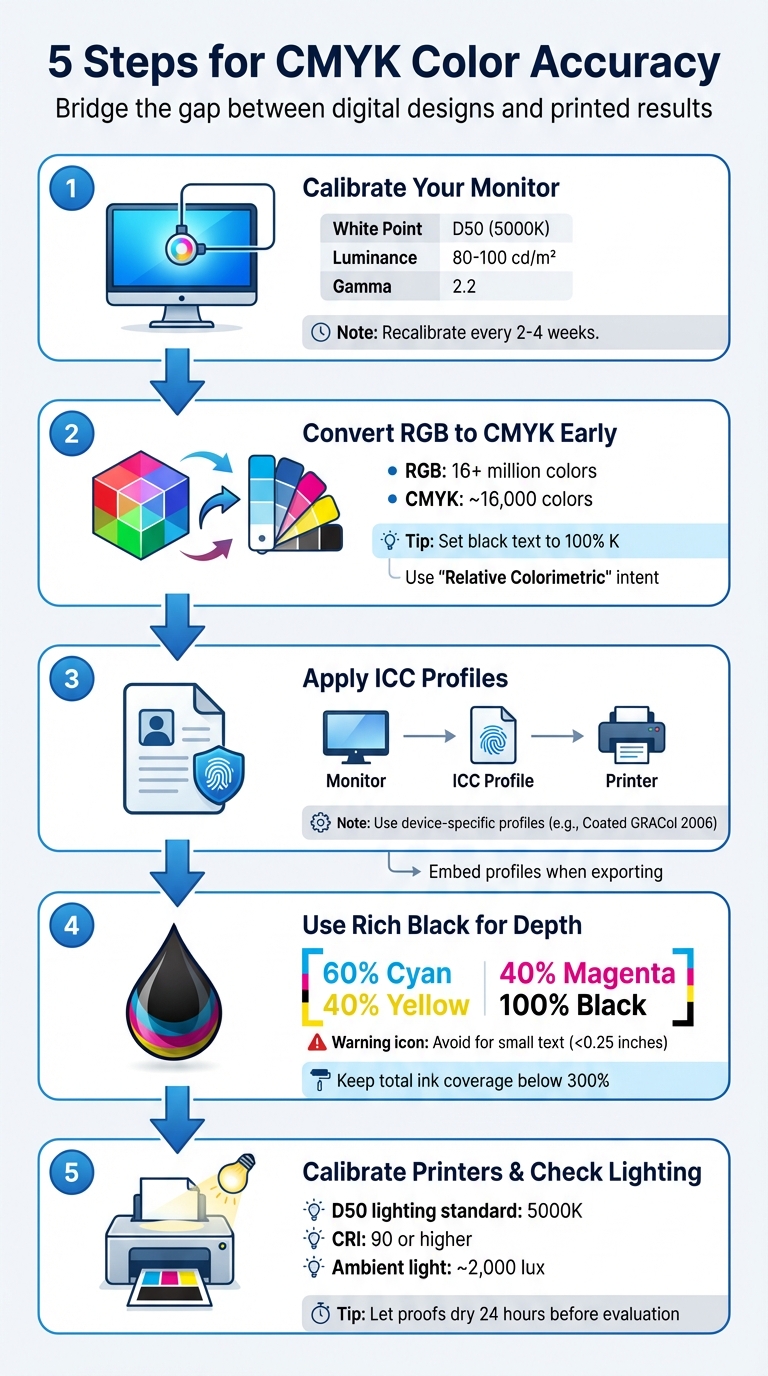
Achieving accurate colors in print is challenging because screens use RGB light, while printers rely on CMYK ink. This difference often leads to inconsistencies between what you see on screen and the final printed product. To avoid these issues, follow these five key steps:

  1. Calibrate Your Monitor: Use a hardware colorimeter to ensure accurate colors. Adjust settings like white point (D50), luminance (80–100 cd/m²), and gamma (2.2). Recalibrate every 2–4 weeks for consistent results.
  2. Convert RGB to CMYK Early: Start your design in CMYK or convert it early to manage tonal shifts. Set black text to 100% K for sharpness and use "Relative Colorimetric" intent for better color matching.
  3. Apply ICC Profiles: Use device-specific ICC profiles to maintain consistent colors across monitors, printers, and paper. Synchronize settings in Adobe apps and embed profiles when exporting files.
  4. Use Rich Black for Depth: For deep blacks, combine 60% Cyan, 40% Magenta, 40% Yellow, and 100% Black. Avoid this for small text to prevent misregistration.
  5. Calibrate Printers and Check Lighting: Ensure your printer is calibrated and evaluate proofs under D50 (5000K) lighting to match the final output.

These steps help bridge the gap between digital designs and printed results, ensuring your colors are accurate and consistent.

5-Step Process for Achieving CMYK Color Accuracy in Print

5-Step Process for Achieving CMYK Color Accuracy in Print

1. Calibrate Your Monitor

Monitor and Equipment Calibration

Getting your monitor properly calibrated is a crucial step if you want your prints to match what you see on screen. Relying on your eyes alone to judge color temperature or brightness isn’t reliable – our perception can be subjective. Even built-in operating system tools fall short, as they depend heavily on personal judgment. To avoid guesswork, a hardware colorimeter is your best bet. These devices measure and adjust your monitor’s settings with precision.

For those just starting, options like the Datacolor SpyderX Start or ColorMunki Smile are available for around $100–$150. If you’re aiming for greater accuracy, the X-Rite i1Display Pro is a solid choice. Before calibrating, let your monitor warm up for about 30 minutes to ensure stable color temperature and brightness.

Here are the key settings to aim for when calibrating for print accuracy:

Setting Target Value Why It Matters
White Point D50 (5000K) Mimics the warmer tone of paper white
Luminance 80–100 cd/m² Reflects the properties of printed paper
Gamma 2.2 Standard for professional workflows

Turn off any display features like eco-modes, blue light filters, dynamic contrast, or auto-brightness – these can disrupt color consistency. Since monitor backlights naturally dim by about 10–15% each year, it’s a good idea to recalibrate every 2–4 weeks if you’re working on projects where color accuracy is critical. Setting a recurring reminder can help you stay on schedule.

To further improve color accuracy, create a workspace with controlled lighting. Work in a dim room with neutral gray walls and surroundings, and even consider wearing neutral-toned clothing to avoid unwanted color reflections. Once your monitor is calibrated, take advantage of soft proofing in Adobe Photoshop (View > Proof Setup) to preview how your design will look with specific CMYK profiles before sending it off to print. This extra step can save you from unpleasant surprises when your project comes back from the printer.

2. Convert Designs from RGB to CMYK Early

File Preparation and Color Mode Conversion

Once your monitor is calibrated for accurate screen colors, shift your workflow early by converting files from RGB to CMYK. Why? Because delaying this step can hurt your print quality. RGB supports over 16 million colors, while CMYK is limited to around 16,000. Waiting until the last minute to convert often results in colors looking dull or muted on paper.

John Myers, a Prepress Technician and Certified G7 Expert at Walsworth, puts it this way:

Art created in RGB colorspace will need to be converted to CMYK ink channels. This can cause unexpected changes in tonality.

By converting early, you can manage these tonal shifts instead of leaving them to chance. This step ensures better control over your colors and sets the stage for fine-tuning. For best results, start your Photoshop files in CMYK mode right from the beginning or manually convert them using Image > Mode > CMYK Color. In Illustrator, the equivalent option is Edit > Edit Colors > Convert to CMYK.

Once converted, don’t stop there. Use Photoshop’s Curves Adjustment Layer to tweak any colors that may have shifted during the process. Pay extra attention to black text – it should be set to 100% K (black ink only) rather than a mix of cyan, magenta, and yellow. Mixed blacks can lead to blurry or misaligned text due to registration issues. Additionally, when converting, apply the "Relative Colorimetric" rendering intent. This setting preserves RGB colors that are reproducible in CMYK while mapping out-of-gamut colors to their closest match.

Taking this step early avoids costly errors and ensures your print proofs match expectations. As PrintPlace emphasizes:

Accurate colors are especially important for color branding and art reproductions, and neglecting to convert files from RGB can result in prints you may find unusable.

3. Apply ICC Profiles for Devices

Why ICC Profiles Matter for Consistency

Once you’ve converted from RGB to CMYK, applying ICC profiles is crucial to maintaining consistent color across all devices. An ICC profile acts as a blueprint for a device’s color behavior, ensuring that colors are translated accurately between different devices. It uses device-independent color models like CIE L_a_b* or CIE XYZ to achieve this precision.

Here’s the thing: every device interprets color differently. Monitors display colors using RGB light, while printers rely on CMYK ink. Without ICC profiles, the same color values can look completely different depending on the device. As Harold Johnson, the author of Mastering Digital Printing, puts it:

ICC profiles are the device’s fingerprint.

To get the best results, you need to use the correct profile for each device in your workflow. During editing, rely on device-independent working space profiles like Adobe RGB or sRGB. For the final output, choose specific output profiles – such as Coated GRACol 2006, which is a common standard for U.S. commercial printing. If you’re working with a printing company, always ask them which profile they recommend before finalizing your design.

ICC profiles are also essential for soft proofing. This process lets you preview how your design will look when printed by simulating the final output on a calibrated monitor. To streamline your workflow, synchronize color settings across Photoshop, Illustrator, and InDesign using Adobe Bridge. When exporting your final files, use the PDF/X-4:2008 preset to embed the profiles properly. And don’t forget – when using color-managed applications, disable color management in your printer driver to avoid double-profiling.

4. Use Rich Black for Deep Blacks

Techniques for Achieving Sharp, Deep Blacks

Relying solely on standard black ink (100% K) can leave large areas looking dull or grayish because the ink is translucent – allowing paper fibers to show through and dilute its intensity. To achieve a deeper, more vibrant black, rich black is the solution. This method layers CMY (Cyan, Magenta, Yellow) beneath 100% Black to block light and create a more saturated finish.

To get the best results, use the common formula: 60% Cyan, 40% Magenta, 40% Yellow, and 100% Black (60/40/40/100). You can tweak these CMY percentages slightly to produce cooler or warmer tones, depending on your desired effect.

However, rich black isn’t suitable for everything. Avoid using it for small text, fine lines, or barcodes. Why? Because applying multiple colors introduces the risk of misregistration. Even a tiny paper shift – just 0.004 inches (around 0.1 mm) – can cause blurred edges or unwanted color halos. PrintNinja explains:

The microscopic variations in plate registration between the 4 colors can cause slight color shadows to appear around the text, called ghosting.

For small elements (under 0.25 inches), stick to flat black (0/0/0/100) for clean, sharp edges.

Another key tip: keep your total ink coverage below 300% to avoid bronzing or smudging. Some printers even recommend staying at or below 240% for better results. Never use the "Registration" swatch (100/100/100/100) for artwork. Its excessive 400% ink coverage can cause smearing and drying issues.

When working in Adobe Illustrator or InDesign, adjust your "Appearance of Black" preference to "Display All Blacks Accurately" for both screen and print. This ensures your monitor doesn’t mislead you, as screen blacks often appear richer due to backlighting. Always request a physical proof on your chosen paper stock before committing to the full print run. This is the only way to confirm that your rich black achieves the desired depth and aligns with your overall color expectations.

Paying close attention to these ink details ensures your CMYK prints look polished and professional.

5. Calibrate Printers and Check Under Consistent Lighting

Printer Calibration for Predictable Results

After fine-tuning your monitor, the next step is to calibrate your printer to maintain consistent CMYK output. The goal of printer calibration is to achieve results that are both predictable and repeatable across multiple print runs. Don Hutcheson, President of HutchColor, LLC, puts it perfectly:

Color management is not about achieving ‘perfect’ color… It’s about achieving predictable and repeatable color.

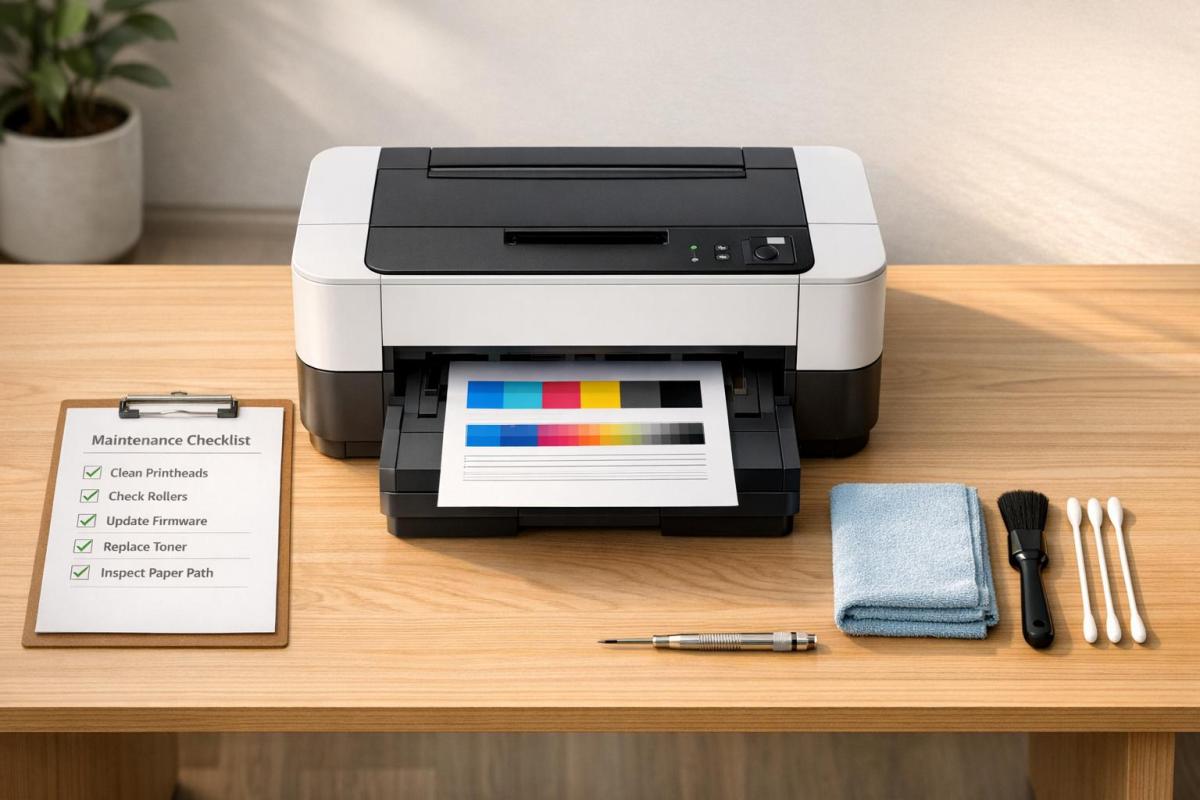
To do this, use a spectrophotometer to measure printed color targets. These devices provide far more accurate results compared to software-only adjustments. Before starting the calibration process, make sure your printer is in good working order – clean the nozzles and ensure tone values print linearly. For example, if your design shows 50% cyan, it should print as 50% cyan on paper. Calibration also accounts for how different paper types absorb and reflect light, which can significantly impact color output.

Lighting Conditions for Proof Evaluation

Once your printer is calibrated, evaluating proofs under proper lighting ensures that what you see matches the final print. Inconsistent lighting can distort your perception of colors. The industry standard for proof evaluation is D50 lighting, which mimics daylight at 5,000 Kelvin. This lighting standard helps prevent metamerism – a phenomenon where colors appear to match under one light source but differ under another.

For accurate evaluation, your workspace should meet specific conditions: lighting fixtures with a Color Rendering Index (CRI) of 90 or higher, ambient light levels around 2,000 lux, and a setup away from windows to avoid fluctuating natural light. Walls should be painted neutral gray (N8, 60% reflectance) to avoid introducing color casts. Additionally, remove any brightly colored objects from your surroundings and wear neutral-colored clothing to avoid influencing your perception. For critical projects, request a physical hard proof on the exact paper stock you’ll use. Let the proof dry for at least 24 hours before making your final evaluation.

Mastering Colour Accuracy: Why CMYK Matters for Print Success

Conclusion

Achieving accurate CMYK color reproduction requires following a series of well-coordinated steps. Calibrating your monitor lays the groundwork, ensuring your design decisions are based on accurate color representation. Converting to CMYK early tailors your file for the specific press and paper type, reducing the risk of unexpected color shifts. Applying ICC profiles such as GRACoL or SWOP helps maintain color consistency throughout the workflow. Using Rich Black adds the depth needed for a polished look, while printer calibration and consistent lighting ensure your printed output aligns with your expectations. Together, these practices not only simplify production but also reinforce your brand’s reputation.

Consistency is key. As John Myers, a Prepress Technician and Certified G7 Expert at Walsworth, highlights, the way artwork is prepared and handed off to the printer directly impacts whether printed pieces match each other or align with physical products. Reliable color output fosters trust in your brand, while inconsistency can subtly erode its perceived value. Factors like monitor angles, ambient lighting, and paper characteristics must be carefully managed. For instance, the whiteness, texture, and coating of paper can significantly alter how colors appear compared to a backlit screen.

When all these steps come together, the final printed piece will faithfully represent your creative vision. Miro Printing & Graphics Inc., located in Hackensack, NJ, offers professional printing services with calibrated equipment and a skilled team that understands these technical details. Whether you need digital, offset, or large-format printing, their expertise ensures the color accuracy your brand demands. They also provide in-house design services to help you prepare files correctly from the outset.

For projects where color precision is critical, physical proofs offer a reliable way to bridge the gap between digital previews and the final production, giving you peace of mind before committing to a full print run.

FAQs

Which CMYK ICC profile should I use for my print job?

To get accurate color reproduction, select an ICC profile tailored to your specific printing conditions. This includes factors like the type of paper you’re using and the printing process itself. Doing so ensures consistent colors across your entire print project.

Why do my printed colors look different on different paper stocks?

Printed colors can look different depending on the paper stock because each type of paper interacts with ink in its own way. Things like how much ink the paper absorbs, whether it has a glossy or matte finish, and its level of brightness all play a role in how the colors turn out. These differences are completely normal and are influenced by the specific material being printed on.

Should I order a hard proof or is soft proofing enough?

If getting the colors just right is a top priority, it’s a good idea to order a hard proof. A hard proof gives you a physical sample of how the colors will look when printed, something that soft proofing can’t fully guarantee. Why? Because factors like monitor calibration and lighting conditions can affect how colors appear on screen. While soft proofing is useful for a quick preview, it’s not the most dependable option for exact color matching.

Related Blog Posts

https://app.seobotai.com/banner/banner.js?id=69910eaeefc60cc2af070ca1

Industry Standards for Heat Testing

Overview of ISO and ASTM heat-testing standards for inks, substrates, and printing processes, ensuring color consistency, drying performance, and thermal durability.

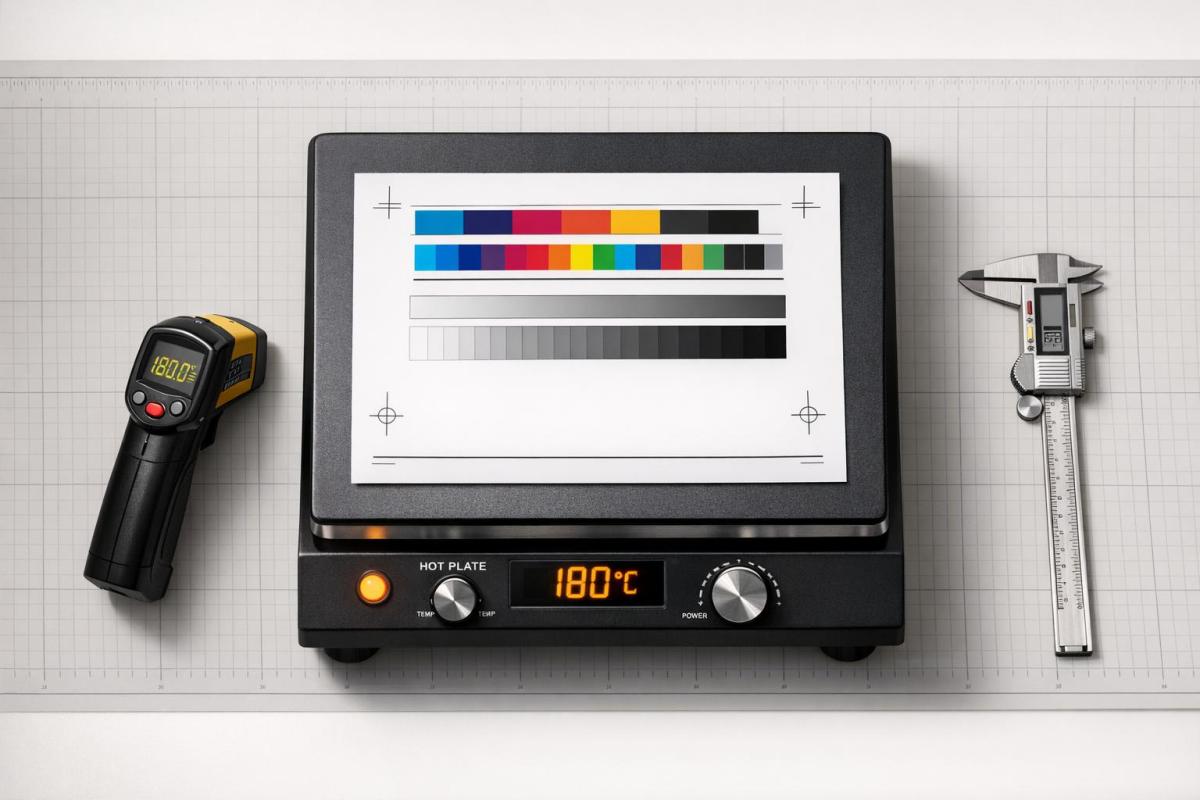
Heat testing in printing ensures materials like inks, substrates, and coatings can withstand high temperatures and stress during production and use. It’s crucial for maintaining quality, preventing defects, and meeting performance expectations. Standards from ISO and ASTM guide these processes, offering benchmarks for consistent results across various printing methods, including offset and digital. Key points include:

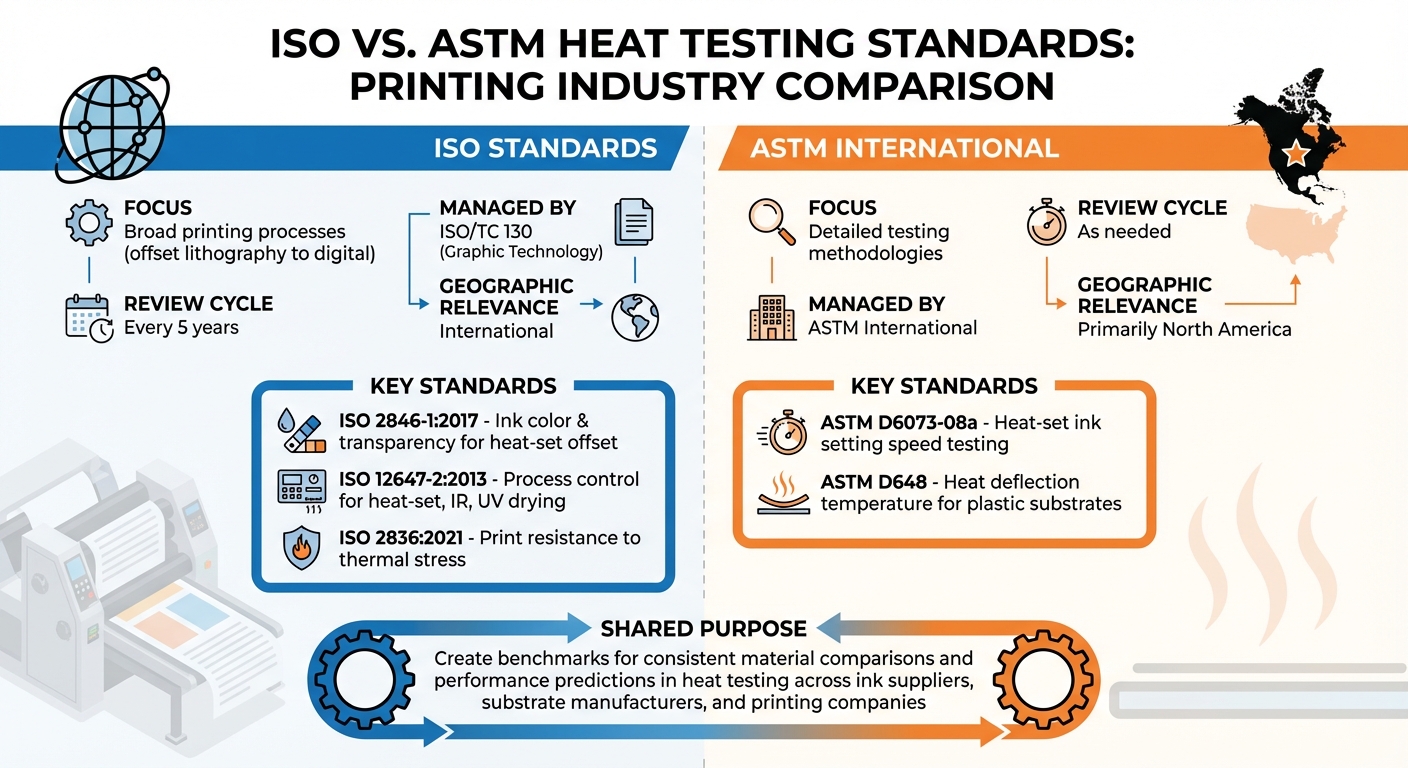
  • ISO Standards: Cover ink color, transparency, and drying methods (e.g., ISO 2846-1, ISO 12647-2).
  • ASTM Standards: Focus on testing methods like ink setting speed (e.g., ASTM D6073-08a) and substrate heat resistance (e.g., ASTM D648).
  • Applications: Used in packaging, signage, and specialty prints (e.g., labels for refillable bottles).

International Standards for Heat Testing

ISO vs ASTM Heat Testing Standards for Printing Industry

ISO vs ASTM Heat Testing Standards for Printing Industry

Two major organizations – ISO and ASTM International – set the standards that allow for direct comparisons of materials and accurate performance predictions in heat testing. These benchmarks create a shared framework for ink suppliers, substrate manufacturers, and printing companies, ensuring everyone is on the same page about performance expectations before production starts. Without these guidelines, it would be nearly impossible to reliably compare materials or predict how printed products will behave under thermal stress.

ISO focuses on a broad range of printing processes, from traditional offset lithography to advanced digital methods. These standards are managed by ISO/TC 130 (Graphic Technology) and are reviewed every five years to stay aligned with technological progress. Meanwhile, ASTM standards are particularly relevant in North America, offering detailed testing methodologies that ensure consistent procedures across the board. Below are some of the key ISO and ASTM standards shaping the industry.

ISO Standards for Heat Resistance

  • ISO 2846-1:2017: This standard specifies ink color and transparency under controlled conditions, ensuring ink sets used in heat-set web offset lithography meet strict requirements. Laboratory printability testers are used to verify performance, supporting consistent quality control in printed materials.
  • ISO 12647-2:2013: Currently under revision (Stage 90.92), this standard defines process control parameters for various drying methods, including heat-set, infrared, and ultraviolet. It focuses on offset lithography, setting clear guidelines for maintaining consistent quality during production.
  • ISO 2836:2021: This standard addresses the resistance of prints to various agents, including thermal stress. It applies to both traditional methods like offset and flexography and digital techniques such as inkjet and electrophotography. By ensuring printed materials can endure environmental challenges, it supports reliable quality control throughout the product lifecycle.

ASTM Standards in Heat Testing

While ISO sets overarching performance criteria, ASTM focuses on precise testing methods to measure these properties.

  • ASTM D6073-08a: This method tests the heat-set ink setting speed using a controlled hot-air oven and print delivery system. It helps verify that printed materials can perform under thermal stress. The test is often conducted in direct letterpress mode, as the thicker ink films in this setup make it easier to detect subtle differences in setting speeds. However, it’s important to note that lab results may not directly predict performance on large-scale production presses.
  • ASTM D648: This standard measures the heat deflection temperature of plastic substrates, ensuring they maintain structural integrity under high temperatures. It’s particularly important for specialty applications involving synthetic substrates that need to stay dimensionally stable during thermal processing.

ISO 2846-1: Ink Quality in Heat-Set Offset Printing

ISO 2846-1:2017 sets precise color and transparency standards for process color inks – cyan, magenta, yellow, and black – used in sheet-fed, heat-set, and radiation-curing lithography. This standard ensures that inks from different manufacturers produce consistent colors when applied to a common reference substrate at the correct film thickness, which is crucial for maintaining uniformity across production sites. Below, you’ll find details on the testing methods and conformance criteria that make this standard a cornerstone of quality control.

The standard accounts for both physical drying (like evaporation in a forced-air oven) and chemical drying (via oxidation or absorption), ensuring inks meet stringent quality expectations.

Using the CIELAB system, ISO 2846-1 defines specific color targets. For example:

  • Yellow ink must reach L* = 91.00, a* = –5.08, and b* = 94.97, with a tolerance of ΔE_ab ≤ 4.0.
  • Black ink must have an L* value no higher than 18.0.

These detailed measurements help ensure printed materials can withstand heat without compromising quality, meeting the demands of modern printing standards.

Test Methods for Ink Performance

To verify ink performance, specific testing procedures are carried out under controlled conditions.

Color measurements follow ISO 13655 guidelines, using either 0°:45° or 45°:0° geometry. Test prints are created on a laboratory tester (per ISO 2834-1), then dried according to the manufacturer’s instructions before analysis. Transparency testing involves printing chromatic inks on a black substrate at different film thicknesses. The transparency value (T) is determined as the reciprocal of the slope of the regression line between ink film thickness and the resulting color difference (ΔE*ab). Minimum transparency thresholds are:

  • Yellow ink: T ≥ 0.08
  • Magenta ink: T ≥ 0.12
  • Cyan ink: T ≥ 0.20

Conformance Requirements for Offset Printing

Meeting ISO 2846-1 conformance criteria ensures inks perform reliably across various production settings.

To comply, inks must meet the defined colorimetric and transparency standards at film thicknesses between 0.7 and 1.1 µm. This range reflects typical production variability. Tests are conducted using the C2846 reference substrate, which replaced the older APCO II/II substrate in the 2017 update. The standard underwent its latest review in December 2022 and remains valid through 2026.

For manufacturers seeking certification, Fogra offers testing services for UV and heat-set inks. Costs are $2,186.67 for members and $2,934.75 for non-members. Additionally, the ISO 2846-1 document can be purchased for $100.

At Miro Printing & Graphics Inc., we adhere to these internationally recognized standards in our heat-set offset printing operations. This commitment ensures every project meets rigorous color and transparency benchmarks, delivering consistent, high-quality results.

ISO 12647 Series: Printing Process Standards with Thermal Factors

The ISO 12647 series fine-tunes printing process control by incorporating thermal factors into its standards, building on established heat testing criteria.

This series sets detailed guidelines for printing, with Part 2 focusing on offset lithography and heat-based drying methods. It applies to heat-set, infrared (IR), and ultraviolet (UV) drying processes, ensuring consistent quality across these thermal methods. The standard addresses parameters like color separations, printing forms, and production prints, emphasizing how heat impacts the final output.

"ISO 12647-2:2013… is applicable for all kinds of drying methods such as heat-set, infrared, and ultraviolet."

Key thermal parameters defined in the standard include ink transparency, TVI (tone value increase) per paper type, and CIELAB solid-tone values. These measurements ensure color accuracy and consistency for heat-set web offset printing. The current 2013 version is undergoing updates, with Edition 4 registered as a committee draft on November 10, 2025. These updates aim to align the standards with advancements in thermal printing technology.

Updates to ISO 12647-2 for Heat-Set Web Offset

Recent revisions to ISO 12647-2 focus on improving the alignment between proof and production prints by updating ink solids and TVI curves. A significant change is the mandatory use of measurement mode M1, which simulates D50 lighting with UV content. This adjustment accounts for optical brightening agents (OBAs) often found in modern papers used in heat-set processes.

The updated standard also introduces new data sets – FOGRA51 for premium coated papers and FOGRA52 for wood-free, high-OBA, uncoated papers. These data sets provide precise CIELAB values tailored for heat-set operations, ensuring compliance with earlier colorimetric benchmarks. Visual evaluations should be conducted under D50 norm light as specified in ISO 3664:2009, and processes should be calibrated using the specific TVI curves for the chosen paper type and drying method.

Applications for Digital Printing Quality

The principles from earlier standards extend to digital printing, ensuring it meets rigorous thermal quality control requirements. ISO 12647-7 applies these thermal process standards to digital proofing, enabling digital proofs to accurately simulate production conditions for heat-set offset and other thermal-based methods. This 23-page standard (priced at CHF 135) offers a framework for digital systems to replicate the appearance of materials produced using heat-set drying. It complements ISO 12647-8, which focuses on validation prints for digital systems.

Practical Applications and Benefits of Heat Testing Standards

Heat testing standards play a crucial role in improving performance and reducing waste by establishing clear benchmarks. These benchmarks allow businesses to predict how materials will perform before moving into full production.

Maintaining Consistency Across Printing Projects

Achieving uniformity across print runs depends on managing key factors like ink drying and color reproduction. For instance, ASTM D6073 evaluates the setting speed of heatset inks, offering a dependable standard for agreements between ink suppliers and printers. Similarly, ISO 12647-8 ensures that digital proofs closely match production results, cutting down on the need for multiple physical proofs. These standards not only streamline the printing process but also improve the durability and quality of the final products.

Improving Durability of Printed Materials

Beyond consistency, heat testing strengthens the long-term durability of printed materials. Standards such as ISO/TS 21139-1, ISO 18930:2011, and ISO/IEC 22592-3:2025 help safeguard material integrity throughout a product’s lifecycle. For example:

  • ISO/TS 21139-1:2019 simulates environmental stressors for commercial prints like flyers, signage, and packaging, ensuring they hold up under real-world conditions.
  • ISO 18930:2011 addresses physical degradation issues, highlighting that factors like embrittlement, cracking, or delamination often determine a material’s lifespan rather than image stability. As noted:

    physical degradation such as support embrittlement, image layer cracking, or delamination of an image layer from its support, rather than image stability, will determine the useful life of a print material.

  • ISO/IEC 22592-3:2025 evaluates thermal blocking to ensure that office color prints remain intact when exposed to heat during transport or use.

Additionally, accelerated aging tests, such as ASTM D6819, use dry oven exposure to measure the mechanical strength of paper over time. This helps manufacturers identify stable materials early on, reducing waste and avoiding product failures that could disappoint customers.

At Miro Printing & Graphics Inc., we strictly follow these rigorous heat testing standards to ensure our printing processes deliver consistent, durable, and high-quality results every time.

Conclusion

Heat and thermal resistance testing plays a crucial role in maintaining quality assurance within the printing industry. These standards ensure that inks dry properly under specific thermal conditions while preventing defects like blistering on coated papers during heatset printing. Without such guidelines, achieving consistent results and reliable performance predictions would be nearly impossible.

These standards also foster clear communication between suppliers and customers. As highlighted in ASTM D6073-08a:

The setting speed of heatset printing inks is important because it influences the efficiency of the drying process.

By providing a standardized framework, both parties can agree on measurable performance benchmarks, reducing uncertainty and minimizing waste.

Beyond consistency, these standards open doors to global markets. The Association for PRINT Technologies explains:

These standards allow manufacturers to design and build equipment to a single set of safety standards, regardless of the country of import/export.

This uniformity simplifies international trade, ensuring that quality expectations remain consistent across different regions.

For businesses and clients alike, adhering to heat testing standards delivers practical benefits: prints that withstand environmental stress, materials that remain intact during transport and storage, and final products that meet durability requirements. By controlling factors like forced air temperature, airflow rates, and heat exposure time, these standards help prevent physical damage that could jeopardize a project’s success.

At Miro Printing & Graphics Inc., we are dedicated to following stringent heat testing protocols to ensure every project meets the highest quality expectations, delivering results you can count on.

FAQs

Which ISO and ASTM standards should I use for my print job?

For heat testing in printing, here are some key standards to follow:

  • ASTM D6073-20: Focuses on evaluating heatset inks to ensure their performance under heat conditions.
  • ASTM D6819-02e3: Covers accelerated temperature aging of paper, helping to assess how paper withstands prolonged exposure to heat.
  • ISO 2834-1:2020: Provides methods for preparing test prints using paste inks, crucial for consistent testing.

These standards help maintain accuracy and reliability when assessing thermal resistance and durability in printing materials.

How do I choose the right heat test conditions for my materials?

To determine the best heat test conditions, aim to mimic your actual printing environment as closely as you can. Pay attention to key factors such as the type of substrate, the thickness of the ink film, air temperature, airflow, and the duration of heat exposure. For consistent and reliable comparisons of heatset ink performance, use established methods like ASTM D6073-20. These standards help maintain uniformity in testing under controlled conditions.

Why can lab heat-test results differ from production press results?

Lab heat-test results often vary from production press outcomes because of differences in testing conditions, substrates, load variations, and external factors. These elements can influence how well the test results reflect actual production performance. It’s crucial to keep these variables in mind when analyzing and applying the findings.

Related Blog Posts

https://app.seobotai.com/banner/banner.js?id=698fc036efc60cc2af06e5bf

Paper Coatings Explained: Gloss, Matte, Satin

Compare gloss, matte and satin paper coatings — effects on color, glare, readability, and best uses to help you pick the right finish.

Choosing the right paper coating – Gloss, Matte, or Satin – depends on your project’s purpose and desired look. Here’s a quick breakdown to help you decide:

  • Gloss: Shiny, reflective, and vibrant. Great for images, brochures, and magazines but prone to glare and fingerprints.
  • Matte: Non-reflective, soft, and easy to read. Perfect for text-heavy materials, writing, and a refined appearance.
  • Satin: A middle ground with a subtle sheen and rich colors. Ideal for combining images and text, like in catalogs or professional portfolios.

Each coating affects color, readability, and handling differently. Gloss enhances sharpness and bold visuals but may not suit text-heavy designs. Matte offers a glare-free surface and works well for writing. Satin balances vibrancy and readability with minimal glare.

Quick Comparison:

Feature Gloss Satin Matte
Reflection & Glare High shine, reflective Low sheen, minimal glare No glare
Color Appearance Bold and vibrant Rich and balanced Soft and muted
Readability Can be difficult under bright light Easy to read Excellent
Best Uses Photos, magazines Brochures, presentations Art prints, books
Handling Shows fingerprints Resists fingerprints Smudge-resistant

Your choice depends on balancing aesthetics, functionality, and the material’s purpose. Read on for detailed insights into each coating’s characteristics and applications.

Gloss vs Matte vs Satin Paper Coating Comparison Chart

Gloss vs Matte vs Satin Paper Coating Comparison Chart

Gloss Coating: Characteristics and Uses

What Is Gloss Coating?

Gloss coating creates a shiny, reflective surface by smoothing out the tiny valleys between paper fibers through a process called heavy calendering. The result? A polished finish that stands out, especially under direct light .

This coating also limits ink absorption, which enhances image sharpness and makes colors pop. As Geoff Pick from Clear Print explains:

Because the inks stay on the surface of the coating instead of soaking in, the ink appears richer, sharper and glossier.

The result is vibrant colors with striking contrast, giving images a lifelike quality .

Gloss paper, while thinner than matte alternatives, offers a dense and sleek finish that affects both its look and feel. It also adds durability, reducing scuffing and scratches. However, it’s worth noting that gloss surfaces can show fingerprints and smudges more easily .

When to Use Gloss Coating

Gloss coating works best for materials that need to make a strong visual impression. Think brochures, catalogs, and magazine covers. It’s also a popular choice for postcards, flyers, product labels, and magazines .

This finish is perfect for marketing pieces that aim for a polished, high-end look. It’s particularly effective for designs with light-colored text on dark backgrounds – the reflective surface makes the text stand out. Another perk? Gloss paper absorbs less ink, which can help lower printing costs.

That said, gloss coating isn’t ideal for everything. Its reflective surface can cause glare, making it less suitable for text-heavy documents read under bright light . It’s also not the best option for materials meant to be written on, as ballpoint pen ink can smear on the slick surface . For calendars, workbooks, or forms requiring handwritten notes, a different finish would be a better choice.

Matte Coating: Characteristics and Uses

What Is Matte Coating?

Matte coatings are all about subtlety and elegance. Unlike the shiny, reflective nature of gloss, matte finishes diffuse light, creating a smooth, non-reflective surface that feels understated yet refined.

Interestingly, both matte and gloss coatings start with the same base material, but matte uses a lighter application of the coating. This process, known as light calendaring, retains a soft texture and gives the surface a slightly organic feel.

Matte paper tends to be thicker than gloss paper of the same weight. This is because its fibers are less densely packed, allowing it to absorb more ink. The thinner coating lets the ink sink deeper into the paper, creating softer, muted colors compared to the vivid tones of gloss. The result is a sophisticated finish, perfect for premium branding. Additionally, matte surfaces resist fingerprints and smudges, keeping printed materials looking clean even with regular handling.

Another practical advantage? Matte paper is writable. It easily accepts ink from pens and pencils without smudging, making it a practical choice for projects that require handwritten notes.

When to Use Matte Coating

Thanks to its soft finish and excellent readability, matte coating works well for text-heavy materials like newsletters, booklets, and training manuals. Its non-reflective surface reduces glare, making it easier on the eyes, especially in bright or direct lighting.

Matte is also a go-to for projects that need a polished, high-end feel. Think business cards, event invitations, annual reports, or luxury product packaging. Black-and-white photography and fine art prints look particularly striking on matte, as the finish enhances their timeless, artistic quality. It’s also a great match for minimalist designs or pastel color palettes, as the muted tones complement these styles beautifully.

For items that get handled frequently – like menus, postcards, calendars, and greeting cards – matte’s smudge-resistant surface is a big plus. Its ability to accept handwriting without smearing makes it ideal for forms and handwritten projects. However, keep in mind that thicker matte paper should be scored before folding to prevent cracking along the coating.

One thing to note: printing on matte paper might cost more than gloss. The paper’s higher ink absorption can increase printing expenses, so it’s worth factoring this into your budget.

Satin Coating: Characteristics and Uses

What Is Satin Coating?

Satin coating provides a finish that strikes a balance between the high shine of gloss and the muted elegance of matte. This low-to-medium gloss finish is achieved through moderate calendering, resulting in vibrant colors and sharp details while keeping glare to a minimum. It also has the practical advantage of resisting fingerprints and smudges. In the printing world, satin is often referred to as "silk", "dull", or "velvet."

"Satin/Silk/Dull/Velvet… describe a low-gloss coated sheet that sits between matte and gloss… keeps colors rich and crisp without glare." – Holland Litho

Satin’s ability to deliver vivid visuals without overwhelming glare makes it a versatile choice for designs that demand a mix of clarity and aesthetic appeal.

When to Use Satin Coating

Satin coating is a great choice for projects like brochures, catalogs, reports, and art prints. It enhances image quality while maintaining readability, even in brightly lit environments such as trade shows, exhibitions, or offices. For designs that blend high-resolution photography with extensive text – like corporate presentations or book covers – satin ensures vibrant visuals and easy-to-read text.

Its resistance to fingerprints makes it particularly useful for items that get frequent handling, such as menus, photo books, albums, and professional portfolios. Satin is also a popular choice for custom stationery like invitations, greeting cards, and letterheads, offering a sleek, non-reflective finish that feels refined. For thicker satin paper stocks (80# and above), scoring before folding is recommended to avoid cracking along the fold lines.

For handwritten elements, oil-based ballpoint pens work best on satin finishes. To make the most of this coating’s ability to showcase fine details, use high-resolution images (300 DPI or higher).

"Satin is ideal when you want a polished look without harsh glare… Its balanced sheen makes it the ‘best of both worlds’ between gloss and matte." – Printing Partners

At Miro Printing & Graphics Inc. (https://bergencountyprinters.com), we specialize in using satin coatings to create premium printed materials that combine eye-catching visuals with excellent readability. Each coating option has its own strengths, ensuring you can choose the perfect finish for your project’s unique requirements.

How to Choose the Right Paper Coating: Matte, Gloss, High-Gloss (with Host)

Comparing Gloss, Matte, and Satin Coatings

The finish of paper – whether gloss, matte, or satin – depends on a process called calendering. This involves smoothing the paper with rollers: heavy pressure creates a glossy finish, moderate pressure results in satin, and light pressure produces matte.

Each coating also uses a distinct chemical layer that affects its properties. Gloss coating applies a thick layer that fills the paper’s pores, preventing ink absorption. This maintains vibrant colors and sharp details but makes the surface prone to showing fingerprints. Matte coating, on the other hand, leaves the paper’s texture exposed, scattering light to reduce glare. However, it absorbs more ink, which can soften colors. Satin coating strikes a middle ground, offering rich colors with minimal glare and better resistance to fingerprints than gloss.

A helpful analogy from Holland Litho illustrates these differences:

"Matte is like a chalk drawing; satin/silk/dull/velvet is like colored pencils – still soft, but a little brighter; gloss is like markers – bold and shiny." – Holland Litho

This comparison highlights how each finish has unique strengths, making them better suited for specific projects.

If you’re working on materials that require writing – like calendars, forms, or study guides – matte is the best option. Gloss surfaces can cause pen or pencil ink to smear or fail to transfer properly. For projects where resistance to dirt and moisture is a priority, gloss performs best, though none of these coatings are completely waterproof.

Here’s a quick side-by-side breakdown of their key characteristics:

Comparison Table

Feature Gloss Coating Satin / Silk / Dull Matte Coating
Texture Extremely smooth and polished Smooth with a soft feel Smooth with a slight texture
Reflection & Glare High shine; very reflective Subtle sheen; low glare Flat finish; no glare
Color Appearance Vibrant and bold Rich and balanced Soft and muted
Typical Uses Photos, magazines, flyers Brochures, covers Art prints, books
Handling Properties Shows fingerprints easily; resists dirt Minimal fingerprints; easy to clean Hides fingerprints; writable
Readability Can be difficult due to glare Minimal glare interference Excellent; no glare in lit rooms

How to Choose the Right Coating

What to Consider

Before diving into your printing project, it’s important to weigh a few key factors to ensure the best results.

If your project involves writing, always opt for matte over gloss. For items like calendars, forms, or workbooks that require handwriting, gloss is a poor choice because pen or pencil ink tends to smear. Matte finishes provide a smooth, non-reflective surface perfect for writing.

For image-heavy projects, gloss is ideal. It enhances color vibrancy and sharpness, making visuals pop. On the other hand, matte is better for text-heavy documents, as it reduces glare and minimizes eye strain, making reading more comfortable.

Think about how the material will be distributed and used. Glossy finishes can show fingerprints and reflect light, which might not work well for items being mailed, handed out, or used in bright environments. Matte and satin finishes are better in these cases, as they hide marks and reduce glare. However, gloss is more resistant to dirt and moisture, which is helpful for printed materials that may face rough handling or exposure to the elements.

For example, a glossy brochure might look stunning indoors but could become hard to read in bright sunlight. In such cases, matte is often a smarter choice because it diffuses light, ensuring the content remains legible.

Practical Examples

Your choice of coating impacts more than just the look of your project – it also affects how functional it is for its intended use.

  • Business cards: Glossy finishes give a vibrant, eye-catching appearance, while matte exudes elegance and professionalism.
  • Postcards and greeting cards: A popular choice is C1S (Coated One Side) stock, which uses gloss on the front for visual appeal and a matte or uncoated back for easy writing.
  • Product catalogs and magazines: Gloss is a standard choice here, as it enhances color richness and image clarity.
  • Luxury brochures: These often feature silk or satin finishes to maintain rich colors without the overly shiny look of full gloss.
  • Event invitations and programs: Matte finishes are preferred for their refined look and ease of readability.
  • Workbooks and study guides: Matte is a must for any material requiring handwritten notes, offering the best surface for writing.

For tailored advice on coatings and finishes, reach out to the experts at Miro Printing & Graphics Inc. (https://bergencountyprinters.com), a trusted print shop in Hackensack, NJ.

Conclusion

The type of paper coating you choose can significantly influence both the performance of your project and how your audience perceives it. Knowing the differences between gloss, matte, and satin coatings is key to creating materials that not only look polished but also serve their intended purpose effectively.

Matte finishes provide a glare-free surface, making them ideal for text-heavy designs or materials that require handwriting. Satin coatings strike a balance, offering rich colors with a softer, less reflective finish. Gloss coatings, on the other hand, deliver bold, vibrant visuals that grab attention but may introduce glare and show fingerprints more easily. Picking the wrong coating could lead to practical issues – like ink smudging on a glossy calendar or muted images on matte paper – potentially undermining your project’s success.

It’s also worth noting how coatings affect the technical aspects of printing. Matte paper tends to absorb more ink than glossy paper, which can influence both cost and color vibrancy. Gloss paper achieves its reflective finish through a thicker coating, while matte paper uses a lighter coating that scatters light, reducing reflections. These details highlight why selecting the right coating is so important for both the visual appeal and functionality of your project.

FAQs

How do I pick the best coating for my project?

When deciding on a coating, think about the purpose of your project and the look you’re aiming for:

  • Gloss: Perfect for bold visuals, this finish boosts color vibrancy and adds a shiny, reflective surface. It’s great for making designs pop.
  • Matte: Offers a softer, non-reflective surface, giving a professional feel and ensuring easy readability.
  • Satin: Strikes a middle ground between gloss and matte, making it ideal for designs that blend text and images.

Choose the finish that aligns best with your project’s goals to achieve the desired effect.

Which coating is easiest to write on?

Uncoated paper stands out as the simplest option for writing because its porous surface absorbs ink effectively. This quality makes it a perfect choice for tasks that involve writing or marking.

Will my photos look better on gloss or satin?

Gloss paper brings your photos to life with bright, vivid colors and a sleek, shiny finish that grabs attention. Satin paper, however, offers a more understated look with a gentle sheen, making it easier to read and giving your images a softer, more polished appearance. Go for gloss if you want striking, bold visuals, or pick satin for a more elegant and professional touch.

Related Blog Posts

https://app.seobotai.com/banner/banner.js?id=698fb3c9efc60cc2af06dfc5

How to Set Print File Resolution

Proper DPI and pixel planning are essential—start designs at 300 PPI and export CMYK PDFs for sharp, print-ready results.

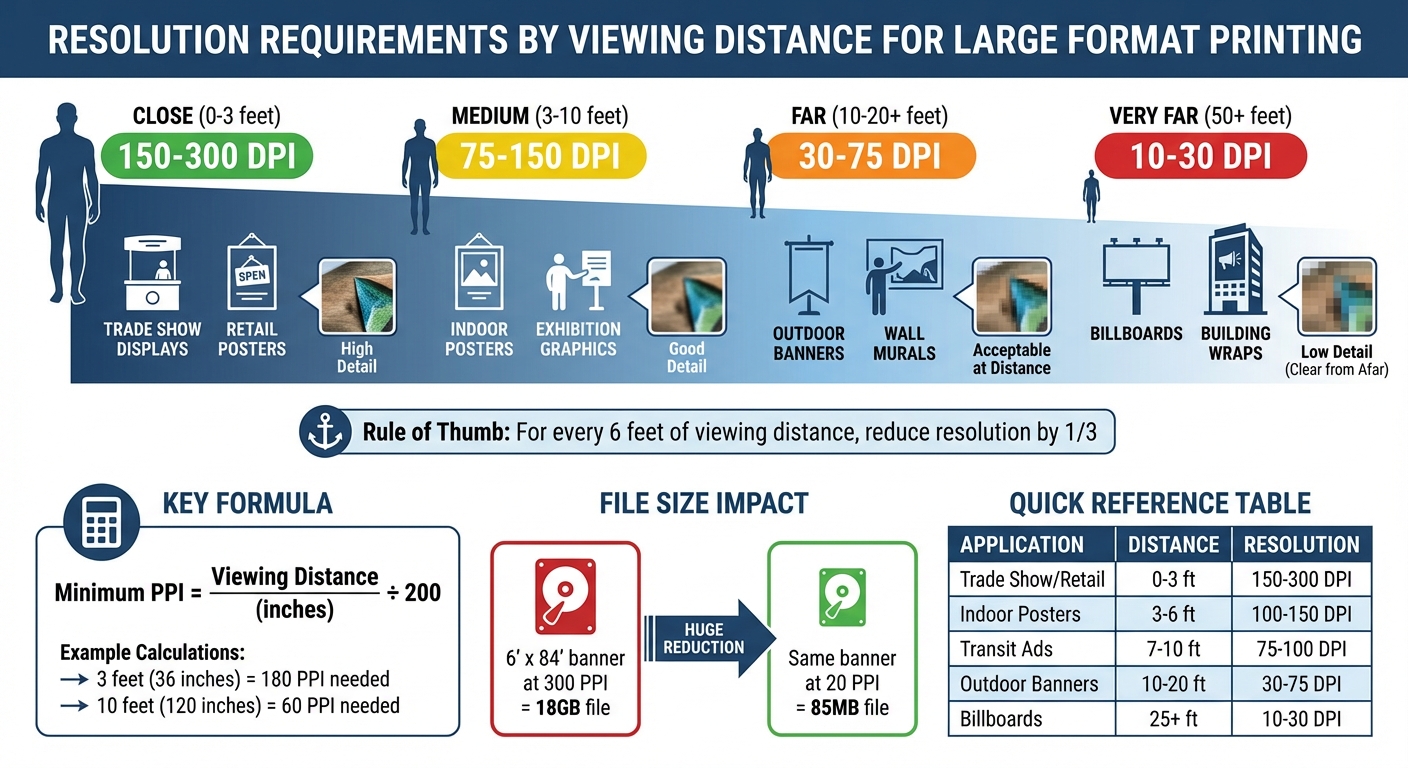
The quality of your printed materials depends heavily on the file resolution. To ensure sharp, clear prints, you need to understand DPI (dots per inch) and how it impacts print quality. For most projects, 300 DPI is the standard for professional results. Here’s what you need to know:

  • DPI vs. PPI: DPI is for printing, while PPI is for digital screens.
  • Standard Resolutions:
    • 300 DPI: Ideal for brochures, business cards, and flyers.
    • 100–150 DPI: Works for large posters or banners viewed from a distance.
    • 30 DPI: Sufficient for billboards seen from far away.
  • Resolution Formula: Pixel Dimensions ÷ Target DPI = Maximum Print Size (in inches).
  • How to Check Resolution: Use tools like Photoshop, InDesign, or GIMP to verify file settings.

Proper resolution ensures clear, professional prints. Start with high-resolution files, convert to CMYK for accurate colors, and include a bleed (0.125 inches) to avoid trimming issues. Always export as PDF, TIFF, or EPS for the best results.

Read on to learn how to set and adjust resolution in your design software.

Print Resolution Guide: DPI Requirements by Viewing Distance and Application Type

Print Resolution Guide: DPI Requirements by Viewing Distance and Application Type

HOW TO RESIZE AN IMAGE AND EXPORT FOR PRINTING IN PHOTOSHOP

How to Determine the Required Resolution

Figuring out the right resolution for your project starts with understanding pixel dimensions, print size, and the target DPI (dots per inch). Once you have these, applying the calculations within your design software becomes straightforward.

Understanding the Resolution Formula

The connection between pixel dimensions, print size, and resolution can be summed up with this formula:

Pixel Dimensions ÷ Target DPI = Maximum Print Size (in inches)

This tells you how large you can print an image without losing quality. For example, if you have an image that’s 1,200 × 1,600 pixels and print it at 300 DPI, the maximum size is 4″ × 5.33″. Stretching it to 8″ × 10.66″ drops the resolution to 150 DPI, which results in a less sharp appearance.

To calculate the pixel dimensions you need for a specific print size, use this formula:

Print Width (in inches) × Target DPI = Required Pixel Width

For instance, an A0 poster (33.1″ × 46.8″) printed at 150 DPI needs 4,965 × 7,020 pixels. If viewed from a medium distance and printed at 100 DPI, the requirement drops to 3,310 × 4,680 pixels.

"Resolution and image size are inversely proportional to each other. Enlarge an image, the resolution decreases; reduce an image, the resolution increases." – Printing for Less

Here’s a quick guide for typical print scenarios:

Viewing Distance Recommended DPI Typical Applications
Close (0–1 meter) 150–300 Brochures, business cards, magazines
Medium (1–2.5 meters) 75–150 Posters, window graphics, exhibition displays
Far (>2.5 meters) 30–75 Banners, billboards, stadium graphics

Once you know the required pixel dimensions, check and adjust your file’s resolution in your design software to ensure it meets these specifications.

Checking Current Resolution in Design Software

Before printing, verify your file’s resolution. Here’s how to check in common tools:

  • Photoshop: Go to Image > Image Size.
  • InDesign: Use the Info panel to check Effective PPI, which accounts for any scaling applied to the image.
  • Windows: Right-click the file, select Properties > Details.
  • macOS: Open the file in Preview and use the Inspector tool.

For PDFs, online DPI checkers can confirm that embedded images haven’t been downsampled below 300 DPI. Ensuring your file matches the required resolution is critical for professional-quality prints.

Scaling Images Without Losing Quality

To increase the effective DPI, reduce the print size. For example, a 1,200 × 900 pixel image printed at 12″ × 9″ has an effective resolution of 100 DPI. Shrinking it to 4″ × 3″ boosts the resolution to 300 DPI without changing the pixel data.

"Reducing print size is a simple and effective way to organically boost DPI for print." – Thomas Group Printing

If reducing the print size isn’t an option, consider AI-powered upscaling tools like Photoshop’s Preserve Details 2.0. Using Smart Objects ensures non-destructive resizing .

When scanning images, aim to capture extra detail. For example, scanning a 2″ × 3″ photo at 750 DPI allows you to enlarge it to 5″ × 7.5″ at 300 DPI. Avoid using images from websites or emails, as they’re often saved at 72–96 DPI and can look blurry or pixelated when printed.

Setting Print File Resolution in Design Software

Now that you’ve figured out the resolution your project needs, here’s how to configure it properly in your design software.

Adobe Photoshop

Adobe Photoshop

In Photoshop, resolution is managed through the Image Size dialog box. Go to Image > Image Size to access these settings. Resolution here refers to the number of pixels printed per inch (PPI).

You’ll need to decide whether to resample (changing the pixel count) or resize (adjusting physical dimensions without altering pixel data). To adjust resolution while keeping the original pixel count intact, uncheck the Resample box. This way, the total number of pixels stays the same, and the print dimensions adjust automatically. For instance, halving the physical size of an image doubles its resolution because the same pixels are packed into a smaller space.

Keep the link icon active to ensure proportional scaling. For most high-quality prints, especially on inkjet printers, aim for 300 PPI. If you’re increasing resolution (upsampling), consider applying the Unsharp Mask filter to improve clarity. You can also set resolution with the Crop tool by entering specific width, height, and resolution values in the options bar before cropping. The Info panel can help you monitor the pixel dimensions of your selection.

Method Resample Setting Effect on Pixel Dimensions Effect on Print Quality
Resizing Deselected No change; total pixels stay the same Changes physical size; higher PPI increases detail density
Upsampling Selected Adds new pixels Can cause blurriness, jagged edges, or blockiness
Downsampling Selected Removes pixels Reduces file size; safer than upsampling

For projects involving vector graphics, consider switching to Adobe Illustrator to ensure sharpness at any scale.

Adobe Illustrator

Adobe Illustrator

Illustrator handles resolution differently because it’s designed for vector graphics, which are resolution-independent. Unlike raster images (which rely on fixed pixel dimensions), vector artwork can be scaled infinitely without losing quality.

"Vectors are resolution independent, so they can be scaled to any size with absolutely no loss of quality." – PsPrint

To manage resolution for raster effects in Illustrator, expand the Advanced Options when creating a new file (File > New) and set Raster Effects to High (300 PPI). For existing documents, go to Effect > Document Raster Effects Settings and select 300 PPI. This ensures your file meets the professional print standards mentioned earlier.

To check the quality of imported images, open the Document Info panel (Window > Document Info) and select Embedded Images. This lets you verify the actual PPI of placed raster images. Avoid upscaling images beyond their limits; their effective resolution should stay at or above 300 PPI. Before finalizing, convert text to outlines (Type > Create Outlines) to avoid font issues during printing.

When exporting, select File > Export > Export As and ensure the resolution is set to High (300 PPI) for formats like TIFF or JPEG. For vector artwork, save as PDF or EPS to preserve scalability and prevent pixelation.

If you’re using other software, the next section covers how to adjust resolution in tools like GIMP and Canva.

Other Tools (Canva, GIMP)

Setting resolution in GIMP or Canva is just as important for ensuring high-quality prints.

In GIMP, use the Print Size command to adjust physical dimensions and resolution without affecting pixel data. Go to Image > Print Size, choose your preferred unit (like inches), and set the X and Y resolution to 300 PPI. Keep the chain icon active to maintain the aspect ratio. Changing the resolution here automatically updates the print dimensions based on the existing pixel count. If your image defaults to 72 PPI, make sure to reset it to 300 PPI to avoid pixelation.

For Canva, download your design using the highest quality settings available. Double-check that the file dimensions align with a 300 DPI output for proper print resolution.

File Formats and Settings for High-Quality Printing

Once you’ve nailed down the resolution, the next step is selecting the right file format and print settings to achieve crisp, professional results.

Picking the right file format can make or break the quality of your prints. PDF (Portable Document Format) is widely regarded as the best choice for print-ready files because it preserves fonts, graphics, and formatting across different devices and systems.

For high-resolution images or multi-colored artwork, TIFF (Tagged Image File Format) is a top contender.

"TIFF (Tagged Image File Format) is a lossless format, preserving all image data. This makes it the preferred choice for professional printing where quality is paramount" – 4OVER4

Unlike JPEG files, which use lossy compression and lose data every time they’re saved, TIFF files retain consistent color and image quality no matter how often they’re used.

For logos and illustrations, EPS (Encapsulated PostScript) is a solid choice because it supports vector graphics, allowing images to scale to any size without losing clarity. Similarly, AI (Adobe Illustrator) files are perfect for complex vector artwork, as they keep all paths and scalability intact. On the other hand, PNG is not recommended for professional printing since it doesn’t support the CMYK color mode required by printers.

File Format Type Best For Quality
PDF Container Final print-ready documents Highest (preserves all data)
TIFF Raster High-resolution photos and scans High (lossless)
EPS Vector/Raster Logos, icons, and illustrations High (scalable)
AI Vector Original design files High (scalable)
JPEG Raster Photographs (use sparingly) Variable (lossy compression)

Color Mode and Bleed Settings

Monitors display colors in RGB (Red, Green, Blue), but printing presses use CMYK (Cyan, Magenta, Yellow, and Black) inks. Converting your file to CMYK before printing ensures your colors appear accurate and vibrant. For designs that include small text, bumping up the resolution to 400 DPI can help maintain sharpness .

To avoid unwanted white borders after trimming, always include bleed settings. Add a 0.125-inch bleed on all sides by extending background colors and images beyond the trim line. For example, if you’re designing an 8.5" x 11" flyer, set up your document as 8.75" x 11.25". Also, keep critical elements like text and logos at least 0.125 to 0.25 inches inside the trim line to prevent them from being cut off.

Once you’ve double-checked these settings, you’re ready to prepare your file for submission.

Submitting Files to Miro Printing & Graphics Inc.

When your file is ready, follow these steps to ensure a smooth submission process with Miro Printing & Graphics Inc.

First, package all related components together. If you’re submitting multiple files, compress them into a single ZIP archive. For larger files (over 10–20 MB), use cloud storage services like Dropbox or Google Drive .

Before uploading, flatten all layers in formats like PSD or TIFF to reduce file size and prevent any shifts during printing. If your design includes custom fonts, make sure they’re embedded in the PDF or converted to outlines in Illustrator using the Type > Create Outlines feature. This avoids font substitution issues.

Double-check that your file meets these key requirements:

  • CMYK color mode
  • 300 DPI resolution
  • 0.125-inch bleed on all sides
  • PDF, TIFF, or EPS format

Troubleshooting Common Resolution Issues

Getting the resolution right is key to achieving high-quality print results. Even with careful preparation, resolution issues can sometimes sneak in. Spotting and fixing these problems early can save you a lot of time, money, and headaches.

Identifying Signs of Low Resolution

The most obvious signs of low resolution are pixelation and jagged edges. When an image is enlarged beyond its original size, the software tries to fill in the gaps by creating new pixels, which often leads to blocky edges and a noticeable loss of detail. Similarly, blurriness and lack of sharpness are telltale signs that an image doesn’t have enough pixel data to produce a crisp print. Simply scaling up a low-resolution image won’t add the fine details or smooth gradients that weren’t there to begin with.

Another issue to watch for is compression artifacts, which are common in JPEG files. These artifacts look like random noise or distortion and can be especially noticeable in printed materials. Misleading on-screen displays can also trip you up. For example, a 600 DPI scan might appear huge on your monitor if your software defaults to showing it at 72 DPI, but this doesn’t reflect how it will print.

To avoid these pitfalls, double-check your resolution using this formula: width in inches × DPI = required pixels. If you’re working with PDFs, use a PDF DPI Checker to verify the resolution of embedded images before submitting your file.

Fixing Resolution Problems

If you’ve identified resolution issues, here’s how to address them effectively. The best solution is to start with a higher-quality source. This might mean rescanning the original image at a higher DPI or capturing a new image with better settings. If rescanning isn’t possible, reducing the print size can increase the effective DPI.

Avoid the temptation to simply increase the DPI in your software without resizing the image dimensions. This doesn’t actually improve the quality and will lead to blurry, pixelated results. In layout programs like InDesign, always use the Place command instead of Paste. Pasting can embed a low-resolution preview instead of the full-quality image.

If you need to enlarge an image, calculate the required scanning DPI first. For example, enlarging a 2" × 3" image to 5" × 7.5" (2.5× its original size) requires scanning the original at 750 DPI. When saving your edits, stick to lossless formats like TIF or EPS to maintain quality. Avoid repeatedly saving in JPEG format, as this can degrade the image over time.

Pre-Flight Checks for Final Files

Before sending your file to the printer, perform a detailed pre-flight check to catch any lingering issues. In Adobe Acrobat Pro, the Pre-flight tool can flag images that fall below 300 DPI. If you find a problematic image, right-click it, choose Save image as, and open it in Photoshop. There, you can verify its exact DPI under Image > Image Size.

For documents with transparency, use the PDF Optimizer tool to detect and merge image fragments, which can help reduce file size and avoid printing errors. The Flattener Preview tool can also be useful for adjusting the Raster/Vector balance slider to its highest setting, ensuring professional-quality output. When everything is ready, save your file as a Press-ready PDF (PDF/X) using the PDF/X-4 profile to meet industry printing standards.

Pre-flight Task Tool/Menu Path (Adobe Acrobat Pro) Purpose
Resolution Check Print Production > Pre-flight Flags images below 300 DPI
Image Verification Right-click > Save Image > Photoshop Confirms pixel dimensions and DPI
File Optimization Advanced > PDF Optimizer Merges image fragments, reduces file size
Transparency Flattening Print Production > Flattener Preview Converts transparent objects for printing
Final Export Save as Other > Press-ready PDF (PDF/X) Ensures PDF/X-4 print standards

Conclusion

Getting the print file resolution right isn’t complicated, but it’s critical for producing professional-quality results. The industry standard of 300 PPI is your go-to for projects like business cards, flyers, brochures, and other commercial printing. As Natalie Wiley, Content Marketing Supervisor at Printivity, puts it: "300 PPI is the standard benchmark for optimal print quality. It’s considered the minimum resolution required for high-quality printing, especially for images and graphics."

The golden rule? Start with a high resolution. Always set your canvas to 300 PPI at the final print size before you begin designing. Trying to increase the resolution after finishing your design just leads to blurry, pixelated results – it’s impossible to add detail that wasn’t there to begin with. Use high-resolution photos straight from a camera instead of web images or screenshots, which are typically only 72 DPI and unsuitable for print.

For logos, text, and illustrations, vector graphics (like AI or EPS files) are your best friend. These formats scale perfectly without losing clarity. For raster images, check the effective PPI in your design software to ensure the resolution holds up after scaling. If an image’s resolution is too low, reducing its physical size can help boost its effective DPI.

Before sending your files to Miro Printing & Graphics Inc., take a moment to run a pre-flight check. Tools like Adobe Acrobat Pro or your design software’s built-in features can flag images below 300 PPI. Export your final files as high-resolution PDFs, ensuring fonts are embedded and images are preserved. These steps can help you avoid production delays, costly errors, and disappointing results.

Spending a little extra time upfront to verify your resolution settings can save you hours of headaches later. When you start with the right resolution, your printed materials will reflect the quality and precision your brand stands for.

FAQs

What size can I print my image without it looking blurry?

To get sharp, clear prints, make sure your image resolution is set to 300 pixels per inch (PPI) or dots per inch (DPI) at the size you plan to print. This is the standard for producing high-quality prints.

Does changing DPI alone actually improve print quality?

Changing DPI by itself doesn’t automatically improve print quality. For sharp and vibrant prints, you need both the right DPI setting – usually 300 dpi – and a suitable resolution. If you adjust DPI without ensuring the resolution matches, the final print might not look any better.

When should I use PDF vs. TIFF vs. EPS for printing?

For most printing tasks, PDF is the go-to option. It maintains formatting and works seamlessly across different systems. When dealing with high-resolution raster images, such as photographs, TIFF is the preferred choice because it offers lossless quality. For scalable vector graphics, like logos or detailed illustrations, EPS is the best fit due to its ability to preserve sharpness at any size.

So, think of it this way: PDF for layouts, TIFF for photos, and EPS for vector-based designs.

Related Blog Posts

https://app.seobotai.com/banner/banner.js?id=698fa9b5efc60cc2af06df44

How Variable Data Printing Personalizes Direct Mail

VDP customizes direct mail with names, offers and images to boost response rates, track results with pURLs/QRs/coupons, reduce waste, and improve ROI.

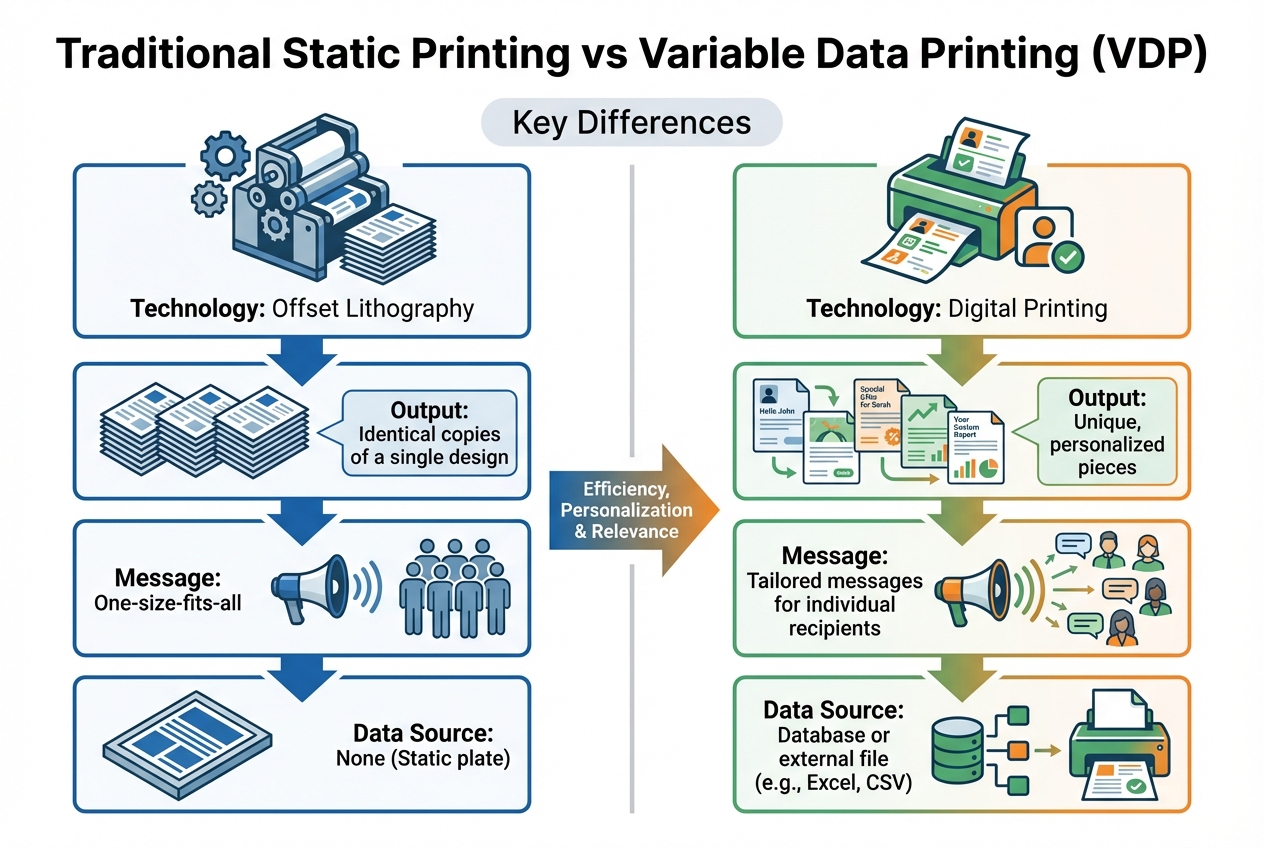
Variable Data Printing (VDP) transforms direct mail by allowing businesses to create personalized messages for each recipient in a single print run. Unlike generic mail, which offers the same message to everyone, VDP uses customer data – like names, purchase history, and preferences – to customize text, images, and offers. This approach boosts engagement, with personalized mail seeing response rates of 6% compared to 2% for non-personalized campaigns. It also improves ROI, with returns 2x to 15x higher than static mailings.

Key Points:

  • What It Does: Customizes mail pieces using recipient-specific data.
  • How It Works: Combines a fixed design template with variable elements (e.g., names, offers) pulled from a database.
  • Benefits: Increases response rates, improves customer loyalty, and reduces waste by targeting the right audience.
  • Tracking Tools: Uses personalized URLs (pURLs), QR codes, and coupon codes to monitor responses and refine future campaigns.
  • Cost Efficiency: While slightly more expensive per piece, VDP reduces overall waste and maximizes ROI.

VDP is a powerful tool for creating direct mail that feels personal, relevant, and effective in driving customer action.

Variable Data Printing Statistics: Response Rates and ROI Comparison

Variable Data Printing Statistics: Response Rates and ROI Comparison

Variable Data Printing: study and print file preparation

How Variable Data Printing Works

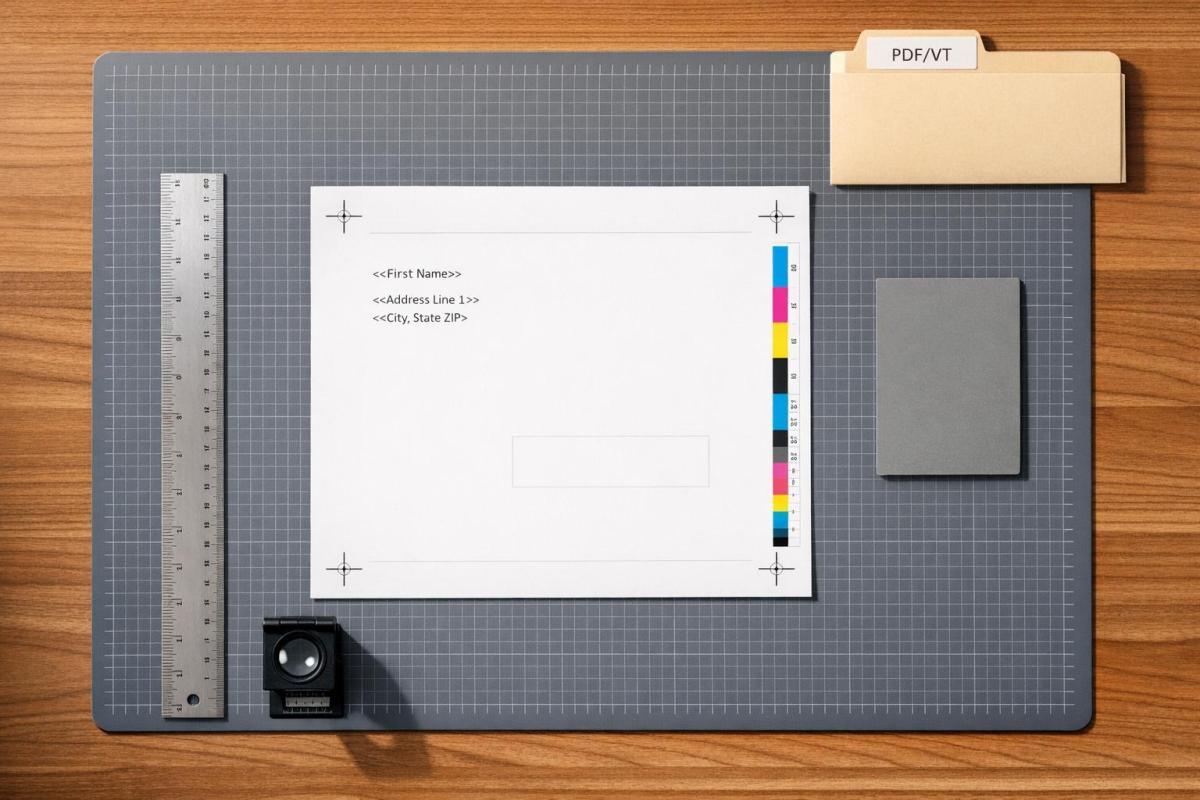
Variable data printing (VDP) merges a fixed design template with personalized customer data to create unique mail pieces in a single print run. The static template includes consistent elements like your logo, brand colors, and background graphics. Meanwhile, the variable elements – such as recipient names, product suggestions, or tailored images – are layered in based on information from your database. This approach ensures every mail piece feels personal and aligns with the recipient’s details.

The process relies on data mapping, which links fields in your database to placeholders in the design. VDP software acts as the connector, matching specific columns in your data file (usually a CSV or Excel sheet) to placeholders in the template. For example, a column labeled "First Name" in the spreadsheet connects to a text box marked "[First Name]" in the design. The software then automatically populates each piece with the correct name – "Sarah" for one recipient, "Michael" for another.

Unlike traditional offset printing, which uses fixed physical plates, VDP employs digital printers that dynamically pull data. This allows the printer to adjust each piece on the fly without pausing production, making large-scale, one-to-one personalization seamless.

Using Customer Data for Personalization

Your customer database is the backbone of VDP. Companies typically gather this data from various sources, including CRM systems, purchase histories, loyalty programs, and demographic profiles. The key to success lies in organizing this data into clean, structured columns – such as first name, last name, address, purchase history, or preferred product categories.

"Be sure to provide your spreadsheet data as a CSV file. If uploading a mailing list, be sure to separate all of your data into unique columns (first name, last name, address line 1, etc.) or follow our template!"
– Anna Coons, Print Services Manager, Smartpress

Before printing, it’s essential to clean your data. This means removing duplicates, verifying addresses with tools like CASS or NCOA, and fixing errors in one go. Sending mail to an outdated address or addressing someone incorrectly doesn’t just waste resources – it can damage trust. Once your list is verified, the VDP software maps each field to its corresponding placeholder in the design template, ensuring precise personalization for every piece. This well-organized data not only ensures accuracy but also enables dynamic customization of both text and visuals.

Customizing Text, Graphics, and Images

VDP isn’t limited to adding names – it allows you to tailor text, graphics, and even images to resonate with individual recipients. For example, headlines, offers, and calls-to-action can be adjusted for different customer segments. A loyal customer might see, "Thanks for 5 years with us!" while a new prospect might get, "Welcome! Enjoy 20% off your first order."

Graphics and images can also be personalized. A sporting goods retailer could showcase hiking boots to customers who’ve previously purchased outdoor gear, while marathon runners might see ads for running shoes. Some campaigns even include personalized maps, highlighting the fastest route from the recipient’s home to the nearest store.

Advanced VDP systems take this further by using barcodes to synchronize multiple personalized items – like a custom letter, a matching coupon, and a tailored brochure – into one cohesive mailing package. When designing, it’s crucial to account for text length variations to avoid layout issues and maintain a polished presentation.

Benefits of Personalization in Direct Mail

Personalized direct mail consistently outshines generic campaigns. By using Variable Data Printing (VDP) to customize content for individual recipients, you create a tangible, personal connection that digital channels often struggle to replicate. When mail includes someone’s name, reflects their purchase history, or highlights products they genuinely care about, it grabs attention, gets read, and prompts action. These stronger engagement metrics pave the way for increased loyalty and deeper connections with your audience.

Improving Engagement and Response Rates

Personalized direct mail achieves impressive results. With VDP, response rates climb to 6%, compared to just 2% for non-personalized mail – a 300% increase. Add three or more personalization points, and response rates can soar by over 1,000%. Recipients are far more likely to engage when the content feels tailored to them.

Take this example: a homeowners insurance campaign sent postcards featuring recipients’ names, addresses, specific home data, an image of their home, and a personalized insurance quote. These five VDP elements worked together to transform what might have been ignored as junk mail into something that demanded attention.

But the impact doesn’t stop at opening the envelope. 88% of U.S. marketers reported measurable improvements with personalization, with over half seeing increases above 10%. Additionally, 86% of consumers say personalized marketing influences their purchasing decisions. One outdoor retailer demonstrated this perfectly by sending hiking-related mail to a customer who had purchased hiking gear just once, even though their primary interest was cycling. This thoughtful use of VDP responded to evolving customer interests in real time.

"One-size-fits-all messaging is so irrelevant these days. You have to figure out how to adjust your content to match the needs of the customer." – Vanecia Carr, Director of Customer and Brand Marketing, Domtar

The numbers back this up: ROI from VDP campaigns ranges from 2x to 15x higher than traditional campaigns, even though these campaigns typically cost 10% to 15% more upfront. That initial expense is quickly offset by higher conversion rates and larger average purchases.

Building Customer Loyalty and Trust

The benefits of personalization extend far beyond immediate responses. By using VDP to reflect a customer’s history with your brand, you show them they’re more than just another entry in your database. 79% of consumers say they’re more likely to engage with offers that acknowledge past interactions, and 78% of recipients of personalized content are more likely to make repeat purchases.

For example, Suffolk Law School revamped its reunion campaigns by incorporating individual reunion years and donation histories. This turned generic fundraising efforts into meaningful, personal invitations.

Personalization also fosters trust and advocacy. 78% of customers are more likely to recommend a company to friends and family when communications feel personalized. This word-of-mouth effect means your investment in VDP can lead to referrals you didn’t even ask for.

Physical direct mail creates a lasting impression, offering a human touch that stands out in today’s digital-first world. When you include elements like personalized thank-you notes, service reminders tied to past behavior, or detailed maps to nearby store locations, you position your brand as a helpful partner – not just another advertiser.

"The personalized mail campaign connects with your consumer on a human-to-human level and creates an authentic long-term relationship built on familiarity, value, and trust." – Mailing.com

However, personalization must feel thoughtful, not invasive. Accurate data is critical – sending mail to outdated addresses or using incorrect names can harm trust rather than build it. When done right, personalized direct mail shows customers you recognize, remember, and value them, building stronger relationships one piece of mail at a time.

Cost Efficiency and Reduced Waste

Although variable data printing (VDP) campaigns can cost 10% to 15% more per piece compared to static printing, they often deliver better financial results by cutting down on waste and honing in on the right audience. Traditional offset printing comes with high setup costs – like plate creation and bulk orders – which often leave businesses stuck with outdated, unused materials. VDP, on the other hand, uses digital technology to skip plate fees entirely, letting you print only what’s needed and avoid extra inventory or storage expenses. This makes it a smart choice for targeted campaigns.

Cutting Printing Costs with Targeted Campaigns

Targeted mailing is a game-changer for reducing costs. By focusing solely on qualified leads, you can significantly lower production and postage expenses. In fact, VDP can provide 2 to 15 times the return on investment (ROI) compared to traditional static campaigns, mainly because it avoids wasting resources on mail that recipients might toss out immediately.

"The smaller-volume mail campaign increases the ROI due to lower postage and printing costs." – Mailing.com

Instead of fixating on upfront printing costs, it’s better to measure success by cost per conversion. A well-targeted campaign connects with those most likely to respond, minimizing overall spending on production, paper, and postage.

Reducing Paper Waste

VDP also supports sustainability by shifting from bulk printing to on-demand production. Beyond saving money, this approach significantly reduces paper waste. Traditional printing methods often result in large amounts of excess inventory, creating thousands of tons of paper waste every month. On-demand printing ensures you only produce what’s necessary, which is not only efficient but also environmentally responsible.

Another benefit? It encourages better data hygiene. Regularly cleaning up your mailing lists to remove outdated or incorrect addresses helps reduce waste even further. Plus, you can experiment with different designs or offers using small print runs before committing your full budget. This way, you can test your messaging without the risk of printing large quantities of materials that might not perform as expected.

This combination of precision targeting and on-demand printing doesn’t just cut waste – it also helps you get the most out of your marketing dollars.

Miro Printing & Graphics Inc. (https://bergencountyprinters.com) specializes in advanced digital and variable data printing, making it easier to create personalized direct mail campaigns that are both budget-friendly and environmentally conscious.

Tracking and Improving Campaign Performance

Variable Data Printing (VDP) makes it easy to track every direct mail response with precision. Unlike traditional campaigns where you’re left wondering who responded, VDP uses personalized tools to monitor individual interactions. Tools like Personalized URLs (pURLs), unique QR codes, and custom coupon codes act as digital fingerprints. Each tool connects a specific recipient to their response, offering clear insights into campaign performance.

These tracking capabilities go hand-in-hand with the personalization benefits discussed earlier. Personalized campaigns typically boast a 6% response rate, compared to just 2% for non-personalized mail. With such detailed data collection, you can build comprehensive profiles of your audience’s interests and behaviors. This data can then be analyzed using web analytics to fine-tune future campaigns.

Using Personalized Tracking Tools

These personalized tracking tools connect individual responses to tailored content, making it easier to see what works. For example:

  • Personalized URLs (pURLs): Each recipient gets a unique web address, allowing you to track when they visit and how they interact with your site.
  • Unique QR Codes: Perfect for mobile users, these scannable codes let you track engagement from those who prefer scanning over typing.
  • Custom Coupon Codes: These track redemptions and tie specific sales back to individual mail pieces.
Tracking Tool Functionality Primary Metric Tracked
PURL (Personalized URL) Unique web address for each recipient Web visits and on-site behavior
Unique QR Codes Scannable codes unique to individuals Mobile engagement and conversions
Custom Coupon Codes Personalized discount codes Redemption rates and sales tracking

VDP also simplifies A/B testing. You can experiment with different headlines, images, or offers within the same print run to see which elements drive the most engagement. Start small by allocating about 10% of your direct mail budget to testing VDP variables before scaling up. This low-risk approach helps you learn what works without overspending.

Analyzing Campaign Metrics

Once you’ve collected data through these tools, analyzing the right metrics is key to improving your campaign. Instead of just counting how many pieces you mailed, focus on response rates, conversion rates, and return on investment (ROI). VDP can deliver anywhere from two to 15 times the ROI of a traditional static campaign. Key performance indicators (KPIs) to measure include:

  • Response Rate: Responses ÷ Mailpieces Sent
  • Conversion Rate: Orders ÷ Responses
  • ROI: (Net Profit ÷ Total Investment) × 100

On average, personalized campaigns see a 20% to 30% increase in conversion rates. Proper tracking ensures you know whether you’re meeting these benchmarks.

"It’s not the response rate alone that determines the success of a campaign but its return on investment (ROI)." – Mailing.com

Integrating your direct mail platform with a CRM can provide even deeper insights. By syncing with your CRM, you can track not just initial purchases but also the long-term customer lifetime value (CLV) of respondents. This data helps you identify which audience segments are the most profitable, guiding your strategy for future campaigns.

Conclusion

Variable Data Printing (VDP) shifts direct mail from impersonal mass marketing to tailored, one-on-one communication with your audience. By personalizing elements like names, offers, images, and messages based on individual preferences and purchase history, VDP creates mail pieces that truly resonate. Personalized campaigns achieve a 6% response rate, compared to just 2% for generic mail, and they can increase conversion rates by 20% to 30% on average.

VDP doesn’t just enhance engagement – it also eliminates costly plate fees through digital production and focuses on likely responders. The results? Dramatically higher response rates, with some campaigns seeing 300% to 600% increases. While the per-piece cost may be slightly higher, the improved response rates more than make up for it, delivering a stronger return on investment (ROI).

"VDP flips traditional marketing on its head by centering product and service offers… around the individual needs and wants of each customer." – Mailing.com

Another standout feature of VDP is its ability to track and measure performance with precision. Tools like personalized URLs, unique QR codes, and custom coupon codes allow you to see exactly who responds, giving you a clear picture of your ROI. This data becomes a valuable resource for refining future campaigns and strengthening customer relationships over time.

FAQs

How does Variable Data Printing boost ROI for direct mail campaigns?

Variable Data Printing (VDP) helps boost ROI by enabling businesses to craft personalized direct mail that connects directly with each recipient. By customizing elements like names, images, offers, and messages, VDP creates a more engaging experience, leading to higher response rates and stronger customer relationships.

Unlike generic, mass-produced mail, personalized campaigns stand out, capturing attention and encouraging action. This focused strategy not only improves conversion rates but also ensures your marketing budget delivers measurable returns.

What customer data is needed to create personalized direct mail with Variable Data Printing?

To create personalized direct mail using Variable Data Printing, you’ll need to gather specific customer information, such as:

  • Name and address: This ensures accurate delivery while adding a personal touch.
  • Demographics: Details like age, gender, or income help fine-tune your message.
  • Purchase history: Past orders provide clues for crafting relevant offers.
  • Preferences and behaviors: Knowing what customers enjoy or how they interact with your brand makes customization more impactful.

With this data in hand, you can design direct mail campaigns that feel tailored to each recipient, boosting engagement and delivering better results.

How can businesses ensure their data is accurate for Variable Data Printing campaigns?

To achieve accurate results in Variable Data Printing (VDP) campaigns, it’s essential to start with a meticulous review of your customer data. This means checking every detail – names, addresses, and other personalized information – for errors. Duplicates should be eliminated, formatting issues corrected, and all data cross-referenced with reliable sources to catch mistakes before they become costly.

Another key step is running test prints or sample proofs. These allow you to spot and fix any discrepancies in the personalized elements before rolling out the full campaign. On top of that, using secure methods for data transfer, like encrypted files, helps safeguard the integrity and confidentiality of your information. Regular database updates and audits also play a big role in keeping your data accurate over time, ensuring your campaigns remain effective and build trust with your audience.

Related Blog Posts

https://app.seobotai.com/banner/banner.js?id=6976cc9b12006df3517d3ad1

Ultimate Guide to Booklet Paper Options

Compare booklet paper weights, finishes, types, and opacity to pick the best cover and interior stock for catalogs, programs, and manuals.

Choosing the right paper for your booklet is crucial for its feel, look, and durability. This guide simplifies paper weight, finish, and type so you can make informed decisions for your project. Here’s what you need to know:

  • Paper Weight: Interior pages typically use lighter text weights (60–100 lb), while covers require heavier, sturdier stocks (80–130 lb). GSM (grams per square meter) and points (thickness in thousandths of an inch) help compare options.
  • Finishes: Gloss enhances colors and images but can glare; matte is glare-free and great for text; silk balances both. Uncoated paper is ideal for writing.
  • Paper Types: Coated papers are durable and vibrant, while uncoated papers are natural and writable. Opaque papers work best for double-sided printing.
  • Practical Tips: For catalogs, pair gloss cover with lighter gloss text. For event programs, matte cover with matte text works well. Heavier cover stocks need scoring to avoid cracking during folding.

The right combination of weight, finish, and type ensures your booklet looks professional and serves its purpose effectively. Whether you’re printing a product catalog or a manual, these choices matter. For expert help, consult a trusted print shop like Miro Printing & Graphics Inc.

Paper Guide: Paper Types for Printing – Choosing the Right One

Paper Weight Basics

Booklet Paper Weight Comparison Guide: Text vs Cover Stock

Booklet Paper Weight Comparison Guide: Text vs Cover Stock

Paper weight plays a big role in giving your booklet a polished, professional appearance. In the U.S., paper weight is measured in pounds (lb or #), which refers to the weight of 500 uncut sheets in their original size. However, this can get a bit tricky because the "basic size" changes depending on the paper type. For instance, Bond paper is measured at 17″ x 22″, Text paper at 25″ x 38″, and Cover stock at 20″ x 26″.

Here’s an important tip: a higher number doesn’t always mean thicker paper across different categories. OKI Data Americas explains it well:

"Higher values don’t always equate to heavier/thicker print media. For example, a sheet of 100lb Text paper is actually much thinner than an 80lb Cover stock".

This difference comes down to the varying base sheet sizes used for different paper types.

To simplify comparisons, printers often use GSM (Grams per Square Meter), a more consistent measurement. For example, 100 lb Text paper is about 148 GSM, while 100 lb Cover paper is roughly 270 GSM.

Another way to measure paper thickness is in "Points" (pt), where 1 point equals 1/1000th of an inch (0.001").

The sections below explore the best choices for interior and cover pages, keeping these weight concepts in mind.

Text Weight Papers for Interior Pages

Text weight papers, ranging from 60 lb to 100 lb, are flexible and easy to handle, making them great for booklet interiors. They fold easily and help keep the booklet’s overall bulk manageable.

  • 60 lb text: A common choice for paperback book interiors and high-volume magazines. It’s cost-effective but may show ink bleed-through, especially with heavy color printing.
  • 70 lb text: Offers better opacity, making it ideal for full-color catalogs and brochures where sharp images and minimal ghosting are important.
  • 80 lb text: A versatile option often used for magazines, corporate reports, and product catalogs. It balances durability and flexibility.
  • 100 lb text: A heavier option for luxury art books, premium flyers, and high-end brochures, giving interior pages a more substantial feel.

"The right paper weight can transform a simple brochure into a compelling tactile experience, endorsing professionalism without saying a word."

For thinner booklets (12 pages or fewer), 100 lb text paper prevents a flimsy feel. For booklets over 40 pages, an 80 lb text stock keeps the booklet manageable and easier to flip through. If you’re mailing booklets, light-to-mid-weight papers (80–100 lb text) strike a balance between durability and lower postage costs.

Cover Weight Papers for Booklet Covers

While interior pages benefit from lighter text weights, covers need sturdier paper. Cover weight papers, also called cardstock, are thicker and more rigid than text weight papers. They typically range from 80 lb to 130 lb and provide both protection and a premium feel for your booklet.

  • 80 lb cover: The lightest option, good for smaller booklets, brochures, and lightweight projects. It’s stiffer than text weight but still flexible.
  • 100 lb cover: The go-to option for professional booklet covers, postcards, and invitations. It feels sturdy and premium without being overly rigid.
  • 130 lb cover: A heavy-duty choice for business cards, premium covers, and projects requiring maximum durability.

"Thicker paper feels more formal and substantial."

  • Natalie Wiley, Content Marketing Supervisor, Printivity

Using a separate cover stock instead of a "self-cover" (where the same paper is used for both the interior and exterior) enhances stiffness and gives the booklet a more professional look. Keep in mind, heavier cover stocks must be scored before folding to avoid cracking.

Paper Type U.S. Weight GSM Thickness Common Booklet Use
Text 60 lb 89–90 4–5 pt Paperback book interiors
Text 70 lb 104–105 5–6 pt Full-color catalogs, brochures
Text 80 lb 118–120 5–8 pt Magazines, booklet pages
Text 100 lb 148 7–10 pt Luxury art books, premium flyers
Cover 80 lb 216–218 8–10 pt Lightweight booklet covers
Cover 100 lb 270–271 10–12 pt Standard booklet covers, postcards
Cover 130 lb 350–352 16 pt Heavy business cards, premium covers

When picking paper weights, always decide between "Text" and "Cover" categories first. This avoids confusion and ensures you’re making an accurate comparison. For designs with heavy ink coverage, choose a thicker stock or a coated finish to prevent ghosting or ink bleed-through.

Paper Finishes and Coatings

Once you’ve picked the right paper weight, the next step is deciding on the finish. The finish plays a big role in how your booklet looks and feels. It can influence everything from the way colors pop to how easy it is to flip through pages without dealing with glare. Ann O’Brien from Dazzle Printing sums it up perfectly:

"The defining characteristics of matte or gloss papers could ultimately be the right choice for a project for reasons other than simply how the uncoated paper feels to the touch."

There are four main finish options: gloss, silk, matte, and uncoated. Each offers unique advantages. Coated papers – like gloss, silk, and matte – come with a sealant that protects against moisture and oils, making them more durable. On the other hand, uncoated paper skips the sealant, leaving a natural, textured surface.

Gloss, Silk, and Matte Finishes

Gloss finish creates a shiny, reflective surface thanks to its thick coating. This finish keeps ink from being absorbed into the paper, which makes colors vibrant and photos sharp. It’s an excellent choice for photography books and marketing materials, though its high shine can cause glare and show fingerprints.

Matte finish offers a smooth, glare-free surface that’s resistant to smudges. It’s perfect for text-heavy projects like booklets and programs. Matte paper also delivers excellent color clarity and is a popular choice for corporate reports, educational materials, and even wedding programs with softer color palettes.

Silk finish sits somewhere between gloss and matte. It provides a soft sheen that enhances visuals without being overly reflective. This makes it a go-to option for brochures and product catalogs.

Finish Appearance Feel Best Use Case Color Impact
Gloss Shiny and reflective Smooth and slick Magazines, photo books Vibrant and sharp
Silk Subtle sheen Soft and smooth Product catalogs, brochures Polished but clear
Matte Flat with no glare Smooth and muted Text-heavy books, programs Crisp and understated
Uncoated Natural with no sheen Rough and porous Workbooks, journals Soft and subdued

Coated vs. Uncoated Paper

Coated papers are designed to slow ink absorption, which helps prevent smudging and ensures sharp, clean images. In contrast, uncoated papers absorb ink more quickly, giving them a softer, more organic look.

Uncoated paper is especially great for projects that involve writing, like journals, workbooks, or coloring books. As Printing for Less explains:

"Nothing beats uncoated paper when it comes to writing, so in most cases, don’t use a coated, glossy, or heavily textured paper."

Additionally, uncoated paper tends to be a more budget-friendly option. However, it does have its downsides – it’s less resistant to moisture and can pick up dirt more easily compared to coated papers. For booklets that will be handled frequently, coated paper offers better protection. If you’re looking for extra durability, a UV high-gloss coating can be added to booklet covers for scratch resistance. Just remember, UV coatings and laminates only work on smooth, coated papers and aren’t suitable for surfaces that need to be written on.

When deciding on a finish, think about the purpose of your booklet. If you’re creating a photography-heavy catalog, gloss is the way to go for its vibrant color payoff. For text-heavy manuals or workbooks, matte or uncoated paper ensures better readability and functionality.

For expert advice tailored to your project, consider contacting Miro Printing & Graphics Inc. Based in Hackensack, NJ, their full-service print shop offers a variety of high-quality finishes and printing options to bring your vision to life.

Next, let’s explore how these finishes work with different paper types and the impact of opacity on double-sided printing.

Paper Types and Opacity

After exploring paper weight and finish, let’s dive into how paper type and opacity can further enhance the quality and functionality of your booklet.

Choosing the right paper type is essential, especially for double-sided printing. The most common options include offset paper, text paper, book paper, and opaque paper.

Offset paper is an uncoated option often used for copiers. Its rough texture and high ink absorption make it ideal for projects like workbooks or forms that require writing.

Book paper comes in both coated and uncoated varieties. Uncoated book paper is thicker and more opaque than standard bond paper, making it a great choice for newsletters and catalogs. Coated book paper, available in finishes like gloss, matte, or silk, delivers vibrant colors and is perfect for magazines. Meanwhile, text paper is a versatile option for interiors, offering a premium feel with textures like linen or vellum.

Opaque paper is a specialized uncoated stock designed to minimize light transmission. Its thickness makes it perfect for double-sided projects like newsletters and catalogs, where preventing show-through is crucial.

Selecting the Right Paper Type

The paper you choose should align with your booklet’s purpose. For booklets that include writing sections, uncoated options like offset or opaque paper are excellent choices.

If your project involves high-end brochures or photography-heavy booklets, coated book paper is the way to go. The coating prevents the ink from soaking into the fibers, allowing it to sit on the surface for sharper images and vibrant colors. However, coated papers aren’t ideal for writing, as ink can smudge on glossy surfaces.

Text paper, with its premium textures like linen or vellum, is well-suited for corporate booklets or annual reports. On the other hand, uncoated book paper offers better opacity than bond paper while being more cost-effective.

Paper Type Common Applications Features
Offset / Uncoated Flyers, forms, internal docs High ink absorption; rough texture; great for writing
Text Paper Brochures, annual reports Premium feel; flexible; textured options like linen
Uncoated Book Newsletters, catalogs Thicker and more opaque than bond paper
Coated Book Magazines, high-end catalogs Gloss, matte, or silk finish; enhances color quality

Understanding paper types naturally brings us to the critical role of opacity in double-sided printing.

Opacity and Double-Sided Printing

Opacity plays a key role in ensuring your design looks clean and professional on both sides of the page. It measures how much light passes through the paper. A 100% opaque paper blocks all light, preventing text or images on one side from showing through to the other.

For double-sided printing, high opacity is a must. Without it, reverse-side content can create a distracting "ghosting" effect. As The Happy Printers explains:

"Opacity means no light is going through the paper, which means you can print on both sides and not have it show through".

Several factors affect opacity. Heavier and thicker papers generally offer better opacity. Coated papers tend to block more light than uncoated ones, and rougher finishes usually outperform smoother surfaces. Even the paper color matters – darker or tinted papers provide higher opacity than bright white sheets.

If your booklet includes heavy ink coverage or large images, consider using a thicker stock or a specific opaque grade to avoid ghosting. For saddle-stitched booklets, keep binding limits in mind: 100# text can handle around 60 pages, while 80# text can stretch to 64 pages.

For a professional finish, Miro Printing & Graphics Inc. in Hackensack, NJ offers full-service printing expertise to ensure your booklet is visually appealing and easy to read on every page.

Matching Paper to Your Booklet Project

Pairing the right cover and interior paper can turn your booklet into something that stands out and leaves a lasting impression.

When designing catalogs, consider using an 80# or 100# Gloss Cover with 70# or 80# Gloss Text for the interior. This combination ensures vibrant colors and keeps mailing costs manageable with lighter paper weights.

For event programs, especially those where attendees might jot down notes, an 80# Matte Cover paired with 100# Matte Text is ideal. This setup offers a glare-free, smooth finish and prevents smudging.

Durability is key for product guides and manuals. Use 80#–100# Cover stock with 60#–70# Uncoated Text. These materials provide sturdiness and are perfect for Spiral or Wire-O binding, which allows the booklet to lay flat for easy use.

Premium magazines require a more luxurious feel. A 100# Gloss Cover with 80# or 100# Gloss Text interior pages gives a polished, high-end look that grabs attention. As Olivia Gray from PrintingCenterUSA explains:

"The right paper weight can transform a simple brochure into a compelling tactile experience, endorsing professionalism without saying a word".

By combining weight, finish, and binding options, these paper pairings ensure your booklet meets both practical and aesthetic goals.

Booklet Type Cover Stock Interior Stock Finish Binding
Catalogs 80# or 100# Gloss Cover 70# or 80# Gloss Text Gloss Saddle-Stitch / Perfect Bound
Event Programs 80# Matte Cover 100# Matte Text Matte or Uncoated Saddle-Stitch
Product Manuals 80# or 100# Cover Stock 60# or 70# Uncoated Text Uncoated Spiral / Wire-O
Premium Magazines 100# Gloss Cover 80# or 100# Gloss Text Gloss Saddle-Stitch

Your paper choices should also align with printing and binding methods to ensure a flawless final product.

Printing Methods and Binding Considerations

The type of printing you choose can significantly impact the final look and feel of your booklet. Offset printing is ideal for projects requiring a wide variety of paper stocks and finishes. It delivers consistent colors and sharp details, making it a great choice for high-end or textured papers. Additionally, for large production runs, offset printing becomes more cost-effective as the price per unit decreases.

On the other hand, digital printing works well for smaller projects or those needing personalization. However, it may not handle specialty paper types as effectively as offset printing. If your booklet involves unique textures or heavier paper weights, offset printing might be the better choice.

Binding also plays a role in your paper selection. Perfect binding, which uses adhesive to create a flat spine, typically requires a minimum of 28 pages to achieve a square spine. For added durability, PUR adhesive is 50% stronger than standard EVA adhesive, allowing the spine to flex without cracking.

Miro Printing & Graphics Inc., based in Hackensack, NJ, offers both digital and offset printing along with in-house binding options like saddle-stitching, perfect binding, plastic coil binding, and comb binding. Their expertise ensures your booklet is professionally crafted, tailored to your budget and timeline, and perfectly complements your paper choices.

Conclusion

When selecting paper for your project, focus on three key aspects: weight, finish, and purpose. For interior pages, opt for lighter stock compared to the cover to ensure a balanced feel. If your booklet has a high page count, lighter paper prevents it from becoming too bulky, making it easier to handle. Glossy finishes are ideal for image-heavy designs, as they can increase reader engagement by up to 30%. On the other hand, matte or silk finishes work better for text-dense content, reducing glare and improving readability. For workbooks or manuals where users may need to write, uncoated paper is a must to avoid smudging.

Before committing to a full print run, always request physical samples to ensure the paper aligns with your vision. Think about how your booklet will be used: glossy paper works well for visually-driven catalogs, while matte is better suited for text-focused materials like presentations.

Partnering with a seasoned print shop can make all the difference. With over 30 years of experience since its founding in 1994, Miro Printing & Graphics Inc. offers personalized consultations to help you make the best choices.

Whether you’re designing catalogs, event programs, or high-end magazines, selecting the right paper can transform your booklet into a standout piece. For expert advice and a free estimate, reach out to Miro Printing & Graphics Inc. in Hackensack, NJ.

FAQs

What’s the difference between text weight and cover weight paper for booklets?

The key distinction between text weight and cover weight paper comes down to their thickness and intended use. Text weight paper is thinner and lighter, making it a great choice for the inner pages of a booklet. It’s easy to handle, allowing for smooth page turns while maintaining a sleek, polished feel.

In contrast, cover weight paper is thicker and more rigid, crafted specifically for covers or projects that need extra durability. Its sturdy build not only protects the internal pages but also gives the booklet a refined, professional finish.

What’s the best finish for my booklet project?

Choosing the right finish for your booklet is all about the impression you want to leave. A glossy finish delivers a shiny, vibrant look that amplifies colors and makes images stand out – perfect for photo-centric or promotional materials. If you’re aiming for a more subtle and polished vibe, a matte finish offers a smooth, non-reflective surface, which works well for text-heavy or sophisticated designs.

Another factor to consider is the type of coating – uncoated, matte, or glossy. Each option affects the texture and durability of your booklet. Coated papers, whether glossy or matte, provide a more polished feel, but your final decision should match the style and purpose of your project.

Why does paper opacity matter for double-sided printing?

When it comes to double-sided printing, paper opacity plays a key role. It determines how much of the text or images from one side of the page can be seen on the other. If the paper has low opacity, you might notice a distracting show-through effect, which can make the content less readable and give your booklet a less professional appearance.

Opting for paper with higher opacity can solve this issue. It helps ensure your booklet looks clean and polished, especially if you’re working with pages full of dense text or vibrant graphics. Paying attention to this detail can significantly improve the overall quality and readability of your printed materials.

Related Blog Posts

https://app.seobotai.com/banner/banner.js?id=6976b02012006df3517b2225

Future of Large Format Printing Hardware

AI, UV/latex inks, hybrid 3D systems and eco-focused hardware are reshaping large format printing, boosting efficiency, sustainability, and market growth.

The large format printing industry is evolving with AI integration, eco-conscious solutions, and new ink technologies leading the charge. By 2026, the market is projected to hit $10.93 billion, growing at an annual rate of 4.31% through 2031. Here’s what you need to know:

  • AI and Automation: Tasks like color correction and error checking are now automated, reducing production time by up to 80% and increasing efficiency. Tools like HP‘s Auto Alert Agent (AAA) 2.0 and Canon‘s UVgel systems improve quality and reduce waste.
  • Advanced Ink Technologies: UV-curable and latex inks are reshaping printing with faster drying, better durability, and lower environmental impact. Canon’s UVgel 860 and HP’s Latex R530 are standout examples.
  • Hybrid and 3D Printing: Modern systems handle both rigid and flexible materials, offering textured finishes and multi-layer printing for diverse applications like signage and interior design.
  • Eco-Friendly Practices: Water-based inks, recyclable substrates, and energy-efficient hardware are now industry standards, driven by customer demand for sustainable solutions.
  • Market Growth: Asia-Pacific leads market expansion, while North America maintains a strong presence. Décor and packaging are among the fastest-growing application segments.

The industry is shifting toward modular hardware, remote management tools, and subscription-based financing models, making upgrades more accessible and future-focused. Print shops leveraging these advancements can reduce costs, improve output, and meet growing customer demands.

Quick Comparison of Key Ink Technologies

Feature Latex Ink Technology UV-Curable / UVgel Technology
Key Benefit Water-based, odorless Instant drying, vibrant colors
Substrate Support Flexible & rigid materials Vinyl, textiles, wood, acrylic
Eco Impact Low VOCs, recyclable inks Energy-efficient curing
Maintenance Automated cleaning Nozzle monitoring

The future of large format printing lies in speed, efficiency, and sustainability, offering businesses the tools to stay competitive in a rapidly changing market.

Large Format Printing Industry Growth and Technology Trends 2025-2031

Large Format Printing Industry Growth and Technology Trends 2025-2031

Major Technology Developments in Large Format Printing

The landscape of large format printing is evolving at a rapid pace, thanks to advancements in artificial intelligence, ink technologies, and hybrid printing systems. These breakthroughs are redefining quality, reducing manual labor, and broadening the scope of applications – shaping the future of printing hardware.

AI and Automation in Printing Workflows

Artificial intelligence is reshaping every step of the printing process, from preparation to final output. Tasks like error checking, color correction, and layout adjustments, which once required significant manual effort, are now handled in minutes by automated prepress software. Tools like "Preflight" use AI to recommend optimal print modes based on customer needs, while machine-learning algorithms monitor production in real time.

The impact on productivity is undeniable. Print shops leveraging automation report 51% higher print volumes and produce 80% more jobs per press compared to those relying on manual workflows. Automated facilities also experience an average growth rate of 27% annually, far exceeding the industry norm.

Real-time quality control systems, such as HP’s Auto Alert Agent (AAA) 2.0 and Canon’s UVgel DynamicMotion Control, use machine vision to monitor nozzle performance and media alignment. These systems correct errors on the fly, eliminating the need to halt production. For instance, Elanders, a printing company, implemented HP’s AAA 2.0 in March 2024. Andreas Organzidis, Head of Color Digital Printing at Elanders, highlighted its impact:

"By using AAA 2.0, we experience a significant reduction in production time, saving 1 hour for every 80,000 impressions. This not only enhances our operational efficiency but also drastically reduces customer complaints and returns by 5-7%."

  • Andreas Organzidis, Head of Color Digital Printing, Elanders

AI-powered tools can cut prepress and production times by up to 80%, with automated color profiling reducing a 50-minute task to under 5 minutes. In industries like architecture and engineering, automation has slashed lead times from three days to just 20 minutes. Additionally, Autonomous Mobile Robots (AMRs), developed with MoviĜo Robotics, now handle media transfers between storage and presses, saving up to two hours per press daily.

Remote management tools like HP PrintOS Production Hub enable operators to oversee production and prioritize urgent tasks from anywhere, addressing challenges like labor shortages. This shift to edge computing ensures real-time error detection and immediate productivity gains without relying on cloud-based systems.

These advancements lay the groundwork for innovations in ink systems that emphasize both efficiency and sustainability.

UV-Curable and Latex Ink Technology

Modern ink technologies are revolutionizing large format printing by enhancing durability, speeding up production, and supporting a wide range of materials – all while addressing environmental concerns.

Canon’s UVgel 860 gel set, introduced in September 2025, delivers odorless, quick-drying prints with exceptional durability. Its FullBeam Curing system, featuring 11-foot-wide LED arrays, ensures consistent light exposure and a wider color range. This technology achieves production speeds of up to 2,271 square feet per hour without compromising quality.

HP’s Latex R530, launched in March 2025, offers a game-changing approach to direct-to-rigid printing. By eliminating the traditional "Print & Mount" process – where vinyl is printed and then manually adhered to rigid boards – it significantly reduces material waste and labor costs. On average, users save approximately 2,700 square feet of self-adhesive vinyl per month.

Feature Latex Ink Technology UV-Curable / UVgel Technology
Key Benefit Water-based, odorless, eco-friendly Instant drying, durable, vibrant colors
Substrate Support Flexible and rigid (Direct-to-Rigid) Supports vinyl, textiles, wood, acrylic, ACM
Environmental Low VOCs, UL ECOLOGO-certified Low-temp curing, energy-efficient
Maintenance Automated printhead cleaning Nozzle monitoring and compensation

Both systems emphasize sustainability. Latex inks are water-based, odorless, and can include up to 65% reclaimed water in their production. UV-curable technologies use low-temperature curing to cut energy consumption while keeping VOC emissions minimal. This aligns with the growing demand for sustainable practices, as 85% of Print Service Provider customers now prioritize eco-friendly products.

"The HP Latex R530 printer is the only all-in-one compact HP Latex solution, allowing seamless adaptation between rigid and flexible applications."

  • Daniel Martinez, Global Head and General Manager, HP Large Format Business

Maintenance has also become more efficient. Automated features like ink recirculation, printhead cleaning, and nozzle performance monitoring reduce downtime and manual intervention. Many systems now offer modular upgrades, such as white ink modules, enabling print shops to expand their capabilities as needed.

Smart Substrates and 3D Printing Integration

The line between traditional large format printing and 3D production is becoming increasingly blurred. Hybrid printing platforms now handle both flexible and rigid materials, with some systems accommodating substrates up to 2 inches thick. This opens up opportunities in areas like interior design, architectural projects, and custom manufacturing.

Canon’s Colorado XL-series, unveiled in September 2025, exemplifies this trend. This hybrid platform, measuring 11 feet wide, incorporates UVgel 860 technology and FLXture for creating textured finishes on rigid materials like ACM panels and polypropylene.

"The 3.2m graphics market is evolving fast, and customers need more than incremental improvements – they need a platform that can truly transform the way they work."

  • Kiyoshi Oka, Executive Vice President and General Manager, Canon U.S.A., Inc.

The addition of white ink capabilities on transparent and colored media is unlocking new creative possibilities, enabling multi-layered and dimensional designs. Print shops are also expanding into 3D and "direct-to-shape" printing, offering services beyond flat graphics.

Sustainability continues to drive innovation in substrates. Recyclable options, such as cardboard for trade show displays and PVC-free or paper-based materials, are gaining traction. This shift is especially relevant in the construction sector, which accounts for roughly 40% of energy use in the EU and is increasingly focused on circular, recyclable solutions.

Environmental Considerations in Large Format Printing Hardware

The printing industry faces growing pressure to shrink its environmental footprint, prompting hardware manufacturers to develop solutions that reduce waste, lower emissions, and promote circular systems. With 85% of print service provider customers now prioritizing sustainable products and practices, focusing on environmental performance has shifted from being a bonus to an essential competitive factor. This push for sustainability aligns closely with the technological advancements already shaping the industry.

Eco-Friendly Inks and Recyclable Substrates

The move from solvent-based to water-based inks and UVgel technologies has significantly improved the environmental impact of large format printing. Take HP Latex inks, for instance – they are made of 65% water, contain no solvents, and produce odor-free prints that are safe for indoor environments. These inks boast UL ECOLOGO and UL GREENGUARD Gold certifications, making them ideal for spaces where air quality is a priority.

Canon’s UVgel 860 technology, launched in September 2025, offers another eco-conscious option. Its TPO-free and VCL-free gel inks cure at low temperatures using LED arrays, eliminating the need for high-heat drying and reducing VOC emissions. Additionally, Canon has introduced recyclable UVgel ink bags, packaged in cardboard boxes instead of plastic cartridges, as part of its Colorado XL-series.

HP has taken sustainability a step further with its Eco Carton technology, which swaps out plastic ink cartridges for 100% recyclable cardboard containers. For high-volume operations, this innovation can cut plastic waste by up to 33 tons annually. HP also runs the HP Planet Partners program, a free recycling initiative for used ink bags, printheads, and cartridges, supporting a closed-loop system.

Substrate manufacturers are also stepping up, offering PVC-free alternatives. One example is Xanita aspect, a paper-based board made entirely from post-consumer waste paper. It delivers strong performance without the environmental downsides of traditional plastic-heavy substrates. With the construction sector accounting for about 40% of energy use and 36% of greenhouse gas emissions in the EU, the demand for recyclable materials in building projects continues to grow.

"Sustainability is already affecting your bottom line – whether you realize it or not."

  • Richard Bottrill, Head of Engineering and Sustainability, Pearce Signs

Energy-Efficient Printing Equipment

Beyond advancements in inks, hardware innovations are playing a key role in improving environmental efficiency. Modern printers now feature energy-saving technologies, such as ENERGY STAR and EPEAT Gold certifications, along with optimized drying systems and intelligent sleep modes that reduce power consumption during idle times.

HP’s High Efficiency Drying (HED) technology, found in its PageWide systems, recycles up to 80% of heated air, cutting energy use per page by as much as 60%. Canon’s L-COA PRO II image processing engine further boosts efficiency by enabling faster start-up times, reducing energy usage during warm-up or idle periods.

LED curing systems have also made a big impact. Canon’s UVgel FullBeam Curing uses an 11-foot-wide LED array to deliver consistent UV light across the print width while consuming much less energy than traditional mercury vapor lamps. This low-temperature curing method also prevents warping or distortion in heat-sensitive materials, reducing waste.

Automated maintenance features add another layer of sustainability. Systems like automated white ink recirculation minimize sediment buildup, reducing the need for energy-intensive cleaning cycles. This can save print shops approximately 8–10 labor hours per week, translating to over $20,000 in annual labor cost savings, while also cutting down on wasted energy and materials.

Additionally, modular designs like Canon’s Colorado XL-series allow businesses to upgrade features – such as adding white ink capabilities – without replacing entire machines. This approach extends the life of equipment, reduces electronic waste, and supports a more sustainable lifecycle.

"Sustainability is a cornerstone of our business strategy, inspiring us to engineer presses and solutions that maximize product longevity, minimize paper waste, and reduce energy consumption."

  • Barbara McManus, Global Head and General Manager of PageWide Industrial, HP Inc.
Feature Environmental Benefit Hardware Example
Water-Based Inks 100% solvent-free; safe for indoor use; odorless HP Latex 630/700/800 Series
Eco Carton Technology Reduces plastic waste by up to 33 tons/year HP Latex 2700 Series
High Efficiency Drying Up to 60% less energy usage per page HP PageWide Advantage 2200
UVgel FullBeam Curing Low-energy LED curing; consistent dosing Canon Colorado XL-series
White Ink Recirculation Prevents waste and reduces cleaning cycles HP Latex 800W / 2700W

For print shops, environmental certifications can open doors to contracts in sectors where sustainability is a top priority. Industries like healthcare, education, and government increasingly require UL GREENGUARD Gold-certified materials, making eco-conscious hardware a valuable business asset. These energy-efficient innovations are paving the way for more sustainable printing practices across the board.

Market Growth and Future Developments

The large format printing hardware market is on a steady growth path. Projections estimate the market will reach between $10.36 billion and $13.48 billion by 2030–2031, with a compound annual growth rate (CAGR) of 3%–5.5%. This growth is fueled by trends like digitized packaging, customized textiles, and eye-catching commercial signage.

The Asia-Pacific region is anticipated to lead the charge, driving approximately 60% of the global market’s expansion through 2029. North America, however, held its ground in 2023, claiming a 34.4% revenue share. Among application segments, décor is expected to grow the fastest, with a projected 12.3% CAGR between 2025 and 2030. Packaging and labels, spurred by e-commerce and the demand for quicker SKU changes, are set to grow at a 5.55% CAGR through 2031.

Ink technology remains a dominant force in the market. Ink-based systems accounted for 61.3% of revenue in 2023 and are projected to capture 91.5% by 2025. Latex inks, in particular, are on track to be the fastest-growing segment, with a 6.05% CAGR through 2031. Their appeal lies in being odor-free, eco-friendly, and eliminating warm-up times. These developments are paving the way for advancements in production inkjet presses.

High-Speed Production Inkjet Presses

High-speed production inkjet presses are becoming a go-to solution for print shops managing high-volume jobs while maintaining quality. These systems offer quick job changeovers and produce results comparable to offset printing, making them a compelling alternative to older solvent-based machines. It’s estimated that high-speed inkjet presses will add an extra 0.9% to the market’s overall CAGR.

Recent product launches highlight the innovation in this space. In April 2025, Konica Minolta unveiled the Accuriolet 30000 B2 HS-UV inkjet press, which features reduced RIP time and automatic double-sided printing. Earlier that year, in January, Canon introduced the imagePROGRAF TZ-5320, capable of printing up to four pages per minute while consuming less energy. These advanced systems support modular workflows and handle a variety of substrates, enabling quicker turnaround times and allowing businesses to diversify without the need for multiple machines. This flexibility is driving essential hardware upgrades.

Hardware Upgrades for Better Output

To stay competitive in an evolving market, print shops are upgrading their hardware. Switching to UV-curable or latex systems eliminates the need for volatile solvents, enabling immediate curing and reducing finishing times. This shift boosts production efficiency and throughput.

Take, for example, OK To Colour, a print services provider in the UK. They upgraded to the Canon Colorado M3W, a roll-to-roll UVgel printer. This move enhanced automation, minimized maintenance, and reduced turnaround times, enabling the company to handle larger volumes with ease. Similarly, Simpsons Printing adopted the Fujifilm Acuity Prime LED flatbed printer, bringing production in-house. This upgrade not only lowered outsourcing costs but also improved efficiency for high-volume banner orders.

Subscription-based financing models are also making these upgrades more accessible. Companies like Ricoh and Epson now offer leasing options that spread the cost of industrial printers – ranging from $100,000 to $500,000 – over several years. Considering that annual operating expenses, including ink, service, and energy, can account for up to 40% of the initial hardware cost, these financing options provide a practical way to manage cash flow during upgrades.

AI-powered hardware is another game-changer. Systems integrated with platforms like HP PrintOS offer predictive maintenance and automated job routing, which can cut operating costs by 10% to 35%. Remote diagnostics and monitoring further reduce expenses by up to 25%, minimizing unplanned downtime and extending equipment lifespan. These advancements are helping businesses maximize the value of their investments while staying ahead in the competitive printing market.

How Advanced Hardware Benefits Print Shops

Modern hardware is reshaping the print industry, making operations smoother and opening doors to new opportunities. Upgrading from older equipment to advanced systems allows print shops to offer more services, improve workflows, and boost profitability.

More Customization and Flexibility

With today’s technology, print shops can tackle projects that used to require multiple machines or outsourcing. Hybrid printers like the Canon Colorado XL and HP Latex R530 handle both rigid materials – such as foam board, acrylic, and wood – and flexible substrates like vinyl and fabric.

Advanced ink systems also bring exciting possibilities. For instance, white ink allows printing on transparent, colored, or metallic surfaces. On top of that, printers now support specialty media like Washi, bamboo, and thick fine art paper. This means print shops can offer unique, high-end products that stand out. Aaron Brill, Product Manager at Epson America, Inc., highlights this advantage:

"Specialty media can take a print project from basic to extraordinary, bringing out vibrant colors and transforming it into a visually striking and impactful print."

Innovative features like "FLXture" can replicate textures like leather, wood, or fabric, while "FLXfinish" lets operators switch between matte and gloss effects without changing inks or media. For short-run jobs, digital printers are a game-changer, eliminating expensive setup processes and making on-demand projects more affordable. This is especially beneficial for clients needing quick, localized campaigns.

Better Business Efficiency and Customer Satisfaction

Advanced hardware doesn’t just expand creative possibilities – it also makes day-to-day operations more efficient. Automated systems help reduce labor costs, minimize errors, and speed up production. Features like AI-powered nozzle monitoring, automated media tracking, and self-correcting color management cut down on downtime and material waste. In fact, modern printers can often be managed by a single operator, helping businesses navigate labor shortages.

These improvements are driving growth. For example, Elanders, a global printing company, adopted HP’s AAA 2.0 machine-learning algorithm in March 2024. Andreas Organzidis, Head of Color Digital Printing at Elanders, shared their experience:

"By using AAA 2.0 we experience a significant reduction in production time, saving 1 hour for every 80,000 impressions. This not only enhances our operational efficiency, but also drastically reduces customer complaints and returns by 5-7%."

Speed is another key factor. Advanced ink systems like Epson UltraChrome GS3 enable same-day lamination, meeting the increasing demand for fast turnarounds. Direct-to-rigid printing eliminates the need for the traditional "Print & Mount" process, saving about 2,700 ft² of self-adhesive vinyl per month while cutting costs and waste. David Bistrovic, Product Manager at Epson America, Inc., underscores the importance of speed:

"In a sign shop, speed isn’t just about quick printing, it’s the backbone of efficiency. Faster output means jobs move through the print process efficiently, giving shops the ability to meet deadlines, handle high-volume orders and potentially acquire additional business."

These advancements also align with the industry’s push toward sustainability and smarter automation.

Case Study: Technology at Miro Printing & Graphics Inc.

The benefits of advanced hardware are evident in real-world applications. Take Miro Printing & Graphics Inc. in Hackensack, NJ, for example. This full-service print shop uses cutting-edge equipment to produce a wide range of high-quality products. Their large-format printing capabilities include banners, posters, and custom signage, while their in-house bindery services handle cutting, folding, and binding.

Miro’s setup allows them to choose between digital and offset printing, ensuring the most efficient method is used for each project. For large-format jobs, they produce items like car magnets and door hangers, taking full advantage of modern substrate and ink technologies. Their ability to handle both standard and custom projects showcases the versatility of today’s printing systems.

Preparing for the Future of Printing

The large format printing industry is undergoing rapid changes, and keeping up means adopting the technologies that are reshaping the landscape. The digital print market is projected to reach $251.1 billion by 2035, a nearly 50% increase compared to 2025. Companies investing in advanced hardware now will be better positioned to capture market share, while those that hesitate may find themselves outpaced by competitors already leveraging high-productivity equipment. These shifts highlight the growing importance of AI-driven solutions.

AI and automation are no longer optional – they’re essential. Jordan Gorski, Vice President of Global Standards and Certifications at PRINTING United Alliance, emphasizes this point:

"Automation in print is no longer a luxury – it’s a necessity"

With tools like predictive maintenance and real-time error detection, print shops can streamline operations, allowing smaller teams to handle larger workloads with greater efficiency.

Sustainability, once a differentiator, is now an expectation. Customers increasingly demand eco-friendly practices, making it crucial to upgrade to hardware that supports water-based latex inks and recyclable substrates. Offering environmentally responsible options without sacrificing quality or speed gives print shops a clear edge in a competitive market.

To stay ahead, print shops must focus on future-proofing their operations. Modular, field-upgradable platforms are a smart solution, enabling businesses to add capabilities as needed without incurring significant upfront costs. This flexibility allows them to adapt quickly to shifting market demands.

Additionally, adopting standardized color management systems, such as G7 or G7+ certification, ensures consistent output – something that’s often required by major brands. Integrating web-to-print portals and remote monitoring solutions is also key to meeting customer expectations, especially as the global web-to-print market is expected to approach $40 billion by 2027.

FAQs

How is AI transforming large format printing for better efficiency?

AI is transforming the world of large format printing by automating essential processes, cutting down on manual labor, and boosting efficiency across the board. With features like predictive insights, proactive maintenance, and optimized print settings, AI helps create smarter workflows. The result? Less downtime and consistently high-quality prints.

AI-powered tools are also simplifying prepress tasks, such as spotting errors, correcting colors, and fine-tuning layouts. This not only speeds up production but also reduces waste. These advancements are making large format printing faster, more dependable, and better tailored to meet customer expectations – paving the way for exciting progress in the industry.

What are the environmental advantages of modern ink technologies in large format printing?

Modern advancements in ink technology for large format printing are making strides toward being more environmentally friendly by focusing on sustainability and safety. For instance, water-based inks are gaining popularity as they emit fewer harmful chemicals compared to traditional solvent or UV-based inks. This shift not only benefits the environment but also promotes better health by steering clear of hazardous substances like heavy metals and phthalates.

On top of that, newer ink formulations allow for the use of PVC-free, eco-conscious materials that align with strict environmental regulations. These improvements are helping the printing industry shrink its ecological impact while addressing the increasing demand for greener solutions. With these innovations, the industry is taking meaningful steps toward adopting more responsible and sustainable practices.

Why is the Asia-Pacific region experiencing rapid growth in the large format printing market?

The Asia-Pacific region is experiencing rapid growth in the large format printing market, thanks to its fast-growing economies and expanding industrial sectors. This surge is largely driven by the rising need for signage, packaging solutions, and advertising materials, especially in countries undergoing significant urbanization and large-scale infrastructure development.

On top of that, advancements in printing technologies, such as UV-curable inks, are transforming the industry. The presence of leading manufacturers like Seiko Epson, Canon, and Fujifilm is also pushing innovation and making these technologies more accessible. These elements position Asia-Pacific as a major force in shaping the future of large format printing.

Related Blog Posts

https://app.seobotai.com/banner/banner.js?id=69755eac12006df3517a0002

Accessible Print Design: Key Principles

Practical guidelines for legible, inclusive printed materials—typography, contrast, spacing, paper, and binding choices that improve readability for all.

Accessible print design ensures that everyone can effectively read printed materials, regardless of physical or cognitive challenges. It prioritizes features like legibility, clarity, and usability over aesthetics. By following these principles, you can make your designs easier to read for all audiences, including those with visual impairments, dyslexia, or color vision deficiencies.

Key Takeaways:

  • Typography: Use sans-serif fonts like Arial or Verdana, with a minimum size of 12pt (16pt for low vision).
  • Spacing: Ensure generous line spacing (125–150% of font size) and limit line lengths to ~60 characters.
  • Contrast: Stick to high-contrast color pairs (e.g., black text on white or yellow backgrounds) and avoid placing text over images.
  • Paper: Choose matte or uncoated paper to reduce glare and improve readability.
  • Layout: Use left-aligned text, wide margins, and clear visual hierarchy for better navigation.
  • Binding: Opt for spiral or Wire-O bindings to allow pages to lie flat, aiding usability.

Accessible design benefits everyone by improving readability and usability. Whether you’re designing for general audiences or specific groups, these adjustments can help ensure your message is clear and inclusive.

Accessible Print Design Guidelines: Typography, Color Contrast, and Layout Best Practices

Accessible Print Design Guidelines: Typography, Color Contrast, and Layout Best Practices

Accessible Graphic Design Basics: Fonts and Readability

Typography and Font Selection

Typography forms the backbone of accessible print design. The fonts you pick, their sizes, and how they’re spaced all play a major role in how easily readers can absorb your message. Poor typography can make even the simplest content hard to read – even for those without visual impairments. Thoughtful typographic choices, on the other hand, make your content approachable for everyone. These decisions align with the broader principles of accessible design discussed earlier.

Choosing Readable Fonts

For body text, stick with sans-serif fonts like Arial, Verdana, Open Sans, or Roboto. These fonts are clean and easy to read, unlike decorative or script fonts, which can obscure word shapes and slow comprehension. Sans-serif fonts are particularly effective because their clear, distinct characters make word recognition faster.

Medium-weight fonts are ideal for readability. Avoid fonts that are too thin or text written entirely in uppercase, as both can make it harder for the eye to distinguish words. When you need to emphasize something, opt for bold or heavy weights rather than italics.

"The human eye recognizes the shape of words, and a word in all capitals is harder to recognize." – Ministry of Social Development

For headings or chapter titles, display fonts like Helvetica Neue Bold work well, but they shouldn’t be used for body text. If you’re using a less common font, compare its x-height (the height of lowercase letters like "x" or "a") to Arial at the same point size. If the new font appears smaller, increase its size to ensure it remains legible.

Once you’ve chosen the right font, focus on sizing and spacing to further enhance readability.

Font Size and Line Spacing

For general audiences, use a minimum font size of 12pt. If your material is intended for readers with low vision or learning disabilities, bump it up to 16pt. Line spacing is equally important – set it to at least 25–30% of the font size. This ensures that readers can easily move from one line to the next without losing their place.

Aim for line spacing that’s about 1.5 to 2 times the space between words. This creates a clean, structured layout. Keep your line lengths to approximately 60 characters for optimal readability, and always align text to the left. Left alignment prevents uneven spacing and avoids distracting "rivers" of white space running through the text.

"Leading is the space between lines of text and should be at least 25 to 30 percent of the point size. This lets readers move more easily to the next line of text." – Accessibility Hub, York University

Proper sizing and spacing set the stage for clear communication, but avoiding common typography pitfalls is just as important.

Common Typography Mistakes

When aesthetics overshadow function, readability often suffers. Overusing italics can distort the shape of words, making them harder to recognize. Similarly, underlined text and all-capital letters reduce word recognition by turning words into uniform blocks.

Tight character spacing is another common issue – it crowds letters together, making text harder to read. Use generous tracking to prevent this. Avoid placing text over images or patterned backgrounds, as this compromises the contrast needed for legibility.

Thin fonts are another challenge; they lack the contrast needed for clear reading. If you’re using a lighter font, increase its weight or size to improve visibility. Delicate fonts, especially under poor lighting, can fade into the background. Additionally, digital proofs with artificial font smoothing (antialiasing) can reduce contrast by up to 30%. For print-ready files, stick with auto or default smoothing settings.

When choosing typefaces, ensure that numerals are easy to distinguish from letters. Use wide margins and clear paragraph spacing to minimize visual clutter. For maximum readability, stick to black text on white backgrounds. If you decide to use color, limit it to titles or headlines where high contrast can be maintained.

Color Contrast and Readability

When it comes to making printed materials accessible, choosing the right colors plays a key role. Effective color contrast ensures that your text is easy to read, particularly for individuals with visual impairments or color vision deficiencies. The focus should be on luminance contrast – the difference between light and dark values – rather than relying on hue or saturation. Without sufficient contrast, text can blend into the background, creating barriers for readers. Below, we’ll explore high-contrast color combinations, ways to reduce glare, and essential contrast ratio standards to guide your print design.

High-Contrast Color Combinations

For maximum readability, stick to high-contrast color pairs like black or dark blue text on white or yellow backgrounds (or the reverse). These combinations work well for body text, while colored text should be reserved for titles or headlines.

Avoid combinations that lack sufficient contrast, such as red text on a black background. For individuals with protanopia (red-blindness), red can appear up to 55% darker, making it nearly invisible. Similarly, pairing red with blue can create a distracting shimmering effect, known as "chromatic aberration", because these colors focus differently on the retina.

"For people with color vision deficiency who are not able to distinguish certain shades of color, hue and saturation have minimal or no effect on legibility… the inability to distinguish certain shades of color does not negatively affect light-dark contrast perception."
W3C

Never rely on color alone to convey important information. Use additional design elements like font weight, size, or shapes to make your content accessible to readers with color vision deficiencies. It’s worth noting that approximately 1 in 12 men (8%) and 1 in 200 women (0.5%) experience some form of color vision deficiency.

Reducing Glare and Eye Strain

While high contrast is important, too much contrast – like pure black text on a pure white background – can strain the eyes of some readers, particularly those with Irlen syndrome. To reduce this effect, consider using dark gray text instead of black and opt for off-white or warm white paper rather than bright white.

"Slightly temper the contrast between your text and background color. For example: don’t use pure black text on a pure white background. Stark contrast can result in blurred or moving text for people with Irlen syndrome."
Digital.gov

The type of paper you use also impacts readability. Matte or uncoated paper reduces light reflection, making it easier to read, while glossy or coated finishes can create glare that’s challenging for readers with visual impairments.

"Using an uncoated paper stock will result in easier reading of both text and images as it reduces the glare of the page when compared to coated or glossy papers."
– Max Graham, Senior Designer at Scope

Additionally, avoid placing text over busy backgrounds, textures, or watermarks. These elements can create visual distractions that reduce perceived contrast and make reading more difficult.

Contrast Ratio Guidelines

To ensure accessibility, follow these contrast ratio standards for text:

Text Type WCAG Level AA (Minimum) WCAG Level AAA (Enhanced)
Standard Text (under 18pt) 4.5:1 7:1
Large Text (18pt+ or 14pt bold) 3:1 4.5:1

The 4.5:1 ratio is designed to accommodate individuals with moderate visual impairments, such as 20/40 vision, while the 7:1 ratio supports those with more severe contrast sensitivity loss, like 20/80 vision. Smaller text or lighter font weights require even higher contrast to remain legible.

"The 4.5:1 ratio is used… to account for the loss in contrast that results from moderately low visual acuity, congenital or acquired color deficiencies, or the loss of contrast sensitivity that typically accompanies aging."
– W3C

Before finalizing your design, test your color choices using tools like the WebAIM Color Contrast Checker or APCA. Always review a printed proof at full size to ensure the design translates well from screen to paper. Testing your design in grayscale is another effective way to confirm that your visual hierarchy is clear, even without color.

Page Layout and Structure

When it comes to presenting information, the way you arrange content on a page is just as important as the colors and typography you choose. A thoughtful layout not only helps readers navigate the page but also enhances their understanding of the material. A well-organized structure naturally guides the reader’s eye, while a cluttered or confusing layout can lead to frustration and disengagement. This organization works in harmony with the typography and color strategies we’ve already discussed.

Creating Clear Visual Hierarchy

A strong visual hierarchy is essential for directing attention to the most important information. Size, weight, and placement play a huge role in establishing this flow. For instance, the most critical elements should stand out by being larger or more prominent. Consistent use of heading structures – like using H1 for main titles, H2 for major sections, and H3 for subsections – makes it easier for readers to scan the page and quickly grasp its purpose before diving into the details.

Consistency is key. Placing headers, page numbers, and navigation markers in predictable locations helps readers orient themselves and find what they’re looking for without unnecessary effort.

Using Margins and Spacing

White space, or the empty space around text and images, is more than just a design choice – it’s a functional necessity. It prevents the page from feeling overcrowded and makes it easier to distinguish between different elements. Generous use of white space, along with wide binding margins, is particularly helpful for readers who use vision aids. Wide margins also ensure that pages can open fully without cutting off text, making the content more accessible.

Another critical factor is line spacing, or leading. For optimal readability, the space between lines should be set to 120% to 150% of the font size. This spacing creates breathing room for the text, reducing visual strain and making it easier to follow.

Text Alignment and Columns

For body text, always use left-aligned text with a ragged right edge. This alignment creates a consistent starting point for the reader’s eye, which is especially important for Western languages that are read left to right. Avoid justified text, as it can create distracting “rivers” of white space – gaps that disrupt the reading flow.

Keep line lengths to around 60 characters. Lines that are too long can make it hard for readers to find the start of the next line, while overly short lines can feel disjointed. If you’re working with wider pages, consider using columns to manage line length. Just make sure there’s enough gutter space (the margin between columns) to keep the text visually separate. Lastly, avoid breaking words with hyphens at the end of lines, as this can disrupt the flow for readers, particularly those with learning disabilities.

Layout Element Accessibility Recommendation Reason
Text Alignment Left-aligned, ragged right Provides a consistent starting point for the eye
Line Length ~60 characters Makes it easier to track from one line to the next
Leading 120% to 150% of font size Improves readability by adding sufficient spacing between lines
Justification Avoid Prevents distracting rivers of white space
Margins Wide/Generous Reduces visual strain and makes the page easier to navigate

Paper Selection and Physical Specifications

In creating accessible print designs, the physical qualities of your printed materials are just as crucial as the content itself. Paper type, weight, and binding methods can significantly impact the usability of your design, especially for readers with visual impairments or physical limitations.

Choosing the Right Paper Stock

Using uncoated paper can make a big difference in readability. Max Graham, Senior Designer at Scope, highlights this advantage:

"Using an uncoated paper stock will result in easier reading of both text and images as it reduces the glare of the page when compared to coated or glossy papers."

The color of the paper is equally important. Off-white or warm white paper is generally better than bright white, which can create a harsh contrast. For readers with conditions like Irlen syndrome, bright white paper can make text appear to "move", causing unnecessary strain.

Paper weight also plays a role in accessibility. Heavier paper stock offers better usability, as it allows readers to apply more pressure when turning pages. This is particularly helpful for those who may not use a standard finger-and-thumb grip.

Binding Options That Enhance Usability

Binding methods can greatly influence how easy it is to use a printed document. Spiral and Wire‑O bindings are standout choices because they allow pages to lay completely flat and even rotate 360°. This feature is especially beneficial for readers using magnifiers or those with limited hand mobility. As noted by York University’s Accessibility Hub:

"Flat pages work best for vision aids such as magnifiers."

For shorter documents (up to 64 pages), saddle stitching provides a budget-friendly option that also supports a lay-flat design. Just make sure to include wide binding margins – between 0.5 and 0.75 inches – to prevent text from being obscured.

Perfect binding, commonly used in paperbacks, offers a polished look but has a downside: it doesn’t lie flat. This makes it less practical for readers who may find it difficult to hold a book open for extended periods.

Avoiding Ink Bleed-Through

To maintain clarity in double-sided prints, thicker paper is essential. Thicker stock prevents ink from showing through to the other side, which can disrupt readability.

Opt for smooth, dull-finish paper with a weight of at least 24 pounds to avoid ink bleed-through. Additionally, aim for a 70% contrast ratio to ensure text remains easy to read.

By carefully selecting paper weight, finish, and binding, you can ensure that your typography and color choices remain effective across the entire document. These details work hand-in-hand with typography and color guidelines to produce print designs that prioritize accessibility.

At Miro Printing & Graphics Inc., we incorporate these principles into every project, offering a variety of paper stocks and binding options to meet diverse accessibility requirements.

Designing for Specific Audiences

Readers come with diverse needs, and tailoring your print materials can make a big difference in how accessible they are. Below are adjustments designed specifically for low vision, dyslexic, and autistic readers, building on the core design principles we’ve already covered.

Designing for Low Vision Users

In the U.S., 2.3% of individuals aged 16 and older experience visual disabilities, and as of 2009, more than 1.3 million people were legally blind. To make print materials easier to read for these users, consider the following adjustments:

  • Font Choice and Size: Stick to sans serif fonts like Arial, Verdana, Helvetica, or APHont. These fonts have clean letter shapes and a larger x-height (the height of the lowercase "x"), which improves readability. Use a minimum size of 12pt for standard text and 18pt for large print.
  • Line and Letter Spacing: Keep lines between 125–150% leading and limit each line to 60 characters or fewer.
  • Emphasis: Use bold text for emphasis. Avoid italics or all-caps, as they can make letters harder to distinguish.
  • Graphics and Contrast: Use high-contrast graphics with clear outlines, and separate text from images. A simple way to test contrast is to print your design in black and white or desaturate it digitally – if the content remains clear, the contrast level is sufficient.

Design Considerations for Dyslexic Readers

Dyslexic readers benefit from specific design tweaks that improve letter recognition and reduce visual strain. Here’s how to make your materials more accessible:

  • Font Selection: Choose fonts that clearly differentiate similar-looking letters such as "b", "d", "p", and "q." Humanist sans serif fonts like Verdana, Tahoma, or Atkinson Hyperlegible work well.
  • Spacing Adjustments: Increase letter and word spacing to improve readability. The Neurodiversity Design System highlights how this can help reduce visual distractions like the "river" or "swirl" effects:

    "By opening up the letter spacing, increasing the gap between each word and improving line height, these experiences [river and swirl effects] can be greatly reduced, and reading is improved for everyone."

  • Font Size and Leading: Use a font size between 12–18pt and increase leading by 25–30%.
  • Emphasis and Layout: Stick to bold or heavy fonts for emphasis. Avoid italics and all-caps. Keep layouts clean with plenty of white space to reduce visual clutter.

Supporting Autistic Readers

For autistic readers, a structured and predictable layout helps reduce cognitive load and sensory overwhelm. Here are some key strategies:

  • Consistent Layout: Keep the placement of text, icons, and images consistent throughout the document.
  • Headers and Grouping: Use clear headers and logical groupings to make information easier to process.
  • Language Simplicity: Write in plain language with an active voice. Avoid technical jargon and overly complex terms.
  • Spacing and Margins: Include generous margins and space between paragraphs to avoid a cluttered appearance.
  • Graphics and Visuals: Use simple, high-contrast graphics or icons to support comprehension. Avoid relying solely on color to convey meaning – add patterns or text labels to ensure accessibility for readers with color blindness.

Conclusion and Practical Applications

Accessible print design ensures your message connects with everyone, breaking down barriers and fostering clear communication. The key principles we’ve discussed – such as readable typography, high contrast, clean layouts, thoughtful paper choices, and audience-specific adjustments – work together seamlessly to create materials that are easy to understand and inclusive. These elements combine typography, color contrast, layout, and material choices into a unified strategy for accessible design. As Alta Planning + Design aptly puts it:

"Accessible documents support goals of reaching the maximum number of people, and eliminating barriers to use. By creating printed materials that adhere to these accessibility guidelines, we are more effectively communicating to our target audiences; ensuring that our important messages are being heard."

To truly bring these principles to life, collaborating with a professional print service can make all the difference. While you might have the design skills, producing materials that meet accessibility standards often requires specialized tools and techniques. From choosing the best paper stock and finishes to achieving the precise binding methods that accessibility demands, these technical details go beyond the capabilities of standard office printers.

Miro Printing & Graphics Inc. provides the expertise and equipment needed to create fully accessible printed materials. Their in-house bindery services include options like plastic coil binding and perfect binding, which are particularly useful for individuals with motor disabilities. They’ll also guide you in selecting the right paper stock and finish, verify color contrast through physical proofs, and ensure your final product aligns with the accessibility standards you’ve designed for.

When tackling your next print project, apply these accessibility principles. Test contrast by printing in black and white, evaluate readability using printed proofs, and offer accessible alternatives where needed. With nearly 30% of people in the United States living with a disability, designing for accessibility isn’t just considerate – it’s an essential part of effective communication.

FAQs

What fonts work best for accessible print design?

Choosing the right font plays a key role in making print materials accessible to everyone, including those with visual impairments or reading disabilities. Fonts like Arial, Verdana, Tahoma, Helvetica, and APHont are excellent options because they are straightforward and lack decorative features that can make reading more difficult.

For large print materials, aim for a font size of at least 18 points for body text, with even larger sizes for headings to ensure better visibility. Avoid using ornate or heavily stylized fonts, as well as italics or thin strokes, since these can make text harder to read. Combining a clean font with strong contrast between the text and background further improves accessibility.

Focusing on simplicity and readability in your font choices ensures that your printed materials are inclusive and easy to read for a diverse audience.

Why is color contrast important for readability in print design?

Color contrast plays a key role in making printed text easy to read, especially for people with visual impairments or low vision. When there’s a strong contrast between the text and its background, the content becomes easier to distinguish, reducing eye strain and improving readability. A classic example is dark text on a light background – like black text on white or pale-colored paper – which remains a dependable option for clarity.

For accessibility, a contrast ratio of at least 4.5:1 is recommended for standard text. When contrast is too low, it can create challenges for readers, making information harder to access. Thoughtful use of color contrast not only enhances the visual appeal of print materials but also ensures they are inclusive and accessible to a wider audience.

Why does the type of paper matter for accessibility in printed materials?

The type of paper you choose can make a big difference in how accessible and comfortable printed materials are for everyone, including those with visual or motor challenges. For instance, non-glossy or matte paper helps reduce glare, making it easier to read – especially for people who are sensitive to light. Similarly, using off-white or warm white paper instead of bright white can ease eye strain and improve contrast, which is particularly beneficial for individuals with low vision or dyslexia.

Paper thickness matters, too. Thicker paper prevents ink from bleeding through and adds durability. It’s also easier to handle, which can be a huge help for people with motor disabilities or those who rely on tactile feedback. By paying attention to these details, you can ensure your printed materials are more user-friendly and accessible to a wider audience.

Related Blog Posts

https://app.seobotai.com/banner/banner.js?id=6973581312006df351792af3

Custom Banner Printing: Size and Shape FAQs

Learn banner size and shape basics: viewing-distance text rules, standard vs custom sizes, shape options, finishing margins, and material choices.

When printing banners, size and shape are critical for visibility and effectiveness. Here’s what you need to know:

  • Text Visibility Rule: For every 10 feet of viewing distance, text should be at least 1 inch tall.
  • Standard Sizes: Common options like 2’x4′, 3’x6′, or 4’x8′ fit various settings – from store shelves to outdoor events.
  • Custom Sizes: Sizes can range from small (1’x2′) to large (up to 8’x20′), but larger banners may require seams.
  • Shape Options: Rectangular banners are versatile, while flag or teardrop shapes are ideal for windy outdoor areas.
  • Finishing Details: Grommets, pole pockets, and hems affect design margins – leave a 2-inch safe zone around edges.
  • Material Choices: Vinyl (13 oz or 18 oz) suits most uses, while mesh works for windy conditions, and double-sided banners prevent light bleed.

Measure your display area carefully, consider viewing distance, and work with professionals for precise results.

Standard Banner Sizes and Their Uses

Banner Size Guide: Dimensions, Viewing Distance, and Best Use Cases

Banner Size Guide: Dimensions, Viewing Distance, and Best Use Cases

Common Sizes and Where to Use Them

Standard banner sizes are tailored to fit specific environments, making them versatile for various settings. For example, a 4′ x 8′ banner works perfectly outdoors – think parking lots, festivals, or open fields. On the other hand, a 2′ x 6′ banner is great for indoor events, fitting neatly across standard table fronts at trade shows or conferences. If you’re targeting outdoor advertising, a 3′ x 8′ banner is commonly used in places like street displays or parks.

Smaller banners, like the 2′ x 4′, are ideal for close-range indoor promotions. They’re perfect for store shelf call-outs, trade show logos, or checkout counter displays where the audience is just a few feet away. The 3′ x 6′ banner offers a middle-ground option, making it a good choice for market stalls or shop window displays . For large-scale impact, 8′ x 20′ banners are designed to cover building sides, construction sites, or tall fences, ensuring your message is visible even from a significant distance.

Banner Size Best Use Case Viewing Distance
2′ x 4′ Store shelves, trade show logos, indoor promotions Up close (5–15 feet)
3′ x 6′ Table displays, shop windows, market stalls Close range (10–20 feet)
4′ x 8′ Parking lots, festivals, outdoor events Medium distance (30–50 feet)
3′ x 8′ Street advertising, parks, outdoor signage Medium distance (30–50 feet)
8′ x 20′ Building sides, construction sites, tall fences Long distance (100+ feet)

These standard sizes not only cater to a wide range of display needs but also simplify the production and installation process.

Why Standard Sizes Make Sense

Opting for standard banner sizes can save you time and money. Print shops often stock these dimensions, making production faster and more cost-efficient. While standard sizes typically take 1–5 business days to produce, custom-sized banners require additional setup and come with higher costs .

"Choosing the appropriate banner dimensions is the most crucial step before creating a design. Skipping this step can lead to potential problems during installation." – Nermae De Asis, 48HourPrint.com

Another advantage of standard sizes is their design convenience. Many print shops provide free templates with preset bleeds and margins, making it easier to create a polished and professional banner.

Custom Banner Sizes: What’s Possible

What Limits Custom Sizes

Custom banners can be tailored to almost any size, but there are practical limits dictated by equipment capabilities, materials, and local rules. Typically, banners start as small as 1′ x 2′ or 2′ x 2′, with tabletop retractable banners being even more compact at 11.5" x 16". For larger displays, standard equipment can handle sizes up to 8′ x 20′ or 20′ x 10′.

Digital printers generally max out at 52 inches in width for a single piece, meaning larger banners require seams and additional finishing work like stitching and hemming.

Other factors like viewing distance, the space available, and your budget also influence banner size. Oversized banners can dominate a space in an unflattering way, and their larger dimensions can significantly increase costs for materials, ink, and labor. Additionally, local zoning regulations may impose restrictions on the maximum allowable size.

Given these constraints, taking precise measurements is key to ensuring your banner fits perfectly.

Getting Your Measurements Right

Getting the dimensions right is crucial for a banner that fits well and grabs attention. Before placing an order, measure the installation area carefully. Always present the dimensions in Width by Height (W x H) format, where the width is listed first.

To account for finishing touches like grommets, leave a 2-inch margin around all edges. For artwork, vector files such as AI, EPS, or PDF are ideal since they can scale to any size without losing quality. If you’re using raster files like JPEGs, follow these resolution standards: 100% scale at 100 dpi, 50% scale at 200 dpi, or 25% scale at 300 dpi.

Square and Rectangular Banners

Square and rectangular banners are go-to choices for custom printing, thanks to their versatility and ease of use. These shapes naturally align with architectural features like walls, fences, and building exteriors, making installation straightforward with options like grommets, pole pockets, or hems.

Horizontal banners – such as a 3′ x 10′ design – are perfect for outdoor spaces like fences or building walls, especially when showcasing longer text. On the other hand, vertical banners – like a 6′ x 2′ format – are well-suited for pole displays, narrow indoor areas, and concise messaging like logos or short phrases.

These standard rectangular shapes also help keep costs manageable. They’re easier to produce, ship, and store, plus they work seamlessly with widely available mounting hardware.

If you’re looking to stand out further, exploring non-standard shapes can make your banner design more distinctive.

Non-Standard Shapes

While rectangles and squares cover most needs, unique shapes can serve specific purposes. Flag banners – such as feather, teardrop, and angled styles – are especially effective in high-motion outdoor settings like roadsides or trade shows. Feather flags, for instance, provide ample vertical space for text, while teardrop flags stay taut within their frames, ensuring visibility even in windy conditions.

For interactive displays, breakaway banners feature a two-piece design with a Velcro strip in the center, often used in athletic events. Wall stickers, on the other hand, can be custom-cut into nearly any shape to match your branding or message.

That said, custom shapes come with added complexity and higher costs. Designers often rely on 3D modeling tools to perfect these designs before printing, minimizing the risk of errors. Additionally, mounting these banners requires careful planning, as non-standard shapes need specialized hardware to maintain proper tension and avoid distorting the message.

Choosing a dynamic banner shape not only impacts the design but also influences finishing and mounting decisions. These considerations play a key role in ensuring your banner’s overall effectiveness.

How Finishing Options Affect Banner Dimensions

Common Finishing Methods

The finishing choices you make for your banner can significantly influence how much of its surface is available for your design. For instance, grommets, typically spaced every 2 feet, provide sturdy mounting points for ropes, zip ties, or bungees. However, they require a consistent 2-inch safe zone from all edges to ensure that text and graphics remain unobstructed .

Another popular option is pole pockets, which create a sleeve along the top or side of the banner for inserting a pole or rod. These come in standard sizes – 2 inches for poles with a 1-inch diameter and 4 inches for poles with a 2-inch diameter. Keep in mind that the material used for the pole pockets won’t be visible in the final design, so you’ll need to account for this extra material during the design process.

Reinforced edges and hemming are essential for durability, especially for outdoor banners. Heat-welded hems form a strong, permanent bond, often more reliable than sewn edges. Adding webbing – nylon strips sewn into the hem – further reinforces the banner, reducing the risk of grommets tearing out in windy conditions. These reinforcements can add bulk to the edges, potentially obscuring parts of your design if not accounted for during layout.

Each finishing method impacts the design process, so careful planning is crucial to ensure your artwork fits seamlessly.

Designing Around Finishing

To avoid issues with finishing elements, always adhere to the 2-inch margin guideline mentioned earlier when placing text and logos . This ensures critical design elements remain clear and unaffected.

For retractable banner stands, anticipate losing up to 6 inches of artwork at the bottom where the banner connects to the base, as well as an additional 0.5 inches at the top for the hanger. Adjust your design accordingly to avoid cutting off important details.

Before submitting your artwork, convert fonts to outlines to prevent any unexpected shifts during production. If your banner requires extra material for attachment – such as a flex face banner needing 6 inches on all sides for frame mounting – be sure to include these measurements in your file dimensions.

"If extra material is needed beyond the graphic, it must be included in the file. Gregory, Inc. is not liable for missing margin material if not included."

It’s also worth noting that large-format printing typically has a tolerance of 1/8 inch per foot when cutting to size. Building some flexibility into your design can help accommodate these minor variations.

How Material Choice Affects Size and Shape

The material you choose for your banner plays a big role in determining its size options and durability in various conditions. Vinyl stands out as one of the most versatile materials, supporting dimensions from 2’x2′ to 10’x50′. The material’s weight, measured in ounces per square yard, is a key factor in deciding its suitability for specific applications.

Let’s dive into how different vinyl weights and other materials perform under various conditions.

Vinyl Banners: 13 oz vs. 18 oz Vinyl

Standard 13 oz vinyl is a reliable choice for most indoor and outdoor uses. It strikes a good balance between durability and cost, with an outdoor lifespan of about 2–3 years. This option works well for banners within the common size range of 2’x2′ to 10’x50′, making it a popular pick for general advertising.

Heavy-duty 18 oz vinyl, on the other hand, is built for tougher conditions. With a lifespan of 3–5 years outdoors, it’s ideal for high-stress environments like pole-mounted banners exposed to strong winds. For banners wider than 9.5 feet, regardless of weight, multiple pieces must be welded together, and double-sided printing isn’t an option for these larger sizes.

For specific environmental needs, materials like mesh and double-sided vinyl offer specialized solutions.

Mesh and Double-Sided Banners

Mesh banners, weighing 8 oz, are designed for large outdoor setups. Their perforated structure allows wind to pass through, preventing the banner from acting like a sail, which could lead to tears or hardware damage. Although mesh banners have about 70% opacity, they’re a top choice for windy locations like fence wraps, where solid vinyl might not hold up as well.

Double-sided banners require a different approach to material selection. To prevent light bleed and maintain image clarity, blockout vinyl – typically a 13 oz material labeled as DSS – is essential. Without this layer, the reverse image can show through, reducing the banner’s readability. These banners are great for displays viewed from multiple angles, such as hanging signs in retail spaces or banners suspended from ceilings. However, they’re limited to standard sizes and aren’t available in the oversized dimensions used for single-sided banners.

Choosing the Right Banner Size and Shape

When selecting a banner, think about where it will be displayed, how far viewers will be from it, and its purpose. A good rule of thumb is the 1-inch-per-10-feet rule: for every 10 feet of viewing distance, the font height should be at least 1 inch . For instance, if your banner will be viewed from 50 feet away, the text should be at least 5 inches tall.

The banner’s location also influences its dimensions. Smaller banners, like 2′ x 3′ or 4′ x 2′, are great for close-range displays such as checkout counters or window signage . For high-traffic areas like busy streets or intersections, bigger banners – 8′ x 4′ to 10′ x 5′ – stand out better amidst the visual clutter . In malls, vertical banners (e.g., 2′ x 6′ or 4′ x 6′) work well since they’re often viewed from below. Horizontal banners, on the other hand, are ideal for storefronts and fences . Tailoring your banner size and shape to the setting ensures it grabs attention, whether in a quiet retail spot or at a lively event.

Before placing an order, measure your display space carefully. For example, trade show booths, which are typically 10′ x 10′, pair well with banners sized 4′ x 4′ or 8′ x 4′. To boost readability, aim for 30%–50% of the banner space to remain as whitespace . Using sans-serif fonts, such as Helvetica or Arial, also helps keep the design clean and easy to read on larger banners. Precise measurements and thoughtful design margins, as previously discussed, are crucial for creating an effective banner.

Working with experts can make all the difference. Clients often praise Miro Printing & Graphics Inc., based in Hackensack, NJ, for their attention to detail. Their team ensures your design scales perfectly, avoiding common issues like distorted images or cropped text during production . They also offer personalized consultations tailored to your needs and budget, along with pre-press services like layout adjustments, color correction, and design assistance.

"I even received a video of my print sample… for approval before they proceeded with the rest. Best service I’ve ever received from a printer." – Julia I.

"Miro Printing & Graphics Inc. will work with a professional, personal approach to better understand your company’s needs. The end result is a finished piece that exceeds your highest expectations but never your budget!" – Miro Printing & Graphics Inc.

FAQs

How can I choose the right banner size for my event?

Choosing the right banner size for your event involves a few important considerations. Start by thinking about the purpose of the banner and the location where it will be displayed. Be sure to measure the available space to ensure the banner fits well and can be easily seen from the intended viewing distance.

Another key factor is whether the banner will be used indoors or outdoors. Outdoor banners often need to be larger to grab attention in open spaces. Also, consider your audience and how far away they’ll be when reading the banner. A size that makes your message clear and readable from a distance is essential for making an impact.

By keeping these factors in mind – purpose, location, and viewing distance – you’ll be able to choose a banner size that works perfectly for your event.

What are the advantages of choosing unique banner shapes?

Choosing distinctive banner shapes can instantly set your display apart, grabbing attention more effectively than traditional rectangular designs. Custom shapes bring a fresh visual element while strengthening your brand identity by leaving a lasting impression. Plus, they can be designed to fit unique spaces or align with specific themes, ensuring your message is showcased in the most eye-catching and impactful way.

How does the material you choose impact a banner’s durability?

The choice of material is key to how well a banner holds up, particularly against weather, water, and regular wear. Vinyl and mesh vinyl are standout options for outdoor banners. They’re waterproof and can endure harsh conditions, often lasting more than three years. Meanwhile, fabric banners, though they offer a polished and attractive look, don’t hold up as long. They’re best suited for indoor settings or short-term displays.

To ensure durability, think about where the banner will be placed and select a material that aligns with its purpose.

Related Blog Posts

https://app.seobotai.com/banner/banner.js?id=6972bc8812006df351784588

Common CMYK Proofing Errors and Fixes

Fix CMYK proofing errors—RGB workflows, uncalibrated monitors, out-of-gamut colors, low-res images, missing bleeds, and skipped proofs—to get accurate print color.

Printing mistakes can ruin your project and cost you time and money. Avoid this by understanding the most frequent CMYK proofing errors and how to fix them. Here’s what you need to know:

  • RGB vs. CMYK: Designing in RGB leads to dull, inaccurate colors in print. Always start in CMYK mode.
  • Monitor Calibration: An uncalibrated monitor distorts colors. Use a hardware colorimeter to match screen and print colors.
  • Resolution Issues: Low-resolution images (<300 DPI) result in blurry prints. Use high-resolution assets from the start.
  • Gamut Warnings: Ignoring out-of-gamut colors creates muted or inaccurate tones. Use soft-proofing tools to adjust colors.
  • Skipping Proofs: Bypassing soft or physical proofs risks errors like misaligned bleeds, truncated text, or color shifts.

How to Make Artwork Proof Sheets in InDesign and Why It’s a Good Idea

InDesign

Working in RGB Instead of CMYK Mode

A common mistake in print design happens before the creative process even begins: working in RGB instead of CMYK. Many designers stick with RGB (Red, Green, Blue) because it’s the default in most software. But while RGB is perfect for screens, it’s not suited for print. CMYK (Cyan, Magenta, Yellow, Key/Black) is the color mode designed for printed materials. Since these two systems handle colors differently, converting from RGB to CMYK often leads to noticeable color inconsistencies.

Here’s why this happens and how to avoid it.

How RGB to CMYK Conversion Alters Colors

RGB operates on an additive color model – it creates colors by combining light, with all three channels at full intensity producing white. CMYK, on the other hand, uses a subtractive model, layering pigments on white paper to block light. The problem? RGB has a broader color range, or gamut, than CMYK can physically replicate with ink.

"The ‘gamut,’ or range, of colors in the RGB (light-based, additive) spectrum far exceeds the gamut of the CMYK color space. In fact, some colors in the RGB model will never be achieved with CMYK printing colors alone." – Printingforless

When you convert an RGB file to CMYK, the software compresses the vibrant RGB colors into CMYK’s smaller gamut. This process, known as gamut clipping, often dulls or shifts colors. For example, navy blue might lean toward purple or gray, neon green could lose its vibrancy, and bright orange may appear muddy. Metallic shades like silver and gold also tend to lose their luster, printing as flat gray or brownish tones. Overall, the printed version will likely look darker and less vibrant than the on-screen design.

Starting in CMYK Mode

The best way to avoid these issues is to set your document to CMYK from the very beginning. In Adobe programs, go to File > Document Color Mode > CMYK and apply the appropriate ICC profile for your project. For example:

  • GRACoL: Ideal for sheetfed printing (brochures, custom projects).
  • SWOP: Commonly used for web press printing (magazines).

If you’re working in Adobe InDesign, selecting "Print" as your document intent automatically sets the workspace to CMYK, reducing the risk of unexpected color changes during export. Don’t forget to convert all high-resolution images to CMYK at 300 DPI with embedded color profiles before placing them into your layout.

Using Soft-Proofing Tools to Preview Colors

Even when designing in CMYK, soft-proofing tools can help you visualize how your colors will appear in print. In Adobe Photoshop or Illustrator, enable "Proof Colors" (View > Proof Colors, or press Ctrl+Y on Windows, Cmd+Y on Mac) to see a CMYK preview without permanently converting your file.

Soft-proofing can also highlight "out-of-gamut" colors – those vibrant RGB tones that CMYK inks can’t reproduce. To identify these, turn on gamut warnings (View > Gamut Warning), which will mark problematic colors. You can then use an HSL (Hue, Saturation, Lightness) adjustment layer to tweak hues and bring them within the printable range. Additionally, enabling "Black Point Compensation" in your proof setup ensures shadow details remain clear and don’t become overly dark or muddy.

Overlooking Gamut Warnings and Out-of-Gamut Colors

Even when working in CMYK mode, certain colors can exceed the printable range. Gamut warnings – available in design tools like Adobe Photoshop and Lightroom – serve as visual alerts for these unprintable colors. Ignoring them is a common yet avoidable error in CMYK proofing. Let’s break down what these warnings mean and how to address them effectively.

What Gamut Warnings Indicate

Gamut warnings highlight colors that a printer cannot reproduce accurately, often resulting in tones that look muted or dull in the final print.

"Programs like Lightroom and Photoshop… provide you gamut warnings that show you if certain tones in your soft proof preview may run into limitations. In other words, the printer might or might not be able to achieve those tones." – James Theopistos, FinerWorks

Designer Bogdan Sandu adds, "Many vibrant screen colors simply can’t be reproduced in print, particularly bright blues and saturated magentas." Tackling these issues early can save you from disappointing outcomes.

Adjusting Colors for CMYK Printing

Soft-proofing tools are your first line of defense for spotting out-of-gamut colors. Once identified, you can manually tweak these colors. A common approach is to use an HSL adjustment layer to lower saturation until the gamut warning disappears. If desaturation makes the color appear too muted, consider shifting the hue slightly toward a nearby shade that falls within the CMYK range.

For colors integral to your brand identity – like a specific neon green or metallic gold – using a Pantone spot color can be a better solution. This involves adding a fifth ink to the printing process, ensuring precise reproduction of those critical colors.

Using Printer ICC Profiles for Soft Proofing

Once your manual adjustments are complete, it’s essential to ensure your soft-proofing setup aligns with your printing conditions. Gamut warnings are most accurate when paired with the correct ICC profile for your printer and paper type. For instance, uncoated paper absorbs more ink than coated stock, limiting the range of printable colors.

In Adobe programs, you can access soft-proofing via View > Proof Setup > Custom and select the appropriate ICC profile, such as GRACoL for coated paper or U.S. Web Uncoated v2 for uncoated materials. Enabling options like "Simulate Paper Color" and "Black Point Compensation" helps account for the paper’s texture and contrast.

For further refinement, Adobe Acrobat Pro offers the Output Preview tool under Print Production, allowing you to check for gamut issues using your simulation profile. When setting the rendering intent, "Relative Colorimetric" is generally ideal for preserving in-gamut colors while clipping those outside the range. For photographs, the "Perceptual" rendering intent often works better, as it adjusts all colors proportionally to maintain their visual harmony.

Poor Monitor Calibration and Color Profiles

When your monitor isn’t properly calibrated, the colors you see on-screen may not match what appears in print. This happens because an uncalibrated display can distort white and black levels, leading to prints that look too dark, washed out, or have unexpected color shifts compared to your digital design. One of the biggest culprits? Brightness. Consumer monitors are often set to brightness levels above 200 cd/m², but print-matching standards recommend a much lower range – between 80 and 120 cd/m². This mismatch is why a design that looks vibrant on your monitor might appear dull and muddy when printed.

"If your prints are too dark, your monitor is too bright." – D Fosse, Community Expert, Adobe

Another issue is excessive contrast on monitors, which can mislead your perception of colors and make it harder to predict how your work will translate to print. Designer Bogdan Sandu sums it up perfectly:

"Without calibration, you’re essentially designing blindfolded, hoping colors will somehow translate correctly from the digital world to physical media"

Even environmental factors, like bright walls, direct sunlight, or colored ambient lighting, can affect how you perceive colors – yes, even on a calibrated display. To avoid these pitfalls, you’ll need to take specific steps to align your screen with print standards.

Calibrating Your Monitor for Accurate Previews

Relying on your computer’s built-in calibration tools won’t cut it. For precise results, invest in a hardware colorimeter like the Datacolor Spyder or Calibrite ColorChecker. These devices, which cost around $100 to $160, measure your monitor’s color output and create a custom ICC profile tailored to your display.

Before starting calibration, let your monitor warm up for at least 30 minutes to stabilize the backlight. Then, adjust your settings to these targets:

Setting Target Value Purpose
Gamma 2.2 Ensures standard contrast for photography
White Point D65 (6500K) or D50 (5000K) Sets color temperature; D50 aligns better with paper white
Luminance 80–120 cd/m² Matches screen brightness to paper’s reflective properties

One important note: don’t rely on physical test prints to adjust your monitor. Only a hardware device can provide the accurate measurements needed to create a reliable ICC profile. Once calibrated, make sure to integrate these settings into your design software to maintain consistency.

Applying Standard Color Profiles

A calibrated monitor is just the first step. To ensure your designs print as expected, you’ll also need to use the correct color profiles in your software. Adobe Bridge can help synchronize color settings across Photoshop, Illustrator, and InDesign – selecting "U.S. Prepress Defaults" ensures consistency. For soft-proofing, load the ICC profile specific to your printer and paper type via Adobe’s Proof Setup (View > Proof Setup > Custom).

For commercial printing in North America, GRACoL profiles are the standard for sheetfed offset printing, while SWOP 3 or SWOP 5 profiles are better suited for high-volume web press jobs like magazines. In Europe, FOGRA profiles are commonly used. These profiles bridge the gap between your monitor and the printing press, ensuring colors translate accurately.

Maintaining Calibration Settings Over Time

Monitor performance changes over time. LCD backlights, for instance, dim by about 10% to 15% each year, which can lead to gradual color drift. To keep your monitor accurate, recalibrate regularly – weekly for professional studios, monthly for design agencies, and every two to four weeks for freelancers.

"Calibration isn’t about perfection, it’s about consistency." – Marketing Admin, American Color Imaging

To preserve your calibration settings, disable features like auto-brightness, blue light filters, and dynamic contrast modes. Work in a dimly lit environment with neutral gray walls to minimize reflections and maintain color accuracy. And even with a perfectly calibrated monitor, always use soft-proofing tools to preview how your chosen ink and paper will affect the final CMYK output.

Bypassing Soft-Proofing and Physical Proofs

Skipping proofing steps during CMYK printing can lead to some of the most expensive mistakes in the process. The differences between digital colors and printed results are significant – prints tend to appear darker and less vibrant. Without proofing, you risk errors like misaligned bleeds, cut lines, low-resolution images (what looks sharp at 72 DPI on a screen can appear blurry in print), and shadow detail loss from excessive ink coverage [7, 15]. For large print runs, such mistakes can waste materials, time, and even harm your professional reputation if the final product falls short.

This highlights why both digital and physical proofing are essential.

Benefits of Soft-Proofing

Soft-proofing offers a digital preview of how your design will look when printed on a specific printer and paper type. By using ICC profiles, it accounts for factors like paper whiteness and CMYK’s limited color range [13, 24]. Programs like Adobe Photoshop or Acrobat allow you to enable options such as "Simulate Paper Color" and "Simulate Black Ink." These settings adjust your monitor’s display to mimic the contrast and saturation limitations of the final print [15, 24].

"Soft proofing is a way to help minimize these differences beforehand because it gives you an accurate representation on your screen before you even print." – James Theopistos, FinerWorks

Another handy feature of soft-proofing is the use of gamut warnings. These alerts highlight colors that can’t be reproduced in print, giving you the chance to make adjustments early in the process. This saves time and avoids the delays of waiting for physical samples.

Ordering Printed Proofs

While soft-proofing catches many potential issues, only a printed proof can confirm how ink interacts with the paper. Physical proofs allow you to evaluate the texture and appearance of the paper stock – something digital screens simply can’t replicate [7, 11]. For projects where color accuracy is critical or for large-scale print runs, a physical proof ensures details like ink registration, bleed lines, and transparency flattening are handled correctly.

"The only way to absolutely guarantee color replication is to get a hard copy proof so you can double check colors against any swatches you’re using." – PsPrint

Printed proofs also help identify technical problems that soft-proofing might miss, such as incorrect pagination in booklets or missing elements caused by unflattened transparencies. While soft-proofing flags issues like unprintable colors, only a physical proof can verify whether your file meets the required 300 DPI for sharp print quality – images downloaded at 72 DPI will look blurry in print. Spending a little on a proof print is a small price compared to the cost of reprinting an entire job.

Comparing Proofs to Final Output

Once you have a physical proof, let it dry for 24 hours before reviewing it. This drying time allows the ink to settle, stabilizing the colors. To ensure accuracy, compare the proof to your digital file under standardized lighting conditions. Use D50 (5000K) lighting with a Color Rendering Index (CRI) of at least 90 to avoid issues like metamerism, where colors can appear differently under various light sources [4, 23]. If precision is vital, you can measure color differences using Delta E values – anything above 5 indicates noticeable shifts between the proof and the final print.

Additionally, check that your proof adheres to the Total Area Coverage (TAC) limits: 300–340% for coated paper, 280–300% for uncoated paper, and 240–260% for newsprint. Exceeding these limits can result in muddy or washed-out shadow details. If you notice any problems, adjust your file and order another proof before committing to the full print run. Combining soft-proofing for initial adjustments with hard-proofing for final checks ensures consistency and avoids costly errors [4, 24].

Environmental Factors and Press Control Issues

Even if your digital files are flawless, the printing environment itself can throw unexpected challenges your way. Things like temperature changes, humidity levels, and poorly maintained equipment can all impact color accuracy and print quality. These factors highlight the need to focus not just on digital preparation but also on controlling the physical environment where printing happens.

Controlling Temperature and Humidity

The climate in your print shop plays a huge role in how ink behaves and how paper holds up. Ideally, you want to maintain a temperature of 70°F ± 10°F (21°C ± 5°C) and keep relative humidity between 40% and 60%, or even more precisely, 45% to 55% for digital printing. If humidity gets too high, paper can absorb moisture, leading to curling, wrinkling, ink smudging, and poor toner adhesion. On the other hand, air that’s too dry – below 40% humidity – can make paper brittle, cause static electricity (making sheets stick together), and result in ink drying too quickly for proper adhesion.

"Changes in temperature and humidity can negatively affect the viscosity or thickness of the ink as it’s laid down on the substrate. In turn, this can negatively affect your color reproduction." – Shelby Sapusek, Color Management Consultant, ColorCasters, LLC

To keep things stable, let your paper acclimate to the room by leaving it in the printing area for several hours before use. Use tools like a hygrometer or smart sensors (e.g., SensorPush) to monitor conditions in real time. Also, place printers away from heat sources or doors that are frequently opened, as sudden temperature changes can cause condensation on both equipment and paper, potentially damaging your prints.

Maintaining Press Equipment

Even with perfect files and a controlled environment, equipment precision is key. Proper press maintenance ensures that CMYK colors align correctly. If your press is out of registration, even the best-prepared files will produce blurry images or fuzzy text. Press shafts and cutting tools have their own error tolerances, and without regular maintenance, you might see uneven borders or design elements cut off entirely.

For sharp black text, always set it to 100% K (black only) instead of mixing CMYK inks. Regularly check press alignment to make sure everything stays in proper registration. Additionally, review preflight reports from your print provider to catch potential issues, especially with complex layers or transparency during the Raster Image Processing (RIP) stage.

Selecting Consistent Paper Stock

Switching paper types mid-project can lead to unexpected color shifts. For example, uncoated papers typically experience 30–40% dot gain, while coated papers show a lower dot gain of 15–25%. This variance affects how ink spreads on the paper, which can lead to muddy midtones or washed-out shadows if not properly managed.

Store your paper in a climate-controlled space to avoid warping or moisture absorption. Always ensure that your proofing paper matches the final production stock in terms of weight, finish, and opacity. If the proofing paper differs, the final output may not match your expectations. Coated papers keep ink on the surface for brighter, more vibrant colors, while uncoated papers absorb ink, giving a softer, more muted look. Adjust your RIP settings to account for the specific thickness and coating of your paper stock to maintain consistent results throughout the print run.

Quick Reference: Common CMYK Proofing Errors and Fixes

Common CMYK Proofing Errors and Quick Fixes Reference Guide

Common CMYK Proofing Errors and Quick Fixes Reference Guide

When working on a project, this quick reference can help you troubleshoot efficiently. The table below outlines common CMYK proofing errors, how they can affect your final print, and quick solutions to address them.

Error Impact Fix Table

Common Error Potential Impact on Final Print Quick Fix
Designing in RGB mode Colors appear dull, muddy, or shift during conversion Switch to CMYK mode at the start of the project.
Low Resolution (<300 DPI) Images look blurry, pixelated, or "soft" Use high-resolution assets; avoid upscaling small images.
Missing Bleeds White borders show up after trimming Add a 0.125" (3mm) bleed to all edges.
CMYK Black Text Text appears blurry due to registration issues Set fine text to 100% Black (K) only.
Blues Turning Purple Skies or logos shift to unintended purple hues Ensure at least a 30-point difference between Cyan and Magenta values.
CMYK Neutral Grays Grays take on pink, blue, or brown tones Use only Black (K) percentages for gray tones.
Unflattened Layers Graphics go missing or show "box" artifacts Flatten transparencies and export as PDF/X-1a or PDF/X-4.
Uncalibrated Monitor Screen colors don’t match printed results Calibrate monitor with hardware (D50/5000K white point).
Out-of-Gamut Colors Vibrant areas lose detail and saturation Use soft-proofing tools and adjust colors with HSL.
Safe Zone Violation Text or logos get trimmed off Keep critical elements at least 0.25" inside the trim line.

This table serves as a quick guide to avoid common pitfalls in the proofing process. By addressing these issues early, you can ensure your final print matches your design intentions and avoid unexpected surprises. For more detailed explanations and solutions, refer back to the earlier sections.

CMYK Proofing Services at Miro Printing & Graphics Inc.

At Miro Printing & Graphics Inc. in Hackensack, NJ, precision and consistency are at the heart of their CMYK proofing services. With a solid foundation in color management, they use ICC profiles to ensure digital designs transition seamlessly to print – no matter the substrate or printing method. Whether you’re working on brochures through digital printing or large-format banners, their approach guarantees accurate color reproduction across the board.

For projects where color precision is non-negotiable, Miro offers contract proofs. These hard-copy proofs act as both a formal agreement and a reliable color reference, ensuring the proofing system mirrors the final press results. This is especially critical for brand-specific marketing materials where maintaining exact color fidelity is a must.

Miro also integrates its in-house bindery capabilities into the proofing process. When producing booklets, catalogs, or presentation folders, they carefully manage imposition to ensure pages are in the correct order after folding and binding. This attention to detail prevents issues like text slipping outside safe zones or artwork misaligning during trimming. By combining proofing with finishing, Miro ensures every project meets the highest pre-press standards.

Their pre-press process is meticulous: all files are converted to CMYK, set at a minimum resolution of 300 DPI, and include a 0.125" bleed. These guidelines apply to everything from business cards and door hangers to oversized posters.

With expertise in both digital and offset printing, Miro customizes their proofing solutions to fit your project’s needs and budget. By handling everything in-house – from file review to final binding – they minimize communication gaps and reduce the risk of proofing errors. This full-service approach ensures your project is executed with precision from start to finish.

Conclusion

Mistakes in CMYK proofing can lead to expensive reprints and even jeopardize brand integrity. To avoid these pitfalls, start your designs in CMYK, address gamut warnings promptly, calibrate your monitors, use both digital and physical proofs, and manage environmental factors effectively. These steps help ensure that your on-screen design translates seamlessly to the final printed piece. This approach not only boosts quality but also keeps project budgets on track.

Printing expenses can take up a significant chunk of your budget, making it far more economical to catch errors during prepress. As Allen Glazer, a seasoned expert in high-volume print production, wisely notes:

"If you don’t catch a mistake in prepress, it will be much more costly to fix down the line".

For professional results, stick to 300 DPI resolution, include 0.125" bleeds, and use vector text whenever possible. Physical proofs remain invaluable for ensuring precise ink-to-paper accuracy, especially for projects where color fidelity is non-negotiable.

FAQs

How can I make sure my monitor shows colors accurately for printing?

To make sure your monitor shows colors accurately for printing, start by using a hardware calibration tool like the X-Rite i1Display Pro or Datacolor SpyderX. Calibration aligns your monitor’s color output with a standard profile, such as D50 lighting, which mimics the conditions under which prints are typically viewed. This adjustment ensures your screen displays colors closer to the CMYK color space used in printing.

Next, apply ICC profiles tailored to your monitor, printer, and paper type. These profiles help translate digital colors into printed results with greater precision. Combine this step with a color-managed workflow in software like Adobe Photoshop or InDesign to maintain consistency throughout the process. Also, work in a well-lit environment with neutral lighting – daylight-balanced or D50 light is ideal – to see colors more accurately while editing and proofing.

By calibrating your monitor, using ICC profiles, and working under controlled lighting, you can achieve prints that closely match what you see on your screen.

What are the advantages of using soft-proofing tools for CMYK printing?

Soft-proofing tools allow you to preview how colors will appear in the final printed piece. This process helps identify and address potential color problems before production starts, ensuring better color accuracy.

By spotting issues in advance, soft-proofing minimizes the risk of errors, saves time, and cuts down on expensive reprints. It’s a key practice for achieving consistent quality in CMYK printing.

Why should I design in CMYK instead of RGB for print projects?

Designing in CMYK mode right from the beginning is key to ensuring accurate color reproduction for printed materials. Unlike RGB (Red, Green, Blue), which is tailored for digital screens and offers a broader color range, CMYK (Cyan, Magenta, Yellow, and Black) is the standard for printing. If you start your design in RGB and later convert it to CMYK, you might encounter unexpected color shifts or changes.

By working in CMYK from the start, you can get a closer match between the colors on your screen and the final printed piece. This approach reduces the risk of surprises and saves time by cutting down on revisions. It’s a straightforward way to keep your colors consistent and meet professional printing standards.

Related Blog Posts

https://app.seobotai.com/banner/banner.js?id=69716d250a871bef4ae16ed8