Corner Radius in Die Cutting: Design Tips

Learn how corner radius affects die cutting efficiency and product quality with expert design tips and material-specific guidelines.

The corner radius in die-cutting design directly impacts production efficiency and product quality. Here’s what you need to know:

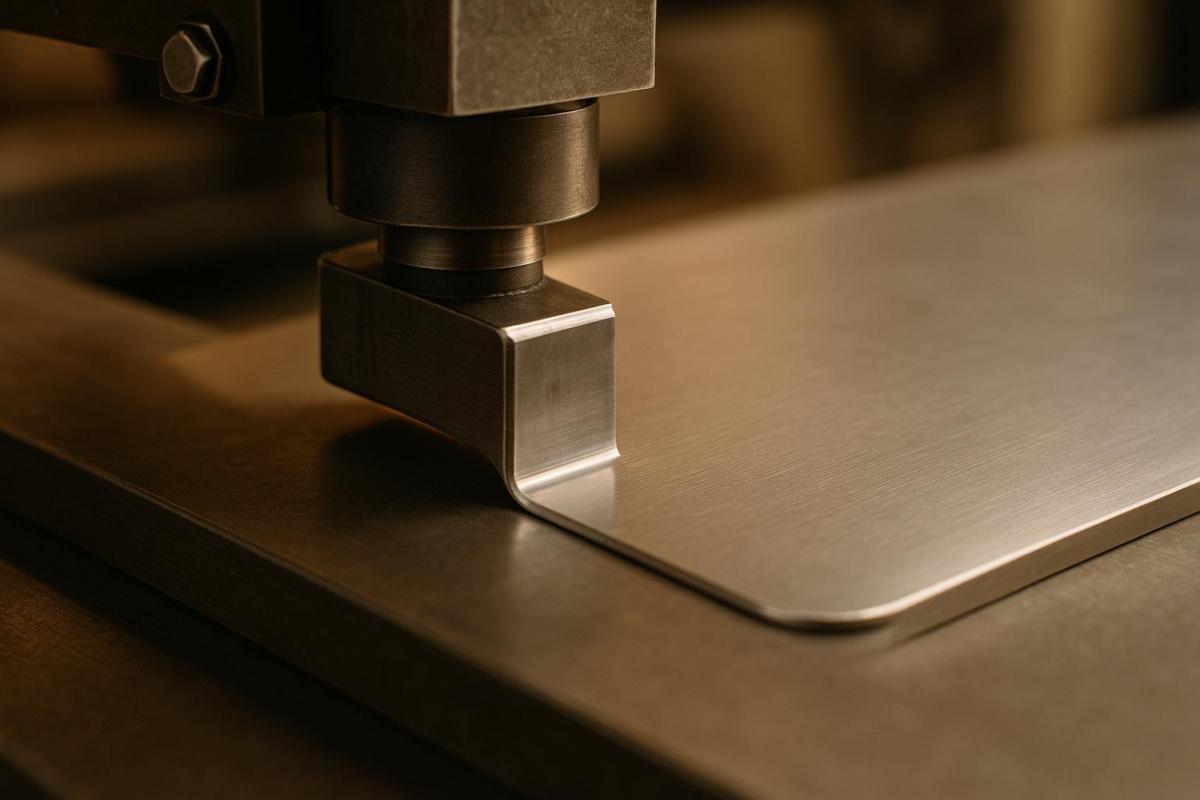
  • What is it? The corner radius is the curve at the corner of a die-cut shape, measured as the radius of an imaginary circle.
  • Why does it matter? Proper corner radii reduce wear on tools, prevent material tearing, and improve adhesion and durability.
  • Key Recommendations:
    • Minimum corner radius: 1 mm (0.0394 inches); 3 mm (0.118 inches) is often better.
    • For thin materials, use at least 0.031 inches to avoid cracking.
    • Match or exceed the material’s thickness for internal corners.
  • Design Tips:
    • Use vector software for precision.
    • Account for tool tolerances (±0.010 inches) and material elongation during cutting.
    • Keep at least twice the material thickness between slots to prevent tearing.

Quick takeaway: A well-planned corner radius improves efficiency, reduces costs, and ensures a durable final product. Let’s dive into the details!

Design Guidelines for Corner Radius

Material-Specific Radius Sizes

Choosing the right corner radius depends heavily on the material’s properties and thickness. Here’s a quick reference:

Material Type Recommended Minimum Radius Special Considerations
Thin Paper 0.031" Helps prevent tearing and cracking
Cardstock 0.031" Thicker cardstock may require a larger radius
Rigid Plastic ≥ 1 mm (≈0.04") Larger radii reduce stress points
Flexible Materials 0.031" or greater Accommodate elongation (over 15%) during cutting

By following these material-specific guidelines, you can avoid common issues like tearing, cracking, or stress points.

Preventing Corner Issues

To minimize corner-related problems, stick to these essential practices:

  • Internal Corners: Always use a minimum radius of 0.031 inches. This reduces material stress and extends the lifespan of die-cutting tools. For thicker materials, the radius should match or exceed the material’s thickness.
  • Spacing Between Slots: Maintain a distance of at least twice the material’s thickness to avoid tearing.

These adjustments not only improve the design but also enhance the durability of the final product.

Corner Radius in Design Software

When designing corner radii in software like Adobe Illustrator, precision is key. Here’s how to get it right:

  • CNC-Manufactured Dies: These dies typically have a tolerance of ±0.010 inches. Set corner radius values accurately to stay within this tolerance.
  • Internal Corners: Increase the radius by 0.02"–0.05" to account for cutter movement during manufacturing.
  • Properties Panel: Use this tool for exact measurements rather than relying on visual adjustments with the Corner Widget. This ensures your design meets manufacturing standards.

For more intricate designs with multiple radius adjustments:

  • Select all corners that need the same radius.
  • Enter the exact measurement in the Properties panel.
  • Double-check all measurements for accuracy.
  • Export the design in a vector format for production.

While straight exterior edges and square corners can simplify the die-making process and reduce costs, they should only be used if they don’t compromise the product’s structural integrity.

Following these practices ensures your design meets technical requirements while maintaining quality and durability.

Technical Requirements

Material Thickness Guidelines

The thickness of your material plays a key role in determining the minimum corner radius for your design. As a general rule, the corner radius should be at least equal to the material’s thickness. For very thin materials – those with a thickness under 0.031 inches – a minimum radius of 0.031 inches is recommended to avoid cracking. Ideally, aim for a corner radius approximately twice the material’s thickness for optimal results.

For example, if you’re working with 0.030-inch material, use a minimum radius of 0.031 inches, but an optimal radius would be closer to 0.060 inches.

Here’s a quick reference table to guide your corner radius selection based on material thickness:

Material Thickness Minimum Corner Radius Optimal Corner Radius
Up to 0.031" 0.031" ~2× material thickness
0.031" – 0.060" Equal to material thickness ~2× material thickness
Greater than 0.060" Equal to material thickness 2× material thickness

Note: Specific material properties and die-cutting methods may require adjustments to these guidelines.

Once you’ve established the appropriate radii, ensure your dielines are precisely defined to meet these standards.

Dieline Setup Steps

Start by defining the finished cut line, then add the necessary specifications. Include a standard bleed area of 0.125 inches beyond the cut line to ensure that colors and images extend fully to the edge.

For designs with multiple corner radii or intricate details, follow these steps:

  • Use vector-based design software to create precise paths.
  • Extend your artwork 0.125 inches beyond the cut lines, and maintain a 0.125-inch safety margin inside the cut line to protect key elements.
  • Clearly label the corner radius measurements on your design.

"Most die tools are manufactured using CNC routers with tolerances of ±0.010 inches. When working with elastomeric materials, expect potential elongation of more than 15% during the cutting process".

After setting up your dielines, consider the precision limits of the tools to fine-tune your design.

Tool Precision Limits

The precision of your tools directly impacts the execution of corner radii. CNC-manufactured dies typically operate within a tolerance of ±0.010 inches, which should guide your design adjustments.

For internal corners, keep these factors in mind:

  • Add 0.02 to 0.05 inches to account for tool movement and material elasticity. Standard square punches, for instance, increase incrementally by 0.015 inches.
  • Be aware of potential elongation during the cutting process.
  • Maintain a spacing of at least twice the material thickness between slots to ensure structural integrity.

Working with Print Providers

File Preparation Steps

When submitting files to print providers, ensure they are production-ready. Use vector-based software like Adobe Illustrator or CorelDRAW to create dielines, and save them in formats such as PDF, AI, or EPS. To avoid confusion, place dielines on a separate layer and assign a distinct spot color for easy identification.

Here are the key file requirements:

Element Specification Notes
Corner Radius As specified in design guidelines Adjust to account for material thickness
File Format Vector-based Acceptable formats: AI, EPS, PDF
Dieline Layer Separate layer Use a spot color for visibility
Font Treatment Convert all text to outlines N/A

If your files need further refinement, expert support is available to assist with adjustments.

Professional Support Options

Miro Printing & Graphics Inc. offers specialized support to ensure your designs are ready for production. Their services include:

  • Pre-press file review to optimize your designs for printing.
  • Recommendations on materials tailored to your project needs.
  • Assistance with intricate die-cutting patterns.
  • Sample cuts to validate designs before full production.

Production Process Tips

To achieve the best results, align your designs with the production process by keeping these tips in mind:

  • Material and Tooling: Consider material properties, such as elongation (over 15% for elastomeric materials), and the CNC router’s tolerances, which are ±0.010 inches. These factors are crucial when specifying corner radii.
  • Standard Specifications: Opt for standard punch sizes and corner radii to minimize costs and simplify production.
  • Quality Assurance: Collaborate with Miro Printing & Graphics Inc. to fine-tune your design. Their team ensures your project meets aesthetic and functional standards while staying compatible with their equipment.
sbb-itb-ce53437

Summary

Main Guidelines Review

When working on die-cut designs, keep these essential specifications in mind:

Design Element Specification Key Consideration
Internal Corners Minimum 0.031" (0.8 mm) radius Helps prevent cracking or splitting of material
External Edges Straight where possible Allows for cost-efficient common ruling
Feature Spacing 2x material thickness Ensures structural integrity
Tool Tolerance ±0.010" Compensates for material properties

For elastomeric materials (those with over 15% elongation), additional tolerances are necessary to avoid hour-glassing effects.

Getting Started

Start by assessing the material requirements and design constraints for your project. The design team at Miro Printing & Graphics Inc. is available to help fine-tune your dielines, ensuring your die-cut projects meet both aesthetic and structural needs while adhering to manufacturing standards.

To save on tooling costs, adjust internal radii by 0.02"–0.05" and stick to standard punch sizes (in increments of 0.015"). Be sure to account for the unique properties of your chosen material when finalizing measurements.

For expert assistance, contact Miro Printing & Graphics Inc.. Their pre-press review service is designed to spot potential issues early, helping you achieve the best possible results for your specific application.

LightBurn Quick Tips: Corner Radius
LightBurn

FAQs

How can I choose the right corner radius for different materials in die cutting?

When it comes to die cutting, the perfect corner radius largely depends on the material you’re working with and the result you’re aiming for. Sharp corners are usually a no-go – they can cause tearing or uneven cuts. Instead, opting for a rounded corner radius can lead to smoother edges and improve the overall durability of your piece.

Here’s a quick rule of thumb: softer materials like paper or thin cardstock can handle smaller radii, while tougher or thicker materials – think plastic or heavy cardstock – typically need larger radii to avoid cracking or other damage. Testing with sample cuts or consulting a professional can help you nail down the right radius for your specific project.

Need help? Miro Printing & Graphics Inc. offers tailored guidance and expertise in die cutting and design, ensuring your project is crafted with precision and care.

What problems can occur with incorrect corner radii in die cutting, and how can they be avoided?

Incorrect corner radii in die cutting can cause problems like tearing, uneven edges, or unnecessary wear on the cutting dies. For example, sharp corners can act as stress points, leading to material tearing during the cutting process. Similarly, using radii that are too tight or poorly chosen can make it harder to achieve clean and precise cuts.

To avoid these issues, it’s crucial to select corner radii that align with the material and design requirements. Rounded corners with an appropriate radius can result in smoother cuts and extend the life of your dies. Partnering with a skilled print and die-cutting service, such as Miro Printing & Graphics Inc., can help ensure your designs meet the right specifications for the best possible outcome.

Why should tool tolerances and material flexibility be considered when designing corner radii for die cutting?

When working on corner radii for die cutting, it’s crucial to consider tool tolerances and material flexibility to achieve clean and accurate cuts. Die-cutting tools have their limits when it comes to handling sharp or highly detailed corners. Adding appropriate radii not only reduces wear and tear on the tools but also ensures smoother production. On top of that, materials can stretch or deform slightly during the cutting process, which might alter the final shape if these factors aren’t taken into account. By addressing these details in your design, you can improve precision and help your die-cutting tools last longer.

Related posts

https://app.seobotai.com/banner/banner.js?id=6825535f0209458b3ff35ace
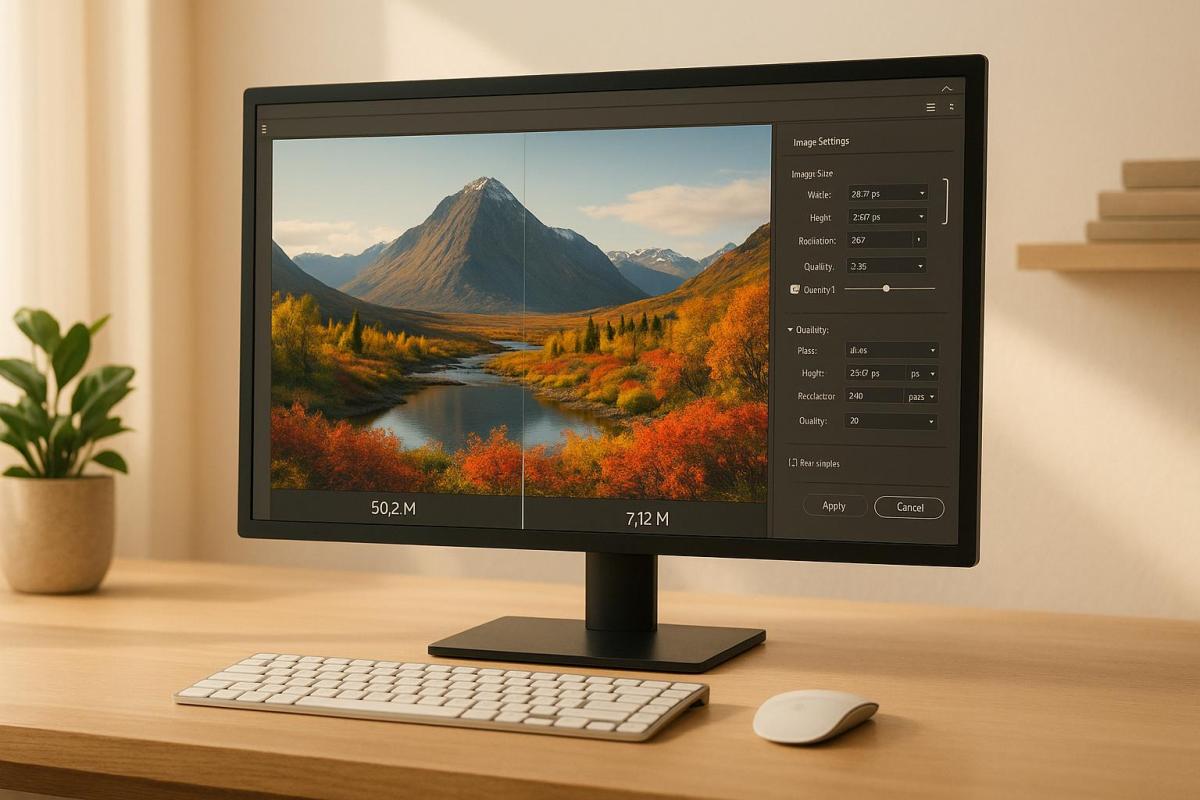
How to Compress Images for Large Format Printing

Learn how to compress images for large format printing, ensuring high quality while managing file sizes effectively.

Want sharp, professional large-format prints without bloated file sizes? Here’s how to compress images effectively while maintaining quality:

  • Choose the Right Compression Type: Use lossless formats (e.g., TIFF, PNG) for high-quality prints. Avoid lossy formats like JPEG, which can cause blurry details and artifacts.
  • Optimize Resolution: Match resolution to viewing distance:
    • Close-up prints: 300 DPI
    • Mid-range (banners): 100–150 DPI
    • Billboards: 20 DPI or higher
  • Switch to CMYK: Convert images from RGB to CMYK for accurate color reproduction.
  • Use Proper File Formats: TIFF for photos, EPS/SVG for scalable graphics, and PDF for print-ready projects.
  • Prepare Files Correctly: Add bleeds, manage layers, and clean up unused elements to reduce file size.

Quick Comparison

Aspect Best Practice
Compression Type Lossless (TIFF/PNG)
Resolution 300 DPI (close-up); 100 DPI (banners); 20 DPI (billboards)
Color Mode CMYK
File Formats TIFF, PDF, EPS, SVG
File Preparation Add bleeds, clean layers, manage resolution

Start with these basics to ensure stunning results for banners, posters, or trade show displays. Let’s dive deeper into the process!

How to Compress Large Size TIFF Files in Adobe Photoshop Without Losing Quality

Adobe Photoshop

Image Compression Basics

Grasping the essentials of image compression is key to getting the best results in large format printing. Below, we’ll break down the core concepts that influence both print quality and file management.

Lossy and Lossless Compression Methods

When it comes to compression, you have two main options: lossy and lossless. Each serves a different purpose, so choosing wisely can make a big difference in your project.

Lossless compression keeps all the original data intact, making it perfect for professional printing where every detail counts. Though the files are larger, this method ensures no quality is lost – an essential feature for large format prints.

On the other hand, lossy compression reduces file size by removing some image data. While this works fine for web images, it can cause noticeable problems in large format printing, such as:

  • Blurry or pixelated details
  • Colors that look distorted or washed out
  • Visible compression artifacts

Here’s a quick comparison to help you decide:

Compression Type Best For File Size Impact Quality Impact
Lossless (TIFF, PNG) High-quality prints, retail signage Larger files No quality loss
Lossy (JPEG) Web previews, quick digital proofs Smaller files Quality declines with compression

Now that we’ve covered compression, let’s dive into how resolution and DPI affect print quality.

The right resolution largely depends on how far away the print will be viewed and its size. Unlike the standard 300 DPI often used in commercial printing, large format projects can vary. Here’s a practical guide:

  • Vinyl and fabric banners: 100–150 DPI works well for mid-range viewing distances.
  • Trade show displays: Use 300 DPI for close-up viewing.
  • Outdoor banners: As low as 20 DPI is acceptable when viewed from 50 feet or more.

Matching the resolution to the viewing distance ensures you’re not overloading your file with unnecessary detail while still delivering crisp results.

Color Space Selection for Print

Color space plays a huge role in achieving accurate and vibrant prints. In the rapidly growing large format printing industry – expected to hit $12.70 billion by 2030 – precise color reproduction is critical for maintaining brand integrity and professional quality.

Switching from RGB to CMYK is a must for printing. However, it’s worth noting that 1,114 Pantone colors can’t be perfectly replicated in CMYK.

To get the best results:

  • Start with high-quality images in the correct color space.
  • Use color management tools to handle conversions accurately.
  • Run test prints to check color accuracy before full production.
  • Factor in the substrate – coated papers produce brighter colors, while uncoated ones tend to look duller.

"The CMYK printing process will never accurately print the entire RGB color space. This can create a big difference between what we see on the monitor, your desktop proofer, and the actual printed piece produced from any of the current CMYK printing processes we use today." – Elizabeth Gooding and Mary Schilling

With these basics in mind, you’re ready to move on to the critical steps of preparing your files for print.

Image Preparation Steps

Building on the basics of compression and resolution, these steps will help you prepare your files for top-notch print quality.

Software and File Format Selection

Selecting the right software and file format is crucial for maintaining image quality and achieving efficient compression. Adobe Photoshop is widely regarded as the go-to tool, but alternatives like GIMP also handle large-format printing effectively.

Here’s a quick guide to choosing the best file format for your project:

Format Type Best For Advantages File Size
Vector (EPS/SVG) Logos, graphics Infinite scaling, sharp edges Small to medium
TIFF Photos, detailed images Lossless quality, CMYK support Large
RAW Professional photography Maximum editing flexibility Very large

Pro tip: Always remember to convert RGB images to CMYK, as discussed earlier. This ensures your colors print accurately and sets the foundation for precise sizing and efficient layer management.

Image Sizing and Cropping

Getting the size and crop right is essential for sharp, high-quality prints. Start with the highest resolution version of your image and adjust it to match your desired print dimensions, keeping the aspect ratio intact.

If you’re using Photoshop to resize:

  • Keep the original aspect ratio locked to avoid distortion.
  • Follow the "200% rule" – never enlarge an image more than twice its original size at full quality.
  • Use the "resample" option and select "Preserve Details" for better scaling results.

Once your images are sized correctly, cleaning up files ensures they’re optimized for compression and ready for printing.

File Cleanup and Layer Management

Organizing and cleaning up your files not only reduces file size but also helps maintain compression quality. Here’s how to streamline your workflow:

  • Delete unused swatches, paths, and empty layers.
  • Remove hidden objects that won’t appear in the final design.
  • Convert smart objects to raster layers once edits are finalized.
  • Flatten visible layers, but always keep an editable backup.
  • Simplify vector artwork by cutting down on unnecessary anchor points.

For instance, in Adobe InDesign, if a full-page image is only partially visible in a small thumbnail frame, the hidden portions still inflate the file size. Using tools like "Crop" or "Fit Content to Frame" eliminates these hidden areas, significantly reducing the file size.

sbb-itb-ce53437

Advanced Compression Methods

Once you’ve mastered the basics of file preparation, advanced compression techniques can take your image optimization for large format printing to the next level.

Vector Graphics Benefits

Vector graphics come with a range of perks that make them ideal for large-scale printing. Unlike raster images, which are made up of pixels, vectors use mathematical formulas to define shapes. This means they can be scaled infinitely without losing quality.

Feature Vector Benefit Impact on Print Quality
File Size Smaller than raster files Faster processing and easier handling
Scalability Infinite scaling without quality loss Sharp output at any size
Color Consistency Mathematical color definitions Precise and consistent color reproduction
Editability Easy shape modifications Quick and seamless design adjustments

"Vector graphics are your best bet for large format printing. They offer flexibility, quality, and efficiency, ensuring your designs look stunning whether they’re on a massive billboard or a trade show banner." – Racecals.com

For text elements, it’s crucial to convert fonts to outlines. Tools like Adobe Illustrator’s "Create Outlines" feature ensure that text prints perfectly, even if the font isn’t available on the printer’s system. Once your vector files are prepared, validate your settings by running print sample tests.

Before committing to a full-scale print, it’s essential to test your settings. Start by calibrating your monitor with a hardware calibration tool to ensure the colors you see on screen match the printed output.

Here’s what to focus on during testing:

  • Resolution Check: Print small test patches at resolutions between 150–300 PPI to find the sweet spot for clarity and file size.
  • Color Profile Verification: Embed the proper color profiles to maintain consistency between screen and print.
  • Format Comparison: Test file formats, such as TIFF and PDF, to determine the best balance between quality and file size.

Once your test prints meet your expectations, you can move on to fine-tuning your files to prevent unwanted artifacts.

Preventing Image Artifacts

Artifacts can ruin the quality of large format prints, so taking steps to avoid them is crucial. Here’s how to keep your images clean and sharp:

  • Use Lossless Formats
    Save critical image sections in formats like TIFF or PNG to completely avoid compression-related artifacts.
  • Optimize JPEG Usage
    When using JPEGs, set the quality to the highest level and avoid saving the file repeatedly, as this can degrade image quality over time.
  • Manage Resolution Carefully
    When resizing images, maintain the resolution to prevent pixelation or blurring.

It’s also a good idea to keep a master file in a lossless format. This way, you’ll always have a high-quality version to fall back on while creating optimized files tailored to specific printing needs. By doing so, you’ll strike the perfect balance between quality and file size, ensuring stunning print results every time.

Working with Print Shops

File Preparation and Delivery

When preparing files for large format printing, it’s essential to get the details right. Here’s what you need to focus on:

  • Add a 0.125-inch bleed on all sides of your design.
  • Use a resolution of 300 DPI or higher.
  • Ensure the color mode is set to CMYK.
  • Save your files in print-ready formats like PDF, TIFF, or EPS.

To better understand these specifications, here’s a quick breakdown:

File Component Specification Purpose
Bleed Area 0.125" on all sides Prevents unexpected white edges after trimming.
Safety Zone 0.125" from trim edge Protects important design elements from being cut off.
Resolution 300 DPI minimum Ensures images and text appear sharp and professional.
Color Mode CMYK or Pantone Delivers accurate color reproduction during printing.

Adhering to these standards ensures your files are ready for seamless processing.

At Miro Printing & Graphics Inc., their team of experts is ready to help you meet these technical requirements. They’ll assist with:

  • Choosing the correct file format for your project.
  • Verifying color profiles and image resolution.
  • Avoiding issues like compression artifacts.
  • Adjusting sizing to fit your project’s specific needs.

"A print-ready file means exactly what the name suggests: a file that is ready for printing. This is a digital file that needs no alterations for your printer to get started with your project." – PrintingCenterUSA

Proof Review Process

Once your files are prepared and reviewed with the print shop, the next step is to carefully examine proofs. This step is crucial for catching any last-minute errors:

  • Digital proofs: Check for color accuracy, resolution, and proper text placement.
  • Physical proofs: Inspect colors, sharpness, and scaling to ensure everything aligns with your expectations.

Final Approval Process: Make note of any adjustments needed and communicate them clearly to your print provider. Keep a record of all proof versions and approved changes to avoid confusion and ensure the final product matches your specifications.

For the best color accuracy, download and apply the printer’s ICC color profiles. This step helps bridge the gap between what you see on your screen and the final printed colors. Also, save an uncompressed master copy of your file for any future edits or reprints.

Conclusion: Image Compression Guidelines Summary

When it comes to large format printing, getting image compression right is all about aligning resolution with viewing distance. The goal is to strike a balance between file size and quality, ensuring the final print looks sharp without unnecessary file bloat.

Viewing Distance Recommended DPI File Format Color Mode
Close-up (e.g., < 3 ft) 300 DPI TIFF/PDF CMYK
Moderate distance (e.g., ≥ 3 ft) 100 DPI TIFF/PDF CMYK
Billboards (e.g., viewed from 50 ft) 20 DPI TIFF/PDF CMYK

The table above provides a quick reference for the ideal settings based on how far viewers will stand. Using effective lossy compression methods, you can reduce file sizes by up to 80% while maintaining visual quality. As Jerome Seidita points out, it’s crucial to choose lossy compression tools that allow you to revert to the original file. This way, you avoid permanent quality loss.

If you’re looking to ensure your files are print-ready, working with professionals like Miro Printing & Graphics Inc. can make all the difference. Their team ensures your files meet industry standards, handling technical details like bleed settings (e.g., a 1/4″ bleed for files under 48″ and 2″ for murals), safe margins, and precise color settings like rich black (C‑50, M‑40, Y‑30, K‑100).

FAQs

Why do I need to convert images from RGB to CMYK for large format printing, and how does it impact color accuracy?

Converting images from RGB (Red, Green, Blue) to CMYK (Cyan, Magenta, Yellow, Black) is a crucial step when preparing designs for large format printing. These two color models serve different functions: RGB is optimized for digital screens, offering a broader range of bright and vivid colors, while CMYK is tailored specifically for printing. Since printers cannot reproduce all RGB colors, skipping this conversion can lead to unexpected results, like colors looking less vibrant or noticeably different in print.

Making the switch to CMYK before printing helps ensure your colors are as precise and consistent as possible. This is especially critical for maintaining brand consistency and achieving the desired outcome in your printed materials. By preparing your files in CMYK, you can bridge the gap between your digital design and the final printed product, ensuring the results align with your expectations.

What’s the difference between lossy and lossless compression, and why is lossless better for large format printing?

Lossy and lossless compression are two approaches to shrinking file sizes, but they operate in very different ways. Lossy compression works by permanently discarding some data to create smaller files. While this can lead to a noticeable drop in quality, it’s perfectly fine for situations like web images, where flawless quality isn’t essential. Lossless compression, however, retains all the original data, allowing the file to be restored to its full quality without any degradation.

When it comes to large format printing, lossless compression is the way to go. It preserves every detail and subtlety of an image, which is crucial for producing sharp, high-quality prints that hold up even under close inspection. File formats like TIFF are commonly chosen for this purpose because they support lossless compression, ensuring the final print is vibrant, detailed, and professional in appearance.

What is the best DPI for large format printing based on how far away it will be viewed?

When it comes to large format printing, the ideal DPI (dots per inch) largely depends on how close the viewer will be to the print. Here’s a quick breakdown:

  • 300 DPI: Best for prints viewed up close (around 2 feet).
  • 180 DPI: Suitable for medium distances (about 3 feet).
  • 120 DPI: Works well for viewing from 5 feet away.
  • 90 DPI: Ideal for a distance of 6.5 feet.
  • 60 DPI: Good for prints viewed from 10 feet.
  • 35 DPI: For prints viewed from 16 feet or more.

To fine-tune your DPI, you can estimate the viewing distance by calculating the diagonal size of your print. Multiply the diagonal by 1.5 to find the minimum viewing distance or by 2 for the maximum distance. This simple calculation can help you make sure your prints look just right for their intended purpose.

If you’re feeling uncertain about the process, reaching out to a professional printing service like Miro Printing & Graphics Inc. can make all the difference. They can provide expert advice to ensure your large format prints are sharp and visually appealing.

Related posts

https://app.seobotai.com/banner/banner.js?id=6825346b0209458b3ff336ad

How Folding Machines Handle Complex Print Layouts

Explore how modern folding machines utilize advanced technology to achieve precision in complex print layouts and streamline operations.

Folding machines are essential for turning printed sheets into folded products with precision. They handle even the most complex layouts by using advanced features like self-adjusting settings, programmable memory for up to 35 custom folds, and real-time alignment correction. These machines can process up to 15,500 sheets per hour and handle paper sizes up to 12" x 18". Here’s what makes modern folding machines effective:

  • Key Features:

    • Advanced feeding mechanisms and fold plates for different fold styles (e.g., gate, accordion).
    • Optical sensors and registration tables for precise alignment (±0.2mm accuracy).
    • Automated settings like dynamic speed control and paper thickness detection.
  • Setup Tips:

    • Plan fold sequences carefully (e.g., gate folds start with outer panels).
    • Adjust settings for paper type (e.g., higher roller pressure for heavyweight paper).
    • Test with sample runs to ensure accuracy.
  • Common Issues & Fixes:

    • Misalignment: Use side guides and lower roller pressure for coated papers.
    • Paper damage: Reduce speed and adjust roller pressure for heavier stocks.

Kato ShikoMBO K70 high-speed paper folding machine succeeds in downsizing and increasing revenue

Kato Shiko

Main Parts of Folding Machines

Modern folding machines rely on several key components to deliver precise and consistent results, even with complex folding tasks. Each part plays a specific role in ensuring accuracy throughout the production process.

How Fold Plates Work

Fold plates are at the heart of folding machines, enabling precise folds by guiding the paper through adjustable channels. These plates, made from metal or plastic, have backstops that determine where the paper buckles to form the fold. Here’s how it works: as the paper enters the fold plate, it moves until it hits the backstop, forcing it to buckle downward. This buckle is then compressed by nip rollers, creating the fold.

High-performance machines often feature advanced fold plate technology, including:

  • Precision backstop adjustments for exact fold placement
  • Skew adjustment controls to handle paper misalignment
  • Deflector systems that optimize paper paths
  • Variable pressure settings to accommodate different paper weights

Take the Martin Yale 1217A, for example. This machine offers adjustable fold ranges, allowing for various presentation needs without requiring pre-scored paper. But fold plates are only one piece of the puzzle – let’s look at how paper alignment plays a critical role in the process.

Paper Registration Controls

Accurate paper alignment is essential for consistent folding, and modern machines employ multiple systems to ensure precision.

Registration Component Function Precision Level
Side Guide Systems Aligns paper laterally ±0.2mm alignment
Optical Sensors Tracks paper in real time Continuous monitoring
Registration Tables Aligns paper pre-fold Initial positioning
Sheet Separators Prevents double feeding Single-sheet accuracy

For instance, optical sensors can detect alignment errors as small as 0.2mm and immediately correct them. These registration systems work together to ensure flawless alignment, which is critical for producing high-quality folds. But alignment isn’t the only area where modern machines shine – automation is another game-changer.

Self-Adjusting Settings

Today’s folding machines come equipped with automated features that streamline operations and maintain consistent results, even during long production runs. A great example is the FD 38X Document Folder, which can process up to 20,100 pieces per hour and store 35 different fold patterns.

Some standout automated features include:

  • Dynamic Speed Control: Adjusts speed based on the type of paper being used
  • Paper Thickness Detection: Alters roller pressure to handle varying stock weights
  • Counter-Skew Technology: Corrects alignment issues in real time
  • Batch Processing Automation: Keeps settings consistent across large runs

These advancements have boosted daily production efficiency by over 15% compared to older models with flat pile feeders. By reducing the need for constant operator input, these self-adjusting systems make it easier to handle even the most intricate folding jobs.

Machine Setup for Complex Folds

Getting a folding machine ready for intricate print layouts demands careful planning and precise adjustments. At Miro Printing & Graphics Inc., operators use a structured approach to ensure accuracy, as outlined in earlier sections.

Fold Order Planning

The sequence in which folds are made is key to achieving the desired results. For complex designs like gate folds or accordion folds, using a folding dummy can cut setup time by 15–20% while also optimizing paper usage.

Here are some important fold types and their considerations:

Fold Type Planning Considerations Typical Sequence
Gate Fold Variations in panel sizes Begin with outside panels
Accordion Equal spacing between panels Work from right to left
Roll Fold Gradual reduction in panel size Start with the outermost panel
Double Parallel Paper thickness concerns Begin with the largest fold

For brochures with multiple panels, it’s a good idea to decrease the inner panel dimensions by about 1/32" to 1/16" for each fold. This adjustment helps account for the thickness of the paper, preventing buckling and ensuring smooth operation. After finalizing the fold sequence, adjust the machine settings to suit the paper type for the project.

Paper Type Settings

Adjusting the machine for the paper type is critical. Here’s how to handle different paper weights:

Lightweight papers (20–60 lb text):

  • Apply minimal roller pressure.
  • Set fold plate gaps between 0.5–1 mm.
  • Lower the vacuum feeder strength.

Heavyweight papers (80–100 lb cover):

  • Use significantly higher roller pressure.
  • Pre-score the paper to avoid cracking.
  • Slightly widen the fold plate gaps.

For coated stocks, increase roller pressure by 10–15% compared to uncoated papers. Using anti-static bars can also help prevent sheets from sticking together. Once these settings are in place, it’s important to test them with sample runs to ensure everything is dialed in.

Sample Run Procedures

Sample runs are a must to catch errors early. Research shows that thorough testing can lower customer rejection rates by up to 70%. Here’s a step-by-step guide for sample testing:

  1. Run 5–10 test sheets with standard settings.
  2. Measure panel dimensions, ensuring accuracy within 1/64", and check fold squareness using diagonal measurements.
  3. Confirm that printed elements are properly aligned.
  4. Inspect the creases for quality and sharpness.

For more difficult materials, like die-cut stock, reduce machine speed by 25–30% during testing. Specialized guide systems, such as custom polycarbonate inserts, can also help minimize spoilage, reducing waste by up to 40% on complex projects.

Pro Tip: Keep detailed logs of machine settings for repeat jobs. This practice can cut setup time for repeat orders by 40% and ensures consistent quality.

Special Folding Methods

Multiple Direction Folds

Modern folding machines use advanced digital controls and specialized mechanisms to create complex fold patterns. For example, accordion folds rely on sequential fold plates that alternate directions, ensuring uniform panel widths. Each plate must align precisely – within a tight tolerance of 0.2–0.3 mm – to maintain consistency. This meticulous setup also allows for the smooth incorporation of additional finishing steps.

Mixed Finishing Operations

Combining processes like scoring, perforation, and folding in a single pass requires careful planning. The scoring depth should match the paper’s thickness, and roller pressure needs to be reduced after scoring to avoid damaging the paper. Slowing the paper feed slightly improves registration accuracy and helps prevent jams. Many modern machines simplify this process by allowing operators to save these configurations as reusable templates.

Heavy and Specialty Paper Folding

Folding heavy papers, such as those exceeding 100 lb (270 gsm), demands significant machine adjustments. At Miro Printing & Graphics Inc., heavy-duty equipment is specifically designed to handle these materials with precision. For these stocks, operators typically increase roller pressure by 30–50%, lower operating speeds by 40–60%, and widen fold plate gaps by 0.5–1 mm. Pre-scoring is essential for papers over 120 lb (325 gsm) to achieve clean folds.

When working with coated papers, air-feed systems are used to prevent slippage. Roller pressure is reduced by 15–20%, and additional rollers are added to improve grip and eliminate static. For textured papers, a slight adjustment to the roller gap – usually by 0.2–0.3 mm – helps maintain the paper’s texture while delivering sharp folds. To further enhance control over specialty papers, Extra Grip rollers, which provide 30% more drag force, are often employed.

sbb-itb-ce53437

Fixing Common Fold Problems

Fixing Alignment Issues

Alignment issues can throw off the quality of a print layout, especially in more intricate designs. Problems like skewed folds, uneven margins, or panels that don’t line up can undermine the final product. To address these, start by ensuring the paper stack is properly aligned and jogged before feeding. Adjust the side guides to keep the sheets in the correct position, and double-check that the fold plate stops are set accurately – small misalignments can make a big difference. For coated or glossy papers, lower the roller pressure and consider using an air-feed system to help separate the sheets and counter static buildup. Making these adjustments not only improves alignment but also helps prevent potential damage to the paper.

Reducing Paper Damage

Wrinkling or tearing during folding often comes down to improper settings or rough handling. To avoid this, particularly when working with heavier or specialty papers, adjust the roller pressure and slow down the machine speed to match the paper’s weight and properties. Regular cleaning and careful setup are key to ensuring smooth folds without putting unnecessary strain on the material. Keeping the equipment in good shape also plays a big role in minimizing errors and maintaining consistent results.

Machine Maintenance Tips

Daily maintenance is essential for keeping folding machines running smoothly. Clean and inspect the rollers regularly, check sensors and mechanical components, and manage humidity levels to reduce static buildup. Performing thorough inspections on a routine basis helps ensure consistent performance. If problems persist despite these efforts, refer to the machine’s manual for calibration instructions or reach out to a certified technician for support. A little preventative care goes a long way in avoiding downtime and costly repairs.

Conclusion: Getting the Best Results

Precision in complex print layouts demands advanced machinery and skilled operation. When paired with careful setup and consistent maintenance, these tools ensure flawless folding and high-quality outcomes.

At Miro Printing & Graphics Inc., cutting-edge folding equipment and experienced operators work together to deliver exceptional results. Their in-house bindery services emphasize proper paper selection, test runs, and thorough quality checks to guarantee accuracy.

Here are some standout technical features:

  • Polyurethane-ringed rollers: Improve fold precision, especially for specialty papers.
  • Quick-release fold stops and fine-tuning adjustments: Allow precise handling across various materials.
  • Ri round continuous feeder technology: Increases daily production efficiency by over 15%.

For the best folding results, consider these practices:

  • Choose paper stock that matches the machine’s capabilities.
  • Utilize automated settings for consistent performance.
  • Regularly calibrate equipment to maintain accuracy.

Professional print shops like Miro Printing & Graphics Inc. achieve outstanding results by focusing on every detail and maintaining robust quality control measures. One satisfied client shared their experience:

"Great customer service that we didn’t get with our old online printer. Attention to detail is what makes the difference!"

FAQs

How do folding machines achieve precise alignment and prevent misalignment in complex fold layouts?

Folding machines are designed to deliver precise alignment in even the most intricate layouts by combining smart engineering with proper setup. They rely on adjustable guides, precision rollers, and automated sensors to ensure accuracy throughout the entire folding process. These elements work in unison to position the paper correctly and reduce the chances of errors.

Getting the setup right is key to avoiding misalignment problems. This involves calibrating the paper feed, choosing the correct fold type, and making sure the paper stack is loaded evenly. Routine maintenance, like cleaning the rollers and inspecting for wear and tear, is equally important for maintaining consistent performance. For businesses managing detailed print designs, teaming up with a full-service print shop like Miro Printing & Graphics Inc. can offer valuable expertise and support for handling intricate folding tasks.

How do you adjust a folding machine to handle different paper types and weights effectively?

To properly set up a folding machine for different paper types and weights, you’ll need to make careful adjustments to ensure everything runs smoothly and folds come out just right. Start by setting the folding plates to match the specific fold type and dimensions you need. Then, tweak the roller pressure according to the paper’s thickness – use lighter pressure for thin paper and increase it for heavier stock. Lastly, check that the feed system is aligned properly to avoid misfeeds or jams.

Before committing to the full batch, it’s a good idea to run a few test sheets to make sure the settings are dialed in for the paper you’re working with. Regular cleaning and maintenance of the machine are also key to keeping it precise and preventing any hiccups during operation.

How do sample runs help ensure precision in complex folding projects?

The Importance of Sample Runs in Folding Projects

Running sample batches is a crucial step when working on intricate folding projects. It helps spot issues like misalignment, incorrect folds, or paper handling errors before committing to a full production run.

By testing a small batch, you can adjust machine settings – such as fold type, paper thickness, and alignment – to ensure the final product matches your specifications. This extra step not only saves time and materials but also guarantees a polished, professional outcome.

Related posts

https://app.seobotai.com/banner/banner.js?id=68241a7459ff6128992246cb

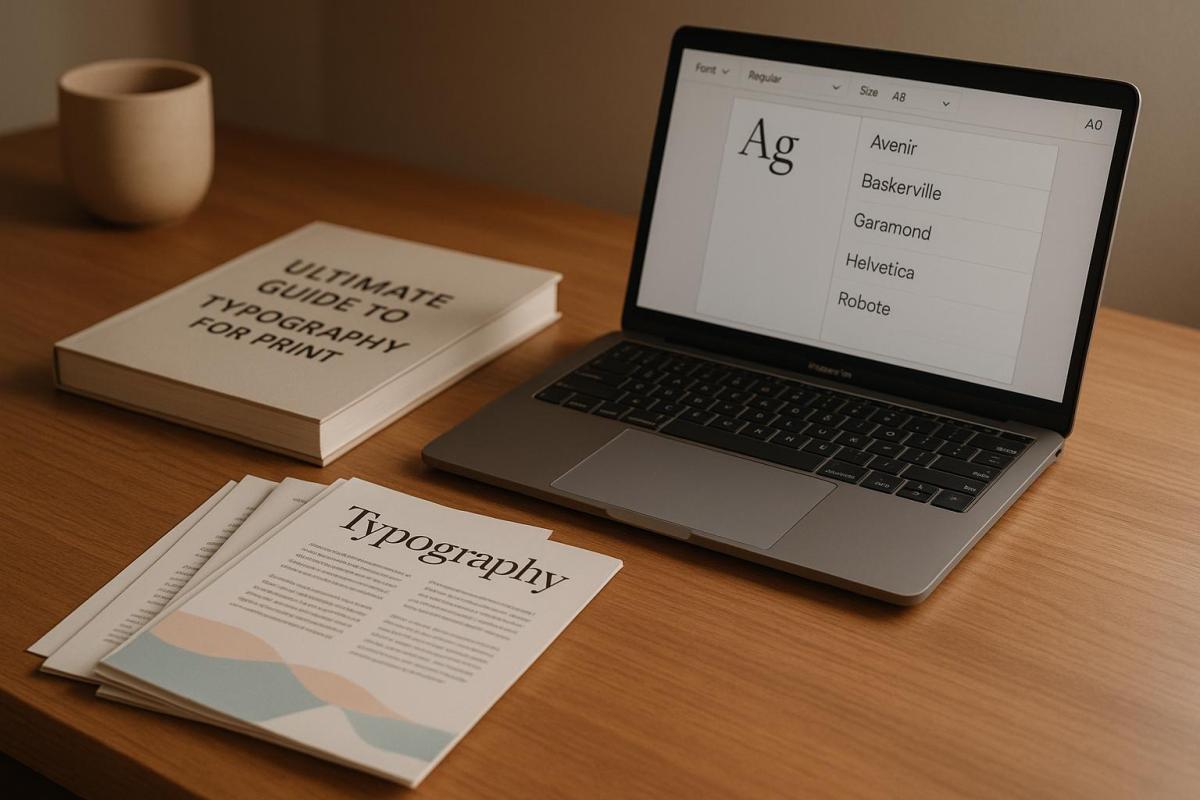
Ultimate Guide to Typography for Print

Master print typography with essential tips on font selection, layout, and effects to create stunning and professional printed materials.

Typography is crucial for creating effective print designs. This guide covers everything you need to know to make your printed materials look sharp, clear, and professional. Here’s a quick summary:

  • Key Principles: Focus on hierarchy, contrast, consistency, readability, and alignment.
  • Print vs. Digital: Print requires higher resolution (300 DPI+), CMYK colors, and fixed sizes.
  • Font Choices: Use serif fonts for long-form text and sans-serif for headlines or modern designs.
  • Paper Matters: Paper type (coated, uncoated, textured) impacts ink absorption and text clarity.
  • Special Effects: Enhance designs with embossing, foil stamping, or spot UV finishes.
  • Preparation Tips: Use CMYK colors, embed fonts, and test print on actual paper stock.

For a strong print design, always test your typography on the intended paper and collaborate with a professional printer to ensure the final product looks exactly as planned.

When it comes to print typography, precision is key. Unlike digital typography, print must account for physical constraints like paper texture and ink behavior. The table below highlights some of the main differences between print and digital typography:

Characteristic Print Typography Digital Typography
Resolution 300+ DPI (fixed) 72–96 PPI (variable)
Color Display CMYK ink-based RGB screen-based
Size Consistency Fixed size Scalable size
Surface Impact Influenced by paper texture Affected by screen quality

Another critical aspect of print typography is the choice of paper stock, as it directly affects how the ink interacts with the surface:

  • Uncoated papers absorb more ink, which can lead to slight bleeding or softer edges.
  • Coated stocks provide sharper, crisper edges, making them ideal for high-detail designs.
  • Textured surfaces may require larger type sizes to maintain clarity and readability.

These details play a huge role in shaping the overall design strategy for print.

How Typography Shapes Print Design

Beyond technical considerations, typography in print is a powerful tool for creating hierarchy and ensuring readability. Since print designs are permanent, every typographic decision must be intentional and carefully thought out.

To achieve effective print typography, focus on these key areas:

  • Legibility: Always prioritize clarity, especially for smaller type sizes.
  • Proofreading: Double-check every detail, as errors in print are costly to fix.
  • Test Prints: Run tests on the actual production paper to ensure the design translates well to the final medium.

Several factors influence the success of print typography:

  1. Physical Environment: Think about where the printed material will be used. Viewing distance and lighting conditions can affect readability.
  2. Material Properties: The paper’s finish and how it interacts with the ink can dramatically alter the appearance of text.
  3. Production Method: Different printing techniques may require adjustments to typography for the best results.

Strong print typography relies on clear contrast, consistent spacing, proper alignment, a well-defined size hierarchy, and thoughtful use of white space.

Collaborating with professional print services, like Miro Printing & Graphics Inc., can make a big difference. Their expertise in paper stocks and printing techniques can help ensure your design looks exactly how you envisioned. Since print is permanent, always test on the actual production stock to guarantee the final product is both impactful and clear.

Font Selection and Combinations

Serif and Sans-Serif Fonts in Print

Serif fonts are a staple for long-form texts like books and magazines. Their small decorative strokes guide the reader’s eye smoothly across the page, making them perfect for immersive reading. On the other hand, sans-serif fonts are known for their clean, modern appearance, making them ideal for headlines, large-format prints, and contemporary business materials. Classic serif options like Times New Roman and Garamond remain go-to choices for professional documents, balancing readability with a sense of authority and formality.

Sans-serif fonts work best when you need a bold, clear impact, especially in:

  • Headlines and titles
  • Large-scale print formats
  • Marketing materials and other modern communications

Font Pairing Guidelines

Choosing the right fonts – and combining them effectively – can make or break the look of your print materials. To ensure both clarity and visual appeal, keep these principles in mind:

  • Pair fonts with distinct yet harmonious attributes
    A common strategy is combining a serif font for headers with a sans-serif font for body text. This contrast creates interest while maintaining readability.
  • Look for subtle similarities to unify your design
    For instance, pairing Georgia (serif) with Open Sans (sans-serif) strikes a balance between cohesion and individuality.
  • Keep it simple
    Stick to two or three typefaces at most. Overloading your design with too many fonts can lead to clutter and confusion.

Collaborating with a professional print shop can elevate your font choices. For example, the design team at Miro Printing & Graphics Inc. can assess how your selected fonts will appear on various paper types and through different printing methods. Their expertise ensures your fonts not only look great but also perform well in the final product.

When testing font combinations, follow these practical steps:

  • Print samples at actual size on the paper stock you plan to use
  • Check readability under typical viewing distances and lighting conditions
  • Compare digital proofs with physical test prints to spot any discrepancies

Typography in print isn’t just about aesthetics – it’s about functionality too. Your fonts should work together visually while ensuring clarity across all materials. By following these strategies, you’ll set the stage for a strong, effective type hierarchy in your designs.

Type Hierarchy and Layout

Building Type Hierarchy

A well-thought-out type hierarchy helps readers navigate content by creating clear visual distinctions between text elements. When done right, it makes printed materials easier to read and visually appealing.

Here’s how different text levels stack up:

Level Size Weight Purpose
Main Heading 30–48 pt Bold Grabs primary attention
Subheading 18–24 pt Regular/Bold Organizes sections
Body Text 10–12 pt Regular Displays main content
Caption 8–10 pt Light/Italic Adds supporting details

To create a strong hierarchy, use tools like bolding, color adjustments, and white space. For instance, bold text highlights key points, while extra spacing ensures each level stands apart.

A polished layout enhances your type hierarchy and ensures your design looks professional. Start by using a grid system to organize content placement consistently across the document.

Here are some key spacing tips for print materials:

  • Margins: Stick to 0.5–1 inch for standard documents.
  • Line Spacing: Aim for 120–150% of your font size for readability.
  • Paragraph Spacing: Leave enough space between paragraphs to avoid clutter.

Alignment also plays a critical role. Left alignment is typically the easiest to read for Western languages. For formal documents or wide columns, justified text can work – just make sure it’s properly configured to avoid awkward spacing.

For the best results, collaborate with your print shop. For example, the team at Miro Printing & Graphics Inc. can review your layout to ensure it works seamlessly in print. They can also advise on how paper types and printing methods might influence your typography.

Technical Print Requirements

Type Resolution Standards

When it comes to print typography, precision is everything. The resolution you choose directly impacts the quality of the final product. Here’s a quick breakdown:

Resolution Ideal For Viewing Distance
300 DPI Business cards, brochures, books Close-up reading
150–200 DPI Posters, banners, large-format prints 3–6 feet or more

For the sharpest results, always use vector-based fonts. They maintain clarity no matter how much you scale them. If you’re working with raster designs, double-check that text layers hold their resolution during resizing. And don’t forget – your choice of paper can also influence how your typography looks.

Paper Selection and Typography

Paper isn’t just a surface – it’s a key player in how your typography comes to life. Different stocks interact with ink in unique ways, affecting everything from contrast to readability. Here’s how paper types stack up:

Paper Type Text Appearance Best For
Gloss Coated Sharp, high contrast Marketing materials, photos
Matte Coated Reduced glare, easier to read Magazines, catalogs
Uncoated Softer edges, natural feel Books, stationery

Paper weight matters too:

  • Text-weight (20–24 lb): Perfect for letterhead.
  • Cover stocks (80–100 lb): Ideal for business cards.
  • Heavy cardstock (120+ lb): Great for premium materials.

If you’re using dark, textured, or low-opacity papers, opt for larger fonts and bolder weights to keep your text legible – especially for double-sided prints.

Want to get it just right? Collaborate with experienced print professionals. For instance, the team at Miro Printing & Graphics Inc. can provide paper samples and test prints to ensure your typography looks exactly as intended, no matter the stock or finish.

sbb-itb-ce53437

Special Print Effects for Type

Embossing and Foil Applications

Adding special effects to typography can transform the look and feel of your printed materials. Embossing, for instance, raises letterforms off the paper, giving them a three-dimensional quality, while debossing does the opposite, creating a recessed effect. Keep in mind that text smaller than 10-12pt might lose clarity with these techniques. Thicker, softer paper – around 100 lb or higher – works best for pronounced embossing, whereas moderately weighted paper is better suited for subtler debossing.

Foil stamping is another standout option, adding a metallic or glossy finish that works especially well for headlines and logos. Some popular foil finishes include:

  • Metallic: Classic options like gold, silver, or copper
  • Holographic: Creates a multi-dimensional effect that changes with the viewing angle
  • Matte: Offers a more understated, refined look
  • Pigment: Solid colors with a noticeable sheen

A 2023 industry report revealed that 68% of print buyers feel special finishes like embossing and foil stamping enhance the perceived value of printed materials. Whether you’re designing for luxury branding or event invitations, these techniques can make a lasting impression.

Color and Coating Options

Specialty colors and coatings can take typography to the next level. Spot colors, such as Pantone or PMS, ensure vibrant, consistent hues that go beyond standard CMYK printing. Coatings not only protect your print materials but also add visual and tactile appeal. Some popular options include:

  • Spot UV Coating: A high-gloss finish that creates bold contrast
  • Soft Touch Coating: A smooth, matte surface that feels luxurious to the touch
  • Aqueous Coating: A durable satin or gloss finish for added protection

For maximum impact, try combining effects. For example, pairing a matte soft-touch coating with spot UV on key text elements can create a striking contrast that grabs attention. However, results can vary depending on the paper stock and finish combination, so it’s always a good idea to request print proofs before committing to a full run.

Miro Printing & Graphics Inc. advises testing coatings on your chosen paper stock beforehand. This ensures the final product achieves the desired look and feel while maintaining readability and quality.

Pre-Press Typography Checklist

When preparing your files for print, make sure your text colors are in CMYK, the resolution is set to 300 DPI, and all fonts are either embedded or converted to outlines. This step is crucial to avoid font substitution issues that can disrupt your design.

For a polished look, stick to a consistent typographic scale when using multiple typefaces:

Text Element Recommended Size (pt) Usage
Headlines 24–72 Draws primary attention
Subheads 14–18 Marks sections and hierarchy
Body Copy 10–12 Main content text
Captions 8–9 Adds supporting details
Fine Print 6–8 Legal disclaimers and footnotes

Keep in mind that all text elements should be positioned at least 0.125–0.25 inches away from the trim edges to prevent accidental cutoff. Once your typography is set, thorough quality checks ensure your text will look just as you envisioned when printed.

Proper print file preparation goes hand-in-hand with quality control to protect your design from unexpected issues. Always print a physical test copy on the paper stock you plan to use. While digital proofs are helpful, they can mask problems like faint font weights, color inconsistencies, poor ink absorption, or alignment issues.

Examine printed proofs under proper lighting to ensure fonts render consistently across all pages and that no unintended style changes occurred during processing. Pay close attention to how text interacts with background elements or images.

"Great customer service that we didn’t get with our old online printer. Attention to detail is what makes the difference!" – Mike B.

Miro Printing & Graphics Inc. emphasizes the importance of conducting multiple proofreading rounds with different reviewers to catch any lingering typographical errors. Their in-house design team also offers pre-flight checks to spot potential problems before they escalate into costly fixes.

For intricate projects involving special finishes, such as coatings or embossing, request a press proof. This will give you a precise preview of how your typography will appear with the final touches. Based on the press proof, you may need to tweak font weights or sizes to ensure optimal results.

Design Rules: Typography Tips For Readable Long-Form Content

Next Steps

It’s time to put your print typography skills into action. Start by documenting your design choices in a detailed typography specification document. Here’s what to include:

Element Details to Specify
Font Selection Font names, weights, and styles
Size Hierarchy Point sizes for headlines, body text, and captions
Color Values CMYK breakdowns for all text elements
Special Effects Requirements for embossing, foil, or spot UV finishes
Paper Stock weight, finish, and color

This document should clearly outline your vision and technical requirements. Keep in mind that changes to typography after plates are created can be costly, so thorough planning is critical. A well-prepared specification ensures clarity when collaborating with experts and avoids unnecessary rework.

Next, schedule a consultation with your printer’s prepress team. They can offer valuable advice on topics like:

  • Minimum font sizes suitable for specific printing methods
  • Paper stock options that enhance readability and design
  • Special considerations for metallic inks or other finishes
  • File preparation guidelines for a seamless printing process

To keep improving, maintain a record of successful projects. Document which font combinations, sizes, and paper stocks worked well to save time on future designs. Professional print shops are equipped to help you bring your typography from the screen to the page with precision. By following these steps, you’ll be ready to turn your design ideas into flawless printed results.

FAQs

How can I select the best paper type for my print design to ensure sharp text and vibrant colors?

Choosing the right paper type can make all the difference when aiming for professional-quality print results. Start by thinking about the purpose of your project. Glossy paper is a great choice for vibrant, image-heavy designs like brochures or photo prints, as it enhances colors and creates a polished look. On the other hand, matte or uncoated paper is better suited for text-heavy materials, such as books or reports, because it reduces glare and improves readability.

You’ll also want to consider the paper’s weight and finish. Heavier paper – measured in pounds or GSM – has a more premium feel, making it a solid pick for high-end items like invitations or business cards. Lighter paper, while more affordable, works well for everyday projects like flyers. And don’t forget to match the paper type to your printing method. Some papers perform better with digital printing, while others are designed to handle offset printing, ensuring the best ink absorption and sharpness.

If you’re not sure which paper to choose, a professional print shop like Miro Printing & Graphics Inc. can help. Their experts can recommend the best options tailored to your specific project needs.

What are the main differences between serif and sans-serif fonts in print, and how do they impact readability?

Serif fonts, such as Times New Roman or Georgia, feature small decorative strokes – known as serifs – at the ends of their letters. These details give printed text a more classic and formal feel. Serif fonts are often chosen for lengthy text, like books or newspapers, because the serifs help guide the reader’s eye, making dense layouts easier to navigate.

On the other hand, sans-serif fonts, like Arial or Helvetica, skip the decorative strokes entirely. This gives them a clean, modern appearance. They’re especially effective for headings, signage, or shorter text blocks, as their simplicity ensures high legibility, even at larger sizes or in lower-resolution formats.

When deciding between serif and sans-serif fonts, think about the tone you want to convey and the purpose of your design. Mixing the two can also work well – using serif fonts for body text and sans-serif for headings can create a clear visual hierarchy and improve readability.

What’s the best way to test typography on different paper types to ensure my printed design looks as expected?

To see how your typography performs on different paper types, start by requesting sample prints from your print provider. Use the exact fonts, sizes, and layouts from your design to ensure accuracy. Make sure to test on the specific paper stocks you’re considering – things like texture, weight, and finish can dramatically affect how your design looks and feels.

Pay attention to font clarity, contrast, and color accuracy under various lighting conditions. This step will help you determine how the typography interacts with the paper and whether it aligns with your vision. If you’re collaborating with a professional print shop like Miro Printing & Graphics Inc., they can assist in choosing the right materials and printing methods to bring out the best in your design.

Related posts

https://app.seobotai.com/banner/banner.js?id=6823e6b4f8b9f5df39f52f7f

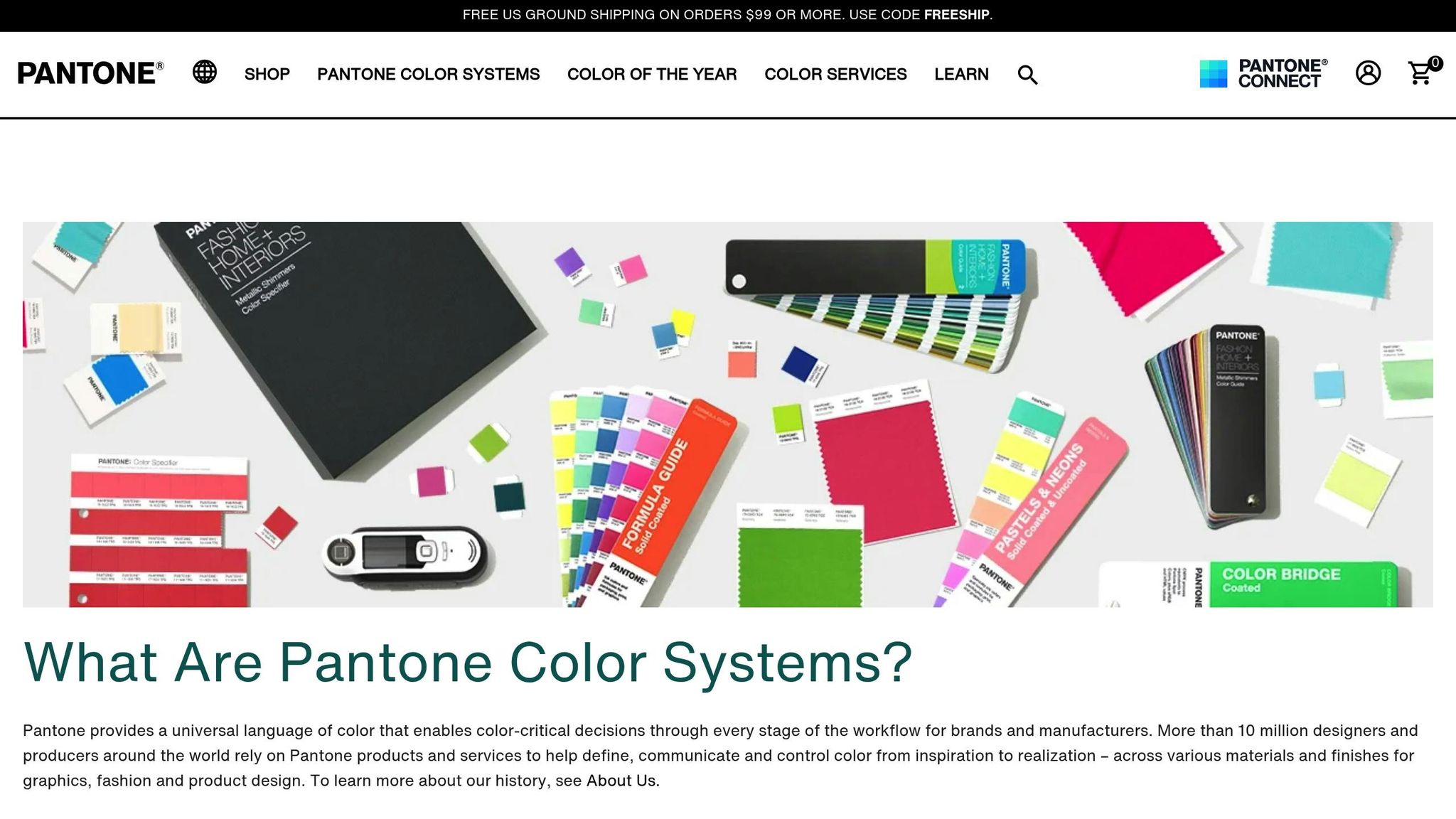
Pantone Charts for Large Format Printing

Learn how Pantone charts ensure color accuracy and consistency in large format printing, enhancing branding and quality across materials.

Pantone charts are essential for achieving accurate and consistent colors in large format printing. Whether you’re creating banners, posters, or signage, these charts help ensure that colors look the same across different materials and print runs. Here’s what you need to know:

  • Precise Color Matching: Pantone’s unique spot colors ensure exact matches, especially for branding.
  • Consistency Across Projects: Colors stay uniform, even in multiple print jobs.
  • Material-Specific Accuracy: Swatches show how colors will appear on vinyl, fabric, or other materials.

Quick Comparison: Pantone vs. CMYK

Pantone

Feature Pantone Colors CMYK Process
Color Creation Pre-mixed inks Blend of four colors
Consistency Extremely reliable Can vary slightly
Cost Higher More affordable
Best For Logos, branding Photos, general printing
Color Range 2,390+ spot colors Limited gamut

For the best results, professionals often combine both systems: Pantone for brand elements and CMYK for broader image areas. Testing colors on actual materials and using calibrated equipment ensures accuracy. Local print shops, like Miro Printing & Graphics Inc., specialize in this process, offering expert color matching and material testing for flawless results.

Pantone’s Impact on Large Format Printing

Pantone Matching System (PMS) Basics

The Pantone Matching System (PMS) changed the game for color accuracy in large format printing by introducing a standardized way to reproduce colors. With over 2,390 spot colors, each assigned a unique code, PMS acts like a universal language for color communication. This system ensures that everyone involved – designers, printers, and clients – can refer to the same exact shade, no matter the project. When a Pantone code is specified, it guarantees that the color will look consistent across all formats.

Large Format Projects and Pantone Charts

Pantone charts are essential tools for large format printing, offering a practical way to ensure colors remain true even on a grand scale. These guides allow professionals to see how colors will look when applied to larger surfaces. In real-world applications, Pantone charts help with:

  • Color Verification: Testing colors on actual materials before full-scale production begins.
  • Material Adaptation: Adjusting for how different materials, like vinyl or fabric, can alter a color’s appearance.
  • Quality Control: Using physical swatches to compare and maintain consistency throughout production.

This level of precision is critical, especially when balancing the strengths of Pantone and CMYK processes.

Pantone and CMYK: Key Differences

When it comes to large format printing, deciding between Pantone and CMYK can make or break a project. Here’s how they stack up:

Characteristic Pantone Colors CMYK Process
Color Creation Pre-mixed inks A blend of four colors
Consistency Extremely consistent Can vary between prints
Cost Higher per color More budget-friendly
Best Uses Branding, exact matches Photos, general printing
Color Range 2,390+ spot colors Limited gamut

Pantone is the go-to choice for projects where exact color matching is crucial – like maintaining consistent brand colors across multiple print runs. On the other hand, CMYK is ideal for general imagery and photographic elements.

In large format printing, professionals often combine both systems. CMYK is used for broader image areas, while Pantone ensures that critical brand elements – like logos – remain consistent. To achieve this level of precision, print shops rely on advanced tools like spectrophotometers, which measure printed samples against reference colors, and RIP software, which translates Pantone values for various devices. This blend of technology and expertise ensures the final product meets exacting standards.

Best Practices for Pantone Charts in Large Format

Selecting Your Pantone Guide

Choosing the right Pantone guide is essential for accurate color reproduction, especially when working with large-format materials. The guide you pick should align with the type of material you’re printing on.

Guide Type Best Applications Material Examples Key Considerations
Coated Glossy surfaces Vinyl banners, photo paper, glossy signage Produces vibrant, saturated colors
Uncoated Porous materials Fabrics, cardstock, matte paper Colors appear softer and lighter
Metallic Specialty finishes Metallic substrates, foils Requires specific inks and equipment

Once you’ve selected the right guide, it’s important to confirm your color settings through thorough testing to ensure precision.

Color Testing and Equipment Setup

Proper calibration and testing are critical for consistent color output. Here’s how to get started:

  • Initial Calibration
    Begin by setting up your printer’s color profiles, checking the print head functionality, and documenting the settings that deliver the best results.
  • Test Print Protocol
    Print sample swatches on your target material, then compare these to your Pantone guide under D50 (5000K) lighting conditions. This ensures you’re reviewing colors under standardized lighting.
  • Color Management Settings
    Fine-tune your printer’s settings, including:

    • RIP software configurations
    • Color profile adjustments
    • Ink density settings
    • Material-specific parameters

By calibrating your equipment and verifying the printed colors, you can make adjustments tailored to the material you’re using for optimal results.

Material-Specific Pantone Applications

The texture, absorbency, and finish of your material can significantly influence how Pantone colors appear. Here’s what to keep in mind for different materials:

  • Vinyl Banners: Increase ink saturation to achieve richer, deeper colors.
  • Fabric Materials: Consider how the material’s absorbency and texture might alter the final color.
  • Rigid Substrates: Account for the impact of surface coatings on color reproduction.

For particularly challenging materials or when exact color matching is essential, professional printing services can be invaluable. Companies like Miro Printing & Graphics Inc. specialize in material testing and Pantone color matching, ensuring accurate results across a variety of substrates.

Common Pantone Color Issues and Fixes

Material and Light Effects on Color

Pantone colors can look different depending on the printing material and lighting conditions.

Material Type Common Issues Recommendations
Glossy Vinyl Colors may appear overly vibrant Adjust ink density and use a coated Pantone guide for reference
Matte Fabric Colors can seem muted or washed out Increase saturation and consult an uncoated Pantone guide
Rigid Boards Uneven color absorption Apply a primer coating and test colors on the actual material

Lighting plays a huge role in how colors are perceived. To ensure accuracy, review proofs under D50 lighting as well as other conditions that mimic the final display environment. Testing samples in various lighting scenarios can help avoid surprises once the product is installed.

Printer Hardware Constraints

Modern printers often rely on CMYK to simulate Pantone colors, but this process has its limits. Here’s how to navigate these challenges:

  • Color Gamut Management
    Use RIP software to identify colors that fall outside the printer’s gamut early in the process. If possible, opt for expanded gamut printing or spot colors to achieve closer matches for critical designs.
  • Hardware Calibration
    Regular calibration ensures your printer performs consistently. Follow this routine:

    • Check printhead alignment daily
    • Perform color calibration weekly
    • Verify printer profiles monthly

These steps help maintain color accuracy and avoid unexpected shifts during production.

Keeping colors consistent across multiple print runs requires close monitoring of several factors.

Control Factor Recommendation Monitoring Frequency
Temperature Maintain between 68–72°F (20–22°C) Check every 4 hours
Humidity Keep between 45–55% Check every 4 hours
Material Storage Store in a climate-controlled space Inspect daily
Color Verification Compare prints to a master sample Review for every print run

When inconsistencies arise, examine all variables – printer settings, ink batches, material lots, and environmental conditions. Meticulous tracking of these details can help pinpoint and resolve any discrepancies efficiently.

sbb-itb-ce53437

Professional Print Services for Pantone Projects

Benefits of Local Print Shops

When it comes to large format projects requiring precise Pantone color matching, local print shops offer distinct advantages. Their ability to provide direct communication and in-person collaboration allows for real-time problem-solving. Clients can review physical proofs under different lighting conditions and make adjustments as needed, ensuring the final product meets expectations.

Here are some of the key benefits local print providers bring to Pantone projects:

Benefit Impact on Project Success
Physical Proofing Enables on-site color verification on actual substrates
Quick Turnaround Facilitates faster adjustments and project completion
Direct Communication Allows real-time solutions to any issues that arise
Material Testing Ensures color accuracy across various media through testing
Quality Control Provides in-person inspection throughout the printing process

These advantages highlight the expertise and reliability of local print shops, making them an ideal choice for Pantone projects.

Miro Printing & Graphics Inc. Pantone Services

Miro Printing & Graphics Inc., based in Hackensack, NJ, is a standout example of a local print shop excelling in Pantone color management. Their facility is equipped with advanced large format printers calibrated to Pantone standards, ensuring consistent color reproduction across a variety of materials. They employ a sophisticated color management system to deliver precise results for every project.

The shop’s color matching process includes the following steps:

  1. Color Assessment
    Using Pantone color guides, their team evaluates the specific color needs of each project.
  2. Material-Specific Testing
    Before full production begins, they perform detailed testing on the actual substrate to identify how the material affects color. This critical step helps avoid unexpected variations in the final output.

Their technical capabilities are supported by cutting-edge tools and processes, such as:

Equipment/Service Purpose
Pantone-Certified Inks Delivers consistent and accurate color matching
Color Management Software Maintains precise color standards throughout production
Calibration Tools Ensures consistent equipment calibration for reliability
Proofing Systems Produces physical samples for client approval

Miro Printing & Graphics Inc.’s commitment to excellence is evident in their thorough approach to color management. By regularly calibrating their equipment and staying informed on the latest best practices, they ensure high standards of color accuracy. For projects where brand consistency is critical, they use both CMYK and Pantone spot colors to achieve the best results possible.

Mastering Color Profiles RGB, CMYK, and Pantone for Perfect Printing

Conclusion: Getting the Most from Pantone Charts

To achieve precise color reproduction in large format printing, it’s essential to combine standardized systems with skilled execution. The Pantone Matching System (PMS), with its library of over 1,800 spot colors, ensures consistent results across various materials and printing conditions.

Key Factor How It Impacts Color Accuracy
Guide Selection Choose updated Pantone guides tailored to the specific substrate type (coated or uncoated).
Material Testing Test colors on actual printing materials before full production.
Equipment Calibration Regularly calibrate equipment to maintain consistent reproduction.
Professional Expertise Leverage advanced color management systems and specialized knowledge.

These steps provide a foundation for achieving professional results. Companies like Miro Printing & Graphics Inc. rely on meticulous color management and rigorous testing to minimize variations and deliver dependable outcomes.

The combination of digital color management tools with traditional Pantone techniques takes accuracy to the next level. Modern profiling technologies ensure reliable results even on tricky substrates, while using environmentally friendly inks helps maintain Pantone standards while reducing environmental impact. Together, these advancements strengthen the printing process.

For businesses that prioritize brand consistency, professional Pantone color reproduction services are a smart investment. This approach guarantees that large format prints not only meet but uphold strict brand standards.

FAQs

How do Pantone charts help maintain consistent colors on different materials in large format printing?

Pantone charts play a crucial role in maintaining color consistency for large format printing, no matter the material. These charts serve as a universal color reference, helping printers achieve precise color matching across different surfaces like vinyl, fabric, or paper.

With Pantone’s specific color codes, printers can clearly convey exact color expectations, cutting out guesswork and minimizing variations. This precision is especially important in branding, where consistent colors across all printed materials ensure a polished and unified appearance.

Why are Pantone colors often preferred over CMYK for branding in large format printing?

Pantone colors are a go-to choice for branding in large format printing because they deliver consistent and precise colors across various materials and printing methods. Unlike CMYK, which can produce slight variations depending on the printer or surface, Pantone relies on a standardized color matching system. This ensures you get the exact shade you’re aiming for – critical for maintaining a brand’s identity.

This level of consistency is particularly crucial for large format projects, where even minor color differences can stand out dramatically. By opting for Pantone, brands can achieve a polished, professional appearance that stays true to their visual standards.

How do I test and calibrate colors to ensure they match Pantone standards across different materials?

To get accurate Pantone color matching across different materials, start with a calibrated monitor and a color management system. These tools help maintain precise color representation during the design phase.

Next, print test samples on the exact material you’ll be using. Keep in mind that colors can look different depending on the texture and finish of the substrate. Compare these test prints with a Pantone color guide or swatch book under proper lighting conditions, such as daylight or in a color-matching booth. If needed, adjust your printer settings or color profiles to get closer to the desired match.

For reliable results, you might want to collaborate with a professional print shop like Miro Printing & Graphics Inc. Their expertise and advanced tools can ensure accurate Pantone color matching, especially for large format printing projects.

Related posts

https://app.seobotai.com/banner/banner.js?id=6823c999f8b9f5df39f5081e

Why Surface Uniformity Impacts Print Quality

Explore how surface uniformity influences print quality, affecting color consistency, image clarity, and durability of materials.

Surface uniformity is a key factor in achieving high-quality prints. Uneven surfaces disrupt ink absorption, reduce image clarity, and compromise the durability of printed materials. Here’s why it matters and how to address it:

  • Color Consistency: Smooth surfaces allow even ink absorption, preventing patchy or inconsistent colors.
  • Image Clarity: Uniform surfaces ensure crisp details and sharp text.
  • Durability: Consistent surfaces improve wear resistance and longevity.

Quick Tips to Improve Surface Uniformity:

  1. Choose the Right Materials: Match material types (coated, uncoated, synthetic) to your project needs.
  2. Control the Environment: Maintain stable temperature and humidity during storage and printing.
  3. Calibrate Equipment Regularly: Ensure rollers, alignment, and pressure settings are optimized.
  4. Use Finishing Treatments: Apply coatings or lamination for added smoothness and durability.

By focusing on surface uniformity, you can produce professional, vibrant, and long-lasting prints.

Smoothness and Roughness Explained: Paper Substrate …

Surface Uniformity’s Role in Print Quality

Surface uniformity plays a key role in achieving high-quality printing results. At Miro Printing & Graphics Inc., even slight inconsistencies in a surface can impact the final outcome. Below, we break down how uniformity affects different aspects of print quality.

Ink Absorption and Color Quality

Surface uniformity directly influences how ink is absorbed, which in turn affects color consistency and vibrancy. Uneven textures or coatings on a printing surface can cause problems such as:

  • Uneven saturation
  • Spotting or mottling
  • Irregular drying times
  • Inconsistent gloss levels

These issues can disrupt the color accuracy of your prints, which is especially important for materials like brand collateral where precision is non-negotiable.

High-resolution printing demands precision, and even tiny surface imperfections can hurt the clarity of fine details. These irregularities may result in blurred text, broken fine lines, or a dotted appearance in solid areas, making the final print look less sharp.

Physical Durability and Tactile Quality

The surface condition also impacts the durability and feel of printed materials. A consistent surface ensures:

  • Uniform wear resistance
  • Stronger coating adhesion
  • A smoother texture
  • Better protection against environmental factors

This is especially critical for items that are frequently handled, like business cards, brochures, or packaging. To maintain uniformity, regular equipment calibration and proper material storage are essential practices.

Main Causes of Uneven Surfaces

Understanding the reasons behind uneven surfaces is key to maintaining high print quality. Below, we break down the main factors that can lead to these issues.

Paper and Material Types

The type of material used for printing plays a major role in surface consistency. Each material has unique characteristics that can influence the final outcome:

Material Type Surface Characteristics Common Issues
Coated Paper Smooth, consistent surface Coating inconsistencies, moisture sensitivity
Uncoated Paper Natural texture variations Fiber raising, uneven ink absorption
Synthetic Materials Man-made smoothness Static buildup, sensitivity to environment

Proper storage is critical. For example, storing paper in areas with fluctuating humidity can lead to warping, which directly impacts print quality. Environmental factors like humidity and temperature often amplify these material-related challenges.

Production and Weather Conditions

Changes in temperature and humidity can cause materials to expand or contract, affecting their behavior during printing. Keeping a stable environment throughout the printing process is essential to achieving consistent results.

Equipment Care and Settings

Well-maintained equipment and accurate settings are crucial for avoiding surface issues. Key factors include:

  • Roller Wear: Worn rollers can create uneven pressure, leading to inconsistent ink application.
  • Component Alignment: Misaligned parts can result in uneven coating or print defects.
  • Incorrect Settings: Improper print parameters can cause visible surface flaws.
sbb-itb-ce53437

Methods to Maintain Even Surfaces

Material and Ink Selection

Choosing the right combination of materials and inks is key to achieving a smooth print surface. At Miro Printing & Graphics Inc., we suggest selecting materials based on their purpose and the conditions they’ll face. For example, coated stock pairs well with UV-curable inks for premium marketing pieces, while uncoated paper and soy-based inks are better suited for business documents. For outdoor signage, synthetic materials combined with solvent-based inks provide the durability needed. This careful selection sets the stage for accurate print settings and finishing techniques.

Once you’ve selected your materials, the next step is fine-tuning your machine. Adjust settings like temperature, print speed, and pressure to avoid surface issues and maintain consistent quality. Regular calibration and testing are important to identify the best configurations for your specific production environment. This ensures smooth ink application and reliable results.

Surface Finishing Methods

Finishing treatments not only improve the look of your prints but also add durability. Options like UV coatings, aqueous coatings, or lamination can be chosen depending on your goals – whether it’s adding gloss, prioritizing eco-friendly solutions, or protecting the material. Selecting the right finishing process enhances both the appearance and lifespan of your printed items.

Regular Equipment Care

Consistent maintenance is crucial for keeping print quality steady. This includes cleaning print heads and rollers, calibrating alignment and pressure settings, and replacing worn parts when needed. Routine upkeep minimizes the chance of surface imperfections and keeps your equipment running smoothly.

Conclusion

Understanding the connection between ink absorption, print detail, and material durability highlights how crucial surface uniformity is in professional printing.

Surface uniformity directly affects color accuracy and the longevity of printed materials. Companies like Miro Printing & Graphics Inc. show that achieving consistent surface quality requires a blend of technical knowledge and careful execution.

To maintain uniformity, the process involves selecting the right materials, using well-calibrated equipment, and applying proper finishing techniques. Whether you’re creating marketing materials, business documents, or large-format displays, consistent surface quality ensures both visual impact and durability.

Key practices include:

  • Using materials tailored to the project
  • Calibrating equipment with precision
  • Conducting thorough quality inspections
  • Applying the right surface treatments

FAQs

Why does surface uniformity matter for print quality and durability?

Surface uniformity plays a critical role in both the quality and longevity of printed materials. A smooth and consistent surface ensures even ink distribution, which enhances color vibrancy, sharpness, and overall visual appeal. On the other hand, uneven surfaces can lead to blotchy prints, color inconsistencies, and reduced durability over time.

To maintain surface uniformity, it’s important to use high-quality materials and proper printing techniques. At Miro Printing & Graphics Inc., we prioritize precision and attention to detail to deliver professional, long-lasting results for all your printing needs.

What are common mistakes that cause uneven surfaces during printing, and how can they affect print quality?

Uneven surfaces can result from several common mistakes during the printing process, and they can significantly impact print quality. Issues such as improper paper storage, using low-quality or inconsistent materials, and incorrect printer settings are frequent culprits. For instance, humidity can cause paper to warp, leading to uneven surfaces that disrupt ink distribution.

To maintain surface uniformity, always store paper in a dry, climate-controlled environment and use high-quality materials suitable for your specific printing method. Regularly calibrating your equipment and ensuring proper maintenance can also help avoid surface inconsistencies, delivering cleaner, sharper prints.

How can I choose the right materials and inks to maintain surface uniformity in printing?

Selecting the right materials and inks is crucial for achieving consistent surface uniformity and high-quality prints. For materials, opt for smooth, defect-free surfaces, as any irregularities can affect ink adhesion and final appearance. When it comes to inks, choose formulations that are compatible with your selected material and printing method, ensuring even coverage and vibrant results.

To maintain uniformity, always test materials and inks before full production runs and store them properly to avoid damage or deterioration. Consistency in your choices will lead to more professional, polished prints.

Related posts

https://app.seobotai.com/banner/banner.js?id=680c24c05a08fca89178b123

Best DPI Settings for Photo Printing

Learn how to choose the best DPI settings for photo printing to achieve sharp, high-quality images for various print sizes.

Want sharp, high-quality photo prints? The right DPI (dots per inch) is the key to clear, detailed images. Here’s a quick guide to help you choose the best DPI settings for your prints:

  • Small Photos (4×6 to 8×10): Use 300 DPI for sharp, detailed results.
  • Large Prints (Posters, Banners): Opt for 150–200 DPI for great quality at typical viewing distances.
  • Photo Scanning:
    • Reprints: 300 DPI
    • Enlargements: 600 DPI
    • Archival: 1,200 DPI

Pro Tip: Higher DPI improves detail but increases file size. Stick to 300 DPI for most prints unless fine art or enlargements require more.

Print Type Recommended DPI Viewing Distance
Small Photos (4×6) 300 DPI 10–12 inches
Indoor Posters 150–200 DPI 3–6 feet
Outdoor Banners 70–100 DPI 12+ feet

Key Takeaway: Match DPI to your print size and viewing distance for the perfect balance of quality and file size.

DPI Settings for Different Print Sizes

Small Format Photos (4×6 to 8×10)

For small photo prints viewed up close, sharp detail is a must:

  • 4×6 prints: At least 300 DPI
  • 5×7 prints: At least 300 DPI
  • 8×10 prints: At least 300 DPI

With a 300 DPI resolution, a 4×6 print needs an image around 1,200 x 1,800 pixels, while an 8×10 print requires about 2,400 x 3,000 pixels. This ensures the clarity and detail expected in smaller prints.

Large Format Photos

For larger prints like posters or banners, a lower DPI works fine since they’re meant to be viewed from a distance. At greater viewing distances, the individual dots blend together naturally, so extremely high resolutions aren’t necessary.

Print Type Recommended DPI Typical Viewing Distance
Indoor Posters 150–200 3–6 feet
Indoor Banners 100–150 6–12 feet
Outdoor Banners 70–100 12+ feet
Trade Show Displays 100–150 4–8 feet

At Miro Printing & Graphics Inc., many customers assume that large prints need very high DPI. In reality, choosing the right DPI keeps file sizes manageable, speeds up printing, and still delivers a visually striking result.

Additionally, using proper scanning settings ensures that digital files are well-suited for enlargements or archival purposes.

Photo Scanning DPI

Choosing the right DPI when scanning photos is key for quality reproduction:

  • Standard photo reprints: Scan at 300 DPI to match the original size.
  • Photo enlargements: Scan at 600 DPI or higher for larger reproductions.
  • Archival scans: Use 1,200 DPI for preserving important photos long-term.

Keep in mind, scanning at a higher DPI doesn’t add new detail – it simply captures what’s already there. For instance, scanning a 4×6 photo at 600 DPI allows for an enlargement up to 8×12 while still maintaining a 300 DPI print resolution.

To ensure the best results, clean both the scanner glass and the photo before scanning. Dust and debris are far more noticeable at higher resolutions.

Photo and Fine Art Printing 101-E03 Image Resolution

Photo and Fine Art Printing 101-E03

How to Select the Right DPI

Choosing the right DPI depends on factors like viewing distance, printer type, and the desired output quality.

Viewing Distance

The farther away an image will be viewed, the lower the DPI you can use without losing quality.

Viewing Distance Recommended DPI Common Uses
1-2 feet 300-600 Photo albums, desktop prints
3-6 feet 150-200 Wall portraits, indoor posters
6+ feet 100-150 Large banners, trade show displays

Once you’ve considered viewing distance, it’s important to factor in how the printer type affects DPI requirements.

Printer Type

Different printers are designed for specific tasks, and their capabilities influence the ideal DPI settings. Here’s a breakdown:

Digital Printers

  • Best suited for high-quality photo printing up to 13×19 inches.
  • Works best within a 300-600 DPI range.
  • Ideal for detailed images like photographs or art reproductions.

Offset Printers

  • Designed for large-volume printing with consistent results.
  • Standard DPI setting is 300.
  • Delivers sharp and reliable images, even for extensive print runs.

Large Format Printers

  • Tailored for posters, banners, and other oversized prints.
  • DPI varies based on the size and viewing distance.
  • Typically operates in the 100-150 DPI range for effective results.

Image Size Calculator

To determine the required image dimensions, use the formula: inches × DPI = pixels.

For example:

  • An 8×10 print at 300 DPI requires:
    • Width: 8 × 300 = 2,400 pixels
    • Height: 10 × 300 = 3,000 pixels

Keep in mind, increasing DPI beyond what your specific application requires won’t enhance visible quality. However, it will result in larger file sizes and longer processing times.

sbb-itb-ce53437

DPI and File Size Trade-offs

Printing high-quality photos requires finding the right balance between DPI (dots per inch) and file size. Increasing the DPI can significantly boost file size – doubling the DPI actually quadruples it, as both horizontal and vertical resolution increase.

For example, an 8×10 inch photo at 300 DPI (2,400 x 3,000 pixels) creates a file around 20MB in TIFF format. Bump that up to 600 DPI, and the file size jumps to 80MB. While higher DPI improves detail, it can also lead to practical challenges.

At Miro Printing & Graphics Inc., setting the DPI too high can cause:

  • Slower upload times for print jobs
  • Longer processing times on printing equipment
  • Increased storage requirements
  • Email delivery issues due to large attachments

DPI Settings Chart

DPI File Size Range Use Case Quality
100 2-3 MB Large banners (20+ ft viewing) Standard
150 4-6 MB Posters (6-10 ft viewing) Good
200 8-12 MB Large photos (3-6 ft viewing) Very Good
300 20-25 MB Standard photos, magazines Excellent
450 45-50 MB Fine art prints Premium
600 80-85 MB Detailed art reproduction Museum

This chart helps you choose the right DPI for different printing needs while keeping file sizes manageable.

Pro Tip: Stick to 300 DPI for most prints. Use higher resolutions only for fine art or detailed reproductions where every pixel counts.

Practical File Size Tips

  • Email attachments: Keep files under 25MB (300 DPI or lower is ideal).
  • Online uploads: Compress files to speed up uploads and reduce server load.
  • Local storage: Allocate extra space for high-DPI files if you plan to archive them.

Finally, keep in mind that DPI isn’t the only factor affecting print quality. The original image resolution, color depth, and the capabilities of your printing equipment all play a role in how the final product looks.

Photo Print Preparation Steps

Getting your photos ready for printing involves setting the correct DPI and preparing your files properly. These steps ensure high-quality prints and help avoid unnecessary reprints.

DPI Quick Guide

Choose the right DPI (dots per inch) based on your print size and quality requirements:

Standard Photo Prints:

  • 4×6" to 8×10": 300 DPI
  • 11×14" to 16×20": 240–300 DPI
  • 20×30" and larger: 150–200 DPI

Fine Art Prints:

  • Up to 13×19": 450–600 DPI
  • Larger sizes: Consult with your print provider for recommendations.

Tip: If your photo includes small text or detailed elements, stick to 300 DPI – even for larger prints – to maintain clarity.

Now, let’s look at how professional print services can fine-tune your files for the best results.

Professional Print Services

Using a professional print service ensures your photos are prepared and printed with precision. At Miro Printing & Graphics Inc., experts analyze every photo to match DPI with factors like print size, viewing distance, paper type, and color accuracy.

"With meticulous attention to detail, our print shop has a customized approach delivering superior attention to detail." – Miro Printing & Graphics Inc.

Professional services provide several benefits:

  • File Assessment: Experts check your files to confirm they meet quality standards before printing.
  • Color Management: Calibrated equipment ensures colors are reproduced accurately across different sizes.
  • Quality Control: Every print is inspected for sharpness, color accuracy, and overall presentation.

A satisfied client shared this about their experience:

"Great customer service that we didn’t get with our old online printer. Attention to detail is what makes the difference!" – Mike B.

To get the best results, make sure you provide your print service with:

  • Original, uncompressed image files
  • Details about where the print will be displayed
  • Desired print size and quantity
  • Paper preferences (if any)
  • Your timeline for completion

Summary

Getting the right DPI settings is crucial for achieving high-quality photo prints. For smaller prints, like those up to 8×10 inches, aim for 300 DPI. For larger prints, a DPI range of 150–200 is typically sufficient, especially when viewed from a distance.

Professional printing services can handle complex projects with ease.

"Mike and his team completed a complex job in record time for a very reasonable price. I’d approached numerous printers about this job with no success, but these guys just made it work and were super easy to deal with."

Here are the key DPI guidelines to keep in mind:

  • Small Photos: Stick with 300 DPI for sharp results.
  • Large Prints: Lower the DPI to 150–200, depending on how far away the print will be viewed.

If you’re unsure about the best DPI for your project, Miro Printing & Graphics Inc. can help. With decades of experience, they’ll ensure your prints – whether personal photos or professional displays – look their best.

FAQs

What is DPI, and how does it impact photo print quality and file size?

DPI, or dots per inch, is a measure of print resolution that affects both the quality and file size of a photo print. A higher DPI means more dots are used to create the image, resulting in sharper details and better overall print quality. However, higher DPI settings also increase file size, as the image contains more data to support the higher resolution.

For most photo prints, 300 DPI is the standard for achieving professional-quality results. Lower DPI settings, such as 150 DPI, may work for larger prints viewed from a distance, but they can appear pixelated up close. Choosing the right DPI depends on your specific printing needs, including the size of the print and the level of detail required.

What is the best DPI setting for printing photos based on viewing distance?

The best DPI (dots per inch) setting for printing photos depends on the size of the print and how far away it will be viewed. For small prints or photos that will be viewed up close, such as 4×6-inch prints or photo books, a DPI of 300 is ideal for sharp, high-quality images. For larger prints like posters or banners, which are typically viewed from a greater distance, a DPI of 150 or even 100 can still produce excellent results without noticeable loss of detail.

If you’re unsure about the right DPI for your project, consult with a professional print shop like Miro Printing & Graphics Inc., where experts can guide you in achieving the best quality for your specific needs.

Why is selecting the right DPI important for scanning photos for reprints or enlargements?

Choosing the right DPI (dots per inch) when scanning photos is essential for achieving high-quality prints, especially if you plan to create enlargements. A higher DPI captures more detail, resulting in sharper and clearer images when printed. This is particularly important for maintaining image quality as the size of the print increases.

For professional results, working with a trusted print shop like Miro Printing & Graphics Inc. in Hackensack, NJ, ensures your scanned photos are reproduced with exceptional clarity and precision, no matter the size of the project.

Related posts

https://app.seobotai.com/banner/banner.js?id=680ad4965a08fca891773687
{“@context”:”https://schema.org&#8221;,”@type”:”FAQPage”,”mainEntity”:[{“@type”:”Question”,”name”:”What is DPI, and how does it impact photo print quality and file size?”,”acceptedAnswer”:{“@type”:”Answer”,”text”:”

DPI, or dots per inch, is a measure of print resolution that affects both the quality and file size of a photo print. A higher DPI means more dots are used to create the image, resulting in sharper details and better overall print quality. However, higher DPI settings also increase file size, as the image contains more data to support the higher resolution.

\n

For most photo prints, 300 DPI is the standard for achieving professional-quality results. Lower DPI settings, such as 150 DPI, may work for larger prints viewed from a distance, but they can appear pixelated up close. Choosing the right DPI depends on your specific printing needs, including the size of the print and the level of detail required.

“}},{“@type”:”Question”,”name”:”What is the best DPI setting for printing photos based on viewing distance?”,”acceptedAnswer”:{“@type”:”Answer”,”text”:”

The best DPI (dots per inch) setting for printing photos depends on the size of the print and how far away it will be viewed. For small prints or photos that will be viewed up close, such as 4×6-inch prints or photo books, a DPI of 300 is ideal for sharp, high-quality images. For larger prints like posters or banners, which are typically viewed from a greater distance, a DPI of 150 or even 100 can still produce excellent results without noticeable loss of detail.

\n

If you’re unsure about the right DPI for your project, consult with a professional print shop like Miro Printing & Graphics Inc., where experts can guide you in achieving the best quality for your specific needs.

“}},{“@type”:”Question”,”name”:”Why is selecting the right DPI important for scanning photos for reprints or enlargements?”,”acceptedAnswer”:{“@type”:”Answer”,”text”:”

Choosing the right DPI (dots per inch) when scanning photos is essential for achieving high-quality prints, especially if you plan to create enlargements. A higher DPI captures more detail, resulting in sharper and clearer images when printed. This is particularly important for maintaining image quality as the size of the print increases.

\n

For professional results, working with a trusted print shop like Miro Printing & Graphics Inc. in Hackensack, NJ, ensures your scanned photos are reproduced with exceptional clarity and precision, no matter the size of the project.

“}}]}

Religious Book Printing: Offset vs. Digital

Explore the differences between offset and digital printing for religious books to find the best fit for your project’s needs and budget.

Choosing the right printing method for religious books depends on your project’s size, budget, and needs. Here’s a quick breakdown:

  • Offset Printing: Best for large print runs (1,000+ copies). Offers sharp details, consistent colors, and a wide range of paper and finishing options. Ideal for hymnals, textbooks, and detailed manuscripts.
  • Digital Printing: Perfect for smaller runs (50–500 copies), quick turnarounds, and personalized content like custom prayer books or event programs.

Quick Comparison:

Feature Offset Printing Digital Printing
Setup Time 3–5 business days 1–2 business days
Cost Efficiency Cheaper for large orders Consistent cost per copy
Customization Limited High (e.g., personalized texts)
Best For Large-scale projects Small, custom, or urgent runs
Print Quality Premium, consistent for large runs High, suitable for most needs

Key takeaway: Offset printing is cost-effective for large quantities, while digital printing is faster and better for smaller, customized projects.

Offset vs Digital Printing – Which is Right for You? #offsetprinting

Comparing Offset and Digital Printing Costs

Understanding how offset and digital printing costs work can help you choose the best option for your religious book projects. The two methods have different pricing models based on setup requirements and production volumes.

Offset Printing Costs

Offset printing involves significant upfront expenses, such as creating plates, setting up the press, and running test prints. However, as the order size increases, the cost per unit drops significantly.

Digital Printing Costs

Digital printing skips the extensive setup process by printing files directly from a computer. With only minor costs for file preparation and color calibration, the per-unit price remains consistent. This makes it a practical choice for smaller print runs.

Comparing Costs by Order Size

For smaller projects, digital printing is often the more affordable option due to its low initial costs. On the other hand, offset printing becomes more economical for larger orders, as its high upfront costs are spread across more units. The exact break-even point depends on the specifics of each project and the total quantity needed.

When it comes to printing religious books, the quality of the final product plays a key role in both readability and overall appeal. Offset printing has been a trusted method for delivering sharp, consistent details, making it ideal for text-heavy pages. Meanwhile, modern digital printing has made significant strides, now offering crisp text and vibrant images that meet the needs of most religious publications with minimal visual differences.

Available Print Options

Each printing method offers unique customization possibilities. Offset printing provides a broad range of paper types and finishing techniques, giving religious books a polished, high-end look. On the other hand, digital printing is better suited for projects requiring personalization, such as adding custom dedications or congregation-specific details.

Features and Options Overview

Here’s a quick breakdown:

  • Offset printing: Best for large print runs and offers diverse paper and finishing options for a premium result.
  • Digital printing: Ideal for smaller projects that need customization or personalization.

Miro Printing & Graphics Inc., with over 30 years of experience, provides both digital and offset printing, along with in-house bindery services. Their expertise ensures that religious books are finished with care and precision.

The choice between offset and digital printing ultimately depends on factors like quantity, the need for customization, and the desired print quality.

sbb-itb-ce53437

Choosing the Right Method by Project

Best Uses for Offset Printing

Offset printing is ideal for large-scale religious book projects, offering consistent quality and cost efficiency. This method works especially well for:

  • Standard hymnals: Print runs exceeding 1,000 copies
  • Religious textbooks: Projects requiring precise color accuracy and sharp text clarity
  • Illustrated religious manuscripts: Books featuring detailed artwork and intricate designs
  • Church directories: Annual publications produced in large quantities

Although offset printing has higher setup costs, the per-unit cost drops significantly for large print runs.

Best Uses for Digital Printing

Digital printing shines when flexibility and quick turnaround are essential, making it a great choice for smaller-scale religious book projects. It’s particularly suited for:

  • Bible study guides: Short runs ranging from 50-500 copies
  • Custom prayer books: Publications tailored for specific congregations
  • Seasonal devotionals: Materials requiring fast production
  • Special event programs: Ceremonial booklets in limited quantities

With minimal setup time, digital printing is a cost-effective solution for smaller batches or time-sensitive projects.

Production Time Differences

Production timelines are another crucial factor in choosing the right printing method. Here’s how the timelines compare:

Production Phase Digital Printing Offset Printing
Setup Time 1-2 business days 3-5 business days
Print Time for 500 Copies 2-3 business days 5-7 business days
Binding & Finishing 1-2 business days 2-3 business days
Total Timeline 4-7 business days 10-15 business days

Customer feedback highlights how critical these timelines are to satisfaction:

"They put out a terrific product, in a timely manner and with a smile. It doesn’t get better than that!" – Judy W.

"Mike and his team completed a complex job in record time for a very reasonable price." – Julia I.

At Miro Printing & Graphics Inc., with over 30 years of experience, the team knows how to meet deadlines without compromising quality. Their expertise ensures that every project gets the most suitable production method.

For urgent projects, digital printing is the go-to option due to its quick turnaround. On the other hand, larger-scale projects can benefit from offset printing’s efficiency, even if it requires a longer setup time.

When deciding between these methods, keep these factors in mind:

  • Timeline: How quickly do you need the materials?
  • Quantity: What’s the total number of copies required?
  • Customization: Do you need personalized content?
  • Budget: What’s your target cost per unit?

Finding the right balance between cost, quality, and speed is essential for the success of your religious book project.

Professional Print Shop Services

Miro Printing & Graphics Inc. offers custom digital and offset printing services, complete with in-house bindery solutions for religious books. By managing the entire production process under one roof, they maintain strict quality control from start to finish.

Here’s a quick overview of their services:

Service Category Options Available
Printing Methods Digital Printing, Offset Printing
Binding Styles Perfect Binding, Comb Binding, Plastic Coil
Finishing Options Cutting, Creasing/Scoring, Collating
Design Services Digital Layout & Custom Design
Quality Control Video Sample Approval, Pre-press Review

Their attention to detail has resolved common frustrations with online printing. As one satisfied customer, Mike B., shares:

"Great customer service that we didn’t get with our old online printer. Attention to detail is what makes the difference!"

This comprehensive service lineup ensures a seamless experience for religious book projects.

Religious Book Production Support

Miro Printing & Graphics Inc. takes the hassle out of producing religious publications with a step-by-step process that focuses on quality and client satisfaction. They work closely with religious organizations to understand project needs and conduct thorough pre-production checks, including video sample approvals, before moving to full production.

Their design team ensures manuscripts are formatted for the best print results. Whether the project calls for digital printing for smaller runs or offset printing for larger quantities, their expertise helps clients choose the most cost-effective and high-quality option.

Conclusion: Selecting Your Printing Method

When deciding between offset and digital printing for your project, the choice depends on factors like project size, budget, and quality expectations.

Offset printing is ideal for larger print runs (1,000+ copies). It guarantees consistent colors and sharp text, making it a great option for standard-format prayer books, hymnals, and religious texts that need precise color matching.

Digital printing, on the other hand, is well-suited for smaller congregations or specialized publications with fewer than 1,000 copies. Here’s why it works well:

Feature Benefit for Religious Books
Quick Turnaround Ideal for urgent materials like special service programs
Variable Data Enables personalization for prayer books or study guides
Print-on-Demand Cuts down on storage needs and upfront expenses

"Mike and his team at Miro have delivered stars, comet, and galaxy size projects for Lycored. No matter how little or large, no matter what the deadline, I sleep at night knowing Miro is on it. Truly, a gem printer shop and more in New Jersey."

FAQs

How can I decide whether offset or digital printing is better for my religious book project?

Choosing between offset and digital printing for your religious book depends on factors like cost, print quantity, and quality requirements. Offset printing is typically more economical for large print runs (e.g., hundreds or thousands of copies) due to lower per-unit costs after setup. It also offers exceptional color consistency and quality. However, digital printing is ideal for smaller projects or when you need quick turnaround times, as it requires minimal setup and allows for on-demand printing.

To determine the break-even point, consider the total cost of each method, including setup fees for offset printing versus the higher per-unit cost of digital printing. For example, offset printing becomes more cost-effective as your order size increases, while digital printing is often better suited for shorter runs or personalized content. Consulting with a professional print shop can help you make the best choice based on your project’s specific needs.

What customization options does digital printing offer for religious books?

Digital printing provides flexible customization options for religious books, making it ideal for tailored projects. With digital printing, you can easily personalize elements like text, images, and layouts, even for small print runs. This method also allows for on-demand printing, enabling updates or adjustments to be made without significant delays or added costs.

Additionally, digital printing supports variable data printing, meaning individual copies of a publication can include unique details, such as dedications, names, or specific prayers, ensuring a highly personalized touch for your audience.

What are the differences in print quality between digital and offset printing for religious manuscripts?

The print quality of digital and offset printing can vary based on the specific needs of your religious manuscript. Offset printing is known for its exceptional precision and ability to produce sharp, detailed images and text, making it ideal for intricate designs or high-volume projects. On the other hand, digital printing offers excellent quality for smaller print runs and allows for faster turnaround times, though it may not match the fine detail achievable with offset printing for certain complex designs.

When deciding between the two, consider factors like the level of detail in your manuscript, the quantity needed, and your budget. Offset printing often becomes more cost-effective for larger quantities, while digital printing is perfect for smaller, on-demand projects. Both options can deliver professional results, depending on your specific requirements.

Related posts

https://app.seobotai.com/banner/banner.js?id=680af1665a08fca8917768fa
{“@context”:”https://schema.org&#8221;,”@type”:”FAQPage”,”mainEntity”:[{“@type”:”Question”,”name”:”How can I decide whether offset or digital printing is better for my religious book project?”,”acceptedAnswer”:{“@type”:”Answer”,”text”:”

Choosing between offset and digital printing for your religious book depends on factors like cost, print quantity, and quality requirements. Offset printing is typically more economical for large print runs (e.g., hundreds or thousands of copies) due to lower per-unit costs after setup. It also offers exceptional color consistency and quality. However, digital printing is ideal for smaller projects or when you need quick turnaround times, as it requires minimal setup and allows for on-demand printing.

\n

To determine the break-even point, consider the total cost of each method, including setup fees for offset printing versus the higher per-unit cost of digital printing. For example, offset printing becomes more cost-effective as your order size increases, while digital printing is often better suited for shorter runs or personalized content. Consulting with a professional print shop can help you make the best choice based on your project’s specific needs.

“}},{“@type”:”Question”,”name”:”What customization options does digital printing offer for religious books?”,”acceptedAnswer”:{“@type”:”Answer”,”text”:”

Digital printing provides flexible customization options for religious books, making it ideal for tailored projects. With digital printing, you can easily personalize elements like text, images, and layouts, even for small print runs. This method also allows for on-demand printing, enabling updates or adjustments to be made without significant delays or added costs.

\n

Additionally, digital printing supports variable data printing, meaning individual copies of a publication can include unique details, such as dedications, names, or specific prayers, ensuring a highly personalized touch for your audience.

“}},{“@type”:”Question”,”name”:”What are the differences in print quality between digital and offset printing for religious manuscripts?”,”acceptedAnswer”:{“@type”:”Answer”,”text”:”

The print quality of digital and offset printing can vary based on the specific needs of your religious manuscript. Offset printing is known for its exceptional precision and ability to produce sharp, detailed images and text, making it ideal for intricate designs or high-volume projects. On the other hand, digital printing offers excellent quality for smaller print runs and allows for faster turnaround times, though it may not match the fine detail achievable with offset printing for certain complex designs.

\n

When deciding between the two, consider factors like the level of detail in your manuscript, the quantity needed, and your budget. Offset printing often becomes more cost-effective for larger quantities, while digital printing is perfect for smaller, on-demand projects. Both options can deliver professional results, depending on your specific requirements.

“}}]}

UV Printing vs. Lamination: Which Protects Better?

Explore the differences between UV printing and lamination to determine the best protection method for your large-format prints.

Want to protect your large-format prints? UV printing and lamination are two popular options, but each has unique strengths. Here’s a quick breakdown:

  • UV Printing: Cures ink with ultraviolet light, creating a durable, scratch-resistant surface. Best for indoor use and faster production. Eco-friendlier with solvent-free inks.
  • Lamination: Adds a plastic film for full coverage, offering superior protection against moisture, dirt, and sunlight. Ideal for outdoor use but adds cost and time.

Quick Comparison:

Feature UV Printing Lamination
Scratch Resistance High Very High (with cushioning)
Moisture Protection Moderate Excellent (sealed surface)
UV/Fade Resistance Moderate High (with UV-blocking films)
Cost Lower Higher
Environmental Impact Lower (eco-friendly inks) Higher (plastic-based films)
Ideal Use Indoor, low-traffic areas Outdoor, high-traffic areas

Key Takeaway: Combine UV printing with lamination for the best durability and color retention, especially for outdoor signage. Choose based on your project’s exposure, handling, and budget.

UV Coating vs Lamination

UV Printing and Lamination Basics

UV printing uses ultraviolet lamps to cure specially designed inks onto a surface, creating a tough, scratch-resistant finish through a chemical bond. Lamination, on the other hand, involves applying a clear plastic film – either with heat or a cold-seal adhesive – to shield against moisture, scratches, and UV damage. Since 1994, Miro Printing & Graphics Inc. has drawn on decades of experience to choose the best protection method for every large-format project.

Let’s take a closer look at the steps involved in each process and what makes them stand out.

Protection Strength Comparison

Now that we’ve covered the basics, let’s see how UV printing and lamination measure up in terms of protection.

Scratch and Abrasion Resistance

UV printing creates a hard, scratch-resistant surface by bonding the ink during curing. However, it doesn’t provide much cushioning against impacts or protection for edges. Lamination, on the other hand, adds a plastic film that forms a continuous barrier, shielding against scratches, tears, dirt, and dust.

Moisture, Dirt, and Chemical Protection

Cured UV ink offers moderate resistance to water and dirt but leaves edges exposed, especially with extended exposure. Lamination provides a sealed layer that keeps out water, humidity, dust, and spills, offering more comprehensive protection.

Weather and Environmental Durability

UV printing works well for indoor, low-traffic settings, offering vibrant colors and a polished look. Lamination, however, provides full coverage, making it more resistant to UV fading, temperature changes, moisture, and heavy outdoor use.

Up next, we’ll explore how these methods handle direct sunlight and fading.

sbb-itb-ce53437

Sun and Fade Protection

Now that we’ve looked at physical durability, let’s dive into how well each method shields against sunlight and preserves color.

UV Print and Color Retention

UV-cured inks create strong chemical bonds during the curing process. The fade resistance of these inks depends on factors like the ink’s formulation, the thickness of the ink layer, and the intensity of UV exposure.

Lamination and UV Blocking

Lamination films provide a physical shield against UV rays. Clear films with UV inhibitors filter out harmful rays while staying optically transparent. Standard films offer basic protection, while premium UV films block more light. For the best results, outdoor-grade films provide the strongest defense against fading.

Comparing Color Protection

Exposure tests show that laminated prints generally retain their color better over time compared to UV-printed graphics alone. Combining UV-cured inks with a clear laminate offers the best protection, helping large-format prints keep their vibrancy even in direct sunlight. At Miro Printing & Graphics Inc., this combination is our top recommendation for outdoor signage to ensure long-lasting color.

Cost and Eco-Impact

After looking at durability and fade resistance, it’s time to dive into cost and environmental impact.

Eco-Friendly Production Details

UV printing stands out with its solvent-free inks and energy-efficient LED curing process. This method avoids volatile organic compounds (VOCs) and reduces electricity use, as seen at Miro Printing & Graphics Inc. On the other hand, lamination relies on plastics derived from petroleum, which aren’t biodegradable. However, newer bio-based films, like those made from corn starch, break down faster than traditional polyester options.

Cost and Time Breakdown

UV printing has a major advantage: it cures ink instantly during the printing process. This speeds up production and cuts down on material use. Lamination, however, requires extra steps like applying and bonding the film, which adds both time and expense.

Recycling and Waste Factors

UV-cured prints are easier to recycle since they use fewer additives and fit into standard recycling systems. They also produce less trim waste. Laminated materials, with their multi-layer structure, need specialized disposal methods. This makes UV printing the better option for minimizing waste.

Conclusion

UV printing provides quick production and strong resistance to scratches and abrasions, while lamination adds a protective layer that guards against moisture, UV rays, and frequent handling. Each method comes with different costs and speeds, making them suitable for specific needs.

When deciding, consider factors like exposure to the elements, how often the material will be handled, your budget, and your timeline.

Reach out to Miro Printing & Graphics Inc. for expert guidance on choosing the best protection method for your large-format project.

FAQs

When should you choose UV printing instead of lamination?

UV printing is ideal for projects where durability, vibrant colors, and a professional finish are essential. It’s particularly well-suited for outdoor signage, banners, or materials exposed to sunlight, as the UV curing process makes it resistant to fading and weather damage. Additionally, UV printing eliminates the need for extra layers, making it a more streamlined option for large-scale or time-sensitive jobs.

On the other hand, lamination is better if you need added physical protection, such as guarding against scratches, spills, or frequent handling. Choosing between the two depends on the specific requirements of your project, including its environment and intended use.

Which is better for my project: UV printing or lamination?

The choice between UV printing and lamination depends on your project’s specific needs. Both options offer unique advantages, so it’s important to consider factors like durability, weather resistance, and the final appearance you’re aiming for.

UV printing is ideal for projects requiring vibrant, long-lasting colors and a scratch-resistant finish. It’s also a great choice for outdoor materials due to its excellent resistance to fading from sunlight. On the other hand, lamination provides an added layer of protection by sealing your print, making it more resistant to moisture, wear, and tear, while also offering a glossy or matte finish.

For personalized guidance, consult a professional print shop like Miro Printing & Graphics Inc., where expert advice can help you select the best option for your unique needs.

Can UV printing and lamination be used together for better durability and protection?

Yes, UV printing and lamination can be combined to enhance durability and protection. UV printing provides a strong, fade-resistant finish by curing the ink with ultraviolet light, making it ideal for vibrant and long-lasting prints. Adding lamination on top of UV-printed materials offers an extra layer of protection against scratches, moisture, and general wear and tear.

This combination is particularly useful for applications where prints are exposed to harsh conditions, such as outdoor signage or frequently handled materials. By layering these two methods, you can achieve both vivid visuals and superior longevity for your printed projects.

Related posts

https://app.seobotai.com/banner/banner.js?id=6809820f9bd9ce97f26b7ed2
{“@context”:”https://schema.org&#8221;,”@type”:”FAQPage”,”mainEntity”:[{“@type”:”Question”,”name”:”When should you choose UV printing instead of lamination?”,”acceptedAnswer”:{“@type”:”Answer”,”text”:”

UV printing is ideal for projects where durability, vibrant colors, and a professional finish are essential. It’s particularly well-suited for outdoor signage, banners, or materials exposed to sunlight, as the UV curing process makes it resistant to fading and weather damage. Additionally, UV printing eliminates the need for extra layers, making it a more streamlined option for large-scale or time-sensitive jobs.

\n

On the other hand, lamination is better if you need added physical protection, such as guarding against scratches, spills, or frequent handling. Choosing between the two depends on the specific requirements of your project, including its environment and intended use.

“}},{“@type”:”Question”,”name”:”Which is better for my project: UV printing or lamination?”,”acceptedAnswer”:{“@type”:”Answer”,”text”:”

The choice between UV printing and lamination depends on your project’s specific needs. Both options offer unique advantages, so it’s important to consider factors like durability, weather resistance, and the final appearance you’re aiming for.

\n

UV printing is ideal for projects requiring vibrant, long-lasting colors and a scratch-resistant finish. It’s also a great choice for outdoor materials due to its excellent resistance to fading from sunlight. On the other hand, lamination provides an added layer of protection by sealing your print, making it more resistant to moisture, wear, and tear, while also offering a glossy or matte finish.

\n

For personalized guidance, consult a professional print shop like Miro Printing & Graphics Inc., where expert advice can help you select the best option for your unique needs.

“}},{“@type”:”Question”,”name”:”Can UV printing and lamination be used together for better durability and protection?”,”acceptedAnswer”:{“@type”:”Answer”,”text”:”

Yes, UV printing and lamination can be combined to enhance durability and protection. UV printing provides a strong, fade-resistant finish by curing the ink with ultraviolet light, making it ideal for vibrant and long-lasting prints. Adding lamination on top of UV-printed materials offers an extra layer of protection against scratches, moisture, and general wear and tear.

\n

This combination is particularly useful for applications where prints are exposed to harsh conditions, such as outdoor signage or frequently handled materials. By layering these two methods, you can achieve both vivid visuals and superior longevity for your printed projects.

“}}]}

DPI vs PPI: Key Differences Explained

Understand the key differences between DPI and PPI to achieve optimal image quality in print and digital formats.

DPI (dots per inch) and PPI (pixels per inch) are two terms that define image resolution but serve different purposes. Here’s the quick breakdown:

  • DPI: Refers to the number of ink dots per inch in printed materials. Higher DPI means sharper print quality.
  • PPI: Measures the number of pixels per inch on digital screens. Higher PPI results in clearer, more detailed displays.

Key Points:

  • DPI is for print (brochures, posters, magazines).
  • PPI is for screens (smartphones, monitors, web design).
  • Higher values in both improve quality but serve different mediums.
  • Matching the correct DPI or PPI to your project ensures optimal results.

Quick Comparison Table:

Characteristic DPI (Dots Per Inch) PPI (Pixels Per Inch)
Primary Use Print materials Digital screens
What It Measures Ink dot density on paper Pixel density on screens
Quality Impact Smoother gradients, sharper prints Sharper, more detailed images
File Size Effect No impact on pixel count Higher PPI increases file size
Device Examples Printers, printing presses Monitors, smartphones, tablets

To ensure the best results:

  • Use higher DPI for premium prints.
  • Match PPI to the screen’s resolution for digital projects.
  • Work with experts to set correct values for print or digital formats.

DPI vs. PPI Explained: Beginner’s Guide to Image Resolution …

Understanding DPI

DPI (dots per inch) refers to the number of ink dots printed per inch on paper. A higher DPI means sharper images and smoother color gradients in your prints.

Where DPI Makes a Difference

DPI is crucial in several printing techniques:

  • Digital Printing: Perfect for creating brochures, flyers, and other marketing materials.
  • Offset Printing: Widely used for magazines, books, and premium print projects.
  • Large-Format Printing: Ideal for banners and posters, where lower DPI can work due to greater viewing distances.

Miro Printing & Graphics Inc. provides digital, offset, and large-format printing services, along with in-house proofing to deliver clear and precise results.

Next: Learn about PPI and its impact on on-screen image quality.

Understanding PPI

What PPI Means

PPI, or pixels per inch, measures how many pixels fit into an inch of a digital screen. A higher PPI means sharper, more detailed images because more pixels are packed into each inch. This is why modern smartphones and tablets offer such clear and crisp displays, even when viewed up close.

Where PPI Matters

PPI is important in several areas of digital design:

  • Web/UI Design: Ensures interfaces look sharp across devices with different pixel densities.
  • Digital Photography: Helps retain image clarity during editing and when preparing files for printing.
  • Mobile Apps: Requires assets in multiple densities to look crisp on various screens.
  • Illustration: High PPI ensures artwork looks clear on screens and is flexible for printing.

Now that PPI is explained, let’s take a look at how it compares to DPI.

sbb-itb-ce53437

DPI vs PPI: Main Differences

Now that we’ve defined DPI and PPI, let’s compare their roles side-by-side.

Side-by-Side Comparison

Characteristic DPI (Dots Per Inch) PPI (Pixels Per Inch)
Primary Use For print materials For digital displays
What It Measures Density of ink dots on paper Density of pixels on screens
Quality Impact Higher DPI results in smoother gradients and finer print details Higher PPI means sharper, more detailed screen images
File Size Effect DPI doesn’t change pixel count; PPI increases pixel density and file size Higher PPI means larger file sizes due to added pixel density
Device Examples Printers, printing presses Monitors, smartphones, tablets

Keep in mind, increasing DPI won’t make a low-resolution image sharper.

To get the best results:

  • Match your design’s PPI to the screen’s resolution.
  • Set DPI according to your printer’s requirements.
  • Adjust both settings appropriately when switching between print and digital formats.

Up next, we’ll look at how your DPI and PPI choices influence print quality and file setup.

Understanding how DPI (dots per inch) and PPI (pixels per inch) work together is key to achieving clear, crisp prints. At Miro Printing & Graphics Inc., we ensure every project meets the right standards for optimal print quality.

Here’s what you need to know:

  • Match resolution to the final size: For prints viewed up close, use higher DPI/PPI values. For larger materials meant to be seen from a distance, lower resolutions are sufficient.
  • Avoid scaling low-resolution assets: Enlarging low-resolution images can lead to blurry or pixelated prints.
  • Keep resolutions consistent: Mixing different resolutions in a single project can cause uneven results.
  • Convert to the correct color space: Proper conversion ensures colors appear as intended.
  • Preview files at 100%: This helps you spot potential issues before printing, saving time and avoiding costly reprints.

Conclusion

DPI determines the density of printed dots, while PPI measures the density of screen pixels. To achieve sharp and clear results, both need to align with your project’s dimensions and intended viewing distance. Follow these tips to avoid quality issues:

  • Adjust DPI based on print size and viewing distance
  • Optimize PPI for digital assets while keeping file sizes manageable
  • Work with print experts to prepare your files correctly

At Miro Printing & Graphics Inc., we can ensure your files meet the proper DPI and PPI standards for top-notch prints.

Related posts

https://app.seobotai.com/banner/banner.js?id=68084a4ffe5cbf0502ddc98f